 Jam SQL Studio
 The Azure Data Studio Alternative Built for AI Agents
Microsoft is retiring Azure Data Studio Feb 28, 2026 — Jam SQL Studio is ready
Free for personal use • No account required
SQL IDE Comparison: How Jam SQL Studio Compares
Choosing the right SQL tool? Here's how Jam SQL Studio stacks up against other popular options.
| Feature | Jam SQL Studio | Azure Data Studio | VS Code + MSSQL | SSMS | DBeaver | DataGrip |
|---|---|---|---|---|---|---|
| AI-Native (MCP + Workspace) | ✓ | ✗ | Limited | ✗ | ✗ | Limited |
| Claude Code CLI Integrated | ✓ | ✗ | ✗ | ✗ | ✗ | ✗ |
| SQL Notebooks (.ipynb) | ✓ | ✓ | Extension | ✗ | ✗ | ✗ |
| Cross-platform (Mac/Win/Linux) | ✓ | ✓ | ✓ | ✗ | ✓ | ✓ |
| Execution Plan Visualization | ✓ | ✓ | Basic | ✓ | ✓ | ✓ |
| Schema Compare | ✓ | ✓ | ✗ | ✓ | ✓ | ✓ |
| Data Compare | ✓ | ✗ | ✗ | Via tools | ✓ | ✓ |
| Built-in Charting | ✓ | ✓ | ✗ | ✗ | Pro only | ✗ |
| Free Tier Available | ✓ | ✓ | ✓ | ✓ | ✓ | ✓ |
| SQL Server Support | ✓ | ✓ | ✓ | ✓ | ✓ | ✓ |
| PostgreSQL Support | ✓ | ✓ | Extension | ✗ | ✓ | ✓ |
| MySQL / MariaDB Support | ✓ | ✗ | ✗ | ✗ | ✓ | ✓ |
| Modern UI | ✓ | ✓ | ✓ | Classic | ✓ | ✓ |
How to Migrate from Azure Data Studio
Moving from Azure Data Studio to Jam SQL Studio takes just a few minutes. Here's everything you need to know to make the switch before the February 2026 deadline.
Download Jam SQL Studio
Download Jam SQL Studio for your operating system (macOS, Windows, or Linux) and install it. No account required — the app is ready to use immediately.
Re-create Your Database Connections
Open Jam SQL Studio and add your SQL Server, PostgreSQL, MySQL, or Azure SQL connections. Use the same server addresses and credentials from Azure Data Studio. Supports SQL authentication, Windows auth, and Microsoft Entra ID.
Transfer Your SQL Scripts
Copy your .sql query files from your Azure Data Studio workspace to any folder on your computer. Open them directly in Jam SQL Studio — they work exactly the same way, with full IntelliSense support.
Explore New Features
Discover capabilities beyond Azure Data Studio: AI workspace sync for coding agents, built-in charting, data compare, and more. Use familiar keyboard shortcuts from SSMS and Azure Data Studio.
What You Can Bring to Jam SQL Studio
Ready to migrate? Start your free trial today — no credit card required.
Everything You Need
Professional SQL development tools designed for productivity, with features you'd expect from premium database IDEs.
Smart IntelliSense
Context-aware code completion for tables, columns, functions, and keywords. Real-time syntax and semantic error checking as you type.
Execution Plans
Visualize query execution plans with tree and graph views. Compare plans side-by-side, import/export for sharing, and identify performance bottlenecks.
Built-in Charting
Create bar, line, pie, area, and scatter charts directly from your query results. Export charts as SVG or PNG for reports and presentations.
Visual Schema Overview
Interactive graph visualization of your entire database schema. See tables, views, procedures, and functions as connected nodes with FK relationships and dependencies rendered as arrows.
Table Explorer
Browse and filter table data with an intuitive interface. Edit rows inline, preview foreign key relationships, and export data in multiple formats.
Foreign Key Navigation
Click any foreign key value to preview the referenced row. Explore inbound relationships and navigate your data model effortlessly.
Script Generation
Generate CREATE, DROP, SELECT, INSERT, UPDATE, and DELETE scripts for tables, views, and databases. Engine-aware syntax for MSSQL, PostgreSQL, and MySQL.
Modern Interface
Clean, responsive UI with dark mode support. Semantic theming, smooth animations, and familiar keyboard shortcuts from SSMS and Azure Data Studio.
Query History
Access recently executed queries from any editor. Reopen closed tabs with full context, and never lose your work.
Session Persistence
Your workspace is automatically saved. Resume exactly where you left off with all tabs, connections, and query state preserved.
Entra ID Authentication
Connect to Azure SQL with Microsoft Entra ID using device code flow. MFA-friendly with persistent token caching for seamless reconnection.
SQL Snippets
Built-in snippet templates for common SQL patterns. Create your own custom snippets per database engine for maximum productivity.
Script Management
Organize .sql files with Recent, Pinned, and Mounted Folders. Filter scripts, switch workspaces, and reopen files without the Open dialog.
Transaction Management
Control transactions with Auto, Manual, and Smart Commit modes. One-click commit and rollback with per-tab isolation levels.
Data Export
Export query results and table data to CSV, JSON, or XLSX. Configure formatting options and export directly from the results grid.
AI-Native (MCP + Workspace)
Query tabs sync to .sql files, and the desktop app runs a local MCP server (Model Context Protocol) so agents can discover saved connections and execute strict read-only queries under your AI policy (localhost + token + audit logs).
Integrated Terminal
Built-in terminal opens in your workspace folder with connection context. Environment variables pre-set for easy CLI access to your database.
Backup & Restore
Export and import .bacpac files, create .bak backups for MSSQL. PostgreSQL support via pg_dump and pg_restore with progress tracking.
Schema Compare
Compare database schemas across connections. View side-by-side DDL diffs, select changes, and generate ALTER/CREATE/DROP sync scripts.
Data Compare
Compare table data between databases. See added, modified, and deleted rows. Generate INSERT/UPDATE/DELETE scripts to sync differences.
Clone Database & Table
Clone entire databases or individual tables with one click. Copy schema, data, and security objects to new locations on the same or different server.
Dependency Viewer
Visualize object dependencies in tree or graph view. See what tables, views, and procedures reference each other before making schema changes.
SQL Notebooks
Combine SQL and JavaScript cells with Markdown documentation in Jupyter-compatible .ipynb files. Shared sessions, inline results, and Run All for runbooks and playbooks.
Database Support
Connect to your favorite databases with full IntelliSense and query execution support.
AI-Native Database Tooling
The first SQL IDE designed from the ground up for AI coding assistants — with a full MCP server, 13 tools, 9 resources, and secure local-first architecture.
AI Workspace Inside the App
Use the integrated terminal with file-backed tabs. AI edits .sql files, your editor updates in real-time.
- Bidirectional file sync
- Auto-generated context
(CLAUDE.md,AGENTS.md) - Schema export to
.schema/ - Results history to
.history/ - Knowledge pack in
.knowledge/
MCP Server Outside the App
Jam SQL Studio runs a local MCP server so external AI tools can safely interact with your databases, query editors, and SQL notebooks.
- 13 MCP tools & 9 resources
- Control query editor & notebook tabs
- Localhost-only (127.0.0.1)
- Bearer token authentication
- Read-only by default
AI Chat Claude Code CLI
Chat with Claude directly inside Jam SQL Studio. Uses your local Claude Code CLI installation — your subscription, your settings, your context.
- Claude Code CLI integrated in-app
- Re-uses your local subscription
- Full database context via @-mentions
- Schema-aware conversations
- No extra API keys needed
See What AI Agents See
When you open an AI Workspace, Jam SQL Studio auto-generates context files that give AI agents everything they need to understand your database.
$ cat CLAUDE.md

# Jam SQL Studio - AI Context

## Active Connection
- Name: Production DB
- Engine: PostgreSQL 15.2
- Database: ecommerce_prod

## Database Schema
Tables: 24 | Views: 8 | Functions: 12

users (id, email, name, created_at, subscription_tier)
orders (id, user_id → users.id, total, status, created_at)
products (id, name, price, category_id → categories.id)
order_items (order_id → orders.id, product_id → products.id, qty)

## MCP Tools Available
✓ query_execute - Run read-only SQL (SELECT, EXPLAIN)
✓ connections_list - List saved connections
✓ ui_open_tab - Open query/table tabs
✓ ui_set_editor_text - Write SQL to editor

## Quick Examples
# Get top customers by order count
SELECT u.name, COUNT(o.id) as order_count
FROM users u JOIN orders o ON u.id = o.user_id
GROUP BY u.id ORDER BY order_count DESC LIMIT 10;

# Check index usage
EXPLAIN ANALYZE SELECT * FROM orders WHERE status = 'pending';

## Files in Workspace
.schema/users.sql       # CREATE TABLE DDL
.schema/orders.sql      # CREATE TABLE DDL
.history/2024-01-19.md  # Today's query results
queries/analysis.sql    # Your active query tab
The CLAUDE.md file is auto-generated and stays in sync with your active connection and schema. AI agents read this file to understand your database structure before writing queries.
AI features are disabled by default. Query results history, write operations, and detailed context sharing must be explicitly enabled in Settings → AI Integrations. You control exactly what AI agents can see and do.
MCP Server Capabilities
A complete toolset for AI-driven database workflows
🔗 Connection Tools
connections_list— List saved connections (no secrets)query_execute— Execute read-only SQL queries
🖥️ UI Control Tools
ui_open_tab— Open query editor or SQL notebook tabsui_focus_tab— Switch to a specific tabui_set_editor_text— Write SQL to query editor or notebook cellsui_close_tab— Close tabsui_lock_tab/ui_unlock_tab— Prevent conflictsui_check_abort— Check for user abort requests
📊 Table Viewer Tools
table_set_filter— Apply column filterstable_set_sort— Sort by columntable_set_pagination— Navigate pagestable_get_snapshot— Get current table state
📖 Context Resources
workspace_snapshot— Active workspace stateconnections_snapshot— Connection statustabs_snapshot— Open tabs and editorseditor_snapshot— Active editor contentresults_snapshot— Query results previewselection_snapshot— Selected explorer item
📚 Knowledge Resources
app_manifest— App version & featuresapp_capabilities— Supported workflowsapp_user_guide— How-to documentation
Works With Your Favorite AI Tools
Secure by Default
MCP server binds to 127.0.0.1 only. Bearer token required. Strict read-only queries by default. Configurable policy levels (block, confirm, allow). Full audit logging of every tool call.
Command-Line Access with jam-sql CLI
Use Jam SQL Studio from any terminal. The Go-based CLI wraps the MCP server for quick database access.
jam-sql doctor — Check installation & MCP statusjam-sql connections — List saved connectionsjam-sql query -c prod "SELECT * FROM users LIMIT 5"jam-sql tools / jam-sql resources — Explore MCP$ jam-sql doctor ✓ Jam SQL Studio installed ✓ MCP server running on :14507 ✓ Authentication configured ✓ Read-only mode enabled $ jam-sql connections ID NAME ENGINE SERVER conn_1 Production PostgreSQL prod-db.company.com conn_2 Staging MSSQL staging.database.windows.net
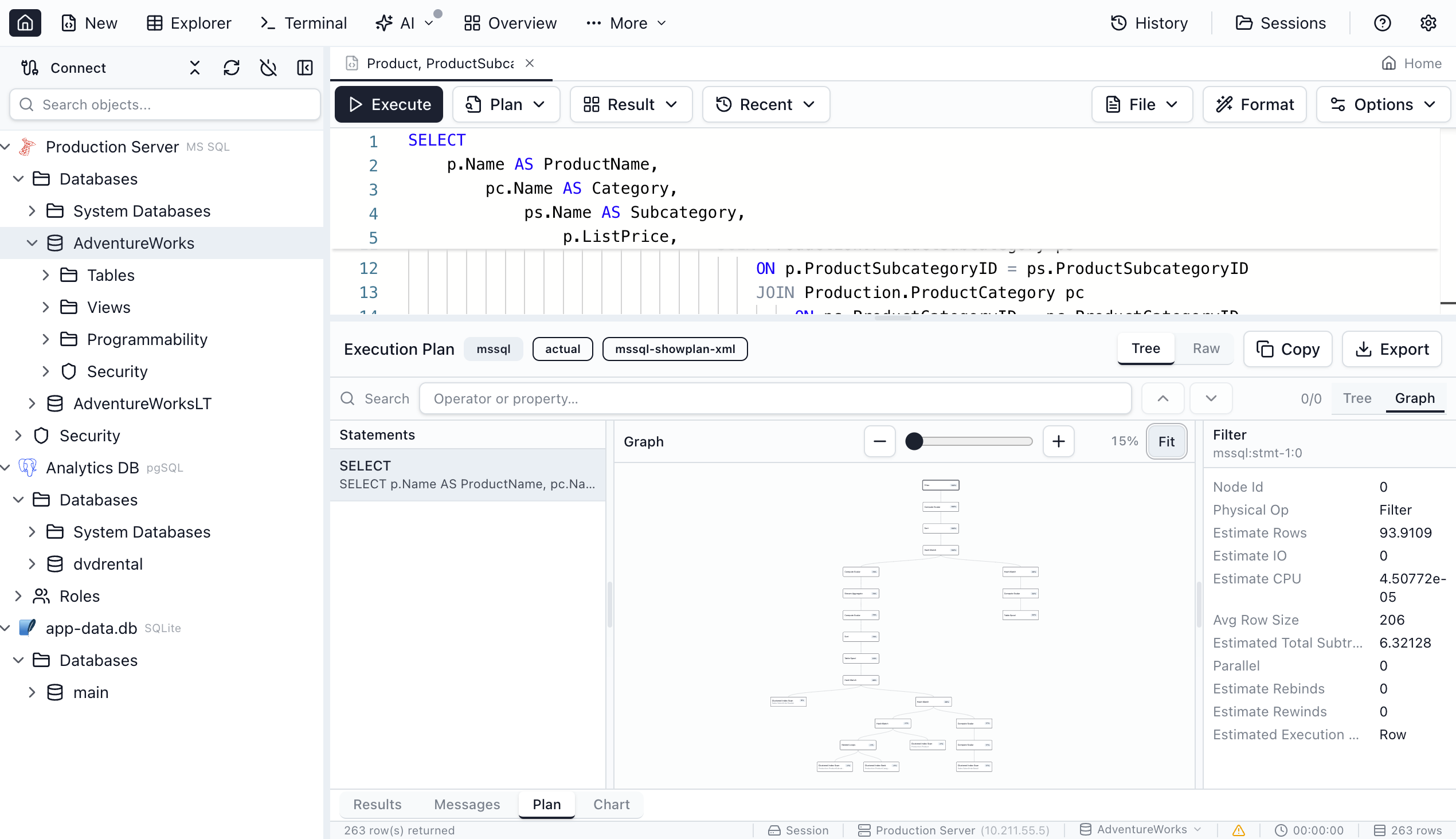
Deep Query Analysis
Understand exactly how your queries execute with detailed execution plan visualization.
- Tree and graph view modes
- Operator cost breakdown
- Plan comparison side-by-side
- Import/export for team sharing
- Search and highlight expensive operations
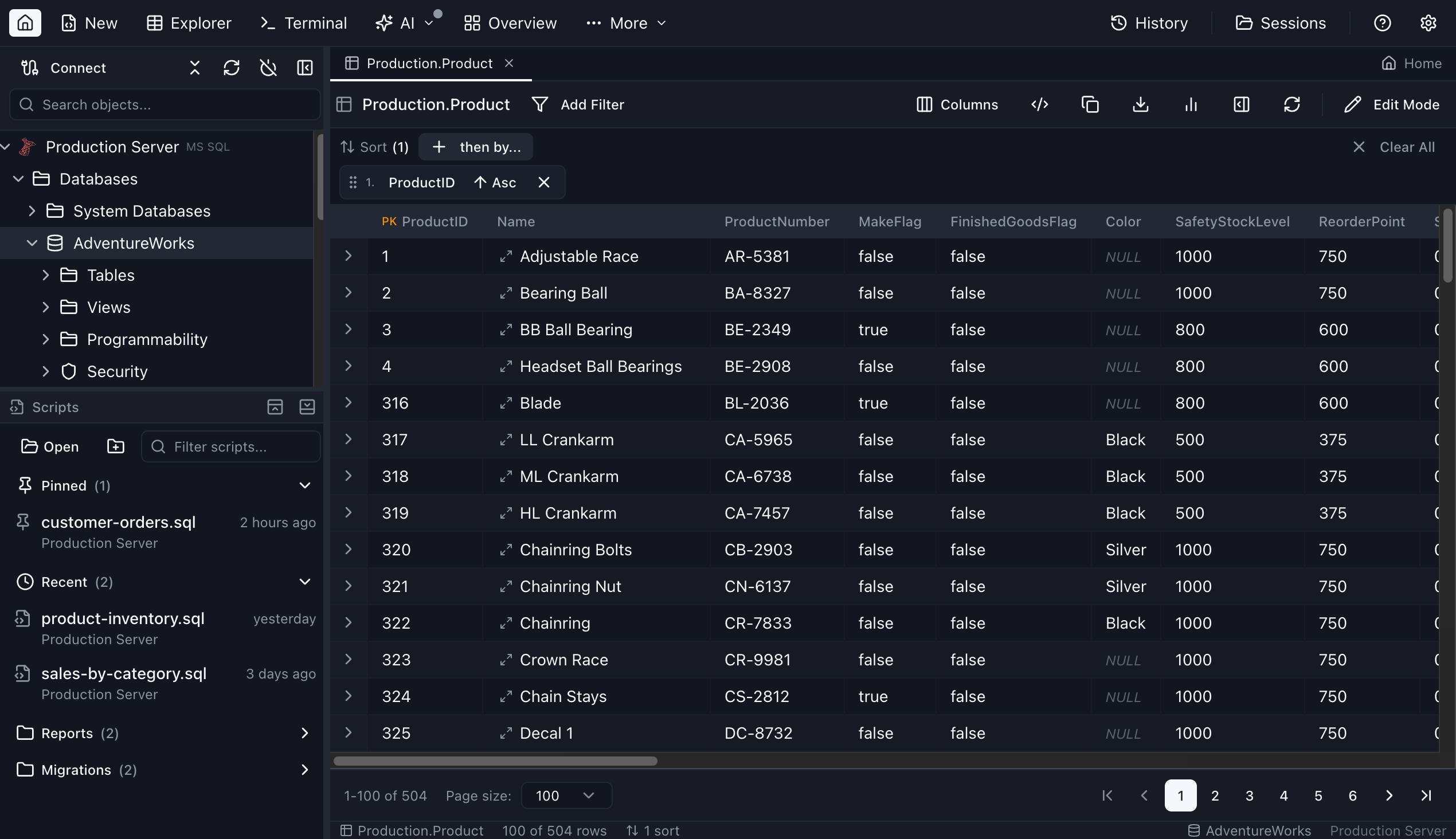
Powerful Data Exploration
Browse, filter, and edit your data with a spreadsheet-like interface designed for databases.
- Advanced filtering and sorting
- Inline cell editing with validation
- Foreign key lookup popovers
- Row details panel with JSON preview
- Multi-format data export
Simple, Transparent Pricing
Start free with a 14-day Pro trial. No credit card required.
Personal
- Unlimited SQL Server connections
- Unlimited PostgreSQL connections
- Unlimited MySQL connections
- IntelliSense & auto-complete
- Query execution & results
- Table explorer & data editing
- Basic charting
- AI Workspace sync
- Execution plan analysis
- Priority support
Pro Monthly
- Everything in Personal
- AI Workspace sync
- Execution plan visualization
- Advanced charting & export
- Schema comparison tools
- Priority email support
- Commercial use license
Subscribe within the app after downloading
Pro Yearly
- Everything in Personal
- AI Workspace sync
- Execution plan visualization
- Advanced charting & export
- Schema comparison tools
- Priority email support
- Commercial use license
Subscribe within the app after downloading
All plans include a 14-day free trial of Pro features. Download now to start your trial.
Frequently Asked Questions
Everything you need to know about Jam SQL Studio and migrating from Azure Data Studio.
What is happening to Azure Data Studio?
Microsoft announced on February 6, 2025 that Azure Data Studio will be retired on February 28, 2026. Microsoft is recommending users migrate to the VS Code MSSQL extension or SQL Server Management Studio (SSMS).
However, these alternatives lack many features that made Azure Data Studio popular, such as built-in charting, cross-platform support (for SSMS), and a modern UI. Jam SQL Studio is designed to be a complete replacement with additional features like AI agent support.
Is Jam SQL Studio free?
Yes! Jam SQL Studio offers a free Personal tier that includes unlimited SQL Server and PostgreSQL connections, IntelliSense, query execution, table explorer, and basic charting — forever free with no account required.
Pro features like AI Workspace sync, execution plan visualization, and schema comparison are available through monthly ($9.99/mo) or annual ($99/yr) subscriptions. All new users get a 14-day free trial of Pro features.
Does Jam SQL Studio work on Mac, Windows, and Linux?
Yes! Jam SQL Studio is a cross-platform desktop application available for macOS, Windows, and Linux. Unlike SSMS which only runs on Windows, you can use Jam SQL Studio on any major operating system with the same features and experience.
We also offer a browser-based demo that runs SQLite directly in your browser — great for trying out the interface before downloading.
What databases does Jam SQL Studio support?
Jam SQL Studio currently supports:
- Microsoft SQL Server — Full support including Azure SQL Database and Managed Instance
- PostgreSQL — Including Azure Database for PostgreSQL and Amazon RDS
- MySQL — MySQL 5.7+ and 8.x, including Amazon RDS and Azure Database for MySQL
- MariaDB — MariaDB 10.x and 11.x
- SQLite — Local file-based databases
All database engines include IntelliSense, query execution, table explorer, and data export capabilities.
How does Jam SQL Studio compare to SSMS?
SQL Server Management Studio (SSMS) is a powerful tool but has limitations. Jam SQL Studio offers several advantages:
- Cross-platform SQL client — Works on Mac and Linux, not just Windows
- Modern UI — Clean, responsive interface with dark mode
- AI Agent Support — First-class integration with AI coding assistants
- Built-in Charting — Create visualizations directly from query results
- PostgreSQL Support — Connect to PostgreSQL alongside SQL Server
Jam SQL Studio includes execution plans, schema compare, and data compare features that SSMS users rely on.
Does Jam SQL Studio support AI coding assistants?
Yes. Jam SQL Studio supports AI coding assistants in three complementary ways:
- Claude Code-powered AI Chat Sidebar — A built-in chat panel in the Query Editor and SQL Notebooks powered by your locally installed Claude Code CLI. No extra subscription — reuses your existing Claude Code setup. Ask questions, get SQL suggestions, and let Claude interact with your database.
- AI Workspace (inside the app) — Query tabs sync to
.sqlfiles, plus auto-generated context files (schema, history, results). Iterate with AI agents in the integrated terminal. - MCP Tooling (outside the app) — Jam SQL Studio runs a local MCP server (Model Context Protocol) so external AI apps can safely list connections (no passwords) and execute policy-controlled queries.
Works with Claude Code, Claude Desktop, OpenCode, Codex CLI, GitHub Copilot, and other AI agents.
Does Jam SQL Studio support MCP (Model Context Protocol)?
Yes. Jam SQL Studio can run a local MCP server (Model Context Protocol) so AI agents can list saved connections (no passwords) and execute strict read-only queries (SELECT/EXPLAIN).
The MCP endpoint is localhost-only and protected with a bearer token, so it stays on your machine.
Can I import my Azure Data Studio settings?
Currently, Jam SQL Studio does not have an automatic import feature for Azure Data Studio settings. However, migrating is straightforward:
- Connections — Re-create your server connections (one-time setup)
- Queries — Copy your .sql files to any folder and open them
- Keyboard Shortcuts — Jam SQL Studio uses familiar shortcuts from SSMS and Azure Data Studio
We're considering an import wizard for a future release based on user feedback.
How do I get support?
For support, contact us at [email protected].
- Personal Tier — Email support for all users
- Pro Subscribers — Priority email support with faster response times
- Enterprise — Dedicated account management and custom SLAs available
Download Jam SQL Studio
Start your free trial. Available for all major platforms.
Comparing SQL Tools?
See how Jam SQL Studio compares to other popular database IDEs.
vs Azure Data Studio
ADS is retiring Feb 28, 2026. Migrate to Jam SQL Studio before the deadline.
Migration Guide →vs DBeaver
A modern, lightweight alternative with AI agent support and faster startup times.
See Comparison →vs SSMS
Cross-platform SQL Server IDE for Mac, Windows, and Linux users.
See Comparison →vs DataGrip
Free alternative with AI support and professional-grade features.
Compare →vs HeidiSQL
Cross-platform alternative for HeidiSQL users who need Mac or Linux support.
Compare →vs Navicat
Free alternative with modern UI and AI-powered development.
Compare →vs TablePlus
Execution plans, schema compare, and AI support beyond basic data browsing.
Compare →vs Beekeeper Studio
Pro-grade SQL tools with AI agent support for developers who need more.
Compare →