Jam SQL Studio is designed as an AI-native SQL IDE. There are three ways to leverage AI with your databases: the built-in AI Chat Sidebar for conversational assistance right in the editor, the AI Workspace for file-backed collaboration with AI agents, and MCP Server for external AI tools to safely interact with your databases.
Quick Start: Connect Your AI Tool
Get your AI coding assistant connected to Jam SQL Studio in under 2 minutes. Choose your tool below:
Claude Code CLI
Claude Code can connect to Jam SQL Studio via MCP to query your databases directly from the terminal.
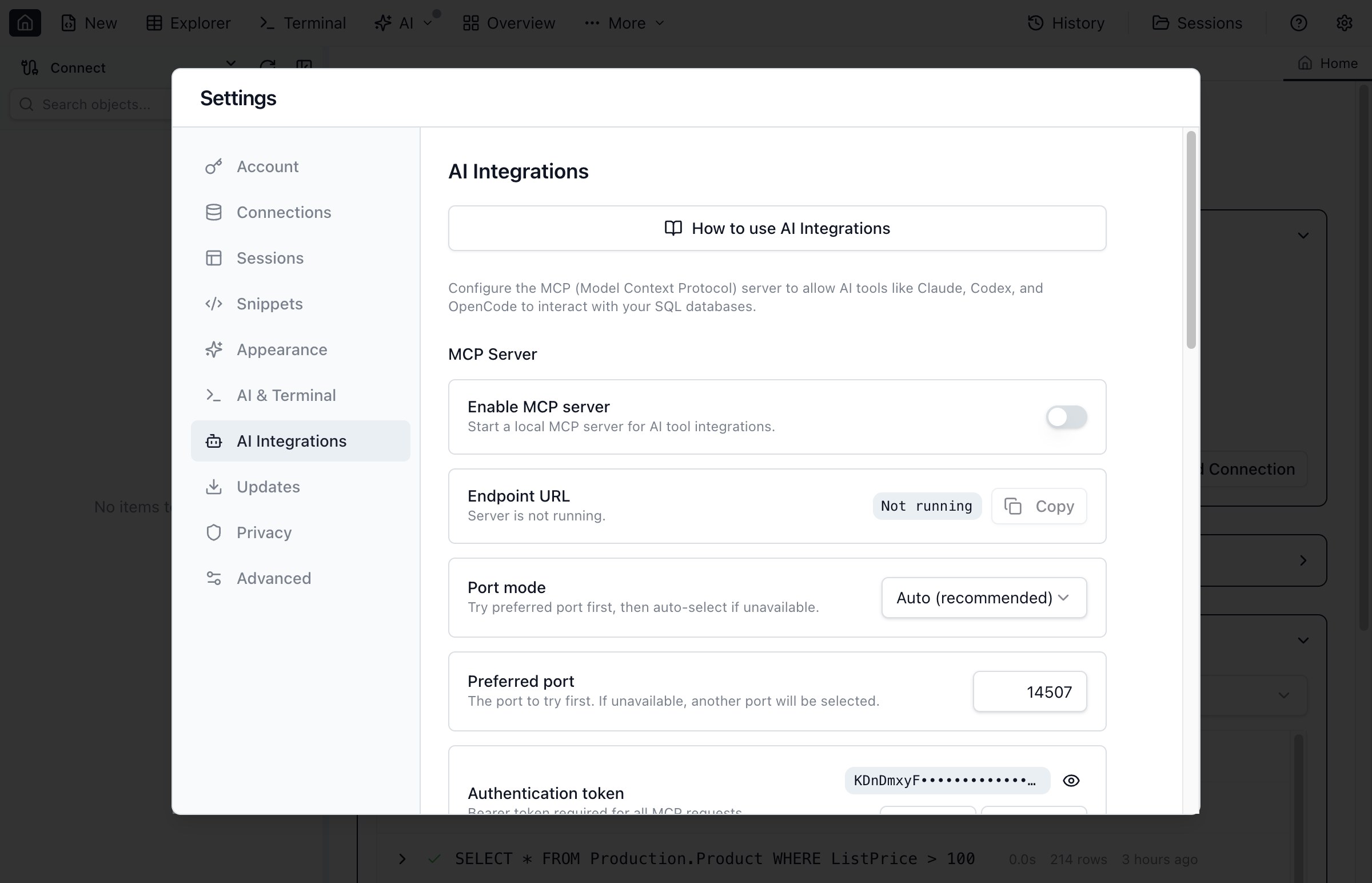
Step 1: Enable MCP Server in Jam SQL Studio
Open Jam SQL Studio
Go to Settings (gear icon) → AI Integrations tab
Toggle Enable MCP server to ON
Copy the Endpoint URL (e.g., http://127.0.0.1:14507/mcp)
Click Show next to the token, then Copy the token
Step 2: Configure Claude Code
You have two options for configuring MCP servers:
Option A: User scope (available across all projects) — create or edit ~/.claude.json:
Inside Codex, type /mcp to see active MCP servers.
Troubleshooting: If Jam SQL's AI Chat Sidebar shows unexpected argument '--json', your Codex CLI is incompatible with session resume. Update Codex CLI and confirm codex exec resume --help lists --json.
Claude Desktop(Advanced - Requires Node 20+)
Note: Claude Desktop only supports stdio transport, not HTTP. This requires using the mcp-remote proxy which needs Node.js 20+ installed separately.
⚠️ Known Limitation: Claude Desktop ships with Node.js 18, but mcp-remote requires Node.js 20+. You must have Node 20+ installed and configure Claude Desktop to use it.
Step 1: Verify Node.js 20+
Check your Node version:
node --version # Must be v20.0.0 or higher
If you don't have Node 20+, install it via nodejs.org or a version manager like nvm.
Use any MCP client library or make direct HTTP calls to the endpoint. The server implements the standard Model Context Protocol specification.
Troubleshooting
Connection refused? Make sure Jam SQL Studio is running and MCP server is enabled in Settings.
401 Unauthorized? Double-check your token — it must match exactly (no extra spaces).
Port mismatch? The port number may vary. Copy the endpoint URL from Jam SQL Studio settings (or click the MCP row in the AI menu — it shows 127.0.0.1:<port>).
AI Chat Sidebar
The AI Chat Sidebar brings conversational AI directly into the Query Editor and SQL Notebooks. Click the AI button in the toolbar to open a chat panel alongside your work.
No extra subscription required. The AI Chat Sidebar uses your locally installed AI CLI. Jam SQL Studio reuses your existing CLI setup — it does not proxy, bill, or require any additional AI subscription or API key configuration.
Supported AI Backends
The AI Chat Sidebar supports two AI backends. Install either or both — Jam SQL auto-detects available CLIs:
Claude CLI (Claude Code) — Anthropic's AI coding assistant
When both CLIs are installed, a segmented control in the sidebar header lets you switch between them. Your preference is saved and applied to new tabs automatically.
How It Works
Install Claude CLI or Codex CLI (or both)
Open a Query Editor or SQL Notebook
Click the AI button in the toolbar to open the chat sidebar
Ask your AI about your SQL — it can read your editor content, run queries, and update your code
Features
Database-aware — the AI auto-connects to the MCP server for schema introspection and query execution
Editor integration — the AI can update your SQL directly in the editor
Notebook support — In SQL Notebooks, the AI understands your cell structure and can add, edit, and execute cells on your behalf
@-mentions — type @ to reference database objects from the Object Explorer
Streaming responses — see answers appear in real-time with inline tool call indicators
Session continuity — conversations persist across tab switches and session restores
Multi-backend — switch between Claude and Codex with a single click; each manages its own authentication
Zero configuration — if a supported CLI is installed, the sidebar auto-connects to the MCP server. No API keys to paste into Jam SQL.
Privacy — all communication happens locally between the app and the CLI binary on your machine
Understanding the Three Approaches
Jam SQL Studio offers flexibility in how you work with AI. Depending on your workflow, you might prefer one approach or combine them:
AI Chat Sidebar vs AI Workspace vs MCP Server
Aspect
AI Chat Sidebar
AI Workspace
MCP Server
Where it runs
Right panel in Query Editor / SQL Notebook
Inside Jam SQL Studio (integrated terminal)
External AI tools (Claude Desktop, Codex CLI, etc.)
Best for
Quick questions, SQL help, interactive editing
File-backed iteration with AI agents
Complex analysis, multi-step tasks from external tools
MCP resources: live snapshots of tabs, editors, results
Configuration
Install Claude CLI or Codex CLI
Enable AI Workspace in Settings
Enable MCP Server, copy endpoint + token to AI tool
AI Workspace (Inside the App)
The AI Workspace provides file-backed query tabs that sync bidirectionally with .sql files. Combined with the integrated terminal, this enables AI agents (like Claude Code) to edit your queries in real-time.
Pro Feature: AI Workspace sync features (file sync, schema export, context files) require Pro. The AI Terminal itself is free for all users.
AI Workspace Features
Bidirectional file sync — Query tabs sync to .sql files; AI edits the file, your tab updates automatically
Auto-generated context — CLAUDE.md and AGENTS.md contain connection info, schema summary, and recent execution results
Schema export — Detailed table/view/procedure definitions exported to .schema/ for granular @table mentions
Results history — Query results saved to .history/ so AI agents can analyze output and iterate
Knowledge pack — App capabilities and how-to documentation in .knowledge/
MCP environment variables — Terminal sessions include JAM_SQL_MCP_ENDPOINT and JAM_SQL_MCP_TOKEN for direct MCP access
Auto-generated MCP configs — Config files for popular AI tools (.mcp.json, .cursor/mcp.json, opencode.json, .vscode/mcp.json) are automatically created with endpoint and token
Zero-Config AI Tool Setup
When you open an AI Workspace terminal, MCP configuration files are automatically generated in the workspace directory. AI agents like Claude Code, Cursor, and OpenCode will automatically discover and connect to the MCP server without manual configuration. These files are added to .gitignore to prevent accidental token commits.
How to Use AI Workspace
Open Jam SQL Studio and go to Settings → AI Workspace
Enable AI Workspace and select or create a workspace folder
Open the integrated terminal (View → Terminal or click Terminal in the sidebar)
Run your AI coding agent (e.g., claude for Claude Code)
The agent can read/edit .sql files, and your query tabs update in real-time
The AI Workspace settings panel showing workspace folder configuration and sync options.
Pro Tip: Use @ Mentions
With schema export enabled, you can use @Customers or @Orders in your prompts to reference specific table definitions from the .schema/ folder.
MCP Server (Outside the App)
Jam SQL Studio runs a local MCP server (Model Context Protocol) that external AI tools can use to list connections, execute queries, control the UI, and read live app state — all under configurable safety policies.
MCP Server Capabilities
The MCP server exposes tools and resources for connections, queries, UI control, and app context. For a live, accurate list, read sql-studio://knowledge/app_capabilities.
Connection & Query Tools
connections_list — List saved connections (IDs, names, engines, servers — no secrets)
connections_connect — Connect the app to a saved connection (settings-gated; disabled by default)
Then set export JAM_SQL_MCP_TOKEN="YOUR_TOKEN_HERE" in your shell profile.
Security Model
The MCP server binds to 127.0.0.1 only (localhost). All requests require a valid Bearer token. Query execution is disabled by default; when enabled, Read-only mode enforces strict safe queries (SELECT, EXPLAIN, SHOW, PRAGMA only) and Confirm mode prompts you to approve each write query. Passwords are never exposed. Full audit logging of every tool call.
Permission Levels
Configure the AI policy in Settings to control what the MCP server can do:
Block (default) — No query execution; allows safe query-tab editing (open tab + set SQL text) and schema introspection
Confirm — Allow write queries only after in-app approval (each write prompts you)
Write Approval Flow (Confirm Mode)
When permission level is set to Confirm, AI agents can execute write queries (INSERT, UPDATE, DELETE, etc.) but only after you approve each one in an in-app dialog:
How It Works
AI agent submits a write query via query_execute
Jam SQL Studio shows an approval dialog with:
Query type badge (INSERT, UPDATE, DELETE, etc.)
Full SQL preview (syntax highlighted)
Connection and database context
60-second countdown timer
You choose: Approve to execute, or Deny to block
If no response within 60 seconds, the query is automatically denied
Result (success/denied) is returned to the AI agent
Write Approval Guardrails
Timeout protection: Queries auto-deny after 60 seconds if you don't respond
Full audit logging: Every write attempt (approved or denied) is logged with timestamp, query, and outcome
Per-connection override: Set permission level per connection (e.g., read-only on production, confirm on dev)
No batch writes: Multi-statement queries are always rejected, even in Confirm mode
Agent Capabilities
Some MCP tools are controlled by additional toggles in Settings → AI Integrations:
Allow AI to connect using saved connections — Off by default (uses saved credentials)
Allow AI screenshots — On by default (disable if you handle sensitive data)
jam-sql CLI
Jam SQL Studio ships with a Go-based CLI tool (jam-sql) that wraps the MCP server for quick terminal access:
# Check installation and MCP status
jam-sql doctor

# List saved connections
jam-sql connections

# Execute a query
jam-sql query -c production "SELECT * FROM users LIMIT 5"

# List available MCP tools and resources
jam-sql tools
jam-sql resources

# Call any MCP tool
jam-sql call ui_open_tab '{"type": "query"}'

# Read an MCP resource
jam-sql read sql-studio://context/tabs
Which Approach Should You Use?
All three approaches complement each other:
Use AI Chat Sidebar for quick, conversational assistance while writing queries or building notebooks. It's the fastest way to get AI help without leaving your editor.
Use AI Workspace when you want to iterate on queries with AI agents using the integrated terminal + file sync workflow.
Use MCP Server when you're working in an external AI tool (like Claude Desktop) and need to access your database connections and execute queries from outside the app.
Use all three for maximum flexibility — the sidebar for quick help, AI Workspace for file-backed collaboration, MCP for external tool integration.
Ready to Work with AI?
Download Jam SQL Studio and experience AI-native database tooling.