
Last updated: 2026-09-24
Getting Started
Welcome to Jam SQL Studio! This guide will walk you through installing the app, connecting to your first database, and running your first query. You'll be up and running in just a few minutes.
Step 1: Install Jam SQL Studio
Download Jam SQL Studio for your operating system and follow the installation instructions.
Download the installer
Visit the download page and select your platform. The download will start automatically.
Install the application
- macOS: Open the .dmg file and drag Jam SQL Studio to your Applications folder
- Windows: Run the .exe installer and follow the setup wizard
- Linux: Install the .deb, .rpm, or Arch package
Launch Jam SQL Studio
Open the application from your Applications folder (macOS), Start menu (Windows), or application launcher (Linux).
Auto-updates
Jam SQL Studio checks for updates automatically in the desktop app. You can also run a manual check in Settings → Updates. When an update has downloaded, a prompt offers Restart to update; if you close it instead, the update installs the next time you quit the app. On macOS, closing the window does not quit the app; when you click the Dock icon again, Jam SQL Studio installs the downloaded update and reopens on the new version. Run the app from your Applications folder — launched straight from the downloaded disk image it cannot update itself, and Jam SQL Studio will offer a one-click move to Applications. If auto-updating keeps failing (for example on a restricted network), the app shows a small notice linking to a manual download.
Privacy & analytics
Jam SQL Studio can send anonymous usage analytics to help improve the app. If a crash occurs, you can optionally send a sanitized crash report from the crash dialog. If the window stops responding, the app shows a dialog with Wait and Reload, and the report about that hang follows your Crash and diagnostic reports setting: sent automatically on Always send automatically, offered as a checkbox on that dialog on Ask me before sending a report, and not sent at all on Never send. You can turn analytics off in Settings → Privacy. Reports never include SQL queries, database content, or connection strings.

No database handy? Explore the bundled sample
Jam SQL Studio ships with a copy of the classic Chinook music-store database (11 tables of artists, albums, tracks, and invoices) so you can try the app before connecting anything of your own. On the start page, pick Explore a sample database — or run Open Sample Database from the command palette (Cmd+Shift+P / Ctrl+Shift+P) at any time.
One click opens a query tab with a ready-made query already executed against a real local SQLite file. It's your private copy — edit rows, drop tables, experiment freely; your own databases are never involved. Everything you see in the docs below (Table Explorer, Schema Overview, execution plans, exports) works on the sample too.
Step 2: Create Your First Connection
Connect to a SQL Server, PostgreSQL, MySQL, Oracle, or SQLite database to start exploring your data. Already set up in another tool? If Jam SQL Studio finds saved connections from DBeaver, SSMS, VS Code, Azure Data Studio, or a dozen other sources on this machine, the start page offers to import them — and the New Connection dialog offers the same import as Import from another tool. Coming from Azure Data Studio? Jam SQL Studio can import your saved ADS connections in one click instead. Running your database in Docker? Click Detect local databases to find local containers and add them with credentials read from the container environment.
Click "New Connection" and choose an engine
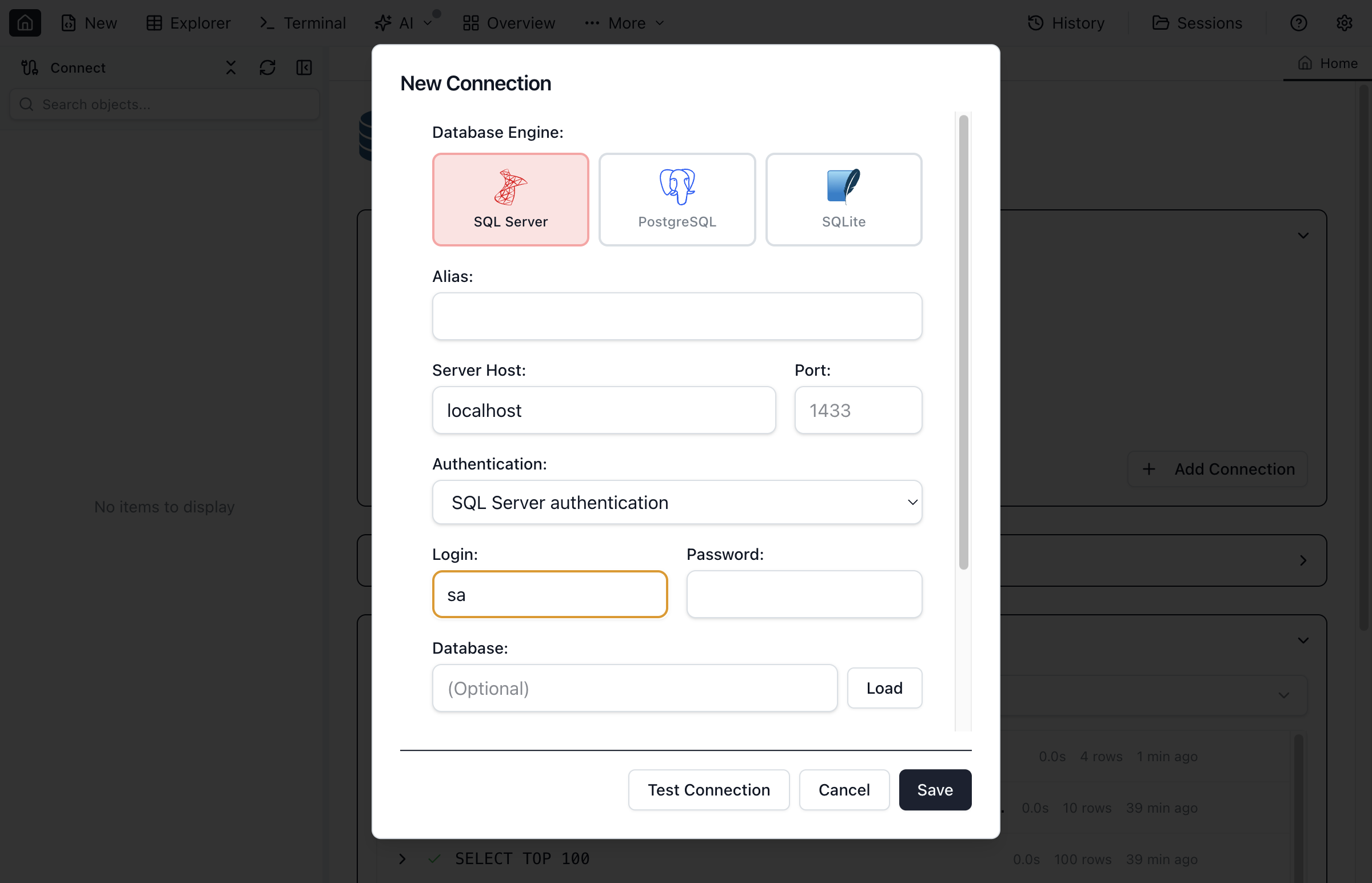
In the sidebar, click the + New Connection button. The dialog lists the engines: click SQL Server (or type in the filter and press Enter) to open its form. Creating a Connection describes the dialog.
Enter server details
- Server: Your SQL Server hostname (e.g., localhost, server.example.com, or 192.168.1.100)
- Authentication: Choose SQL Server authentication or Windows authentication
- Login and Password: Enter your credentials (for SQL Server authentication)
- Database: Optionally specify a default database
Test and save
Click Test connection to verify your settings, then Save to store the connection for future use.
Connection Tips
For local development, use localhost or . as the server name. For SQL Server Express, try localhost\SQLEXPRESS. Make sure TCP/IP is enabled in SQL Server Configuration Manager.
Step 3: Run Your First Query
Now that you're connected, let's run a simple query to explore your data. On your very first connection, Jam SQL Studio gives you a head start automatically — it opens Table Explorer on a table from your database (or a prefilled starter query) so you see results right away, with a one-time hint pointing you at New Query for custom SQL.
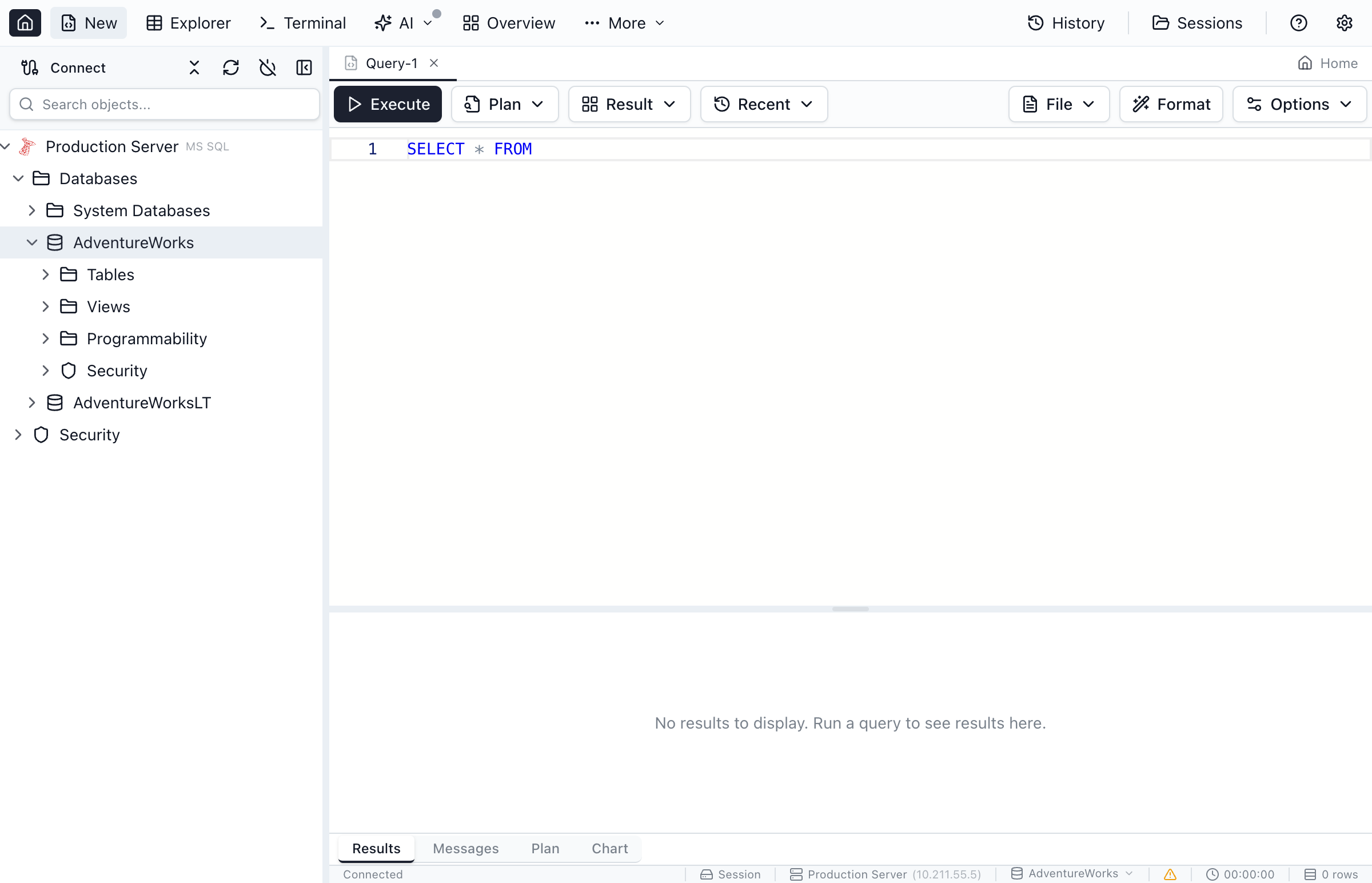
Open a new query tab
Click New Query in the toolbar.
Write your SQL
Type a query in the editor. For example:
SELECT TOP 10 * FROM sys.tables ORDER BY name;Execute the query
Press F5 or Cmd/Ctrl+Enter, or click the Execute button. Results appear in the grid below.
Pinning Objects in the Sidebar
Once you're connected, you can pin the databases, schema containers, folders (Tables, Views, Stored Procedures, Functions), and individual objects you use most often to a list at the top of your connection — above Databases. This gives you one-click access without traversing the tree.
- Hover any pinnable row and click the small outline pin icon on the right.
- The icon becomes a filled pin that stays visible. Click it again — on the original row or the pinned copy at the top — to unpin.
- Pinned rows from the same database are grouped inside a subtle tinted "database area" with the database name printed in a tiny uppercase header above. That keeps two Tables folders pinned from different databases visually distinct without needing a per-row chip.
- Pinned rows are expandable shortcuts — click the chevron and they drill into the same children as the canonical tree (a pinned database expands into its object-type folders, a pinned Tables folder lists its tables, a pinned table opens its Columns / Keys / Indexes subfolders). Stored procedures and functions stay leaves. Expanded children render inside the same tinted area as the pinned parent.
- Hover a pinned row to reveal a grip handle on the left, then drag to reorder. Dragging a pin from one database into the middle of another database's pins is allowed — the pin keeps its database, and the visual splits into separate areas so the grouping always matches what's pinned.
- When you have one or more pins, the Databases folder no longer auto-expands on connect — the pinned area is the starting point. Click Databases any time to drill into the full schema.
- The sidebar search ignores the pinned shortcuts so a pinned table never shows up twice in your results (the canonical row under Databases is the one match).
- Pinned items appear lightly greyed when the connection is disconnected, and more strongly greyed (with a tooltip) when the underlying object is no longer present in the database.
Pins are stored per connection on disk as part of your connection's MetaInfo, so they survive app restarts and stay scoped to the connection they belong to.
Customizing the Toolbar
The toolbar ships with the actions most people reach for, and keeps the rest in More ▾. If your day revolves around something in that menu — Schema Compare, Table Designer, New Notebook — you can move it onto the bar itself in Settings → UI → Toolbar.
- Put an item on the bar — tick it in the In the More ▾ menu list. It moves up into the toolbar row.
- Reorder — drag the handle on any row in the On the toolbar list. The row holds up to nine buttons.
- Hide something you never use — click the eye icon. Hidden items leave the toolbar and the More ▾ menu. Most of them are still available from the app menu and the command palette (
Cmd/Ctrl+K); three — Data Profile, Database Meta Info and Package Explorer — have no menu or palette entry and are reached by right-clicking a table or database in the Object Explorer instead. Everything hidden is listed at the bottom of the panel with a Restore button. - Reset to defaults — one button, any time.
Some buttons only apply to certain engines — the DBA tools, Package Explorer, Notebooks. Those rows are marked Not available now when no connection that supports them is open. You can still put them on the toolbar; they simply appear once such a connection is.
Home always stays first and More ▾ always stays last, and neither can be hidden — hiding More ▾ would put everything inside it out of reach. Until you change something, the toolbar simply follows the shipped default, so improvements to it still reach you; once you have customized it, buttons added in later releases still appear.
Interface Scale
Settings → UI → Appearance → Interface scale sets how large the whole app is drawn — text, icons and spacing together, not just the font. The steps run from 80% to 125%, and the change applies straight away.
On Windows it starts at 90%. Jam SQL Studio's proportions follow the macOS convention, where the system font is larger, so at 100% the app reads bigger than the windows beside it on Windows. macOS and Linux start at 100%. Your choice is stored per machine and applies from the next launch onwards, and Windows display scaling still applies on top of it, exactly as it does for every other app.
Beta Features
Some parts of Jam SQL Studio are still moving — they work, but their behaviour can change between releases. Each one is a checkbox in Settings → Beta Features, so you decide which of them are part of your app.
One is off until you turn it on: Dashboards — the Dashboards toolbar button, the Object Explorer node, and the Pin to dashboard action in query results, Table Explorer, charts, and the Session Browser.
The rest are on unless you turn them off: the Visual Query Editor (on by default since 1.5.3 — the SQL | Visual switch on the Query Editor toolbar, More → Visual Query Editor, Cmd/Ctrl+Shift+V, and the pencil that opens the compact editor at your cursor), and the features that already carried a Beta badge in the app: Database Blueprint, Cross-Engine Migration, Data Import, PL/SQL Debugger, Agent Jobs, and Package Explorer.
Turning a feature off removes its toolbar button, menu items, keyboard shortcuts, command-palette entries, and Object Explorer nodes. It never deletes anything: tabs you already have open keep working, saved dashboards and blueprint folders stay on disk, and everything comes back the moment you tick the box again. Reset to defaults clears every choice at once.
Moving Your Settings to Another Machine
Settings → Backup & Transfer writes your preferences to a plain JSON file you can carry to a new machine, keep before a reinstall, or hand to a teammate so everyone works with the same setup.
Tick what you want to include, then click Export settings…:
- Appearance & layout — theme, editor color scheme (including custom colors), tab orientation, sidebar and terminal panel sizes, grid detail preferences.
- Editor & execution — word wrap, tab size, the inline Execute/Peek bar, IntelliSense toggles, query timeout.
- AI & terminal — AI workspace, execution-history and agent-context preferences.
- Spatial maps — your basemap preference.
- Toolbar layout — your customized toolbar. Importing it replaces the toolbar on the target machine rather than blending with it.
- Keyboard shortcuts — your shortcut scheme and the shortcuts you changed. Importing replaces your shortcuts on the target machine.
- SQL snippets — off by default, because snippet bodies are SQL you wrote.
- Database meta info — off by default. This one can contain data, not just definitions; see the caveat below.
What is never in the file. Saved connections, passwords, SSH keys, licence keys, sign-in tokens, your sessions and your query history are never written to a settings backup — not even encrypted. The file is plain JSON, so you can open it and check before you share it. Saved connections have their own separate export. The one group that can carry data out of your database is Database meta info, which is off by default and described below.
Analytics and crash-reporting choices are also left out on purpose. Those are consent decisions, and inheriting someone else's is not something an import should do for you.
Importing. Click Choose backup file… to read a file. Nothing changes yet — you first see exactly which groups the file contains, and a note about anything the file holds that this version doesn't recognise. Tick the groups you want and click Import selected. Settings take effect immediately; there is no restart.
If the file is not a Jam SQL Studio backup, was written by a newer version, or has been hand-edited into an inconsistent state, the import stops and tells you why without changing a single setting.
Database meta info caveat. Two things worth knowing before you tick this one.
First, it is not only declarations. Alongside your loose foreign keys and JSON, enum and spatial column declarations, this group carries their caches — and those caches hold up to 200 distinct values sampled from each enum column, plus JSON paths derived from documents actually stored in your tables. If a column holds anything you would not put in a file you share, leave this group unticked.
Second, these records are stored per connection, keyed by an id generated on the machine that created the connection. Importing them onto a machine whose connections were set up separately will bring the records across, but they will stay dormant until they sit alongside connections with matching ids. If you're cloning a whole setup, import connections first.
Moving your saved connections
Saved connections are a separate file with their own rules, in the same Settings → Backup & Transfer section. Tick the connections you want and click Export connections….
By default the file contains no passwords. It lists server names, ports, database names, usernames and any SSH bastion — in plain text, on purpose, so you can open it and read exactly what you are about to share.
Including passwords. Tick Include saved passwords, protected by a passphrase and enter a passphrase twice. Your saved passwords and SSH secrets are then encrypted into the file with a key derived from that passphrase (scrypt, then AES-256-GCM). They are never written in plain text, and they are never written as your machine's own encrypted blobs either — those are tied to this machine's keychain and would be useless anywhere else.
There is no recovery and no hint stored in the file. If you lose the passphrase, the passwords in that backup are gone — keep it somewhere other than next to the file. Everything else in the export still opens without it.
Importing. Click Choose connections file…. Nothing is saved yet: you first see every connection the file offers, with the exact host and port it will connect to and the SSH bastion it would route through, if any. Connections you already have start unticked. If the file includes passwords, a passphrase box appears — leave it blank to import the connections without them and be prompted on first connect.
A wrong passphrase imports nothing at all, so you can simply retype it and try again. The same happens if the file was edited after it was exported: the encrypted passwords are cryptographically tied to the settings that decide where each credential goes, how it travels and what it may do — the server and port, the database and username, any SSH bastion, the TLS and certificate-validation flags, the authentication mode, and Oracle's TNS and wallet locations. Change any of them and the file will not open. Cosmetic edits — renaming a connection, changing its colour, reformatting the JSON — are fine.
The review list also shows you those settings, because a file that simply arrives with certificate checking switched off was never tampered with and is still worth noticing. Every connection that goes over a network shows how it protects your password, and anything short of verified TLS — no encryption, an unverified certificate, or a transport Jam SQL Studio cannot determine — is called out in amber next to the connection. SQLite databases are local files and show no transport line. Imported connections are always added alongside your existing ones, never merged over them, and nothing connects automatically.
A no-passwords export is also readable by the ordinary Import… menu in Manage Connections, listed as Jam SQL Studio export — the same place you would import from DBeaver or Azure Data Studio. That route never restores passwords, whatever the file contains.
Frequently asked questions
How do I install Jam SQL Studio?
Download Jam SQL Studio from jamsql.com for your operating system (macOS, Windows, or Linux). On macOS, drag to Applications. On Windows, run the installer. On Linux, install the .deb, .rpm, or Arch package. No account required.
How do I connect to a SQL Server database?
Click the + button in the connections panel, select SQL Server as the engine type, enter your server address (e.g., localhost or myserver.database.windows.net), choose your authentication method (SQL Server auth, Windows auth, or Entra ID), and click Connect.
How do I run my first query?
After connecting to a database, click New Query in the toolbar to open the query editor. Type your SQL (e.g., SELECT * FROM sys.tables) and press F5 or Cmd/Ctrl+Enter to execute. Results appear in the panel below.
Is Jam SQL Studio free to use?
Yes, the Personal tier is free forever and includes unlimited SQL Server and PostgreSQL connections, IntelliSense, query execution, table explorer, and basic charting, and it needs no account. Pro features are available on a 14-day free trial: sign in inside the app to start it, no credit card required.
What databases does Jam SQL Studio support?
Jam SQL Studio supports Microsoft SQL Server (including Azure SQL), PostgreSQL (including Azure Database for PostgreSQL and Amazon RDS), MySQL (including MariaDB), Oracle Database (12.2+, 19c, 21c, 23ai), and SQLite. All engines include query execution and data export.
What's Next?
Now that you've connected and run your first query, explore more features:
Recommended Next Steps
- Explore the database - Use the sidebar to browse tables, views, and procedures
- Try Schema Compare - Compare schemas between two databases
- Analyze queries - View execution plans to optimize performance
- Organize scripts - Use the Scripts panel to pin and reopen .sql files
- Set up AI - Enable AI Workspace or MCP for AI-assisted development
Ready for More?
Explore the full documentation to learn about advanced features.