
Last updated: 2026-09-28
Query Editor
Write, execute, and analyze SQL queries with Jam SQL Studio's powerful query editor. Get IntelliSense suggestions, view multiple result sets, analyze execution plans, edit results inline (UPDATE), and export results to various formats.
Writing Queries
The query editor provides a full-featured SQL editing experience with syntax highlighting and intelligent code completion.
Query a table from a blank line
With the Visual Query Editor beta on, a blank line shows a small table-with-plus glyph in the gutter (or a Query a table pill when the inline run bar is on). It opens a searchable picker of the database's tables and views; Enter writes a capped SELECT * for the pick, runs it, and opens the compact visual editor so filters, sorting, and column selection are a click away. See Start from a table.
Starter query on your first connection
On a brand-new install, if your first connection has no obvious table to browse, Jam SQL Studio opens a query tab prefilled with a short, dialect-correct starter query (a capped SELECT using the right TOP, LIMIT or FETCH FIRST for your engine) plus a comment reminding you of the run shortcut. Nothing is executed for you — edit it and press Cmd/Ctrl + E when you are ready. When a suitable table is found, you land in Table Explorer instead.
IntelliSense and Autocomplete
As you type, Jam SQL Studio suggests relevant completions based on your database schema and SQL context:
- Table names - Suggested after FROM, JOIN, INSERT INTO, UPDATE. An unqualified name resolves the way the server resolves it: along the
search_pathon PostgreSQL, in your login's default schema and thendboon SQL Server. When the PostgreSQLsearch_pathwas read from the server or set in the script, a table outside it supplies no columns to an unqualified name. On PostgreSQL,ordersand"Orders"are listed as two tables, each with its own columns - JOIN templates - After
JOIN, a table linked to one already in the query by a foreign key or a loose foreign key is offered with its wholeONcondition. Table and column names are quoted where the engine needs it ("Orders" o ON o."CustomerId" = c.id,dbo.[Order Details]). Tables whose names differ only by case each offer their own foreign-key JOINs, and an unqualified table follows the foreign keys of the table the server resolves it to - Column names - Suggested after SELECT, WHERE, ORDER BY, or when typing after a table alias
- SQL keywords - Context-aware keyword suggestions (FROM after SELECT, WHERE after FROM, etc.)
- Functions - Built-in SQL functions with parameter hints
- Values - Suggested wherever a scalar value belongs — comparison RHS (
WHERE column =,HAVING, joinON),BETWEENbounds,IN-list elements,UPDATE ... SET, andINSERT ... VALUES. Instead of flooding the list with every table and column, Jam SQL Studio ranks type-compatible columns first (a matching foreign-key column ranks highest), followed by relevant functions; declared enum values (read from the table the server resolves an unqualified name to),NULL, andDEFAULTare suggested insideVALUES, andRETURNING/OUTPUTonly offer the target table's own columns - Filter conditions - At the start of a
WHERE,HAVING, or joinONclause, and right afterAND/OR/NOT, Jam no longer offers table, view, schema, database, or CTE names (illegal at that position) — instead you get the in-scope columns for that clause with boolean-looking columns ranked first, table/alias qualifiers,EXISTS (SELECT …)/NOT EXISTS (SELECT …)/(SELECT …)snippets, a bareNOT, and boolean-returning functions ranked above other functions.TRUE/FALSEare suggested on PostgreSQL, MySQL, and SQLite (not SQL Server or Oracle)
Suggestions use the engine and schema of the connection the tab is bound to. If you switch the tab to another connection, for example from the connection picker in the status bar, IntelliSense reloads for that connection's engine and database.
Positions beyond the basic clauses
Suggestions are scoped to the slot the caret is in, not just to the surrounding clause. Inside a CREATE TABLE or ALTER TABLE, constraint lists (PRIMARY KEY (…), FOREIGN KEY (…), CHECK (…), PARTITION BY RANGE (…), functional index expressions) offer the table's own columns (a quoted target such as "Orders" is that table, not its lowercase sibling orders), including columns declared a few lines up in the same statement or added by an earlier ALTER TABLE … ADD COLUMN in the script. Data-type slots (DECLARE, routine parameters and RETURNS, TABLE OF, composite-type attributes, CAST(… AS) offer type names, with engine specifics such as trigger for a PostgreSQL trigger function, SYS_REFCURSOR for an Oracle RETURN, or OUTPUT after a T-SQL parameter type. Trigger definitions offer the target table's columns after UPDATE OF and the event keywords after AFTER; trigger bodies offer NEW / OLD (or inserted / deleted) row qualifiers. Savepoint names declared earlier complete at ROLLBACK TO and RELEASE; * is offered in select lists and RETURNING; window PARTITION BY / ORDER BY and WITHIN GROUP offer the FROM relation's columns; and closed vocabularies such as CONVERT style codes, DATE_TRUNC fields, sequence options and range-type options are offered where they belong. Tables, functions, domains and other user-defined types, and CREATE TABLE … AS SELECT results created earlier in the script complete before the schema cache has caught up, and typing the first letters of a name never changes what a position offers, only which entries match. On PostgreSQL the sequence-name string of nextval('…'), currval('…') and setval('…') lists the schema's sequences (including one the script's own CREATE SEQUENCE declares); a column's type slot after a schema qualifier lists that schema's domains, range types, composite types and enums instead of its tables (including one the script's own CREATE DOMAIN or CREATE TYPE declares a few lines up); REFRESH MATERIALIZED VIEW <schema>. lists only materialized views, while ALTER TABLE, DROP TABLE and TRUNCATE list only base tables; and inside an INSERT column list a SERIAL or identity column is ranked last rather than first, since the engine assigns its value — it stays offered, because an explicit value is still legal. In a MERGE … WHEN NOT MATCHED THEN INSERT … VALUES (…) on PostgreSQL, SQL Server and Oracle, the USING source's columns are offered in their qualified src.column form, and a name both the source and the target carry is offered only qualified — a bare reference to it would be ambiguous. On SQL Server an IDENTITY column and a computed column are ranked the same way inside an INSERT column list — below the columns you can insert into, still in the list, because a migration script that runs SET IDENTITY_INSERT … ON needs the name. Index names complete where an index rather than a table or column belongs: MySQL's FORCE INDEX (…), USE INDEX (…) and IGNORE INDEX (…) hints (including the FOR JOIN / FOR ORDER BY / FOR GROUP BY forms), ALTER TABLE … DROP INDEX, and DROP INDEX — narrowed to one table's indexes when the statement names a table, listed with their key columns either way. And the column declarations inside JSON_TABLE(… COLUMNS (…)), XMLTABLE(… COLUMNS (…)) and SQL Server's OPENJSON(…) WITH (…) are data-type slots, so the type names are offered there instead of the surrounding query's relations.
How suggestions are ranked
Suggestions are grouped into tiers by how likely they are at the caret (bound-alias columns and foreign-key join templates first, then other tables, then keywords and functions), and inside a tier the best prefix match wins. When several entries match equally, these tie-breakers decide the order:
- What the caret is editing leads. With the caret on an existing table, view, or CTE name in a
FROM,JOIN,UPDATE, orDELETEslot, that relation and its join template come first. Join templates that would reference an alias bound only later in the statement are moved down. - Already-written names stop leading. A name you have already typed in the current clause or list — a named procedure parameter, a value in an
IN (…)list, a column in aPRIMARY KEY (…)list — is still offered but no longer sits at the top. - What you accepted before floats up. Completions you accepted earlier on the same connection and database are ranked ahead of never-accepted siblings, most recent first. This memory is per app session and is not written to disk or shared.
- Context defaults. Inside a
CATCHblock on SQL Server theERROR_*functions lead the local variables; insideANY(),ALL(), andarray_*calls on PostgreSQL the array-typed columns lead; and the name slot ofCREATE VIEW,CREATE TABLE,CREATE PROCEDUREand friends lists schemas with the connection's default schema first. - Grouping narrows what a bare column may be. Once the statement has a
GROUP BY,HAVINGandORDER BYoffer the grouped columns, the select-list aliases and the aggregate functions — the remaining raw columns are dropped on PostgreSQL, SQL Server, and Oracle, where a bare reference to one is an error, and ranked down on MySQL and SQLite, where it is accepted but reads an arbitrary row of the group; inside an aggregate's parentheses (HAVING SUM() every column is offered again, and groupings Jam cannot read as a plain column list —GROUPING SETS,ROLLUP,CUBE,GROUP BY ALL, an expression with a function call — leave the list untouched.
Turning the suggestion popup off
If you would rather the popup never opened on its own, untick Settings → Advanced → SQL autocomplete → Suggest while typing. The editor then stops opening suggestions as you type (including after a dot or an opening parenthesis), and Ctrl+Space opens the list only when you ask for it. The change applies to every open editor immediately. This is separate from the Semantic completions safe-mode switch below, which keeps the popup but swaps the schema-aware list for plain word-based suggestions.
Turning IntelliSense off entirely
To switch off every language feature at once, untick Settings → Advanced → SQL autocomplete → Enable IntelliSense. With it off, the editor offers no suggestions (Ctrl+Space included), no hover tooltips, signature help, inlay hints or quick fixes, and no squiggles of any kind; markers already on screen are cleared. The finer options in that section are greyed out until you tick it again. Syntax highlighting, formatting and query execution are unaffected. To keep autocomplete but drop only the squiggles, use the Live diagnostics safe-mode switch described below.
Keyword case on insert
Configure how keywords are cased when you accept a suggestion in Settings → Advanced → SQL autocomplete → Keyword case on insert:
- Match what you type (default) - The case follows the prefix you typed (typing
selinsertsselect; typingSELinsertsSELECT). When the prefix has no clear case, the dominant case already used in the buffer wins. - UPPER CASE - Always insert keywords in upper case.
- lower case - Always insert keywords in lower case.
The setting only affects SQL keywords. Identifier casing (table and column names) is governed by the database engine and any quoting in your script.
Version-incompatible suggestions
Jam knows which keywords and built-in functions ship in each server version (for example, STRING_AGG needs SQL Server 2017+; MERGE needs PostgreSQL 15+; RETURNING needs SQLite 3.35+). Configure how Jam handles entries that don't fit the connection's reported version in Settings → Advanced → SQL autocomplete → Version-incompatible suggestions:
- Show with badges (default, recommended) - Every suggestion is visible. Items that aren't yet available carry a right-aligned tag like
≥ 2017and are demoted in the ranked list. Items removed at the current compatibility level render with a strikethrough and rank last. - Hide unavailable, badge deprecated - Drops "not yet available" suggestions completely. Removed-at-compat items remain visible with a strikethrough so paste-from-legacy workflows still inform.
- Show everything, no badges - The pre-versioning behavior. All suggestions are displayed at full weight regardless of server version.
The catalog covers MSSQL, PostgreSQL, MySQL, Oracle, and SQLite. Inline lints on already-written tokens (e.g. typing MERGE on PostgreSQL 13 surfaces an info-level squiggle explaining the version gate) follow the same setting.
T-SQL Procedural Intellisense (SQL Server)
SQL Server connections get a dedicated procedural-grammar layer that understands the bodies of stored procedures, functions, triggers, MERGE, OUTPUT clauses, and dynamic SQL. The layer activates the first time you connect to an MSSQL server in a session — non-MSSQL connections never pay the parse cost.
- Local declarations —
DECLARE @var INT,DECLARE @t TABLE (…),CREATE TABLE #temp (…), andDECLARE c CURSOR FOR …all surface their names with batch-scoped (or session-wide for##gtemp) visibility. - Trigger pseudo-tables — inside a trigger body,
inserted/deletedresolve against the trigger's target table. - OUTPUT clause + MERGE —
$ACTION,inserted.col, anddeleted.colresolve against the carrier statement's target table; MERGE WHEN-clauses know which action keyword (UPDATE/DELETE/INSERT) is legal. - TRY / CATCH — inside a CATCH block,
ERROR_MESSAGE(),ERROR_NUMBER(),ERROR_LINE(),ERROR_PROCEDURE(),ERROR_SEVERITY(),ERROR_STATE(), andXACT_STATE()are recognized; outside CATCH they are not promoted. - Dynamic SQL —
EXEC(@sql)andsp_executesqlcallsites are recognized so completion knows the difference between a statement-levelEXEC dbo.usp_Thingand a string-literal payload that is itself SQL. - GO batches — declarations are batch-scoped:
@vardeclared above aGOseparator does not leak into the next batch's completion list.
Performance budget: for a 1500-line procedural buffer, the suggestion list is delivered without blocking the UI. Heavy parsing runs in a background worker; the editor stays responsive between keystrokes.
PL/SQL Procedural Intellisense (Oracle)
Oracle connections get a dedicated procedural-grammar layer that understands the bodies of packages, package bodies, standalone functions / procedures, triggers (including row-level and compound), anonymous blocks, object-type bodies, exception handlers, and dynamic SQL. The layer activates the first time you connect to an Oracle server in a session — non-Oracle connections never pay the parse cost.
- Local declarations — variables (
v_x NUMBER), explicit cursors (CURSOR c IS …), records (TYPE r IS RECORD (…)), collections (TYPE t IS TABLE OF …, VARRAY, associative arrays), and locally-declared exceptions all surface their names with block-scoped visibility. %TYPE/%ROWTYPE—v_salary employees.salary%TYPEresolves the inferred shape against the connected catalog;r employees%ROWTYPEexposes the table's columns through dot-completion (r.|).- Trigger pseudo-rows — inside a row-level trigger,
:NEW.and:OLD.resolve against the trigger'sON <table>clause, surfacing the host table's columns. - Cursor attributes —
c%FOUND,c%NOTFOUND,c%ISOPEN,c%ROWCOUNT, andSQL%FOUND/SQL%NOTFOUND/SQL%ROWCOUNTare recognized after a declared cursor or implicit-DML reference. - Package members —
PKG.memberdot-completion surfaces the public procedures and functions declared in the package spec (resolved throughALL_PROCEDURES/ALL_ARGUMENTS). - Exception handlers — inside a
WHEN exception_name THENclause, locally-declared andPRAGMA EXCEPTION_INIT-bound exception names rank above unrelated identifiers; the predefined names (NO_DATA_FOUND,TOO_MANY_ROWS,OTHERS, …) remain available. - Dynamic SQL —
EXECUTE IMMEDIATEcallsites are recognized so completion knows the difference between the surrounding PL/SQL block and the string-literal payload that is itself SQL;USINGbind-variable references are best-effort. - Editioning & AUTHID — editioning keywords (
EDITIONABLE/NONEDITIONABLE) andAUTHID CURRENT_USER/AUTHID DEFINERdeclarations are parsed as part of the create header and don't perturb body completion.
Performance budget: for a 1500-line PL/SQL buffer, the suggestion list is delivered without blocking the UI. The procedural-grammar bundle is loaded lazily on first Oracle connect; Heavy parsing runs in a background worker; the editor stays responsive between keystrokes.
PL/pgSQL Procedural Intellisense (PostgreSQL)
PostgreSQL connections get a dedicated procedural-grammar layer that understands the bodies of CREATE FUNCTION … LANGUAGE plpgsql, CREATE PROCEDURE … LANGUAGE plpgsql, trigger functions (row-level and statement-level, plus event triggers), and anonymous DO $$ … $$ blocks. The layer activates the first time you connect to a PostgreSQL server in a session — non-PG connections never pay the parse cost.
- Local declarations — variables (
v_x INTEGER),CONSTANTvalues,ALIAS FOR $Npositional-parameter aliases, refcursors (c REFCURSOR,CURSOR FOR SELECT …), andRECORDvariables all surface their names with block-scoped visibility. %TYPE/%ROWTYPE—v_salary employees.salary%TYPEresolves the inferred shape against the connected catalog;r employees%ROWTYPEexposes the table's columns through dot-completion (r.|). PG's flexible declaration syntax (:=,=, andDEFAULTare all accepted) is recognized.- RECORD shape inference — a bare
r RECORD;declared variable picks up its shape at the firstSELECT … INTO r FROM <table>; subsequentr.dot-completion surfaces the inferred row's columns. Mirrors PG's runtime inference rule. - Trigger pseudo-rows — inside a row-level trigger function,
NEW.andOLD.resolve against the trigger'sON <table>clause, surfacing the host table's columns.TG_OP,TG_NAME,TG_WHEN,TG_LEVEL,TG_TABLE_NAME,TG_TABLE_SCHEMA,TG_RELID,TG_NARGS,TG_ARGV, and the event-trigger-onlyTG_EVENT_OBJECT_*variables are recognized in trigger function bodies; outside a trigger function they are not promoted. - Exception handlers — inside a
WHEN <condition_name> THENclause, the SQLSTATE condition-name table (unique_violation,foreign_key_violation,division_by_zero,raise_exception,OTHERS, …) is recognized.GET STACKED DIAGNOSTICSassignments surface the per-handler diagnostic names (RETURNED_SQLSTATE,MESSAGE_TEXT,PG_EXCEPTION_DETAIL,PG_EXCEPTION_CONTEXT, …);GET CURRENT DIAGNOSTICSoutside a handler surfacesROW_COUNTandPG_CONTEXT. - FOUND — the implicit
FOUNDboolean is auto-scoped at every BEGIN block frame, soIF FOUND THEN …andIF NOT FOUND THEN …resolve cleanly. - Refcursors — bound (
CURSOR FOR SELECT …) and unbound (REFCURSOR) cursor declarations surface their names.FETCHandMOVEdirection keywords (NEXT,PRIOR,FIRST,LAST,ABSOLUTE,RELATIVE,FORWARD,BACKWARD) are recognized in their syntactic slots. - Control flow with labels —
<<label>>-decoratedBEGIN/LOOP/WHILE/FOR/FOREACH/IF/CASEblocks contribute to the in-scope label list visible toEXIT <label>/CONTINUE <label>at every nesting depth (innermost-first). - FOREACH array iteration —
FOREACH r IN ARRAY arr LOOPandFOREACH r SLICE n IN ARRAY arr LOOPare recognized; iteration variables get block-scoped visibility. - Positional parameter refs (
$N) — body references like$1/$2resolve against the function's parameter list;v_id ALIAS FOR $1;legacy aliases cross-link to the parameter. - RAISE / ASSERT —
RAISE [level] '…' USING …recognizes the fixed USING-option set (MESSAGE,DETAIL,HINT,ERRCODE,COLUMN,CONSTRAINT,DATATYPE,TABLE,SCHEMA) and the level keywords (DEBUG,LOG,INFO,NOTICE,WARNING,EXCEPTION); bareRAISE;re-raise inside an exception handler is recognized;ASSERTis recognized as a separate statement kind. - Dynamic SQL —
EXECUTEcallsites (includingEXECUTE … INTO …,EXECUTE … USING …,OPEN c FOR EXECUTE …,FOR r IN EXECUTE …,RETURN QUERY EXECUTE …) are recognized so completion knows the difference between the surrounding PL/pgSQL block and the string-literal payload that is itself SQL. - Transaction control (PG 11+) —
COMMIT,ROLLBACK,SAVEPOINT, andRELEASE SAVEPOINTare recognized insideCREATE PROCEDUREbodies (PG 11+); they are not promoted insideCREATE FUNCTIONbodies where PG forbids them.
Performance budget: for a 1500-line PL/pgSQL buffer, the suggestion list is delivered without blocking the UI. The procedural-grammar bundle is loaded lazily on first PostgreSQL connect; heavy parsing runs in a background worker; the editor stays responsive between keystrokes.
MySQL Stored-Routine Intellisense (MySQL)
MySQL connections get a dedicated procedural-grammar layer that understands the bodies of stored procedures, stored functions, triggers, events, and standalone BEGIN…END compound statements typed under a DELIMITER // directive. The layer activates the first time you connect to a MySQL server in a session — non-MySQL connections never pay the parse cost. MariaDB connections fall back to best-effort tree-sitter extraction (the ANTLR layer stays dormant) because MariaDB's procedural extensions diverge from MySQL 8.0.
- Local declarations — variables (
DECLARE v_x INT DEFAULT 0;with optionalCHARACTER SET/COLLATE), comma-separated multi-name DECLAREs, named conditions (DECLARE no_data CONDITION FOR SQLSTATE '02000';), cursors (DECLARE c CURSOR FOR SELECT …;), and handlers (DECLARE CONTINUE | EXIT | UNDO HANDLER FOR …;) all surface their names with block-scoped visibility per MySQL §15.6's BEGIN…END frame rule. The MySQL §15.6.4 ordering rule (variables → conditions → cursors → handlers) is surfaced as an advisory warning when violated. - Trigger pseudo-rows — inside a row-level trigger,
NEW.andOLD.resolve against the trigger'sON <table>clause, surfacing the host table's columns.NEWis unavailable inBEFORE DELETE/AFTER DELETE;OLDis unavailable inBEFORE INSERT/AFTER INSERT. MySQL has only row-level triggers (no statement-level FOR EACH STATEMENT). - Handler conditions — completion after
DECLARE … HANDLER FORrecognizesSQLEXCEPTION,SQLWARNING,NOT FOUND,SQLSTATE '<code>',MySQL error number, and named-condition references in scope. Continuing-after-comma in multi-conditionHANDLER FOR a, b, cfilters out previously-listed conditions. - User vs. routine variables —
@user_varsession-scoped variables are recognized distinct from bareroutine_varroutine-local references. The scope-merge rule per § 2.9 surfaces both kinds at every cursor position with the correct kind annotation;SET @x = …targets the session variable whileSET v_count = …targets the routine local. - Control flow with labels — labeled
LOOP,WHILE … DO,REPEAT … UNTIL, and labeledBEGIN…ENDblocks contribute to the in-scope label list visible toLEAVE <label>/ITERATE <label>. Innermost-first matching at every nesting depth; case-folded per MySQL's identifier policy. - SIGNAL / RESIGNAL / GET DIAGNOSTICS — the SET-item slot (
MESSAGE_TEXT,MYSQL_ERRNO,SCHEMA_NAME,TABLE_NAME,COLUMN_NAME,CURSOR_NAME,CONSTRAINT_CATALOG,CONSTRAINT_SCHEMA,CONSTRAINT_NAME,CATALOG_NAME,CLASS_ORIGIN,SUBCLASS_ORIGIN) is recognized;GET [STACKED] DIAGNOSTICScondition-information items (NUMBER,ROW_COUNT, plus the per-condition fields above) populate the right-hand-side slot. - Dynamic SQL —
PREPARE stmt FROM @sql/EXECUTE stmt USING @a, @b/DEALLOCATE PREPARE stmtare recognized so completion knows the difference between the surrounding routine block and the string-literal payload that is itself SQL;USING @varbind-variable references are best-effort. - SELECT … INTO — multi-row single-assignment
SELECT col_list INTO var_list FROM …recognizes the variable-list slot's routine locals + user variables (SELECT a, b INTO @ua, v_local FROM t). - Parameters —
IN,OUT, andINOUTparameter modes are recognized in the procedure / function signature; parameter names participate in body-level scope alongsideDECLARE'd locals. - DELIMITER interop — when the outer buffer carries a
DELIMITER //directive, MySQL's procedural-grammar layer cooperates with the SqlGrammar parse-options state so the routine body parses as a single unit despite embedded semicolons. Non-procedural statements at the same buffer level still parse independently.
Performance budget: for a 1500-line MySQL routine buffer, the suggestion list is delivered without blocking the UI. The procedural-grammar bundle is loaded lazily on first MySQL connect; heavy parsing runs in a background worker; the editor stays responsive between keystrokes.
SQL/PGQ Property Graph Intellisense (Oracle 23ai+)
On Oracle 23ai+ connections — and on the PostgreSQL 19 beta 1–3 builds, which carried a first SQL/PGQ implementation until PostgreSQL 19 Beta 4 reverted it on September 24, 2026 — the editor recognizes SQL/PGQ property-graph syntax — the GRAPH_TABLE table function, GPML (Graph Pattern Matching Language) node/edge pattern matching, and CREATE / ALTER / DROP PROPERTY GRAPH DDL — and offers schema-aware completions once at least one property graph exists on the connected server:
- Graph names — suggested right after
GRAPH_TABLE (, sourced from the graphs defined on the connected database. - Labels — suggested inside node patterns
(a IS …)and edge patterns-[e IS …]-, scoped to the selected graph. - Element properties — dot-completion on a pattern variable (
a.…) surfaces the properties available on that vertex or edge. - COLUMNS projections — inside
COLUMNS ( … ), completion offers the in-scope element variables (forvar.prop AS aliasnavigation) plusAS. On Oracle 23ai+ it additionally offers the PGQ scalar/row functions (VERTEX_ID,EDGE_ID,VERTEX_EQUAL,EDGE_EQUAL,BINDING_COUNT,MATCHNUM,ELEMENT_NUMBER,PATH_NAME,PROPERTY_EXISTS), each version-gated to the Oracle release update it actually shipped in (for exampleMATCHNUMneeds 23.8+) with a badge under the same version-gating setting described above. The PostgreSQL 19 beta implementation had no equivalent scalar function library, so on PostgreSQL theCOLUMNSslot offers only element-variable property navigation. - Columns derived from
GRAPH_TABLEaliases — once aGRAPH_TABLE(…) AS galias is in scope, downstream clauses (SELECT g.…,WHERE g.…) complete against the columns actually projected in that graph query'sCOLUMNSlist, not the underlying tables.
On PostgreSQL, the bundled language server predates SQL/PGQ and would otherwise flag valid GRAPH_TABLE queries with a false "syntax error" squiggle; Jam SQL Studio suppresses that false positive for the common GRAPH_TABLE ... MATCH (...) COLUMNS (...) shape when the server reports version 19 or later. The check reads only the major version, so it also applies on PostgreSQL 19 Beta 4 and later, where the server itself rejects GRAPH_TABLE when the query runs. Pattern quantifiers ({1,3}, *, +), path modes (WALK/TRAIL/ACYCLIC/SIMPLE), and search prefixes (ANY/SHORTEST/ALL SHORTEST) fall outside the currently-verified subset, so queries using them keep whatever squiggle the language server raises rather than risk hiding a real error.
The Visual Query Editor can't edit GRAPH_TABLE queries structurally — it shows a read-only summary with an Edit-as-SQL hand-off back to this editor, the same as any other statement shape it doesn't yet model.
Scope-Aware Completion (USE, search_path, ATTACH)
IntelliSense follows the scope-changing statements written above the cursor, the same way the engine does when the script runs top to bottom. Typing USE OtherDB; on line 1 makes line 2's SELECT * FROM see OtherDB's tables. The same applies to PostgreSQL SET search_path TO …, Oracle ALTER SESSION SET CURRENT_SCHEMA = …, and SQLite ATTACH DATABASE '…' AS … — later statements complete against the accumulated database, schema, search path, or attached databases. A buffer without any scope-changing statement simply resolves against the connection's default database and schema.
Large databases
The schema loads in tiers. Table and view names are read first and the IntelliSense pill turns ready as soon as they arrive, usually within a couple of seconds even on a database with tens of thousands of tables. Columns, keys, indexes, routines and types stream in behind them in small pages, and the editor stays responsive while they do. Once loaded, the schema is kept for the whole session: it is re-read only after you run DDL, refresh it yourself, or reconnect, never on a timer. The identifier index behind Find References and Rename is built in the background once the schema is complete and the editor is idle, in small slices, so it never delays a tab from opening; a Find References or Rename request starts the build at once instead of waiting for that moment. If a database holds more definition text than the index reads, the References tab says so.
Refreshing IntelliSense after changes made outside the app
When a table, column or routine is added by a migration tool, a teammate or another client, the loaded schema does not know about it. Press Cmd+Shift+R / Ctrl+Shift+R in a query tab (or pick Refresh IntelliSense from the Command Palette) to re-read the schema for that tab's connection and database, the same way Refresh Local Cache works in SQL Server Management Studio. Choosing Refresh on a database in the Object Explorer re-reads it as well, alongside the tree itself. While the reload runs, the IntelliSense indicator in the status bar of every query tab on that database shows a spinner, and so does the database row in the Object Explorer; completion keeps working against the previous snapshot until the new one lands.
When only part of the schema loads
Very large databases can hold more objects than IntelliSense loads in one pass, so the schema snapshot is capped. When a cap is reached, the IntelliSense indicator in the status bar turns amber and stays that way: completion keeps working against everything that did load, and the indicator names what was cut — for example “Schema partially loaded — columns and indexes exceeded the cap; some completions may be missing.” Click the indicator to read the message and press Reload schema to fetch the schema again for the current connection and database. If the fresh load fits, the indicator returns to its normal ready state.
SQL Snippets
Speed up common SQL patterns with built-in snippets. Type a prefix and press Tab to expand:
sel- SELECT statement templateselw- SELECT with WHERE clauseins- INSERT statement templateupd- UPDATE statement templatedel- DELETE statement template
You can also create custom snippets in Settings > Snippets.
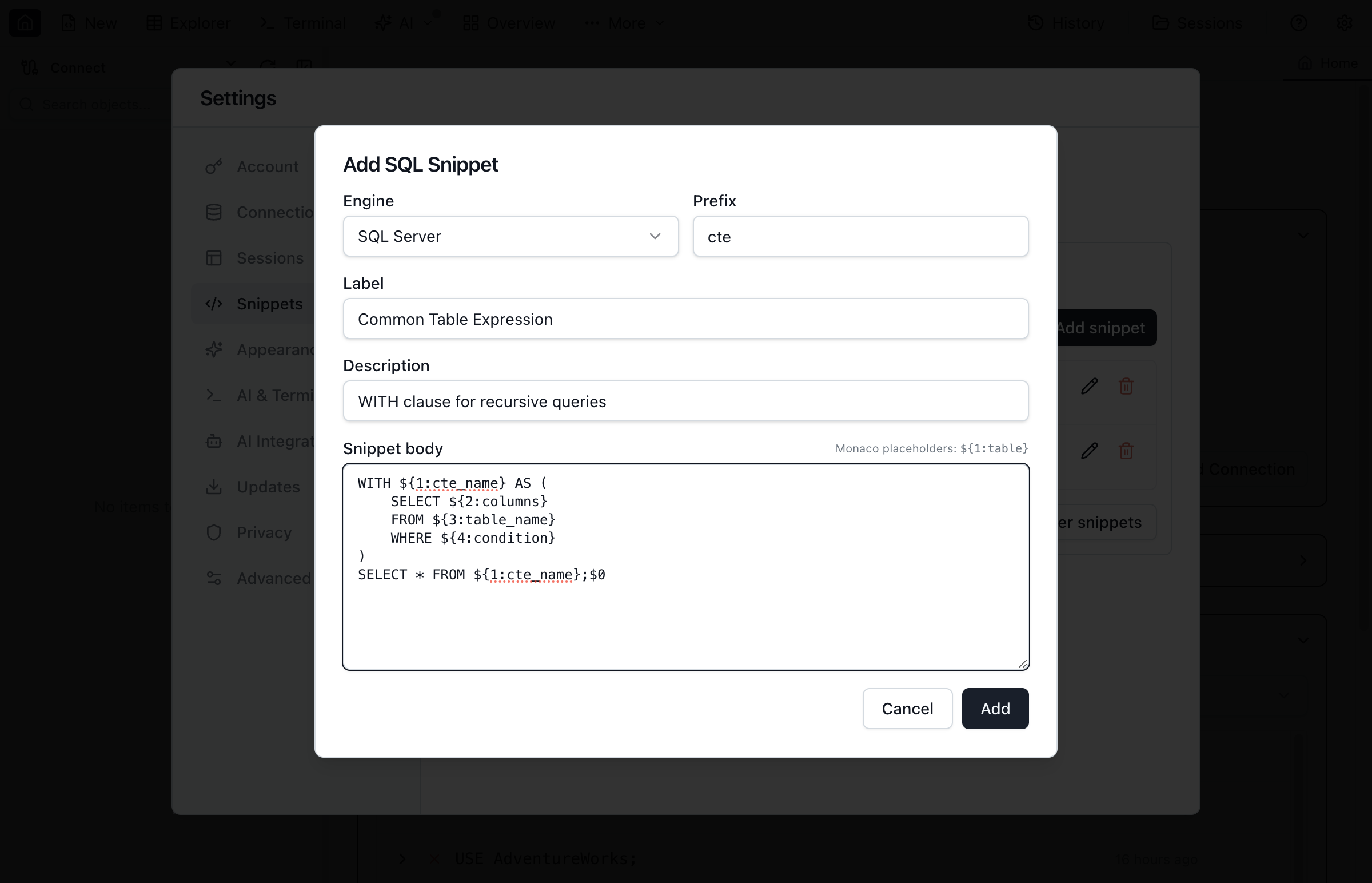
Function Signature Help
When you type the opening parenthesis of a function or stored procedure call, Jam SQL Studio shows a parameter-hints popup with the full signature and highlights the currently active argument. As you type commas, the highlight advances to the next parameter.
- Schema-qualified calls —
dbo.ufnGetProductListPrice(resolves with the explicit schema - Unqualified calls —
substring(resolves against the default schema (dbofor MSSQL,publicfor PostgreSQL, current database for MySQL, login schema for Oracle) - Package-qualified calls (Oracle) —
DBMS_OUTPUT.PUT_LINE(resolves package routines - SQLite built-ins — 50+ built-in functions including
substr,json_extract,datetime, and more
Supported across all five relational engines: SQL Server, PostgreSQL, MySQL/MariaDB, Oracle, and SQLite. You can also trigger the popup manually with Cmd+Shift+Space (macOS) or Ctrl+Shift+Space (Windows/Linux) when the cursor is inside a function call.

Column Inlay Hints
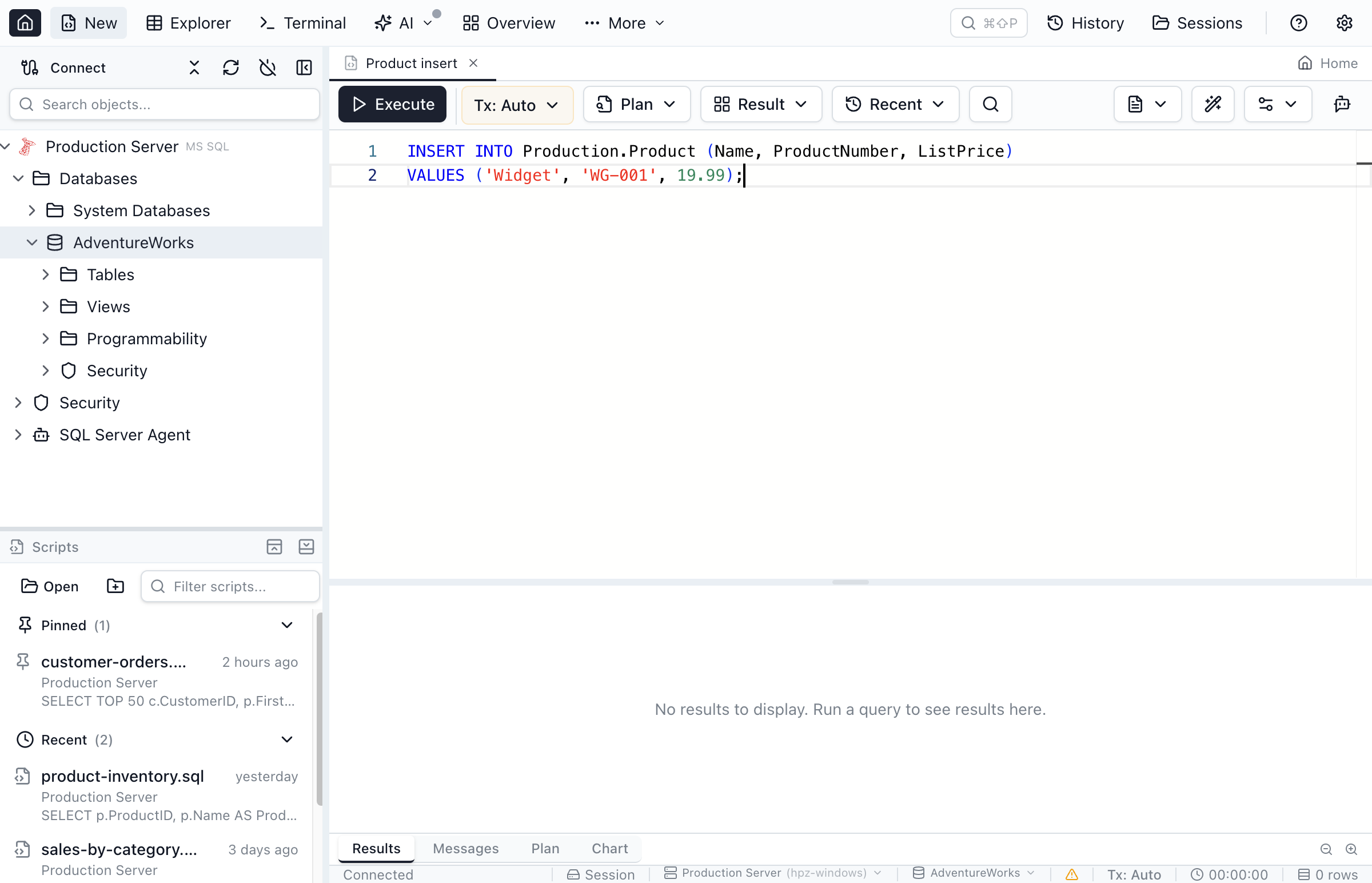
When writing INSERT INTO ... VALUES (...) statements, Jam SQL Studio shows ghost column names before each value as inlay hints, so you don't have to mentally map column positions.
- With column list —
INSERT INTO table (a, b, c) VALUES (1, 2, 3)shows hints matching the listed columns - Without column list —
INSERT INTO table VALUES (1, 2, 3)resolves column order from the schema cache - Multiple tuples — hints appear for each row in multi-row INSERT statements
Hover over * in SELECT * to see the columns it returns, with their data types, in the order your database returns them — grouped by table when the query reads more than one. A JOIN … USING or NATURAL JOIN column that both tables share is listed once, marked shared by both tables. The hover covers a * inside a CTE or subquery too, and lists only the tables of the query under the pointer; when a source's columns aren't known (a CTE, a derived table, a table not in the schema cache) no list is shown. The list is the one the Visual Query Editor's Choose columns writes.
Live Syntax Errors
Genuine syntax errors are underlined as you type on SQL Server, MySQL, Oracle, and SQLite — before you run the query. The check is deliberately conservative so valid SQL is never flagged: on SQL Server a span is marked only where two independent grammars both reject it; on MySQL, Oracle, and SQLite the engine grammar's verdict must be corroborated by an independent lexical check — a misspelled structural keyword (SELECT * FORM t, UPDATE t STE x = 1, INSERT … VAULES (…)), unbalanced parentheses, or a dangling operator (WHERE id = AND …). Squiggles never appear mid-keystroke on an unfinished statement, and fixing the error clears the squiggle. Toggle under Settings → Advanced → SQL autocomplete → Live syntax errors. (PostgreSQL syntax checking comes from its bundled language server.)
When the squiggle is a misspelled keyword, the message already names the keyword you meant — so it comes with a one-keystroke repair. Put the cursor on the squiggle and press Cmd+. (macOS) / Ctrl+. (Windows & Linux), or click Quick Fix… in the hover, and pick Change "FORM" to "FROM". The replacement follows your buffer's own casing, so a lowercase query gets from, not FROM.
Type-Mismatch Warnings
When a comparison can't work because of the types involved, Jam SQL Studio underlines it with a warning — before you run the query. The check is coercion-aware: it only flags mismatches that are genuinely a bug, so valid SQL is never marked.
- What it catches — a numeric column compared to non-numeric text, e.g.
WHERE total = 'free'. That raises a conversion error on PostgreSQL, SQL Server, and Oracle, and silently matches nothing on MySQL and SQLite. On PostgreSQL it additionally warns on a text column compared to a bare number (WHERE code = 5) — with a "Quote the number" quick-fix that rewrites it tocode = '5'— and a boolean column compared to a non-boolean string (WHERE enabled = 'maybe'). - What it leaves alone — numeric-looking strings such as
WHERE total = '50'coerce cleanly on every engine, so they are never flagged; nor are valid boolean strings like'yes'/'off'. - When it runs — only with a loaded schema for the connection; disconnected editors stay quiet. The message names the exact consequence on your engine.
Turn the warnings off under Settings → Advanced → SQL autocomplete → Type-mismatch warnings.
Type-on-Hover
Hover over a column reference to see its declared data type and coarse category, or over a completed function call (e.g. UPPER(name), my_total(id)) to see its inferred result type. It reads the loaded schema and composes with the engine's own hover, so you get column lists from the server and quick type read-outs from Jam in the same tooltip. Toggle it under Settings → Advanced → SQL autocomplete → Type-on-hover.
If any of the above ever misbehaves, three master switches under Settings → Advanced → SQL autocomplete → Safe mode turn off a whole feature category at once (the Enable IntelliSense switch above them turns off all three plus completion): Live diagnostics clears every squiggle (syntax errors, type-mismatch warnings, language-server markers), Hover & signature help disables every hover tooltip and signature-help popup, and Semantic completions skips the schema-aware resolver so autocomplete falls back to plain word-based suggestions.
Go to Definition, Find References, and Rename
The editor understands your schema well enough to jump to a definition, list every place an identifier is used, and safely rename it — familiar IDE code-navigation gestures, applied to SQL. Go to Definition is editor-cursor only; Find References and Rename also work from the Object Explorer's table/view context menu.
Go to Definition
Press F12 (or Cmd+Click / Ctrl+Click) on an identifier to jump to what it refers to. Holding Cmd / Ctrl while the mouse is over a name underlines it and shows where it leads; nothing opens until you click. Right-click → Peek Definition previews aliases and CTEs inline without moving your cursor; for tables/views, columns, and routines the peek shows a one-line description of the target, and opening that row (double-click or Enter) runs the same navigation as F12 and closes the peek. Go to Definition also works inside the stored-object previews that Peek References shows, and in the other SQL editors tied to a connection (the job step editor, the PL/SQL editor and debugger, and the schema and data compare script previews), where names resolve against that editor's own connection.
- Table or view — reveals and selects the object in the Object Explorer.
- Alias (the
uinWHERE u.id = 1) — jumps to its declaration in theFROM/JOINclause, inline in the same buffer. - CTE reference (
FROM recent_orders) — jumps to the matchingWITH recent_orders AS (…)body, inline in the same buffer. - Column qualified by an alias or table (
u.email,users.email) — for a table column, opens Table Designer with that column focused; for a view column, opens the view's CREATE script in a new query tab. Bare, unqualified column names aren't resolved. - Procedure or function call — opens its CREATE script in a new query tab. On engines that allow overloaded routine names (PostgreSQL, Oracle), landing on 2+ matches opens a picker to choose which one.
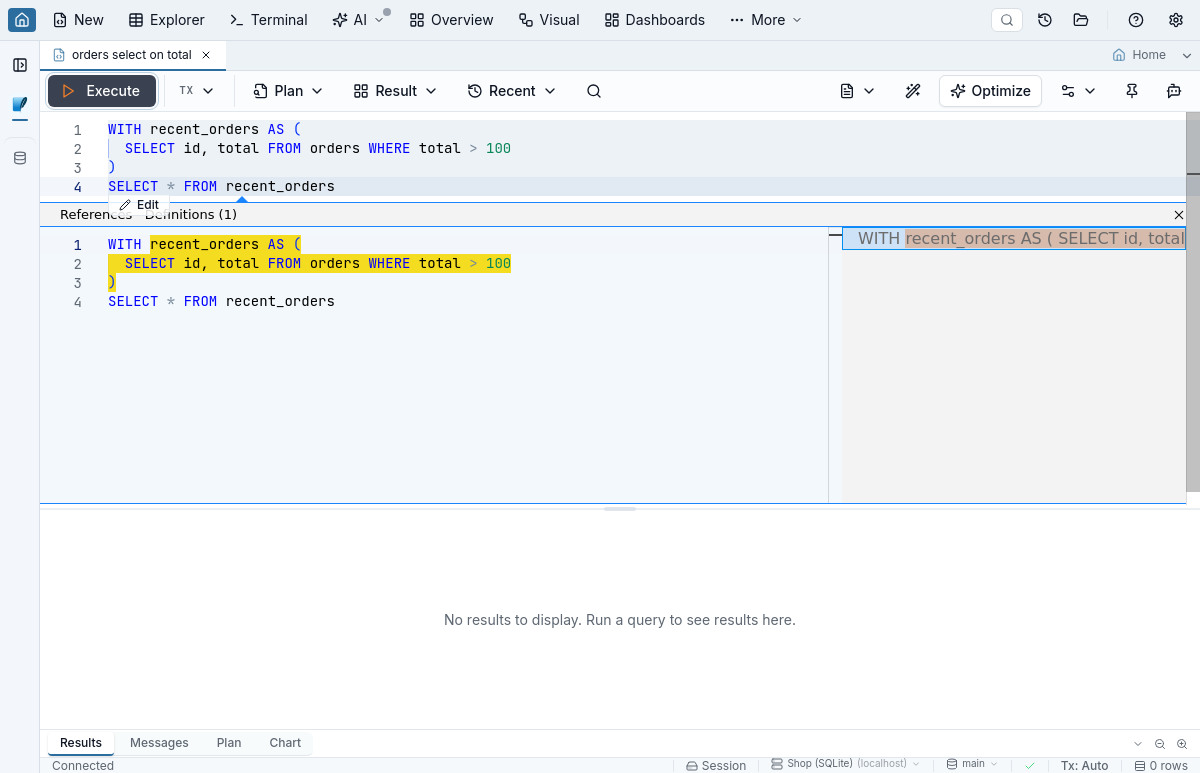
WITH declaration without leaving the buffer; aliases behave the same way, while for tables/views, columns, and routines the peek lists the target and opening its row runs F12's navigation.Find References
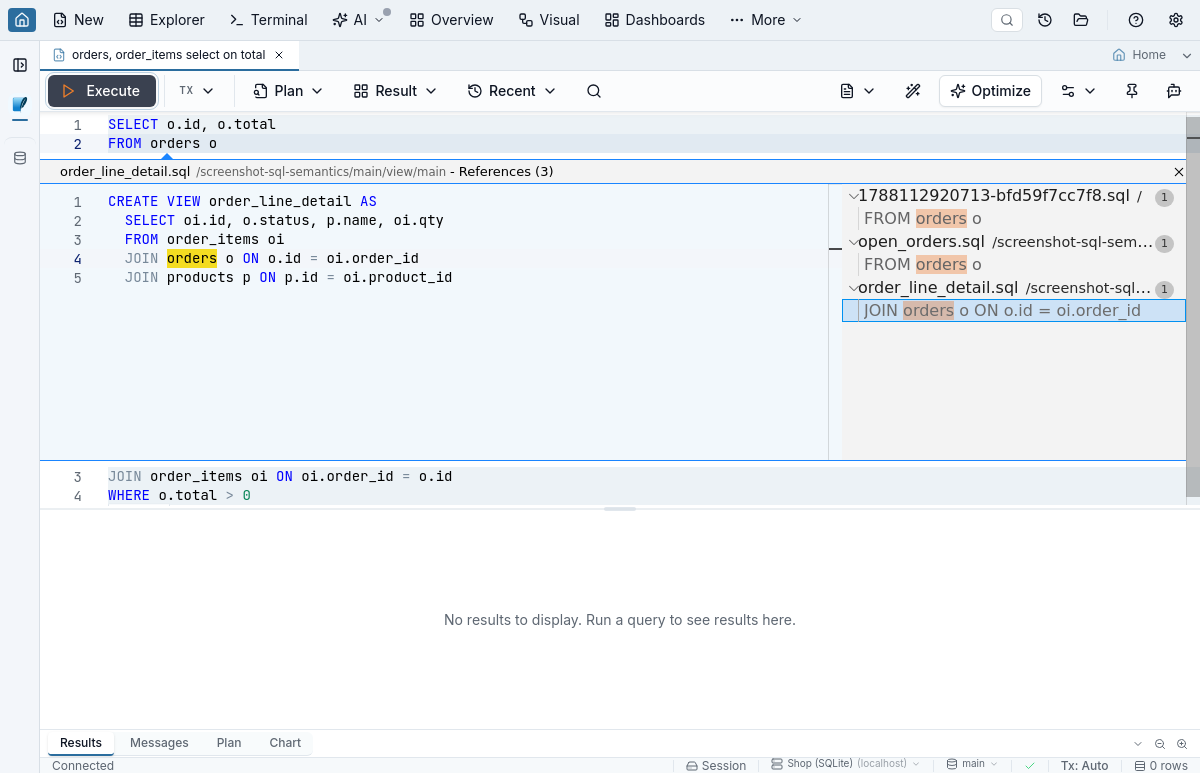
Press Shift+F12 on a column, table/view name, or routine call — or right-click → Peek References / Go to References — to open the inline peek panel listing every object that uses it. Each referencing view, scalar function, inline table-valued function, stored procedure, trigger, or constraint appears as its own entry, and selecting one previews that object's stored body right inside the peek with the reference highlighted. Occurrences in the query tab you're editing are listed alongside them (from the buffer's SELECT statements — hits inside INSERT/UPDATE/DELETE statements aren't indexed yet).
The previewed body is read-only — it's the definition as the database currently stores it, not an editable buffer. Double-click a row (or press Enter) to load that object's CREATE script into a new query tab, scrolled to the reference; edit and run it from there if you want to change the object.
For a wider audit that stays open while you work, right-click in the editor and pick Find All References in Tab. That opens a dedicated References tab grouping hits per referencing object with a code snippet per row. It includes objects the peek can't preview because the engine exposes no DDL text for them, and — unlike the peek — it lists only what the database stores, so occurrences in the query tab you're editing aren't included until you run the statement that creates them. Running it again on the same identifier in the same database reuses the existing tab instead of piling up new ones; the same identifier in another database opens its own tab, because a tab shows the database named in its header. The Object Explorer's Find references… entries open the same tab.
References are searched in the database the object belongs to: the Object Explorer node's database, the database a fully qualified name in the editor spells out (MandTob.dbo.ARD is searched in MandTob even from a tab on another database), or otherwise the query tab's current database. On a SQL Server or PostgreSQL connection each database gets its own identifier index the first time you search it, so you can search any of them without changing the connection's default database. While a database is indexed for the first time the References tab shows a searching state; later searches on that database reuse the index. If the index can't be built at all, the tab says so instead of reporting no references — on a live connection an empty References tab means nothing referenced the identifier, never that nothing was searched (Peek References, and a tab whose connection dropped mid-search, answer from what they have). On MySQL and Oracle, where a connection sees every schema the login can reach, one index covers the connection and references from other schemas are listed as well; a SQLite connection is a single file and works the same way.
On SQL Server, object names are compared using each database's own collation. In a case-sensitive database dbo.V and dbo.v are two different views, and Find References, Rename and the automatic index refresh after DDL keep them apart; in the usual case-insensitive database they are one view, as before. On MySQL the same follows the server's lower_case_table_names setting: when it is 0 (the Linux default), Users and users are two tables and Find References keeps them apart, whether a view spells the name backticked or bare; when it is 1 or 2 they are one table.
Find References also looks inside stored procedure and trigger bodies on SQL Server, PostgreSQL, MySQL, and Oracle — not just views, scalar functions, and inline table-valued functions. A bare, unqualified reference inside a procedural body (for example WHERE user_id = p_user_id) is only captured when its FROM scope contains exactly one relation; ambiguous bare names in a multi-table join are honestly skipped rather than risk a false-positive hit. On PostgreSQL this covers SQL-language functions; PL/pgSQL function bodies aren't indexed yet. SQLite has no stored procedures, and although it does have triggers their bodies aren't part of this index either, so procedural-body coverage doesn't apply there.
Find References on a function or procedure matches its calls however a body spells them: a schema-qualified dbo.fn() and a bare fn() are the same routine when the bare call resolves to that schema (dbo on SQL Server, public on PostgreSQL, the current database on MySQL, your own schema on Oracle), and a call to a same-named routine in another schema or database is not listed.
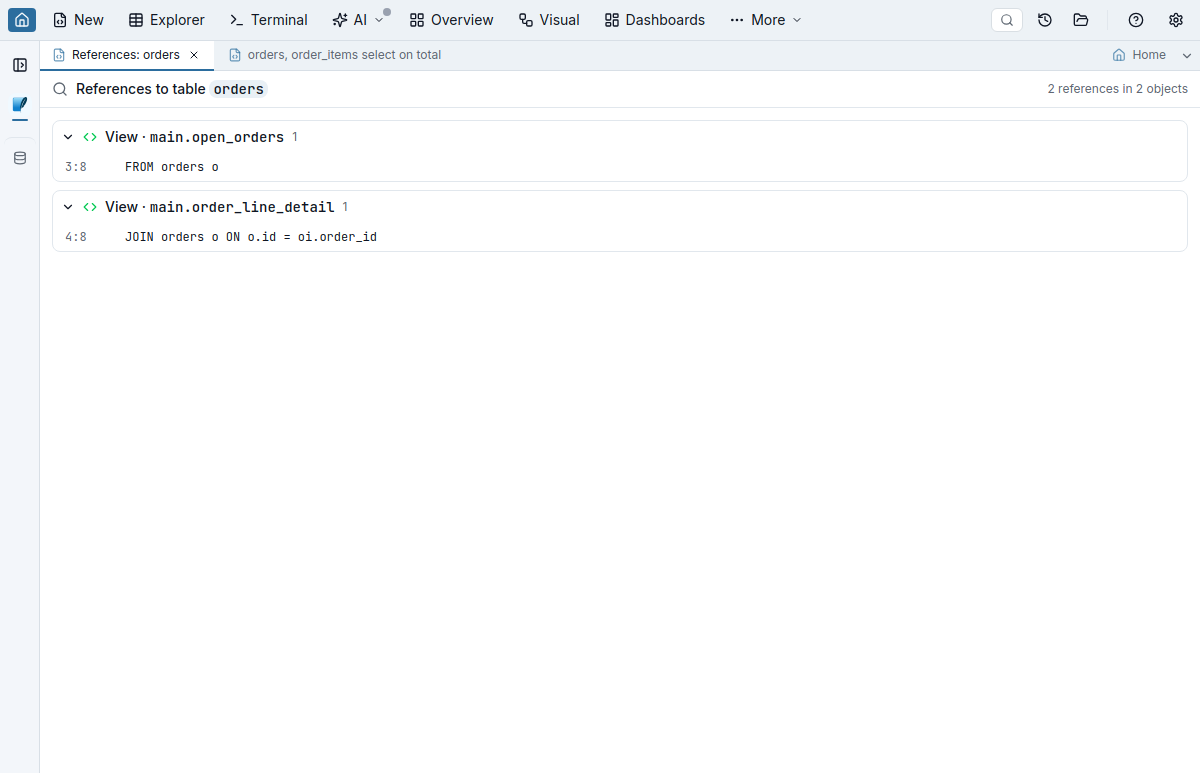
Rename Symbol
Press F2 to open Monaco's inline rename box. One key, two outcomes, decided by what the cursor names.
Renaming something that only exists in the buffer
On a table alias (the o in FROM orders o), a derived-table alias, or a CTE name, submitting a new name rewrites every scope-correct occurrence in the buffer straight away — no dialog, no database round-trip, and a single Ctrl+Z puts it all back. Occurrences come from the SQL parser, not a text search: an alias called o never touches the o inside orders or inside a string literal, an inner subquery that reuses the same alias name keeps its own binding, and a second statement in the same tab is left alone. Renaming a recursive CTE updates its declaration, its self-reference inside the body, and every later reference together. If the new name is already taken by another alias, CTE, or table visible in that statement, the rename is refused with an explanation instead of silently producing ambiguous SQL.
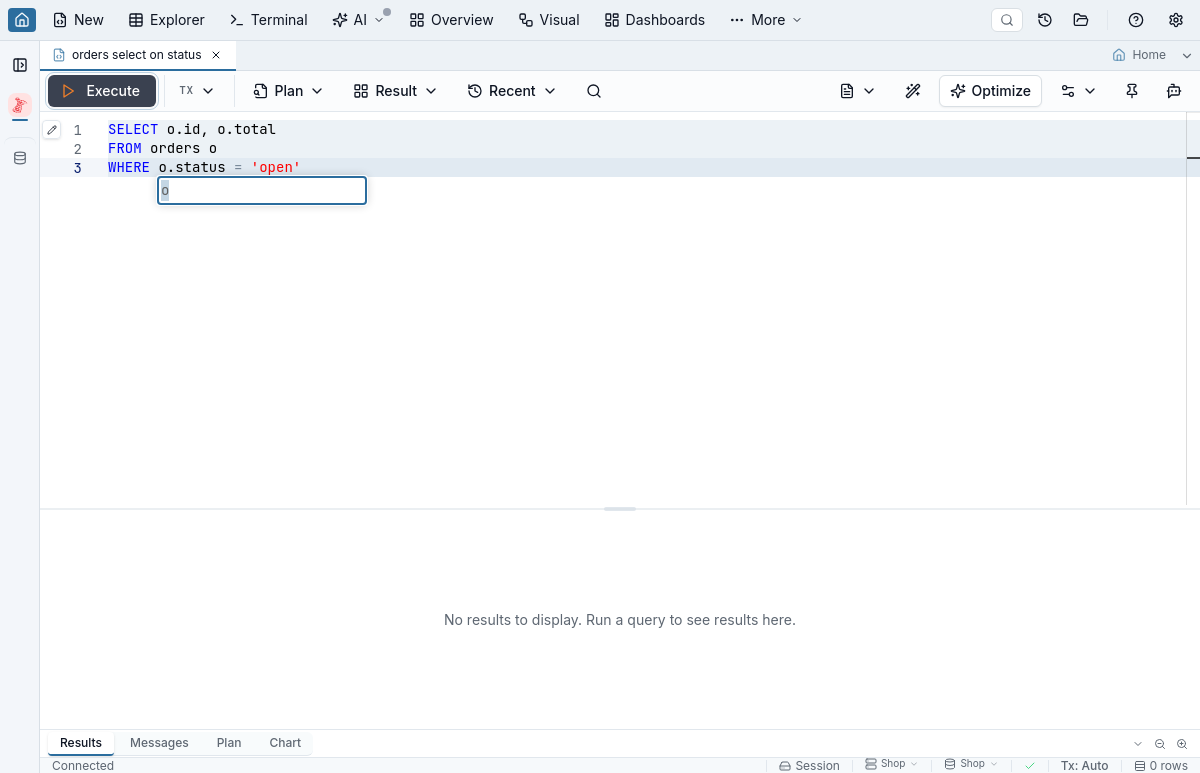
Renaming a database object
On a column, table, or view, submitting a new name opens the Rename preview dialog, showing every per-object ALTER the rename would run — nothing changes in the database until you click Apply. Routines aren't renamable this way. Inside a dependent view or routine body a column rename replaces only the column itself and keeps its alias or table qualifier and its quoting: u.id becomes u.user_id, [u].[id] becomes [u].[user_id]. A reference the index could not attribute to the renamed table with certainty — an unqualified column in a multi-table query, or a FROM name without a schema — is counted as ambiguous and left out of the rewrite until you tick the preview's include-ambiguous option, so the preview never rewrites a same-named column of another table unasked. When the name under the cursor points at another database — B.dbo.users typed in a tab connected to A — a line under the preview's header names the database the rename will run in, because that is where the ALTERs execute.
MySQL rename scripts preserve backslashes, quotes, and Unicode in dependent CHECK definitions and constraint names. The CHECK expression itself must be supported by your server and its current SQL mode.
Once the rename is applied, open query tabs on the same connection and database are updated too: references to the renamed object are rewritten in place and a banner tells you how many changed, with Ctrl+Z in that tab restoring the buffer. Aliases keep their own names — renaming orders turns FROM orders o into FROM sales_orders o and leaves every o.total as it was. A tab bound to another database is updated only where it spells the renamed object's database explicitly (Sales.dbo.users in a tab connected to Hr on SQL Server, sales.users on MySQL) — a bare dbo.users there is left alone, since it names that tab's own database. Column renames never reach tabs on another database. A tab whose references can't be resolved with certainty gets a warning banner rather than a silent edit. Query history is never rewritten.
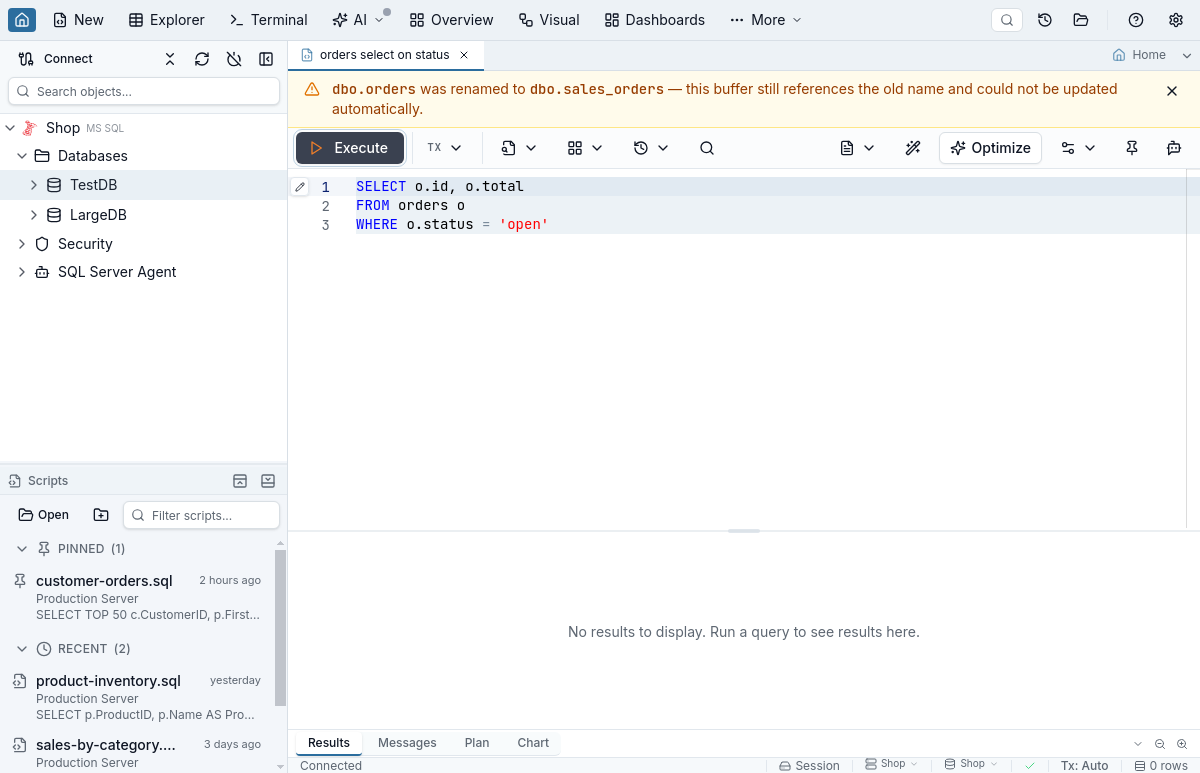
From the Object Explorer
Right-click a table, view or routine in the Object Explorer for the same Find references… action available in the editor; tables and views also offer Rename… there. Column nodes offer neither — column find-references and rename are both editor-only (Shift+F12 and F2).
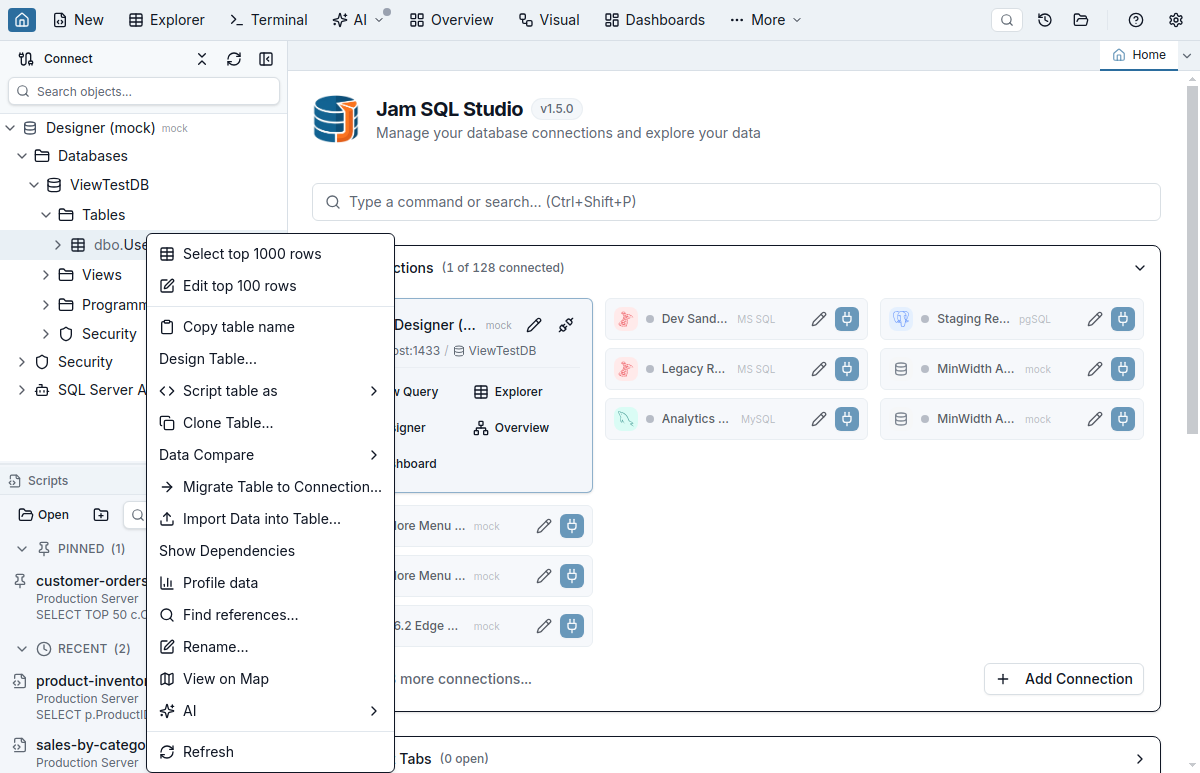
Go to Definition and Rename work across SQL Server, PostgreSQL, MySQL, Oracle, and SQLite; Find References' procedural-body coverage is SQL Server, PostgreSQL, MySQL, and Oracle. See Keyboard Shortcuts for the full key list.
Compact DDL Editor
When the cursor sits inside a top-level DDL statement, a pencil Edit affordance appears next to it. Click it to open the Compact DDL editor — the entry point to the Visual DDL Editor. For CREATE TABLE / ALTER TABLE it opens a mini structure editor with Columns / Constraints / Indexes / Storage tabs; for every other supported kind (views, sequences, types, schemas, triggers, routines, security objects, databases) it opens directly into that kind's edit form. Submitting a form writes changes back into the buffer byte-for-byte, preserving whitespace, comments, and identifier quoting. The Compact DDL editor and the Visual Query Editor's compact popover (which opens on DML cursors) are mutually exclusive: only the one that matches the cursor's statement kind opens.
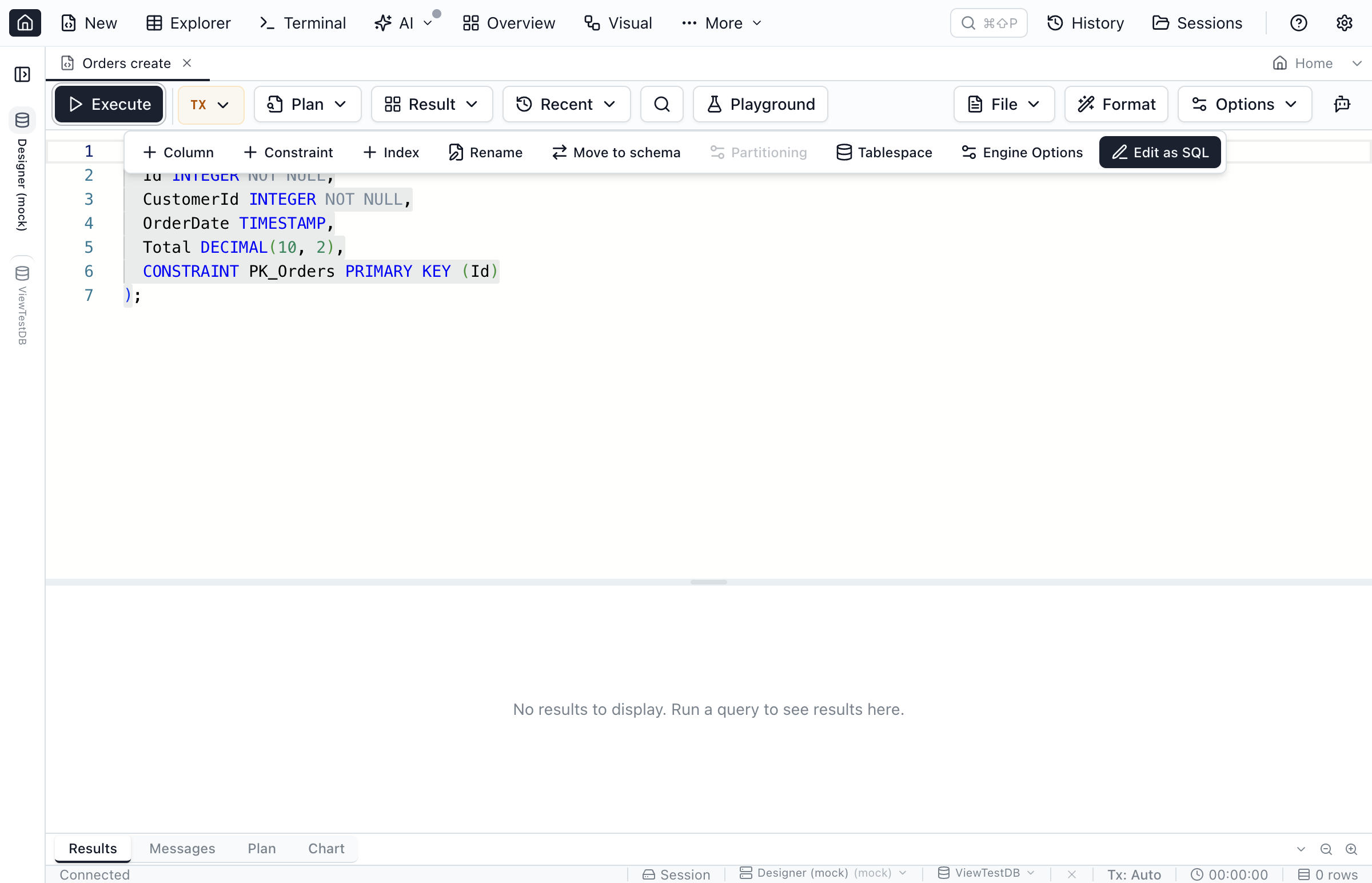
The Compact DDL editor opens the Visual DDL Editor for any CREATE / ALTER / DROP statement — tables, views, materialized views, sequences, types/domains, schemas, triggers, procedures/functions, logins/users/roles, GRANT/REVOKE, and databases. It mutates the buffer only — it never executes the resulting DDL on its own. Run the buffer with Execute (F5 or Cmd/Ctrl+Enter) when you are ready. Editing works without a live database connection; only connection-dependent affordances (Design Table, dependency lookups) disable individually with a reason tooltip. See the Visual DDL Editor guide for the full per-object breakdown, source-preserving guarantee, preview dialog, dependency checks before a drop, and engine-support matrix.
Executing Queries
Oracle stored programs retain their local procedures and functions as one execution unit. Execution errors use the original editor position, including leading blank lines in SQL Server batches and Unicode text before Oracle errors, when the database reports a location.
Run your queries and view results with multiple execution options.
Basic Execution
- Write your SQL query in the editor
- Press
F5, or click the Execute button in the toolbar.Cmd/Ctrl+EnterorShift+Enterruns only the statement under the cursor - View results in the grid below the editor
Destructive-statement confirmation
Some statements are held back by a confirmation dialog before they run. It names the connection and database they would hit, shows the statement, and explains what it does; Cancel leaves the query in the tab without executing it.
What triggers it:
DROP TABLE/DATABASE/SCHEMA/INDEX,TRUNCATE TABLE, andALTER TABLE … DROP— plus each engine's own equivalents (DROP TABLESPACEandSHUTDOWNon Oracle,LOAD DATA INFILEon MySQL, and so on).DELETEorUPDATEwith noWHEREclause, which affects every row in the table.DROP VIEW/PROCEDURE/FUNCTION/TRIGGER— a milder warning, since these destroy code rather than rows. The dialog names the kind of object the script actually drops (“Confirm Stored Procedure Drop”, “Confirm View Drop”), and lists all of them when a script drops more than one kind.- System-level commands such as
sp_configure,xp_cmdshell, orDBCC SHRINK. - A column change that would destroy stored data — see below.
- Any statement an AI agent wrote on the execute-with-confirm path, held to a stricter standard (see AI Integrations & MCP).
Column changes. A plain ALTER … COLUMN does not raise the dialog on its own — most column changes (widening a varchar, adding decimal places, relaxing NOT NULL) are harmless, and a prompt on all of them would be noise. What does raise it is a script generated by Schema Compare or Database Blueprint in which a column loses precision it currently holds — decimal(10,4) to decimal(10,2), datetime2(7) to datetime2(3), a numeric column to an integer type. SQL Server, PostgreSQL and MySQL all accept those without any error: every stored value is rounded in place, and widening the column again does not bring the digits back. The comparison knows the column's before and after shapes, so it marks exactly those statements with a -- [REVIEW] [DATA LOSS] line, and that line is what the dialog reacts to. Deleting the line from the script also removes the confirmation.
Statements inside a routine body (CREATE OR ALTER PROCEDURE … BEGIN DELETE FROM … END) never trigger the dialog: submitting the routine changes no rows, only calling it later does.
Comments are skipped, by your engine's rules. Only statements the engine will run are examined. A destructive verb that appears only in a comment — a banner above a procedure, a runbook note, Jam's own [REVIEW] lines — does not raise the dialog, and neither does punctuation in one: a lone apostrophe in a comment above a procedure (-- Agrega un tag a una noticia del d'ía) no longer makes the whole script read as unparseable. Which text counts as a comment follows the connected engine rather than a lowest common denominator: MySQL's # line comments are comments, and MySQL's rule that -- must be followed by a space is respected, so SELECT 1--1 is read as arithmetic there and anything after it on the line is still checked. MySQL's version-gated /*!50000 … */ is the deliberate exception: the server executes it, so Jam scans it too.
The tip at the bottom of the dialog matches the reason it opened: adding a WHERE clause is only suggested for the missing-WHERE case, and a structural (DDL) script gets advice about backups and reading the statements instead.
Execute Selection
To run only part of your query, select the SQL text you want to execute. When the selection qualifies (see below), the toolbar Execute button morphs into Selection — the icon and label change in place, with a subtle pulse, without the button changing size — and clicking it runs only the selected SQL. Pressing F5, Cmd/Ctrl+Enter or Shift+Enter does the same while such a selection is active.
When the button switches to Selection:
- Your selection must parse as a complete, runnable statement — it starts with a known SQL keyword (
SELECT,WITH,INSERT,UPDATE,DELETE,CREATE,EXEC,PRAGMA, etc.). Fragments likeFROM users, typos likeelect *, or selections ending with a trailing comma do not qualify. - Your selection must not cover the full editor content — if it does, the toolbar Execute already does the same thing.
Prefer a floating button next to the selection instead? Turn on Inline Execute / Peek bar in the query toolbar's Options menu. A floating action bar then appears above (or below) the selection — click its Execute to run only the selected SQL, and for safe read-only statements (e.g. SELECT, WITH) use its Peek button to preview the selection inline without disturbing your main results. The same runnable-statement rules decide when the floating Execute shows (for a selection covering the full editor content it's hidden as redundant, though Peek stays available since inline preview is a distinct action; when neither qualifies, the whole bar stays hidden). The toolbar Execute button keeps its Selection behaviour while this bar is on — the floating bar is an extra surface next to the selection, not a replacement — so Shift+F5 stays the way to run the entire editor content. The floating Execute intentionally skips Format on execute so your selection isn't lost during formatting.
Note: F5 runs the narrowest available scope — the runnable selection if there is one, else the statement under the cursor, else the entire editor content. Cmd/Ctrl+Enter and Shift+Enter run the current statement, never the entire editor content of a multi-statement script (see Execute Current Statement). Shift+F5 always runs the entire editor content.
Execute Current Statement
Press Cmd/Ctrl+Enter or Shift+Enter to execute the statement at the cursor. This command differs from F5: any non-empty selection wins, the selected or current statement is sent without a completeness check, and a cursor on a blank line uses the nearest statement above it. If the editor is empty, Jam SQL Studio runs nothing and shows No statement to execute. in the status bar.
Inside the Query Editor, Cmd/Ctrl+Enter replaces Monaco's Insert Line Below command. Shift+Enter replaces newline insertion and alternative-suggestion acceptance; use plain Enter to insert a newline.
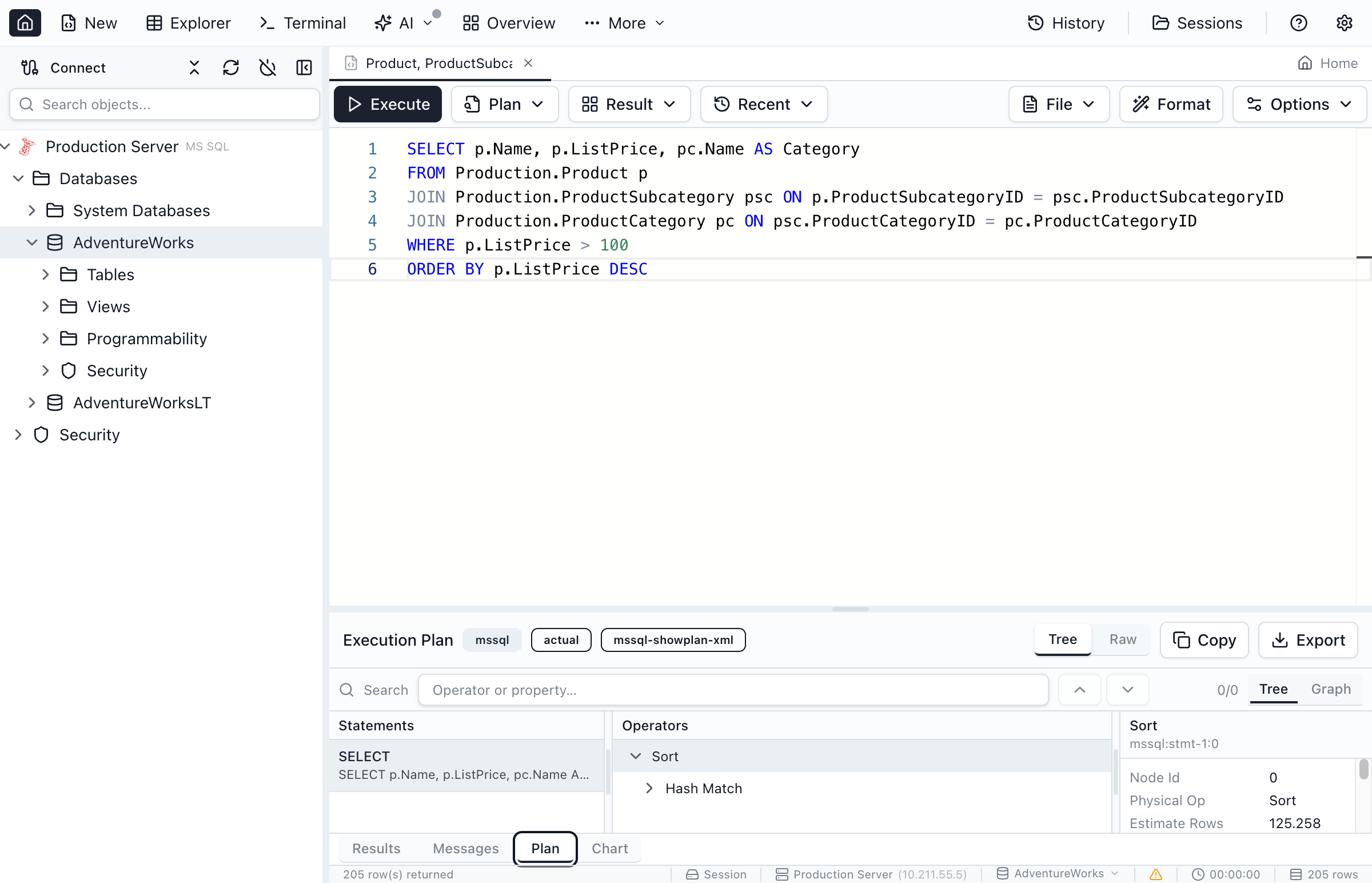
Execution Plan Options
Analyze query performance by capturing execution plans:
- Execute with Estimated Plan - Shows the query plan without running the query
- Execute with Actual Plan - Runs the query and shows the actual execution statistics
Cancelling Queries
To cancel a long-running query, click the Stop button in the toolbar.
The first Stop asks the server to cancel the statement, and the button changes to Stopping…. It stays clickable: if the server hasn't honoured the cancel, click Stop again to force the stop. On Oracle that drops the connection the statement was running on, so the query comes back as cancelled straight away — which is what makes Stop work on a statement queued behind another session's lock, where Oracle never sees an ordinary cancel at all. The other engines keep their normal cancel, so a second click there changes nothing. The same two-press behaviour applies to the Stop button on the status line above the results grid, and to the Stop button on Table Explorer's pagination strip.
One thing to know about the forced stop: it ends the wait at Jam SQL Studio's end, not on the server. Dropping the connection does not cancel what the database is already doing — the session stays in its wait until that wait ends on its own (when the lock frees, or when a SLEEP runs out), and a statement Oracle has already accepted and auto-committed then completes, because a dropped connection cannot retract it. So a forced Stop on an UPDATE queued behind a lock can still leave the row updated. Use the Session Browser to see what the server is really running and to kill a session outright if you need to.
Disconnecting the connection cancels its running queries too — the same forced stop, sent to every query and Table Explorer fetch the connection has in flight — so a disconnect does not sit behind work you have walked away from. Two things it does not cover: a notebook tab or a transaction tab holding a session open (that connection is released when the app quits, and on PostgreSQL a disconnect waits for it), and long-running app operations like a Schema Compare or a data copy, which carry their own Cancel. See Disconnecting.
Long-Running Query Affordances
When a query has been running for more than 8 seconds, two subtle cues appear — neither shifts the toolbar:
- The execution-time timer in the bottom status bar turns amber and pulses gently once per second so you can see at a glance that the query has crossed the threshold.
- The “Executing query…” indicator above the results grid changes to “Executing query… taking longer” (amber) and exposes a one-click Stop button.
The toolbar Stop button is always available during execution if you'd rather cancel from there.
Query Timeout
The default query execution timeout is 5 minutes. You can change it in Settings > Query Execution — set a longer value for heavy maintenance scripts, or a shorter one if you want runaway queries to fail fast. A value of 0 disables the timeout entirely.
For SQL Server, multi-batch scripts (separated by GO) execute each batch independently and the configured timeout applies to each batch, not to the whole script — a long maintenance script split into many short batches will not be killed even if its total wall-clock time exceeds the timeout.
The same setting governs transaction-mode (BEGIN TRANSACTION) tabs, Table Explorer browsing and editing, and estimated-plan capture. A query that exceeds the timeout fails with a clear timeout message (and a tip pointing back to the setting); a connection that drops mid-query is reported as a connection failure with a reconnect banner instead.
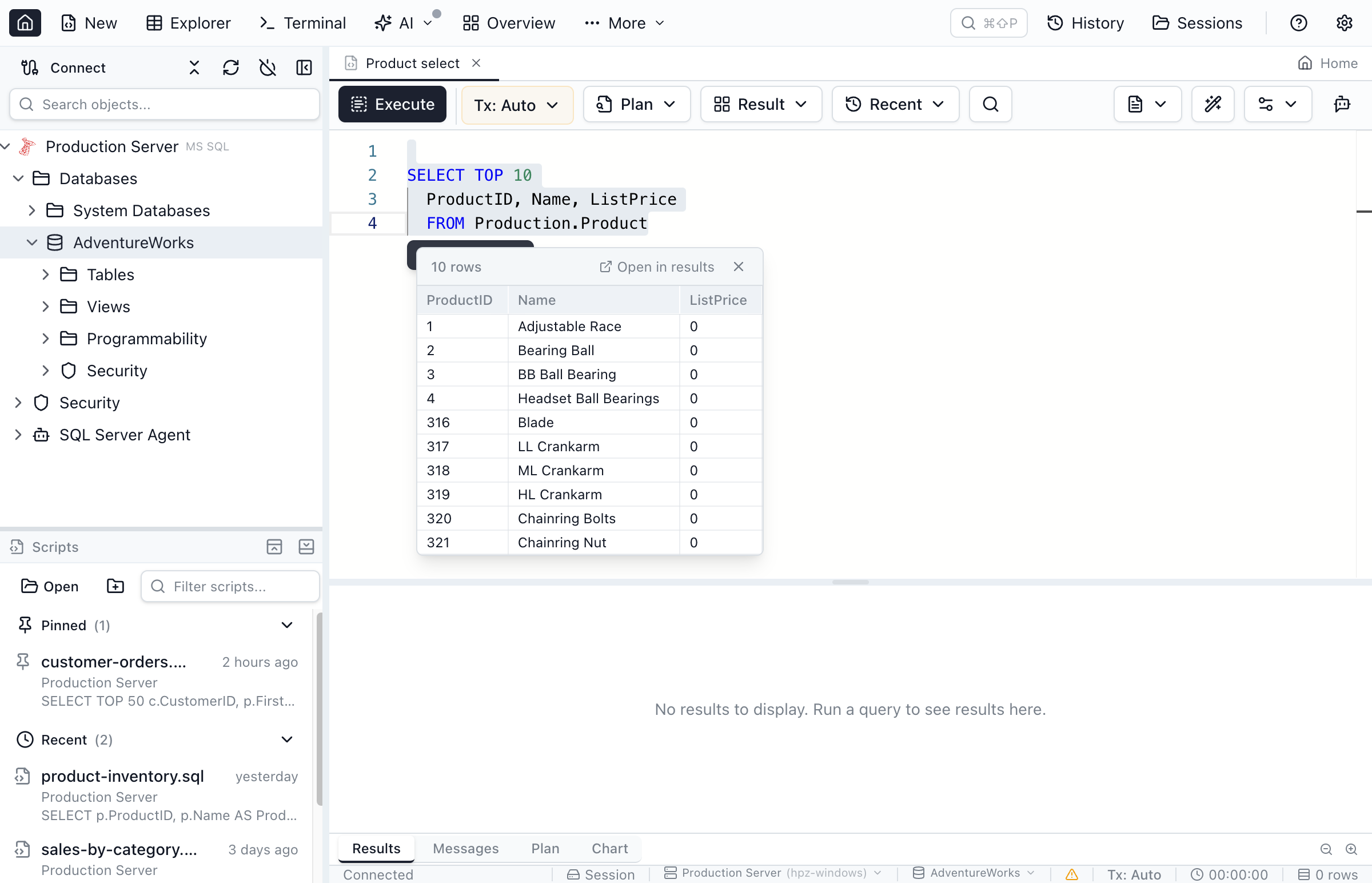
Peek Results
Select a SQL query in the editor and a floating Peek results button appears above the selection. Click it to preview results inline without replacing your main result set.
- Results appear in a compact inline panel below the selection (max 50 rows)
- An automatic row limit is added to keep previews fast (TOP 50 for SQL Server, LIMIT 50 for others)
- Peek results do not affect your main results or query history
- Click Open in results to run the full query in the main editor
Working with Results
Query results appear in a tabbed grid below the editor with powerful viewing and export options.
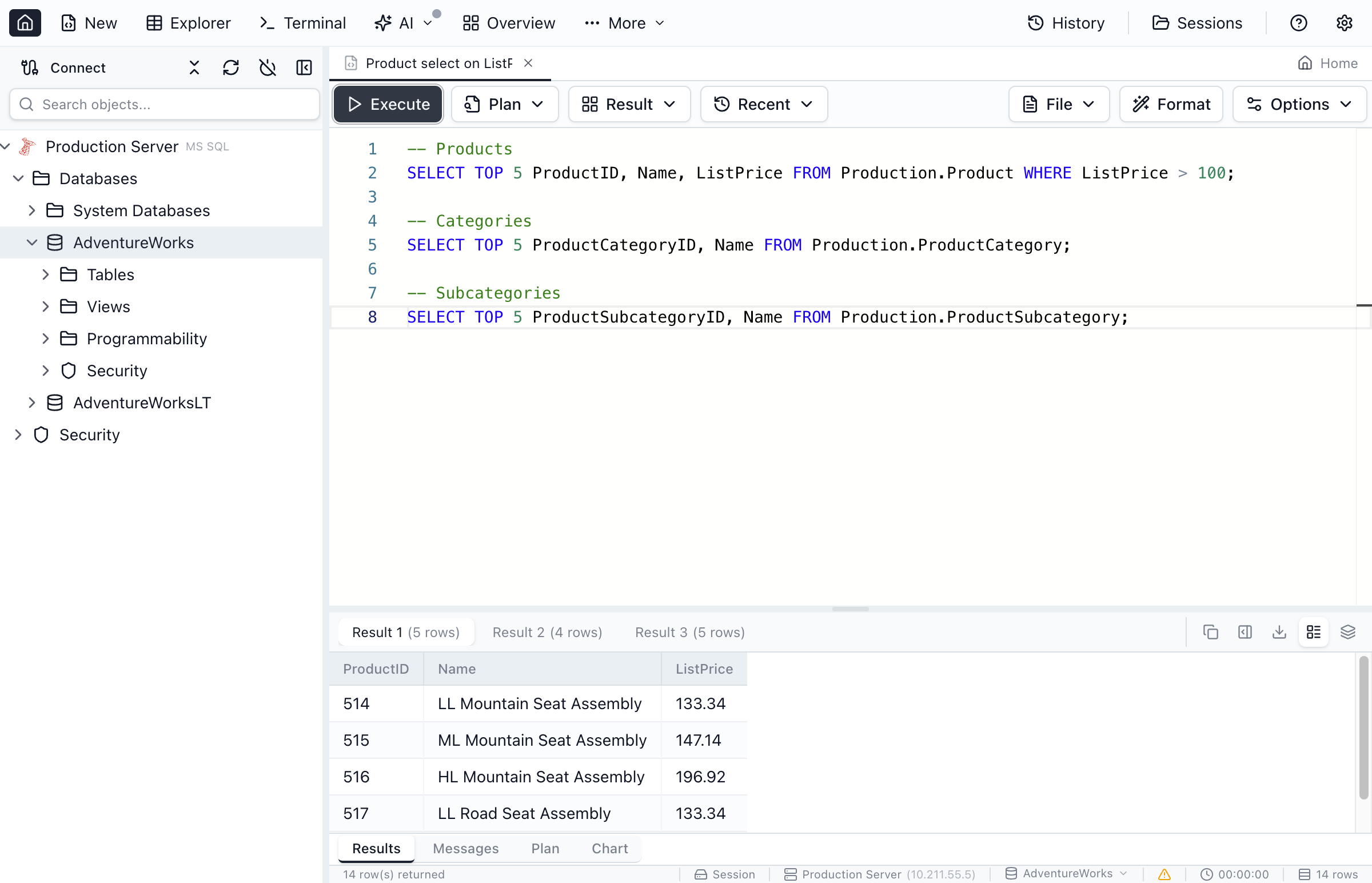
Multiple Result Sets
When your query returns multiple result sets (e.g., multiple SELECT statements), each appears in its own tab. You can also switch to a stacked view to see all results vertically.
On Oracle, an anonymous PL/SQL block returns result sets the way SQL*Plus does: every OPEN :cursor FOR SELECT … into a bind variable (no VARIABLE declaration needed) and every DBMS_SQL.RETURN_RESULT implicit result becomes its own result tab, in order, streamed like any other query.
Collapsing the Results Pane
When you're writing or reviewing long SQL, you can hide the results pane to give the editor the full height. Click the chevron button on the right side of the results tab bar (next to the zoom controls), press Cmd+J / Ctrl+J, or run Toggle Results Pane from the Command Palette (Cmd+Shift+P / Ctrl+Shift+P).
To restore, use any of the same actions, or just click one of the tab labels (Results / Messages / Plan / Chart) — Jam SQL Studio reopens the pane and switches to the clicked tab. Dragging the resizer also restores the pane. Each query tab remembers its own collapsed state while it is open.
Messages and Output
When a query fails, Jam classifies the error and adds a short tip under the message for common causes (object not found, missing permission, lock contention, type-conversion issues). Where the next step exists in the app, the tip also carries a one-click action: Switch database… opens the database selector when an object isn't found in the current database, and Find the blocking session opens the Session Browser when a query is waiting on a lock.
The bottom pane always shows a Messages tab with status messages, errors, warnings, and row-count notes. When your script also emits user PRINT statements alongside multiple result sets, an extra Output tab appears in the result-set tab strip, to the left of Result 1. Activating it shows an interleaved view of the script: each PRINT line appears at its script position, with clickable [Result N] references where each result set landed — clicking a reference jumps to that result-set tab. In Stacked view, the Output content collapses to a 3-line preview at the top of the stack; expand it to see the full interleaved output.
Rows returned and rows affected
Each successful run adds one summary line to Messages. A script whose INSERT, UPDATE, DELETE or MERGE statements changed rows reports their total there — Query executed successfully. 5 rows affected in 00:00:01. — summed across every statement and every GO batch, and a statement that matched nothing counts as 0. A script that also returns rows reports both, for example 20 rows returned, 5 rows affected. When nothing was returned, the row counter in the status bar shows the affected total instead of 0 rows. Each statement's own count stays in Messages as a separate N row(s) affected line. This works the same in Manual and Smart transaction tabs. On SQL Server, the rows a SELECT returns are not counted as affected, even though the server reports a count for them. The one exception is a SQL Server connection over named pipes or shared memory: there, a script that mixes SELECT with data changes reports only the rows returned.
Where PRINT output lands
Text a script prints alongside its rows appears in Messages as an Info row. Messages lists the newest line first, so a script's output reads bottom-to-top there; the Output view under Results keeps the order the server produced it in, which is why that is the one to read a long script in.
What each engine reports:
- SQL Server —
PRINT, andRAISERRORwith a severity of 10 or lower. Higher severities are errors and appear as such. - PostgreSQL —
RAISE NOTICEandRAISE INFO, plus the server's own notices (for example table … does not exist, skipping).RAISE WARNINGappears as a Warning row in Messages; warnings alone do not open the Output view, which keys on Info rows. - Oracle —
DBMS_OUTPUTfrom an anonymousBEGIN/DECLAREblock, one Info row per line. Output from a stored procedure called on its own (CALL my_proc()) is not captured; wrap the call in a block —BEGIN my_proc; END;— to see it.
A script with no result sets — PRINT ('Hello'); on its own — opens Messages and shows the same lines under Results as a plain Output view. The strip Output tab described above is for scripts that return several result sets, where the lines have to be placed between them.
On SQL Server and PostgreSQL, output a script produced before a statement failed is kept rather than replaced by the error — a procedure that prints its progress and then raises an error still tells you how far it got. In the Output view it reads above the error; in Messages, which is newest-first, it reads below it. Oracle is the exception: DBMS_OUTPUT is read back only once the block finishes, so a block that raises loses what it printed.
The same output reaches tabs running in a transaction, and AI agents can read it over MCP with query_get_messages. SQL Notebook cells show it on SQL Server and PostgreSQL; an Oracle notebook cell does not capture DBMS_OUTPUT yet.
MySQL, SQLite and Kusto show nothing here. SQLite and Kusto have no server-side equivalent at all; MySQL does — SIGNAL SQLSTATE '01000' raises a warning — but the server only reports it in answer to a separate SHOW WARNINGS, which Jam SQL Studio does not issue.
Grid Features
- Column sorting - Click column headers to sort
- Column resizing - Drag column borders to resize
- Duplicate column names - When multiple columns share the same name (e.g.,
SELECT *with JOINs), Jam shows each column separately and displays the source table above the column name (including when running inside a Manual transaction on SQL Server) - Copy as CSV - Copy the active result set to your clipboard from the results toolbar
- Row side panel - Select a row and open the side panel (or double-click a row) to view values in a vertical layout (drag the divider to resize). When results include columns from multiple tables, Jam shows the source table next to each field.
- Edit results (UPDATE) - Toggle edit mode (pencil icon) to update editable cells inline (requires a primary key in the result)
- JSON viewer - Click JSON cells to view formatted JSON in a dialog (with a Copy button). If the value is not valid JSON, the dialog shows an error and the raw value as text.
- Expanded text viewer - Cells with multiple lines (newlines) show an expand icon to open the value in a read-only dialog (with a Copy button and JSON/Text mode tabs)
- NULL indicators - NULL values shown with distinct styling
- PostgreSQL array columns - An array result column reports its type as
int4[],varchar(20)[]and so on (the Type row of the column profile tooltip shows it), so Add to WHERE on an array cell writes contains, as Table Explorer does - Numeric alignment - Numeric columns right-align and display with thousands separators (e.g.
1,234,567) for readability. Identifier-like numeric columns — primary keys, foreign keys, and columns named like an ID, code, or year — stay ungrouped since they're not quantities, whichever separator style is selected. Pick that style in Settings → UI → Behavior → Thousands separators in results: Locale (1,234,567) is the default, Thin space (1 234 567) groups digits with a narrow space and keeps the.decimal point as stored, and Off (1234567) shows the raw value. Right-clicking any numeric cell offers the same three choices under Number display — the submenu appears on identifier columns too, though picking a style there leaves them ungrouped. The setting is global and applies to the Query Editor results grid and the Table Explorer grid together. This is display-only: copy, export, and edit always use the exact underlying value.
Cell Selection and Aggregates
Select cells in the results grid to see instant aggregate statistics in a status bar at the bottom, similar to Excel's status bar.
- Click a cell to select it
- Shift+Click to select a rectangular range of cells
- Cmd+Click / Ctrl+Click to add individual cells to the selection
- Click+Drag across cells to select a range
The aggregate bar shows Count for all selected cells. When numeric cells are selected, it also shows Sum, Avg, Min, and Max.
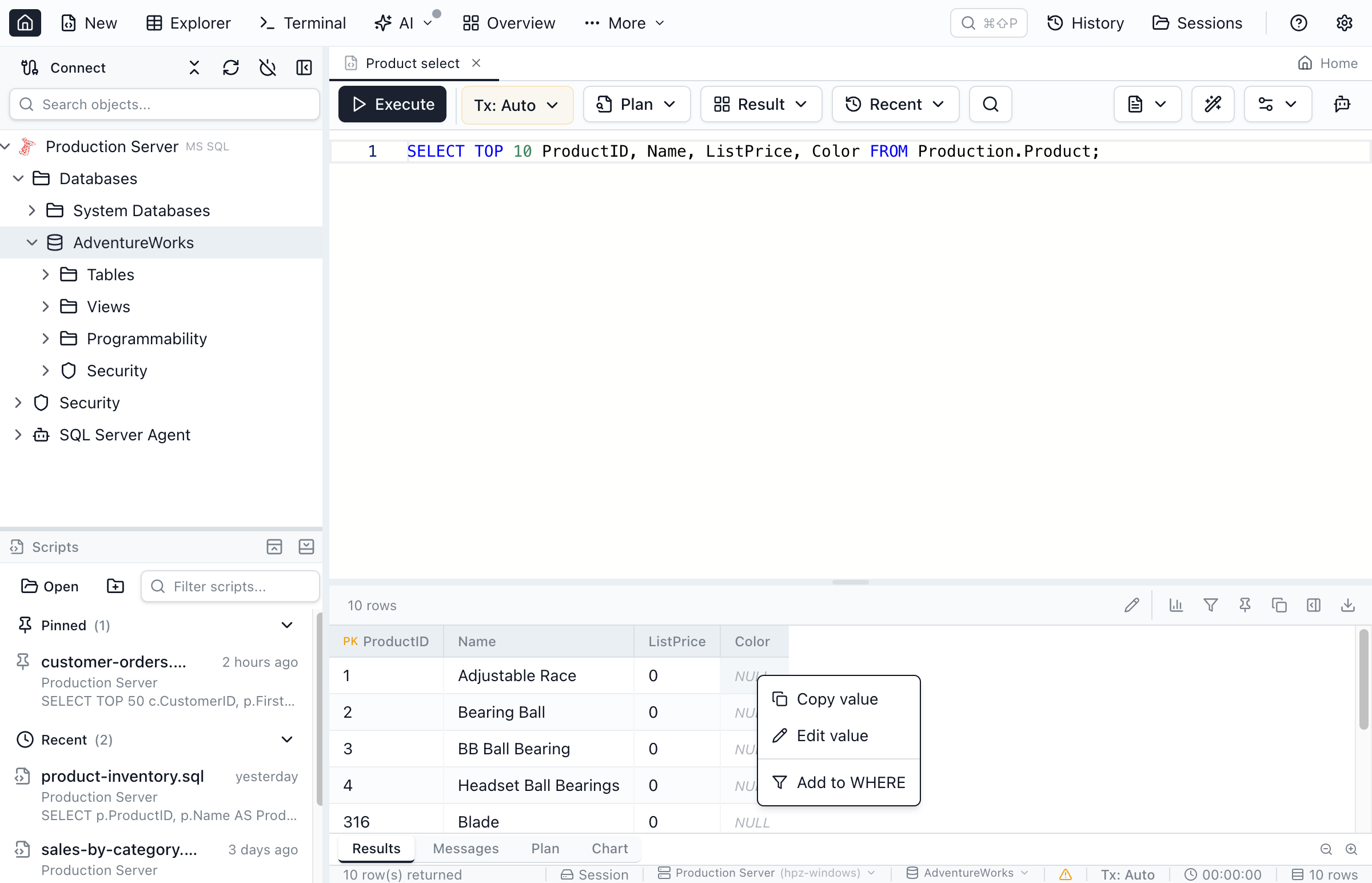
Press Cmd+C / Ctrl+C to copy selected cell values to the clipboard as tab-separated text (paste-friendly into Excel and Google Sheets). Right-click and choose Copy value to do the same from the context menu.
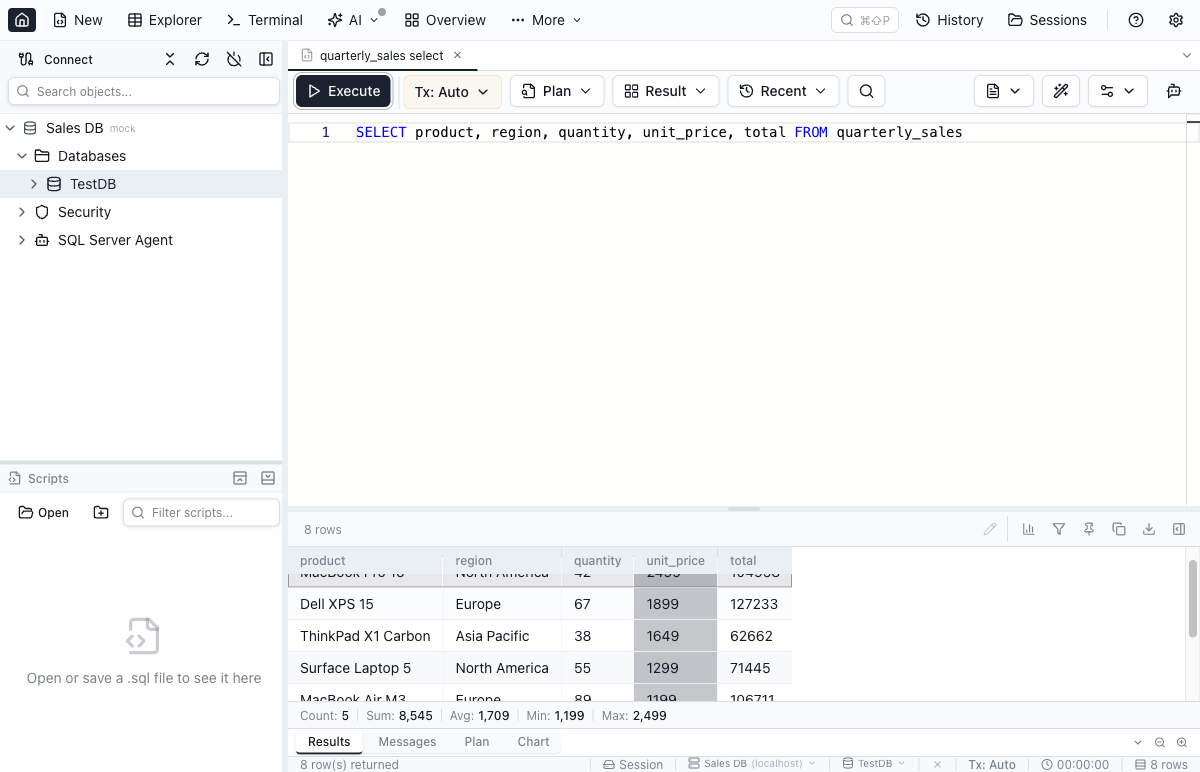
Column Profiling
Toggle column profiling (bar chart icon in the results toolbar) to see per-column statistics displayed below each column header.
- Null indicator bar — green (all values), amber (some nulls), red (all nulls)
- Hover tooltip — shows Total count, Null %, Distinct count, Min, Max, and Avg (for numeric columns)
- Stats are computed client-side from loaded rows — no additional database round-trip
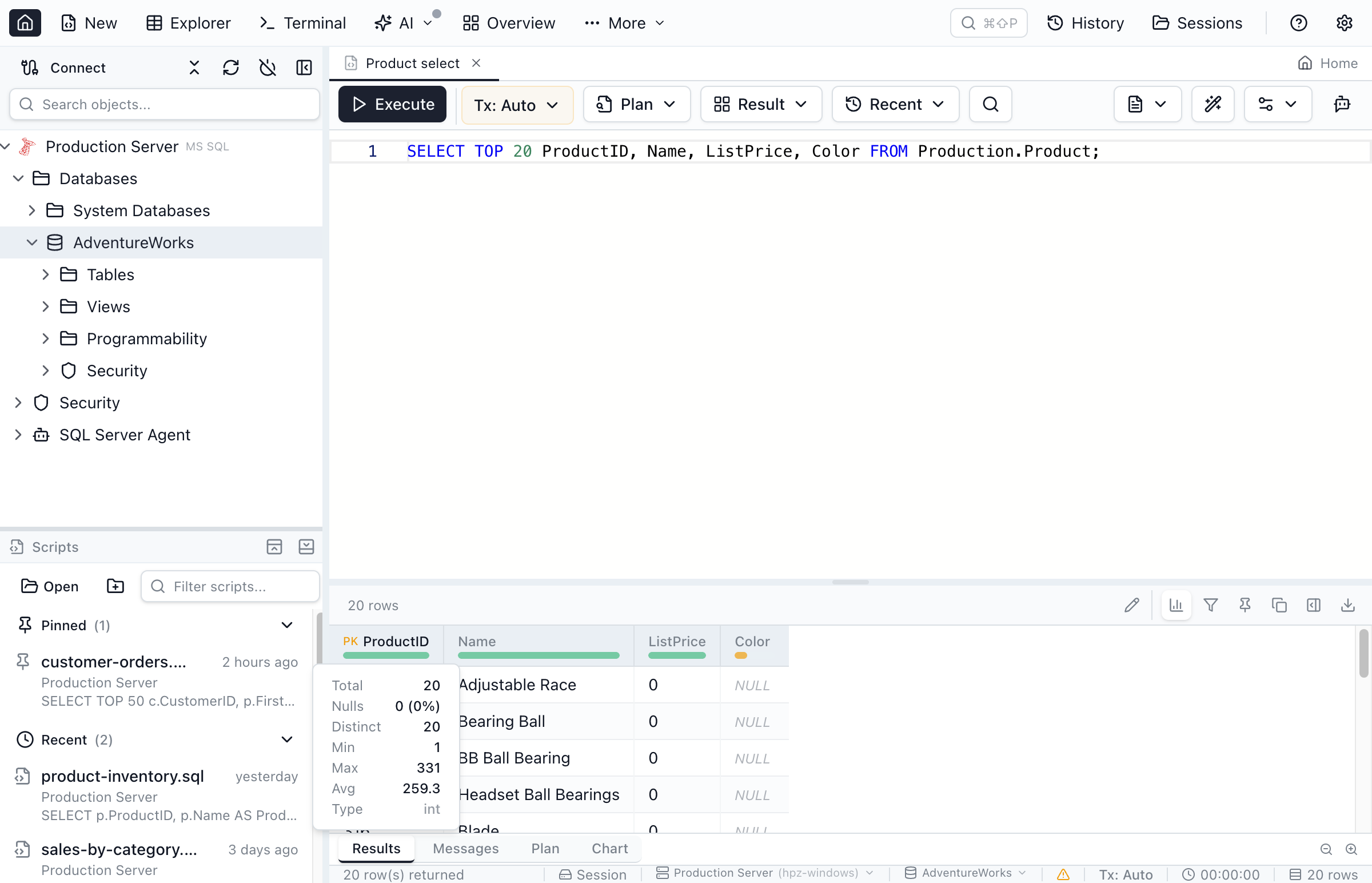
Result Filtering
Toggle the filter row (funnel icon in the results toolbar) to filter already-loaded results without re-executing the query.
- Per-column filters — type in individual column filter inputs for targeted filtering
- Global search — use the leftmost input to search across all columns simultaneously
- Filtering is instant with a 150ms debounce — results update as you type
- The toolbar shows "X of Y rows" when a filter is active
- Cell aggregates and sorting operate on filtered rows only
- Press Escape or clear all inputs to restore the full result set
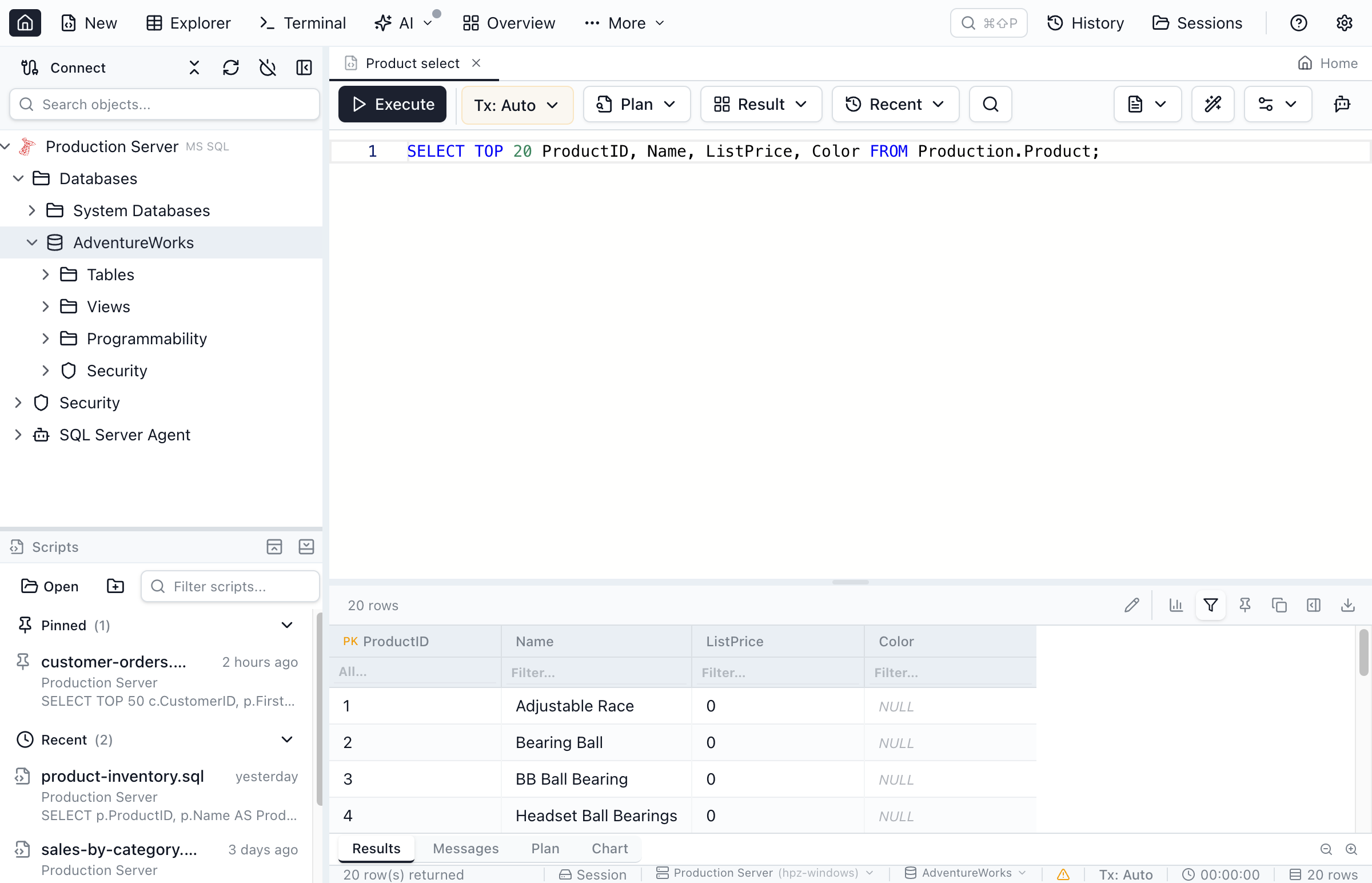
FK Navigation
Foreign key columns in query results are highlighted in blue with a link icon. Click a value to peek the referenced row and navigate to it.
- FK columns are automatically detected from query metadata — no configuration needed
- Clicking a value opens a popover showing the referenced row's data
- Click Open in the popover to jump to the referenced table in Table Explorer with the row pre-filtered
- FK constraint metadata is fetched lazily on first click and cached for subsequent lookups
- NULL values are not clickable
- Columns whose names differ only in case or punctuation (
"ref-id"and"ref id") each keep their own foreign key. A column with more than one foreign-key constraint uses one target everywhere — the preview, the cell editor's Search row in …, the enum editor's Search rows and the lookup filter: a single-column constraint before a multi-column one, then the constraint whose name sorts first (the same rule Table Explorer uses)
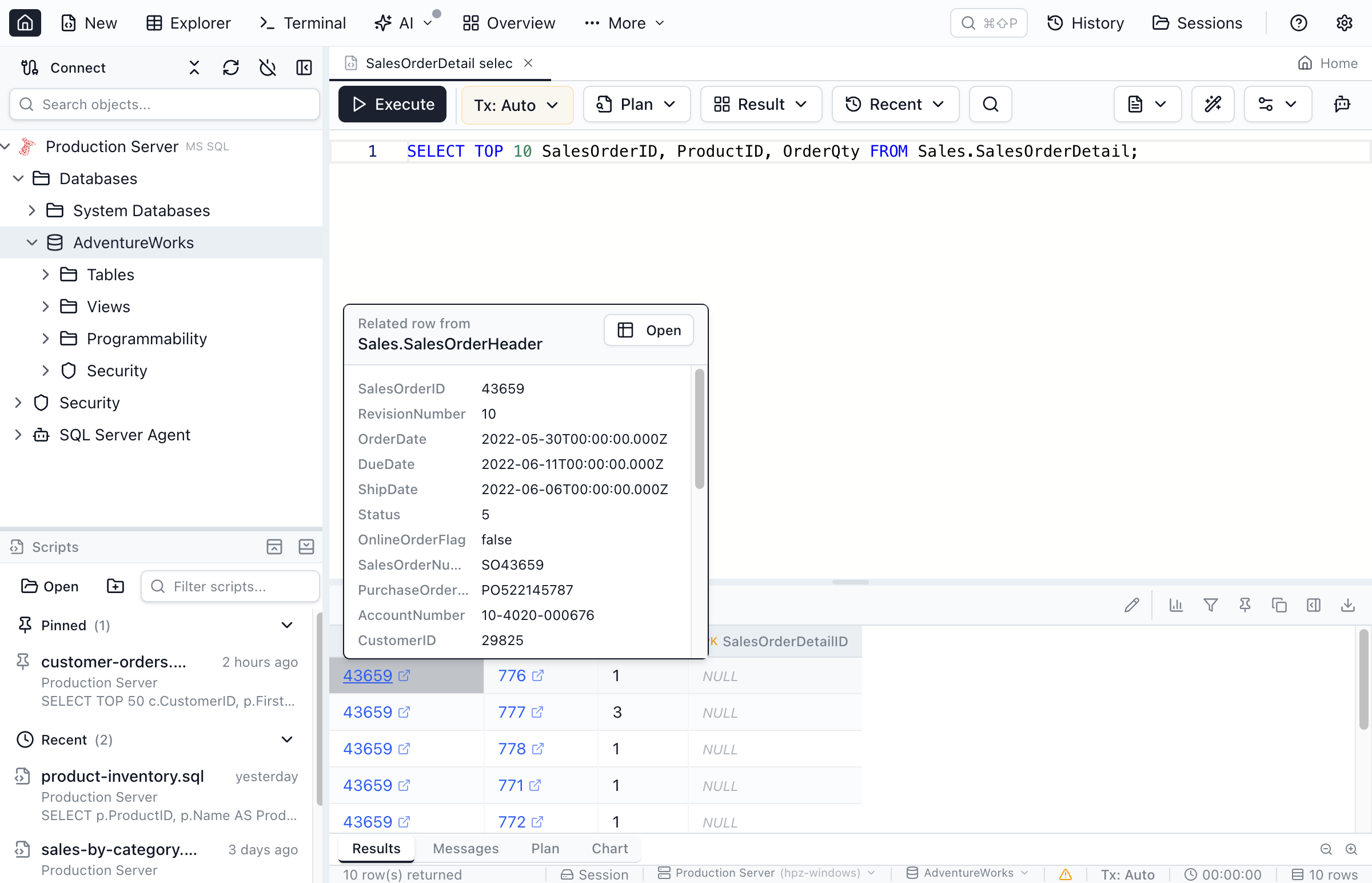
Quick WHERE Builder
Right-click any cell in the results grid and select Add to WHERE to add a filter condition to the statement that produced the results. The condition is the one Table Explorer's Add to filter starts from, written by the same filter code:
- An empty cell becomes
IS NULL, a PostgreSQL array cell becomes contains (2 = ANY(tags)), and any other value an=condition. - Values use each engine's literals: MySQL text with a backslash is written as a hex literal, so the backslash stays, Oracle dates use
TO_DATE/TO_TIMESTAMP, SQL Server dates carry the seconds it requires. - The column is named the way the statement names it:
o.customer_idin a join overorders o, the name a derived table or CTE exposes (s.xforSELECT * FROM (SELECT id AS x FROM t) s), the bare name in a one-table query. - Adds
AND …when the statement already has a WHERE clause, including one writtenWHERE(with no space; a WHERE whose conditions are joined by OR is wrapped first, soWHERE a = 1 OR b = 2becomesWHERE (a = 1 OR b = 2) AND …. - Otherwise inserts
WHERE …beforeGROUP BY,ORDER BY,WINDOW,FOR UPDATE/FOR SHARE, MySQL'sLOCK IN SHARE MODE, SQL Server'sFOR XML/FOR JSONandOPTION (…), andRETURNING. Text inside strings, comments and subqueries is skipped, and a new line starts after a trailing--(or MySQL#) comment so the comment can't swallow the condition. - It edits the selected text when there is a selection, otherwise the statement you last ran on its own (while it is still in the buffer), otherwise the buffer's last statement.
- The query is not run — review the condition and run it when ready.
Nothing is added when WHERE can't hold the condition: the column is computed by an aggregate or window function, the statement doesn't say which table the column comes from, or the statement has no WHERE to add to (a procedure call, PRAGMA, INSERT, or a Kusto query). A SELECT inside IF, WHILE or a BEGIN … END block isn't edited either; highlight the SELECT and use Add to WHERE again. A Not added to WHERE message says which. In the Visual view, Add to WHERE opens the WHERE condition editor pre-filled with the condition instead of editing text.
Add to Filter on a column header
With the Visual Query Editor turned on, the first item of a result column header's right-click menu is Add to Filter, as in Table Explorer. It opens the column's condition in the Visual Query Editor with the column's default operator and no value: in the Visual view, the WHERE condition editor for that column; in the SQL view, the compact editor on the statement the results came from, with the condition draft open. The item is disabled, with the reason in its tooltip, for an aggregate, window or expression column, for a column of a derived table, CTE or table function (the condition editor lists table columns only), for UNION / INTERSECT / EXCEPT results, and for results that don't come from a SELECT the Visual Query Editor can edit. In the SQL view it is also disabled for a SELECT with a named WINDOW or a derived table in FROM, which the compact editor can't edit — use it from the Visual view there. A column it can't place in the statement gets the same Not added to WHERE message as Add to WHERE.
Pin Results
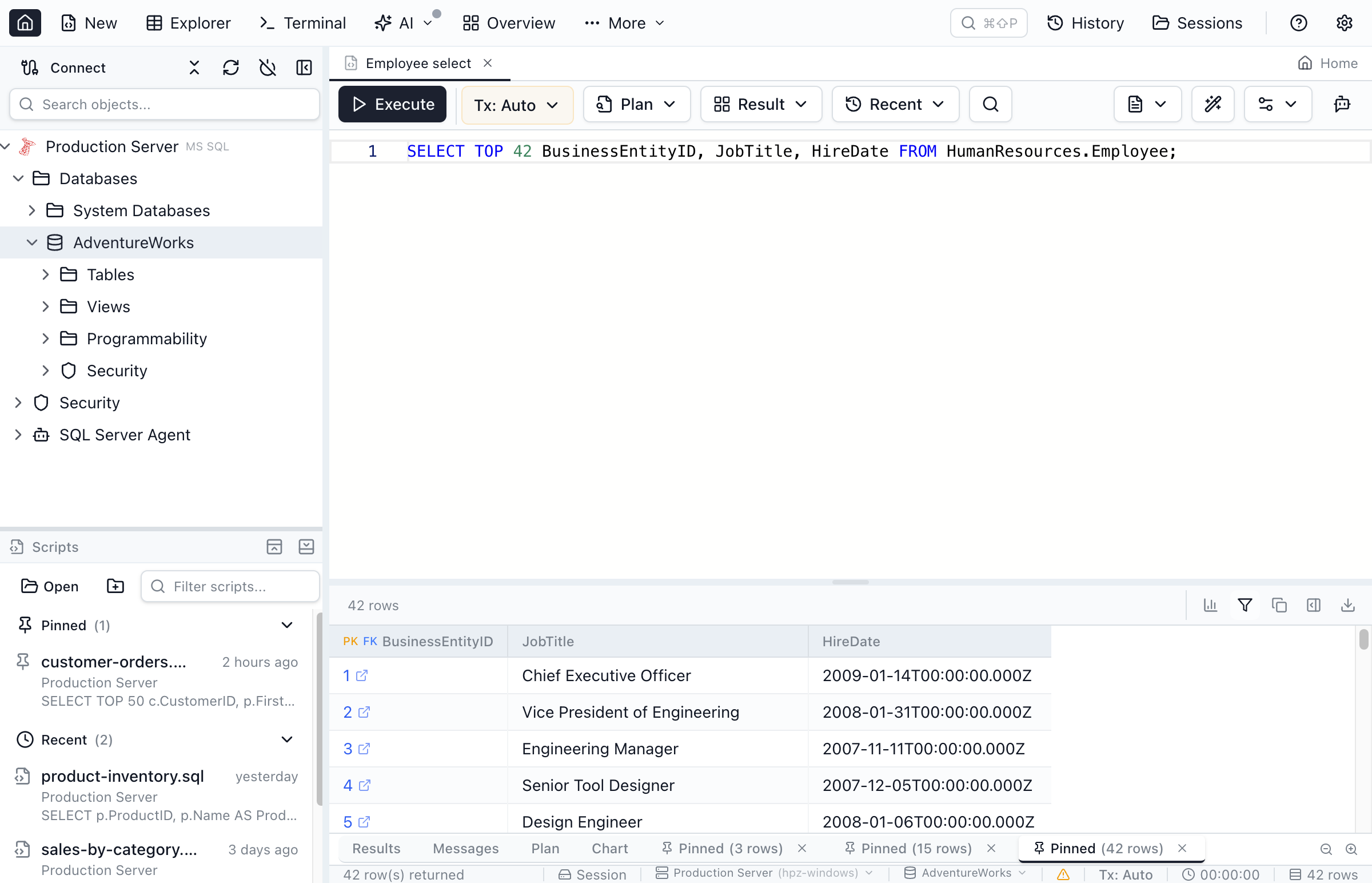
Pin the current result set (pin icon in the results toolbar) to create a snapshot tab that survives re-execution.
- Each pin creates a new Pinned tab with a pin icon and a close (X) button
- Pin multiple result sets — there is no limit on the number of pinned tabs
- Running a new query switches back to the Results tab; all pinned tabs stay intact
- Close a pinned tab by clicking its X button
- Pinned tabs are ephemeral — they are not saved across sessions
Pin to a Dashboard
The Pin to dashboard button in the results toolbar (also available from a result cell's right-click menu) turns the current query into a live dashboard tile. A confirm sheet shows exactly which query and connection the tile will carry, lets you pick the target dashboard and tile type, and the tile then refreshes independently on the dashboard — unlike ephemeral pinned result tabs, it persists.
Editing Results (UPDATE)
For queries that return rows from a base table with a primary key, Jam SQL Studio can update cells directly in the results grid (similar to DBeaver).
- Run a SELECT query that includes the table’s primary key columns
- Click the Pencil icon in the results toolbar to enter edit mode
- Double-click an editable cell (or use the pencil icon in the row side panel) to edit
- Confirm or cancel the edit (in the row side panel, use the confirm/cancel buttons next to the input)
- Click Save to apply changes, or Discard to cancel
Notes: This supports UPDATE only (no INSERT/DELETE). Columns without a single source table (computed/aggregates) are read-only. SQLite results are not editable because the driver does not provide source table metadata. In Manual or Smart mode, saving begins the tab's transaction first when none is active (as running an UPDATE would), so you can commit or roll the changes back; while the connection is reconnecting, the save is refused and your edits stay pending. In Auto-commit mode, changes are applied immediately.
Smart inputs for enum, foreign-key, and boolean columns
When you edit a cell whose source column is a declared/native enum, a real / loose foreign key, or a boolean type, the input expands into a smart editor:
- Enum columns show a values peek with live filtering. Click a value to commit, or type free text and press
Enter— the peek is a hint, not a constraint. A settings/gear button opens the Enum values details dialog. - Foreign-key columns show a Search row in … link that opens the same row picker used by the
lookupfilter operator. Polymorphic loose FKs list one entry per matching declaration. Free text +Enterremains the always-available fallback. - Boolean columns (
bit,boolean,tinyint(1)) render an inline segmented toggle withTRUE/FALSEoptions. Nullable columns get a thirdNULLoption. Clicking an option commits immediately;Escapecancels. Free-text typing is intentionally not offered — booleans are a closed set.
The same smart inputs are applied consistently in the Table Explorer grid, its inline Row details panel, and the Single-Row Details View — so editing semantics don't change as you move between surfaces.
Plaintext View
Switch to plaintext view to see results as formatted ASCII text, useful for copying into documentation or chat.
Each execution replaces the previous plaintext output.
Large Query Results
Jam SQL Studio can display and export query results of any size — millions of rows — with no hard row cap. The app automatically chooses the optimal rendering strategy based on result size:
- Small results (≤50K rows, ≤20MB) — render instantly in the grid with client-side sorting, filtering, copy, and export. This is the same fast path used in previous versions — no change in behavior.
- Large results (>50K rows or >20MB) — use windowed virtualization. Rows stream from the backend through a sliding buffer, and the grid fetches new windows as you scroll.
When a large result set is loading:
- A progress bar shows the number of rows received so far
- You can scroll and browse partial results while they continue loading
- Click Cancel to stop population and keep the rows received so far
- Column headers are available immediately — the grid renders as soon as the first batch arrives
For large results, sort and filter operate on the full dataset via the backend (not just the loaded buffer). A brief "Sorting..." or "Filtering..." overlay appears while the operation completes. Sort and filter are not available while results are still loading — wait for population to finish.
The grid uses a proportional virtual scrollbar that maps scroll position to row index. This allows smooth navigation through millions of rows without hitting browser scroll-height limits.
Exporting Results
Export your query results in multiple formats:
- CSV — Comma-separated values for spreadsheets
- JSON — JavaScript Object Notation for APIs
- Excel — Native .xlsx format with formatting
- SQL (INSERT) — INSERT statements as a .sql file with engine-aware identifier quoting and value formatting
You can also copy results to clipboard as CSV, Markdown, or INSERT statements from the copy dropdown in the results toolbar.
Identity columns. Generated INSERTs keep identity values by default — on SQL Server the script is wrapped in SET IDENTITY_INSERT <table> ON/OFF so it runs instead of failing with "Cannot insert explicit value for identity column" (Msg 544). Tick Skip identity columns in the copy or export dropdown to leave identity columns out and let the target assign fresh values. The choice is remembered across restarts. The copy and export menus work from the keyboard like any other menu: Enter opens one, the arrow keys move between the formats, Enter runs the highlighted one and Esc closes it; ticking Skip identity columns keeps the menu open. If identity metadata can't be checked, a warning toast tells you the script was generated without identity handling.
For large (windowed) result sets, use Export All to CSV to stream the full dataset to a CSV file. The export runs in the background with a progress toast showing rows written, percent complete, and an estimated time remaining, and it can be cancelled at any time. Long exports also show their progress on the app’s dock / taskbar icon, so you can switch to another app while millions of rows stream out. JSON, Excel, and SQL INSERT exports are available only for small (in-memory) results.
On SQL Server, Export All to CSV is written by the bundled SQL Tools Service straight to disk in large chunks — the row data no longer travels through the app’s per-batch requests, which were what used to time out, so exports of millions of rows or very large text cells complete reliably and substantially faster. Progress ticks per chunk, Cancel takes effect at the next chunk boundary, and resume works as before. If the chunked write can’t complete for any reason, the export automatically falls back to the streaming method below and picks up where it left off. One thing to know: on this SQL Server path, NULL values are written as the literal text NULL (the same convention SSMS and Azure Data Studio use), rather than an empty field — other engines’ CSV exports are unchanged.
Large exports are built to survive a slow server: if a batch takes a while the toast says so instead of freezing, and a batch that times out is automatically retried. If the same rows keep timing out — typically rows holding very large text, JSON, or binary values — the export doesn’t give up: it works through the difficult spot by fetching smaller and smaller batches, down to a single row at a time, and the toast narrates the recovery. If a row still can’t be read after that, the export skips it and keeps going, then finishes with a warning listing the skipped row numbers — up to 20 skipped rows; past that the export stops and keeps the partial file, resumable as below. Whenever rows were skipped, a Skipped rows tab appears beside Results and Messages listing every missing row with a short preview of its values — click any row to jump to it in the grid, selected and centred, so you can see what is in the row the server refused to hand over without hunting for it by hand; a row that still can’t be read even one-by-one shows a “Still unreadable” badge with a per-row Retry. The warning itself offers a direct Show row jump when exactly one row was skipped, or a Review skipped rows button that opens the tab. The tab lives as long as that result set: re-running the query or switching result sets clears it (and if you have since closed the tab or switched result sets, the warning’s buttons say so instead of scrolling somewhere unrelated). If an export fails partway, the rows already written are kept on disk — the toast tells you how many rows were saved and offers Resume export, which continues from the last saved row without starting over, alongside the usual Show in folder button.
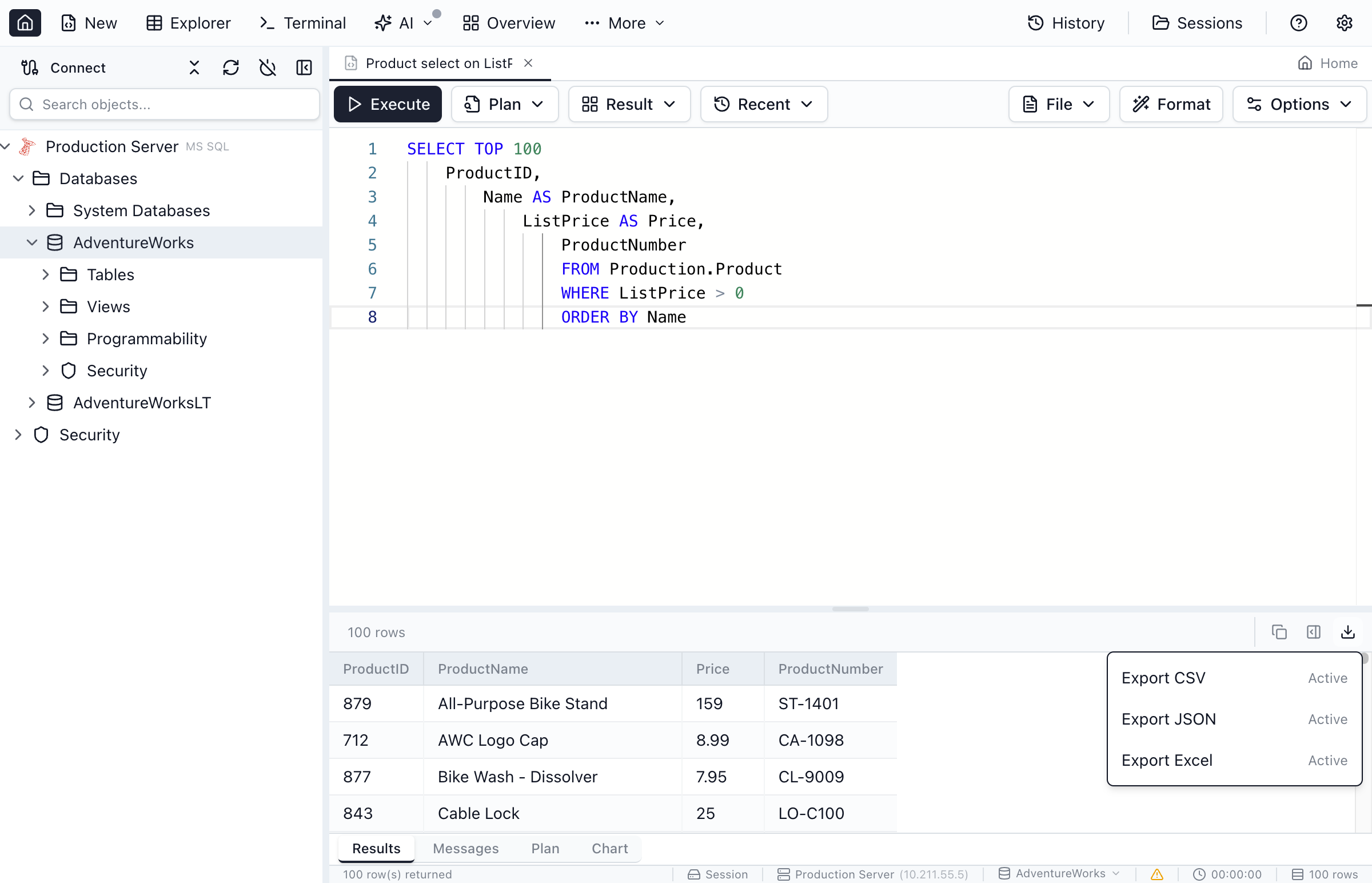
Transaction Management
Control how your queries interact with transactions using the toolbar controls. Each query tab has its own independent transaction state.
In Manual and Smart mode, transaction controls are grouped with a subtle shared tint: transaction mode and isolation sit on the first row, and commit/rollback controls sit on the second row.
When the toolbar gets narrow, right-side File/Format/Options collapse first; if space is still tight, Plan/Result/Recent collapse to icon-only buttons.
With two-row transaction controls visible, right-side actions move into that second row beside commit/rollback only after File/Format/Options and Plan/Result/Recent have already collapsed and space is still insufficient.
Transaction Modes
Click the transaction mode button in the toolbar to switch between three modes:
- Auto (default) - Every statement auto-commits immediately. This is the standard behavior.
- Manual - A transaction begins automatically on your first query. You decide when to commit or rollback using the toolbar buttons.
- Smart - Read-only queries (SELECT) run in auto-commit, while data-modifying statements (INSERT, UPDATE, DELETE) automatically begin a transaction.
Commit and Rollback
When a transaction is active in Manual or Smart mode, use the toolbar buttons or keyboard shortcuts:
- Commit - Save all changes in the current transaction (
Cmd+Shift+C/Ctrl+Shift+C) - Rollback - Discard all changes in the current transaction (
Cmd+Shift+X/Ctrl+Shift+X)
If no transaction is active yet, the toolbar shows a short hint telling you to run a query first to start one.
The status bar shows the current transaction state with color indicators: amber for an active transaction, red for an error state.
Isolation Levels
In Manual or Smart mode, you can set a transaction isolation level per tab:
- Default - Use the database engine's default level
- Read Uncommitted - Allows dirty reads
- Read Committed - Prevents dirty reads (SQL Server and PostgreSQL default)
- Repeatable Read - Prevents non-repeatable reads
- Serializable - Full isolation (SQLite only supports this level)
The isolation level applies when the next transaction begins. Changing it during an active transaction takes effect on the next one.
Tab Close Safety
If you try to close a tab with an active transaction, a dialog gives you three choices: Commit and Close, Rollback and Close, or Cancel. The same dialog appears when Close others, Close tabs to the right or Close besides pinned would close a tab with an open transaction, and when you switch sessions. If a commit or rollback fails, that tab stays open and a notice names it and gives the error; the other tabs close as chosen (a session switch does not happen until every tab can close). A failed commit or rollback always ends the transaction — the database rolls it back — so the tab's toolbar returns to idle and the error stays in its Messages. If a statement fails and the database rolls the whole transaction back (PostgreSQL after any error, SQL Server with XACT_ABORT, MySQL for a deadlock), Commit reports that the transaction was rolled back instead of committing. On MySQL, statements run after a deadlock are refused until you roll back, because MySQL would otherwise commit each one on its own. If MySQL cannot confirm whether a transaction survived a lock wait timeout, the tab says so, Commit is disabled and Rollback is the only option. While a tab's transaction is still starting, the toolbar shows Stop: it gives up on the transaction and runs nothing. When the app quits or its window closes, all active transactions are rolled back automatically; a transaction whose statement is still running is ended by closing its connection, which the database also rolls back.
The query status bar uses compact 12px text for improved readability during long editing sessions.
Connection and Database in the Status Bar
The status bar shows the tab's connection and database as one control, connection › database, inside a rounded box. Each half is its own dropdown: click the connection name to run the tab on another connected connection of the same engine, or the database name to switch databases on the same connection. Hovering a half shows a tooltip that says what it changes; the connection's tooltip also names the server host, which the status bar leaves out to keep the control short. When the connection has a colour, a small square in that colour sits before the connection name. A tab with no connection shows only the connection half.
Database Switcher
The database name in the status bar is a dropdown — click it to run the tab against another database on the same connection. Once Object Explorer has listed a connection, the dropdown opens with that list already in it instead of showing “Loading databases…” again, and re-reads the list in the background while you pick. So a database you created since the last time you opened the dropdown still shows up.
The same applies to every other database picker in the app: the Table Explorer's database dropdown, the Schema Overview header, the Select Database dialog a toolbar action opens when it needs one, the Table Designer, Clone Table, the Schema Overview's Compare Schemas dialog, Data Import's Target step, the cross-engine migration target, the Database Blueprint “Add linked database” dialog, and the database button on the collapsed Object Explorer rail.
When the list can't be read at all — a login without permission to see the server's databases, for example — the picker says so and offers Show details, which opens the connection diagnostics. Below that it still lists the database this connection is configured for and any it has opened before, each marked with a ? so it's clear the server didn't confirm them. Those entries are selectable, so an action that needs a database — Table Designer, Clone Table, Table Explorer — is not blocked by a listing you can't read. Jam never fills the gap with a guessed list of system database names. Because the server hasn't confirmed those names, the Select Database dialog's Set as default database for this connection option is not offered over them: saving a default changes what the connection dials, so it waits until a listing has confirmed the name. For the same reason it stays switched off for the moment the dialog spends re-reading the list in the background — it reads Checking the database list… until the fresh list arrives. Picking a database for the job at hand is never held up; only saving it as the default is.
Data Import's Target step is the one picker that does not offer those unconfirmed entries. Its Database field reports “Couldn't list databases.” with a Retry link instead, because the import needs a database the server can actually be asked about before it writes to it.
The collapsed rail's database button used to show only what the Object Explorer tree happened to hold, which left system databases out of it. It now offers the same list as every other picker.
Editor Options
Customize the query editor to match your preferences.
Formatting
- Format SQL - Press
Shift+Alt+Fto format your SQL code - Word wrap - Toggle word wrap for long lines
- Tab size - By default, pressing Tab in the query editor inserts 2 spaces. You can change this to 4 or 8 in Settings → UI → Editor → Tab Size. The choice is global and persists across restarts. It applies to the main query editor and the PL/SQL debugger edit view.
Color Scheme
Settings → UI → Appearance → Editor colors shows a button with the current scheme's name and swatches; clicking it opens an Editor colors dialog. The dialog shows two preview panes — Dark and Light — rendering a sample SQL query in each scheme's colors, above a scheme dropdown with five presets (Default, High contrast, GitHub, Solarized, and Atom One) plus a Custom option. Hovering a scheme in the open dropdown previews it in both panes without changing anything; clicking a scheme (or editing Custom's color pickers) updates the panes and the dialog's staged selection, but nothing reaches your editors yet. Confirm applies the staged scheme to every open SQL editor at once — the Query Editor, notebook cells, and diff viewers; Cancel (or Escape, or the dialog's close button) discards it. Only the syntax token colors change; the editor background stays matched to your app theme, and the app's Theme setting (System/Light/Dark) picks which preset variant is active elsewhere in the app.
High contrast keeps every token at least 7:1 against the editor background, for anyone who finds the default colors too dim to read. The other presets meet a 4.2:1 floor for keywords, strings, and numbers, and 3.5:1 for comments.
Selecting Custom opens color pickers inside the dialog, seeded from whichever scheme was active the first time you pick it. Seven pickers — Keywords, Functions, Strings, Numbers, Identifiers, Operators, and Comments — each pair a color swatch with a hex text field, and both preview panes update live as you edit. An Edit variant: Dark / Light toggle picks which variant the pickers are editing, independent of the app's theme setting. A Copy from… control re-seeds both variants from any of the five presets. Custom colors carry no contrast floor — that's your choice — but a color below 3:1 against the edited variant's editor background shows a small warning triangle.
The selected scheme — including custom colors — travels with a settings export and is validated on import; see Moving Your Settings to Another Machine.
File Operations
- Open file - click the Open button in the query toolbar to open a .sql file
- Save file -
Cmd+S/Ctrl+Sto save - Save as -
Cmd+Shift+S/Ctrl+Shift+Sto save with a new name
File-backed tabs show an asterisk (* filename.sql) in the tab title when there are unsaved changes. The indicator disappears after saving.
Size limit. The editor accepts scripts up to 50 MB. Opening a larger .sql file, or pasting or dropping text that would push a tab past 50 MB, is refused with a message that names the size; run scripts that large with your database's command-line tool (sqlcmd, psql, mysql, sqlplus, sqlite3). If a file you have open grows past 50 MB on disk, the tab keeps its current text and tells you. A tab holding a script over 1 MB keeps working during the session, but its text is not saved with the workspace: after a restart a file-backed tab reloads the script from its file, and an unsaved tab shows a comment explaining that the script was too large to keep, so save large scripts to a file.
Scripts Panel
Use the Scripts panel in the sidebar to manage and reopen your .sql files:
- Recent - Quickly reopen recently opened scripts
- Pinned - Pin frequently used scripts for each script workspace
- Mounted folders - Mount a folder from disk and browse .sql files in a tree
- Rename mounted folders - Right-click a mounted folder and choose Rename in Jam SQL (label only)
- Filter scripts - Search across Recent/Pinned and mounted folders
When you open a script from the Scripts panel, Jam SQL Studio uses your current connection context from Object Explorer. If no connection is selected, you'll be prompted to choose one.
AI Chat Sidebar
The Query Editor includes a built-in AI Chat sidebar powered by your locally installed Claude CLI or Codex CLI. Click the AI button in the toolbar to open the chat panel alongside your editor.
- Ask questions about your SQL, get suggestions, and let the AI interact with your database via MCP tools
- The AI can update your editor directly using the
ui_set_editor_texttool - @-mentions — type
@to reference database objects (tables, views, procedures) from the Object Explorer - Session continuity — conversations persist across tab switches and session restores
- Multi-backend — supports both Claude CLI and Codex CLI; switch between them with a segmented control when both are installed
See AI Integrations & MCP for setup details.
Pin queries to the Object Explorer
Pin a query you come back to often to the Object Explorer tree, grouped under its database next to pinned tables. Click the pin button in the query toolbar, or right-click the tab and choose Pin to Object Explorer (distinct from Pin tab, which only keeps the tab open). The button is disabled with a tooltip when a tab can't be pinned — for example, before you've connected it to a database.
Queries pin in one of two flavors, decided when you pin:
- Snapshot — for an unsaved (scratch) query, the pin stores the SQL text as it is at that moment.
- File — for a query backed by a
.sqlfile on disk, the pin stores the file path, and reopening re-reads the current file contents from disk.
To reopen, double-click the pinned row (or select it and press Enter). Jam SQL Studio opens a query tab with the saved SQL — it does not run the query automatically, so you stay in control of execution. Opening a pin that's already open just focuses its tab.
If you edit a pinned tab so it no longer matches the pin, the toolbar pin button shows a divergence dot; click Update to re-capture. To unpin, click the pin icon at the right-hand end of the pinned row. Right-click it for Rename, Update from the open tab, or Unpin. Pins are saved per connection and database and persist across restarts. You can pin Table Explorer views and notebooks the same way — see Table Explorer and SQL Notebooks.
Query History Search
Search across all your query history with full-text search and filters. Open it via:
- Keyboard shortcut —
Cmd+Shift+Y(macOS) /Ctrl+Shift+Y(Windows/Linux) - Command Palette — type "history" and select "Search Query History"
- Toolbar button — click the history search icon in the query toolbar
Filter results by connection, database, success/error status, and date range (today, last 7 days, last 30 days, or all time). Results show the SQL preview, connection name, timestamp, duration, and row count.
Click a result to insert its SQL into the current editor. Up to 200 queries are stored per connection/database context.
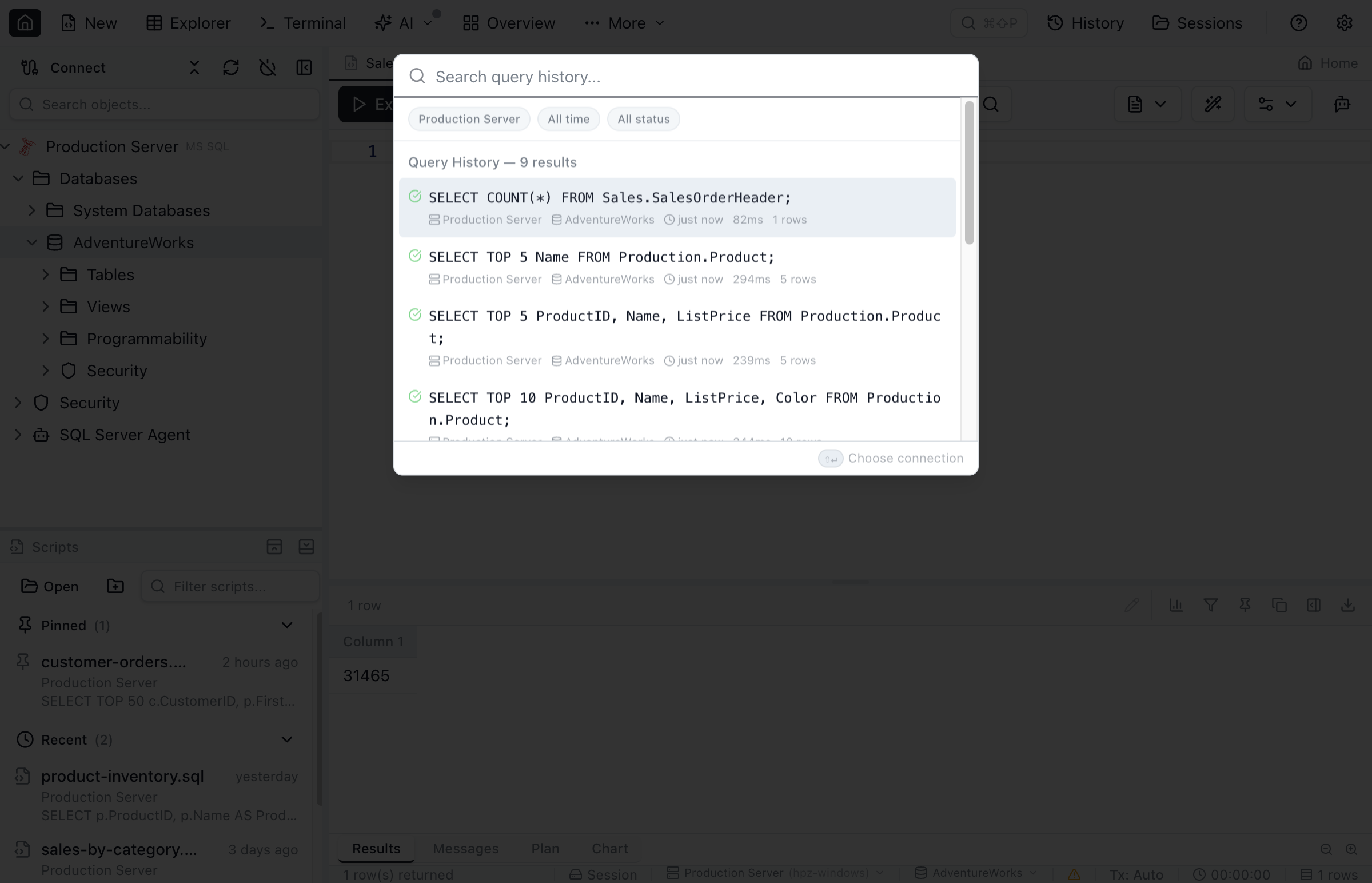
Keyboard Shortcuts
The Query Editor supports these shortcuts:
| Action | macOS | Windows/Linux |
|---|---|---|
| Execute query | F5 | F5 |
| Execute current statement | Cmd+Enter or Shift+Enter | Ctrl+Enter or Shift+Enter |
| Format SQL | Shift+Alt+F | Shift+Alt+F |
| Save file | Cmd+S | Ctrl+S |
| Comment line | Cmd+/ | Ctrl+/ |
| Find | Cmd+F | Ctrl+F |
| Find and replace | Cmd+Alt+F | Ctrl+H |
| Search query history | Cmd+Shift+Y | Ctrl+Shift+Y |
| Copy selected cells | Cmd+C | Ctrl+C |
| Commit transaction | Cmd+Shift+C | Ctrl+Shift+C |
| Rollback transaction | Cmd+Shift+X | Ctrl+Shift+X |
| Refresh IntelliSense | Cmd+Shift+R | Ctrl+Shift+R |
| Toggle Results Pane | Cmd+J | Ctrl+J |
| Go to definition | F12 | F12 |
| Find references | Shift+F12 | Shift+F12 |
| Rename symbol | F2 | F2 |
Frequently asked questions
How do I execute a SQL query in Jam SQL Studio?
Press F5, or click the Execute button in the toolbar, to run the SQL in the editor. To execute only a portion, select the text — the toolbar button switches to Selection and runs just the selected SQL, and F5 does the same. Cmd/Ctrl+Enter and Shift+Enter run the selection or the statement under the cursor; Shift+F5 always runs the full editor content.
Does Jam SQL Studio have SQL autocomplete?
Yes, Jam SQL Studio provides IntelliSense with context-aware suggestions for table names, column names, SQL keywords, and functions based on your database schema.
How do I export query results?
Click the Export button in the results toolbar and choose your format: CSV, JSON, or Excel (.xlsx). For JSON and Excel, you can export the active result set or all result sets.
Can I view the execution plan for my query?
Yes, click the Execute dropdown and select 'Execute with Actual Plan' or 'Execute with Estimated Plan'. The execution plan opens in a visual tree/graph view for analysis.
How do I cancel a running query?
Click the Stop button in the toolbar while a query is running. Jam SQL Studio requests cancellation, and the button changes to Stopping… — click it again to force the stop. A statement already waiting on the server may run until its wait ends: on Oracle the forced stop drops the connection so the query returns at once, but the database session finishes what it had already started.
Can I run SQL/PGQ property graph queries?
Yes — queries are sent to your database as-is, so SQL/PGQ (SQL:2023 property graph queries) such as GRAPH_TABLE on Oracle 23ai, and SQL Server's graph MATCH syntax, execute normally and results appear in the standard results grid. On Oracle 23ai+, the editor also recognizes GRAPH_TABLE syntax and offers schema-aware completions for graph names, labels, and properties — see SQL/PGQ Property Graph Intellisense above — and property graphs appear in the Object Explorer with scripting and a GRAPH_TABLE query template, see the Scripting guide. PostgreSQL 19 carried SQL/PGQ in betas 1 to 3, but Beta 4 (September 24, 2026) reverted it, so PostgreSQL 19 will be released without GRAPH_TABLE. Visually editing a GRAPH_TABLE query in the Visual Query Editor is not yet supported.
Ready to Write Queries?
Download Jam SQL Studio and start writing SQL with powerful IntelliSense.