
Last updated: 2026-08-27
Sessions
Jam SQL Studio automatically saves your workspace so you can resume where you left off. Pro users can manage multiple sessions to switch between different work contexts.
What's in a Session?
A session captures your entire workspace:
- Open tabs — Query editors, table explorers, comparison views, etc.
- Tab content — Query text, table references, filter settings
- Connection references — Which database each tab is connected to
- Active tab — Which tab is currently selected
Not persisted: Query results, loaded table data, and other runtime state are not saved. These are reloaded when you interact with tabs after resuming. A query tab whose script is over 1 MB keeps it during the session, but the saved workspace omits it: after a restart a file-backed tab reloads the script from its file, and an unsaved tab shows a comment explaining that the script was too large to keep (see size limits). The same cap applies to closed-tab history and query history.
Auto-Save Behavior
Jam SQL Studio automatically preserves your workspace:
- Continuous auto-save — Your session is saved every few seconds as you work
- On close — A final save occurs when you quit the app
- Crash recovery — Auto-saves protect against unexpected crashes (worst case: last few seconds of changes)
No manual "Save Session" action is needed—your work is always preserved automatically.
Startup Behavior
When you launch Jam SQL Studio, the Sessions dialog appears if you have a previous session:
Resume Last Session
Your last session sits in the card at the top of the dialog. Click its Resume button to restore your previous workspace — when the session is already open, the card reads Go back to your session and the button reads Go back. The app will:
- Check that your database connections are still valid
- Bring back all your tabs and their content immediately
- Connect the tab you land on right away — every other connection opens the first time you switch to a tab that needs it
You can rename the session right from this card — double-click its name to edit it inline. This works for your current session in both Personal and Pro; if you never rename it, Jam SQL Studio names it automatically from what's open.
Start Fresh / New Session
Click Start Fresh Session (Personal) or New Session (Pro) to begin with a clean workspace. This:
- Saves your current session automatically
- Opens the Saved Connections dialog to connect to a database
- Gives you a fresh workspace to start new work
Skipping the startup dialog
If you never resume old sessions, check Always start a new session at the bottom of the startup dialog (or flip the same switch in Settings → Sessions → On Startup). Jam SQL Studio then launches straight to the Start Page without asking. Nothing is deleted — your previous session stays available from the toolbar Sessions button, and you can turn the prompt back on at any time.
Managing Sessions (Pro)
Pro users can access the All Sessions section to manage multiple saved sessions.
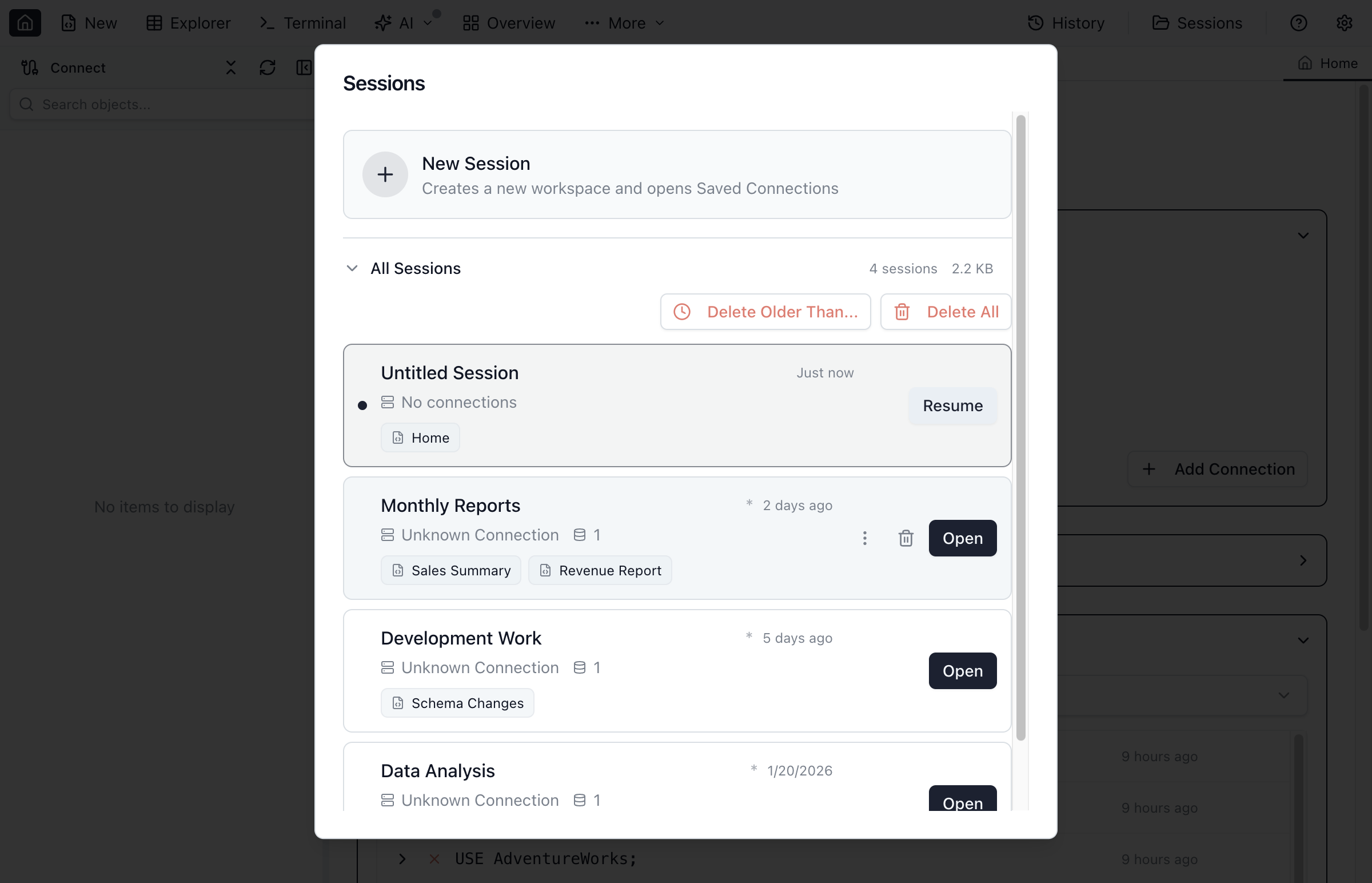
Opening the Sessions Dialog
Click the Sessions button in the toolbar to open the Sessions dialog at any time.
All Sessions Section
Expand All Sessions to see your saved sessions. Each session card shows:
- Session name (auto-generated or custom)
- Connection information
- Tabs preview (query names, table explorers, etc.)
- Last opened time
A session you have not renamed is named after the connections it has — "Sales DB", "Sales DB & Reporting", or "Sales DB & 2 more" — and that name follows the session: add or remove a connection and it updates. Whether a connection happens to be open at the time makes no difference — a session with two connections is named after both even when only one of them is currently connected. Rename a session yourself and it keeps your name from then on.
Session Actions
| Action | Description |
|---|---|
| Open | Switch to the selected session |
| Resume | Continue working in the current session |
| Rename | Double-click the session name to edit it inline |
| Delete | Remove the session (cannot delete current session) |
Bulk Delete Options
When you have multiple sessions, additional cleanup options appear:
- Delete Older Than... — Remove sessions not used in a specified number of days
- Delete All — Remove all sessions and start fresh
Connection Validation
Resuming a session opens every connection it has, and shows you each one as it happens. The connections the tab you land on needs go first — one for a query or table tab, both sides for a Schema Compare or Data Compare tab — and the moment those are settled, Continue in background becomes available: your workspace comes back immediately and the remaining connections carry on opening behind it. You can also just wait and watch them finish. Either way a slow or unreachable server never holds your tabs up. The exception is a connection that asks for its password — that one waits for the first tab that needs it, so the password prompt only ever appears for one connection at a time. The session card marks that one needs password before you resume; the rest carry no label, because there is nothing to warn you about — they all open.
Dismissing the dialog with Continue in background is not the same as cancelling it: the connections keep opening, and you follow them in the sidebar. Cancel stops them.
Each connection also appears as a chip you can turn off before resuming. Excluding a connection leaves it (and any tabs that depend on it) out of the session, and the caption below the chips updates to match — for example "Restores 1 of 2 connections". Change your mind any time before clicking Resume by turning the chip back on.
Jam SQL Studio still checks every connection the session references while resuming:
- Successful validation — The connection is restored and tabs work normally
- Opens in the background — Nothing is wrong with it; it is opened after the connections your tabs need, and keeps opening if you dismiss the dialog
- Connects on first use — needs a password — It can't be opened unattended, so it waits for the first tab that needs it and prompts you then
- Failed validation — You can keep the connection offline (tabs are read-only) or remove it from the session
- Missing configuration — The saved connection no longer exists, so you're asked to keep or remove it
A tab whose connection isn't open yet shows a disconnected indicator with a Connect button, so you can always open one by hand instead of waiting to switch tabs.
The sidebar draws the same distinction. A connection the resume is about to open is labelled Connecting shortly with a clock, one that is being opened right now shows a spinner and Connecting…, and one that is waiting for its password is labelled Needs password with a key — nothing is wrong with any of them — while a connection that failed or that you disconnected keeps the amber Disconnected warning. The small refresh button on the row opens a waiting connection immediately; while one is already being opened there is nothing to retry, so the button steps aside until it settles.
Use Cases
Project-Based Sessions
Create sessions for different projects or clients:
- "Project Alpha" — Dev database queries, schema comparisons
- "Client Beta" — Different database, specific reports
- "Support" — Production read-only connections, diagnostic queries
Environment Sessions
Create sessions for different environments:
- "Development" — Local or dev server connections
- "Staging" — Pre-production testing
- "Production" — Read-only queries for monitoring
Task-Based Sessions
Create sessions for recurring tasks:
- "Daily Reports" — Report queries ready to run
- "Schema Validation" — Schema compare tabs for deployments
- "Data Migration" — Data compare and sync workflows
Frequently asked questions
What is a session in Jam SQL Studio?
A session captures your complete workspace state: all open tabs, their content (queries, table explorers, comparisons), and connection references. Sessions are automatically saved so you can resume your work.
Does Jam SQL Studio auto-save sessions?
Yes, Jam SQL Studio automatically saves your workspace state continuously. When you close the app and reopen it, you can resume exactly where you left off. No manual saving is required.
Can I have multiple sessions?
Pro users can manage multiple sessions. Each time you start fresh, the previous session is saved. You can rename sessions, switch between them, and delete old sessions from the All Sessions list.
What happens when I start a new session?
When you click New Session (Pro) or Start Fresh (Personal), your current workspace is saved automatically. You then start with a clean workspace and can set up new connections.
Ready to Organize Your Workspace?
Download Jam SQL Studio and let it handle saving your work.