Jam SQL Studio is designed as an AI-native SQL IDE. There are three ways to leverage AI with your databases: the built-in AI Chat Sidebar for conversational assistance right in the editor, the AI Workspace for file-backed collaboration with AI agents, and the Jam SQL Skill & MCP Server for external AI tools to safely interact with your databases.
Try it yourselfJam SQL Studio is free for personal use — the AI Chat Sidebar, AI Workspace, and local MCP server are all built in, on Mac, Windows, and Linux.
If you have not used the MCP server before, this is the whole path. The MCP endpoint itself is local — the server listens on 127.0.0.1, it is not routable from your network, and your saved connection credentials stay inside the app; the agent never receives a password or a connection string. Two things do travel, and it is worth being clear about both: the SQL runs against your database, so if that database is remote the traffic goes to it exactly as it would from the query editor; and whatever the agent sees — the SQL it writes, the rows a tool returns — goes wherever your AI client sends its context. A local model keeps it on the machine; a cloud client sends it to that provider like any other prompt and tool result. The detailed reference for each piece follows further down.
Install Jam SQL Studio.Download the Mac, Windows or Linux build and open it. Free for personal use, no account.
Connect a database. Click New Connection, pick the engine, fill in server, credentials and (optionally) a database, and click Connect. The MCP server exposes the connections you have saved here — see Connections. Nothing is exposed until the next step.
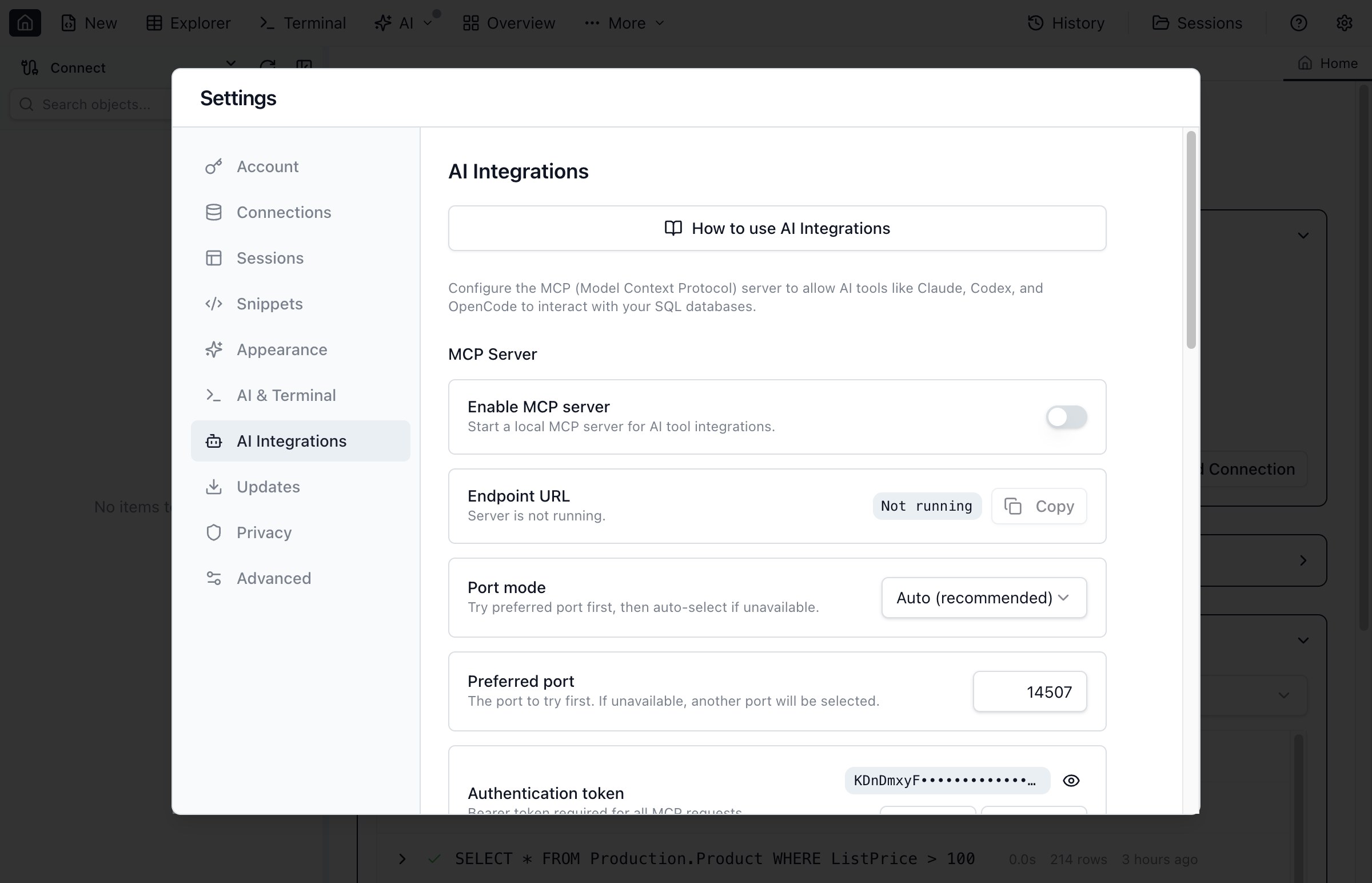
Enable the MCP server and register it with your agent. In Settings → AI Integrations, turn Enable MCP server on (it is off by default), then copy the endpoint — http://127.0.0.1:14507/mcp unless the port was taken — and the bearer token. For Claude Code:
claude mcp add --transport http jam-sql http://127.0.0.1:14507/mcp \
  --header "Authorization: Bearer YOUR_TOKEN_HERE" \
  --scope user
For Codex CLI, add to ~/.codex/config.toml and export the token in your shell profile:
Allow the first safe query. The permission level starts at Block, so an agent that has just connected can read schema and write into a query tab but cannot execute anything. Set it to Read-only in Settings → AI Integrations and the agent may run SELECT, EXPLAIN, SHOW and PRAGMA — nothing that writes. Then ask your agent something concrete, for example “list the tables in the Sales database and show me 10 rows from the largest one”. Writes stay unavailable until you move the level to Confirm, which asks you in the app for each one.
What the defaults already protect. Out of the box a query returns at most 1,000 rows and is cancelled after 30 seconds; tool calls are audited as metadata with the SQL text left out; and sharing your results grid or editor contents with an agent, letting it add new connections, and letting it write MetaInfo declarations are all off until you turn them on. See Permission Levels and Agent Capabilities for the full list.
Quick Start: Connect Your AI Tool
The fastest way to give your AI coding agent access to Jam SQL Studio is with the jam-sql skill. Run a single command — it auto-detects your agents (Claude Code, Cursor, Copilot, Codex, Windsurf, and 20+ more):
jam-sql add-skill
The jam-sql CLI is bundled with the app and installed to your PATH automatically. The skill teaches your AI agent what Jam SQL Studio can do and how to use it. For full MCP connectivity (query execution, schema access), also enable the MCP server in Settings → AI Integrations.
Which AI tools work with Jam SQL Studio?
The MCP server speaks the standard Model Context Protocol over a local HTTP endpoint, and jam-sql add-skill auto-installs the skill for the agents below. Any MCP-compatible client can connect using the endpoint and token from Settings → AI Integrations.
Point the client at the endpoint (works with LangChain, custom agents, and other MCP-capable tools)
AI Chat Sidebar
The AI Chat Sidebar brings conversational AI directly into the Query Editor and SQL Notebooks. Click the AI button in the toolbar to open a chat panel alongside your work.
No extra subscription required. The AI Chat Sidebar uses your locally installed AI CLI. Jam SQL Studio reuses your existing CLI setup — it does not proxy, bill, or require any additional AI subscription or API key configuration.
Supported AI Backends
The AI Chat Sidebar supports two AI backends. Install either or both — Jam SQL auto-detects available CLIs:
Claude CLI (Claude Code) — Anthropic's AI coding assistant
When both CLIs are installed, a segmented control in the sidebar header lets you switch between them. Your preference is saved and applied to new tabs automatically.
How It Works
Install Claude CLI or Codex CLI (or both)
Open a Query Editor or SQL Notebook
Click the AI button in the toolbar to open the chat sidebar
Ask your AI about your SQL — it can read your editor content, run queries, and update your code
Features
Database-aware — the AI auto-connects to the MCP server for schema introspection and query execution
Editor integration — the AI can update your SQL directly in the editor
Notebook support — In SQL Notebooks, the AI understands your cell structure and can add, edit, and execute cells on your behalf
@-mentions — type @ to reference database objects from the Object Explorer
Streaming responses — see answers appear in real-time with inline tool call indicators
Session continuity — conversations persist across tab switches and session restores
Multi-backend — switch between Claude and Codex with a single click; each manages its own authentication
Zero configuration — if a supported CLI is installed, the sidebar auto-connects to the MCP server. No API keys to paste into Jam SQL.
Privacy — all communication happens locally between the app and the CLI binary on your machine
AI Task Launchers
Six one-click buttons, placed where the task is relevant, open the AI Chat Sidebar with a ready-made prompt for a common job — no need to type it yourself. Every launcher tells the agent not to execute anything itself; it writes SQL into your editor (or answers in chat) for you to review and run.
Explain this table / Generate test data — Object Explorer, right-click a table or view
Document this schema — Schema Overview toolbar
Optimize this query / Explain this error — Query Editor (Optimize is on the toolbar, next to Format; Explain this error appears alongside a failed statement)
Diagnose server load — Performance Dashboard toolbar; asks the agent to check top CPU queries, wait stats, and long-running sessions (read-only) and say which query to fix first
Neither compare surface carries an AI launcher. Schema Compare and Data Compare both produce their migration SQL through Generate Script in the compare tab, which works from the real diff rather than from a summary of it.
A connected agent can still read the schema comparison you have open: each Schema Compare tab's current result is listed on the MCP compare-snapshot resource (sql-studio://compare/schema, marked initiatedBy: "user"), and the agent can fetch the full differences or generate the sync script from it — your actual diff, with the options and filters you chose, no re-run needed. The entry follows the tab: it updates when you re-compare or change options, and disappears when you close the tab.
Understanding the Three Approaches
Jam SQL Studio offers flexibility in how you work with AI. Depending on your workflow, you might prefer one approach or combine them:
AI Chat Sidebar vs AI Workspace vs Skill / MCP Server
Aspect
AI Chat Sidebar
AI Workspace
Skill / MCP Server
Where it runs
Right panel in Query Editor / SQL Notebook
Inside Jam SQL Studio (integrated terminal)
External AI tools (Claude Code, Cursor, Copilot, Codex, etc.)
Best for
Quick questions, SQL help, interactive editing
File-backed iteration with AI agents
Complex analysis, multi-step tasks from external tools
Skill: procedural knowledge; MCP: live snapshots of tabs, editors, results
Configuration
Install Claude CLI or Codex CLI
Enable AI Workspace in Settings
jam-sql add-skill + enable MCP Server
AI Workspace (Inside the App)
The AI Workspace provides file-backed query tabs that sync bidirectionally with .sql files. Combined with the integrated terminal, this enables AI agents (like Claude Code) to edit your queries in real-time.
Pro Feature: AI Workspace sync features (file sync, schema export, context files) require Pro. The AI Terminal itself is free for all users.
AI Workspace Features
Bidirectional file sync — Query tabs sync to .sql files; AI edits the file, your tab updates automatically
Auto-generated context — CLAUDE.md and AGENTS.md contain connection info, schema summary, and recent execution results
Schema export — Detailed table/view/procedure definitions exported to .schema/ for granular @table mentions
Results history — Query results saved to .history/ so AI agents can analyze output and iterate
Knowledge pack — App capabilities and how-to documentation in .knowledge/
MCP environment variables — Terminal sessions include JAM_SQL_MCP_ENDPOINT and JAM_SQL_MCP_TOKEN for direct MCP access
Auto-generated MCP configs — Config files for popular AI tools (.mcp.json, .cursor/mcp.json, opencode.json, .vscode/mcp.json) are automatically created with endpoint and token
Codex MCP shim — Codex CLI has no project-level MCP config file to auto-generate the way Claude Code, Cursor, and OpenCode do, so when Codex is detected, Jam SQL Studio writes a small codex wrapper ahead of the real binary on the terminal's PATH. Running plain codex in the AI terminal transparently wires it to the local MCP server — no --config flags or ~/.codex/config.toml edits needed. When MCP is off, the wrapper is a plain pass-through to the real Codex binary.
Zero-Config AI Tool Setup
When you open an AI Workspace terminal, MCP configuration files are automatically generated in the workspace directory, and Codex additionally gets a PATH-level shim (see above). AI agents like Claude Code, Cursor, OpenCode, and Codex will automatically connect to the MCP server without manual configuration. These files are added to .gitignore to prevent accidental token commits.
How to Use AI Workspace
Open Jam SQL Studio and go to Settings → AI & Terminal
Enable AI Workspace and select or create a workspace folder
Open the integrated terminal (View → Terminal or click Terminal in the sidebar)
Run your AI coding agent (e.g., claude for Claude Code)
The agent can read/edit .sql files, and your query tabs update in real-time
The AI Workspace settings panel showing workspace folder configuration and sync options.
Setup Confirmation
Before Jam SQL Studio sets up an AI workspace for a connection, it asks for confirmation. The dialog lets you pick the target database and explains exactly what's about to happen: it exports schema DDL — tables, views, procedures, functions — no table data is read or exported, and nothing is executed against your database. Choose Set up workspace to proceed, or Cancel to back out with nothing created.
Tick Don't ask me again to skip this dialog on future clicks. You can turn it back on any time from Settings → AI & Terminal → Confirm before setting up a workspace.
While the workspace is being set up, the setup overlay shows progress with a Cancel export button. Cancelling stops the export right away — the terminal stays open and usable, it just won't have the exported schema files. The X in the corner only dismisses the overlay to the background; the export keeps running until it finishes or you cancel it.
Persistent Workspaces (Pro/Trial, opt-in)
By default, an AI workspace folder is temporary: it's deleted when you close its terminal (or on the next app start if it wasn't). Turn on Keep this workspace in an AI terminal's context bar — also listed in Settings → AI & Terminal → Persistent workspaces — to make one connection's workspace folder survive: it's reused instead of recreated, so your .history/ and any notes the agent left behind carry over across sessions and app restarts. This is off by default and set per connection — keeping one connection's workspace has no effect on any other.
Turning it back off ("Stop keeping") only removes the connection from that list — it does not delete the folder or anything inside it. The folder and its files stay on disk exactly as they were; a session already running in it keeps working normally. An un-kept folder is only cleaned up the way any ordinary AI workspace folder is: the next time you start the app. To find a workspace's folder with your file manager, expand that terminal's context bar and click Open workspace folder.
Pro Tip: Use @ Mentions
With schema export enabled, you can use @Customers or @Orders in your prompts to reference specific table definitions from the .schema/ folder.
Your First Five Minutes in the AI Terminal
Open the integrated terminal and Jam SQL Studio prints a welcome banner. If it detects Claude Code or Codex CLI already installed, the banner names them and tells you the command to run; if neither is installed, it shows both install commands side by side. Claude Code and Codex are treated as equals everywhere in Jam SQL Studio — neither is the default, neither is an afterthought.
Install an agent, if you don't have one yet. Run either (or both) — Jam SQL Studio auto-detects whichever CLIs are on your machine:
npm i -g @anthropic-ai/claude-code   # Claude Code
npm i -g @openai/codex               # Codex CLI
Start it. Once an agent is detected, a Start button for it appears in the terminal's context bar — Start Claude Code and Start Codex sit side by side, for whichever agents are actually installed. Click one, or just type claude or codex yourself. If you'd rather skip the click, turn on Auto-launch agent on open in Settings → AI & Terminal (off by default) — a freshly opened AI terminal then writes the launch command in for you instead of leaving a blank prompt. Choose a specific agent there, or leave it on “Auto” to prefer Claude Code when both are installed.
If a detected agent is missing the jam-sql skill, a dismissible row in the terminal points it out with the exact command to fix it (jam-sql add-skill).
Five things to try:
Write a query from the schema — “Look at the schema and write a query that finds our top 10 customers by revenue.”
Explain a procedure — “Explain what the usp_ProcessRefund procedure does.”
Optimize the active tab — “This query in my active tab is slow — can you make it faster?”
Explain an error — “My last query failed — what does this error mean and how do I fix it?”
Draft a migration — “Draft a migration that adds a refunded_at column to orders.”
The security model: your agent never sees your database password — Jam SQL Studio owns every connection. In the terminal, the agent only ever touches .sql files, which sync to your query tabs for you to review. Nothing runs against your database until you do: read the agent's SQL in the tab and click Execute (or press F5 or Cmd/Ctrl+Enter) yourself.
Or let the agent ask you to run it (Pro/Trial): instead of writing SQL and waiting for you to notice, the agent can ask Jam SQL Studio to run one of your query tabs directly. You always see a confirmation toast with the SQL and the agent's stated reason before anything runs, with three choices — Run (this one time), Always this session (stop asking again for that connection and database, for the rest of this terminal session), or Deny. Closing the prompt without choosing counts as Deny, so the agent is never left waiting forever on an answer that never comes.
Want the agent to query the database directly instead of just drafting SQL for you to run? Click MCP: off · Enable read-only in the context bar (or enable MCP from Settings → AI Integrations). This turns on the local MCP server in read-only mode — the agent can run SELECT-class queries and see the results itself, without ever gaining write access unless you widen the permission level yourself afterward. See MCP Server (Outside the App) below for the full permission model.
MCP Server (Outside the App)
Jam SQL Studio runs a local MCP server (Model Context Protocol) that powers the jam-sql CLI and the AI skill. When you run jam-sql add-skill, your coding agent learns to use this CLI to list connections, execute queries, control the UI, and read live app state — all under configurable safety policies. You can also connect any MCP-compatible client (Claude Desktop, LangChain agents, or custom tools) directly to the server for standalone access.
MCP Server Capabilities
The MCP server exposes tools and resources for connections, queries, UI control, and app context. For a live, accurate list, read sql-studio://knowledge/app_capabilities.
Connection & Query Tools
connections_list — List saved connections (IDs, names, engines, servers — no secrets: a password, key or SAS signature written into a server is returned as ***, and an Oracle TNS descriptor as its host, port and service name)
connections_connect — Connect the app to a saved connection (settings-gated; disabled by default)
connections_add — Add a new database connection on the user's behalf (settings-gated; disabled by default)
When you enable Settings → AI Integrations → Allow AI to add new connections, AI agents (and the jam-sql CLI) can create a new database connection on your behalf. The agent supplies the engine, server, credentials, and optional alias; Jam SQL Studio test-connects first, then persists with the password encrypted at rest. If the test fails, nothing is saved.
Three permission levels:
Deny (default): the tool is not available.
Confirm each: a dialog opens for each call; you approve or deny.
Allow: the tool runs silently — good for batch / unattended workflows.
All engines are supported, including Kusto / Azure Data Explorer — where --server takes the full endpoint URL (an ADX cluster, or the ADX proxy URL of an Azure Monitor / Log Analytics workspace or Application Insights resource) and auth is Entra-based (--auth "Azure CLI", --auth "Service Principal" with --tenant-id, or Interactive Browser sign-in). On Kusto connections agents write KQL; queries and .show commands count as read-only for permission gating.
UI Control Tools
ui_open_tab — Open query tabs (allowed even on Block); table explorer tabs require higher permissions
ui_focus_tab — Switch to a specific tab by ID
ui_set_editor_text — Write SQL content to a query editor (allowed even on Block — no MCP tool will execute that text there, though you can still run the tab yourself); notebook cells are refused on Block
ui_execute_query — Run the tab's SQL in the app UI. Gated on the SQL itself, like query_execute: Read-only allows SELECT-class statements, Confirm prompts for write approval
ui_close_tab — Close a tab
ui_lock_tab / ui_unlock_tab — Lock tabs to prevent conflicts during AI edits
ui_check_abort — Check if the user has requested an abort
ui_screenshot — Capture a screenshot of the current app window (settings-toggleable)
Table Viewer Tools
ui_list_tabs — List all open tabs with IDs, types, titles, and connection info
table_refresh — Refresh data in a table explorer tab
table_select_row — Select a row by index in a table explorer
table_show_row_details — Show/hide row details panel (bottom or side layout)
table_set_filter — Apply column filters to a table viewer (IN / NOT IN take a list of values)
table_set_sort — Sort table data by column
table_set_pagination — Navigate pages of data
table_get_snapshot — Get current table state and preview rows
table_show_chart — Show/hide chart visualization
table_set_chart_config — Configure chart type, axes, and aggregation
Query Editor Tools
query_select_row — Select a row in query results (supports multi-result sets)
query_switch_tab — Switch result tabs (results, messages, plan, chart)
query_set_result_display — Set display mode (grid or plaintext)
query_execute_with_plan — Execute query with execution plan (estimated or actual)
query_get_execution_plan — Get execution plan summary and raw content
query_get_messages — Read messages from the messages tab
query_get_results — Read query results with optional row limit
query_show_chart — Show/hide chart visualization for results
query_set_chart_config — Configure chart for query results
ui_export_results — Export a results grid to CSV, JSON, Excel, Markdown or SQL INSERT, or stream every row to CSV; works on Query Editor and Table Explorer tabs, and you pick the destination in the save dialog — see Exporting results to a file below.
MetaInfo over MCP
schema_get_metainfo — User-declared MetaInfo for one table: loose FK targets, JSON/enum column declarations with cached paths and values, the display/label column, and whether the table itself is marked a reference table (referenceTable: { mode: "cached" | "on-demand" }). Schema tools omit this detail; call it on any table whose metaInfo counts are non-zero.
metainfo_declare — Save one MetaInfo declaration (enum column, JSON column, loose FK, or reference-table flag) that the agent judges worth persisting, creating it or updating an existing one on the same target; settings-gated and approval-gated by default — see Declaring MetaInfo below.
schema_list_tables and schema_get_columns include a compact metaInfo counts object (omitted when a table has no user declarations) so agents can cheaply identify which tables need a schema_get_metainfo call — the object also carries refTable when the table itself is flagged a reference table, which alone earns the object even with every other count at zero. Its enumCols counts exactly what schema_get_metainfo returns under enumCols, implicit lookup columns included, so a table that declares nothing but has decodable pairs is still findable.
Marking a table as a reference table makes every other column that points at it an implicit lookup enum with no declaration of its own. Once the app has actually fetched such a column's key→label pairs, they show up back on the referencing table's own enumCols, flagged implicit: true — that flag is opportunistic, present only once the pairs have been fetched, so its absence never proves a column isn't a lookup. It also disappears again if you unmark the target or switch it to on demand: the leftover pairs are a snapshot nothing will refresh, and serving them would decode today's rows with yesterday's names. A reference table flagged on demand never caches pairs at all, so those columns' names only ever resolve live in the UI — an agent has to write its own SQL join to get them. Any lookup-source enum, declared or implicit, also carries a labelColumn when the target table has its own declared display column.
Declaring MetaInfo
After a declaration is saved, the MetaInfo manager and autocomplete hints refresh automatically for that database. You do not need to reopen the editor or wait for a cache timeout.
MetaInfo isn't read-only to agents. When you enable Settings → AI Integrations → Allow AI to declare MetaInfo, an agent that finds something worth persisting — a small FK target it keeps resolving by hand, a categorical column you keep filtering by name, a text column it keeps parsing as JSON — can save it with the metainfo_declare tool: one declaration per call (kind: "enum" | "json" | "loose_fk" | "reference_table"). Names are checked against the live database's metadata before you're ever asked, so a missing table or column is refused up front. Anything that needs to read your data — sampling an enum column's values, reading a reference table's key/label pairs — runs only after you approve, so a proposal you deny costs no queries at all; if the column then turns out not to be categorical, or the table too large to cache, the tool refuses and saves nothing. Deleting a declaration is never offered over MCP.
kind: "json" marks a column as JSON, so the JSON filter operator, the path picker, the cell peek popover and JSON-path loose FKs all work on it. It saves the declaration only — the column's path structure is not scanned, and still comes from browsing the column or from Refresh from DB in the MetaInfo Manager — so the call reads none of your data. Agents are told to propose it only for a column they have actually seen JSON in, never from the column's name. It's refused before you are asked when the column's type can't hold JSON, when the column is already declared (a JSON declaration has nothing else to set), or when a text column sits on PostgreSQL below 16, whose JSON filters need the IS JSON predicate (the server version is read from the version banner alone) — native json/jsonb columns work on any version.
The tool also runs on the connection's own AI permission level: because it reads from the connection to validate what it saves, a connection at Block refuses it outright, whatever this setting says.
Confirm each: an approval dialog opens for every proposed declaration, naming exactly what will be saved; a 60-second timeout auto-denies. You approve or deny. Only one proposal is on screen at a time — a second agent asking while you're deciding is refused, not queued behind it.
Allow: declarations save silently — useful for unattended workflows.
At Deny, an agent may still mention the setting: if it finds itself redoing the same metadata work by hand in a session — re-writing a join for a relationship your schema doesn't declare, decoding the same status codes, parsing the same text column as JSON — it's told to say so once, name the declaration it would have saved, and leave the decision to you. Once per session, not once per answer.
Either way, the saved entry is badged AI-created in the MetaInfo Manager (or AI-updated if the agent changed an existing user-authored entry) — so you always know a declaration came from an agent. Editing or re-saving it yourself clears the badge; removing it withdraws the declaration entirely. Which of those you reach for depends on the kind: a loose foreign key opens in its editor and a label column can be re-picked from the enum details, so both clear by editing. An enum declaration and a reference-table flag have no edit dialog today — remove them and declare again. Nothing in your actual database changes; this only writes to the local, per-database MetaInfo file.
Ask an agent to “export this to Excel” or “save these rows as CSV” and it can do it with the ui_export_results tool, on a Query Editor or Table Explorer tab. It runs the same export the grid’s own export menu runs, so the file is the one you would have produced yourself — a real Excel workbook, dialect-aware INSERT statements with SQL Server IDENTITY handling, spatial columns decoded to WKT.
The agent does not choose where the file goes. The app opens its usual save dialog, you pick the destination, and the tool has no path parameter to bypass it — writing a file anywhere on your machine is not a database capability, and none of the permission levels speaks about your filesystem. Dismissing the dialog cancels the export and the agent is told you declined.
Scope — by default the rows the grid holds. For a large windowed result set an agent can pass scope: "all-rows" to stream every row, the same path as “Export All to CSV” (CSV only, Query Editor only — Table Explorer pages through a table and has no all-rows export).
Which result set — the active one, unless the agent passes allResultSets: true (Excel and JSON only).
Refused for connections whose AI permission level is Block: an export is a bulk read of that connection’s data, and where the bytes land doesn’t change what was read.
An agent cannot drop an object just by taking the default.
schema_compare_generate_script called withoutselectedKeys selects every changed object except the ones that exist only on the target — the objects whose only possible script is a DROP. That is the same rule Jam applies to its own one-click Apply to linked DBs batch, and for the same reason: neither a batch nor an agent has the results tree in front of it, so whatever the default picks is what one action destroys.
Nothing is hidden. The withheld keys come back in withheldDestructiveKeys, the count comes back in warnings, and an agent that has told you which objects would be destroyed can pass those keys in selectedKeys to script the DROP deliberately. Jam may still refuse them — if they were never in the comparison's scope, if a Database Blueprint excludes them, or if the script would leave the database empty — and the tool result says which.
blueprint_apply_schema has no key parameter at all, so it can never script a whole-object DROP. It can still drop a column, index or constraint on a table the blueprint manages, because that table's .sql file defines its shape.
This is stronger than what the desktop app allows you, and deliberately so: in the Schema Compare tab you can tick a target-only row yourself and generate its DROP. The whole-schema drop confirmation is the other place the two differ — it exists only in the desktop Script Preview dialog, so an agent that hits it cannot confirm past it and should send you to the app rather than retrying.
Dashboard Tools
Manage SQL Dashboards from AI agents. Dashboards are workspace artifacts, not database writes — every tool except dashboard_list is denied only at permission level block, and tile queries themselves still run under the read-only execution policy in the app:
dashboard_list — All dashboards with their tiles (ids, titles, tile types), revision, and last-updated time
dashboard_create — New empty dashboard; returns a structured free-limit error at the free-plan cap
dashboard_add_tile — Add one tile from full tile JSON (chart/stat/table/pivot/map/note; id, layout, and refresh are generated when omitted) or from a built-in template id plus a connection
dashboard_update_tile — Shallow-merge a patch (title, layout, refresh, SQL, thresholds, …) onto one existing tile
dashboard_refresh — Refresh every query tile of an open dashboard in the app UI and report per-tile success or error
Every change an agent makes goes through the same repository as the UI, so the open app updates live — the switcher, the Object Explorer node, and any open dashboard tab. CLI equivalent: jam-sql call dashboard_<tool>.
Azure Storage Tools
Browse and manage an Azure Storage connection. At block every tool call on that connection is denied (storage_transfer_status leaves out its jobs); writes are denied at read-only and use a separate in-app approval at confirm:
storage_list_containers — One page of the account's blob containers, or with service: "file" its file shares, with a continuation token
storage_list — One page of blobs and virtual folders under a container or prefix (recursive flattens the tree), or of the files and folders in one file-share folder (one folder per call). On an account with a hierarchical namespace it also takes a Data Lake directory, { kind: "hnsPath", fileSystem, path }, and answers the same items with owner, owning group and permissions
storage_get_properties — Properties, metadata and tags of one blob or container; quota, usage, protocol and recoverability of one file share; size, times and SMB / NFS details of one share folder or file
storage_download — Download one or more blobs, prefixes, or a container, or files and folders of one file share (optionally a snapshot of it). You choose the destination in a save/folder dialog; the agent never chooses it
storage_transfer_status — Read visible transfer progress and recovery state; jobs on blocked connections are omitted
storage_upload — Upload one local file or folder into a container, prefix, file share or share folder after the app shows its source and destination for approval
storage_delete — Delete approved blob, prefix, multi-item, or container resources (blob snapshots are included), or files and folders of one file share, or one whole share with its snapshots
storage_create_container — Create one container and return immediately after the service acknowledges it
storage_list_queues — One page of the account's queues with approximate message counts
storage_peek_messages — Read the next messages of a queue without consuming them or changing their visibility
storage_send_message — Add one message to a queue after approval
storage_receive_messages — Receive the next messages after approval; they stay hidden for the visibility timeout and become visible again after it unless they are deleted or expire first. The result carries neither the Azure pop receipt nor the app's receipt handle
storage_clear_queue — Delete every message in a queue after approval; the removed count is approximate
storage_generate_sas — Generate an account, service, stored-policy or user-delegation SAS after approval. The token is shown only in the app's SAS result panel; the agent receives the enforced permissions, dates, protocol, IP range and scope, and the resource URL without any query string. A Data Lake directory ({ kind: "hnsPath", fileSystem, path, isDirectory: true }) gets a directory SAS limited to that directory and everything under it; the file-system root gets a container SAS
storage_query_entities — One page of Table entities as tagged EDM values, with an optional OData filter (at most 15 comparisons) and column projection; pass the returned continuation token back as cursor for the next page. Azure reports no total
storage_get_acl — Owner, owning group, permission string and the access and default ACL entries (masks included) of one ADLS Gen2 path, addressed as { fileSystem, path }
storage_set_acl — Change the ACL of one ADLS Gen2 path after approval: replace it, merge entries or remove named entries, optionally with a new owner or owning group. With recursive: true the change is applied to a directory and everything under it as a job in the Transfers drawer, and the call waits for it; the answer lists up to 100 failed paths and counts the rest
storage_create_directory — Create an ADLS Gen2 directory, and any missing parent directories, after approval; refused when a file or directory already exists there
storage_move_path — Rename or move an ADLS Gen2 file or directory after approval, within or across file systems. It never overwrites, and it is refused when the source changed after the check that preceded the approval. An unfinished move returns a pendingMoveId to continue it; continuing a move whose outcome is unknown checks both locations first and reports it as moved only when that check proves it
storage_write_entities — Create, merge, replace or conditionally delete Table entities after approval. Updates and deletes require a concrete ETag; the approval shows the table and the operation totals and lists each targeted PartitionKey and RowKey once, never property values. Creating or deleting a table stays in the app
storage_create_share — Create a file share (name, optional quota, SMB or NFS) after approval, from a connection to the storage account
storage_set_share_quota — Change a file share's quota after approval; the approval shows the old and the new size. Just before the write, the app reads the quota again and compares it with the old size, and writes nothing if it differs; Azure has no condition for a quota change, so a change made in the moment between that check and the write is not detected
storage_share_snapshots — List a share's snapshots (a read), or create or delete one after approval
storage_mount_command — Mount commands for a share as text (Windows, macOS and Linux for SMB; Linux for NFS), with a placeholder where the account key goes
The approval dialog asks what the write does (for example Delete 3 storage items?), shows the tool name as detail, and marks whether the write removes, changes or adds data. It lists every target the write touches once, in full, in a list you scroll, above a short summary of the consequences; a line saying that access widens comes first. Deny has the keyboard focus when the dialog opens. A call can name at most 1,000 items. A container or share deletion is listed first and says that the whole container and all its blobs are deleted, a folder deletion says it includes everything under the folder, and an upload shows its destination folder and what happens to existing blobs with the same name. A folder given without a trailing slash is that folder: logs means logs/ in the dialog and in the write, so it never also matches logs-2026.csv. An upload's destination folder is used exactly as the dialog shows it; a folder that starts with / or contains //, a backslash, or a . or .. folder name is refused before the dialog opens. Only one storage write-approval dialog is open at a time; a second storage request waits until the first is answered, and a request that cannot be shown before its timeout is reported to the agent as not shown rather than as denied. Reloading or closing the app window closes a pending storage approval without writing anything, and the next waiting request opens. The approval response is correlated to the exact pending request; denying or dismissing it performs no write. After approval, Jam SQL Studio rechecks the current connection, read-only flag, and attachment scope. UI and MCP mutations refresh the matching Object Explorer branch even when no storage browser tab is open.
For the ADLS Gen2 tools the app reads the path before it asks, and the approval is built from that read: storage_set_acl lists every entry of the resulting ACL, the mask and each change in effective permissions (widened ones are marked), and the write is refused without changing anything when the path was replaced after that read (Azure checks the path's version) or when the access control, read again and compared just before the write, differs from it. Azure has no condition for access-control changes, so a change made in the moment between that check and the write is not detected and is overwritten. The app never recalculates a mask on the agent's behalf: a merge that adds or changes a named user or group must include that scope's mask. A recursive change cannot be made conditional by Azure, so its approval says exactly what is checked: the directory's version is read when the approval is built and checked again right before the first batch, the moment between that check and the first batch is not covered, each later batch checks that the directory is still the same one (for a whole file system the approval says instead that a deleted and re-created file system cannot be detected), and paths added, removed or changed under it while the job runs get the change as they are when their batch runs. A recursive removal also says that Azure recalculates the mask of every ACL it removes an entry from, and so does a recursive merge that changes a scope's entries without that scope's mask; a recursive merge that sets a scope's mask says that this mask replaces the mask of every path. Entries are named by object ID, with the user principal name beside it when the app could match it to that ID. The move approval names the source (with the version that was read) and the destination, which must not exist. An unfinished move is checked again before anything is sent, and the app reports that nothing was moved only a minute after an answer was lost, because Azure can still complete the request until then. Every approval also lists the complete set of paths the call touches; for a recursive change that is the directory and everything under it, since the individual paths are not known in advance. See Azure Storage → ADLS Gen2 for the full rules.
For storage_generate_sas the approval names the resource, the SAS kind, each permission in words and the validity window, with a warning for an account SAS, write or delete permissions, listing, or a token valid for more than seven days. A stored-policy SAS shows the permissions and dates the policy gives the token, and the policy is read again just before signing. The tool is refused on a read-only connection and at read-only, even for a read or list token. See Azure Storage → AI agents for the full rules.
An agent can also open the storage browser with ui_open_tab and the storage-explorer tab type, and add a storage connection with connections_add (engine: "azurestorage"). When its connectionString is an Azurite string, the keys the app recognises but does not use (a FileEndpoint, since Azurite has no Files service, and EndpointSuffix) are listed in the result's unusedKeys. Because these connections do not run SQL, query_execute and the query / table-explorer / notebook tab types refuse them with "Azure Storage connections have no query language; use the storage browser or the storage_* tools." CLI equivalent: jam-sql storage containers|ls|props|info|download; the queue tools, the Table entity tools, the file-share tools, the ADLS Gen2 tools and storage_generate_sas are called with jam-sql call.
Context Resources (Read-Only)
workspace_snapshot — Active workspace state
connections_snapshot — Saved connections with current status
tabs_snapshot — Open tabs with IDs, types, titles, active state
editor_snapshot — Active editor buffer with SQL content
results_snapshot — Latest query results metadata and preview rows
selection_snapshot — Currently selected explorer item
Knowledge Resources
app_manifest — App version, platform, enabled features
app_capabilities — Supported workflows and current limitations
app_user_guide — How-to documentation for using the app
Supported AI Tools
Any AI tool that supports MCP or HTTP can connect to Jam SQL Studio:
Claude Code (recommended) — Native HTTP support via .mcp.json (project) or ~/.claude.json (user), or use claude mcp add
Claude Desktop — Requires mcp-remote proxy and Node.js 20+ (see setup guide above)
Codex CLI — Configure in ~/.codex/config.toml or use codex mcp add
OpenCode — Environment variable configuration
GitHub Copilot — Via MCP extension or custom integration
Custom agents — Built with LangChain, AutoGen, or any HTTP client
Setting Up MCP Server
Open Jam SQL Studio and go to Settings → AI Integrations
Enable MCP Server
Copy the Endpoint URL (e.g., http://127.0.0.1:14507/mcp)
Copy the Bearer Token (click "Show" then "Copy")
Configure your AI tool with the endpoint and token (see examples below)
The AI Integrations settings panel showing MCP server configuration, endpoint URL, and token management.
Manual MCP Setup (per-tool configuration)
If you prefer to configure the MCP connection manually for a specific tool, expand the relevant section below:
Claude Code CLI
Claude Code can connect to Jam SQL Studio via MCP to query your databases directly from the terminal.
Step 1: Enable MCP Server in Jam SQL Studio
Open Jam SQL Studio
Go to Settings (gear icon) → AI Integrations tab
Toggle Enable MCP server to ON
Copy the Endpoint URL (e.g., http://127.0.0.1:14507/mcp)
Click Show next to the token, then Copy the token
Step 2: Configure Claude Code
You have two options for configuring MCP servers:
Option A: User scope (available across all projects) — create or edit ~/.claude.json:
Inside Codex, type /mcp to see active MCP servers.
Troubleshooting: If Jam SQL's AI Chat Sidebar shows unexpected argument '--json', your Codex CLI is incompatible with session resume. Update Codex CLI and confirm codex exec resume --help lists --json.
Claude Desktop(Advanced - Requires Node 20+)
Note: Claude Desktop only supports stdio transport, not HTTP. This requires using the mcp-remote proxy which needs Node.js 20+ installed separately.
⚠ Known Limitation: Claude Desktop ships with Node.js 18, but mcp-remote requires Node.js 20+. You must have Node 20+ installed and configure Claude Desktop to use it.
Step 1: Verify Node.js 20+
Check your Node version:
node --version # Must be v20.0.0 or higher
If you don't have Node 20+, install it via nodejs.org or a version manager like nvm.
Use any MCP client library or make direct HTTP calls to the endpoint. The server implements the standard Model Context Protocol specification.
Troubleshooting
Connection refused? Make sure Jam SQL Studio is running and MCP server is enabled in Settings.
401 Unauthorized? Double-check your token — it must match exactly (no extra spaces).
Port mismatch? The port number may vary. Copy the endpoint URL from Jam SQL Studio settings (or click the MCP row in the AI menu — it shows 127.0.0.1:<port>).
Security Model
The MCP server binds to 127.0.0.1 only (localhost). All requests require a valid Bearer token. No queries run by default; you can allow Read-only mode (SELECT, EXPLAIN, SHOW, PRAGMA only) or Confirm mode, where each write query requires your in-app approval. Passwords are never exposed. Full audit logging of every tool call.
Permission Levels
Configure the AI policy in Settings to control what the MCP server can do:
Block (default) — No query execution; allows safe query-tab editing (open tab + set SQL text) and schema introspection
Confirm — Allow write queries only after in-app approval (each write prompts you)
Where there is SQL to judge, the level is judged on the SQL, never on the tool. Asking the app to run a tab or a notebook cell (ui_execute_query, query_execute_with_plan in actual mode, notebook_run_cell, notebook_run_all) is classified exactly like query_execute — so Read-only means read-only whichever route the agent takes. The approved text is also the text that runs: each statement is compared against what was checked at the moment it would execute, so a tab or cell rewritten in between — while an approval dialog is open, or midway through a notebook_run_all — is refused instead of executed unchecked. Nothing runs whose text was not classified for that request.
Two things no permission level allows
The levels above describe what an agent may do to your databases. Two notebook capabilities are not database operations at all, so there is no level that grants them — they are refused at Confirm just as firmly as at Block:
Running a JavaScript cell. A notebook JavaScript cell runs a program on your computer, not a query against your database. An agent can add, edit and read one; only you can run it. That holds however the request arrives — notebook_run_cell, notebook_run_all, or ui_execute_query on a notebook — and the cell's type is checked at the moment it would run, so converting a cell to JavaScript after it was approved changes nothing.
Choosing where a notebook is saved.notebook_save writes back to the file the notebook was opened from or last saved to. A notebook you have never saved is refused, and you pick the location yourself through the save dialog.
Text the classifier cannot take apart — several statements in one tab, an unmatched quote, or a trailing -- comment that reads as a second statement — is refused at Read-only and Confirm rather than approved. It is not necessarily a write; Jam SQL Studio simply cannot verify what it would run, and a prompt that says "write query" about two SELECTs is one people learn to click through. Split the statements into separate tabs or cells, or run them yourself.
A few tools execute code rather than a query, so there is nothing for the read-only classifier to approve. Those are judged by level instead, and all of them are refused at Block and Read-only: debug_start (runs a PL/SQL block the agent wrote), plsql_compile / plsql_compile_all / plsql_compile_debug (replace or recompile a stored program), debug_evaluate_expression (evaluating an expression runs code in the session being debugged), and stepping a paused program with debug_step_over / debug_step_into / debug_step_out / debug_continue (resuming it runs whatever it does next).
What they do at Confirm differs, and it is worth knowing which is which:
debug_start shows you the exact PL/SQL block in the same blocking dialog a write query gets, every time. There is no "remember" option — a block the agent composed is the most open-ended thing it can ask for, so it never runs on an earlier approval.
plsql_compile*, the stepping tools, and the breakpoint tools ask in an in-app card that offers Remember for this session. That grant is scoped to one tab and one kind of action: saying yes to stepping does not also authorise recompiling.
debug_evaluate_expression never prompts, because on the agent's side there is nothing to prompt about. It answers with whatever the debugger itself can read out of the paused frame — v_total, l_emp.salary, a variable in scope at the current line, NULL included — and refuses everything else rather than evaluating it. Arithmetic, a function call, a name that is not in scope here: answering any of them would mean running code inside the session you are debugging, in its transaction, and what that code does is not visible in the expression text. No permission level in Jam SQL Studio grants an agent "run arbitrary code", so there would be nothing for you to say yes to. A refusal is not a verdict that what the agent asked for was dangerous — an out-of-scope variable is refused the same way as a function call. Your own watch panel is unaffected — it still evaluates whatever you type, and nothing was added to the checks it shares.
Ending a transaction is likewise a write: transaction_commit makes pending changes permanent and transaction_rollback discards them — including statements you ran in that tab — so both are refused at Read-only and prompt at Confirm. Setting, clearing or toggling a breakpoint runs no code and changes no data, so it is not level-gated; it still asks.
Write Approval Flow (Confirm Mode)
When permission level is set to Confirm, AI agents can execute write queries (INSERT, UPDATE, DELETE, etc.) but only after you approve each one in an in-app dialog:
How It Works
AI agent submits a write query via query_execute
Jam SQL Studio shows an approval dialog, headed with the question (for example Run this DELETE query?) and marked Requested by AI, with:
Query type badge (INSERT, UPDATE, DELETE, etc.)
Full SQL preview (syntax highlighted)
Connection and database context
Countdown timer showing time left to respond
You choose: Approve to execute, or Deny to block. Deny has the keyboard focus when the dialog opens, and focus returns to where you were when it closes
If you don't respond, the query is denied
Result (success/denied) is returned to the AI agent
Write Approval Guardrails
Timeout protection: Queries are denied if you don't respond
Full audit logging: Every write attempt (approved or denied) is logged with timestamp, query, and outcome
Per-connection override: Set permission level per connection (e.g., read-only on production, confirm on dev)
No batch bypass: A multi-statement query raises the same per-statement in-app approval dialog in Confirm mode — batching writes together doesn't skip approval
Agent Capabilities
Some MCP tools are controlled by additional toggles in Settings → AI Integrations:
Allow AI to connect using saved connections — Off by default (uses saved credentials)
Allow AI screenshots — On by default (disable if you handle sensitive data)
jam-sql CLI
Jam SQL Studio ships with a CLI tool (jam-sql) that wraps the MCP server for terminal access. The CLI is bundled with the app and automatically installed to your PATH on every launch — always in sync with your app version.
The CLI is also used by the Jam SQL AI Skill. Run jam-sql add-skill to install the skill for Claude Code, Cursor, Copilot, Codex, Windsurf, and 20+ other AI agents — the skill teaches your agent how to use the CLI to interact with your databases.
Pairing
Run jam-sql pair to securely connect the CLI to a running Jam SQL Studio instance. No manual token copying — the CLI obtains the token directly from the app using a challenge-response protocol:
# Pair with the running app (one-time setup)
jam-sql pair

# A verification code is displayed — confirm it matches
# the dialog shown in Jam SQL Studio, then approve.
How pairing works
The CLI reads ~/.jamsql/mcp-discovery.json (written by the running app) to find the MCP server port
Sends a pairing request to the app — the app generates a short verification code (e.g., JAZZ-7742)
The code is displayed in both the terminal and a consent dialog in Jam SQL Studio
You verify the codes match and click Approve in the app
The CLI receives the MCP bearer token and stores it in ~/.jamsql/credentials with 0600 permissions (owner-read only)
After pairing, all CLI commands automatically resolve the endpoint and token. No environment variables, no flags, no config files.
Security model
Rogue pairing request — user must verify the code in the app UI matches the terminal. A remote attacker cannot see the code displayed on your screen.
Token interception — all MCP traffic is over localhost loopback (127.0.0.1). The token never leaves the machine, and the endpoint is not routable from the network.
Token on disk — ~/.jamsql/credentials has 0600 permissions (owner-read only), stored in the user's home directory, never in a project directory, never committed to git.
Stale discovery — CLI checks PID liveness before trusting the discovery file. Stale entries from crashed processes are detected.
Port scanning — discovery file replaces port scanning. CLI reads the exact port from ~/.jamsql/mcp-discovery.json.
Unauthorized MCP access — all MCP endpoints (except /status and /pair/*) require a valid Bearer token. Pairing endpoints are origin-validated and rate-limited.
Commands
After pairing, all commands work without manual token or endpoint configuration:
# Check installation and pairing status
jam-sql doctor

# Show pairing + app status
jam-sql status

# Launch the app if not running
jam-sql launch

# List saved connections
jam-sql connections

# Execute a query
jam-sql query -c production "SELECT * FROM users LIMIT 5"

# List available MCP tools and resources
jam-sql tools
jam-sql resources

# Call any MCP tool directly
jam-sql call ui_open_tab '{"type": "query"}'

# Browse an Azure Storage connection
jam-sql storage containers -c storage-account
jam-sql storage ls -c storage-account images/2026/09/
jam-sql storage download -c storage-account images/2026/09/photo-00001.png

# Read an MCP resource
jam-sql read sql-studio://context/tabs

# Remove stored credentials
jam-sql unpair
Which Approach Should You Use?
All approaches complement each other:
Use AI Chat Sidebar for quick, conversational assistance while writing queries or building notebooks. It's the fastest way to get AI help without leaving your editor.
Use AI Workspace when you want to iterate on queries with AI agents using the integrated terminal + file sync workflow.
Use the Jam SQL Skill + MCP Server when you're working in an external AI tool (Claude Code, Cursor, Copilot, Codex, etc.) and need your agent to understand Jam SQL Studio and access your databases. Install the skill with jam-sql add-skill, then enable the MCP server for live database access.
Use all three for maximum flexibility — the sidebar for quick help, AI Workspace for file-backed collaboration, skill + MCP for external tool integration.
Ready to Work with AI?
Download Jam SQL Studio and experience AI-native database tooling.
What is the difference between AI Chat Sidebar, AI Workspace, and MCP Server?
AI Chat Sidebar is a built-in chat panel in the Query Editor and SQL Notebooks powered by your locally installed Claude CLI or Codex CLI — no extra subscription required. AI Workspace runs inside Jam SQL Studio with an integrated terminal for AI agents to edit .sql files directly. MCP Server exposes your databases to external AI tools like Claude Desktop or Codex CLI via the Model Context Protocol.
How do I connect Claude Desktop to Jam SQL Studio?
Claude Desktop requires the mcp-remote proxy since it only supports stdio transport. You need Node.js 20+ installed separately. Enable MCP Server in Settings > AI Integrations, then configure claude_desktop_config.json to use npx mcp-remote with the endpoint and token. See documentation for full setup instructions.
Is the MCP connection secure?
Yes. The MCP server binds to localhost only (127.0.0.1) and requires bearer token authentication. It executes no queries by default — you can allow read-only (SELECT-class) queries, or enable Confirm mode, where each write or DDL statement runs only after you approve it in an in-app dialog. Passwords are never exposed and all tool calls are logged.
What AI tools work with Jam SQL Studio's MCP Server?
Any MCP-compatible tool works: Claude Desktop, Claude Code, Codex CLI, OpenCode, GitHub Copilot (via MCP extension), and custom agents built with LangChain, AutoGen, or any HTTP client.
Can AI tools modify my database through MCP?
Only if you explicitly enable Confirm mode and approve each write query in-app. No queries run by default; the Read-only permission level (an opt-in step up from the block default) restricts MCP to safe queries like SELECT/EXPLAIN/SHOW/PRAGMA.
What do I need to use the AI Chat Sidebar?
Just install Claude Code CLI or Codex CLI (or both). Jam SQL Studio uses your existing CLI installation — no additional subscription or API key configuration in Jam SQL is required.
Which AI backends does the AI Chat Sidebar support?
Claude CLI and Codex CLI. Install either or both — Jam SQL auto-detects available CLIs and lets you switch between them.