
Last updated: 2026-09-26
Azure Data Studio Migration: Step-by-Step Guide
How to move connections, saved queries, notebooks, snippets, and the extensions you relied on from Azure Data Studio to Jam SQL Studio. Work through it with both apps open side by side: import your connections first, then open your files, then replace each extension.
Azure Data Studio Migration: What You Need to Know
Azure Data Studio migration is the process of moving your workflow — connections, saved queries, notebooks, extensions, and habits — off Azure Data Studio after Microsoft's February 28, 2026 retirement. The application still launches, but it no longer receives updates or security fixes, and its extensions are frozen with it. Microsoft points users to Visual Studio Code with the MSSQL extension, and to SSMS for SQL Server Agent.
The minimum viable Azure Data Studio migration covers four things:
- Connections — Jam SQL Studio reads Azure Data Studio's
settings.jsondirectly and imports your saved SQL Server, PostgreSQL, and Azure Data Explorer (Kusto) connections in one click (see Import your connections below). Migrating from another machine? The dedicated Export ADS connections guide covers the manual copy path. - Saved queries and notebooks —
.sqland.ipynbfiles in your filesystem. They're already portable; no export needed. - Snippets — ADS user snippets live in
User/snippets/sql.json. Most can be pasted directly into Jam SQL Studio's SQL Snippets manager. - Keybindings and shortcuts — the major ones (F5 or Cmd/Ctrl+Enter to execute — selection-aware — and Cmd/Ctrl+S to save) are already the same, and the SQL editor uses the same Monaco (VS Code) keybindings as Azure Data Studio. To use SSMS’s keys, pick the SSMS / Azure Data Studio shortcut scheme in Settings → Keyboard Shortcuts: Execute then uses
F5only, soCmd/Ctrl+Enterno longer executes, and on Windows and LinuxAlt+Breakcancels a query andCtrl+Rshows or hides the results pane.
What Microsoft recommends, and where it stops
Microsoft's retirement page splits Azure Data Studio across two tools. As of September 2026:
- VS Code with the MSSQL extension now covers most of the SQL Server editing surface: Object Explorer, query plan visualizer, Schema Compare, Table and Schema designers, SQL notebooks, flat-file import, DACPAC/BACPAC, and a Query Profiler (feature list). It targets SQL Server, Azure SQL, and SQL database in Fabric only.
- SSMS remains Microsoft's home for SQL Server Agent jobs and classic administration — and it runs only on Windows.
- Other engines move to separate tools: PostgreSQL to the PostgreSQL extension for VS Code, while Microsoft lists the MySQL replacement as “pending announcement”.
That leaves three groups without a direct successor: Mac and Linux users who managed SQL Server Agent jobs, people who used ADS for SQL Server, PostgreSQL, and MySQL in one window, and anyone who charted query results in ADS — the MSSQL extension's feature list has no result charts. Jam SQL Studio covers those in one desktop app on macOS, Windows, and Linux — an Agent Jobs Manager, charts, and first-class SQL Server, PostgreSQL, MySQL/MariaDB, Oracle, and SQLite connections — and adds Data Compare, which ADS didn’t ship. If you only work on SQL Server from Windows and already live in VS Code, Microsoft's path is a reasonable fit; the retirement overview compares the options.
Retirement Timeline
Before You Start: Take Inventory
Do this while Azure Data Studio still opens on your machine — it takes a few minutes and saves the most common surprise, which is an extension you forgot you depended on.
- Connections — server addresses and ports, the authentication method for each (SQL login, Windows, or Microsoft Entra ID), and default databases. The import below reads these for you; the list is for checking nothing was missed.
- Extensions — open the Extensions view and write down every installed extension you actually use. Map each one with the extension table below.
- Snippets and keybindings — custom snippets in
User/snippets/sql.jsonand any rebound keys. - Files — where your
.sqlscripts and.ipynbnotebooks live. They are plain files and move as-is.
Migration Steps
Follow these steps to migrate from Azure Data Studio to Jam SQL Studio:
Install Jam SQL Studio
Download Jam SQL Studio for your platform:
- macOS: Download the DMG and drag to Applications
- Windows: Run the installer (.exe)
- Linux: Use the .deb, .rpm, or Arch package
Import Your Connections
Jam SQL Studio detects your Azure Data Studio installation and reads its settings.json directly — no manual export needed. There are four ways to start the import:
- Start page — on first launch, if ADS connections are detected the start page leads with a Found N connections in Azure Data Studio card. Click Import connections and pick Azure Data Studio.
- New Connection dialog — choose Import from another tool instead of typing a server by hand.
- Command palette — press
Cmd/Ctrl+Shift+Pand run Import Connections from Azure Data Studio. - Manage Connections — open the Saved Connections dialog, click Import… in the footer, and pick Azure Data Studio (marked Found when its store is on this machine).
The review dialog lists every saved SQL Server, PostgreSQL, and Azure Data Explorer (Kusto / KQL) connection, grouped under the same server groups you used in ADS. Tick the ones you want (duplicates you already added are pre-unchecked), then click Import — Kusto profiles import as real connections alongside the rest. Profiles from other ADS extensions, such as MySQL, appear greyed out and can’t be ticked; add those with New Connection.
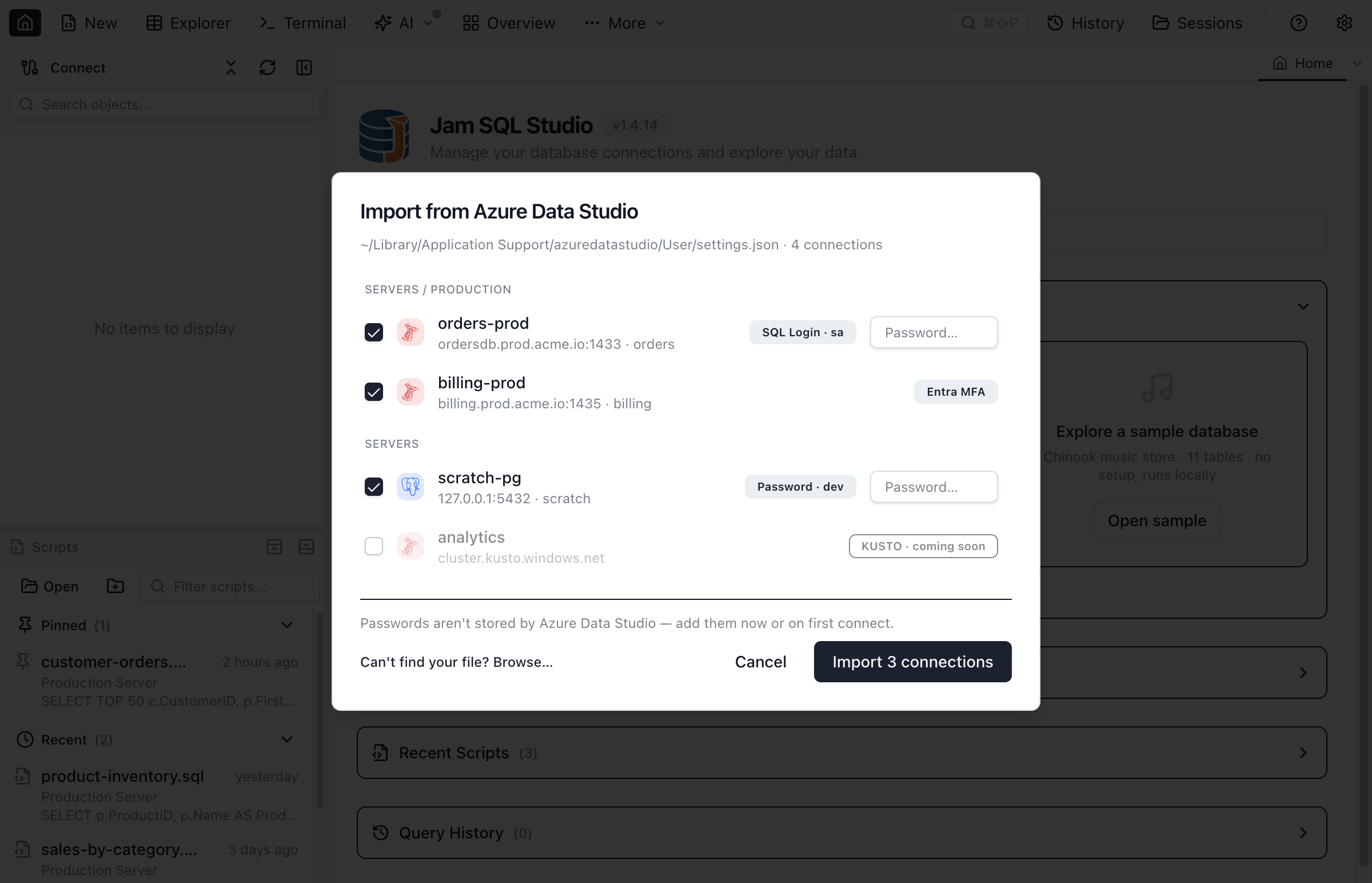
Passwords are re-entered, not copied
Azure Data Studio never stores passwords in settings.json (they live in the OS credential store), so Jam SQL Studio doesn't read them. Type a password inline in the review dialog, or leave it blank — you'll be prompted for it the first time you connect, with an option to save it.
Importing from another machine? Copy the exported connections file across, then click Can't find your file? Browse… inside the review dialog and point it at the settings.json (or the saved ads-connections.json fragment from the Export ADS connections guide).
Coming from a different tool? The same one-click import works for VS Code, SQL Server Management Studio, DBeaver, DataGrip, TablePlus, MySQL Workbench, Navicat, and pgAdmin, as well as tnsnames.ora, pg_service.conf, .my.cnf, and ODBC data sources — see Import connections from other tools.
Or Create Connections Manually
Prefer to add connections by hand (or importing an engine we don't map yet)? Create them the usual way:
- Click New Connection in the sidebar
- Enter your server details (same as Azure Data Studio)
- Choose authentication: SQL Server Auth, Windows Auth, or Microsoft Entra ID
- Test and save the connection
Transfer Your Saved Queries
Move your SQL files and saved queries:
- Locate your query files (typically .sql files in your documents)
- Open them in Jam SQL Studio using File > Open
- Optionally organize them into projects for better management
Check Your Everyday Queries
Run the queries you use most and confirm that results match what you saw in ADS, that IntelliSense suggests your tables and columns, and that execution plans render for your slow queries. Then work down your extension list with the table below.
Feature Comparison
Here's how Azure Data Studio features map to Jam SQL Studio:
Feature Mapping: ADS → Jam SQL Studio
| Azure Data Studio Feature | Jam SQL Studio Equivalent |
|---|---|
| Query Editor | ✓ Query Editor with AI assistance |
| Object Explorer | ✓ Database Explorer (sidebar) |
| Results Grid | ✓ Results Grid with export options |
| IntelliSense | ✓ Enhanced IntelliSense + AI suggestions |
| Execution Plan | ✓ Enhanced Visual Execution Plans |
| Notebooks | ✓ SQL Notebooks with shared sessions, inline results, .ipynb format |
| Charts from query results | ✓ Charts — bar, line, pie, area, and scatter |
| Extensions marketplace | None — the common extension workloads are built in (see the next table) |
Azure Data Studio Extensions and Their Replacements
The middle column is Microsoft's own replacement from its retirement page, as of September 2026. The right column is where the same job lives in Jam SQL Studio.
| ADS extension | Microsoft's replacement | In Jam SQL Studio |
|---|---|---|
| SQL Server Agent | SSMS (Windows only) | Agent Jobs Manager (beta) on macOS, Windows, and Linux — jobs, history, operators, alerts, proxies |
| Schema Compare | Schema Compare in the MSSQL extension for VS Code | Schema Compare for all five SQL engines |
| SQL Server Import (flat file) | Import flat file in the MSSQL extension | Data Import — CSV/TSV/TXT, Excel, and JSON/NDJSON into a new or existing table, across all five engines |
| SQL Server Profiler | Query Profiler in the MSSQL extension; XEvent Profiler in SSMS | No trace capture. The Session Browser shows active sessions, locks, and waits |
| SQL Server dacpac / BACPAC | Data-tier Application support in the MSSQL extension; SqlPackage | BACPAC export and import in Backup & Restore; no .dacpac deploy |
| SQL Database Projects | SQL Database Projects extension for VS Code; SSDT in Visual Studio | No .sqlproj support. Database Blueprint (beta) keeps a database's schema as a Git-tracked folder of .sql files instead |
| PostgreSQL | PostgreSQL extension for VS Code | Built in |
| MySQL | Pending announcement | Built in (MySQL and MariaDB) |
| Kusto (KQL) | Not listed | Azure Data Explorer (Kusto / KQL) connections, imported from ADS |
Authentication Compatibility
Jam SQL Studio supports the SQL Server authentication methods you used in Azure Data Studio: SQL Server Authentication, Windows Authentication, and Microsoft Entra ID (formerly Azure Active Directory).
Migrating Notebooks
Azure Data Studio included SQL Notebooks for interactive database workflows. Jam SQL Studio provides SQL Notebooks with the same .ipynb format and shared session behavior.
Opening ADS Notebooks
Open your existing .ipynb files directly: More > Open Notebook and select the file. SQL cells work immediately with inline results and a shared session (temp tables persist across cells).
Coming from Polyglot Notebooks?
Polyglot Notebooks (also deprecated) used the same .ipynb format. Jam SQL Studio handles Polyglot-origin files:
- SQL cells are preserved as executable code cells
- JavaScript cells are preserved as executable code cells
- C#, F#, PowerShell, and HTML cells are imported as Markdown with the source in code fences
- Polyglot kernel metadata is preserved for round-trip compatibility
See the Polyglot Notebooks comparison page for a detailed feature comparison and migration guide.
Common Migration Questions
Can I use my existing connection strings?
Yes. Beyond the one-click Azure Data Studio import, Jam SQL Studio accepts standard connection strings — paste an ADO.NET, URL, JDBC, EZConnect, or libpq string into the New Connection dialog or the command palette to prefill the form. See Paste a connection string.
What about Azure-specific features?
Jam SQL Studio connects to Azure SQL Database and Azure SQL Managed Instance with Microsoft Entra ID sign-in, and Browse Azure adds Azure SQL servers, PostgreSQL flexible servers, and Azure Data Explorer clusters from your signed-in account as connections.
Is ADS still safe to keep installed?
It keeps launching, but Microsoft no longer ships security fixes for it or its Electron runtime, and it handles your database credentials. Keep it only as long as you need it to check the inventory above.
How do I get help during migration?
If you encounter issues during migration, contact our support team at [email protected]. We're happy to help Azure Data Studio users transition smoothly.
Frequently asked questions
When was Azure Data Studio retired?
Microsoft announced the retirement on February 6, 2025, and retired Azure Data Studio on February 28, 2026. It no longer receives updates, security patches, or maintenance.
What does Microsoft recommend instead of Azure Data Studio?
Visual Studio Code with the MSSQL extension for SQL Server and Azure SQL development, and SQL Server Management Studio (SSMS) for SQL Server Agent and classic administration. SSMS runs only on Windows, PostgreSQL moves to a separate PostgreSQL extension for VS Code, and as of September 2026 Microsoft still lists the MySQL replacement as pending announcement.
Can I import my Azure Data Studio connections?
Yes. Jam SQL Studio reads Azure Data Studio's settings.json directly and imports saved SQL Server, PostgreSQL, and Azure Data Explorer (Kusto) connections with their server groups — from the start-page card, the Import Connections from Azure Data Studio command in the command palette, the New Connection dialog, or Manage Connections. ADS doesn't store passwords in settings.json, so you re-enter them during import or on first connect.
Will my Azure Data Studio extensions keep working?
Azure Data Studio and its extensions no longer receive updates, and Jam SQL Studio does not run ADS extensions. The work most people installed extensions for is built in: SQL Server Agent jobs, Schema Compare, Data Compare, flat-file and JSON import, SQL notebooks, and PostgreSQL, MySQL, and Kusto connections. The extension table on this page maps each one.
Do I need to change my SQL scripts?
No. .sql files are plain text and open unchanged, and .ipynb notebooks open in Jam SQL Studio's SQL Notebooks with their SQL cells intact.
Does Jam SQL Studio cover everything Azure Data Studio did?
It covers the core workflow: query editor with IntelliSense, object explorer, results grid, execution plans, schema compare, data compare, SQL notebooks, and charts from query results. It has no extension marketplace and does not build SQL database projects (.sqlproj) or .dacpac files; keep those in VS Code or Visual Studio.
Will my Azure Data Studio keyboard shortcuts work?
The most-used shortcuts carry over: F5 or Cmd/Ctrl+Enter executes queries and Cmd/Ctrl+S saves, and the SQL editor uses the same Monaco (VS Code) keybindings as Azure Data Studio for editing, find/replace, and multi-cursor.
Does Jam SQL Studio work with Azure SQL Database?
Yes. Jam SQL Studio connects to Azure SQL Database and Azure SQL Managed Instance with SQL authentication or Microsoft Entra ID (interactive browser or device code sign-in).
Ready to Migrate?
Download Jam SQL Studio and start your migration today.