
Last updated: 2026-10-01
Connections
Connect to SQL Server, Azure SQL, PostgreSQL, MySQL, MariaDB, Oracle, SQLite, Azure Data Explorer (Kusto), and Azure Storage with Jam SQL Studio. This guide covers supported databases, authentication methods, connection options, and managing your saved connections.
Supported Databases
Jam SQL Studio supports seven engines:
| Database | Versions | Authentication Methods |
|---|---|---|
| SQL Server | SQL Server 2012+, Azure SQL Database, Azure SQL Managed Instance | SQL Server Auth, Windows Auth, Azure Entra ID |
| PostgreSQL | PostgreSQL 10+ | Password, SSL/TLS |
| MySQL | MySQL 5.7+, MySQL 8.0+, MariaDB 10.2+ | Password, SSL/TLS |
| Oracle | Oracle 12.2+, 19c, 21c, 23ai | Password, SSL/TLS, Wallet (mTLS) |
| SQLite | SQLite 3 | File-based (no auth) |
| Azure Data Explorer (Kusto) | ADX clusters, App Insights & Log Analytics query proxies (read-only — see the Kusto / KQL guide) | Microsoft Entra ID (Interactive Browser, Service Principal, Azure CLI) |
| Azure Storage | Storage accounts, a single SAS-scoped or public resource, and the Azurite emulator — blob containers, queues, tables and file shares (see the Azure Storage guide) | Account Key, Shared Access Signature, Anonymous, Microsoft Entra ID (Interactive Browser, Service Principal, Azure CLI) |
Creating a Connection
To create a new database connection:
- Click the + button in the sidebar, or
- Run New Connection from the command palette (
Cmd/Ctrl+Shift+P)
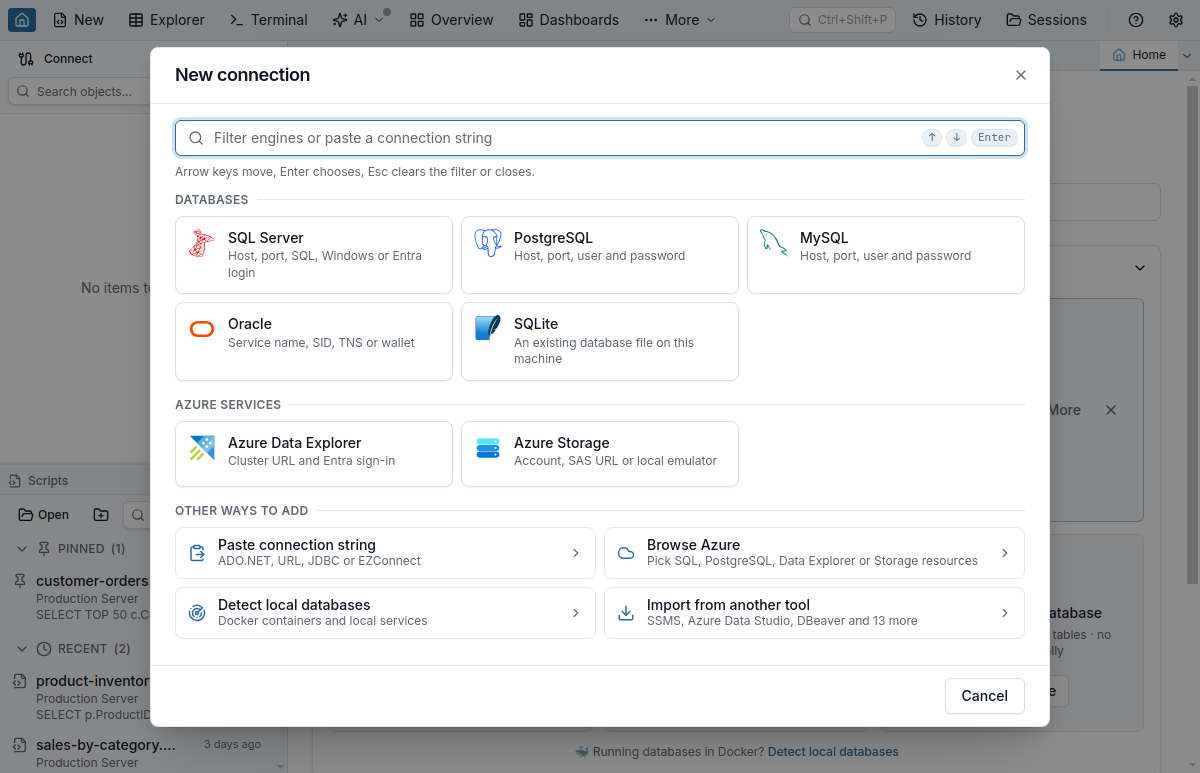
The New Connection dialog opens on a list of engines, with nothing chosen yet. Type in the filter at the top to narrow the list (for example pg, mariadb or kql), then click an engine card, or use the arrow keys to move through the list and Enter to choose. The engines are grouped as Databases (SQL Server, PostgreSQL, MySQL, Oracle, SQLite) and Azure services (Azure Data Explorer, Azure Storage). Below them are the other ways to add a connection: Paste connection string, Browse Azure, Detect local databases and Import from another tool.
Choosing an engine opens its form. The engines move to a list on the left, where you can switch to another engine at any time; a dot marks each engine you have already typed something for. All engines at the top of that list returns to the full list and keeps what you typed. Pressing Esc in the form does the same, and a second Esc closes the dialog; Cancel and the close button always close it. Clicking outside the dialog closes it only when nothing has been typed yet. In a narrow window the list on the left becomes a bar above the form, with All engines, an engine selector and an Add from… menu for the other ways to add.
Every engine's form has the same sections, in the same order: General (Name and Color), then where the connection goes — Server for SQL Server, PostgreSQL, MySQL and Oracle, File for SQLite, Cluster for Azure Data Explorer and Storage for Azure Storage — then Security (encryption or SSL and the SSH tunnel, on the engines that have them) and More options. Inside a section the choice that decides the other fields comes first: Oracle's Connect by and Azure Storage's Connect using lead their section, and the Microsoft Entra Tenant ID follows the sign-in fields. Click a section's heading to collapse or expand it; More options (AI access, and Oracle's initial schema and debug protocol, and Azure Storage's endpoint overrides) starts collapsed and lists what it holds next to its heading. A collapsed section opens again by itself when Jam needs to show you a field in it. In a wide window the labels sit to the left of the fields; in a narrow one they sit above them.
After you save a new connection, it appears at the top of the Recent list in the Saved Connections dialog and at the top of the connections list on the Start Page.
Connection Settings
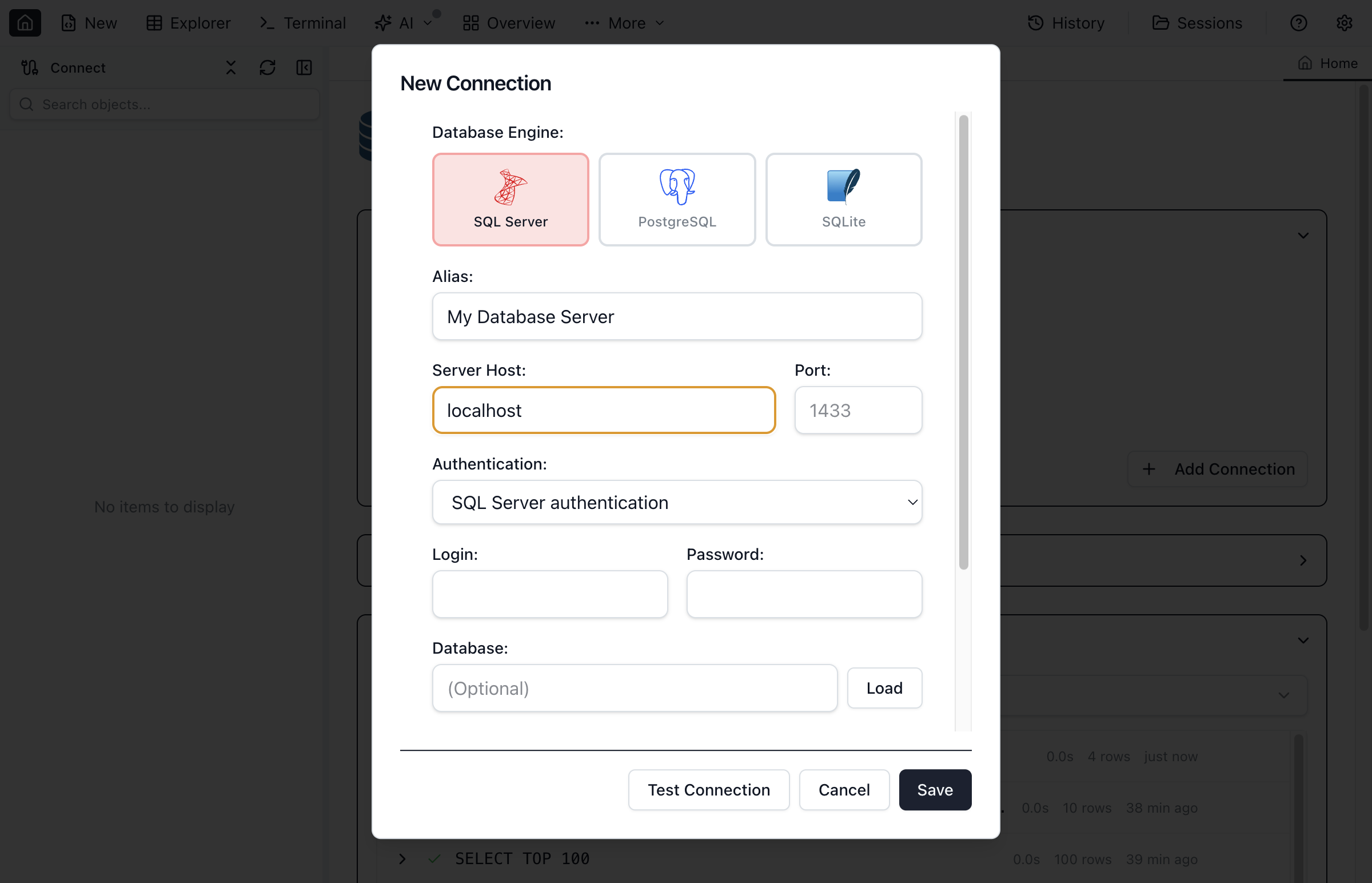
Fill in the following fields to configure your connection:
- Name - A friendly name for this connection (e.g., "Production DB", "Dev Server")
- Color - An optional color that marks the connection's tabs and status bar
- Server (SQL Server) or Host (PostgreSQL, MySQL, Oracle) - The database server address (e.g.,
localhost,localhost\\SQLEXPRESS,192.168.1.100,myserver.database.windows.net) - Port - Server port (defaults: PostgreSQL 5432, MySQL 3306, Oracle 1521). For SQL Server on Windows, leave Port blank to let SQL Tools Service pick among Shared Memory, Named Pipes and TCP 1433 (with Windows authentication; SQL Server authentication uses Named Pipes, then TCP — see Troubleshooting) — this reaches a local default instance on any port, or a local named instance without the SQL Browser service. Entering a port forces a TCP connection to that port. On macOS/Linux, a blank port means TCP 1433 for a default instance (
host); for a named instance (host\SQLEXPRESS) the driver looks up the port through the SQL Browser service instead. - Database - The default database to connect to (optional)
- Limit this connection to the selected database - Scopes the whole app to that one database (see below). Every engine except SQLite.
- Authentication - Choose your authentication method, then the Login (SQL Server) or User (PostgreSQL, MySQL, Oracle) and Password it asks for
Several fields (Server or Host, Login or User, Database) fill a sensible per-engine default when you press Tab out of them while empty — for example localhost for PostgreSQL or localhost\\SQLEXPRESS for SQL Server. If you press Test connection, Load, Save or Save anyway with a required field still empty, Jam opens its section if it is collapsed, scrolls to it, focuses it, and shows a “Press Tab to fill” hint naming that default. The message names the field as its label does (“Host is required”, “Cluster URL is required”). Only the fields the current settings use are checked: turning off the SSH tunnel, switching Oracle to a TNS mode, or picking another authentication method drops the checks for the fields that no longer apply.
Switching Engines
Switching the engine (in the list on the left, or through All engines) keeps what you typed for each engine until the dialog closes. If you fill in a SQL Server connection, switch to PostgreSQL, and switch back, the SQL Server fields are as you left them. The first time you switch between SQL Server, PostgreSQL, MySQL and Oracle, the server, username and SSH tunnel settings carry over, and a note under the host says which engine’s draft it came from until you edit it; a password never carries to another engine. Name, Color and AI access stay as they are whichever engine you pick. Nothing you type is stored anywhere until you save the connection.
Limit Connection to Selected Database
Servers with hundreds of databases make every tree and dropdown noisy when you only ever work in one of them. Below the Database field (every engine except SQLite, which has no database selector), a Limit connection to selected database checkbox scopes the connection inside Jam SQL Studio to that one database. The checkbox stays disabled until a database is actually selected — scoping to “the selected database” means nothing while the field is blank — and the ⓘ next to it explains the rule in place: hover it, or click it to keep the explanation open while you read.
What the limit covers once it is on:
- Object Explorer lists only that database, with no System Databases folder — even when the database is itself system-named, like
master. - Every database picker and dropdown in the app offers only that database — including Schema Compare, Data Compare, migration, and Clone dialogs.
- The Job Scheduler step-database dropdown (SQL Server) offers only that database.
- AI workspace schema export exports only that database, so agents never see the rest of the server.
Database names are matched case-insensitively, so typing sales for a server that reports Sales still resolves. Turn the limit off the same way you turned it on — open Edit Connection and untick the box.
Changing the checkbox on an existing connection takes effect immediately in the database pickers: saving the edit discards the database list Jam had cached for that connection, so the next dropdown you open reads a fresh, scoped list. An Object Explorer tree that is already expanded keeps its cached children, so right-click the connection and choose Refresh to make the tree match the new setting.
USE statements and cross-database queries in the Query Editor still run exactly as before, and the Add/Edit Connection dialog's own Load databases list intentionally still shows every database on the server so you can repoint the connection. If you need a database a user genuinely cannot reach, grant that at the server with database permissions.Related: even without the limit, each database dropdown in the Schema Compare, Data Compare, and migration dialogs defaults to that connection's saved database rather than the first one alphabetically, so you usually just confirm it before comparing.
Paste a Connection String
Already have a working connection string — from an app config, a teammate’s message, or a cloud console’s “connect” page? Paste it instead of re-typing every field. Nothing reaches the form until you confirm it.
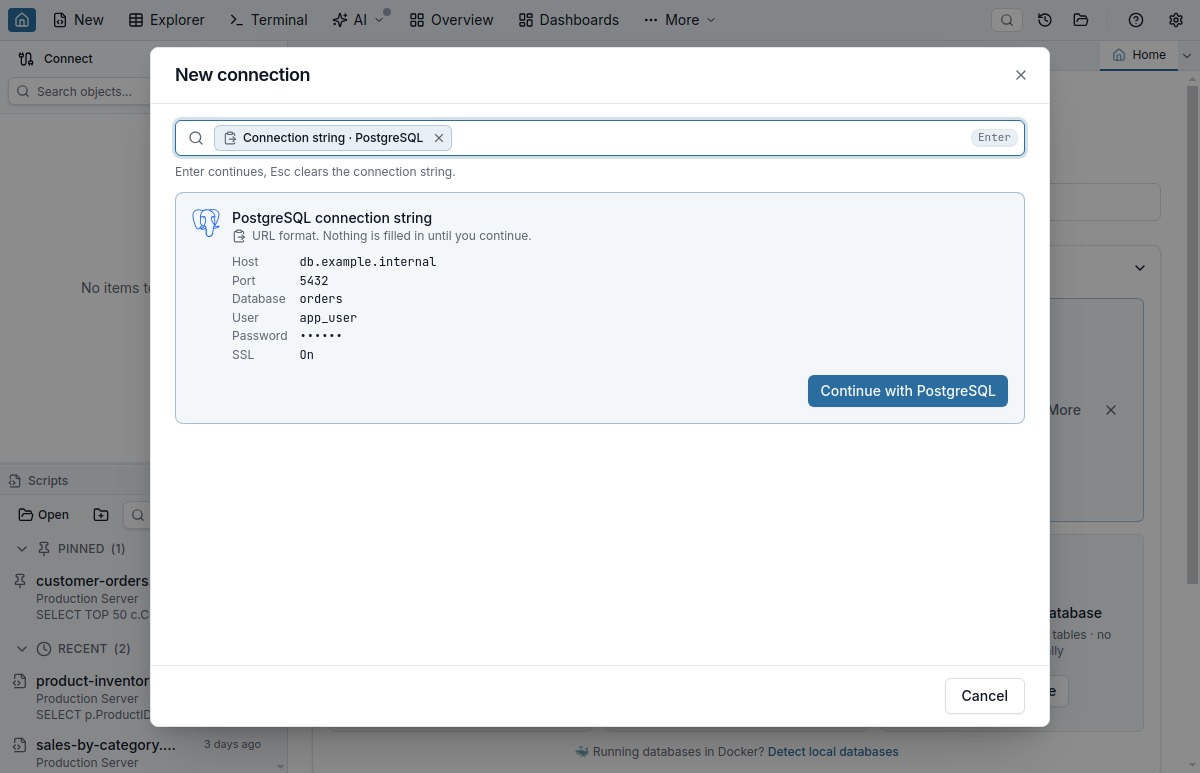
- On the engine list — paste the string into the filter at the top (or click Paste connection string, which reads the clipboard into the filter when it holds a connection string). The pasted string collapses into a chip that names its engine (Connection string · PostgreSQL), so the string itself — a password in it included — is never shown; the chip’s × or Backspace clears it, and typing replaces it. The engine cards give way to a preview: the engine and format, each field the string will fill with its value (for an Azure Storage URL also the container, blob, table, queue or share it attaches to, and each endpoint it sets), any setting it changes as a result (for example SQL Server authentication replacing Windows authentication), what it could not map, and what the form will still need, such as the password. Passwords, account keys and SAS tokens show as dots. Click Continue with <engine> or press Enter to open that engine’s form with the fields filled; Esc clears the filter. A string that can’t be used says why, and the engine cards stay listed under that line, so you can pick the engine and type the rest.
- With a form open — click Paste connection string below the engines on the left (in a narrow window, under Add from…) and paste into the box that opens above the form. A pasted string shows as the same chip, and the same preview appears; Apply (or Enter) fills the form. A string for another engine reads Apply to PostgreSQL (for example) and switches to that engine without overwriting the form you were filling in: its fields are kept and come back when you switch to it again (Switching Engines). A string for the same engine changes only the fields it carries. Esc or the close button closes the box.
After the string is applied, a line above the form names the fields it filled and the required fields still empty (updated as you fill them), and the cursor moves to the first of those. An Azure Storage string that says which kind of connection it is (a whole account, one resource, or the emulator) sets Connect using; a string for another engine leaves the Azure Storage choice you made as it was. Nothing is auto-connected — you review the form and hit Test connection / Save as usual.
Need to inspect or translate a connection string outside the app? The free in-browser Connection String Converter parses the same formats and converts between them.
You can also run New Connection from Clipboard from the command palette (Cmd/Ctrl+Shift+P): the palette row shows the engine and server the string is for (never the string itself), and running it opens the dialog on that engine’s form, already filled. A string that several engines read alike (see below) opens the engine list with the string in the filter and the Reads as choice; a string that can’t be read opens it with the reason, and clipboard text that isn’t a connection string only shows the paste hint.
Supported Formats
- ADO.NET / SqlClient (SQL Server) —
Server=tcp:host,1433;Database=db;User Id=sa;Password=…;Encrypt=True. RecognisesServer/Data Source,Database/Initial Catalog,User Id/UID,Password/PWD,Encrypt,TrustServerCertificate, andIntegrated Security/Trusted_Connection(→ Windows authentication).Encrypt=Strict(here, in an ODBC string or a JDBC URL) fills Encrypt connection on and Trust server certificate off, whatever the string says about trust: SQL Server’s own drivers ignoreTrustServerCertificatein strict mode and always check the certificate. Jam SQL Studio encrypts and checks the certificate but does not use the TDS 8.0 strict handshake; the preview says so. - ADO.NET for PostgreSQL and MySQL (Npgsql, MySqlConnector) —
Host=host;Port=5432;Database=db;Username=app;Password=…;SSL Mode=Require,Server=host; Port=3306; Database=shop; Uid=root; Pwd=…; SslMode=Required;, as the Azure portal shows them for Azure Database for PostgreSQL and MySQL. Each is read with that driver’s own keywords and SSL Mode values. A port in an NpgsqlHost(Host=db:5433,Host=[::1]:5433) fills Port. - URL style (PostgreSQL / MySQL) —
postgres://user:pass@host:5432/db?sslmode=require,mysql://root:[email protected]:3306/shop. URL-encoded credentials (%40→@) are decoded. - libpq keywords (PostgreSQL) —
host=host port=5432 dbname=db user=app sslmode=require, in any order. Values are read the way libpq reads them: single quotes wrap a value with spaces (password='p a ss'), a backslash escapes the next character, and braces or double quotes are ordinary characters. - JDBC (all four network engines) —
jdbc:sqlserver://…,jdbc:postgresql://…,jdbc:mysql://…, andjdbc:oracle:thin:@//host:1521/SERVICE(service name) or@host:1521:SID(SID). In a SQL Server URL, aserverName(orserver),portNumber(orport) orinstanceNameproperty replaces the host, port or instance before the first;, as the Microsoft JDBC driver reads it, sojdbc:sqlserver://;serverName=hostworks too. When the URL gives both a port and an instance name, the port is used and the instance name is ignored, as the driver does:jdbc:sqlserver://host:1444;instanceName=SQLEXPRESSfills the serverhostand port 1444. - Oracle EZConnect —
user/pass@host:1521/SERVICEor a barehost:1521/SERVICE. - SQLite path / URL — an absolute file path ending in
.db,.sqlite, or.sqlite3, or afile:///…/sqlite:///…URL. - Kusto (Azure Data Explorer) —
Data Source=https://help.kusto.windows.net;Initial Catalog=Samples;Fed=True. RecognisesData Source/Addr/Server(a cluster, Fabric eventhouse, App Insights or Log Analytics URL),Initial Catalog/Database,Fed/AAD Federated Security(→ Microsoft Entra ID), andApplication Client Id+Application Key+Authority Id(→ service principal). A string can also start with the cluster URL itself, followed by the properties:https://help.kusto.windows.net/Samples;Fed=True. The host becomes the Cluster URL and the path becomes the Database. A bare cluster URL works too. The string is read exactly as the Kusto client library reads it: when a property is given twice (Data SourceandServer, say), the later one counts, and values are never quoted. A cluster URL with a query, a fragment, a user name or more than a database after the host isn’t filled in, and neither is a string with a quote or brace anywhere in it, or one whose key or token ends in/or\(the client library would drop that character): the preview says why. An application or user token has no field in the form; the preview lists it as left out without showing it. - Azure Storage — an account connection string (
AccountName=…;AccountKey=…or…;SharedAccessSignature=…),UseDevelopmentStorage=trueor the full Azurite string (Blob, Queue and Table endpoints on127.0.0.1orlocalhost, with any ports and account) for the Azurite emulator, or a SAS / public URL to one container, blob, table, queue or share (see the Azure Storage guide). Azure Storage connection strings don’t quote values, so one written in quotes or braces isn’t filled in.
A partial parse fills what it recognises and lists the keys it couldn’t map (they are left out), so you can finish the rest by hand. A string without a password is not partial: the preview lists Password under what the form still needs. Text that looks like a connection string but matches none of these formats shows a message naming the formats, and the text itself is not repeated anywhere in the dialog. A password-less *.database.windows.net host prompts a Microsoft Entra suggestion. Passwords are only stored when you save, through the usual encrypted path — the pasted string itself is never logged, saved, or sent anywhere. Each format is read the way its own driver reads it. In an ADO.NET string a value in quotes (Password="a;b") is read whole; in an ODBC string (Driver={…};…;PWD={a;b}) a value in braces is. A ;, a space or key= text inside a quoted password never starts another field, and a quote that is never closed isn’t guessed at: the string isn’t filled in. A value that starts with a quote or brace the format doesn’t use for quoting (a brace in an ADO.NET or libpq string, a double quote in libpq) isn’t filled in either, and the dialog names the character. Only the password field ever holds ; or = text: a string that would put it into any other field isn’t filled in.
When a SQL Server setting appears twice, SqlClient uses the later one and the ODBC driver the earlier one. A string both could read (no Driver=, no keyword only one of them knows) that names the server, database, user, authentication, Encrypt or TrustServerCertificate twice with different values isn’t filled in: the dialog names the repeated keyword so you can keep one. A SQL Server string whose Encrypt or TrustServerCertificate value isn’t one SQL Server accepts (such as yes, no, true, false, mandatory, optional or strict), or is empty, isn’t filled in either, so a paste never leaves the form’s earlier encryption settings in place under a new server.
Strings copied from the Azure portal’s Connection strings page keep placeholders where the password goes ({your_password}, {your_password_here}) and sometimes the user name or database ({your_username}, {your_database}). A value that is only such a placeholder — also <password>, [password] or your_password — counts as not given: the field stays empty and the preview lists it under what the form still needs, so you type the password after Continue. A password that merely contains one of these words is used as written.
Every keyword a format documents is accepted; the ones the form has no field for (Pooling, connect_timeout, ApplicationName …) are listed as not used. In ADO.NET, ODBC, libpq, Kusto and Azure Storage strings, a keyword the format doesn’t know at all means the string isn’t read. JDBC URLs are the exception: the JDBC drivers ignore properties they don’t know, so the preview lists them as not used and fills the rest.
The format is decided by which formats can read the string at all: a reading counts only when that format’s own driver would accept every keyword and every quote in it. When exactly one format can, that’s the format, even from another engine’s form (the paste box then offers Apply to <engine>). When two can and they read the password differently (password=a' user=b is valid libpq and valid ADO.NET), nothing is filled in: the dialog says This string reads differently as … and … — choose the engine and paste the password separately. When they read it the same way for several engines — Server=host;Database=db;User Id=app;Password=… is valid for SQL Server, PostgreSQL (Npgsql) and MySQL (MySqlConnector) alike — the string still decides where it can: a keyword only one driver knows (MultipleActiveResultSets, Search Path, Allow User Variables), an SSL Mode value (Require is PostgreSQL’s, Required MySQL’s), an Azure host (.database.windows.net, .postgres.database.azure.com, .mysql.database.azure.com) or SQL Server’s own server syntax (tcp:, host,1433, host\instance). When nothing does, the preview shows Reads as: SQL Server · PostgreSQL · MySQL; pick one to see what it fills, then Continue. Pasted into Paste connection string above one of those engines’ forms, it is read as that engine’s string straight away.
Import Connections from Other Tools
Already have your databases set up in another tool? Jam SQL Studio reads its saved connections directly and imports them in one click — no field-by-field re-entry. Start an import four ways:
- Start page — when another tool’s saved connections are detected, the start page leads with a Found N connections in… card naming the apps it found, with a one-click import button per detected app (counts included) and a More menu for every other source. Not interested? Dismiss the card and it stays gone.
- New Connection dialog — Import from another tool on the engine list (or below the engines on the left once a form is open), in case you started typing a server by hand and would rather bring the saved one across.
- Command palette (
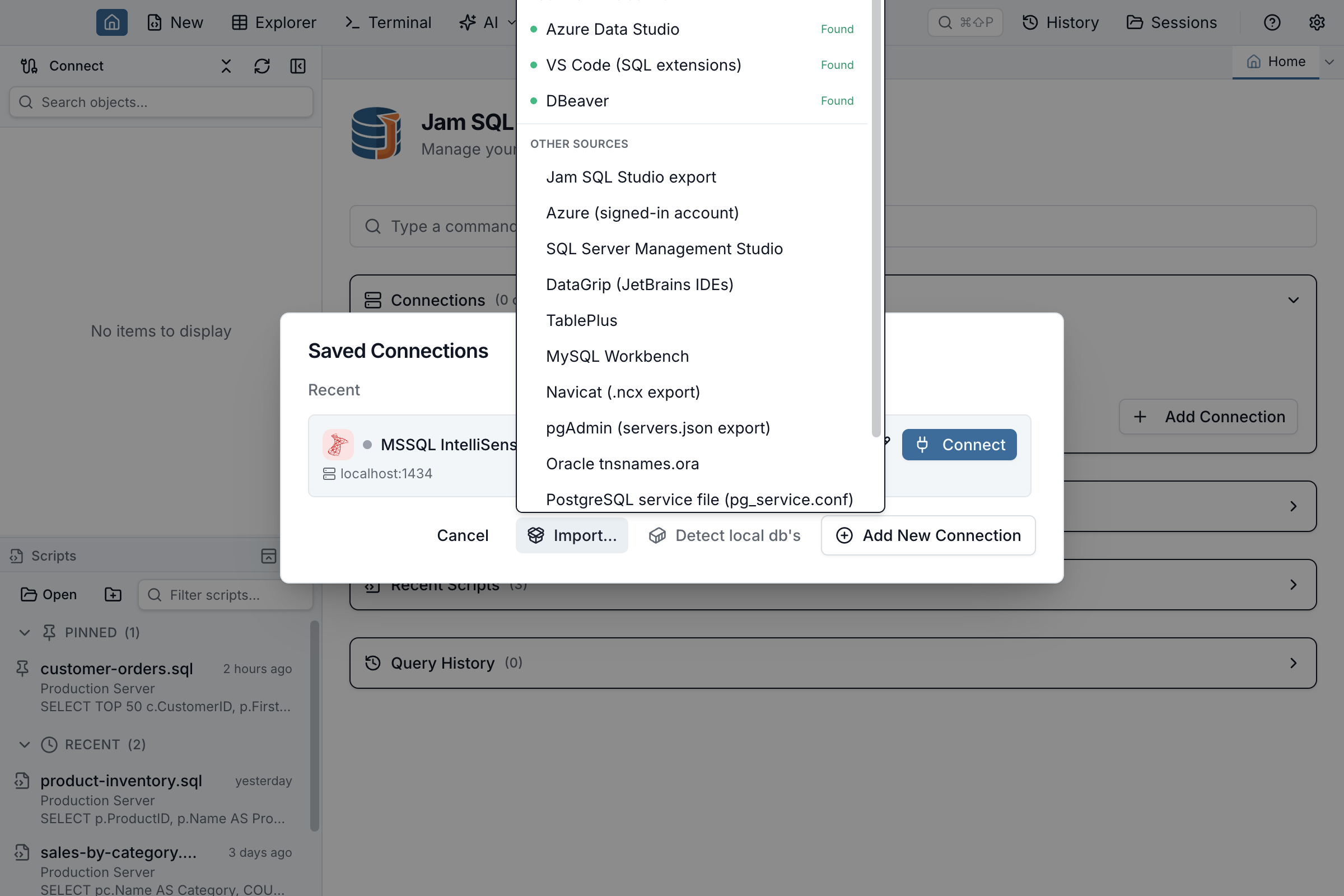
Cmd/Ctrl+Shift+P) — run Import Connections from… for the tool you want. - Manage Connections — open the Import… dropdown in the Saved Connections dialog and pick a source. Sources with a saved store on this machine are highlighted.
Jam SQL Studio can import from:
- Database tools — Azure Data Studio, Visual Studio Code (the mssql & PostgreSQL extensions), SQL Server Management Studio, DBeaver, DataGrip and other JetBrains IDEs, TablePlus, MySQL Workbench, Oracle SQL Developer, Navicat, and pgAdmin.
- Standard config files — Oracle
tnsnames.ora, PostgreSQLpg_service.conf, MySQL.my.cnf, and ODBC data sources. - Your Azure account — the Azure (signed-in account) source lists every ADX cluster, App Insights component, Log Analytics workspace, Azure SQL server/managed instance, PostgreSQL and MySQL flexible server and storage account your signed-in account can reach. See Browse Azure below.
The review dialog groups connections the way the source tool did (server groups, folders). Tick the ones to import (duplicates you already added are pre-unchecked), then click Import. Nothing auto-connects — import only saves the connections.
For SQL Server, a port the source tool saved is kept; a server saved without one keeps an automatic port, as the New Connection form does, so on Windows a local server is reached the way SSMS reaches it (shared memory or named pipes) rather than over TCP port 1433. Encrypt and Trust server certificate come across where the source stores them (SSMS registered servers, Azure Data Studio, VS Code, DBeaver, DataGrip and ODBC data sources). A source set to Encrypt=Strict imports with Encrypt on and Trust server certificate off, as a pasted strict string does, and its row in the review says that the connection is encrypted with certificate validation, with Trust server certificate off, but without the TDS 8.0 strict handshake. Saved connection strings and JDBC URLs are read the way SQL Server’s drivers read them: a quoted value ("…" or '…') or a braced JDBC value ({…}) is one value, even with a semicolon inside, and when a setting appears twice the later one counts (in an ODBC data source, the first one, as ODBC reads it). A saved connection whose Encrypt or Trust server certificate value SQL Server doesn’t accept is listed greyed out and can’t be ticked; the tooltip on its badge names the setting to fix in the source tool. In a JDBC URL, serverName, portNumber and instanceName properties replace the URL’s host, port and instance, as the Microsoft JDBC driver reads them; a DBeaver or DataGrip connection that names both a port and an instance is imported with the port, because that driver then ignores the instance name. DBeaver leaves its default port 1433 out of the URL it builds, so a DBeaver connection to host\SQLEXPRESS on port 1433 keeps the instance.
Started from the New Connection dialog, the review opens on top of it. Cancel takes you back to the dialog exactly as you left it: the same engine and the same values. When the import saves connections, the New Connection dialog closes if you had not typed anything, and Saved Connections shows what was imported; if you had started filling in a connection, the dialog stays open with everything you typed and a line saying what was saved (for example “Saved 3 connections from DBeaver”).
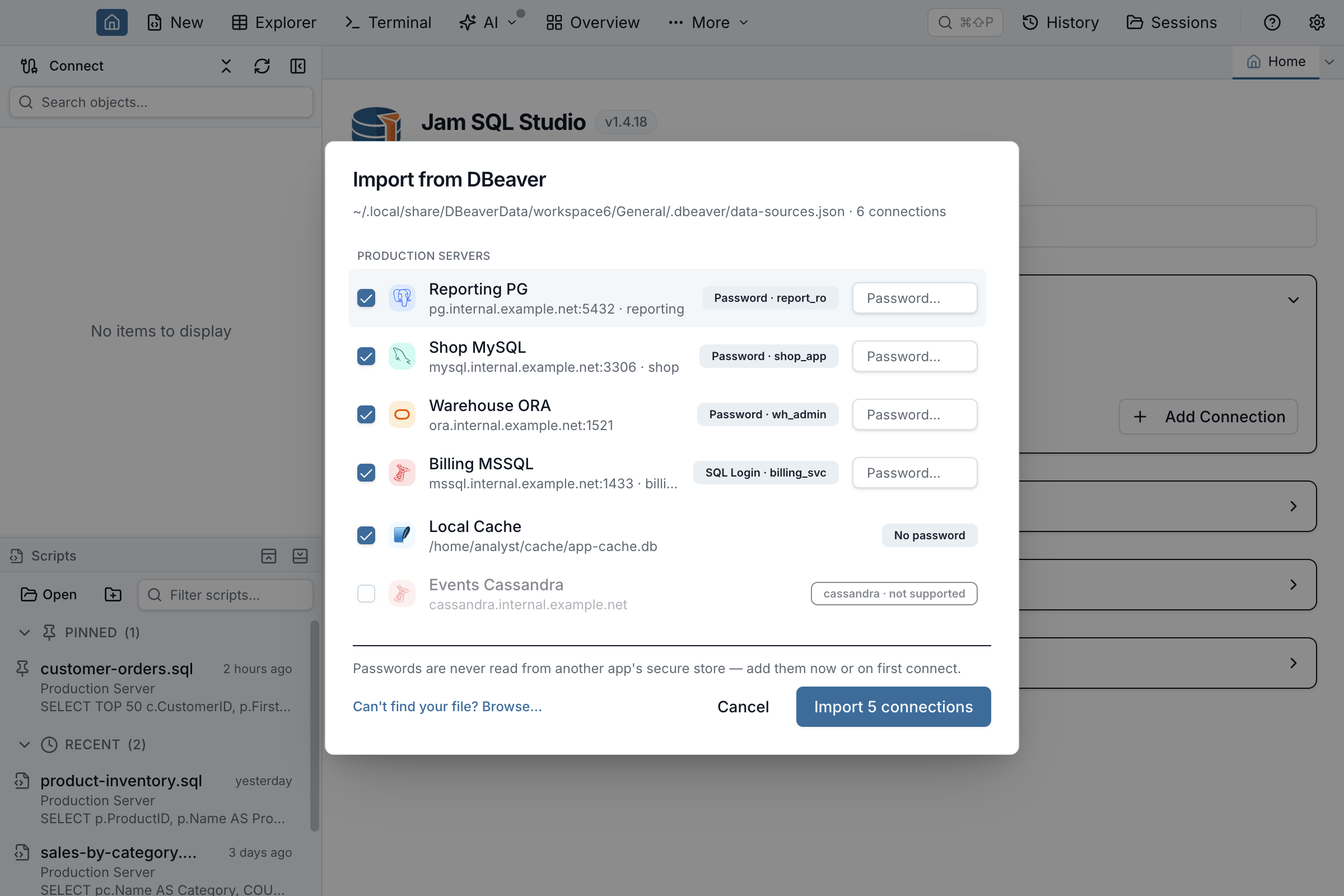
Your passwords stay put. Jam SQL Studio never reads another app’s operating-system keychain and never decrypts another tool’s stored passwords. Passwords are only pre-filled from files that are documented as plain text (.pgpass, .my.cnf, pg_service.conf); everywhere else you re-enter them inline in the dialog or on first connect.
Importing from another machine or from an export file? Use Can’t find your file? Browse… inside the dialog to point at the exported file — for example an ADS settings.json, a SQL Developer connections.json, a Navicat .ncx, or a pgAdmin servers.json. Coming specifically from Azure Data Studio? See the full walkthrough: Migrate from Azure Data Studio.
Exporting and Importing Your Own Connections
Moving to a new machine, or handing a teammate the same set of connections? Settings → Backup & Transfer → Saved connections exports the connections you tick to a single file. By default the file holds no passwords — just server, port, database, username, and any SSH bastion, in plain text, so you can open and read exactly what you are about to share. The file also leaves out secrets written inside a connection's own text: an Oracle TNS descriptor is exported without its wallet password (the rest of the descriptor is kept, so the imported connection works once you add the password back), and a password, account key or SAS signature typed into a Server field is exported as ***. Tick Include saved passwords, protected by a passphrase to also carry your saved passwords and SSH secrets, encrypted with a key derived from a passphrase you type twice (scrypt, then AES-256-GCM) — they are never written to the file in plain text, and there is no recovery if you forget the passphrase. With a passphrase, a wallet password inside an Oracle TNS descriptor and credentials inside a Kusto server (its URL or its connection-string keys) travel encrypted too, and an import with the passphrase restores them exactly. A password typed into any other connection field — a SQL Server, PostgreSQL or MySQL server name, a SQLite file path — stays ***: that text is the address the app connects to, so it is never restored from a file. The same happens to a text that cannot be restored exactly (for example a wallet password containing a line break); the export and the import both name how many connections, or which ones, need that password entered again.
The exported file can be read back two ways: through Manage Connections → Import… → Jam SQL Studio export (endpoints only, alongside every other import source on this page), or through Settings → Backup & Transfer itself, which is the only path that can also restore the passphrase-protected passwords. Imported connections are always added alongside your existing ones, never merged over them. When the file carries passphrase-protected passwords, those passwords are cryptographically tied to the settings that decide where each credential goes — so a file edited after export (a repointed server, a changed authentication mode, TLS switched off) fails to open rather than silently importing the edit. An endpoints-only export carries no passwords and so no such seal, and neither does a sealed file imported without its passphrase: review what you are importing before you commit. Full details, including what the review list shows: see Moving your saved connections in Getting Started.
Detect Local Databases
Running your development databases in Docker — or, on Windows, a native SQL Server instance? Jam SQL Studio can find them for you. On an explicit click it asks the local Docker Engine which containers are running, recognizes the database ones by image, and reads the host port and credentials straight from each container’s environment. On Windows it also checks the registry for installed SQL Server engine instances (the default instance and named instances such as SQLEXPRESS) and asks SqlLocalDB.exe for LocalDB instances. Both results are offered together as ready connections. Nothing is scanned in the background — detection only ever runs when you click, and it re-queries fresh every time (no caching, no watching, no port-scanning, no network scanning for the native leg either — it only reads the local registry and calls the LocalDB CLI).
Native SQL Server detection only runs on Windows, where the Detect local databases button stays enabled even when Docker isn’t running — the native probe finds instances independently of it. On macOS and Linux, detection covers Docker containers only, and the button is disabled (with an explanatory tooltip) when no Docker socket is available.
Start detection four ways:
- New Connection dialog — click Detect local databases on the engine list (or below the engines on the left once a form is open). This is the primary home. On macOS/Linux, if Docker isn’t running the entry is unavailable and says why; on Windows it stays available regardless of Docker, since native SQL Server instances are detected independently of it. The results open on top of the New Connection dialog, and closing them returns to it as you left it. After you add a detected database, closing the results closes the New Connection dialog if you had not typed anything in it; if you had, it stays open with what you typed and a line saying what was saved, and the results offer no View saved connections button (which would leave the form).
- Command palette (
Cmd/Ctrl+Shift+P) — run Detect Local Databases (searching for “docker” still finds it). - Manage Connections — click Detect local databases in the Saved Connections dialog footer, next to the Azure Data Studio import link.
- Start page — when a Docker socket is present and you have no saved connections, a slim Running databases in Docker? link appears under the connect cards.
Jam SQL Studio recognizes these official Docker image families (registry prefixes and tags are handled):
- PostgreSQL —
postgres; user fromPOSTGRES_USER(defaultpostgres), passwordPOSTGRES_PASSWORD, databasePOSTGRES_DB. - MySQL / MariaDB —
mysql,mariadb; user/password fromMYSQL_USER/MYSQL_PASSWORD, otherwiseroot+MYSQL_ROOT_PASSWORD; databaseMYSQL_DATABASE. - SQL Server —
mcr.microsoft.com/mssql/serverand Azure SQL Edge; usersa, passwordMSSQL_SA_PASSWORDorSA_PASSWORD. - Oracle —
gvenzl/oracle-*and Oracle’s own registry; user fromAPP_USER/APP_USER_PASSWORD, otherwisesystem+ORACLE_PASSWORD; service nameXEPDB1orFREEPDB1. - Azure Storage (Azurite) —
mcr.microsoft.com/azure-storage/azurite; the blob, queue and table ports (10000–10002 in the container) count separately, so one published port is enough and a service whose port is not published is left out; the account is the first entry ofAZURITE_ACCOUNTSwith its first key, otherwise the well-knowndevstoreaccount1. Running Azurite in Docker has a compose file and the common connection errors.
The results dialog lists every candidate with a Docker or Local badge showing where it came from, plus a credentials badge: credentials in container env when a Docker container’s password was found in its environment, or password asked on connect when it wasn’t (compose secrets, hardened images, or a manually-set SA password). Native Windows instances connect with Windows authentication, so no password badge is shown for them and none is ever asked. Click Add to save a connection — nothing auto-connects. A candidate that matches a connection you already saved shows an already added badge with a disabled Add. Docker containers without a published host port are skipped (they aren’t reachable from your machine), and only running containers with recognized database images are listed — start your database in Docker first, then detect again. When no password is found for a Docker candidate, the connection saves without one and the on-connect prompt collects it the first time you connect.
Browse Azure
Pick Azure-hosted resources straight from your signed-in Azure account instead of hand-typing cluster URLs or server hostnames. Browse Azure opens a picker — a subscription → resource kind → resource tree with live search, operable from the keyboard — and filling in a resource never auto-saves or auto-connects; you still review, test, and save the connection yourself. The list always belongs to the account signed in now; errors (an expired session, MFA or consent required, a Conditional Access block, throttling, no visible subscription) are named, and an incomplete list says so. This section is a summary — the dedicated Browse Azure guide covers the workflow, identities, errors and permissions in full.
From Add Connection
Browse Azure is one of the other ways to add on the New Connection dialog — on the engine list, in the engine rail beside a form, and in the compact bar’s Add from… menu. It opens the picker on top of the dialog, unfiltered, with a checkbox on every resource. One ticked resource (or a double-click, or Enter on a row) and Open in form opens that engine’s form filled in — server, port, database, authentication, SSL; Azure SQL and Managed Instance picks set Encrypt on. A line above the form names the resource, the fields filled from it and the required fields still empty (for example Still needed: User and Password); for a Microsoft Entra ID sign-in it says no password is needed. Two or more ticked and the button reads Review N connections…: the picks go to the import review on top of the dialog. Cancel returns to the same engine, values and field; a draft you had open for another engine is kept.
On the Azure Data Explorer, SQL Server, PostgreSQL, MySQL and Azure Storage connection forms, a labeled Browse Azure button also sits next to the server field (other engines don’t show it). That picker is filtered to the form’s engine; picking a resource and clicking Use resource fills the form you are on. The tree is keyboard-operable: Up and Down move, Right and Left expand and collapse, Space ticks, Enter opens the highlighted resource.
From Import Connections
The Import… menu also lists an Azure (signed-in account) source (see Import Connections above). Choosing it opens the same picker in multi-select mode, unfiltered by engine, with cascading checkboxes at the subscription and resource-kind level. Resources you already saved show as muted and pre-unchecked. Confirming sends your picks through the normal import review dialog.
Azure identity
A chip at the top of the picker shows which identity discovery is using, switchable between:
- Azure CLI — reuses whatever account you’re logged into via
az login; account changes happen in a terminal and are picked up on the picker’s Refresh. - Microsoft Entra ID — an interactive browser sign-in, with Sign in with a different account… and Sign out available from the identity menu.
Jam SQL Studio detects the Azure CLI first and falls back to Entra sign-in when it isn’t available; whichever you pick explicitly is remembered as the default next time. Enumeration only covers subscriptions visible to your active identity’s home tenant — cross-tenant guest accounts are a known limitation, called out in the picker’s empty state rather than silently omitted.
Supported resource kinds
| Azure resource | Engine | What gets prefilled |
|---|---|---|
| ADX cluster | Azure Data Explorer | Cluster URL |
| Application Insights component | Azure Data Explorer | Its ade.applicationinsights.io proxy URL; database = component name |
| Log Analytics workspace | Azure Data Explorer | Its ade.loganalytics.io proxy URL; database = workspace name |
| SQL Server / SQL Managed Instance | SQL Server | Server address, port 1433, Microsoft Entra ID (Interactive Browser) authentication, Encrypt connection on, Trust server certificate off; a Managed Instance with its public endpoint enabled offers that endpoint (port 3342) as a choice next to the default VNet endpoint |
| PostgreSQL flexible server | PostgreSQL | Server address, port 5432, SSL on, database postgres, Password authentication |
| MySQL flexible server | MySQL | Server address, port 3306, SSL on, Password authentication |
| Storage account | Azure Storage | Account name and its blob / table / queue / file / dfs endpoints, the services the account exposes, and the portal link for Open in Azure portal |
Browse Azure never reads or writes a password — PostgreSQL and SQL Server Authentication logins are always entered by you, the same as a hand-typed connection.
Authentication Methods
Jam SQL Studio supports multiple authentication methods depending on your database type.
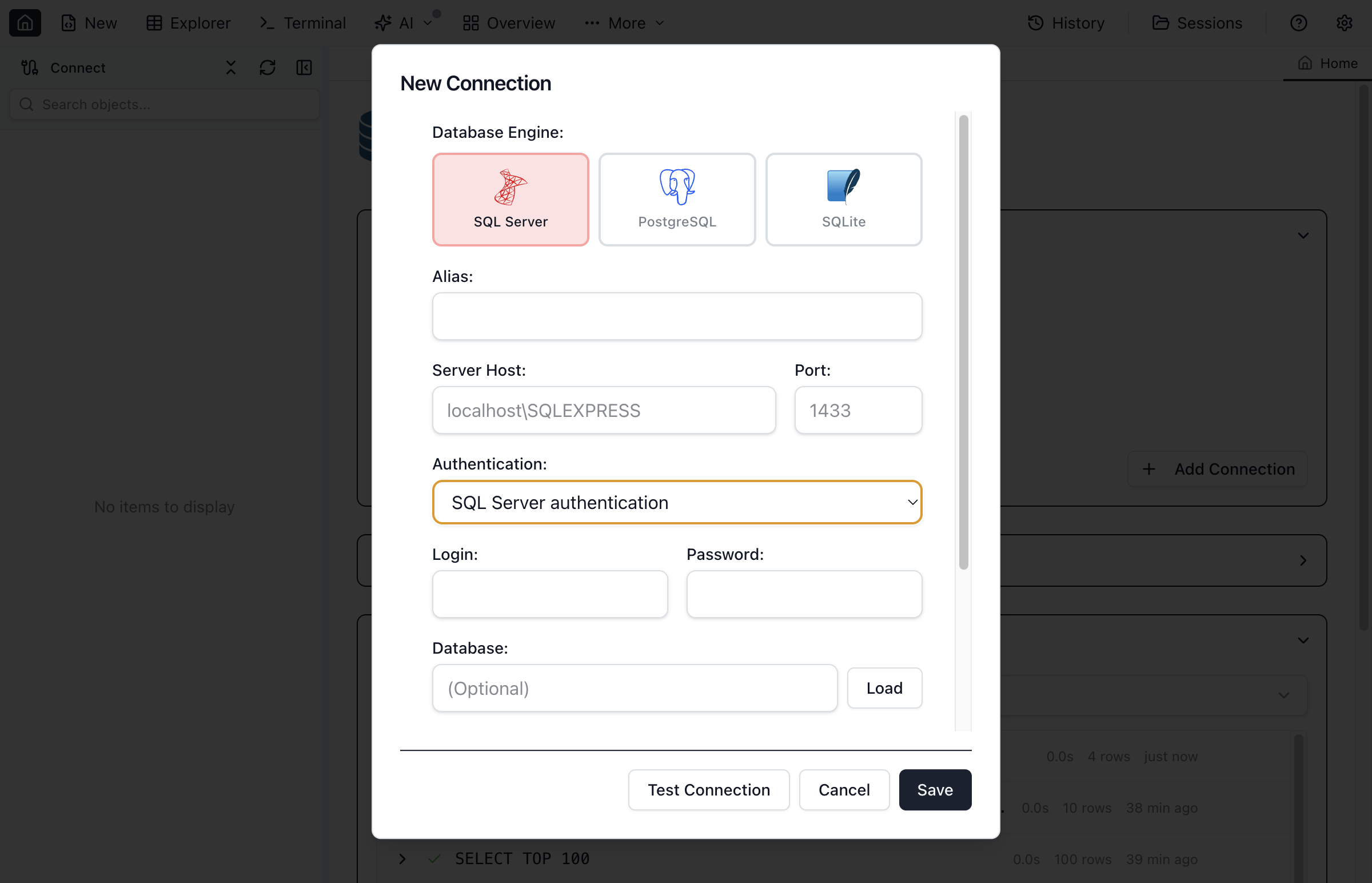
SQL Server Authentication
Use a SQL Server login and password:
- Select SQL Server authentication in the Authentication field
- Enter your Login (e.g.,
saor your login name) - Enter your Password; it is stored encrypted with the connection
Windows Authentication
Use your Windows credentials (available on Windows only):
- Select Windows Authentication from the dropdown
- Your current Windows user will be used automatically
- No username or password required
On Windows, if a saved connection uses Windows Authentication or the automatic port, Jam SQL Studio starts the bundled SQL Tools Service in the background shortly after the app opens, instead of waiting for your first connect attempt to start it — so the first connection to that server is faster.
Azure Entra ID (Azure Active Directory)
For Azure SQL Database and Azure SQL Managed Instance, Jam SQL Studio offers two Entra sign-in modes:
Microsoft Entra ID (Interactive Browser) — recommended
- Select Microsoft Entra ID (Interactive Browser) from the Authentication dropdown
- Click Connect — Jam SQL Studio opens your default browser to a standard Microsoft sign-in page
- Complete the Microsoft login (including MFA if required) in your browser and return to Jam SQL Studio
Use this mode when your tenant’s Conditional Access “Authentication flows policy” blocks the Device Code flow, or when you simply prefer a normal browser sign-in.
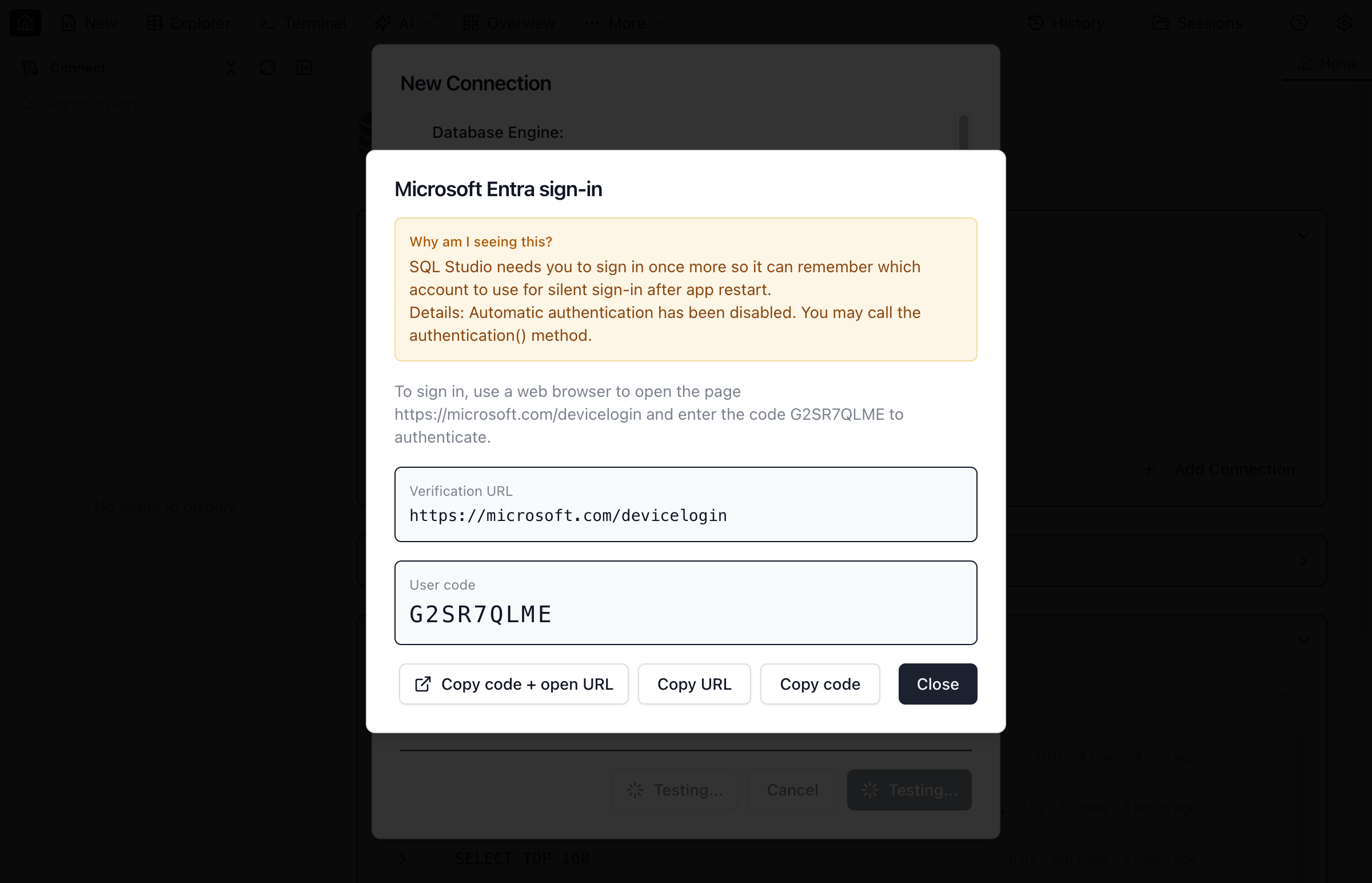
Microsoft Entra ID (Device Code)
- Select Microsoft Entra ID (Device Code) from the Authentication dropdown
- Click Connect — Jam SQL Studio shows a one-time user code and verification URL
- Open the URL in any browser, paste the code, and complete the Microsoft login
Tenant ID (optional)
For both Entra modes you can specify a Tenant ID (directory ID GUID or domain like contoso.com). Set this when you belong to multiple tenants or when signing in with a guest / personal Microsoft account — otherwise leave it empty to use common.
PostgreSQL Authentication
For PostgreSQL connections:
- Password - Standard user and password authentication
- No password (trust) - For servers that trust the connecting host
SSL Connection
Tick Use SSL/TLS under Security to encrypt the connection. The server certificate is not verified, so a self-signed certificate is accepted; the form says so under the box.
MySQL / MariaDB Authentication
For MySQL and MariaDB connections:
- Password - Standard username/password authentication (default user:
root) - No Password - Connect without a password (for local development servers)
SSL Connection
Enable the SSL checkbox for encrypted connections. This is recommended for remote MySQL servers and required by many cloud-hosted MySQL services.
Oracle Authentication
For Oracle Database connections:
- Password - Standard username/password authentication (default port: 1521)
- SSL/TLS - Encrypted connections via the SSL checkbox
- Wallet (mTLS) - For Oracle Autonomous Database (ADB) cloud connections using a wallet directory
Connect by
Connect by is the first field of an Oracle connection's Server section, because it decides which fields follow:
- EZConnect (host, port and service name) (default) - Host, Port and Service name, the
host:port/service_nameformat - TNS alias - A named alias resolved from a
tnsnames.orafile - TNS descriptor - A full TNS connect descriptor for advanced configurations
In the TNS alias and TNS descriptor modes the alias or descriptor says where the database is, so the form shows it in place of Host, Port and Service name and does not ask for them; the alias or the descriptor is required instead. For a TNS alias, set TNS_ADMIN folder to the folder that contains your tnsnames.ora (when it is empty, the TNS_ADMIN environment variable is used). If you leave Name empty, the connection is listed under its TNS alias, or under the host named in the descriptor, and its line in the connections list shows the alias, or the descriptor's host, port and service name (for example db.example.com:1521/ORCLPDB1 (TNS descriptor)). The rest of the descriptor, including any wallet password in it, is never shown in the list, in the test result or in the logs. The same goes for a connection saved by an older version with the whole descriptor in its Server field: Object Explorer, tab titles, the status bar and AI tools show the descriptor's host, port and service name. The wallet folder is under Security; the initial schema and the debug protocol are under More options.
Service Name vs SID
By default, connections use a Service name. Tick Use SID if your database uses a System Identifier instead. Modern Oracle databases (12c+) prefer service names.
Discovering Service Names (Oracle only)
If you don't know the exact service name registered with your Oracle listener, click the Discover button next to the Service name field (EZConnect mode). Jam SQL Studio will probe the listener at the configured host and port for well-known Oracle service names — including those used by common images such as FREE / FREEPDB1 (Oracle Free 23ai), XE / XEPDB1 (Oracle XE), and ORCL / ORCLCDB / ORCLPDB1 (Enterprise/Standard) — and display any that are currently registered as clickable pills. Click a pill to fill the field.
If the listener is unreachable (firewall, wrong port, database not started), Discover surfaces a listener error instead of a service list. If the database is up but none of the well-known names match, enter your custom service name manually — you can still click Discover afterwards to verify that the listener knows it.
SQLite Connections
SQLite uses file-based storage with no authentication:
- Select SQLite as the database type
- Click Browse… next to Database file to select your
.sqliteor.dbfile; tick Open read-only to open it read-only - Click Connect to open the database
Azure Storage Connections
Azure Storage connections attach a storage account, a single SAS-scoped or public resource, or the Azurite emulator — there is no database to pick and no SQL to run. Choose Account Key, Shared Access Signature, Anonymous (for a public container or blob), or one of the three Microsoft Entra ID methods, tick the services you want Test connection to verify, and browse the account's blob containers, queues, tables and file shares from the Object Explorer. With Microsoft Entra ID, listing file shares needs a role that can read the storage account (for example Reader); an identity without one opens the shares you name in the optional File shares field. A share SAS URL whose path could be a file or a folder asks you to choose File or Folder when the app cannot tell from the SAS. Tick Open read-only in the Access row, the last row of the Storage section, to turn off every change the connection could make (uploads, deletes, queue and entity changes), for you and for AI agents; untick it in Edit connection to make it writable again. See the Azure Storage guide.
Connection Options
The Security and More options sections of the form hold the settings most connections leave as they are.
Security (SQL Server)
- Encrypt connection - Use TLS encryption for data in transit (recommended)
- Trust server certificate - Accept self-signed certificates (development only)
A pasted or imported Encrypt=Strict sets Encrypt connection on and Trust server certificate off: strict encryption always validates the server certificate. Jam SQL Studio stores Encrypt as on or off, so it does not use the TDS 8.0 strict handshake itself.
PostgreSQL, MySQL and Oracle have a Use SSL/TLS box instead (MySQL adds Trust server certificate once SSL is on), and the four network engines have the SSH tunnel here too.
More options
- AI access - What AI assistants connected through MCP may run on this connection (every engine)
- Initial schema and Debug protocol - Oracle only
- Endpoints - Azure Storage only: per-service endpoint overrides
Managing Connections
Jam SQL Studio saves your connections for quick access.
Saving Connections
- Fill in all connection details
- Enter a meaningful Name
- Click Test connection to verify settings
- Click Save to store the connection
Editing Connections
- Right-click a saved connection in the sidebar
- Select Edit Connection
- Modify settings as needed
- Click Update to save the changes
Edit Connection opens straight in the connection’s form, without the engine list: a saved connection keeps its engine. To use another engine, create a new connection. Esc closes the dialog.
Editing a connection's server, database or credentials takes effect on the next connect: a pool opened from the old settings is closed and a fresh one is opened from the new ones.
Reconnecting
Right-click any connection — on every engine — and select Reconnect to fully rebuild it. Jam SQL Studio cancels whatever it was running, closes the connection's pools, resets any cached sign-in state, and connects fresh; a SQLite connection re-opens its file, and a Kusto one rebuilds its client. Use it when a connection misbehaves after a network change, VPN reconnect, laptop sleep, or an expired Microsoft Entra session, instead of restarting the app.
Disconnecting and connecting again takes the same route: the live pool is closed and the next connect dials from your saved settings. Reconnect is the one-step version, and it rebuilds even when nothing about the connection has changed.
Disconnecting
Disconnect a connection from its node in the sidebar or from Manage Connections. If queries are still running on it, Jam SQL Studio cancels them before closing the connection, on every engine, so the disconnect does not sit behind work you have already walked away from. That covers the queries and Table Explorer fetches the app is tracking. A notebook or transaction tab holding a session open is not one of them, so those are released separately, on every engine — a cell or statement still running on such a tab is cancelled first, so the disconnect is not left waiting on it, and an open transaction is rolled back, because a disconnect is not a commit. When query tabs are open on that connection, a dialog names them first; confirming closes those tabs along with the connection.
The same happens whenever a connection is torn down for another reason: deleting it, reconnecting it, and saving an edit that changes what it connects to — its server, port, database, engine, sign-in (including a password you retype), SSH settings, or a SQLite file's read-only flag. Each rebuilds the connection, and each cancels whatever it was running first. Edits that change nothing about the dial — a rename, a colour — leave the live connection alone. Reconnect always rebuilds: it closes the live pool and dials again, even when nothing about the connection has changed.
Deleting Connections
- Open the connection for editing — from Manage Connections, or Edit on its node in the sidebar
- Click Delete in the dialog
- Confirm the deletion
A delete always wins. If the connection was still connecting when you deleted it, the connect is refused rather than allowed to finish, so the connection cannot reappear a moment later with a live pool and a saved record. Anything running on it is cancelled first, its SSH tunnel is closed, and the record is removed last.
Two cases stop short of removing the record, and they need different things from you. If Jam SQL Studio cannot release the connection — a SQLite file still held open by something reading from it — the record is kept and the dialog tells you it is still in use: disconnect it and delete again, because removing the record while the file handle is still open would leave the file locked with nothing left to close it. If instead the connection was released but its saved settings could not be written, the dialog says so: nothing is connected any more, and the delete needs retrying once the connections file is writable again.
Testing Connections
Before saving, click Test connection to verify:
- Network connectivity to the server
- Authentication credentials are valid
- Selected database exists and is accessible
The answer appears in one strip above the dialog's buttons, the same for every engine. It says Testing the connection… while the test runs, then what happened: where it connected (“Connected to db.example:5432”), or what went wrong in plain words, with a one-click fix when there is one (for example Retry trusting the server certificate) and the driver's own message under Error details. When the test reports separate steps, each is a chip with its status: the SSH tunnel and the database for an SSH connection, and one per service for Azure Storage. After a failure, Save anyway (Update anyway when editing) saves the connection untested; its line says what to fix later (“Server unreachable right now? Save it anyway and connect later.”). The field the failure is about scrolls into view. In a very short window the strip is one line with a Details button that shows the whole answer.
A test result describes exactly the connection and the values it tested. Change a field the test depends on (the server, the credentials, the database, SQLite's read-only option and so on) and the result is hidden; set every field back and it shows again. To close a result, click the × button at its top right; it stays closed until the next Test connection or Load databases shows a new result. A result never carries over to another connection or to another engine, and Load databases replaces any earlier result with its own. Long results scroll inside their own area above the buttons, so Test connection, Cancel and Save always stay on screen. That area keeps a readable height: on a small window the form above it scrolls first.
Save tests the connection first and then saves the values shown in the dialog. If you change any field while that test runs — the name and color included — nothing is saved and the dialog says so; test or save again. Closing the dialog while a Save is still testing never saves.
Connecting itself is faster on every engine: Jam SQL Studio no longer re-checks the server with a separate status query after a successful connect. Most engines still run one lightweight validation statement as part of the login itself; on SQL Server, the driver route trusts the login alone. Either way, the connection is ready in the UI as soon as that single step finishes.
Object Explorer
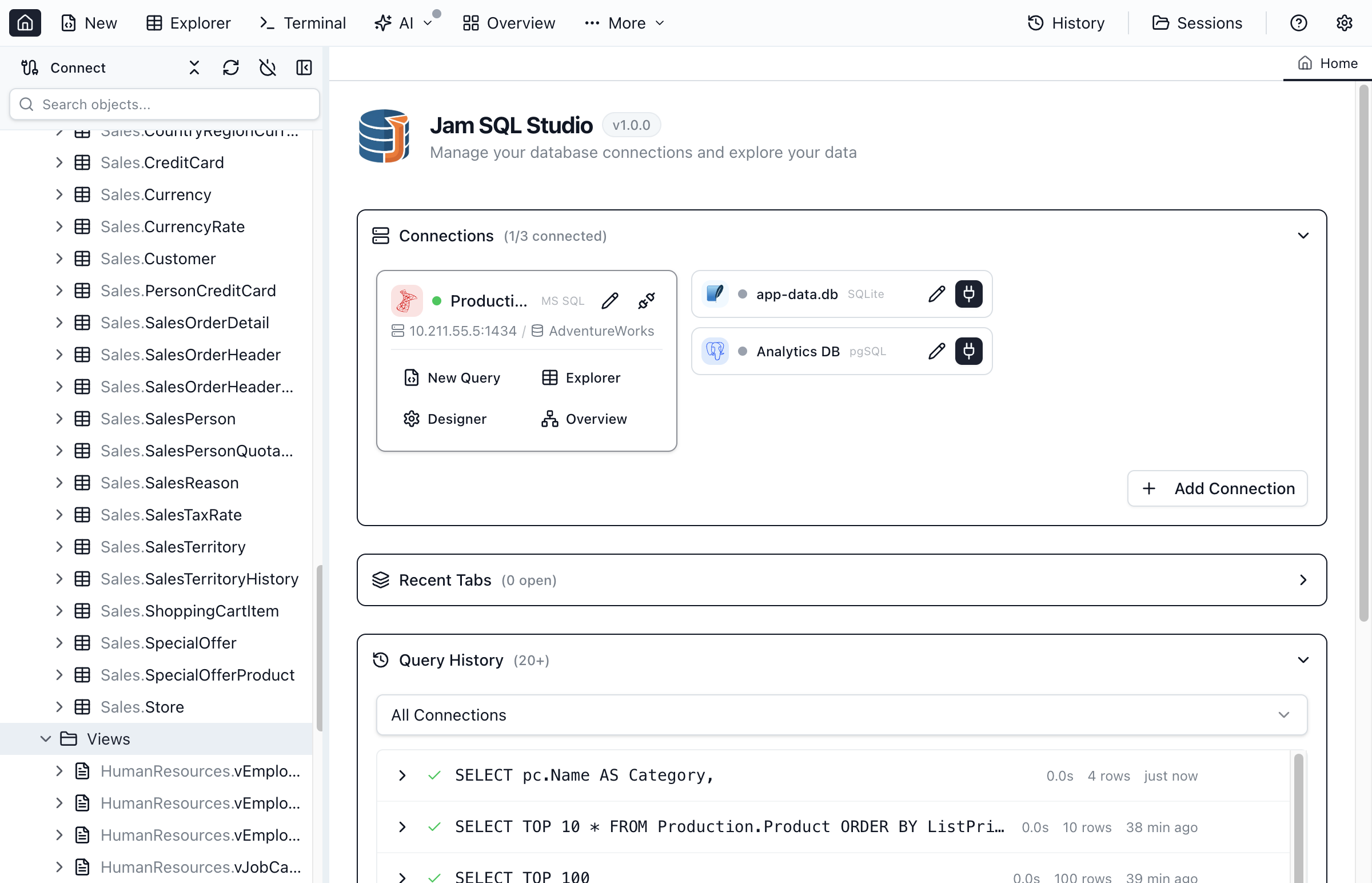
Once connected, the Object Explorer shows your database structure. As soon as the database list arrives, the database you connected to is preloaded first and on its own; the remaining databases follow a few at a time so a connect never floods the server.
Navigating the Tree
- Server - Top-level connection node showing server name
- Databases (or Schemas for Oracle) - List of databases/schemas on the server
- Tables - Database tables with column details
- Views - Database views
- Stored Procedures - Programmable database routines
- Functions - User-defined functions
- Packages, Sequences, Synonyms, DB Links, Materialized Views, Types, Directories - Oracle-specific object types
Group by Schema
When a database has multiple schemas, schemas appear as top-level folders in the sidebar, with Tables, Views, and Programmability nested inside each one. This kicks in automatically for databases with more than 1 schema and more than 15 objects; switch between Auto / Always / Never in Settings → UI → Object Explorer. If you open a database before its objects have finished loading, it keeps its current layout for that session rather than rearranging under you; use Refresh on the database to apply the grouping.
Refresh on a database (or on any folder or object inside it) also re-reads the schema behind autocomplete for that database when IntelliSense has already loaded it, so a table or routine created by a migration tool, a teammate or another client starts completing in query tabs without a reconnect; Refresh on the connection does the same for every database it has already loaded, one after another. The database row shows a spinner while the reload runs. The same reload is on Cmd+Shift+R / Ctrl+Shift+R in a query tab — see the Query Editor guide.
Object Actions
Right-click objects for context menu actions:
- Tables - Select Top 1000, Edit Top 200, Design Table, Script as CREATE/DROP
- Views - Select Top 1000, Script as CREATE/ALTER/DROP
- Procedures - Execute, Script as CREATE/ALTER/DROP
- Functions - Script as CREATE/ALTER/DROP
Troubleshooting
When a connection fails, Jam SQL Studio classifies the error and shows a plain-language explanation of the likely cause — an untrusted certificate, a DNS problem, a refused port, a firewall rule, a wrong password — above the raw error details.
TLS / Certificate Errors
- "Server certificate not trusted" (self-signed certificate) — common with local SQL Server instances, Docker containers, and internal servers. If you trust the server, the error notice offers a one-click Retry trusting the server certificate (less secure) button: it enables "Trust server certificate", retries the connection, and keeps the setting only if the retry succeeds. Jam never weakens certificate validation silently — it's always this visible action. For production servers, prefer installing the server's CA certificate on your machine instead.
- Server requires encryption — the notice offers Retry with encryption enabled (SQL Server) or Retry with SSL enabled (PostgreSQL/MySQL) to flip the setting and reconnect in one click.
- Server does not support SSL (PostgreSQL/MySQL) — the notice offers a one-click retry without SSL.
- Connections created in older versions, and imported ones whose source tool stores no trust setting, default to not trusting self-signed certificates — if such a server stopped connecting, the certificate hint above is usually the fix.
Connection Refused, Timeouts, and DNS Failures
- On a saved connection, the error notice offers a one-click Edit connection… button that opens the connection editor so you can correct the server address, port, or database name. It appears for refused connections, connection timeouts, DNS lookup failures, and "database not found" errors
- Verify the server address and port are correct
- Check that the database server is running (and that your VPN is up, for servers behind one)
- Ensure firewall allows connections on the database port
SSMS connects but Jam doesn't (Windows local SQL Server)
- Leave Port blank so SQL Tools Service can pick among Shared Memory, Named Pipes and TCP 1433 — this reaches a local default instance on any port, or a local named instance without the SQL Server Browser service. Entering an explicit port skips straight to TCP on that port, so if TCP is disabled or listening elsewhere, clear the Port field instead of guessing a number.
- With SQL Server Authentication on a local instance, Jam does not leave protocol choice to SQL Tools Service: it tries Named Pipes first and falls back to TCP on failure. Shared Memory is never used for SQL Server authentication, so an instance reachable only through Shared Memory will not connect this way — enable Named Pipes or TCP/IP for the instance in SQL Server Configuration Manager instead.
- If you do need TCP specifically (for example, driver-only features), enable TCP/IP for your instance in SQL Server Configuration Manager, restart SQL Server, and enter its TCP port explicitly.
Authentication Failed
- On a saved connection that signs in with a user and password, the error notice offers Update user & password… — it opens the connection editor so you can correct the credentials and reconnect
- Double-check username and password
- Verify the user has permission to connect
- For Windows Auth, ensure proper domain configuration
Oracle Connection Issues
- ORA-12541 (No Listener) - Verify the Oracle listener is running on the target host and port
- ORA-12514 / ORA-12505 (Service or SID Not Found) — the error notice offers a one-click Browse services on this listener… button: it probes the listener with the same discovery behind the connection form's Discover button, checks which common service names are registered there (the same well-known candidates the Discover button probes), and retries with the one you pick (the picked service is kept only when that retry connects). Or check the name yourself with
lsnrctl statuson the server - ORA-28001 / ORA-28002 (Password Expired or Expiring) — the notice offers Set a new password…: a small dialog takes the new password, performs Oracle's password-change-at-connect using the expired credentials, and retries right away. On a saved connection the new password is stored only when that retry succeeds
- ORA-01017 (Invalid Credentials) - Verify username and password. Oracle usernames are case-insensitive but passwords are case-sensitive
- TNS Alias Not Found - Ensure the TNS Admin directory path is correct and contains a valid
tnsnames.orafile - "Connection pool rebuilt" — Jam retired the connection's Oracle session pool while a connect was using it (a session that could not be closed cleanly, or a disconnect that landed at the same moment). Nothing in the settings is wrong: connect again and a fresh pool is built
Azure SQL Firewall
- Add your client IP address to the Azure SQL firewall rules
- Or enable "Allow Azure services" in the Azure portal
Connection Colors
Assign a color to each connection to visually distinguish environments at a glance — for example, red for production and green for development.
Setting a Connection Color
- Open the connection dialog (create new or edit existing)
- Choose from 18 preset color swatches below the connection name, from red through rose, plus slate
- Click a swatch to select it (a checkmark appears), or click None to clear
- Save the connection — the color persists across sessions
Where Colors Appear
- Connection card — a colored left border accent on the sidebar connection card
- Tab bar — tabs show a 2px border in the connection color (along the bottom, or the left edge when tabs are vertical); inactive tabs show the same color faded
- Status bar — a very subtle background tint of the connection color behind the status bar, and a small square in the connection color before the connection name in the Query Editor and Table Explorer status bars
Colors update live — changing a connection's color immediately updates all open tabs using that connection.
When a Connection Drops
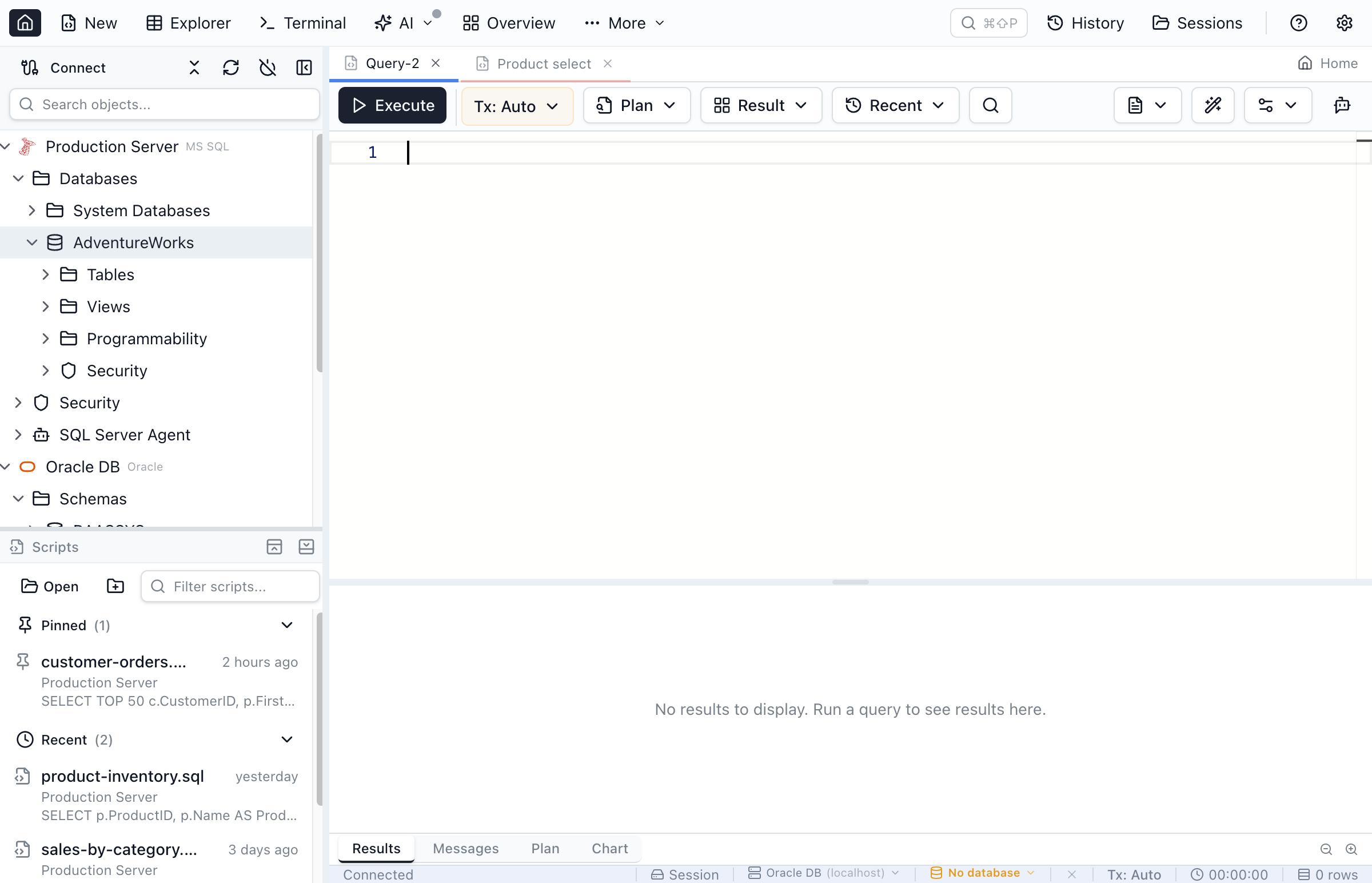
If a workspace tab's database connection goes offline, a banner appears at the top of the tab area with a Connect button. The banner shows the connection name and engine so you can tell at a glance which link is affected.
If you had just triggered an action when the connection was lost — Run Query, Refresh from DB, Sync Data, a Schema Compare or Data Compare run, or a Table Explorer save or preview — the button reads Connect and <action> and reruns the action automatically once you reconnect. No need to repeat the original gesture.
Tabs with an inactive connection also show a small amber dot next to the tab label for at-a-glance visibility across the tab strip. Dismiss the banner with the × button in the top-right corner if you don't want to reconnect right away.
SSH Tunneling
SSH tunneling routes a database connection through an SSH bastion so the database itself doesn’t need to be publicly reachable. Use it when your database sits behind a corporate firewall or cloud security group that only accepts connections from a specific jumphost.
SSH tunneling is available for all database engines except SQLite.
Enabling SSH Tunneling
- Open the New Connection dialog (or edit an existing connection).
- Under Security, tick Connect through an SSH tunnel.
- Fill in SSH host, SSH port (default 22), and SSH user.
- Choose an SSH authentication method and provide credentials (see below).
- Click Test connection to verify both the SSH and database legs before saving.
Authentication Methods
- SSH agent — uses identities already loaded in your running SSH agent (
ssh-add -l). No credentials to enter; works on macOS, Linux, and Windows with a running agent. - Private key — point to a key file (
~/.ssh/id_rsa,id_ed25519, etc.). If the key has a passphrase, enter it in the Passphrase field; check Save in keychain to avoid re-entering it on every connect. - Password — SSH password auth for servers that support it. Check Save in keychain to store it securely.
~/.ssh/config Auto-fill
Start typing a Host alias from your ~/.ssh/config file into the SSH host field. Jam SQL Studio reads your SSH config and suggests matching aliases; selecting one auto-fills the host address, SSH user, port, and private key path. Aliases that use ProxyJump are shown as suggestions but multi-hop tunnels are not supported yet — only a single SSH bastion is followed.
Stepwise Test connection
Clicking Test connection when an SSH tunnel is configured runs two checks in sequence and shows each one as a chip in the result strip:
- SSH tunnel — authenticates to the bastion and opens the forwarded port (“Open through bastion.example”).
- Database — connects through the tunnel to the database server (“Connected to 10.0.4.12:5432”).
If the SSH leg fails (wrong host, key rejected, firewall blocking port 22), the database check does not run, and the strip explains the SSH failure with Save anyway, so you can tell immediately which side needs attention. A database failure through the tunnel gets the same explanation and one-click fixes as a direct connection.
Save anyway is not offered when the test refused the settings themselves rather than failed to reach the server: the bastion’s host key changed (a security warning; see SSH host key trust) or cannot be recorded, a saved SSH secret belongs to another bastion, the SSH port is not valid, or the tunnel cannot forward the target (for example SQL Server with an automatic port, or an Oracle TNS alias or descriptor). The strip says what to correct instead.
When you edit a saved connection, Test connection and Load databases use your saved SSH secrets (the key passphrase or bastion password) unless you retype them in the dialog.
A saved SSH secret is bound to the target it was saved for — the SSH host, port, user, authentication method and key file — so changing any of those means Jam SQL Studio refuses to use the stored one and asks you to enter it again in the connection dialog.
SSH host key trust
The first time you open a tunnel to a bastion, Jam SQL Studio records that server’s host key so it can warn you if the key ever changes. Those pins are stored in ~/.ssh/jam_known_hosts — a Jam-managed file next to your OpenSSH one.
- Jam SQL Studio never edits
~/.ssh/known_hosts. Your own host keys stay exactly as OpenSSH wrote them, sossh-keygen -Randssh-keygen -Hkeep working normally. (Older versions did write into that file; upgrading moves those entries out automatically.) - Deleting
~/.ssh/jam_known_hostsis safe at any time — each bastion is simply trusted again on the next connect. - If a bastion’s key legitimately changes (a rebuilt jumphost, for example), the connection is blocked with an explicit error. Use Forget saved host key under the SSH host field to clear the old pin and accept the new one.
- Bastions you already trust from plain
sshare honoured too — Jam SQL Studio reads your existing~/.ssh/known_hostsentries rather than asking you to trust the same machine twice.
Limitations
- Single bastion only — multi-hop tunnels (
ProxyJumpchains) are not supported. - No in-app SSH key generation — generate keys with
ssh-keygenand point Jam SQL Studio at the resulting file. - The tunnel stays open for the lifetime of the connection; closing or disconnecting tears it down automatically.
Frequently asked questions
What databases does Jam SQL Studio support?
Jam SQL Studio supports SQL Server (including Azure SQL Database and Azure SQL Managed Instance), PostgreSQL, MySQL (including MariaDB), Oracle Database (12.2+), and SQLite databases, plus read-only Azure Data Explorer (Kusto / KQL) connections including App Insights and Log Analytics query proxies. Each engine has specific connection options and authentication methods.
How do I connect to Azure SQL Database?
Create a new connection, enter your Azure SQL server address (e.g., myserver.database.windows.net), choose SQL Server Authentication or Microsoft Entra ID (Interactive Browser is recommended; Device Code is also available if browser sign-in is blocked), enter your credentials, and click Connect. Make sure your IP address is allowed in the Azure SQL firewall settings.
Can I use Windows Authentication to connect?
Yes, Jam SQL Studio supports Windows Authentication for SQL Server connections. Select 'Windows Authentication' in the authentication dropdown, and your current Windows credentials will be used to authenticate.
How do I save a database connection for later use?
When creating a connection, enter a friendly name in the Connection Name field and click Save. The connection appears at the top of your Recent connections list and at the top of the connections list on the Start Page for quick access. You can also save connections after testing them.
How do I connect to a PostgreSQL database with SSL?
In the connection dialog for PostgreSQL, enable the SSL option and configure the SSL mode (require, verify-ca, or verify-full). You can also specify client certificate and key files for mutual TLS authentication.
Can I limit a connection to a single database?
Yes. Pick the database on the Add or Edit Connection form, then tick Limit connection to selected database (available for every engine except SQLite). Object Explorer, every database picker in the app, the Job Scheduler's step-database dropdown, and AI workspace schema export are then scoped to that one database. It is UI scoping, not a permission boundary: USE statements and cross-database queries you write yourself still run, so use database permissions on the server if you need a hard restriction.
Ready to Connect?
Download Jam SQL Studio and connect to your databases in minutes.