
Last updated: 2026-08-10
Data Compare
Compare table data between databases to identify row-level differences. Find missing, modified, and extra rows with visual diff highlighting. Generate INSERT, UPDATE, and DELETE scripts to synchronize data.
Getting Started
Data Compare lets you compare the actual data in your tables, not just the schema structure. This is useful for verifying data migrations, auditing environments, and synchronizing lookup tables across databases.
How to Start a Data Comparison
- Open Jam SQL Studio and connect to both source and target databases
- Click More → Data Compare in the main toolbar
- Select the source connection and choose the table to compare
- Select the target connection and choose the corresponding table
- Configure the key columns used to match rows between tables
- Click Compare to analyze the data differences
Tip: The table dropdowns are searchable — start typing to filter, use ↓ to move into the list, and press Enter to select.
Reopening a saved comparison. Session autosave keeps a Data Compare tab's source, target, key/value mappings, and options across restarts, so a comparison you set up today is still there tomorrow. When you reopen the app, the tab shows a Session Restored banner with its own Run Compare button — click it to refresh the results without reconfiguring anything.
Launch from a Database Blueprint. Data Compare can also be opened straight from a Database Blueprint: in the Sync Data dialog, the per-table Open in Data Compare action opens a comparison with the blueprint folder's captured data as the source and the linked database as the target, with key/value mappings pre-filled and the comparison auto-run. From there you work with the same results grid and sync-script tools described below.
Recently Compared
The setup dialog remembers table pairs you've actually compared — not just ones you configured and never ran. Pick an entry from the Recently compared section near the top of the dialog to restore the same source table, target table, and key/value column mappings.
- Where the entry lands depends on how you opened the dialog. From the toolbar, it opens a new tab. From an existing comparison's Change button, it reconfigures that tab in place, so you don't collect duplicates while trying different saved setups. Either way the comparison doesn't run automatically — click Compare when you're ready.
- As in Schema Compare, the list is open when nothing is selected and collapses into a Recently compared link at the top of the dialog once you pick a connection — which is what you’ll see when you arrive from an existing comparison’s Change button, since that opens with the endpoints already filled in. Click the link to reopen the list.
- The most recent comparison is shown directly. Earlier comparisons collapse behind a Show N earlier comparisons toggle, with a search box once there are two or more.
- Each entry shows the key and value column counts from that run (for example, 1 key • 9/9 value) and how long ago it ran. Hover over an entry to remove it from history.
- Entries whose connection no longer exists are marked connection unavailable right in the list. Selecting one still opens the tab with the saved details — reconnect or pick a different connection from there.
Personal Mode Limits
Data Compare is available in both Personal and Pro modes, with different limits:
- Personal mode - Full Comparison is available when both tables have 10,000 rows or fewer. For larger tables, use Sample Compare or upgrade to Pro.
- Pro mode - No row-count limits for Full Comparison.
Pin a comparison to the Object Explorer
A recent comparison is remembered for you; a pinned one is one you named and chose to keep. Pinning saves the whole setup — both tables, the key and value column mappings, the comparison options, and any results filter or sort you set up. Two ways to make one:
- Click the pin button (the pin icon) on the tab's header row, next to Change and the two table names. That row is there from the moment the tab opens, so you can pin a comparison you have configured but never run.
- Or right-click the tab and choose Pin to Object Explorer.
- The pin appears in the tree under the source connection, alongside pinned tables and saved queries. A comparison spans two connections; filing it under the source keeps it in one predictable place.
- Double-click the pinned row (or select it and press Enter) to reopen the comparison. It opens configured but idle — click Compare to run it. Opening a pin that's already open just focuses its tab.
- A pin stores a setup, never results or a row selection. Reopening one never carries yesterday's differences, or a stale selection, into today's Generate Script.
- If the target connection isn't connected, the comparison still opens and the usual connection banner offers to reconnect — you don't lose the setup.
- To unpin, click the pin icon at the right-hand end of the pinned row. Right-click it for Rename, Update from the open tab, or Unpin. Pins persist across restarts.
- Comparisons whose source is a Database Blueprint folder can't be pinned — there's no connection to file them under. The menu item says so rather than failing silently.
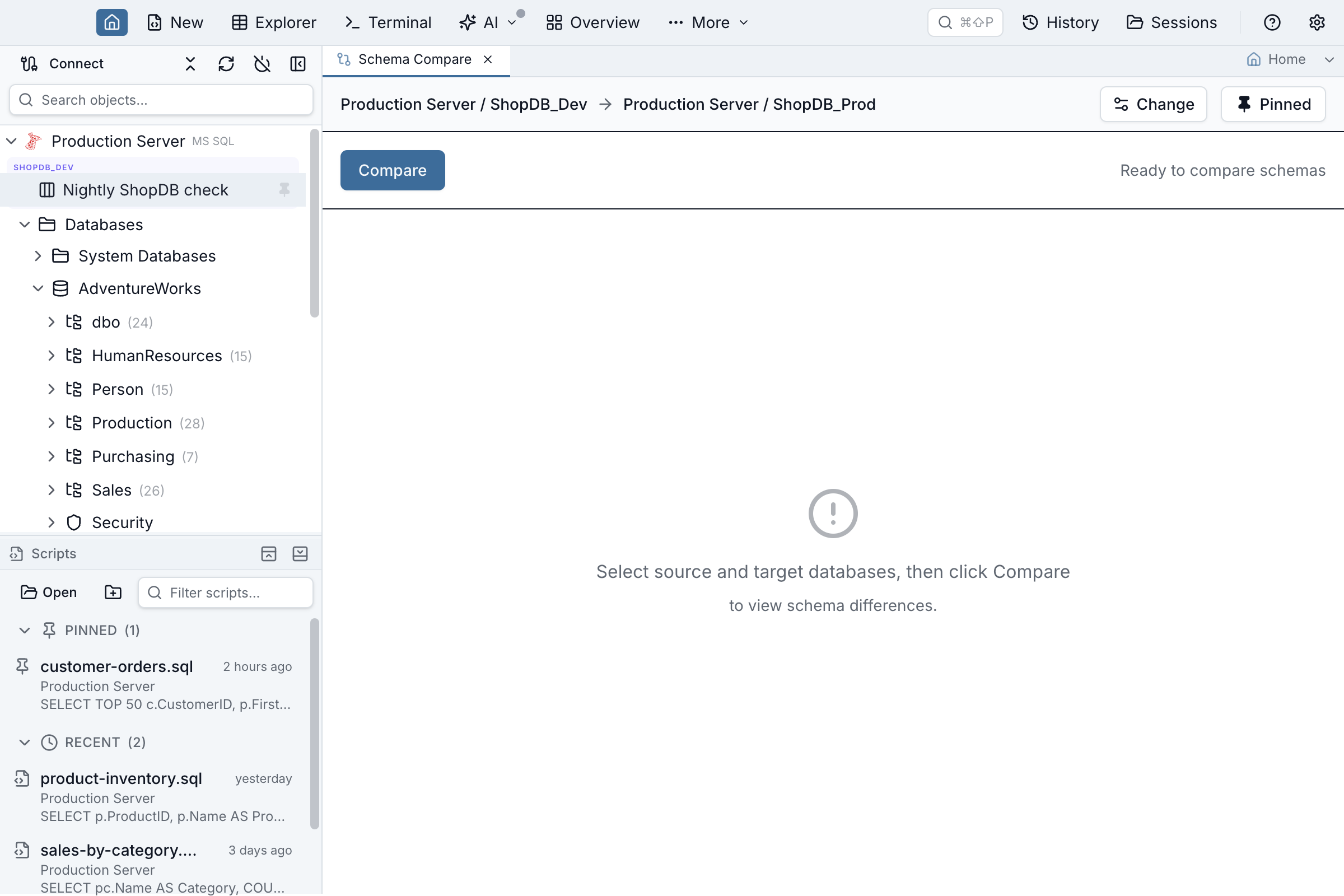
Schema Compare tabs pin the same way — see Schema Compare.
Understanding the Results Grid
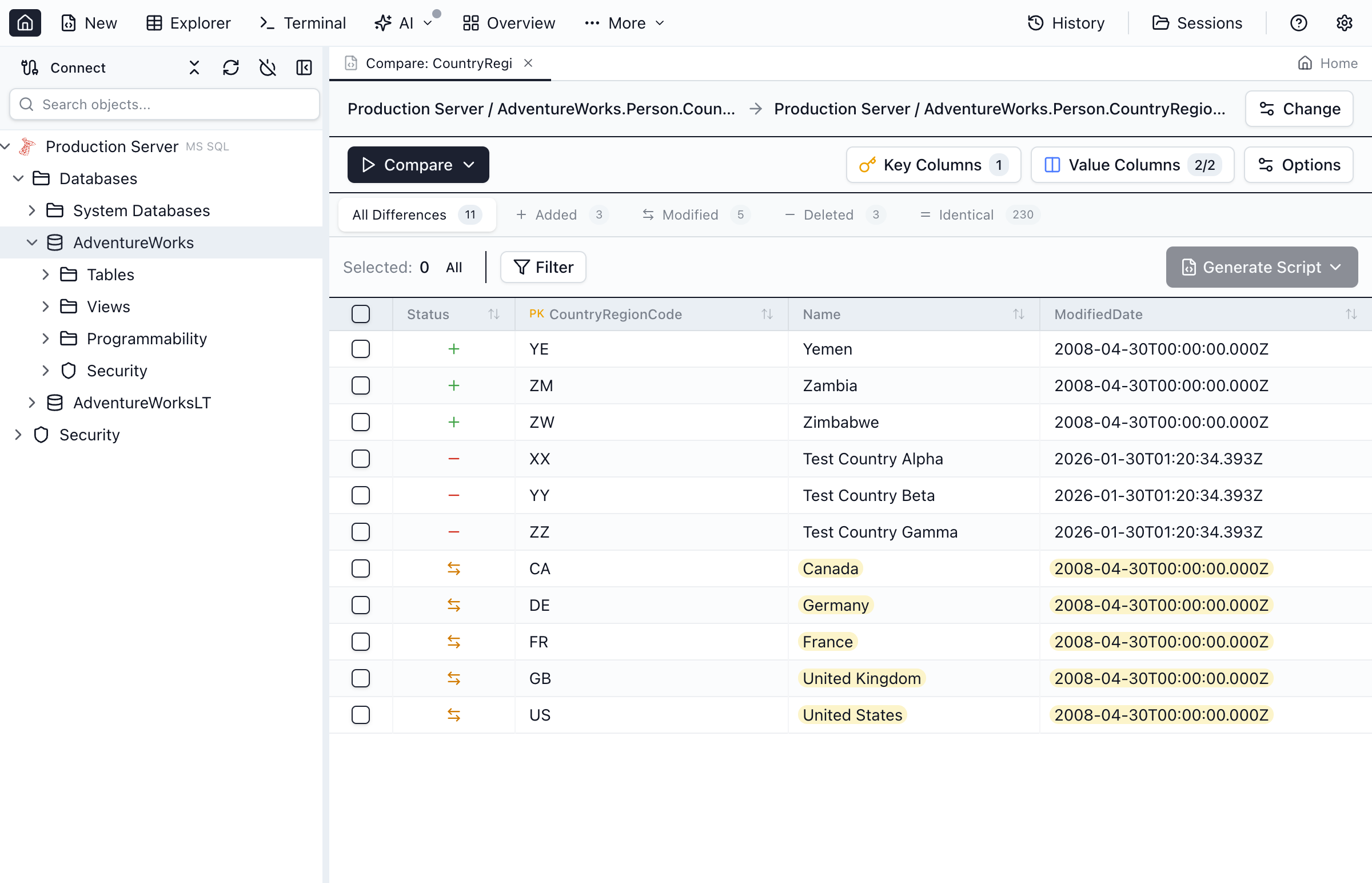
After the comparison completes, you'll see a grid showing all rows from both tables with their comparison status:
If the comparison finds no added, modified, or deleted rows, the results area shows a clear “Source and target data has no differences” message instead of an empty grid — so a clean comparison is never mistaken for one that didn’t run. That green all-clear appears only when the comparison actually covered every row — a sample that didn’t is reported differently, see below.
Sample comparisons — what they do and don’t prove
The Compare menu offers two sample modes alongside Full Comparison. Samples are a fast preview, and it matters to know exactly what each one checks:
- Sample: first N rows compares the first N rows of each table, ordered by the key columns. It proves those N rows match (or don’t) — it says nothing about rows beyond them. Differences that live past the sample window are not found.
- Sample: random N rows draws an independent random sample from each side. Because the two samples rarely pick the same rows on a large table, rows outside their overlap can be missed or shown as added/removed even when both sides hold them — treat this mode as a rough spot-check, not a verdict.
Accordingly, a sampled comparison that finds no differences never claims the tables match. Instead it reports exactly what was checked — for example, “No differences in the 1,000 sampled rows — only the first 1,000 rows (by key order) of each side were compared — 1,015 source rows and 1,015 target rows were not checked” — with a Run Full Comparison button right in the notice. The unchecked counts come from an exact row count taken at compare time. The one exception: when that count shows both tables fit inside the sample, the sample was the whole table, and you get the normal all-clear.
The sampled-results chip in the toolbar also names the strategy (Sample: first 1,000 rows / Sample: random 1,000 rows), so a result can’t be mistaken for a full comparison later.
Filtering and Navigation
- Use the filter buttons to show only added, modified, or deleted rows
- Click column headers to sort the comparison results
- Use the search box to find specific values across all columns
- Navigate between differences using the previous/next buttons
Filtering the Results
The Filter button above the results grid builds filters from the same operator set as the Table Explorer — equals, contains, the range operators, between (inclusive) and in list / not in list (type or paste several values, one per line) — against any key column, any compared value column, the row’s status (only in source, modified, only in target, identical), or which column changed.
- Separate filters are combined with AND. Two filters on one column express a range, for example
Cod_Tipo ≥ 101522andCod_Tipo ≤ 101530. - Conditions inside one filter are combined with OR. Use the + button on a filter to add an alternative, for example
Cod_Tipo = 13or= 14. - Values are editable in place — click a filter’s value to change it without removing and re-adding the filter.
- Numbers and dates are compared as numbers and dates, not as text, so
> 101522on an integer column will not match13. - Filtering runs over the comparison results already in memory, so it stays available on a reopened comparison even when the original connection is no longer active.
Note: a row has exactly one status, so a second Status filter is added as an OR alternative on the existing one rather than as a separate AND filter — two AND-ed status filters could never match anything.
Filters and row selection belong to one comparison. If you point the tab at a different pair of tables with Change, the active filters, sorting and row selection are cleared and a notice names the columns whose filters were dropped — column names repeat across tables, so a carried-over filter would quietly match nothing. Changing the key or value column mapping drops only the filters whose column is no longer being compared, and the row selection resets whenever a comparison starts, so Generate Script only ever sees rows you picked in the comparison you are looking at. A filter that does outlive its column is shown in amber and marked (not compared) rather than silently matching nothing.
Generating Sync Scripts
Once you've reviewed the differences, generate SQL scripts to synchronize the target table with the source data.
Steps to Generate a Script
- Review the differences in the results grid
- Check or uncheck individual rows to include or exclude them
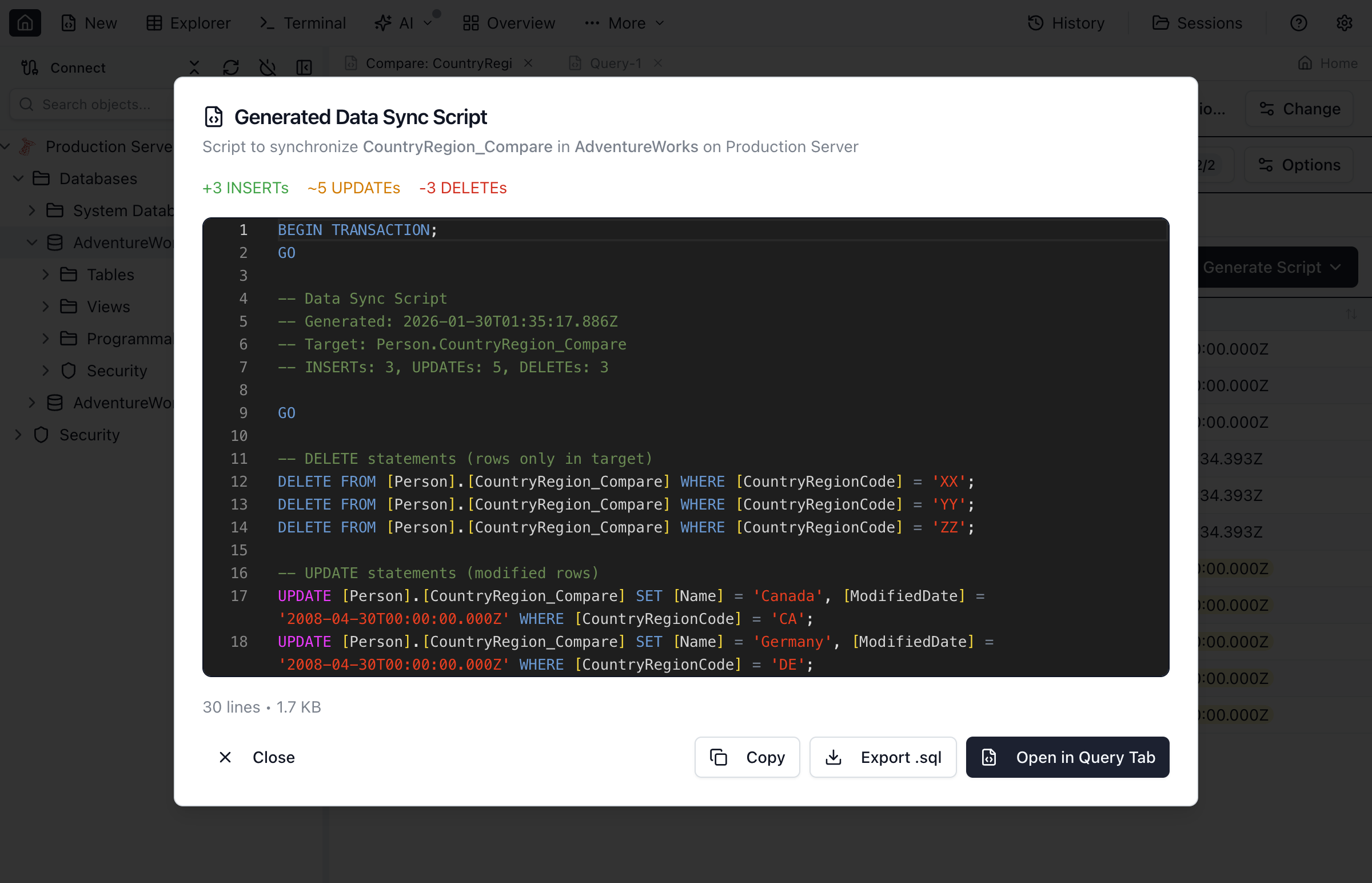
- Click Generate Script to preview the DML statements
- Review the generated INSERT, UPDATE, and DELETE statements
- Click Apply to execute directly, or Save to export
Identity columns. When the target table has a SQL Server identity column, generated scripts automatically wrap the INSERT statements in SET IDENTITY_INSERT <table> ON/OFF so synchronized rows keep their exact key values instead of the target assigning new ones — this preserves referential integrity with any dependent rows in the source data.
Unlike the Query Editor and Table Explorer's "Skip identity columns" toggle, Data Compare preserves identity values by default: the goal here is making the target match the source, and assigning fresh identities would break row matching between the two sides. The one exception is the per-row Apply as INSERT (new row) action below, which you invoke deliberately on a single row.
What happens if a statement in the middle fails
Every generated script is wrapped in a transaction, and every generated script now states in its own header — on the line starting -- Atomicity: — what that wrap does and does not guarantee on that engine. The answer is not the same everywhere, because the engines are not the same.
| Engine | A statement in the middle fails … |
|---|---|
| SQL Server | All-or-nothing. The script opens with SET XACT_ABORT ON, follows every batch with IF @@TRANCOUNT = 0 SET NOEXEC ON; so nothing after a failure executes, and commits only if the transaction is still alive. This holds in Jam SQL Studio and in SSMS, sqlcmd and CI alike. One exception, stated in the script: an error SQL Server raises while compiling a batch (an invalid column name, Msg 207) aborts only that batch and does not roll the transaction back, so later batches still apply — only scripts long enough to be split into several batches can hit this. |
| PostgreSQL | All-or-nothing. PostgreSQL refuses every statement after a failed one, and the closing COMMIT on an aborted transaction rolls back instead of committing — so nothing from the run is applied, in psql or here. The connection is usable straight afterwards — Jam SQL Studio ends the aborted transaction before returning the connection to its pool, so there is nothing to clean up. |
| MySQL and SQLite | Depends on the client. Both keep the transaction alive after a failed statement, and neither has a server-side equivalent of SQL Server's XACT_ABORT, so the script cannot enforce the difference itself. A client that stops at the first error — Jam SQL Studio, the mysql CLI's default — commits nothing. A client that continues (mysql --force, sqlite3 with .bail off, many CI steps) reaches the closing COMMIT and commits every statement that succeeded, on both sides of the failure. After a failed run here the transaction is still open on that connection: it shows you rows no other session can see, and holds their locks, until you run ROLLBACK or reconnect. |
| Oracle | Not guaranteed. Jam SQL Studio executes each statement with autocommit on, so it is committed the moment it succeeds and a failure leaves everything before it applied. Run the saved file in SQL*Plus or SQLcl instead and the statements share one Oracle transaction with nothing committed until the closing COMMIT — but a client that continues past an error still reaches that COMMIT. For all-or-nothing in SQL*Plus, put WHENEVER SQLERROR EXIT ROLLBACK at the top of the file yourself; it is a client command, so Jam SQL cannot emit it into a script that also has to run here. |
Apply as INSERT (new row)
When two environments both use an auto-generated key — SQL Server IDENTITY, PostgreSQL serial/identity, MySQL AUTO_INCREMENT, an Oracle identity column — the same key value often belongs to a different record on each side. Matching on that key makes the two rows look like one modified row, and the default script would UPDATE the target row: overwriting a record that has nothing to do with the source.
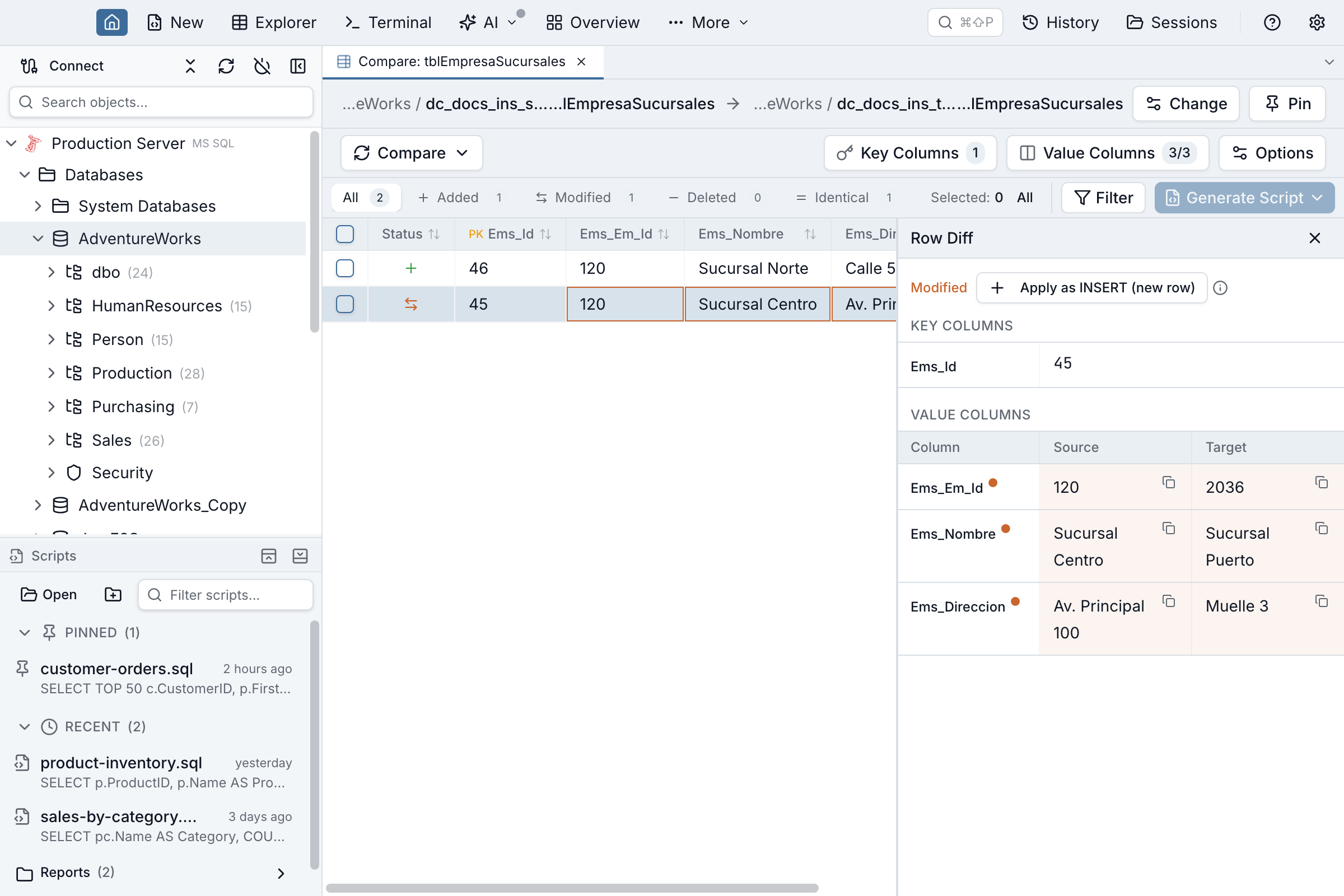
To handle that, click the row in the results grid to open the Row Diff panel and choose Apply as INSERT (new row). That row is then:
- Inserted, not updated. The generated script contains no UPDATE for it — the matched target row is left byte-for-byte untouched.
- Given a new key by the target. The INSERT omits the auto-generated column, so the target database assigns the next value itself.
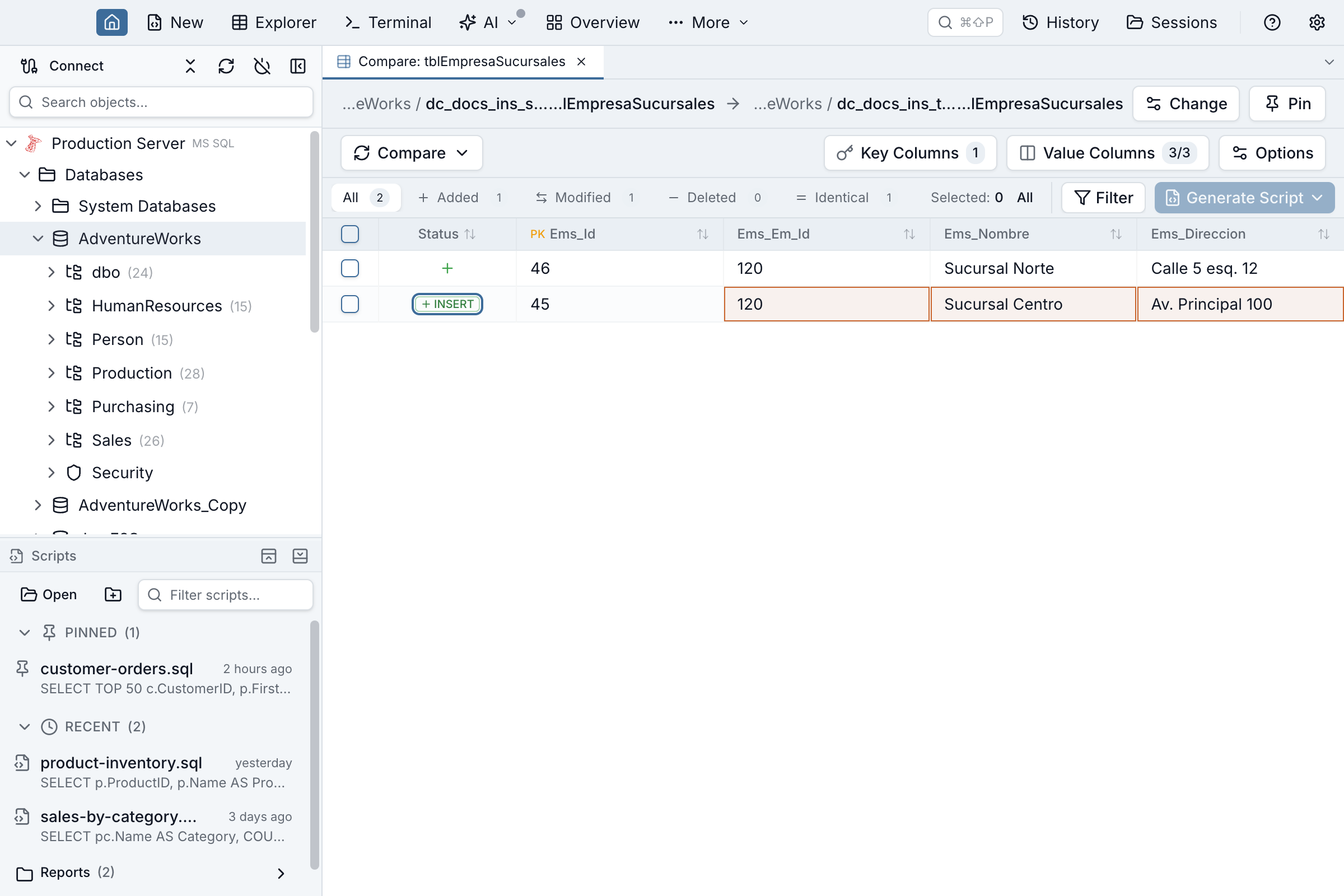
- Marked in the grid. The row's Status cell changes from Modified to a green INSERT badge. Clicking that badge — or the button in the Row Diff panel — reverts the row to a normal UPDATE, which means going back to overwriting the matched target row with the source values. Both controls say so.
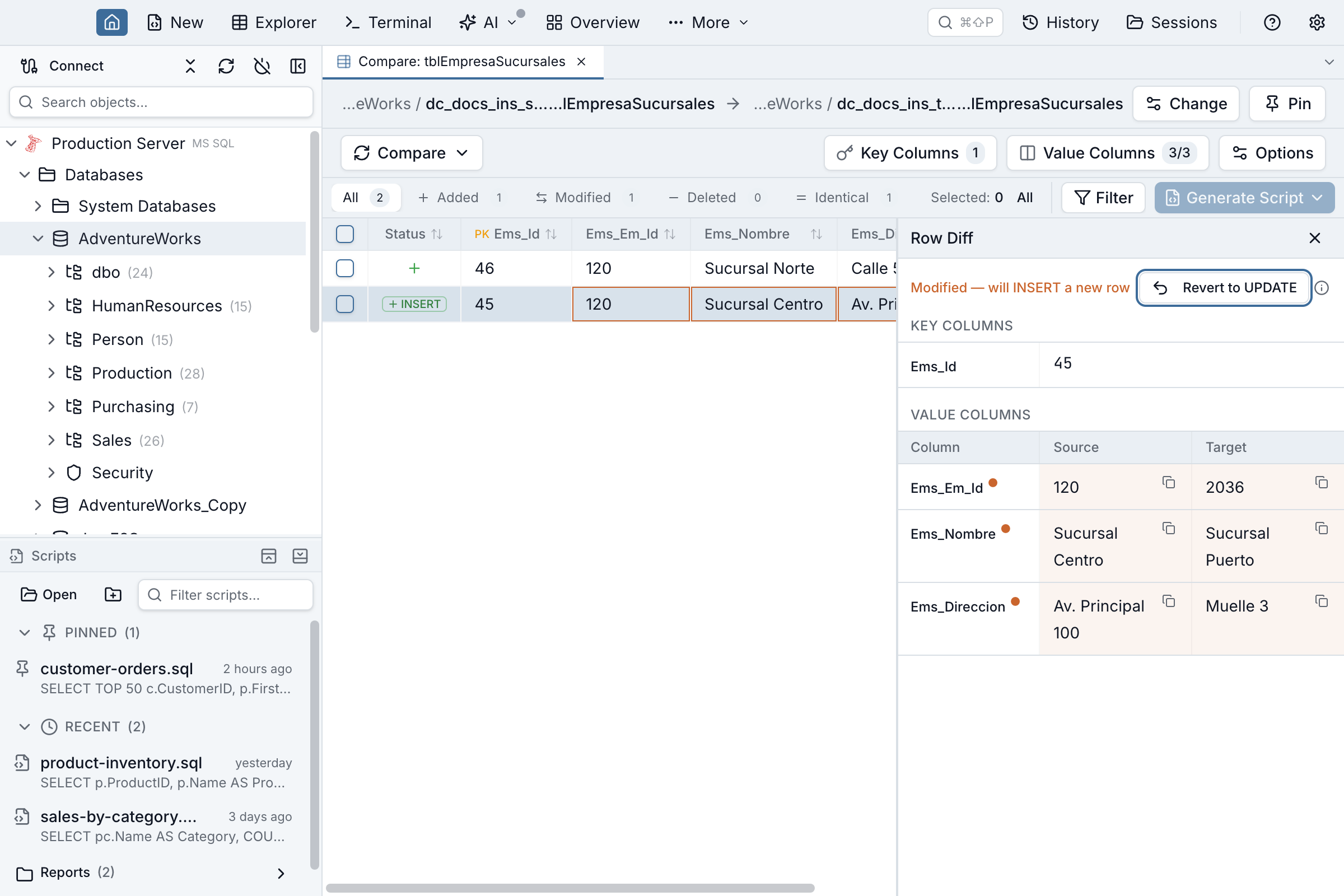
The row still counts as modified: it stays under the Modified tab and in that tab's count, because that is what the comparison found — the override changes what the script does with the row, not what the comparison says about it. The green badge is the signal to scan for.
The action is offered only when Jam SQL can see that the target's key column is auto-generated — otherwise the new row would land on the same key it just matched. When it can't, the button is shown disabled with the reason. SQLite targets are always in that group: SQLite exposes no flag that identifies an auto-generated key column.
Child rows are not remapped. If the target table is referenced by foreign keys, the generated script carries a -- [REVIEW] child rows referencing the old id are not remapped comment above the INSERT. Rows in other tables still point at the original key; re-pointing them is up to you. If Jam SQL cannot read the target's foreign keys at all — a permissions error, a dropped connection — it adds the comment anyway rather than staying silent, so the note can be present on a table that has no children. It is never absent because the check failed.
If the target's identity sequence lags behind its data
On PostgreSQL and Oracle, inserting an explicit value into an identity column does not advance the underlying sequence. After an import that preserved the original ids, the sequence can therefore still sit near 1 while the table already holds those ids — and the new row then asks for a key that is already taken. SQL Server IDENTITY and MySQL AUTO_INCREMENT normally reseed themselves on an explicit INSERT, so they are usually not affected — but a bulk load can leave them behind too (SQL Server bcp or BULK INSERT … KEEPIDENTITY, which is exactly the id-preserving import this section is about), and then the same collision happens with Msg 2627.
- If the key column is a primary key or has a unique constraint — the normal case — the database rejects the INSERT (
duplicate key value violates unique constrainton PostgreSQL,ORA-00001on Oracle,Msg 2627on SQL Server). The run fails loudly instead of putting the row in the wrong place. - On PostgreSQL the script runs inside a transaction and stops at the first error, so nothing from that run is committed. Run
ROLLBACKor reconnect before using that connection again. - On Oracle statements are committed as they run when the script is applied from Jam SQL Studio, so anything that executed before the failing INSERT, including UPDATEs for other rows, is already committed. That work is not lost and not repeated: re-running the comparison simply shows those rows as identical. (Saved to a file and run in SQL*Plus the same script behaves differently — see what happens if a statement in the middle fails.)
- On MySQL and SQLite nothing is committed when the script is applied from Jam SQL Studio, but the connection is left inside the open transaction until you run
ROLLBACKor reconnect. On SQL Server the whole script rolls back and the connection is left clean. - If the key column is not unique, nothing rejects the duplicate and the new row lands with a key that already exists. Prefer a key column with a unique constraint when using this action.
The fix is on the target database, not in Jam SQL: advance the sequence — PostgreSQL's setval, Oracle's ALTER TABLE … MODIFY (col GENERATED BY DEFAULT AS IDENTITY (START WITH LIMIT VALUE)), or SQL Server's DBCC CHECKIDENT after a KEEPIDENTITY bulk load — and generate the script again.
Your per-row choices are kept when you re-run Compare on the same tables, so a repeated copy doesn't make you redo them — but only for rows whose key still matches. They are cleared when you point the tab at a different pair of tables or change the key column mapping, because a key means a different row then.
Key Capabilities
- Row-level comparison - Compare individual rows using configurable key columns
- Visual diff highlighting - See exactly which columns differ between matched rows
- Selective sync - Choose specific rows to include in your sync script
- Large table support - Efficient comparison for tables with millions of rows
- Transaction safety - Generated scripts are wrapped in a transaction and state in their own header exactly what that guarantees on the target engine (see what happens if a statement in the middle fails)
Comparison Options
Key Column Selection
By default, Jam SQL uses the primary key to match rows. You can customize this by selecting different columns as the comparison key. This is useful when:
- Tables have different primary key definitions
- You want to compare based on natural keys (e.g., email, product code)
- The target table lacks a primary key constraint
Column Exclusions
You can exclude columns from the comparison, which is helpful for:
- Auto-generated columns (timestamps, audit fields)
- Columns with environment-specific values
- Binary or large text columns you don't need to compare
Best Practices
- Always backup your target database before applying data changes
- Test with small datasets before comparing large tables
- Read the script's
-- Atomicity:header - it says whether a failure part-way through this particular script leaves the target half-synchronized, and on which clients (see what happens if a statement in the middle fails) - Review DELETE statements carefully before execution
- Consider foreign keys - ensure related data is synchronized in the correct order
Frequently asked questions
How do I compare table data between databases?
Open More → Data Compare, select source and target connections, choose the tables to compare (they must have matching primary keys), and click Compare. The tool shows rows that are added, modified, or deleted between the two tables.
What is the difference between data compare and schema compare?
Schema compare compares the structure (DDL) of database objects like tables and views. Data compare compares the actual row data within tables. Use schema compare to sync database structure, data compare to sync table contents.
Can I compare data across different database servers?
Yes, data compare supports cross-connection comparisons. You can compare a table on your development server against the same table on production or staging, as long as both tables have matching primary key structures.
How do I generate data sync scripts?
After comparing, review the row differences and uncheck any you want to exclude. Click Generate Script to create INSERT (for missing rows), UPDATE (for modified rows), and DELETE (for extra rows) statements to sync the target to match the source.
Does data compare work with large tables?
Data compare is optimized for comparing tables with millions of rows using efficient key-based comparison algorithms. For very large tables, you can apply filters to compare specific data ranges or use sampling options.
Ready to Compare Your Data?
Download Jam SQL Studio and start comparing table data across your databases.