 Jam SQL Studio
 Azure Storage Explorer Alternative: Jam SQL Studio Compared
Azure Storage Explorer is Microsoft's free desktop app for Azure Storage: blob containers, Data Lake Storage, file shares, queues and tables, plus Azure managed disks. Jam SQL Studio is a desktop SQL client that added Azure Storage connections in version 1.5.3, so the window that holds your SQL Server, PostgreSQL or Oracle connections holds storage accounts too. This page compares the two, lists what Azure Storage Explorer does that Jam SQL Studio does not do yet, and covers the “Object reference not set to an instance of an object” sign-in error.
Free for personal use • No account required • Mac, Windows, Linux (x64 and ARM64) • Last updated September 2026
The short answer
If you manage storage on its own and depend on blob snapshots and versions, copying containers between storage accounts, managed disks or proxy settings, Azure Storage Explorer covers more of that today. If your application keeps its data in a SQL database and a storage account side by side, if Table storage is part of your daily work, or if you want AI agents to work with storage under approvals you control, Jam SQL Studio is the tool to keep open. Both call the same Azure Storage APIs, so you can install both and use each for what it does best.
Azure Storage Explorer vs Jam SQL Studio: feature comparison
The Azure Storage Explorer column is based on Microsoft's Storage Explorer documentation on Microsoft Learn, its release notes and its GitHub repository up to version 1.46.0 (2026-08-31), checked on 2026-09-30. The Jam SQL Studio column describes version 1.5.3.
| Area | Jam SQL Studio | Azure Storage Explorer |
|---|---|---|
| Price | Free for personal, non-commercial use; work use needs Pro ($9.99 a month or $99 a year) | Free |
| Platforms | macOS (Apple Silicon and Intel), Windows x64, Linux x64 and ARM64 (.deb, .rpm, Arch); no Windows ARM64 build | macOS (Apple Silicon and Intel), Windows x64 and ARM64, Linux x64; a .NET 10 runtime is required since version 1.42.0; a Linux ARM64 build is an open request (#6613, since February 2023) |
| SQL databases | SQL Server and Azure SQL, PostgreSQL, MySQL and MariaDB, Oracle, SQLite, and Azure Data Explorer (KQL) | No |
| Ways to connect | Account name, endpoint or connection string; SAS URL scoped to one resource; anonymous; Azurite (also detected in Docker); Microsoft Entra ID by browser sign-in, service principal or az login; Browse Azure picker | Azure sign-in to subscriptions (global Azure, national clouds, Azure Stack), Microsoft Entra ID attach, account name and key, SAS connection string or URL, anonymous, Azurite and the legacy Azure Storage Emulator |
| Blobs: browse, upload, download, delete | Yes, as background jobs | Yes |
| Look inside a blob or file | A preview pane next to the list: JSON as a tree, formatted or raw, Markdown rendered, other text with syntax highlighting, and images, video and audio; text files can be edited in place and saved only if nobody changed them in the meantime, or saved as a copy in another container | Previews files such as text, images and CSV tables inside the app (release notes 1.26 to 1.29); Open downloads the blob and opens it in the application associated with its file type (Microsoft Learn) |
| Find blobs by name | Prefix filter sent to the service, and a Flat mode that lists everything under the prefix; no substring or wildcard search yet | Prefix search; searching by substring, extension or wildcard is an open request (#1667, since August 2019) |
| Blob properties, access tiers, SAS, stored access policies, public access | Yes; metadata, HTTP headers and index tags each save with a check for changes made by someone else in the meantime (for index tags, a tag key another client adds in the moment before the save is not detected) | Yes |
| Blob snapshots, versions, soft-deleted blobs | Not in the app yet (deleting a blob includes its snapshots); an AI agent can read, download or delete one snapshot or version whose ID it already has | Yes: create, list, promote, undelete |
| Blob leases | Lease state shown in Properties; no lease actions yet | Acquire and break |
| Blob soft-delete policy | Reads it and states it in delete confirmations | Configure it per account |
| Copy and paste containers and blobs | Not yet | Yes, including a container into another storage account |
| Transfers | Built-in transfer engine; Transfers drawer with Cancel, Resume, Restart and per-item Retry; jobs survive an app restart | Run by AzCopy, listed in the Activities pane; pausing and resuming a transfer is an open request (#1279, since April 2019) |
| Data Lake (ADLS Gen2) ACLs | Manage access with an Effective column and a list of widening changes before you save; Propagate access as a resumable job with per-path Retry | Manage Access and Propagate Access Control Lists (needs the subscription sign-in) |
| File shares | SMB and NFS over the REST API, snapshots, quota, mount commands | Yes |
| Queues | Peek without consuming; Receive with a visibility timeout; update or delete received messages | Yes |
| Tables | Table Explorer grid: filter chips or raw OData, typed values, ETag-checked edits, export to CSV, JSON or Excel, enum, JSON and relationship declarations; no import | Query builder; import and export CSV |
| Missing Entra ID role | Test Connection checks each service with one data read and names the missing data role | Reports the refused request; Microsoft's troubleshooting guide explains the management-role and data-role split |
| Managed disks | No | Upload, download, copy, snapshot |
| Proxy and certificates | Storage requests follow the HTTPS_PROXY / NO_PROXY environment variables; no proxy or certificate settings yet | System proxy, app proxy settings with credentials, or environment variables; SSL certificate import |
| AI agents (MCP) | 25 storage_* tools; Block, Read-only or Confirm per connection; approvals list every target | No agent integration in the app (Microsoft's separate Azure MCP Server has storage tools) |
What Azure Storage Explorer does that Jam SQL Studio does not (yet)
These are real gaps. If one of them is part of your routine, keep Azure Storage Explorer installed for it; both apps can open the same account at the same time.
- Blob snapshots, versions and soft-deleted blobs. Azure Storage Explorer creates snapshots, lists a blob's history under Manage History, promotes an earlier version and undeletes soft-deleted blobs, also by date range (Microsoft's versioning and soft delete guides). Jam SQL Studio does not list them yet.
- Blob leases and the soft-delete policy. Azure Storage Explorer acquires and breaks leases and can configure an account's blob soft-delete retention. Jam SQL Studio shows a blob's lease state and reads the soft-delete setting for its delete confirmations, but changes neither.
- Copy and paste. Azure Storage Explorer copies a container and pastes it into another storage account, and copies and pastes blobs between containers. In Jam SQL Studio you download and upload again.
- Opening blobs in a local app, and upload blob types. Azure Storage Explorer's Open downloads a blob and opens it with the app associated with its file type, and uploads can create block, append or page blobs. Jam SQL Studio previews and edits files in its own pane (see below) but does not hand them to a local app; it downloads through a save dialog (with Show in folder when the transfer finishes) and uploads block blobs.
- Importing table entities from CSV. Azure Storage Explorer imports and exports CSV. Jam SQL Studio exports entities to CSV, JSON or Excel but has no entity import.
- Managed disks. Azure Storage Explorer uploads VHDs, downloads and copies managed disks across regions and creates disk snapshots (Microsoft Learn). Jam SQL Studio does not work with managed disks.
- National clouds and Azure Stack. Azure Storage Explorer signs in to global Azure, national clouds and Azure Stack from an environment list. Jam SQL Studio has no environment picker, and its option to read the account key through Azure Resource Manager works on public Azure only.
- Proxy settings and certificates. Azure Storage Explorer's Settings → Application → Proxy can use the system proxy, its own proxy settings with credentials, or environment variables, and it can import SSL certificates that a proxy or antivirus software injects (Microsoft's network guide). Jam SQL Studio has no proxy or certificate settings yet. Its requests to the storage services follow the
HTTPS_PROXY,HTTP_PROXYandNO_PROXYenvironment variables through Azure's SDK, but it cannot use the system proxy, take proxy credentials in its settings or import a certificate. - Windows on ARM. Azure Storage Explorer ships a native Windows ARM64 build. Jam SQL Studio's Windows build is x64 only.
Neither tool works with Cosmos DB. Microsoft announced the deprecation of Azure Storage Explorer's Cosmos DB integration in August 2020, retired it in version 1.22.0 (December 2021), and points Cosmos DB users to the Azure portal and the standalone Cosmos DB Explorer.
Where Jam SQL Studio is the better daily tool
Jam SQL Studio is database-first, and that is the reason it suits a certain kind of Azure Storage work: an application's orders sit in SQL Server or PostgreSQL, its invoices sit in a blob container, its background jobs pass through a queue, and its settings live in Table storage. Here is what that looks like in practice. The Azure Storage client overview walks through each service on its own.
Storage accounts next to your SQL databases
A storage account is a connection in the same Object Explorer as your SQL connections, with Blob Containers, File Shares, Queues and Tables folders under it. Checking an order row and then the invoice blob it points at happens in one window, with the same tabs, pins and search. Open storage tabs are saved with your session, so resuming the session from the Sessions dialog after a restart reopens them in the same container, folder or table.
Preview and edit files without downloading them
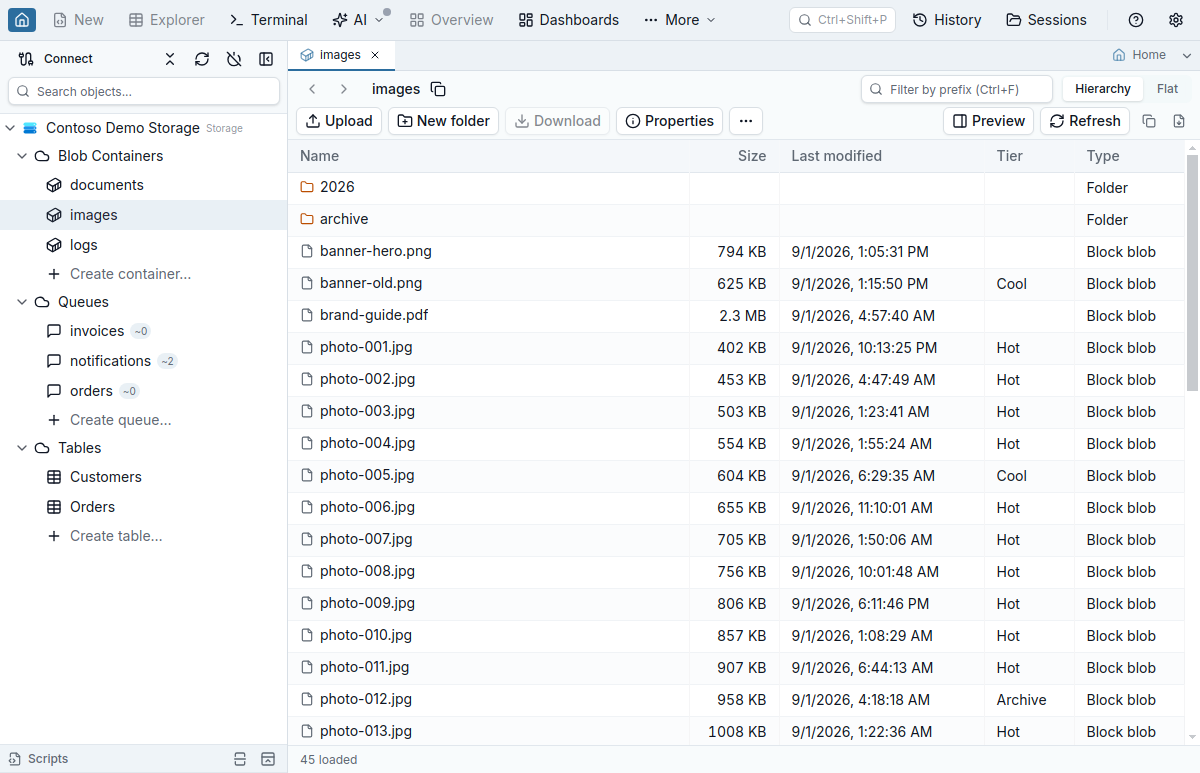
Turn on Preview and the file you select in a container, a Data Lake file system or a file share shows in a pane next to the list: JSON as an expandable tree (the same viewer the query results grid uses for JSON cells), formatted or as stored, Markdown rendered, configuration files and code with syntax highlighting, and images, video and audio. Arrow keys move through the list and the pane follows. Edit changes a text file in place; Save writes it only if its ETag still matches the version you opened, and keeps the blob's headers, metadata and index tags, or a Data Lake file's ACL. Save a copy puts your text under a new name or in another container. See Preview and edit files.
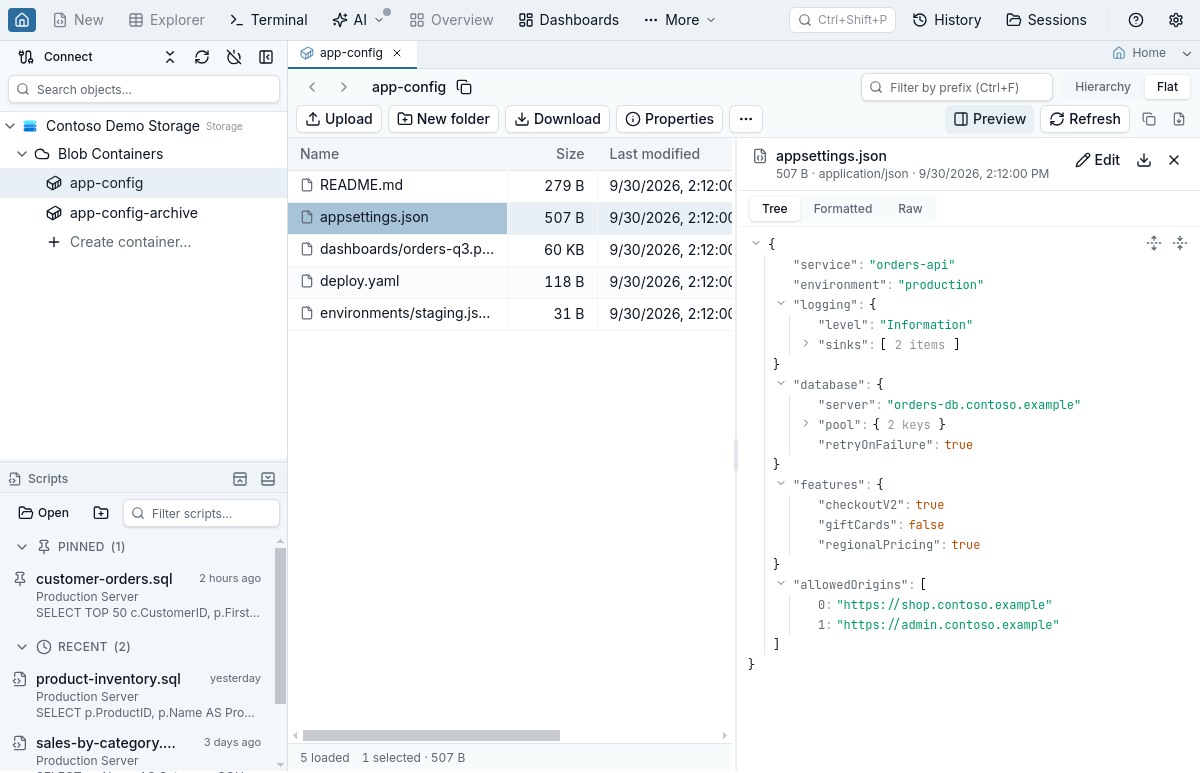
Table entities in a real data grid
An Azure table opens in the Table Explorer grid that Jam SQL Studio uses for SQL tables. Every property keeps its Azure type: Int64 values stay exact, date-times keep all seven fractional digits (cells show your local time; the tooltip, copy and export keep the exact value), and a property an entity does not have shows as ∅, which is different from an empty string. You filter with filter chips or a raw OData filter, and both go through the same validator, which enforces Azure's limit of 15 comparisons before anything is sent.
In edit mode you add entities and properties, change values and delete entities, then save the drafts together. Each update is conditional on the entity's ETag, so if someone else changed the entity first you get a comparison of the original, current and proposed values with Reload, Overwrite anyway and Keep draft. Export writes the selected rows, the loaded page or every entity matching the filter to CSV, JSON or Excel. Properties can carry the same enum, JSON and loose relationship declarations as SQL columns, so a CustomerId property that points at a customers table's RowKey, with the PartitionKey fixed by a target filter, shows the customer's name and opens that entity.
Transfers you can cancel, resume and restart
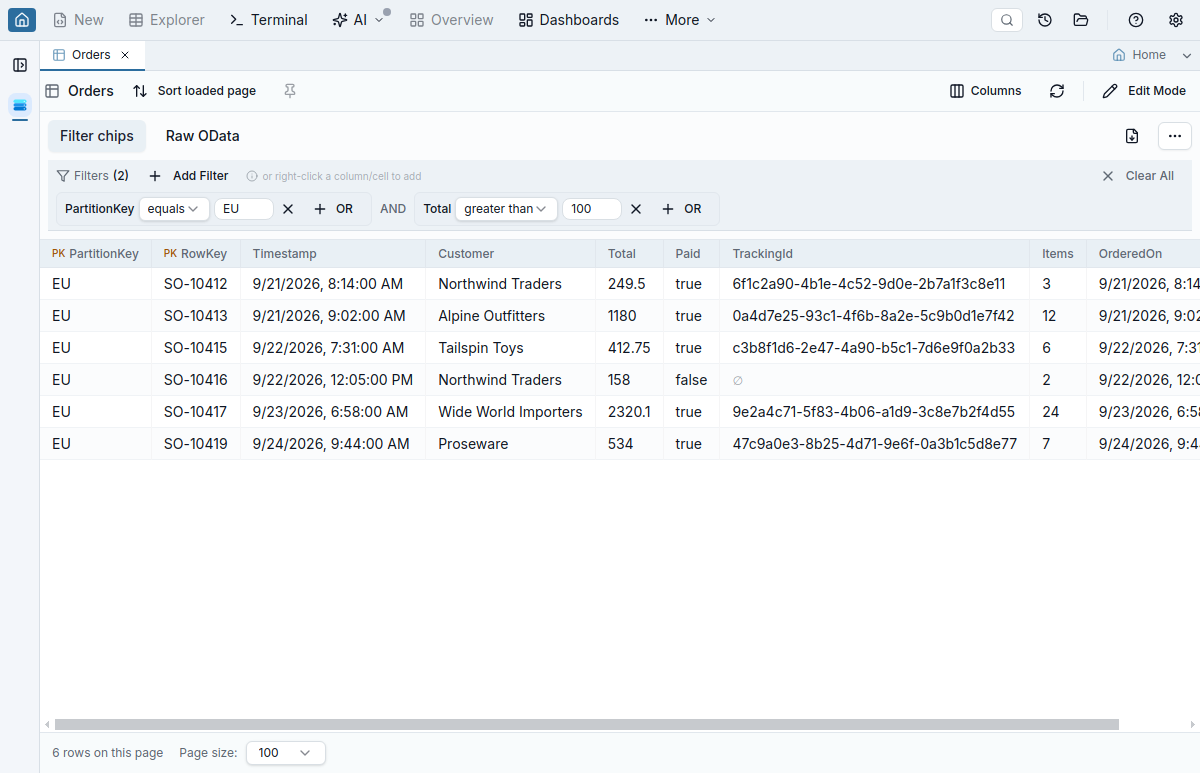
Uploads, downloads and deletes run as background jobs in Jam SQL Studio's built-in transfer engine. The chip at the bottom of the window opens the Transfers drawer with item and byte progress, throughput and the attempt count. Cancel keeps a partial download on disk and Resume requests only the missing bytes; if the blob changed in the meantime, the download starts over and says so. Restart sends the unfinished items again from the first byte and keeps the ones that completed. A job that finished with failed items lists them with a per-item Retry, and jobs survive an app restart.
Test Connection names the role that is missing
With Microsoft Entra ID, listing containers, tables and queues needs only a management role such as Reader, while reading what is inside them needs a data role such as Storage Blob Data Reader. Microsoft's Storage Explorer troubleshooting guide explains the same split. Jam SQL Studio's Test Connection probes each service separately and follows each listing with one data read (a blob page, an entity or a peeked message), then says what it read. When every item it checked was refused, the row says the identity can list but not read and names the missing data role; when only some were readable, it reports partial data access. The service folder in the Object Explorer carries the same result as a badge, and a read refused later names the role and where to assign it. The guide to Azure Storage permission errors maps each error message to the role it needs.
If the identity may read the account keys, you can set the connection's Data access to the account key instead, or accept the same offer under the error. Jam SQL Studio then reads the key through Azure Resource Manager each time it connects and never saves it. The default is the other way round in Azure Storage Explorer: according to Microsoft's security guide, it attempts to use account keys whenever they are available, unless you turn on Settings → Services → Storage Accounts → Disable Usage of Keys. Jam SQL Studio uses an account key for data access only on a connection where you turned that on.
Data Lake ACLs: the effective permissions before you save
On an account with a hierarchical namespace, Manage access… edits the owner, owning group, access entries and default entries of one file or directory. The Effective column shows what each entry grants once the mask applies, the mask stays as loaded while you edit entries, and before saving the editor lists every change in effective permissions and marks the ones that widen access. Azure applies the save only while the path still has the version (ETag) the editor loaded, but an ACL change does not change that version, so right before writing Jam SQL Studio reads the ACL again and refuses the save if it differs from the one the editor loaded. Azure has no condition on the ACL itself, so a change another client makes between that read and the write is not detected.
Propagate access… merges, replaces or removes entries on a directory and everything under it as a job in the Transfers drawer, in batches of up to 2,000 paths. Replace and Remove ask you to type the directory name, paths Azure refuses are listed with Retry, and a cancelled or interrupted job can Resume from the last recorded batch. Azure cannot make a recursive ACL change conditional, so there is no undo, and the dialog states exactly what is checked before and during the job. Microsoft's ACL guide for Storage Explorer notes that of its connection methods only the subscription sign-in supports managing ACLs; in Jam SQL Studio the editor works on a Microsoft Entra ID or account-key connection.
SMB and NFS file shares without mounting
The File Shares folder lists SMB and NFS shares alike, and everything goes through the Azure Files REST API, so nothing is mounted on your machine. Uploads write each file under a hidden temporary name and then give it its final name without replacing a file that appeared there in the meantime, so a cancelled upload can resume. Downloads keep each file's last-write time. A delete confirmation says how many snapshots the share has, because Azure Files has no soft delete for individual files; snapshots open as read-only tabs. On NFS shares Azure's REST API cannot replace an existing file, so a name collision offers Skip or Keep both.
Azurite and local development
Jam SQL Studio connects to the Azurite emulator with its well-known development account and also finds Azurite containers running in Docker. The guide to running Azurite in Docker and browsing it has a working compose file and the errors people hit when they connect.
Read-only connections
Marking a connection read-only (Access → Open read-only in the connection form) applies to you as well as to agents. Browsing, downloading and peeking stay available; every upload, delete, tier change and queue or entity change is disabled with the reason, and the SAS dialog offers only permissions that cannot modify anything. It is a simple way to look at a production account without the risk of a stray drag and drop.
AI agents over MCP, with approvals that name every target
Jam SQL Studio's local MCP server gives agents such as Claude Code, Codex and Cursor twenty-five storage_* tools: listing and reading blobs, downloads and transfer status, uploads, deletes, queues, SAS generation, Table entities, file shares and Data Lake ACLs. Each connection's permission level decides what an agent may do: Block refuses every storage tool, Read-only refuses writes, and Confirm opens an approval dialog for every write. Every approval lists every target the write touches once, in full, in a list you scroll, with a container or share deletion listed first; a call can name at most 1,000 items. Table writes list the entities by PartitionKey and RowKey but never show property values, an agent never picks where a download is saved, and a generated SAS token stays in the app.
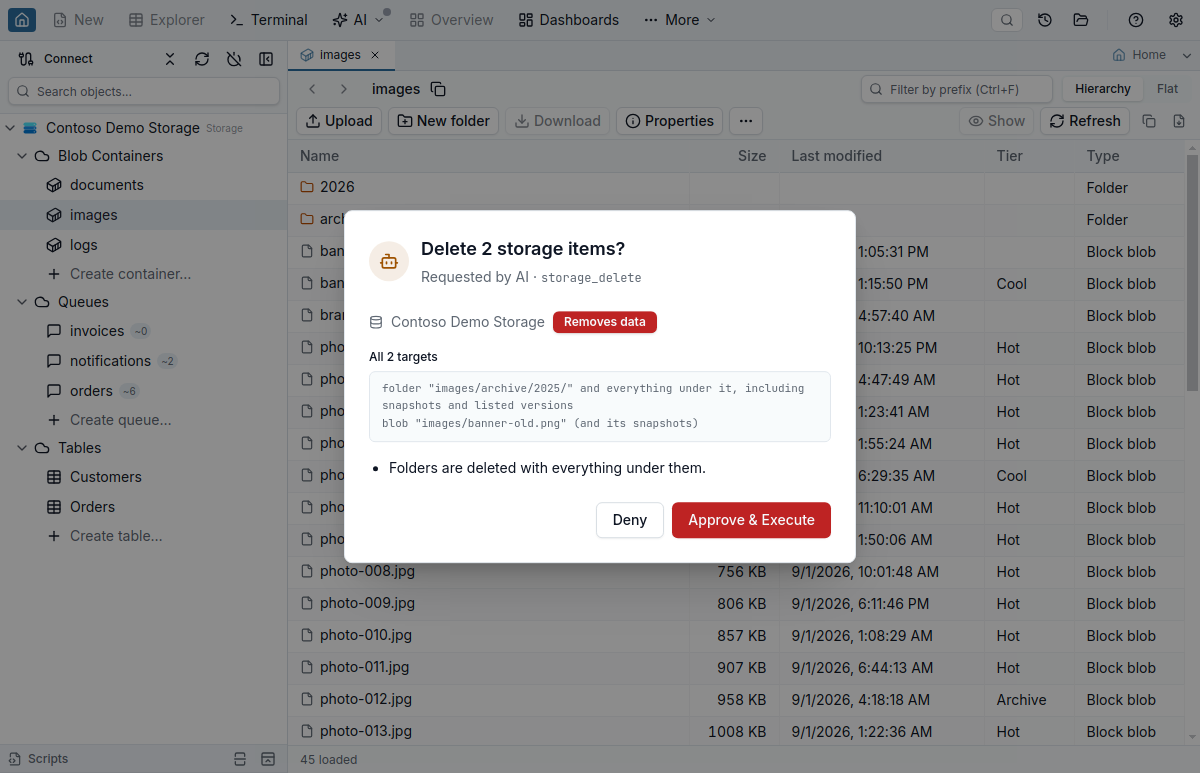
We found no agent integration in Azure Storage Explorer's documentation or release notes. Microsoft does publish a separate Azure MCP Server whose storage group has seven tools at the time of writing: get storage accounts, blob containers, blobs and tables, create an account or a container, and upload a blob. It is a good fit for agents that work across Azure resources; Jam SQL Studio's tools are for agents that work on the storage connections you already have open, under the permission level you set for each one.
Azure Storage Explorer: ‘Object reference not set to an instance of an object’
If Azure Storage Explorer stops with Object reference not set to an instance of an object (some people remember it as “object reference not found”), the message comes from .NET. It is the text of a NullReferenceException, which .NET throws when code uses an object that was never created. Azure Storage Explorer needs a .NET 10 runtime since version 1.42.0 (prerequisites). When the exception happens during sign-in, the error reads “Unable to sign in:” followed by that message. We have run into this error ourselves.
When it has been reported
The public reports we found are about sign-in. Since Storage Explorer 1.44.0 (released 2026-06-29), a series of issues in Microsoft's AzureStorageExplorer GitHub repository describe the same failure: after Sign in with Azure and choosing an Azure environment, the app reports “Unable to sign in: Object reference not set to an instance of an object.” Most of them come from Apple Silicon Macs. Issue #9114 describes the steps on version 1.44.0. Issue #9118 includes the stack trace, a System.NullReferenceException in the authentication broker code of Microsoft's identity library, and says version 1.43 signed in without it. The 1.45.0 release notes list a fix for “a sign-in failure on macOS (Apple Silicon) that affected some centrally managed devices”, and reports against 1.45.0 and 1.46.0 followed: issue #9189, issue #9194 (1.46.0, filed with the x64 architecture on 2026-09-17) and issue #9203 (1.46.0 on an Apple Silicon Mac, 2026-09-28). A GitHub search on 2026-09-30 finds 11 issues opened since 1.44.0 that contain the message.
Workarounds that are publicly documented
- Switch the sign-in method. Open Settings (the gear icon) → Application → Sign-in and set Sign in with to Default Web Browser. The reporter of issue #9114 found that sign-in succeeded after switching from Authentication Broker, and Microsoft's sign-in guide recommends Default Web Browser on macOS and Linux, or if you are having issues with the authentication broker option.
- Go back to 1.43. The reporter of issue #9118 says downgrading to 1.43 resolved it immediately. The project's GitHub releases page lists earlier versions.
- Reset the sign-in state. Microsoft's troubleshooting guide describes a general reset for sign-in loops: Help → Reset with Authentication selected, then restart. If that does not help, remove all accounts, close the app, delete the
.IdentityServicefolder, on macOS or Linux also theMicrosoft.Developer.IdentityServicekeychain entry, and start again. The guide lists these steps for reauthentication problems in general, not for this message in particular. - Attach without signing in. In the Connect dialog, a storage account can be attached with its account name and key or a SAS connection string, and a single container, share, queue or table with a SAS URL. None of these goes through the sign-in flow. They do not cover Data Lake ACL management, which in Azure Storage Explorer needs the subscription sign-in.
Jam SQL Studio as another way in
If you need your data while sign-in is failing, Jam SQL Studio is an alternative. Its Microsoft Entra ID sign-in is a separate implementation built on Azure's Identity library for JavaScript: an interactive browser sign-in, a service principal, or the account you already signed in with through az login. It also connects with an account key, a connection string or a SAS URL, and Browse Azure lists the storage accounts in your subscriptions. Both tools call the same Azure Storage APIs, so there is nothing to migrate, and you can go back to Azure Storage Explorer whenever you like.
Which one should you use?
- You restore blobs from snapshots or versions, manage leases or set soft-delete policies → Azure Storage Explorer.
- You copy containers between accounts or work with managed disks → Azure Storage Explorer.
- You work behind a proxy that needs the system proxy settings, proxy credentials or an imported certificate → Azure Storage Explorer; Jam SQL Studio follows only the proxy environment variables for its storage requests today.
- Your application uses a SQL database and a storage account together → Jam SQL Studio: one window, one set of connections.
- Table storage is part of your daily work → Jam SQL Studio: draft edits with a comparison when someone else changed the entity first, Excel export, and relationship lookups between tables in the Table Explorer grid.
- You want AI agents to read or change storage → Jam SQL Studio, with the connection's permission level deciding what an agent may do.
- You change Data Lake ACLs recursively → Jam SQL Studio, for the effective-permission list before saving and propagation jobs you can resume.
- You work on a Linux ARM64 machine → Jam SQL Studio, which has native ARM64 Linux packages. On Windows on ARM → Azure Storage Explorer, which has a native ARM64 Windows build.
- You are not sure → install both. Azure Storage Explorer is free, and Jam SQL Studio is free for personal, non-commercial use and has a 14-day Pro trial for work.
The Azure Storage guide covers every Jam SQL Studio dialog mentioned here, and the launch post walks through the release with screenshots.
Frequently Asked Questions
Is Jam SQL Studio a replacement for Azure Storage Explorer?
It can be, depending on what you use. Jam SQL Studio browses, uploads and downloads blobs, edits blob properties, access tiers and SAS, and manages Data Lake directories and ACLs, SMB and NFS file shares, queues and Table entities, next to your SQL databases. It does not yet list blob snapshots, versions or soft-deleted blobs, manage blob leases, copy and paste containers or blobs, or manage Azure managed disks, which Azure Storage Explorer does. Both tools call the same Azure Storage APIs, so you can keep both installed.
What does 'Object reference not set to an instance of an object' mean in Azure Storage Explorer?
It is the standard message of a .NET NullReferenceException: code tried to use an object that was never created. The public reports we found are about sign-in: since Azure Storage Explorer 1.44.0, issues in Microsoft's AzureStorageExplorer GitHub repository describe 'Unable to sign in: Object reference not set to an instance of an object.' right after choosing an Azure environment, most of them on Apple Silicon Macs, and reports against 1.46.0 continued into late September 2026. The workaround reported there is to change Settings → Application → Sign-in → Sign in with from Authentication Broker to Default Web Browser. Attaching an account with its name and key, or with a SAS connection string or URL, does not go through sign-in.
What can Azure Storage Explorer do that Jam SQL Studio cannot?
As of Jam SQL Studio 1.5.3: create, list, promote and undelete blob snapshots and versions, show and undelete soft-deleted blobs, acquire and break blob leases, configure the blob soft-delete policy, copy and paste containers and blobs, including a container into another storage account, open a blob in its local app, choose append or page blobs on upload, import table entities from CSV, manage Azure managed disks, sign in to national clouds and Azure Stack from an environment list, use the system proxy, proxy settings with credentials or imported SSL certificates, and run natively on Windows on ARM.
Is there an Azure Storage Explorer for Linux ARM64?
Not from Microsoft as of Azure Storage Explorer 1.46.0 (August 2026): its GitHub release and its Snap package are built for x64 Linux only, and a native ARM64 Linux build is an open feature request (issue #6613, opened in February 2023). Jam SQL Studio ships ARM64 Linux packages (.deb, .rpm and Arch) with the same Azure Storage support as the x64 build.
Is Jam SQL Studio free like Azure Storage Explorer?
Azure Storage Explorer is free. Jam SQL Studio's Personal tier is free for personal, non-commercial use and needs no account; using it for work needs Pro, which costs $9.99 a month or $99 a year and has a 14-day trial.
Can AI agents work with Azure Storage through Jam SQL Studio?
Yes. Jam SQL Studio's local MCP server gives agents such as Claude Code, Codex and Cursor twenty-five storage tools on the connections you allow. Each connection has a permission level: Block refuses every storage tool, Read-only refuses writes, and Confirm opens an approval dialog for each write that lists every target it touches, such as the blobs and folders a delete would remove. A download always asks you for the destination.
Can I use Azure Storage Explorer and Jam SQL Studio on the same storage account?
Yes. Both call the Azure Storage APIs directly, so there is nothing to migrate. Jam SQL Studio does not read Azure Storage Explorer's saved connections: add the account again with its name, a connection string or a SAS URL, or pick it from your signed-in Azure subscriptions with Browse Azure.
Azure Storage and your SQL databases in one app
Browse blob containers, Data Lake directories, file shares, queues and tables next to your SQL Server, PostgreSQL, MySQL, Oracle and SQLite connections on Mac, Windows and Linux. Free for personal use.