Last updated: 2026-10-02
Azure Storage: Blob, Data Lake (ADLS Gen2), File Shares, Queues and Tables
Jam SQL Studio connects to Azure Storage accounts, to a single SAS-scoped resource, and to the Azurite emulator. Browse blob containers and virtual folders, preview and edit files in a pane next to the list, upload or download files and folders, and manage long-running work in the Transfers drawer. Object Explorer also lists queues, tables and file shares: a queue tab peeks messages without consuming them, a table opens in a grid where you filter, page and edit its typed entities, and a file share opens in the same browser as a container, with its snapshots, quota and mount commands. On an account with a hierarchical namespace (ADLS Gen2), containers open in a Data Lake view with real directories, rename and move, and access control lists (ACLs).
Add a connection
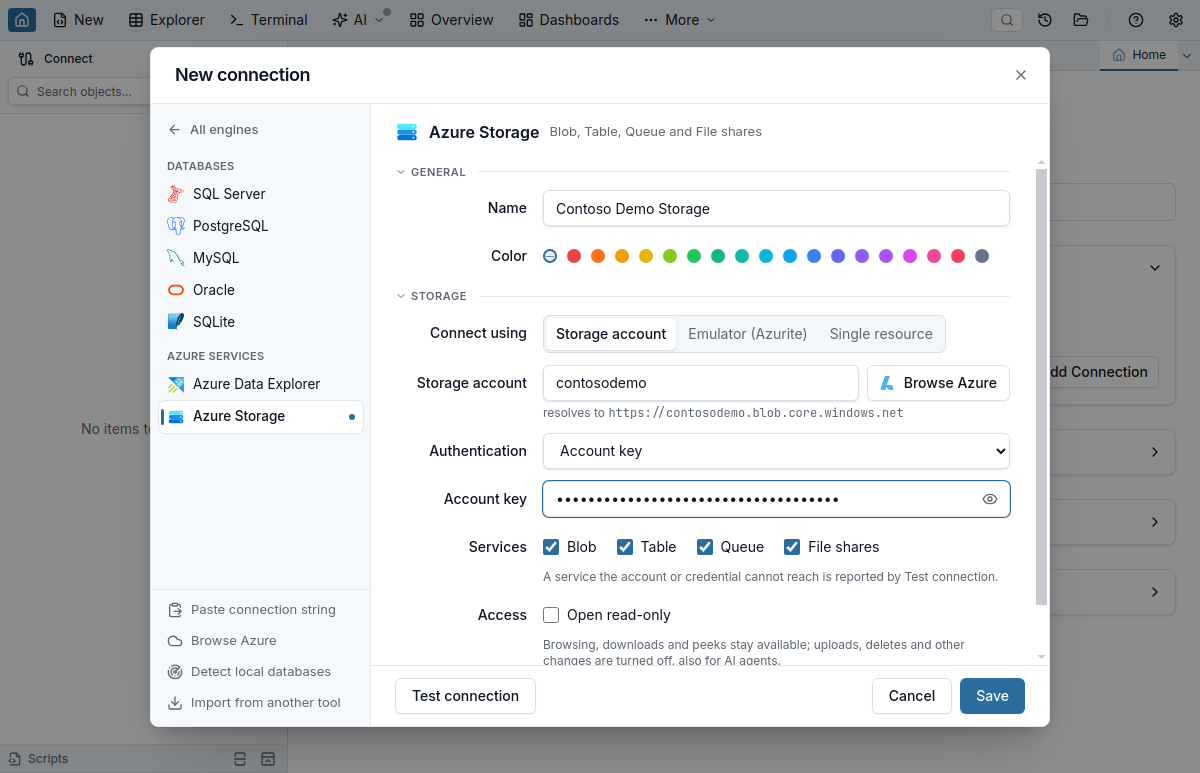
Open New connection and pick Azure Storage as the engine. Connect using, the first row of the form's Storage section, picks what the connection points at, and the fields below it follow the choice:
- Storage account — type the account name in the Storage account field, paste an endpoint URL (
https://contoso.blob.core.windows.net), or paste a full connection string (DefaultEndpointsProtocol=https;AccountName=…;AccountKey=…). Tick the services you want verified. - Emulator (Azurite) — fills the well-known emulator account, key and ports 10000–10002, and shows a copyable
docker runcommand if you don't have Azurite running yet — it publishes the ports the connection's endpoints use, so a connection moved to other ports gets a matching command. PastingUseDevelopmentStorage=truedoes the same, and so does pasting the full Azurite connection string, with the ports and account it names (see Azurite and local containers). - Single resource — paste into the Resource URL field a container, folder or blob URL, with or without a SAS token, or a file share, share folder or share file URL with its SAS. The connection is scoped to exactly that resource and never lists its siblings. See Share SAS URLs for the file / folder choice.
Don't want to type the account name? Click Browse Azure to pick a storage account straight from your signed-in Azure account — endpoints, services and the portal link are filled in for you. See the Browse Azure guide.
To make the connection read-only, tick Open read-only in the Access row, the last row of the Storage section (the same row SQLite connections have). Browsing, downloads and queue peeks stay available; uploads, deletes, new folders and containers, tier and metadata changes, and queue and entity changes are turned off, for you and for AI agents, each with the reason Connection is read-only (edit connection to change). To change it later, open Edit connection and tick or untick the same box. Saving the change closes the connection if it is open, and the next connect uses the new setting.
Authentication
| Method | What you enter | Good for |
|---|---|---|
| Account Key | The storage account key (or a connection string that carries it) | Full access to the account |
| Shared Access Signature | A SAS token, or a URL with the token on it | Scoped, time-limited access — account, service, or stored-policy SAS |
| Anonymous | Nothing — just the public URL | A container or blob with public read access (single-resource mode only) |
| Microsoft Entra ID (Interactive Browser) | A browser sign-in (MFA supported) | Your own account, with the data roles you hold |
| Service Principal | Tenant ID, client ID, client secret | Automation and shared credentials |
| Azure CLI | Nothing — reuses a prior az login | Machines where you already sign in with the CLI |
Microsoft Entra ID: which role each operation needs
Azure splits storage permissions in two. Listing containers, tables and queues is a management action that any Reader, Contributor or Owner role includes. Reading or changing what is inside them needs a data role, which those three roles do not include. An identity with only Reader can therefore connect and see every container name, yet opening a container fails with “This request is not authorized to perform this operation using this permission.”
| Operation | Role it needs (on the storage account, or on that container / table / queue) |
|---|---|
| List containers, tables, queues | Reader (or any data role below) |
| List and download blobs, read properties | Storage Blob Data Reader |
| Upload, delete, create containers, edit metadata and tiers | Storage Blob Data Contributor |
| Query table entities | Storage Table Data Reader |
| Write entities, create or delete tables | Storage Table Data Contributor |
| Peek queue messages | Storage Queue Data Reader |
| Send, receive, update, delete or clear messages | Storage Queue Data Contributor |
| User-delegation SAS | Storage Blob Delegator |
| List file shares, read a share's quota, usage and snapshots | Reader, or another role that can read the storage account (the Storage File Data roles do not include it) |
| List and download files in a share, read file properties | Storage File Data Privileged Reader |
| Upload, delete, create folders in a share | Storage File Data Privileged Contributor |
| Create, resize, snapshot or delete file shares; change their stored access policies | Storage Account Contributor or Contributor (a management role) |
When a data role is missing, the error in the storage browser, the table and queue views, the Transfers drawer and the MCP tools names the role and where to assign it (Azure portal → the storage account → Access control (IAM)). A new role assignment can take a few minutes to apply. The storage browser, the table view and the queue view show such a refusal the same way: a short title, the cause in one line, Ways to fix (the role to assign, and the account-key option or why it is not offered), Retry, and under Details the whole refusal as one sentence — the role, where it is needed and where to assign it, the same sentence the Transfers drawer and the MCP tools give — in place of Azure's, which names no role. The account-key option is stated once, in Ways to fix, with whether this identity may use it. While the data is refused, Upload, New folder, Delete, the table's Edit Mode and the queue's Add message, Receive and Clear queue stay unavailable and say which role they need, and so does a share's Download folder, which lists the folder first; files dropped onto the tab are not uploaded either. A refused file share behaves like a refused container. The container's or share's own Properties stays available: Azure authorizes reading them separately from listing the contents, so the panel tries the read and shows its own error if that is refused too. The guide to Azure Storage authorization errors maps each error code that Azure, Azure Storage Explorer, az and AzCopy show to its cause, including the ones a role does not fix (firewall, SAS permissions, disabled Shared Key, the wrong tenant).
A request refused with AuthorizationFailure keeps Azure's own message. Azure uses that code when the account's firewall or network rules, or disabled public network access, block your address, and for role conditions, so the error lists those causes first and names the data role only as a possible one.
If your identity holds a data role on one container, table or queue but no role on the account, it cannot list the account and the connection fails. The error then suggests attaching that one resource instead: choose Single resource under Connect using and paste the container, table or queue URL (no SAS is needed when you sign in with Microsoft Entra ID).
Use the account key for data access
Like the Azure portal's Switch to access key, a Microsoft Entra connection can read data with the storage account key instead of data roles, provided the identity may read the account keys (the listKeys permission, included in Storage Account Key Operator Service Role, Reader and Data Access, Contributor and Owner). Keys give full data access and bypass role assignments, so this is always your explicit choice:
- In the connection form, set Data access to Account key, read by this identity through Azure Resource Manager. The optional Storage account resource ID is looked up by account name when empty; that lookup needs Reader on the account's subscription or resource group.
- Or, when opening a container, table or queue fails for a missing data role, the error offers Use the account key for data access. It appears when this identity may read the keys; otherwise the error says why (no
listKeyspermission, the account disallows Shared Key authorization, the account could not be found, or one of the checks below failed). To decide, Jam SQL Studio reads the account from Azure Resource Manager and asks what this identity may do on it; it never reads a key before you choose this option. When Azure refuses to say what the identity may do, or Azure Resource Manager does not answer, the offer says which of the two happened and that the permission could not be confirmed, and reads Try the account key for data access. If the switch then fails because the identity cannot read the keys, the connection goes back to its previous data access.
The key is only read for the account the connection actually talks to. Before any key is read, Jam SQL Studio checks that:
- the connection uses public Azure. The key is read through public-cloud Azure Resource Manager (
management.azure.com), so endpoints in Azure Government, Azure operated by 21Vianet or another cloud are refused. Use the account key or a SAS there. - every endpoint the connection uses is the account's own endpoint as Azure Resource Manager reports it. An endpoint override (under More options) that differs, such as a private endpoint host or another domain, is refused.
- a saved Storage account resource ID names this account. A resource ID for another account is refused rather than replaced by a lookup. When the lookup by name finds several accounts with that name (in different subscriptions or tenants), you are asked to set the resource ID.
The key is read with the connection's own identity each time it connects. It is never saved by the application: not with the connection, in sessions, in logs or in anything an AI agent receives. While the connection is open it is held in the app's memory like any other credential; disconnecting drops the app's references to it, but memory is not securely wiped. A read-only connection stays read-only.
Test connection tells you what each credential can do
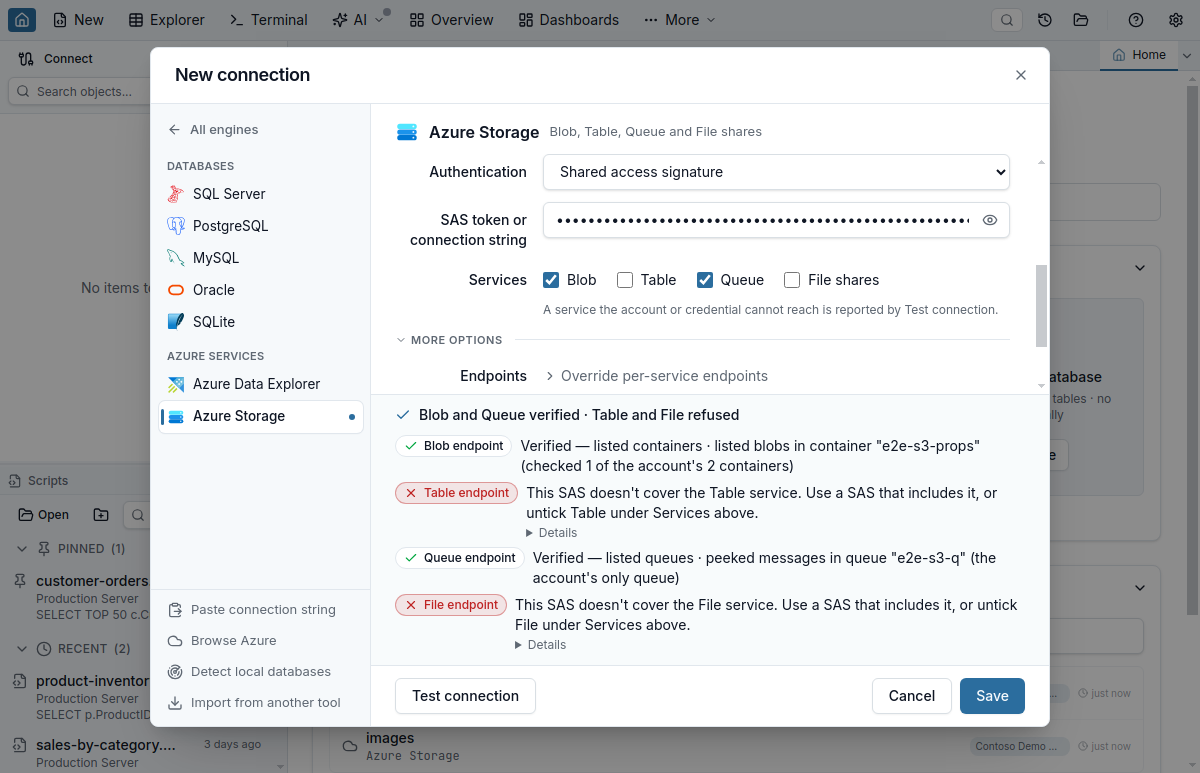
Test connection runs one probe per ticked service, using the least-privileged request that credential allows — a listing where the token permits listing, service properties where it does not, or a single object for a scoped SAS. After a Microsoft Entra or account-SAS listing it also reads one blob page, one entity or one peeked message from the first container, table or queue, because a listing alone does not prove the data can be read. If the first one is refused, up to nine more listed ones are read at once, since a data role can be assigned on single containers, tables or queues. Each row names what was read and how many items were checked, so it never claims more than it checked. Changing a field that the test depends on (the identity, the key, Data access, the services and so on) hides the result until you run Test connection again, and a result never carries over to another connection; the connection name and color do not hide it. A result that arrives after you edited the account or credentials is not shown and unticks nothing. The results keep a readable height below the form (the form scrolls instead), long ones scroll inside their own area, and the dialog's buttons stay on screen. One line above the rows sums up the test, for example Blob verified · Table and Queue refused; when nothing was verified it says so and asks you to fix a service and test again, and Save anyway keeps the connection untested, as after any failed test. It is not offered when the test refused the settings themselves, for example a storage account resource ID that names another account, or an endpoint the account key is not read for; the strip says what to correct instead, and the field it is about scrolls into view. Each row starts with a chip that carries the service and its status. A refused row leads with what the refusal means and what to do in this dialog, such as assigning a role or choosing Single resource under Connect using, and keeps Azure's own sentence under Details. When a single resource refuses its data to a Microsoft Entra identity, the row names the data role (for example Storage Table Data Reader) on that container, table, queue or share, or on the storage account; Reader alone never reads data. When a SAS is refused, the row names the permission it lacks (and, for an account SAS, the resource type), or the service it does not cover. A refusal that no permission fixes names its own cause instead: a SAS whose allowed IP range leaves out your computer (use a SAS whose range includes your public IP address, or one without a range, and check the storage account's firewall; when Azure answers only AuthorizationFailure, which a firewall or disabled public network access also answers, the row asks you to check both the SAS's IP range and the account's Networking settings), an HTTPS-only SAS sent to an http:// endpoint, a storage account that disallows Shared Key authorization (the account key and every SAS signed with it are refused; sign in with Microsoft Entra ID, or for Blob use a user delegation SAS), or a firewall or network rule that blocks your address (for a Microsoft Entra identity, possibly a condition on its role assignment). Each service gets its own row:
- Verified — the service answered and, where a data check applies, the named item's data was read (“listed containers · listed blobs in container "images"”).
- Listed, data access not checked (grey) — the account has no container, table or queue to read yet.
- Partial data access (amber) — some checked items were readable and others refused (“listed blobs in 1 of the account's 6 containers”): the identity's data role covers specific items only. The Object Explorer folder shows a partial data access badge.
- Listed, but no data access (amber) — the identity lists but every item of the account was checked and refused; the row names the missing data role and how many items were checked, and the folder shows a no data access badge whose tooltip repeats the row. For a SAS the row names the SAS permission that is missing instead of a role. The connection can still be saved.
- Data access unknown (amber) — the account has more containers, tables or queues than the ten that were checked, and every checked one was refused. The row says that access to the others is unknown, and the folder shows a data access unknown badge instead of no data access.
- Failed — the row shows the service's own error, and a 403 names the role or SAS permission that is missing. An account SAS that leaves a service out of its allowed services (
ss) says which service; untick it or use a SAS that includes it. - Not verified — the credential carries no permission this probe can use (a scoped SAS, for example). The service stays ticked and is tried for real when you open its folder.
- Host not found (grey) — the service's address does not resolve while another service of the same account answered. Usually the account type has no such service: a premium FileStorage account has no Blob, Table or Queue service, so Azure publishes no address for them. It can also be this computer's DNS, for example split-horizon or private-endpoint DNS that resolves only some of the account's services. The row names both causes (No Blob host was found for this account: either the account type has no Blob service, or this computer's DNS cannot resolve it. If the account has no Blob service, untick Blob under Services.) and keeps the DNS answer under Details; the summary line lists these services apart (File verified · Blob, Table and Queue hosts not found (account type or DNS)), they do not count as failures, and the Object Explorer shows no folder for them. Jam SQL Studio concludes this only for the account's own default address (
<account>.blob.core.windows.netand so on) and only when another service of the account answered. An endpoint you entered yourself (under Advanced, or asBlobEndpoint,QueueEndpointand so on in a pasted connection string) and an endpoint suffix other thancore.windows.netkeep their network error, so a mistyped or custom endpoint is never hidden. When no service answers, every row keeps its network error, because the account name is then more likely mistyped.
Because the probes are per service, a credential that can read blobs but not queues still connects: the connection opens, the blob folder appears, and the services that could not be verified are listed with their reason. If nothing could be verified at all, the connection fails once with the collected reasons instead of a generic error.
Browse containers and blobs
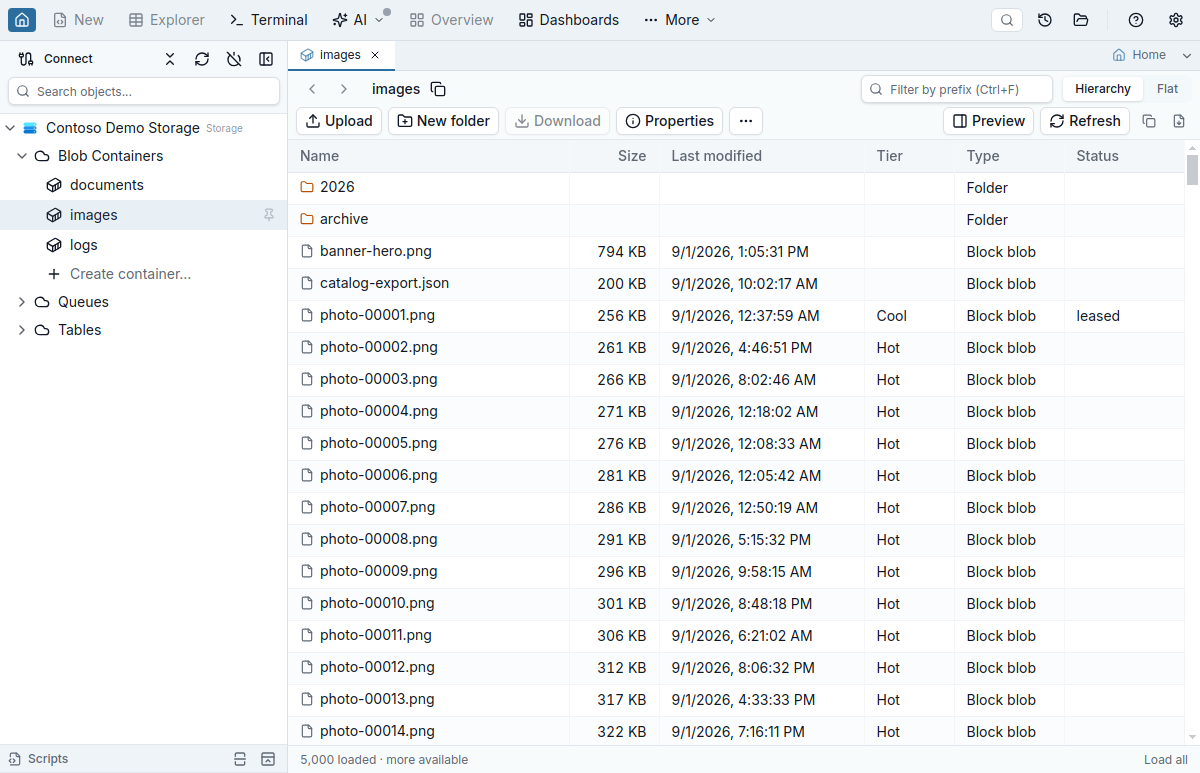
A connected storage account shows a Blob Containers folder in the Object Explorer (named Data Lake Containers when the account has a hierarchical namespace). Expand it to list containers; double-click one to open the storage browser tab. A read-only connection (Access → Open read-only in the connection form) shows a read-only marker next to its name in the Object Explorer and on its Home card, and in the toolbar of each of its storage tabs (next to the location in the storage browser). Rows such as Create container… are actions, shown muted with a plus sign; a name too long for the row ends in an ellipsis and shows in full on hover.
On the Home page, a connected storage account's card offers one button per service folder (Blob Containers, Tables, Queues, File Shares), which opens that folder in the Object Explorer and lists its contents, plus Transfers, Copy URL (the endpoint, without any key or SAS) and Connection info. A long button label wraps onto a second line. The card's second line names the account and how the connection signs in, followed by the read-only marker and the connection type, so the connection name keeps the full width of the card's first line.
- Folders and blobs — the browser lists blob name, size, last modified, access tier and type, folders first. The Name column takes the free width, the type reads as a word (Folder, Block blob, Append blob, Page blob, Snapshot, Version; File in the Data Lake view and on file shares), and a Status column appears once a listed item has one (deleted, leased, rehydrating, or a new folder that is still empty). Virtual folders (the
/segments of blob names) open like directories; the breadcrumb walks back up, and Backspace goes up one level. The breadcrumb always shows the container and the current folder in full, and as many of the folders between them as fit (at most the parent on a deep path); the rest fold into a … menu. Short folder names such as09are never cut. Hover a folder, or move the keyboard focus to it, for its full path, and use the copy button at the end of the breadcrumb to copy the current path. The toolbar keeps the same two rows everywhere: the location (breadcrumb, prefix filter, Hierarchy / Flat, and in the Data Lake view the button that opens the other view), and the actions in one order (Upload, New folder, Download, Properties, then the location's own actions and the … menu), with Show, Refresh and copy / export on the right. When the tab is too narrow for every action, the less frequent ones move into the … menu (Show first, then Snapshots…, Download folder, Properties, New folder and Download); Upload, Refresh and copy / export always stay in the row, and the row never scrolls sideways. An action that is unavailable stays visible, and hovering or focusing it shows why. The Last modified column shows the date and time in full; hover it for the exact time in UTC. - Hierarchy or Flat — switch between folder-by-folder browsing and a flat listing of everything under the current prefix. In Flat mode each row shows the blob's full path, so blobs with the same name in different folders stay apart. File shares list one folder at a time and have no Flat mode.
- Selection — the selection belongs to the items you selected. Opening a folder, Refresh, the prefix filter or switching Hierarchy / Flat leaves nothing selected, so an action never reaches a row that appeared in the same place.
- Empty containers — an empty container, share or folder says which it is, and shows where you can drop files when the connection allows uploads.
- Prefix filter — Cmd/Ctrl+F focuses the filter box; type a prefix to narrow the listing at the service, not in the grid.
- Paging — listings arrive 5,000 items per page, the next page loads as you scroll near the end, and Load all in the status bar fetches the rest. There is no total count: Azure's blob API pages with continuation tokens and reports no row total.
- Copy and export — select rows and copy them as CSV, Markdown or rich text, or export the loaded listing, from the same copy/export menu the query results grid uses. Copy → URL and Copy → Path on the row menu give you a SAS-free URL or the blob's path. The row menu is grouped: open, properties and download first, then tier, SAS and the Data Lake actions, then Copy, and Delete… last. A folder row opens with Open (Enter); a file row's first item is Properties (Enter). The toolbar's Export menu marks each format with the scope it exports, Loaded items. Items that are unavailable stay in the menu, muted, with the reason under their name in readable text, and the toolbar's … menu works from the keyboard like any other menu.
- Pin a container — right-click it in the Object Explorer and pick Pin to top; Open in Azure portal appears when the connection came from Browse Azure.
Keyboard
The same keys work in a file share, a share folder and a share snapshot.
| Action | macOS | Windows/Linux |
|---|---|---|
| Move to and select the next or previous row | ↓ / ↑ | ↓ / ↑ |
| Extend the selection | Shift+↓ / Shift+↑ | Shift+↓ / Shift+↑ |
| First or last loaded row | Home / End | Home / End |
| Add or remove the current row | Space | Space |
| Open the row menu | Shift+F10 | Shift+F10 or the Menu key |
| Open the selected folder | Enter | Enter |
| Go up one level | Backspace | Backspace |
| Copy the selection | Cmd+C | Ctrl+C |
| Copy names only | Cmd+Shift+C | Ctrl+Shift+C |
| Select every loaded row | Cmd+A | Ctrl+A |
| Focus the prefix filter | Cmd+F | Ctrl+F |
| Save the file you are editing in the preview | Cmd+S | Ctrl+S |
Preview and edit files
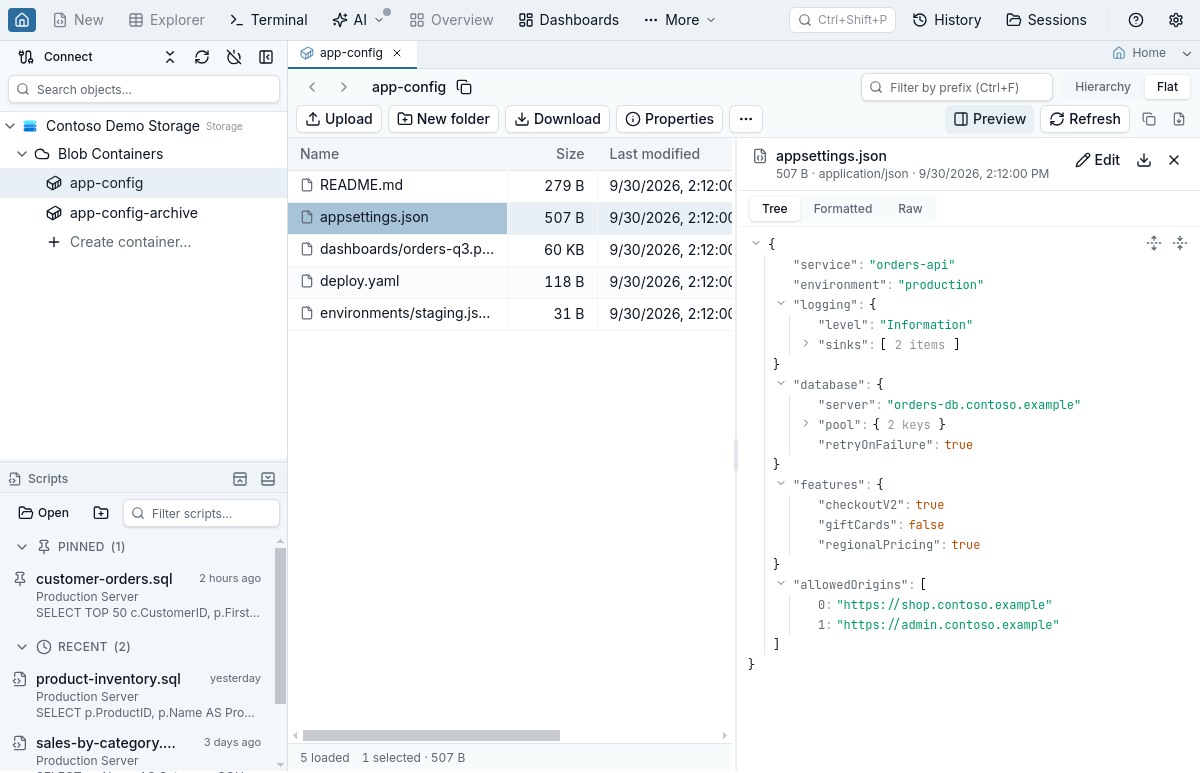
Click Preview on the storage browser's toolbar to open a pane on the right of the list. It shows the file you select — a blob, a Data Lake file or a file in a file share — and follows the selection as you click rows or move with ↑ and ↓; while the next file loads, the previous one stays on screen, dimmed. Drag the divider between the list and the pane to resize it (← / → when the divider has focus, double-click to go back to the default width). The width, and whether the pane is open, are remembered. In a narrow window the pane sits under the list instead, and the divider sets its height. Click Preview again or the pane's close button to hide it. On a blob or Data Lake tab, the Properties panel takes the pane's place while it is open.
- JSON — Tree, Formatted and Raw, the same three views as a JSON cell in the query results grid. Formatted keeps every number and escape exactly as stored. The tree is available for valid JSON up to 2 MB, 20,000 values and 100 levels; numbers too large for JavaScript are shown rounded in the tree (Formatted and Raw show them exactly). A file that does not parse opens in Raw with the parser's message above it.
- Markdown — Rendered or Source. Links open in your browser.
- Other text — XML, YAML, CSV, logs, configuration files, HTML, CSS, scripts and code open in the editor with syntax highlighting chosen by the file extension; Wrap turns soft wrapping of long lines on or off (off by default, so log and CSV columns line up). HTML is shown as source and never rendered.
- Images, video and audio — PNG, JPEG, GIF, WebP, BMP, ICO, AVIF and SVG images (Fit or Actual size, with the image's dimensions; an SVG also has a Source view, and scripts inside it never run), MP4, WebM and Ogg video, MP3, WAV, Ogg, AAC, FLAC and M4A audio.
- Size limits — text up to 5 MB loads whole. A larger text file shows its first 512 KB, read-only, with Load whole file for files up to 32 MB. Images preview up to 32 MB, video and audio up to 64 MB; a larger file offers Download. PDF documents are not previewed in the app: the pane offers Download. A blob stored with a
Content-Encoding(gzip, deflate or Brotli) is shown decompressed, read-only. - Other files — binary data without a viewer shows the file's size and type with Download and Show as text. A blob in the Archive tier cannot be read until it is rehydrated to the Hot or Cool tier. Selecting a folder or several items says so instead of previewing.
Edit and save
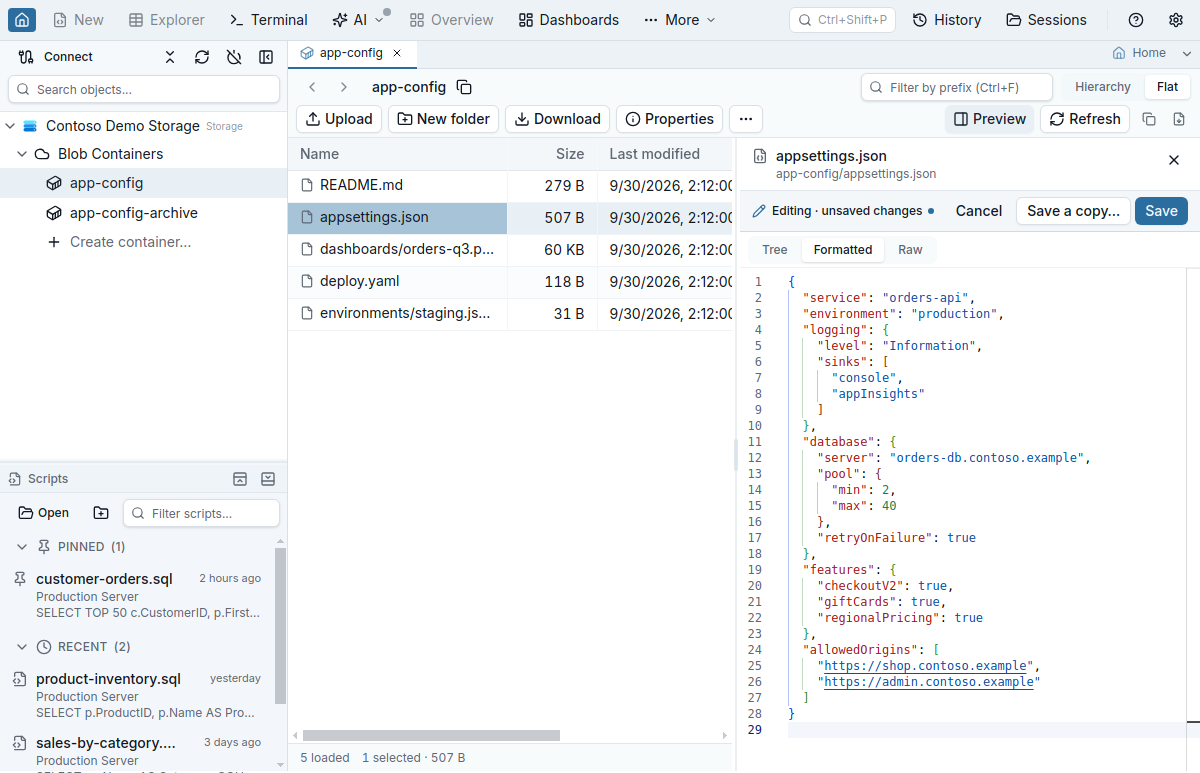
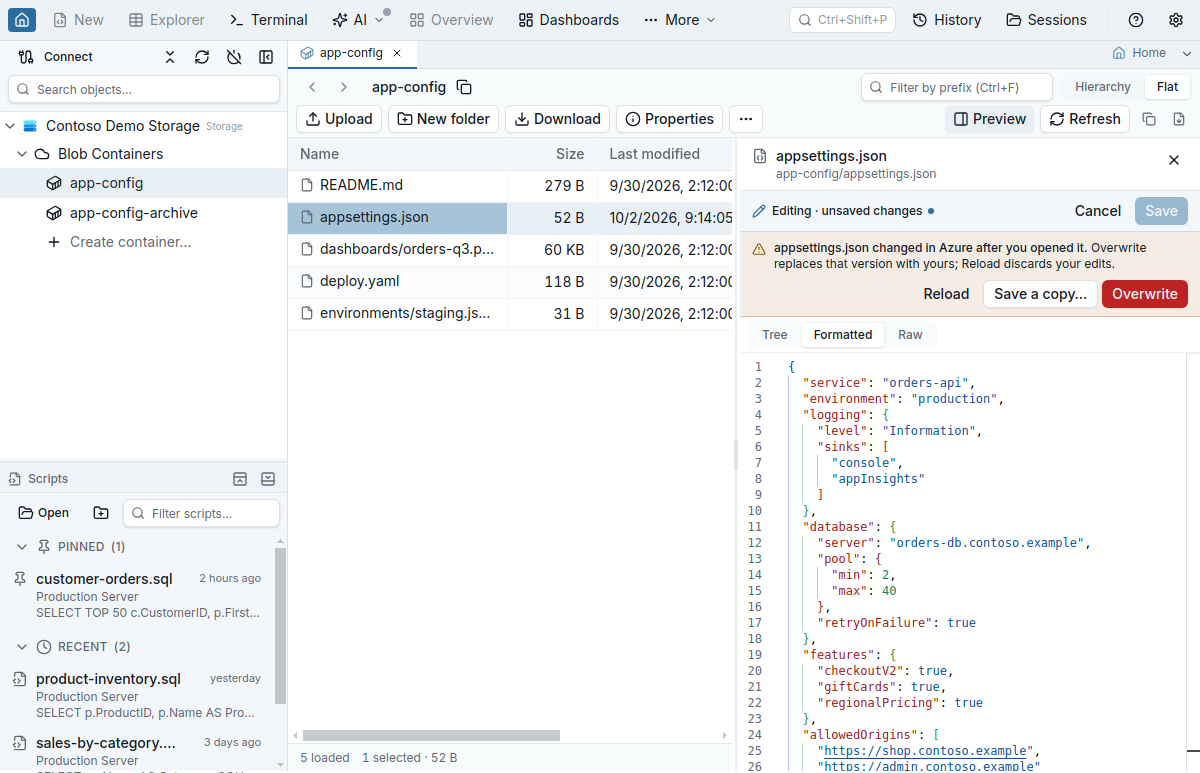
Text files have Edit in the pane's header. While you edit, a bar above the content reads Editing (unsaved changes once you change something) and holds Save (Cmd/Ctrl+S in the editor), Save a copy… and Cancel. Every view edits the same text: typing in Formatted keeps the formatted text, and Raw is the file as stored. The tree can edit a file only when saving from it would change nothing but the edited value, so a file with numbers too large for JavaScript, or with spacing, key order or number spellings the tree would rewrite, opens in Formatted, and its tree is read-only with the reason above it. A file is saved in the encoding it was read in: UTF-8 or UTF-16, with or without a byte order mark; other 8-bit text is shown read-only. The pane stays on the file you are editing when you select other rows. Cancel, closing the pane, closing the tab and disconnecting ask before unsaved changes are discarded. If you quit the app while editing, unsaved changes (up to about 1 MB in all) come back with their tab when you reopen it, and Save still checks that the file has not changed in Azure since you opened it; larger edits are not kept, and the edit bar says so.
- Save replaces the file only if it has not changed in Azure since you opened it. If it has, or it was deleted, the pane says so and offers Reload (discard your edits and show what is stored now), Save a copy… and Overwrite.
- Save a copy… writes your text under a new name, in the same or another container (or file share) and folder. The dialog spells out the full path before anything is written and refuses a name that is already taken. A copy beside the original (same container or share) is where editing continues; a copy saved to another container or share ends the edit, so open it there to keep editing. The original keeps what it stores.
- What a save keeps — a blob keeps its content type and the other HTTP headers, its metadata, its blob index tags and an access tier that was set explicitly. A Data Lake file keeps its owner, group, permissions and ACL. A file in a file share keeps its properties and permissions. A Data Lake file or a file in a file share is saved through a hidden temporary copy next to it; if that copy cannot be removed afterwards, the pane names it so you can delete it. When the connection cannot read a blob's index tags (for example a SAS without the tag permission), Save asks first, because saving would remove any tags the blob has.
- When Edit is unavailable, hover or focus it to see why: a read-only connection, a SAS or role without write access, a share snapshot, an append or page blob, a compressed blob, or a file that is only partly loaded. A SAS that can create but not write (Create without Write) can only save copies: Save says why, and Save a copy works.
Browse and edit Table entities
Expand Tables in the Object Explorer to list an account's tables. A table can be opened or pinned like a container. Account-level connections can also create a table, from the Tables folder's Create table… row or from More on a table's tab (Enter in the name field creates it); deleting one requires typing its exact name because the operation permanently removes every entity. A table name that is already taken is refused; names are not case-sensitive, so orders collides with Orders. If creating or deleting a table is refused (read-only connection, missing permission, network), the dialog shows the reason and stays open. Creating and deleting tables needs its own permission (Microsoft.Storage/storageAccounts/tableServices/tables/write and …/tables/delete, part of Storage Table Data Contributor, Storage Account Contributor and Contributor), separate from reading entities. Delete can be granted on a single table; create needs the storage account or its table service, because a new table has no scope of its own yet. With a SAS, creating a table needs an account SAS with the Container resource type and the Create or Write permission, and deleting one needs the Container resource type and the Delete permission; a table's own SAS can do neither. The dialog and the unavailable menu items name the requirement that applies to your connection. Once Azure refuses a create for a missing permission, Create table stays unavailable with that reason until you reconnect; a refused delete makes Delete table unavailable for that table only, in the Object Explorer (the next time its menu opens) and in More on its tab. The Create dialogs name the storage account and connection they create in. A refusal that is not about permissions, for example a SAS whose allowed IP range leaves out your current address or a storage account that disallows Shared Key authorization, shows Azure's reason in the dialog and leaves both actions available, so you can try again as soon as the cause is fixed. A connection scoped to one table exposes only that table.
- Typed values — each property keeps its Azure EDM type. Large Int64 values stay exact, an integer-valued Double remains a Double, and binary, GUID and seven-digit datetime values are not flattened or truncated. The Timestamp and other DateTime cells show your local date and time, the same format as the rest of the storage views; the exact value is the cell's tooltip, and copy and export keep it. The special Double values
NaN,Infinityand-Infinityare shown, edited and exported as that text. A missing property displays as∅; an empty string remains an empty string. - Filter chips or raw OData — build filters with the familiar filter controls or enter OData directly. Both modes use the same validator, with a maximum of 15 comparisons. Binary OData literals use hexadecimal, such as
binary'010203'; entity values remain base64 at the IPC boundary. Raw text stays saved, and Convert to chips keeps the EDM type of every literal, soCount eq 5,Count eq 5.0and a GUID literal each stay what they are. A raw filter is checked for its own syntax, not against the types seen on the current page:Metric gt 1.5is accepted even when the first loaded entity storesMetricas Int32. Numbers are sent as plain decimals, so1e21goes out as1000000000000000000000.0. Infinite Doubles can be filtered: typeInfinityor-Infinityin a chip, orINF/-INFin raw OData. Azure Table never matchesNaNwith a comparison, so aNaNvalue is refused with a hint: a stored NaN sorts aboveINF, andMetric gt INFfinds exactly those entities. While you edit a chip value, the text stays as you type it; a value that does not fit the chip's type, such as-or an empty number, is not applied and the reason is shown under the field. Switching between Filter chips and Raw OData never changes which filter is active: a raw filter the chips cannot show keeps the Filter chips button disabled with the reason next to it. Filters are restored with the tab when a session reopens, each chip value with its EDM type — exact Int64, Int32 versus Double, GUID versus text, seven-digit datetime — so the reopened tab sends the same filter before any page has loaded. - Projection and loaded-page sorting — choose columns to send an Azure
$select. Sorting is stable and applies only to the page already loaded; it does not imply a server-wide order. - Continuation paging — choose 100, 250, 500 or 1,000 entities per request. Next follows Azure's continuation handle and always reads the page again, also after going back; Previous uses only cached pages. Azure reports no total, so the footer says how many rows are on the current page instead of inventing a page count. After any change saved on the connection, the current page is read again and the pages visited earlier are dropped: past page 1, the footer says Previous page no longer available and First returns to page 1. Refresh, First, a filter, column or page-size change and a reconnect start again on page 1 with no notice, and First is disabled on page 1. When a continuation handle expires (10 minutes idle), the grid shows the expiry and Retry reloads page 1.
- Draft edits with ETags — turn on Edit Mode, then add entities and typed properties, edit values, remove properties or delete entities, and save the drafts together. As for a SQL table, Add Row, Save and Discard sit in the toolbar; above the grid, Add property to, Remove property… (a menu of the entity's properties) and Delete entity name the selected entity by its RowKey, outline its row in the grid, and wait for a selected row. The Add entity and Add property dialogs label every field and add on Enter. Leaving Edit Mode with unsaved drafts asks whether to save or discard them; while a save is running, leaving Edit Mode waits for it, and if the save fails you stay in Edit Mode with your drafts. Until you save, the grid shows each draft: edited cells carry the pending marker, a removed property shows
∅, a new entity appears as an added row you can remove, and a deleted entity is struck through until you undo it. Each cell is edited according to its own EDM type, so a text value in a column where another entity holds a number or a Boolean is still edited as text. Text that does not fit the cell's type, such as12ain an Int64 cell or1.5in an Int32 cell, is not applied: the editor stays open and shows the reason under the cell. This also applies to values typed or picked in the related-row and enum editors. Clearing a cell and pressing Enter removes that property from the entity (the cell shows a pending∅), for every type — it never stores0. Clearing a value you added and have not saved yet only takes the addition back, and a cleared property of a new entity can be typed in again. To store an empty string, use Add property with the type String and an empty value. Typing into a∅cell adds the property with the type shown in the column header. Save reports progress partition by partition, then says how many changes were saved and how many are kept as drafts, followed by the entities that changed on the server and those kept for another reason, with the reason (for example 1 change saved; 2 changes kept as drafts. SO-10416 changed on the server. SO-10417 not saved: The entity is larger than 1 MiB.); the line clears when you start a new change. Save stays on the current page and reads it again once, and editing is paused until it finishes. If the connection drops after changes were sent, the status line says they may have been applied, the rows are read again, and the drafts stay so you can check them before saving again. A new entity from such a Save is marked as possibly existing (a dashed outline on its row and a note above the grid); if the reloaded rows contain it, the grid shows it once, as your draft, and your edits go to that draft. The next Save reads the entity first: if it is not in the table, it is added as usual; if it is, your new entity becomes an edit of the stored entity with your values, and the Save after that writes it only if the entity has not changed again. That edit keeps every property of the stored entity that you did not set, such as one another user added in the meantime; it removes a property only if you cleared it in your new entity. The grid shows the stored entity with your changes for you to check, even when it is not on the current page or your filter excludes it, and it can be edited like any other row. An entity over Azure's limits — more than 252 properties, a text or binary value over 64 KiB, or more than 1 MiB in total — is kept as a draft with the reason in the status line while the other drafts save. A changed property on a fully loaded entity is checked against the entity it would produce, so adding a 253rd property is refused the same way. Concurrent changes open a comparison table — one row per property with the server's current value, what Overwrite anyway would write (a property your draft removes reads removed; a deleted entity says the overwrite deletes it) and the original value, the changed cells tinted; long values wrap inside their column, the property names stay in view, and on a narrow window the original values are behind Show original values — with Reload, Overwrite anyway and Keep draft; Overwrite anyway replaces only the version you reviewed, so if the entity changes again first, the comparison reopens with the newer version. On a read-only connection, hovering or focusing Edit Mode shows why editing is unavailable, as for a SQL table without a primary key. - Three honest export scopes — one export menu lists Selected rows (every row in the grid selection: Ctrl/Cmd-click adds rows, Shift-click adds a range), Loaded rows and All matching rows, each with Excel, CSV and JSON. A property an entity does not have is left out of that entity's JSON object in every scope, never written as null; CSV and Excel leave its cell empty. JSON keeps native scalar shapes and late properties; CSV/Excel keep the observed column order and report late values they could not include. All matching runs as a background entity transfer that can be cancelled or restarted, never resumed; it reads each page with the same retries and timeouts as browsing, and it stops if the connection is reconnected while it runs.
- Storage MetaInfo — declare enum, JSON and loose relationships from property headers. A relationship lookup must identify both PartitionKey and RowKey (the other key is a target filter such as
RowKey = region); labels and Open use a point read, never a scan or SQL query, and labels are read again after a change is saved or the connection reconnects. A relationship without that key filter shows the reason in its popover, and Open is unavailable there. In edit mode, a relationship property opens the row picker on the referenced table (search matches the label and key) and a lookup enum opens its labelled value list; the picked key keeps the property's EDM type.
Download blobs and folders
Select a blob, a folder or several loaded rows and click Download. There is no single Download all button for a container yet: press Cmd/Ctrl+A to select every loaded row (use Load all first in a large container), then Download. One blob uses the normal save dialog; folder and multi-item downloads use one folder picker. Each selected folder gets its own safe subfolder, each directly selected blob is saved as a file in the chosen folder, overlapping blobs are downloaded once, and same-name folders and files are disambiguated. Several downloads can write into the same folder at the same time; only two downloads writing the same subfolder or file are refused. A folder download (and an AI agent's container download) writes the current version of every blob. A snapshot or earlier version that an AI agent names by its ID gets its own file name, such as report (snapshot 2026-09-24T07-00-00.1234567Z).csv. Jam SQL Studio never lets an agent choose the destination path.
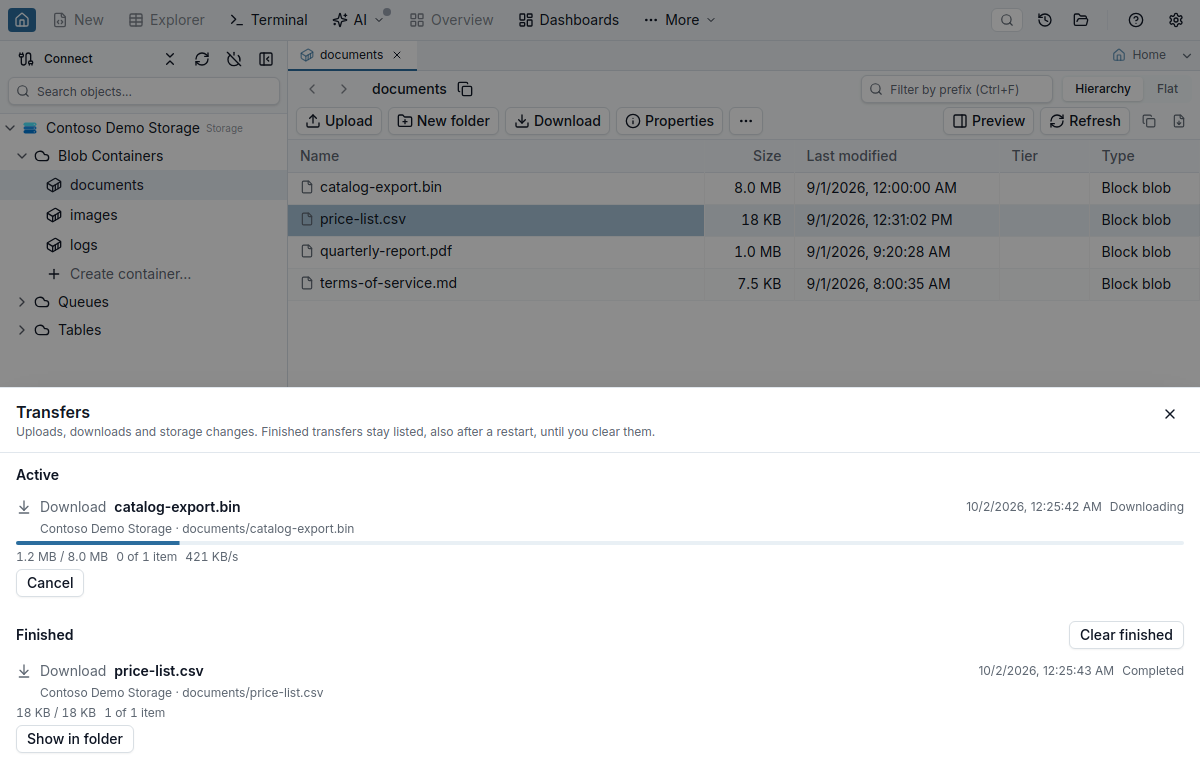
- A compact transfers chip appears on the left of a status bar at the bottom of the window (the bar is shown only while there are transfers, so it covers nothing), such as 2 transfers · 1 needs attention; hover it for the breakdown by state. Click it to open the Transfers drawer with active and finished sections, item/byte progress, throughput, and attempt count. Each row names the operation (Upload, Download, Delete, Copy; an access-control job names its mode, such as Replace access (recursive)), when it started, and the connection and path it works on; hover the row for the full route. Closing the drawer returns the keyboard focus to what opened it (the chip, the Home card's Transfers button), or to the chip when that is gone. While the transfer list is still being read the drawer says Loading transfers…; if it cannot be read, a notice says so with Azure's or the app's reason and Retry, and a failed refresh keeps the rows already listed and says the list may be out of date. A job's Show N errors and its error list sit inside that job's block, above the line that separates it from the next job.
- Cancel stops the download and keeps the partial file, so it can be picked up later.
- Resume continues from where the partial file ends — only the missing bytes are requested. If the blob changed in the meantime, the download restarts from the beginning and the toast says so. When a stopped download cannot continue (its partial file was deleted or changed by another program), Resume stays in the row but unavailable, and hovering or focusing it shows the reason; use Restart.
- Restart downloads the unfinished blobs again from the first byte; blobs that already finished are not downloaded again.
- When a transfer's connection was removed, Resume and Restart stay in its row but unavailable, with the reason on hover or focus; the same applies to an upload, delete or access-control job whose connection is now read-only.
- Show in folder opens the finished file in your file manager.
- Clear finished removes finished transfers that have nothing left to resume, restart or clean up. Unfinished transfers stay in the list until you use Discard unfinished…, which asks first and names what it cleans up: it deletes the partial files of unfinished downloads and the staged copies of file-share uploads, and releases the locks a file-share upload still holds on a published file (the file stays). Discarded transfers can no longer be resumed or restarted.
- A file that another program holds a lease on (for example, an open file on an SMB share) fails with the next step first: retry after that program releases it. Azure's own message stays under Details.
Transfers survive an app restart: unfinished jobs come back as interrupted, with Resume or Restart. Resume first checks each unfinished item against Azure; if one can no longer continue (for example, the blob changed), the job becomes restart-only and the drawer says why. Partial jobs expose failed items for selected Retry and a redacted error report. Settings → Azure Storage controls concurrent jobs, block concurrency, and block size. A new block size applies to uploads that start after the change; a resumed upload keeps the block size it started with. Restarting an upload sends the file as it is on disk at that moment.
Upload, create folders, and delete
Use Upload → Upload files or Upload folder, or drag files and folders from the operating system onto the active blob container or virtual folder. A CSV dropped here is uploaded rather than opened in Data Import. Directory walking and path validation happen in the main process; a blob that already exists pauses the upload for Skip, Keep both or Overwrite, and the prompt shows the existing file's size and last-modified time next to those of the file being uploaded (a download prompt compares the local file with the one being downloaded). Skip is the default button, so pressing Enter never overwrites anything; Keep both uploads the file under the next free numbered name, such as name (2).ext; Do the same for the other conflicts in this upload answers the upload's later conflicts with the same choice; and Cancel upload (or Esc) stops the upload, keeping the files it already sent. When two files in the same upload would get the same blob name, the upload pauses for Skip or Keep both only, and Overwrite is not offered, so one upload never overwrites a file it just sent. An agent upload whose collision policy is Skip skips such a file; Overwrite or Rename gives it the free name (2).ext name. Every blob name starts with the destination folder exactly as it is shown: a destination folder that starts with / or contains //, a backslash, or a . or .. folder name is refused with the reason before anything is uploaded, and a local file whose name would become such a folder name (for example a file named ..\x on macOS or Linux) is skipped and listed in the job.
New folder creates a local pending upload target. A path such as 2026/10 creates both levels, as in the Data Lake view. It is marked pending until an upload creates the real prefix; empty virtual folders are not marker blobs and are not restored with the session. Object Explorer also provides Create container, Upload, and Delete actions. On a read-only connection, Create container… opens its dialog with Create unavailable and the reason, as Create table… and Create queue… do. A connection whose SAS grants neither Write (w) nor Create (c), such as a list-only sp=rl container SAS, cannot upload: Upload, New folder and an empty container's Upload files… say which permission is missing, and an upload that reaches Azure anyway (from an AI agent, for example) fails with the same sentence instead of Azure's. A SAS with Create (c) but not Write (w) uploads new blobs only: Azure refuses overwriting an existing blob with it, and the transfer item says that overwriting needs the Write permission. When Jam SQL Studio does not know the SAS's permissions (a SAS that uses a stored access policy), the item keeps Azure's own error. Cancelling the Create container dialog while it is working stops the request; if the request had already reached Azure, a notice asks you to refresh and check. Container deletion requires you to type the exact name, and a delete confirmation stays open until the delete has started.
Delete copy is deliberately conservative. Jam SQL Studio can read blob soft delete from this adapter and report on/off/unknown (including retention days when on), and deleting a blob also deletes its snapshots (a snapshot or version that an AI agent names by its ID is deleted on its own). The confirmation lists what it deletes and where (the first ten items, then how many more), marks each folder with "and everything under it", and puts the recovery facts in their own block: soft delete, snapshots and versioning, one line each. When soft delete is off or unknown it also says This cannot be undone. Deleting a folder deletes everything under it, including snapshots and the earlier versions the listing returns. On an account with a hierarchical namespace (Data Lake), deleting a folder also removes its directories, so no empty folder is left behind; if the folder's own directory cannot be checked (for example, without permission to read it), the job ends as partial and says the directory may remain. The folder's own directory is deleted only while it is still the directory that was checked; if another program replaced it with a file in the meantime, that item is skipped as changed since it was checked, and the file is not deleted. On an account without a hierarchical namespace, deleting the folder logs/ never touches a separate blob named logs. It cannot determine container soft delete or versioning through this adapter, so those states are always described as unknown and the app does not promise recovery or retained older versions.
Tabs come back when you resume a session
Open storage browser tabs are part of your session: after a restart, resuming the session from the Sessions dialog puts you back in the same container, folder or table (with Always start a new session set, the app opens the start page instead and the saved session stays available from the Sessions button in the toolbar). For a table, filters, raw OData, selected columns and page size return; rows, cursors, selection, local sort and unsaved drafts do not. Closing an entity tab with unsaved drafts does not ask first, the same as a SQL table in Table Explorer, so save or discard drafts before you close the tab or quit. This includes a new entity marked as possibly existing. No tokens or SAS values are saved in the tab.
Azurite and local containers
Pick Emulator (Azurite) for the well-known emulator account on 127.0.0.1:10000–10002. If Azurite is already running in Docker, Detect Local Databases finds the container and fills in its account and published ports. If the container sets the AZURITE_ACCOUNTS environment variable, the detected connection uses the first account and key listed there rather than the default one. A pasted connection string whose BlobEndpoint, QueueEndpoint and TableEndpoint all point at 127.0.0.1, localhost or ::1 with the account in the path (http://127.0.0.1:20000/devstoreaccount1) also selects Emulator (Azurite): it keeps those ports and the account and key, ticks only the services it names, and leaves File shares unavailable, since Azurite has no Files service (a FileEndpoint or EndpointSuffix in it is listed as not used). A string that mixes local and Azure endpoints is read as a Storage account connection. For a compose file, the flags that matter in a container and fixes for the usual connection errors, see Azurite in Docker.
AI agents & MCP
Azure Storage connections expose twenty-five storage_* tools to MCP-connected agents: the five read/download tools, transfer status, upload, delete and create-container, five queue tools, storage_generate_sas, two Table entity tools, four file-share tools (storage_create_share, storage_set_share_quota, storage_share_snapshots and storage_mount_command) and four Data Lake tools (storage_get_acl, storage_set_acl, storage_create_directory and storage_move_path); the read, download, upload and delete tools also take file shares, share folders and share files, and Data Lake paths as blobs and folders. A recursive storage_set_acl runs as a job in the Transfers drawer that the call waits for, and storage_move_path never overwrites (see Data Lake). Block refuses every one of them on that connection, and storage_transfer_status leaves out its jobs; Read-only refuses writes; Confirm opens a separate, request-correlated storage approval dialog for every write. It asks what the write does (Delete 3 storage items?; an entity batch names each operation with its count, such as Delete 1 table entity and merge 1 table entity?), shows the tool name as detail, marks whether the write removes, changes or adds data, and focuses Deny first. Every approval lists every target the write touches once, in full, in a list you scroll, with a container or share deletion listed first, above a short summary of the consequences. A call can name at most 1,000 items. A file-share write that the app would refuse (a read-only connection, a snapshot, an item outside the connection's scope, an overwrite on an NFS share) is refused before any dialog. Download still asks you for the destination, and current connection scope/read-only policy is checked again after approval. If the agent cancels a download while Jam SQL Studio is still checking the selected blobs for archive status, the check stops, no save dialog or folder picker opens and no transfer starts; the same happens when you close the storage tab during that check. If the agent cancels its request before you approve it, the approval dialog closes and nothing is written. A cancel after approval stops the work that has not been sent yet and cancels a transfer the request started, but changes already made stay: files uploaded or blobs deleted before the cancel are not rolled back. When a cancel lands while a write is in flight, the app cannot know whether Azure applied it, so the result says the outcome is uncertain; refresh the container to see its current state. Queues add storage_list_queues and non-consuming storage_peek_messages; storage_send_message, storage_receive_messages and storage_clear_queue are refused at read-only and open the same approval dialog at Confirm. Receive results carry neither the Azure pop receipt nor the app's receipt handle, and clear reports a count only as approximate.
SAS generation also requires the configured write approval, and the approval names the resource, the SAS kind, each permission in words and the validity window, with a warning first for an account SAS, write or delete permissions, listing, or a token valid for more than seven days; a request that fails validation is refused before anyone is asked. For a SAS under a stored access policy, Jam SQL Studio reads the policy before asking: the approval shows the permissions, start and expiry the token will have, each marked as coming from the policy or set on the token, with the same warnings, and notes that changing or deleting the policy later changes or revokes the token. A policy that cannot be read, does not exist, has already expired, or lacks a permission or expiry the request does not supply is refused without asking. Jam SQL Studio reads the policy again just before signing: if that read finds it changed since you approved, nothing is signed and the agent has to ask again. A change made after that read is not detected and, like any later change to the policy, applies to the token. Agents cannot generate a SAS on a read-only connection or at the Read-only permission level, not even a read or list token; the app's own dialog can still create those on a read-only connection. The full token stays in Jam SQL Studio. The agent receives the enforced permissions, start, expiry, protocol and IP range as separate fields, and the resource URL without any query string. If an agent's SAS arrives while a storage dialog has unsaved changes or a save in progress, it waits behind a notice with View and opens when you close that dialog.
For Tables, storage_query_entities reads one tagged Table entity page and returns an opaque continuation token; its OData filter accepts at most 15 comparisons. storage_write_entities creates, merges, replaces or conditionally deletes entities. Updates and deletes require a concrete ETag, and the tool follows the connection's Block / Read-only / Confirm policy. The Confirm dialog names the table and the operation totals, marks deletes, replaces and batches of more than 20 entities, and lists every targeted entity by PartitionKey and RowKey once, deletes and replaces first. Property values are never shown. Table create/delete stays UI-only.
For an open entity tab, table_get_snapshot reports filterState with the active raw-or-chip mode and loading state; table_set_filter resets paging and refuses unsupported operators. Blob downloads still go through the app's save dialog — you pick the destination or decline, never the agent.
From a terminal, the same reads are jam-sql storage containers, ls, props, info and download.
What does not apply
Azure Storage is an object store, not a database. On these connections:
- There is no SQL Query Editor, SQL Table Explorer, notebook or transaction — those entry points are disabled with a reason. Table entities use the storage explorer's typed grid and OData filters, not generated SQL.
- There is no Schema Compare, Data Compare, Data Import, Table Designer or Backup & Restore.
- There are no databases or schemas to pick — a connection points at an account (or one scoped resource), and the services are folders.
Properties, tiers, container access and SAS
Properties and metadata
Select one blob and choose Properties from the toolbar or row menu, or press Enter. The side panel shows size, blob type, access tier and archive status, ETag, last modified time and lease state. Metadata, HTTP headers and index tags have separate editors and Save buttons, so each update sends the complete map for only that section. If tags could not be read, the panel says Tags not loaded and disables tag saving rather than replacing unseen values. Azure keeps an archived blob's metadata and HTTP headers read-only, so those editors are disabled until the blob is rehydrated; its index tags stay editable.
Each section is saved against the version it was loaded from. For a blob, Azure applies the write only while the blob still has that version. Azure offers no such check for container metadata, so Jam SQL Studio reads the container right before saving and refuses the save if the container changed since the panel loaded it (any change to its metadata, public access or stored policies counts); a change made in the fraction of a second between that read and the write can still be overwritten. If the panel refreshes while a section has unsaved edits and that section changed on the server, the section says Changed on the server while you were editing · Reload and its Save stays disabled until you reload it; a change to a different section does not block your edit. A duplicate key is marked on its row and blocks Save (metadata keys ignore letter case, tag keys do not). Jam SQL Studio cannot carry a metadata name or index tag key named __proto__ between its window and the connection: typing one is refused with that reason, and an item that already has one shows __proto__ (not shown) in that section, which stays read-only. A save of that section is also refused if the read Jam SQL Studio makes right before the write finds such a key, so a key found by that read is never deleted; for container metadata and index tags, a key that another tool adds after that read can still be deleted by the save. Change such an item with another tool. The Reload button in the panel header re-reads the item and discards unsaved edits.
A save refused because the item changed on the server shows the same alert as an edit that a refresh found out of date: Changed on the server while you were editing, with a Reload button, and the section's Save stays off (also in the unsaved-changes prompt, which says why) until you reload it. If Azure accepted the write but the follow-up read failed, the panel says Saved — could not read it back; reload to see the current values; an interrupted write whose outcome cannot be proved says Outcome unknown — reload to check whether it was saved. Unsaved drafts remain on their current item until you Save or Discard: closing the panel or pressing its Reload button with unsaved changes asks Save, Discard or Cancel, and a reload that fails keeps your edits. Cancel while that Save is running stops it after the write in progress (which cannot be recalled) and keeps the panel open with your edits; Discard waits for that write. When the editors are locked (a read-only connection, an archived blob, a reload in progress), the reason is shown above them. Metadata and index tags are edited in a Key / Value table where each row has its own remove button; a long value wraps in its field. The properties of a file share, a folder or a file open in a dialog with a Close button.
Saving index tags does not change the ETag, so the tag save first checks that the blob's current tags still match the ones the panel loaded, and Azure applies the write only while each of those tags still has its value. If they changed, the save is refused with Reload instead of overwriting the other edit. Azure's condition cannot check for tags it was not given, so a tag key another client adds between that check and the write is not detected.
Access tiers
Change tier… names the blob it changes and offers Hot, Cool, Cold and Archive, each with a line on what it means: Cool, Cold and Archive keep a blob for at least 30, 90 and 180 days (moving or deleting it sooner is charged for the rest), and an archived blob is offline until it is rehydrated, which can take up to 15 hours. Choosing Archive asks you to confirm with those facts before anything changes. Azure decides whether Archive is available for the account and region; when it is not, only that option is disabled with Azure's reason. If the blob's current tier cannot be read, the dialog shows why with Retry and offers no tier until it can. Moving a blob out of Archive also asks for Standard or High rehydrate priority. Archived and rehydrating blobs cannot be downloaded until rehydration completes; on an archived blob the row menu offers Change tier… (rehydrate). If the tier change is accepted but the follow-up read fails, the dialog says Saved · could not re-read with a Reload button.
Public access and stored policies
On a blob container, Set public access level… names the container and chooses Private, Blob only or Container and blobs, each with what it means; Save becomes available once you pick another level. Create container… offers the same three choices. Blob and Container access require a destructive confirmation that names the public exposure. Manage access policies… names the container, table, queue or share and replaces up to five stored identifiers as one set; each policy's permissions are ticked by name, with the Azure letter beside it, and a resource without policies says so. Save policies becomes available once something changed. Removing an identifier revokes every SAS issued under it, and changes can take up to 30 seconds to apply. Adding permissions to an existing identifier or moving its expiry later extends every SAS already issued under it; the dialog says so under that policy. Azure has no version condition for a container's access settings, so Jam SQL Studio reads the container right before saving (and again before a retry after Azure throttles the save) and refuses the save if its version (ETag) changed since the dialog loaded it. The write also carries the only condition Azure accepts here, that the container is unmodified since the last-modified time the dialog loaded; that time has whole-second precision, so a change made in the same second as that read can still be overwritten. After a refused save, a save whose outcome is unknown, or a save whose follow-up read failed, both dialogs keep your changes on screen and turn Save off; Discard changes and reload (or Reload when nothing is pending) loads the current settings.
Tables and queues have stored access policies too. Manage access policies… in a table's or queue's tree menu opens the same dialog with the permissions that resource accepts (a table: Read, Add, Update and Delete; a queue: Read, Add, Update and Process) and no public access level. Azure keeps no version for a table's or queue's policies, and a write of a file share's policies takes no condition, so for these Jam SQL Studio compares them with a fresh read right before each write, including a retry after Azure throttles the save, and refuses the save if they changed (permissions listed in a different order count as unchanged); a change another tool makes between the last check and the write that follows it can still be overwritten. On a read-only connection the dialog opens for viewing only, for containers as well. With Microsoft Entra ID, a container's access settings need the Storage Blob Data Owner role (Storage Blob Data Reader and Contributor do not include them), and table and queue policies need a custom role with the table or queue getAcl / setAcl action, which no built-in Storage Table Data or Storage Queue Data role includes. When the read is refused, the dialog shows a lock with the sentence that says which of these is missing and that the connection can use the account key for data access instead (Use the account key for data access).
Generate a SAS
Get SAS… creates account or service SAS credentials from an Account Key connection and user-delegation SAS credentials for blob containers, blobs and Data Lake paths from Microsoft Entra ID. The dialog opens on a kind the connection can create for the selected item: user delegation on a Microsoft Entra connection, Account at the account level (where service and user-delegation SAS are unavailable). An account SAS works only on the services ticked under Services, which you see before the token is generated: Blob by default, File when the dialog opens from a share or a file or on an account without Blob storage; tick Queue or Table to add them. The result lists the services the token carries. Before you generate, the dialog names the connection and exactly what the token is signed for; an account SAS says that it works on every container, table, queue and file share of the account in the ticked services, with all three resource types. A kind the connection cannot create stays in the list with the reason under it. Service SAS can be ad-hoc or use a stored policy: a container's own, a blob's container's, or a table's or queue's own. Stored-policy mode lists the resource's policies (it says while they load, when there are none, and when the read failed, with Retry) and asks you to choose one before Generate is enabled. When stored-policy mode is unavailable (an account SAS, a Data Lake directory), the reason is written under the Mode choice. The chosen policy's permissions are shown ticked and its dates filled in, locked and marked From policy; when a policy omits permissions or expiry, the dialog asks for only the missing token field. The result shows the SAS URL (hidden until Reveal) with Copy URL beside it, and the query string, connection string and Add as a Jam connection… as secondary actions. A read-only connection can mint only non-mutating permissions; a container policy that allows read and list counts as non-mutating, and a table or queue policy may allow read only. A user-delegation SAS must expire within seven days from now. Start and expiry times are entered in your local time zone; stored-policy dates in Manage access policies… use local time too, and each set date shows the same moment in UTC (with its UTC offset when your time zone is not UTC or the hour repeats). A time the clock skips when daylight saving starts is refused with a message and blocks Generate or Save until you pick a real time. A time that occurs twice when daylight saving ends keeps the UTC offset the field already had (the first occurrence for a new date), and a button next to the field switches to the other occurrence. A virtual folder has no SAS of its own, so Get SAS… is disabled for folder rows and inside a folder; choose the container or a blob instead.
The result starts masked and shows exactly which permissions (by name) and dates the token enforces and whether each value came from the policy or the token. You can copy the URL, query string, or an account-SAS connection string, reveal the token, or choose Add as a Jam connection…. That last action pre-fills New Connection without writing the token to the clipboard or a session.
File shares
A storage account's File Shares folder in the Object Explorer lists its Azure Files shares, SMB and NFS alike, with a quota badge and an NFS badge on NFS shares. Everything goes through the Azure Files REST API: nothing is mounted on your machine and no SMB or NFS client is needed. Double-click a share to open it in the storage browser.
- Browse — folders open like blob folders, with the breadcrumb, Backspace to go up, the prefix filter and 5,000-item pages. The grid shows name, size, last modified and type; NFS listings carry no modification time, so that column shows —. A share SAS scoped to one folder or one file opens on that folder or file and never goes above it.
- Upload — Upload files, Upload folder or a drop onto the grid uploads into the folder you are looking at; missing folders are created, empty folders included. Each file is written under a hidden temporary name next to its destination and then given its final name without replacing a file that appeared there in the meantime; a name that turned out to be taken asks again (Skip, Keep both or Overwrite). A cancelled upload resumes where it stopped unless another client changed the temporary file, in which case it can only restart. A file that can only start over (another client broke its lock, or the local file changed during the upload) shows Retry unavailable with the reason and offers Restart next to it. When you chose Overwrite and the service refuses the final step (for example because another program has the file open), Jam SQL Studio releases its lock on your file at once and keeps the uploaded copy, so Retry finishes without uploading again. Discard unfinished… removes the temporary files of cancelled uploads. When it cannot (the connection was deleted, is read-only, or no longer reaches the share), the transfer row offers Forget…: the confirmation lists each temporary file or lock the upload still holds, with its share and path, and Forget removes only the entry from the list — the files stay until you delete them. On an SMB share a staged copy is still locked by the upload's lease, and Jam SQL Studio cannot release that lease after Forget; the list says so, and the lease has to be broken (for example in the Azure portal) before the copy can be deleted. A connection that is only disconnected shows Connect to clean up instead: connect it, then use Discard unfinished….
- New folder creates a real directory in the share (unlike a blob folder, which exists only through its blobs).
- Download — a file downloads through the save dialog, folders and multi-selections through one folder picker. Each downloaded file keeps its last-write time from the share as its local modification time. On NFS shares, symbolic links are listed but not downloaded.
- Delete — the confirmation lists the first ten items and where they are, says that a folder is deleted with everything inside it, and states how many snapshots the share has; with no snapshot (or an unknown count) it says the delete cannot be undone. Files are deleted first, then folders from the deepest up; a file that fails keeps its folders, and Retry on that file runs them again.
- Share actions — the share's menu groups Properties, Snapshots… and Quota…, then Get SAS…, Manage access policies… and Copy mount command…, with Delete share… last, in red; an unavailable item says why on a second line. The File Shares folder offers Create share… (name, optional quota, SMB or NFS).
Quota and billing
The quota a share accepts depends on how the account is billed: pay-as-you-go shares take 1–102,400 GiB (1–5,120 GiB on an older account with large file shares turned off), provisioned v1 shares 100–102,400 GiB, and provisioned v2 shares 32–262,144 GiB. On a provisioned account the quota is the size you pay for, and the dialog says so. A provisioned share can be made smaller only once every 24 hours; the dialog shows when the next reduction is allowed. Azure has no condition for a quota change, so right before writing Jam SQL Studio reads the quota again; if it differs from the one the dialog read, nothing is written and Reload shows the current value. A change another client makes between that read and the write is not detected.
Share snapshots
Snapshots… lists a share's snapshots with their local time, creates a new one, opens one, or deletes one. A snapshot opens as its own read-only tab with a banner: you can browse and download from it, and every write is disabled with the reason. Snapshots cover a whole share, so they are managed from a connection to the account or to the share itself; a connection scoped to one folder or one file, or to a single snapshot, cannot list or create them, and neither can a share SAS (listing, creating or deleting snapshots needs the account key, an account SAS or Microsoft Entra ID). Azure Files has no soft delete for individual files: a deleted file can only be restored from a snapshot.
Deleting a share
Delete share… asks you to type the share's name, and states how many snapshots are deleted with it and whether the account's share soft delete lets you restore it (for how many days) from the Azure portal. Right before deleting, Jam SQL Studio counts the snapshots again; if the count differs from the one the dialog showed, nothing is deleted and the dialog asks you to reload. Azure has no condition for this, so on a share that has snapshots, a snapshot created between that count and the delete is deleted with the share. Tabs and pins on the share close once it is deleted.
NFS shares
NFS 4.1 shares live on premium (FileStorage) accounts. Jam SQL Studio treats them like SMB shares with two differences Azure Files imposes over REST: an upload cannot replace an existing file, so a name collision offers only Skip or Keep both (Overwrite is disabled with the reason), and listings carry no modification times. Stored access policies and SAS work on NFS shares.
Signing in with Microsoft Entra ID
Reading and writing files with Microsoft Entra ID needs Storage File Data Privileged Reader (or Contributor for writes) on the storage account or the share. Listing the shares, and reading a share's quota, usage and snapshots, needs a role that can read the storage account, for example Reader; the Storage File Data roles cover only the files inside a share. An identity without it can still work with shares you name: add them in the connection form's optional File shares field (Test connection links to it with Add share names), or use Open share by name… in the File Shares folder; Remove from this connection takes a named share away again. Creating, resizing, snapshotting or deleting shares needs a management role such as Storage Account Contributor (or the account key); Jam SQL Studio attempts them and, when Azure refuses, names that role. The share soft-delete setting and the account's billing model are read from Azure Resource Manager, which needs Reader on the account. An interactive browser sign-in never starts such a read in the background: the soft-delete setting shows as unknown with the reason, and the billing model comes from the first share you open.
Share SAS URLs
A SAS for a whole share (sr=s) covers every folder and file in it, so a URL like …/share/reports/q3 can name a folder or a file. When you paste such a URL, Jam SQL Studio checks the path with the SAS and preselects File or Folder; when the SAS cannot tell (its permissions allow neither reading the path nor listing it), you pick one before you can test or save. A URL that ends with / is always a folder, and a file SAS (sr=f) always a file. Get SAS… creates a SAS for a share or a file, ad hoc or under the share's stored access policy, from an account-key connection. Jam SQL Studio creates user-delegation SAS tokens only for blob containers, blobs and Data Lake paths, so a share or file SAS needs the account key.
Mount commands
Copy mount command… shows commands you can run yourself: Windows (PowerShell), macOS and Linux for an SMB share, Linux for an NFS share. The account key appears only as a <storage-account-key> placeholder, and the notes cover port 445 and the NFS network requirements. Jam SQL Studio never mounts a share.
Data Lake (ADLS Gen2)
A storage account with a hierarchical namespace (Azure Data Lake Storage Gen2) has real directories and POSIX-style access control lists (ACLs) on every file and directory. Jam SQL Studio detects the namespace when it connects: account-key and SAS connections read it from the account information, Microsoft Entra ID connections from a Data Lake request that needs no data role. The Blob folder in the Object Explorer then reads Data Lake Containers and each container (a file system) carries an HNS badge.
Data Lake view and Blob view
Opening a container of such an account shows the Data Lake view: the same storage browser, listing real directories and files with three more columns, Owner, Group and Permissions (for example rwxr-x---+; + means the path has an extended ACL, t or T the sticky bit). Owners and named entries appear as Microsoft Entra object IDs, with the user principal name beside the ID when Azure reports one. Download, upload (toolbar, drag and drop), delete, properties, tiers and blob SAS work from the Data Lake view as they do in the Blob view. The prefix filter works within one directory level. Neither view lists snapshots, versions or deleted blobs yet.
A tab's title says which view it is (it ends in · Data Lake or · Blob), and a button on the location row, Open in Blob view or Open in Data Lake view, opens the other view of the same location in its own tab; switching back moves the Data Lake tab to the location you reached in the Blob view. Opening the container again from the tree returns to the Data Lake tab where you left it. Right-click a container in the tree for Open blob view and Copy abfss:// URI. A change made in either view (a rename, an upload, an access-control job) refreshes the other view without a manual Refresh.
When Jam SQL Studio cannot confirm the hierarchical namespace (for example, a Microsoft Entra identity without any role on the account), containers open in the Blob view. A Data Lake tab restored from an earlier session waits up to 15 seconds for the account check; if the namespace is still not confirmed, the tab says so and offers Open blob view.
Directories, rename and move
New folder in the toolbar creates a folder (a real Data Lake directory) in the current location; a file or folder that already has the name is reported in the dialog and nothing is created. Missing parent folders are created along the way. The app says folder in the Blob, Data Lake and File Shares views alike.
Rename… (or F2) and Move… in a row's context menu use Azure's own rename, so a directory moves with everything under it, also to another file system of the same account. The request never overwrites anything: it is refused when a file or directory already exists at the destination, including one created by someone else after the dialog opened, and when the source changed after Jam SQL Studio read it. In both cases nothing is moved: for a name that is taken, the name field gets the focus so you can type another; for a changed source, Check source again reads it again. The dialog says what it renames and where, such as Renaming file orders.csv in lake/raw/2026. Moving a directory into itself is refused. In the Blob view of such an account, the dialog reads the directory's current version when it opens.
If Azure answers a directory rename with a continuation, part of the directory may already be at the destination; the dialog says so and offers Continue move, and a notice above the grid lists unfinished moves after a restart. Continue sends the rest only while the source is still a directory and the destination holds the part already moved, and only on condition that neither changed since that check; otherwise nothing is sent, the move stays in the notice, and the notice says that Continue sent nothing and offers Check again, which reads both locations again. If a request was sent but no answer arrived (for example, the network dropped), Jam SQL Studio cannot tell whether the move finished and does not send the request again: the notice asks you to check both locations and offers Check again and Dismiss. Check again reads both locations without sending anything; the notice goes away only when they prove that the move finished or that nothing was moved. Azure gives up on a rename request 30 seconds after it arrives, so Check again reports that nothing was moved only a minute after the answer was lost (for a move left from an earlier session, a minute after the app started); until then the move stays in the notice. The minute is measured as time elapsed in the app, so changing the computer's clock does not shorten it. On a read-only connection the notice offers Check again only. With blob soft delete on, deleted files that were inside a renamed directory stay listed under the old path and can be restored only after a directory with the old name exists again.
On a Data Lake row, the row menu's Copy submenu adds the abfss:// URI and the DFS URL to the Blob URL and the plain file-system/path, never with a SAS token.
Access control (ACLs)
Manage access… opens the access-control editor for one file or directory: the owner, the owning group, the permission string, the access entries and, for directories, the default entries, which apply to new files and directories created inside (use Propagate to change existing ones). Add, change or remove named users and groups by object ID and tick read (r), write (w) and execute (x). The Effective column shows what each entry actually grants: named users, named groups and the owning group are limited by the mask. Jam SQL Studio keeps the mask as loaded while you edit entries, so saving never widens what existing entries can do; change the mask with its own checkboxes or Recalculate mask. Add a default ACL copies the owner and other entries into the default scope, and the owning group as the mask limits it today, so new files and directories get no more than the owning group can use now. Before saving, the editor lists every effective-permission change and marks the ones that widen access.
Azure applies the save only while the path still has the version (ETag) the editor loaded, so a path that was replaced or rewritten since then is refused. An ACL change does not change that version, so right before saving (and again before a retry after Azure throttles the save) Jam SQL Studio reads the access control again and compares it with the one the editor loaded; if the owner, owning group or entries differ, nothing is written and the editor offers Reload and shows what changed. Azure has no condition on the access control itself, so a change another client makes between that read and the write is not detected. Changing access control needs the Storage Blob Data Owner role, or being the owning user of the path with execute (x) permission on every directory above it. Changing the owner needs Storage Blob Data Owner; the owning user cannot hand ownership to someone else. A connection that signs with the account key is a super-user: ACLs are not enforced for it and the editor says so.
Propagate access to everything under a directory
Propagate access… on a directory changes the directory and every file and directory under it, as a job in the Transfers panel. Choose Merge these entries into every descendant, Replace every descendant's ACL with this ACL or Remove these named entries from every descendant; Replace and Remove require typing the directory name. A merge that adds or changes a named entry sets that scope's mask explicitly (pre-filled with the directory's mask). That mask is written onto every path under the directory, replacing each path's own mask, so on a path whose mask was narrower the named entries and the owning group gain what that mask blocked; the dialog says so next to the mask. Azure recalculates the mask of every path a Remove touches, so the owning group can gain what the old mask blocked; the dialog warns about it. A merge that changes a scope's entries without setting that scope's mask (for example only other) also makes Azure recalculate the mask on every path, and the dialog says so. When a merge adds the first default entries of a directory, Azure fills in the default owner, owning group and other from the directory's access entries as they were before the change, the owning group from the access mask when there is one. A Replace with access entries only keeps the default entries of directories under it, and default entries have no effect on files. The preview under the entries shows the directory's own ACL exactly as the change leaves it, these completions and mask changes included; paths under it may differ. The typed confirmation of Replace and Remove lists every entry the change applies and these mask and default-entry effects again. The dialog leads with what the change covers, that there is no undo, and what happens to paths that change while the job runs; the Start button stays in view however long the entry list is. Changes read as sentences, such as Other: gains Read (was no access) — access widens. The AI approval of a single-path storage_set_acl describes its change in the same sentences, with the ones that widen access first.
Azure cannot make a recursive change conditional, so the dialog and the confirmation of an AI agent state exactly what is checked; in the dialog these lines are under How Jam SQL checks this change. For a directory lake/raw they read:
- Checked now: lake/raw is a directory (version 0x8DE2A1B3).
- Jam SQL checks it again right before the first batch and stops without sending anything if lake/raw is gone, is no longer a directory or has another version.
- That check cannot cover the moment between it and the first batch: Azure cannot make a recursive change conditional, so if lake/raw is deleted and re-created in that moment, the change is applied to the new directory and everything under it.
- Before each later batch Jam SQL checks that lake/raw is still the same directory and stops if it was replaced; a replacement made after a check can still receive that one batch.
- Files and directories added, removed or changed under lake/raw while the job runs get the change as they are when their batch runs.
A job started on a whole file system cannot notice that the container was deleted and re-created, because Azure reports no creation time for a file-system root; for such a job the dialog and the confirmation say this instead of the per-batch check. There is no undo.
The job applies the change in batches of up to 2,000 paths and records its progress after each batch. Paths Azure refuses are listed in the Transfers panel by path (up to 100; further failures are counted) with Retry for each listed file of a job that finished with failures; once the cause is fixed, a Retry applies the same change to that one path. A failed directory offers Propagate again from this directory, because Azure may have skipped what is under it. When a job is cancelled or interrupted while a batch runs, the panel reports the confirmed counts and says the running batch may have been applied in part and that the remainder is unknown. When Azure ends a job after a batch that changed no path, which is also how it ends a job it cannot continue (for example without permission to read the directory), the panel says how many paths got the change, that the rest of the directory could not be confirmed and why, and that the remainder is unknown; check the permissions and use Restart. Resume continues from the last recorded batch, also after a cancel that came while Jam SQL Studio was checking the directory; Restart runs the whole change again and, for Replace and Remove, asks for the directory name again. The Restart confirmation shows when the job was started and every entry it applies again, since it writes that change over the access control the paths have now.
Directory SAS
Get SAS… on a directory creates a directory SAS that covers only that directory and everything under it (permissions racwdlmeop; a read-only connection can mint read and list only). The result is a DFS URL. On the file-system root the dialog creates a container SAS instead. A user-delegation SAS cannot grant more than the signing identity holds: permissions such as changing ownership or ACLs need Storage Blob Data Owner. Add as a Jam connection… attaches the directory as a connection that shows only that directory. A directory SAS made elsewhere for an account without a hierarchical namespace opens as a Blob prefix.
Limitations in this release
- File shares: no soft delete for individual files (only a share snapshot can restore a deleted file); no overwrite on NFS shares; shares are never mounted, mount commands are text for you to run; with Microsoft Entra ID, share management needs a management role such as Storage Account Contributor, or the account key; Jam SQL Studio creates a share or file SAS with the account key only, not as a user-delegation SAS.
- Data Lake directories are not expanded in the tree. Browse them in the Data Lake view. Deleting a directory deletes its contents path by path (Azure's server-side recursive delete is not used), and restoring soft-deleted Data Lake paths is not available in the app.
- No blob rename or leases. Rename and move are available for Data Lake paths only. Upload, create-container, delete, folder/multi download, properties, metadata, HTTP headers, index tags, access tiers, container public access, stored policies and SAS generation are available. Table entity edits and table create/delete are available when the attachment and credentials allow them.
- Snapshots, versions and deleted blobs are not listed yet. An AI agent can read the properties of, download or delete a snapshot or version whose ID it already has.
- No total item count. Azure pages blob listings with continuation tokens and reports no total, so the browser shows what is loaded, fetches the next page as you scroll, and offers Load all.
Queues
Expand Queues in Object Explorer to see queue names and Azure's approximate message-count badge. Create a queue from the folder menu, the action row, or the empty-folder row. A queue's menu can add a message, clear it, or delete the queue; clear and delete require typing the exact queue name. Clear shows the service's approximate count when available, or says explicitly that the count is unavailable and every message will be removed. If Clear or Delete fails, the confirmation stays open with a visible reason so you can correct the problem and retry.
Open a queue to show its messages in the Table Explorer grid. Peek reads the first visible messages (as many as the number beside it, up to 32) without consuming them; a new count applies when you press Enter or leave the field. Clear queue… is in the toolbar's … menu. The message text is the first column and the message ID the last; times show in the same format as the rest of the storage browser; hovering a time shows the exact value, and copy (including Ctrl+C on a selected cell) and export keep it. When reading messages is refused (a missing data role), the tab keeps the reason on screen until access changes. The grid inherits Table Explorer keyboard selection, copy and export behavior, while SQL actions and editing stay disabled. Decode Base64 changes display and export text only. A queue tab whose connection was removed shows a message with a Close button.
Receive… takes the next messages from the front of the queue, not a selected row, and hides them from other readers for the visibility timeout. A bar above the grid then says how many received messages it shows and until when they stay hidden, with Back to peek. Every seconds field in the queue dialogs also shows its duration in words (604800 = 7 days). Receiving again adds the new messages to the received rows you still hold; rows whose visibility window elapsed drop out. A received row can be updated or deleted while its receipt is current, measured against your computer's clock from the moment the messages arrived; the message's expiry time is measured the same way. Receive again after the visibility window elapses; an expired, replaced or externally deleted receipt cannot be retried from the stale row. When the queue is cleared from any place (the tab toolbar, the Object Explorer menu or an MCP agent), or a received message is deleted elsewhere, open queue tabs drop those received rows on their next refresh. When no received row is left — you deleted the last one, cleared the queue, or a Receive found no visible message — the tab peeks the queue again. Update visibility cannot extend beyond a finite message expiry; the dialog says how long a message can stay hidden, such as up to 6 days 23 hours. When Decode Base64 is on, Update… shows the decoded text and saves it Base64-encoded again (clear Encode as Base64 in the dialog to save plain text). One connection holds at most 200 received messages at a time; delete received messages or wait for their visibility timeout before receiving more.
Read-only connections can list and peek but disable add, receive, update, delete, clear and queue lifecycle controls. A mutation interrupted after dispatch reports an uncertain outcome — peek before retrying. Queue tabs persist only their queue identity and view settings; opaque receipts and message bodies are not written to the session file.
Frequently asked questions
Can I view or edit a blob without downloading it?
Yes. Click Preview on the storage browser toolbar and select a file: JSON opens as a tree, formatted text or the raw file, Markdown renders, other text opens in an editor with syntax highlighting, and images, video and audio display in the pane. Edit changes a text file in place; Save replaces it only if it has not changed in Azure since you opened it, and keeps its headers, metadata, index tags and, on Data Lake, its ACL. Save a copy writes your text under another name or in another container. This works for blob containers, Data Lake file systems and file shares. See Preview and edit files.
Can Jam SQL Studio manage ADLS Gen2 ACLs?
Yes. On an account with a hierarchical namespace, Manage access opens an editor for the owner, owning group, access and default ACL entries of one file or directory, with an Effective column that applies the mask. The mask is kept as loaded unless you change it or press Recalculate mask. Propagate access applies a merge, replace or remove to a directory and everything under it as a job in the Transfers panel, with per-path failures, Retry, Resume and Restart. Changing ACLs needs Storage Blob Data Owner or being the owning user of the path. See Access control and Propagate access.
Why can I see my Azure Storage containers but not open them?
Your Microsoft Entra identity holds a management role such as Reader, Contributor or Owner but no data role. Listing containers only needs the management role; reading blobs needs Storage Blob Data Reader (tables and queues have their own Data Reader roles). Test Connection and the error name the missing role. Assign it on the storage account, or, if the identity may read the account keys, switch the connection's Data access to the account key. See which role each operation needs and account-key data access.
Can Jam SQL Studio browse Azure Storage accounts?
Yes. Add an Azure Storage connection and Jam SQL Studio lists the account's blob containers, queues and tables in the Object Explorer. Open a container to browse blobs and virtual folders, upload files or folders, delete with a recoverability-aware confirmation, and download one or more selections through operating-system dialogs. Queue tabs show approximate counts and peek messages without consuming them. A table opens in a grid where you filter, page and edit its typed entities. File shares, SMB and NFS, list under File Shares, where you browse, transfer and manage shares and their snapshots. On an account with a hierarchical namespace (ADLS Gen2) containers open in a Data Lake view with real directories and access control.
Does peeking at an Azure Queue consume its messages?
No. Peek does not change the messages. Receive is separate: it temporarily hides the next messages, and they become visible again when the visibility window elapses unless you delete them first. Updating a received message can change its text and set a new visibility window.
Which Azure Storage authentication methods are supported?
Account Key, Shared Access Signature (account, service or stored-policy SAS), Anonymous for a public container or blob, and Microsoft Entra ID via Interactive Browser sign-in, a Service Principal, or a prior az login through Azure CLI.
Can I run SQL against an Azure Storage connection?
No. Azure Storage has no SQL query language, so SQL editors, notebooks and database compare/import tools are unavailable. Use the storage browser for blobs and Table entities; AI agents use the storage_* MCP tools.
Does Jam SQL Studio work with the Azurite storage emulator?
Yes. Pick Emulator (Azurite) under Connect using on the connection form for the well-known emulator account and ports, or paste UseDevelopmentStorage=true or the full Azurite connection string. A running Azurite container is also picked up by Detect Local Databases with its published ports.
Which SAS can this connection mint?
An Account Key connection can mint account and service SAS credentials; a Microsoft Entra connection can mint a user-delegation SAS for a blob container, a blob or a Data Lake path. Existing SAS and anonymous connections cannot mint another SAS. Stored-policy mode is available for blob containers, blobs, tables, queues and file shares.
Can I browse NFS file shares?
Yes. Jam SQL Studio reads NFS 4.1 shares on premium FileStorage accounts over the Azure Files REST API, the same way as SMB shares, so nothing is mounted on your machine. You can list, upload, download, create folders, delete, take snapshots and generate a SAS. Uploading over an existing file is not available on NFS shares, so a name collision offers Skip or Keep both, and NFS listings show no modification times.
Why is Archive greyed out?
Archive availability depends on the storage account and Azure region. Jam SQL Studio disables only Archive after Azure reports it unsupported; Hot, Cool and Cold remain available.
Try Jam SQL Studio Today
Download the latest version and browse your Azure Storage accounts alongside your databases.