 Jam SQL Studio
 Published: 2026-09-30
Azure Storage “This Request Is Not Authorized”: Which Role Is Missing
“This request is not authorized to perform this operation using this permission.” is Azure Storage refusing a request with HTTP 403 and the error code Authorization. The most common cause: you signed in with Microsoft Entra ID and hold a management role such as Owner, Contributor or Reader, but no data role. Management roles let you open the storage account and list its containers; they do not let you read or write the blobs, entities, messages or files inside. The fix is to assign Storage Blob Data Reader (or Storage Blob Data Contributor to write) on the container or the storage account and give it up to 10 minutes. Tables, queues and file shares have their own data roles, listed below. The same sentence without “using this permission” is a different error, AuthorizationFailure, which usually means the account’s firewall or network settings refused your address — a role does not fix that. Below: each error string as Azure Storage Explorer, the Azure portal, the Azure CLI, AzCopy and the SDKs show it, mapped to its cause and fix, with roles and error codes taken from Microsoft Learn as of September 2026.
az role assignment create \
  --role "Storage Blob Data Reader" \
  --assignee <[email protected]> \
  --scope "/subscriptions/<subscription-id>/resourceGroups/<resource-group>/providers/Microsoft.Storage/storageAccounts/<storage-account>"
The command follows Microsoft’s examples in Assign an Azure role for access to blob data. The person running it needs Microsoft.Authorization/roleAssignments/write at that scope, which Owner, User Access Administrator and Role Based Access Control Administrator include and Contributor does not. Container, queue, table and share scopes are in Assign the role from the command line.
Why Owner or Contributor is not enough
Azure Storage authorizes two kinds of permission separately. Actions are management permissions: reading the account, listing its containers, queues and tables. Data actions cover what is inside: blob contents, table entities, queue messages, files. Reader, Contributor and Owner carry actions only. Microsoft’s Authorize access to blobs using Microsoft Entra ID puts it directly: “Built-in roles such as Owner, Contributor, and Storage Account Contributor permit a security principal to manage a storage account, but don’t provide access to the blob data within that account via Microsoft Entra ID.” Creating the account does not change that: “When you create an Azure Storage account, you aren’t automatically assigned permissions to access data via Microsoft Entra ID.” The queue and table versions of that page say the same about queue and table data.
This is why the error tends to appear one level down. In the permission reference for data operations, List Containers needs …/blobServices/containers/read, an action every Reader holds; List Blobs needs …/containers/blobs/read, a data action. So the container names appear and the first click into one fails.
It also explains why the Azure portal often works when a tool does not. Per Choose how to authorize access to blob data in the Azure portal, the portal first checks whether you may read the account keys (Microsoft.Storage/storageAccounts/listkeys/action, included in Reader and Data Access, Storage Account Contributor, Contributor and Owner). If you may, it reads the data with the account key, and your data roles do not come into play. The Azure CLI with --auth-mode login, AzCopy after azcopy login, and SDK code using DefaultAzureCredential send your Entra token instead, and that token needs a data role. The portal says which method it is using on the container page (Access key or Microsoft Entra user account); switch to the Entra account there and, without a data role, the portal shows an error instead of the blobs.
Find the error code first
The error code tells the causes apart; the sentence alone often does not. Each tool shows it in a different place.
Azure Storage Explorer
Storage Explorer reports a failed expand as Unable to retrieve child resources and puts Azure’s answer under Details. Read the code field. From issue #4939 (Storage Explorer 1.21, trimmed):
Unable to retrieve child resources.
Details:
{
  "name": "RestError",
  "message": "This request is not authorized to perform this operation using this permission.\nRequestId:…",
  "code": "AuthorizationPermissionMismatch",
  "statusCode": 403,
  …
}
The same heading wraps every other code too; issue #8903 (January 2026, a file share opened with a SAS) shows "code": "AuthorizationFailure" under it. More on this message in its own section.
Azure portal
Microsoft’s portal troubleshooting article lists the messages a container view shows. The data-role one:
You do not have permissions to list the data using your user account with Microsoft Entra ID. Click to learn more about authenticating with Microsoft Entra ID. This request is not authorized to perform this operation using this permission.The network one, which the same article attributes to disabled public network access, an IP address outside the allowed ranges, or access limited to selected virtual networks:
This request is not authorized to perform this operation
Error code: 403
A third, “You do not have permissions to use the access key to list data.”, means the portal could not use the account key: you lack listkeys/action (or, with Entra sign-in, Reader on the account), or the browser blocked local network access on the way to a private endpoint.
Azure CLI (--auth-mode login)
The CLI replaces Azure’s sentence with its own for a 403. For AuthorizationPermissionMismatch it prints (from the storage module source, checked September 30, 2026):
You do not have the required permissions needed to perform this operation.
Depending on your operation, you may need to be assigned one of the following roles:
    "Storage Blob Data Owner"
    "Storage Blob Data Contributor"
    "Storage Blob Data Reader"
    "Storage Queue Data Contributor"
    "Storage Queue Data Reader"
    "Storage Table Data Contributor"
    "Storage Table Data Reader"

If you want to use the old authentication method and allow querying for the right account key, please use the "--auth-mode" parameter and "key" value.
The list leaves out the Azure Files roles; for a share you need the ones in the role table. For AuthorizationFailure the CLI prints a different text: “The request may be blocked by network rules of storage account. Please check network rule set using 'az storage account show -n accountname --query networkRuleSet'.”
AzCopy
From azure-storage-azcopy issue #3231 (a managed identity without a data role):
RESPONSE 403: 403 This request is not authorized to perform this operation using this permission.
ERROR CODE: AuthorizationPermissionMismatch
Microsoft’s AzCopy authorization page names the roles: Storage Blob Data Reader or Storage File Data Privileged Reader to download, Storage Blob Data Contributor (or Owner) or Storage File Data Privileged Contributor to upload.
The SDKs
- .NET —
Azure.RequestFailedException: This request is not authorized to perform this operation using this permission.followed byStatus: 403andErrorCode: AuthorizationPermissionMismatch(azure-sdk-for-net #13747). - Python —
azure.core.exceptions.HttpResponseErrorwithErrorCode:AuthorizationPermissionMismatchin the message (azure-sdk-for-python #37546). - JavaScript — a
RestErrorwithcodeandstatusCode, the same object Storage Explorer prints under Details (its stack traces run through@azure/storage-blob).
Every authorization error code, its cause and the fix
Codes and messages from Microsoft Learn’s shared access signature error codes, common REST API error codes and Troubleshoot 403 errors in Azure Blob Storage, as of September 2026. Some Learn pages write “isn’t” where the service returns “is not”.
| Code and message | What it means | How to tell | Fix |
|---|---|---|---|
AuthorizationPermissionMismatch (403)“This request is not authorized to perform this operation using this permission.” | Entra ID: no role you hold grants this operation — usually a missing data role. SAS: the token’s permissions (sp) do not include it. | Listing containers works, opening one fails. The portal shows data with Access key but not with Microsoft Entra user account. az role assignment list (below) shows only Owner, Contributor or Reader. | Assign the data role from the role table on the item or the account and wait. For a SAS, issue one with the missing letter. If the role is there and propagation time has passed, check for deny assignments. |
AuthorizationFailure (403)“This request is not authorized to perform this operation.” | Learn’s 403 guide lists disabled public network access, an IP address outside the allowed ranges, virtual network restrictions and the firewall. The SAS error page also uses it for “other authorization errors”. | The same request works from another network. The account’s Networking page is not set to all networks. In the portal, Help → Connectivity check on the account. | Allow your public IP address or subnet, or connect through the private endpoint with working DNS. See Firewall and private endpoints. |
AuthorizationServiceMismatch (403)“… using this service.” | The SAS does not cover this service: an account SAS whose services (ss) leave it out, or a service SAS made for another service. | ss in the token lacks b (Blob), f (File), q (Queue) or t (Table). | Use a SAS that includes the service. |
AuthorizationResourceTypeMismatch (403)“… using this resource type.” | An account SAS whose resource types (srt) do not include the level this request works at. | Listing containers needs s, listing blobs c, reading a blob o (SAS letters). | Issue an account SAS with the missing resource type. |
AuthorizationSourceIPMismatch (403)“… using this source IP {SourceIP}.” | The SAS allows requests from an IP range (sip) that leaves out your address. | The token has a sip parameter. Compare it with your public IP address. | Use a SAS whose range includes your address, or one without a range. |
AuthorizationProtocolMismatch (403)“… using this protocol.” | An HTTPS-only SAS (spr=https) was sent over HTTP. | The endpoint or connection string uses http://. | Use the https:// endpoint. |
KeyBasedAuthenticationNotPermitted (403)“Key based authentication is not permitted on this storage account.” | The account disallows Shared Key authorization. The account key, connection strings that carry it, account SAS and service SAS are all refused. | allowSharedKeyAccess is false (command below). | Sign in with Microsoft Entra ID and a data role. To share access without the key, Jam SQL Studio creates a user delegation SAS (signed with Entra credentials) for a blob container, a blob or a Data Lake path; what Microsoft documents for it is below. |
AuthenticationFailed (403)“Server failed to authenticate the request. Make sure the value of the Authorization header is formed correctly including the signature.” | Not a permission problem: a wrong or regenerated account key, an expired or malformed SAS, clock skew, or a SAS start time in the future. | The error detail names it, for example “Signed expiry time … has to be after signed start time …”. | Use the current key or a new SAS. |
InvalidAuthenticationInfo (401)“Server failed to authenticate the request. Please refer to the information in the www-authenticate header.” | With the detail “Issuer validation failed. Issuer did not match.”: the token was issued by a different tenant from the one that owns the account. | You are a guest in the account’s tenant, or your tool signed in to your home tenant. | Sign in to the account’s tenant. See Wrong tenant. |
MissingRequiredHeader (400)“A required HTTP header wasn’t specified.” | On Azure Files with an Entra token: the request did not declare the backup intent. | The same command works with the account key. | Add --backup-intent (CLI) or the SDK’s intent option. See Azure Files. |
Which built-in role each operation needs
The least-privileged built-in role per operation, from Microsoft Learn’s built-in roles for Storage and the per-operation permission tables, as of September 2026. Permission names are shortened: …/ stands for Microsoft.Storage/storageAccounts/<service>Services/. A role assigned on the account covers every container, queue, table or share in it; the narrowest scope is one container, queue, table or share (never a single blob).
| Operation | Least-privileged built-in role | Permission it grants |
|---|---|---|
| Blob Storage | ||
| List the account’s containers | Reader, or Storage Blob Data Reader | …/containers/read (action, at account scope) |
| List and download blobs, read properties and metadata | Storage Blob Data Reader | …/containers/blobs/read (data action) |
| Upload, overwrite, delete, set metadata or access tier | Storage Blob Data Contributor | …/blobs/write, …/blobs/delete, …/blobs/add/action (data actions) |
| Create or delete a container | Storage Blob Data Contributor | …/containers/write, …/containers/delete (actions, so Contributor and Storage Account Contributor include them too) |
| Get a user delegation key to sign a user delegation SAS | Storage Blob Delegator | …/generateUserDelegationKey/action (also in the three Storage Blob Data roles) |
| Data Lake Storage (accounts with a hierarchical namespace) | ||
| List a directory, read a file | Storage Blob Data Reader — or no role and ACL entries | ACL route: r-x on the directory to list it; --x on every directory above a file and r-- on the file to read it |
| Create, update or delete a file | Storage Blob Data Contributor — or ACL entries | ACL route: -wx on the file’s directory and --x on every directory above it (appending to an existing file needs rw- on the file instead) |
| Change a path’s ACL (permissions) | Storage Blob Data Owner — or be the path’s owning user | Storage Blob Data Owner can change the ACL of every item; Storage Blob Data Contributor only of items its holder owns |
| Change a path’s owning user | Storage Blob Data Owner | The owning user cannot hand ownership to someone else |
| Azure Files (REST API with Microsoft Entra ID: portal, CLI, AzCopy, SDKs) | ||
| List shares; read a share’s quota, properties and snapshots | Reader (or another role that can read the storage account) | …/fileServices/shares/read (action); the Storage File Data roles do not include it |
| List directories, download files, read file properties | Storage File Data Privileged Reader | …/fileshares/files/read and …/readFileBackupSemantics/action, with the backup intent on every request |
| Upload, create directories, delete | Storage File Data Privileged Contributor | …/files/write, …/files/delete and …/writeFileBackupSemantics/action |
| Create, resize, snapshot or delete a share | A management role such as Storage Account Contributor | …/fileServices/shares/write, …/shares/delete (actions) |
| Queue Storage | ||
| List queues | Reader, or Storage Queue Data Reader | …/queues/read (action, at account scope) |
| Peek messages | Storage Queue Data Reader | …/queues/messages/read |
| Add messages | Storage Queue Data Message Sender | …/messages/add/action |
| Receive (Get Messages) and delete messages | Storage Queue Data Message Processor | …/messages/process/action |
| Update a message, clear a queue, create or delete a queue | Storage Queue Data Contributor | …/messages/write, …/messages/delete; …/queues/write, …/queues/delete |
| Table Storage | ||
| List tables | Reader, or Storage Table Data Reader | …/tables/read (action, at account scope) |
| Query entities | Storage Table Data Reader | …/tables/entities/read |
| Insert, update, merge or delete entities | Storage Table Data Contributor | …/entities/write, add/action, update/action, delete |
| Create or delete a table | Storage Table Data Contributor | …/tables/write, …/tables/delete (actions, so Contributor and Storage Account Contributor include them too) |
Data Lake: ACLs are checked after roles, not instead of them
On an account with a hierarchical namespace, a POSIX-style ACL on a directory or file can grant access with no role at all. Microsoft’s access control model fixes the order: role assignments (and their conditions) first, ACLs only if no role granted the request. Two consequences follow. An ACL cannot take away access a role already gives (“you cannot use an ACL to restrict access that has already been granted by a role assignment”). And an identity with no data role that can list a directory but not open a file in it is missing --x on a parent directory or r-- on the file — the role table above is not the only fix. Shared Key, account SAS and service SAS bypass roles and ACLs alike; a user delegation SAS can be checked against ACLs because it is signed with Entra credentials. Ownership rules are on the ACL page.
Azure Files: the Privileged roles and the backup intent
Entra access to file shares over REST works differently from SMB mounts. Per Azure Files OAuth over REST, the caller’s role must include readFileBackupSemantics/action or writeFileBackupSemantics/action. The two Privileged roles are the built-in roles made for this (a few administrative ones, such as Storage File Data SMB Admin, carry the actions too). The Storage File Data SMB Share Reader and Contributor roles lack them, so a role that works for a mounted SMB share is refused over REST. The Privileged roles also ignore file-level and directory-level NTFS permissions (“full read access on all the data in the shares”), which is worth knowing before assigning them account-wide. For a share-scoped assignment the path segment is fileshares, not shares; Learn notes that a scope using shares does not work.
“Unable to retrieve child resources” in Azure Storage Explorer
In the microsoft/AzureStorageExplorer repository, 587 issues mention “Unable to retrieve child resources”, 217 mention “This request is not authorized to perform this operation” and 57 mention AuthorizationPermissionMismatch (GitHub issue search, September 30, 2026). The heading is Storage Explorer’s own; the cause is whatever the Details JSON says, so start from the code there and the error table.
For a role problem, Microsoft’s Storage Explorer troubleshooting guide (as of September 2026) gives the requirements in two layers:
- Management layer — the Reader role, so Storage Explorer can find your subscriptions and storage accounts. The guide is explicit that “the Reader role provides no data layer permissions.”
- Data layer — “at least one role that grants access to read data … if you want to list or download blobs, you need, at the least, the Storage Blob Data Reader role.” Storage Explorer can also use the account keys if a role such as Contributor lets you read them.
If you hold a data role on one container but no role on the account, the tree never shows it. The guide’s workaround is to attach the resource directly: Connect → choose the resource type → Sign in using Microsoft Entra ID → pick the account and the tenant that owns the resource → paste the resource URL. That works for blob containers, Data Lake containers or directories, and queues; for other resource types the guide says there is no RBAC-based option and suggests a SAS URL. Two more causes from the same guide: a proxy misconfiguration (also reported as “Unable to Retrieve Children”), and “Unable to acquire token, tenant is filtered out”, which you fix by ticking the tenant in the Account Panel.
Assign the role from the command line
The scope decides what the role covers. Learn’s blob, queue and table assignment guides and the Files OAuth page give these forms. Get the account’s resource ID once:
ACCOUNT_ID=$(az storage account show \
  --name <storage-account> --resource-group <resource-group> \
  --query id -o tsv)
One container only (Learn’s container-scope example, with Contributor for read and write):
az role assignment create \
  --role "Storage Blob Data Contributor" \
  --assignee <[email protected]> \
  --scope "$ACCOUNT_ID/blobServices/default/containers/<container>"
The whole account, for a service principal or managed identity by object ID (the CLI reference recommends --assignee-object-id with --assignee-principal-type to avoid Microsoft Graph propagation errors):
az role assignment create \
  --role "Storage Blob Data Reader" \
  --assignee-object-id <object-id> \
  --assignee-principal-type ServicePrincipal \
  --scope "$ACCOUNT_ID"
Narrower scopes for the other services:
- Queue:
$ACCOUNT_ID/queueServices/default/queues/<queue> - Table:
$ACCOUNT_ID/tableServices/default/tables/<table>— the Azure portal cannot assign a table-scoped role; use the CLI, PowerShell or a template. - File share:
$ACCOUNT_ID/fileServices/default/fileshares/<share>
To see what an identity already holds on the account, including roles inherited from the resource group or subscription and roles given through groups:
az role assignment list --assignee <[email protected]> \
  --scope "$ACCOUNT_ID" --include-inherited --include-groups -o table
Then test with your own token rather than the key: az storage blob list --account-name <storage-account> --container-name <container> --auth-mode login -o table. Without --auth-mode login the CLI tries to fetch the account key, which proves nothing about your roles (CLI authorization options).
How long until the new role works
Microsoft Learn gives different numbers on different pages (as of September 2026):
- Up to 10 minutes — the blob and queue assignment guides and the Azure RBAC troubleshooting page.
- Up to 30 minutes — the blob, queue and table Microsoft Entra authorization pages.
- Up to five minutes — the AzCopy page.
- Hours — for a built-in role with data actions assigned at management group scope (in rare cases up to 12 hours), and for a managed identity that gets its role through a group, because the managed identity back end caches for around 24 hours.
The RBAC troubleshooting page also gives the way to stop waiting on a cache: sign out and back in to the Azure portal, Azure PowerShell or the Azure CLI, or get a new access token if you call the REST API.
Checks for causes a role does not fix
Firewall, public network access and private endpoints (AuthorizationFailure)
Start with the command the CLI’s own message suggests, plus the public access switch:
az storage account show -n <storage-account> \
  --query "{publicNetworkAccess:publicNetworkAccess, networkRuleSet:networkRuleSet}"
A defaultAction of Deny means only listed IP ranges, subnets and resource instances get in (firewall rules). To add your public address (IP network rules):
az storage account network-rule add --resource-group <resource-group> \
  --account-name <storage-account> --ip-address <your-public-ip>
Points from Microsoft’s 403 troubleshooting guide that catch people out: the Azure portal reads data from your browser’s network, so its address must be allowed too; through a private endpoint, the account name must resolve to a private IP address, or you are talking to the blocked public endpoint; a Data Lake account needs private endpoints for both the dfs and the blob resource; a network security perimeter can refuse a request the firewall allows. And a SAS with an IP range never grants more than the network rules allow.
One observation from building Jam SQL Studio’s Azure Storage support: in our tests against Azure on September 27, 2026, a SAS used from outside its allowed IP range was refused with AuthorizationFailure, not the documented AuthorizationSourceIPMismatch. If a SAS carries a sip parameter, check that range as well as the firewall.
A SAS that lacks a letter
A SAS authorizes only what its query parameters list. For an account SAS, the operation needs both the resource type (srt) and the permission (sp), per Create an account SAS:
| Operation | Service (ss) | Resource type (srt) | Permission (sp) |
|---|---|---|---|
| List containers | b | s | l |
| List blobs | b | c | l |
| Download a blob | b | o | r |
| Query tables | t | c | l |
| Query entities | t | o | r |
| Peek messages | q | o | r |
Overwriting an existing blob through a SAS needs Write (w); Create (c) writes only a new blob. That is the service, account and user delegation SAS tables in the Put Blob reference. The 403 guide says an overwrite needs both write and delete; Delete (d) matters only to a tool that deletes the old blob before writing the new one. Jam SQL Studio overwrites with Put Blob or Put Block List and deletes nothing first, so Write is enough there. The same guide notes that a stored access policy can revoke a SAS before its own expiry, and that a policy change can take up to 30 seconds to apply.
Shared Key authorization turned off (KeyBasedAuthenticationNotPermitted)
When an account’s AllowSharedKeyAccess is false, Azure Storage rejects every request signed with the account key — including account SAS and service SAS, which are signed with it (Prevent Shared Key authorization). Check it:
az storage account show --name <storage-account> \
  --resource-group <resource-group> --query "allowSharedKeyAccess"
false means keys and key-signed SAS tokens are out; sign in with Microsoft Entra ID and the data role from the table. The only SAS type that page lists as still permitted is the user delegation SAS, which is signed with Entra credentials; in the version dated August 11, 2026, its table labels that type “Blob Storage only”. Jam SQL Studio creates a user delegation SAS from a Microsoft Entra connection for a blob container, a blob or a Data Lake path. In the Azure CLI, pass --auth-mode login explicitly, because without it the CLI tries the key.
Signed in to the wrong tenant (InvalidAuthenticationInfo)
A 401 with “Issuer validation failed. Issuer did not match.” means the token came from a tenant other than the one that owns the storage account. A Storage Explorer maintainer described it in issue #8702 as “an OAuth token being issued by a tenant other than the one that owns the blob container you’re trying to connect to.” Sign in to that tenant: az login --tenant <tenant-id> in the CLI, the account’s tenant ID in the credential your SDK code builds, and in Storage Explorer the tenant you pick when attaching a resource (and a tenant not filtered out in the Account Panel).
Azure Files: the backup-intent header
Every Azure Files REST request with an Entra token must carry x-ms-file-request-intent: backup; the List Directories and Files reference marks it “Required if Authorization header specifies an OAuth token.” The tools expose it as --backup-intent (or --enable-file-backup-request-intent) in the Azure CLI, -EnableFileBackupRequestIntent on New-AzStorageContext in PowerShell, and ShareTokenIntent.Backup in the .NET SDK (Azure Files OAuth over REST):
az storage file list --account-name <storage-account> --share-name <share> \
  --auth-mode login --backup-intent -o table
In Jam SQL Studio’s tests the header-less request was refused with 400 MissingRequiredHeader rather than a 403, which is easy to misread as a client bug.
How Jam SQL Studio’s Test Connection reports a missing role
Jam SQL Studio 1.5.3 connects to Azure Storage, and its Test connection button checks each service you tick — Blob, Table, Queue and File shares — separately. Because listing is a management action that Reader holds, a successful listing proves nothing about the data. So after a Microsoft Entra ID (or account SAS) listing, the test also reads one blob page, one entity, one peeked message or one share’s file list from the first container, table, queue or share. If that read is refused, it reads up to nine more listed items, since a data role can be assigned on single containers, tables or queues. Each service gets its own row:
- Verified — names what it read, for example listed containers · listed blobs in container “images”.
- Listed, but no data access — names the role and where it can go, in the form “Listed, but this identity can’t read blob data in any of the 3 containers — needs Storage Blob Data Reader (or Contributor) on the account or container”. The connection can still be saved, and the Object Explorer folder shows a no data access badge.
- Partial data access — some checked items were readable and others refused, which usually means the role is scoped to specific items.
- Data access unknown — the account has more than the ten items checked and every checked one was refused.
A refused account listing gets a different sentence: “No role lets this identity list the account’s containers. Assign Reader or Storage Blob Data Reader on the storage account, or choose Single resource under Connect using above and paste one container’s URL.” The Single resource attach is Jam SQL Studio’s equivalent of Storage Explorer’s attach-by-URL, and with Entra sign-in it needs no SAS. For file shares, Jam SQL Studio sends the backup-intent header on every Entra request and names Storage File Data Privileged Reader for file reads; an identity without Reader cannot list shares, so the File row asks for share names to open directly.
The other rows of the error table are reported by cause, not as a role. AuthorizationFailure keeps Azure’s sentence and says that the account’s firewall or network rules, or disabled public network access, may block the address (and, for an Entra identity, possibly a condition on its role assignment). A SAS row names the missing permission, the resource type for an account SAS, or the service the SAS does not include. Shared Key disabled, an HTTPS-only SAS over HTTP, and a SAS IP range each get their own line. When you later open a refused container, table or queue, the same role appears under Ways to fix, with Retry, and — if your identity may read the account keys — an explicit option to use the account key for data access, as the portal’s Switch to access key does. Jam SQL Studio never reads a key before you choose it.
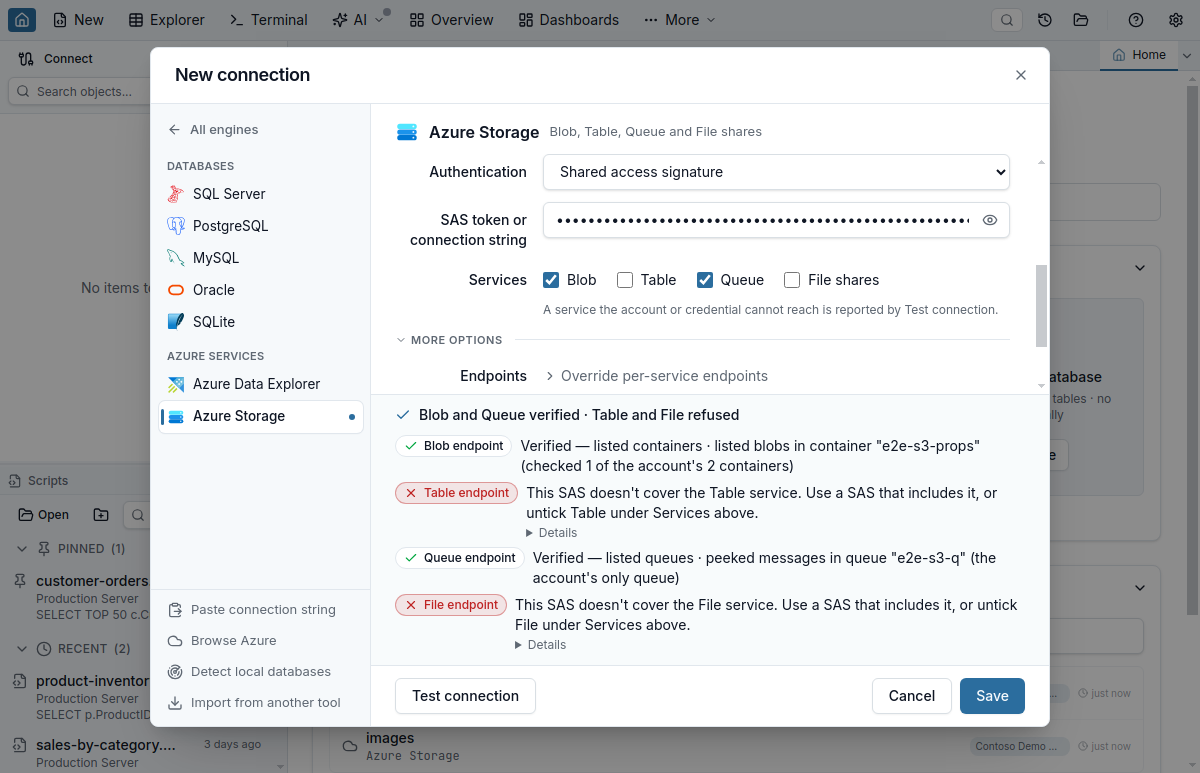
AuthorizationServiceMismatch).What it does not do: it names Azure RBAC roles and SAS letters, not Data Lake ACL entries, so an identity that should get in through an ACL is told which role would also work. It checks at most ten items per service. For queue writes the in-app message names Storage Queue Data Contributor, which covers sending and receiving, though Message Sender or Message Processor alone would be enough. And it works from Azure’s refusals, not from your role assignments, so a role that is still propagating shows as missing until Azure applies it. The full rule list is in the Azure Storage docs, with the role table at Microsoft Entra ID: which role each operation needs.
Quick Answers
Short answers to common questions about Azure Storage authorization errors.
Q: Why can I list my Azure Storage containers but not open them?
A: Listing containers is a management action that the Reader, Contributor and Owner roles include. Reading the blobs inside is a data action that only the Storage Blob Data roles grant. Assign Storage Blob Data Reader (to read) or Storage Blob Data Contributor (to write) on the container or the storage account. Tables, queues and file shares have their own data roles: Storage Table Data Reader, Storage Queue Data Reader and Storage File Data Privileged Reader.
Q: I am Owner of the subscription. Why does Azure Storage say I am not authorized?
A: Owner manages the storage account but does not include data access through Microsoft Entra ID, so you have to assign yourself a data role even on an account you created. The Azure portal can still show your blobs because Owner may read the account keys, and the portal uses the key when you have that permission. Tools that use your Entra identity, such as the Azure CLI with --auth-mode login or AzCopy after azcopy login, need the data role.
Q: What is the difference between AuthorizationPermissionMismatch and AuthorizationFailure?
A: AuthorizationPermissionMismatch (This request is not authorized to perform this operation using this permission.) means the identity or SAS lacks the permission for that operation, so a role or a SAS permission fixes it. AuthorizationFailure (This request is not authorized to perform this operation.) is what Azure returns when the storage account's firewall, virtual network rules or disabled public network access block your address, and for other SAS authorization errors. Check the account's Networking settings before you change roles.
Q: How long does a new Azure Storage role assignment take to work?
A: Microsoft Learn says up to 10 minutes in its role assignment guides and up to 30 minutes on its Microsoft Entra authorization pages. Assignments at management group scope can take hours. Signing out and back in to the Azure CLI, Azure PowerShell or the Azure portal forces a refresh, and a program that calls the REST API can get a new access token.
Q: Which role do I need to read Azure file shares with Microsoft Entra ID?
A: Storage File Data Privileged Reader to list and download files, or Storage File Data Privileged Contributor to change them, and every request must declare the backup intent (--backup-intent in the Azure CLI). The Storage File Data SMB Share roles lack the backup-semantics actions that REST access requires. Listing the shares themselves needs a role that can read the storage account, such as Reader.
Q: Does Jam SQL Studio tell me which Azure Storage role is missing?
A: Yes, for each service you tick. Test Connection reads one container, table, queue or share after listing them, and when Azure refuses the read it names the data role and where to assign it, such as Storage Blob Data Reader on the account or the container. It names a missing SAS permission or service the same way, and for AuthorizationFailure it lists the network causes instead of claiming a role. It names Azure roles only; it does not suggest Data Lake ACL entries.
Summary
Read the error code before changing anything. AuthorizationPermissionMismatch is a missing permission: with Entra sign-in, almost always a data role that Owner, Contributor and Reader do not include, fixed by assigning Storage Blob, Table, Queue or File Data roles on the item or the account and waiting up to 10–30 minutes. AuthorizationFailure points at the network first. The SAS codes name the letter that is missing, KeyBasedAuthenticationNotPermitted means the account accepts only Entra sign-in, and an issuer mismatch means the wrong tenant. For browsing storage next to your databases, see Jam SQL Studio for Azure Storage.