
Last updated: 2026-08-22
Schema Compare
Compare database schemas across SQL Server, PostgreSQL, MySQL, MariaDB, Oracle, and SQLite to identify structural differences. View changes to tables, views, stored procedures, indexes, constraints, and other objects. Generate engine-specific DDL scripts to synchronize schemas between environments.
What is Schema Compare?
Schema compare is a database tooling feature that analyzes two databases and lists every structural difference — tables, columns, indexes, views, stored procedures, functions, triggers, and constraints that differ. The output is typically a side-by-side diff plus a DDL script (ALTER, CREATE, DROP) that can synchronize one database to match the other.
Schema compare tools are used to:
- Verify that a deployment applied all expected migrations
- Promote a schema from development → staging → production
- Audit drift between environments that should match
- Generate rollback scripts before risky schema changes
“JamSQL has been a lifeline for MacBook users. It's replaced several SQL tools in my workflow, and I'm still discovering new features. The support team is genuinely helpful, and clearly invested in their customers' success.”
Schema Compare vs Data Compare
These two Jam SQL Studio tools are often confused. They are complementary, not overlapping:
| Aspect | Schema Compare | Data Compare |
|---|---|---|
| What it compares | Database structure (tables, columns, procedures, etc.) | Table rows (actual data values) |
| Typical use case | Promote DDL from dev → prod | Sync reference data or audit row-level drift |
| Output script | ALTER TABLE, CREATE INDEX, etc. | INSERT, UPDATE, DELETE by primary key |
| Safe on production? | Review carefully — DDL is often irreversible | Usually safer — DML can be wrapped in a transaction |
If you need both, run schema compare first (to align structure), then data compare (to align rows).
Getting Started
Schema Compare helps you understand the differences between two database schemas. Whether you're comparing development to production, or verifying a deployment, this tool shows exactly what has changed.
How to Start a Schema Comparison
- Open Jam SQL Studio and connect to both source and target databases
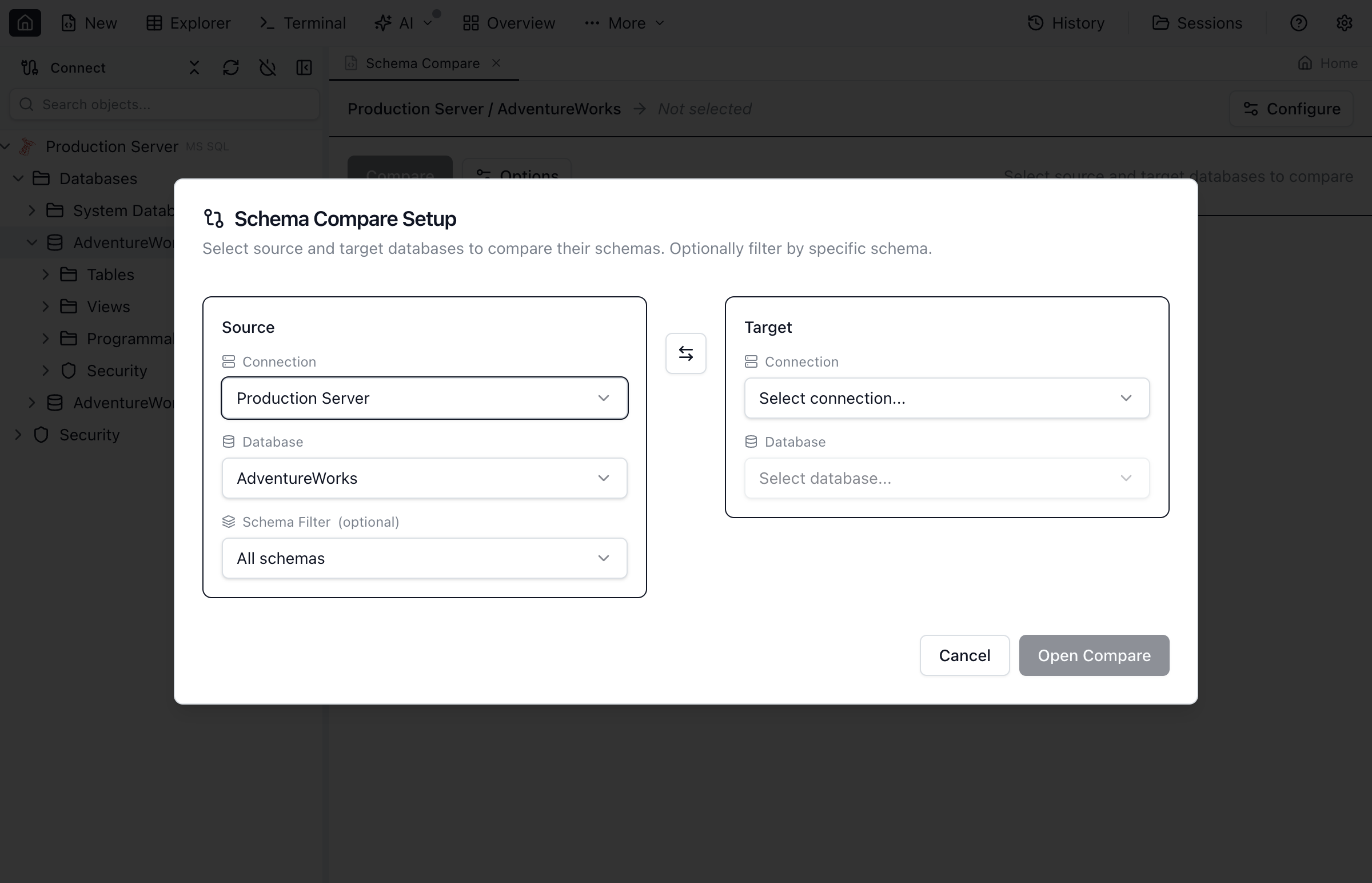
- Click More → Schema Compare in the main toolbar
- Select the source connection and database from the dropdown
- Select the target connection and database
- Click Compare to analyze the differences
Tip: Each database dropdown defaults to that connection's saved database, so you usually just need to confirm it before comparing.
Reopening a saved comparison. Session autosave keeps a Schema Compare tab's source, target, and options across restarts, so a comparison you set up today is still there tomorrow. When you reopen the app, the tab shows a Session Restored banner with its own Run Compare button — click it to refresh the results without reconfiguring anything.
If a comparison fails, the error panel names which side hit the problem — source or target — and which step it failed on (reading object counts, fetching the schema, or comparing), along with the database's own error text, instead of a single generic failure message.
Filtering schemas
For databases with many schemas, narrow a comparison to just the ones you care about. Each side of the setup dialog has a Schema Filter chip picker with two modes:
- Include — compare only the listed schemas. Useful when you want to focus a comparison on a single subsystem (for example, just
dbo). - Exclude — compare everything except the listed schemas. Useful for skipping noisy schemas like
auditorstaging.
Add schemas by clicking Add and picking from the dropdown. An empty filter means “all schemas” — the default. The filter is saved with the comparison tab and surfaces in Recently compared entries.
System schemas
System schemas (sys, INFORMATION_SCHEMA, pg_catalog, pg_toast, MySQL's mysql / performance_schema, Oracle's SYS / SYSTEM, etc.) are excluded from comparisons by default. This matters most when comparing a local database against a managed cloud database such as Azure SQL Database or Amazon RDS, where the platform injects management objects (firewall rules, audit metadata) that you can't replicate locally and that would otherwise show up as never-reconcilable diffs.
To include them — for example, when running a DBA-level comparison — tick Include system schemas in the schema-filter section of the Setup dialog.
Extension objects (PostgreSQL)
Objects that belong to a PostgreSQL extension — for example the hundreds of functions, operators, and types installed by PostGIS, pgcrypto, or pg_trgm — are excluded from the comparison, the same way pg_dump represents them with a single CREATE EXTENSION statement rather than per-object DDL. This keeps the diff focused on your own schema instead of flooding it with extension internals that can't be applied without the extension's binaries, and it keeps comparisons fast on extension-heavy databases.
Compare depth
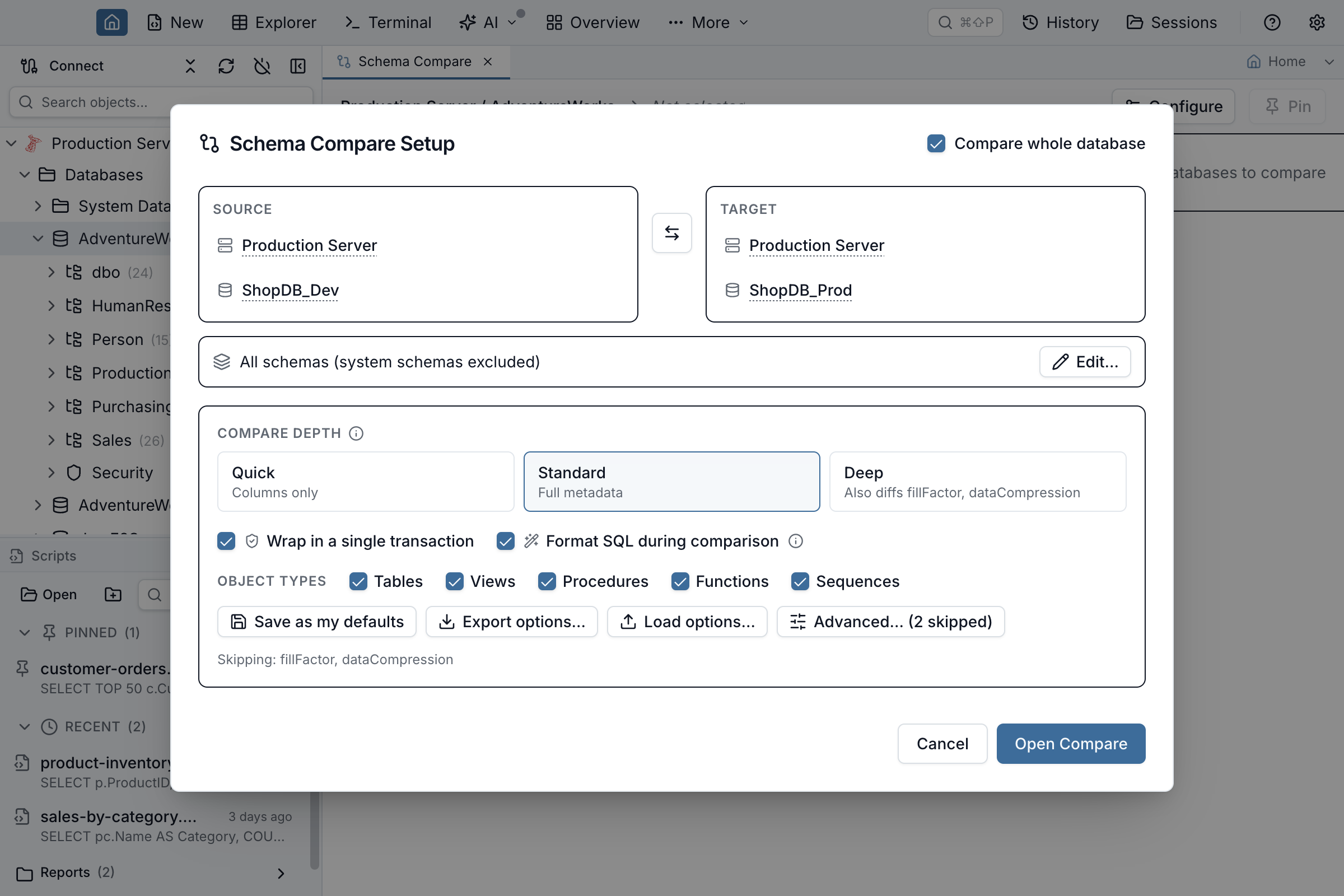
The Setup dialog exposes a Compare depth selector. Quick is the only preset that changes how much per-table metadata gets fetched; Standard and Deep fetch identically and differ only in which volatile properties are pre-ignored from the diff. Pick the preset that matches the comparison you're running:
- Quick — columns only. Skips constraints, indexes, triggers, table options, and partition definitions, but still captures per-column details such as computed expressions, collations, and comments, so drift in those surfaces too. Use this on very large schemas when you only care about column-level drift. (SQLite is the exception — see below.)
- Standard (default) — the full per-table fetch: columns, constraints, indexes, triggers, table options, and partition definitions. Engine-specific volatile-storage properties (SQL Server
fillfactorand data compression; PostgreSQLfillfactor; MySQLAUTO_INCREMENT; OraclePCTFREE/PCTUSED/INITRANS) are pre-ignored from the diff so they don't drown out real differences. Each depth card carries a one-line summary; hover it for the full description, which names the exact list for the engine you're comparing. - Deep — the exact same fetch as Standard. No properties are pre-ignored, so the volatile ones above show up as differences too.
On SQL Server, the per-table detail behind Standard and Deep (and the column detail behind Quick) is read set-based: one catalog query per metadata family for every 300 tables, rather than one per table. A comparison over a slow link — a remote server across a VPN or the internet — costs a few dozen round trips per side instead of several per table, which is what made large remote comparisons slow before. The result is identical to the per-table read; only the number of queries changes.
On SQLite, Jam pre-ignores nothing — none of the properties Jam compares there are volatile-storage ones (WITHOUT ROWID and STRICT are structural table declarations, not storage tuning). Standard and Deep would therefore run exactly the same comparison, so on SQLite the Deep card is greyed out with the reason next to it and Standard is the deepest comparison available. Every other engine gets a real Deep.
SQLite's Quick is also shallower in name only — it still reads constraints, indexes and table options in full, because SQLite exposes them from the same catalog read that returns the columns and there is nothing to save by skipping them. Triggers are the one class Quick really does skip there, and SQLite has no partitioning at all. The Quick disclosure on the results names what that run skipped, so on SQLite it reads “triggers were not compared” rather than listing five classes, three of which were compared.
On PostgreSQL, fillfactor is the one volatile-storage property Jam compares, and Standard pre-ignores it just as it does on SQL Server. PostgreSQL's autovacuum reloptions aren't part of the property set Jam diffs at all, so they never appear as differences at any depth.
If you tick or untick individual checkboxes in Advanced below, the depth selector switches to Custom to indicate that the current options no longer match a preset.
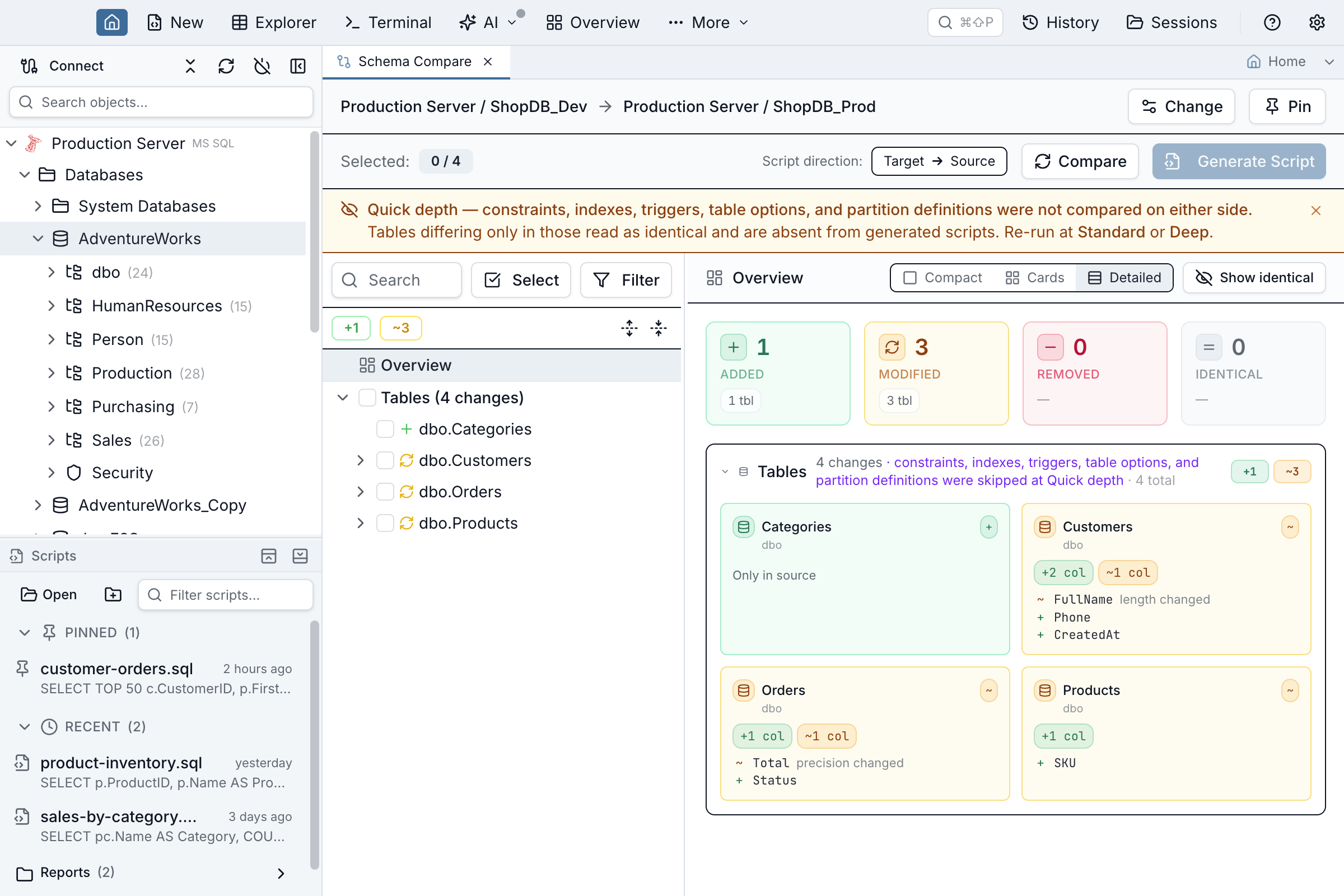
Because Quick leaves whole property classes unread, two tables that differ only in one of those look the same to it. A Quick comparison therefore never reports a clean match: an amber strip above the results names the classes this run did not compare and which side they were skipped on, the Overview says “No differences in what was compared” rather than “Schemas are identical”, and the Tables section carries the same note next to its change count. Re-run at Standard or Deep before treating a Quick comparison as complete — and note that a generated script contains no changes of those classes either, for the same reason.
The setup dialog says the same thing before you run: choosing Quick names the classes it will not fetch, right next to the depth control that is the only way to get them back. On SQLite that skip covers triggers only, so a real constraint or index difference is still safe to act on.
You can close any of these strips — every amber disclosure above the results carries a × at its right-hand end, which is worth having when several stack up on a short window. Closing one hides it for the comparison you are looking at, and the next comparison you run shows it again: a run can only ever be read alongside its own scope, never alongside what you dismissed on the previous one. Closing the Quick-depth strip in particular hides the loudest copy of that disclosure and none of the others: the Overview’s wording, the Tables section’s note and the AI prompt above are all unaffected.
Object types and advanced options
Below the depth selector, the Setup dialog lets you include or exclude object types from the comparison — Tables, Views, Stored Procedures, Functions, Sequences, and (SQL Server only) User-defined types. Engines that don't support a type hide the corresponding checkboxes automatically: SQLite has no procedures or functions, the Sequences checkbox appears only on SQL Server, PostgreSQL, and Oracle — the three engines that have sequences and whose live compare enumerates them — and the User-defined types checkbox appears only on SQL Server (see SQL Server user-defined types). MySQL/MariaDB and SQLite have no sequence concept, so no checkbox is offered there. Unticking a type means it is never read from either database, so a comparison scoped to views does no table work at all. This row only appears when comparing a whole database — untick Compare whole database and pick a single table, view, procedure, or function instead, and the type checkboxes disappear, since the object picker has already fixed the type on the source side. Picking one object narrows both sides: the target is read for that same object and nothing else, so a single-object comparison never lists the rest of the target database.
Because an unticked type is never read, a comparison that excludes one never reports a clean match either — the same rule as Quick depth, and for the same reason. An amber strip above the results names the types you left out, the Overview says “No differences in what was compared” rather than “Schemas are identical”, and a note in the Overview points out that there is no section below for those types — which is otherwise indistinguishable from a database that simply has none. Types the engines involved don't have (procedures on SQLite, sequences on MySQL/MariaDB) are not named, since excluding them removes nothing.
Pick one object and the comparison covers that object on both endpoints — whichever order you fill the dialog in, and however you got there (the Setup dialog, Set as Source / Set as Target from Object Explorer, a restored session, or Recently compared). The rest of the target database is never read, never listed, and never ticked by Select All. If the target doesn't have the object you picked, it shows as only in source — and that is the only row you get. Schema filters work the same way: a filter set on one endpoint applies to both, so an object in a schema you excluded is never reported as only-in-target and never dropped.
You can still compare two differently-named objects by picking one on each side. Jam then keeps both sides narrowed to exactly what you named — and it will not emit a DROP for the target object. Comparing Widgets against WidgetsV2 is an inspection, not a rename: "create the source one, drop the target one" would destroy the target's data. The statement is refused rather than silently skipped — a -- [REFUSED] line at the top of the script names the object, and the preview dialog shows a warning with the count. Run a whole-database comparison if you really do want the target object dropped.
The same refusal covers a Database Blueprint's individually excluded objects when the folder is the comparison's source: an object on the blueprint's exclusion list is still listed as only-in-target, but Jam will not script a DROP for it, and the -- [REFUSED] line tells you to change the blueprint's exclusions rather than the comparison's scope. That covers whole tables, views, procedures, functions and sequences — not individual columns or indexes on a table the blueprint does manage.
As always, read the generated script before you run it; Jam shows it to you first for exactly this reason, and never executes it on its own.
These choices carry over. The next comparison you start on the same database engine — from the toolbar, the command palette, or an Object Explorer context menu — opens with the object types, depth, and ignored properties you last used, instead of resetting to "compare everything". Options are kept per engine, because the ignorable properties differ between engines: a SQL Server selection is not replayed onto a PostgreSQL comparison.
Only the choices you make are remembered this way. When Apply schema to DB opens a comparison from a Database Blueprint, the object types the blueprint doesn't model are switched off as a scope constraint rather than a preference — so they never become your saved default for that engine, no matter how many times you reopen Change and re-point the comparison at other databases. That holds across restarts: the distinction is saved with the tab, so closing and reopening Jam SQL doesn't turn a blueprint's scope into your default.
The setup dialog also exposes a first-class Format SQL during comparison toggle (on by default). When on, view, procedure, function, and trigger definitions are run through the engine-aware SQL formatter on both sides before classification — so two routines that differ only in indentation or keyword case collapse to Identical instead of crowding the tree as Modified. The DDL diff pane has a per-comparison Formatted / Raw toggle so you can flip back to the unformatted text for one comparison without re-running. When formatting falls back to a basic regex mode (rare — happens for syntax the parser doesn't recognise), a small warning chip appears in the diff toolbar with a one-click link to switch to Raw.
The collapsible Advanced section exposes the remaining knobs:
- Ignore case differences in identifiers — useful when comparing case-sensitive engines against case-insensitive ones, or when you've renamed objects between cases.
- Ignore whitespace in view/routine definitions — suppresses formatting-only differences in stored procedure, function, and view bodies. Greyed out when Format SQL during comparison is on (which already collapses whitespace and keyword-case drift).
- Properties to compare — a checklist of table-level and column-level properties. Checked means compared: untick a property to drop it out of the diff, tick it again to bring it back. The list is filtered to your engine, so a PostgreSQL comparison only shows PostgreSQL-relevant properties (
tablespace,fillfactor,UNLOGGED,INHERITSparents, generated-column expressions, …) and never SQL Server'smemoryOptimizedor SQLite'sWITHOUT ROWID.
Save as my defaults. Once you've dialed in depth, object types, and advanced options the way you like them, click Save as my defaults next to the Advanced button. The next time you open the Setup dialog for that same engine, those saved options are pre-loaded instead of the built-in baseline. Defaults are saved per engine, so a MySQL default doesn't affect SQL Server comparisons.
A saved default outranks whatever you last ran. Three things can decide what a new comparison starts from, and they are ranked, highest first:
- Your saved default for that engine, if you've pressed the button.
- The options you last ran — remembered automatically on every Compare, but used only for engines you have never saved a default for.
- The built-in baseline.
So a one-off comparison you tweak and run doesn't quietly become your new default: press Save as my defaults once and later ad-hoc runs leave it alone. Restoring a recent comparison is a third, separate gesture and outranks both — it replays exactly the options that run used, which is the point of picking it.
Share comparison settings as a file
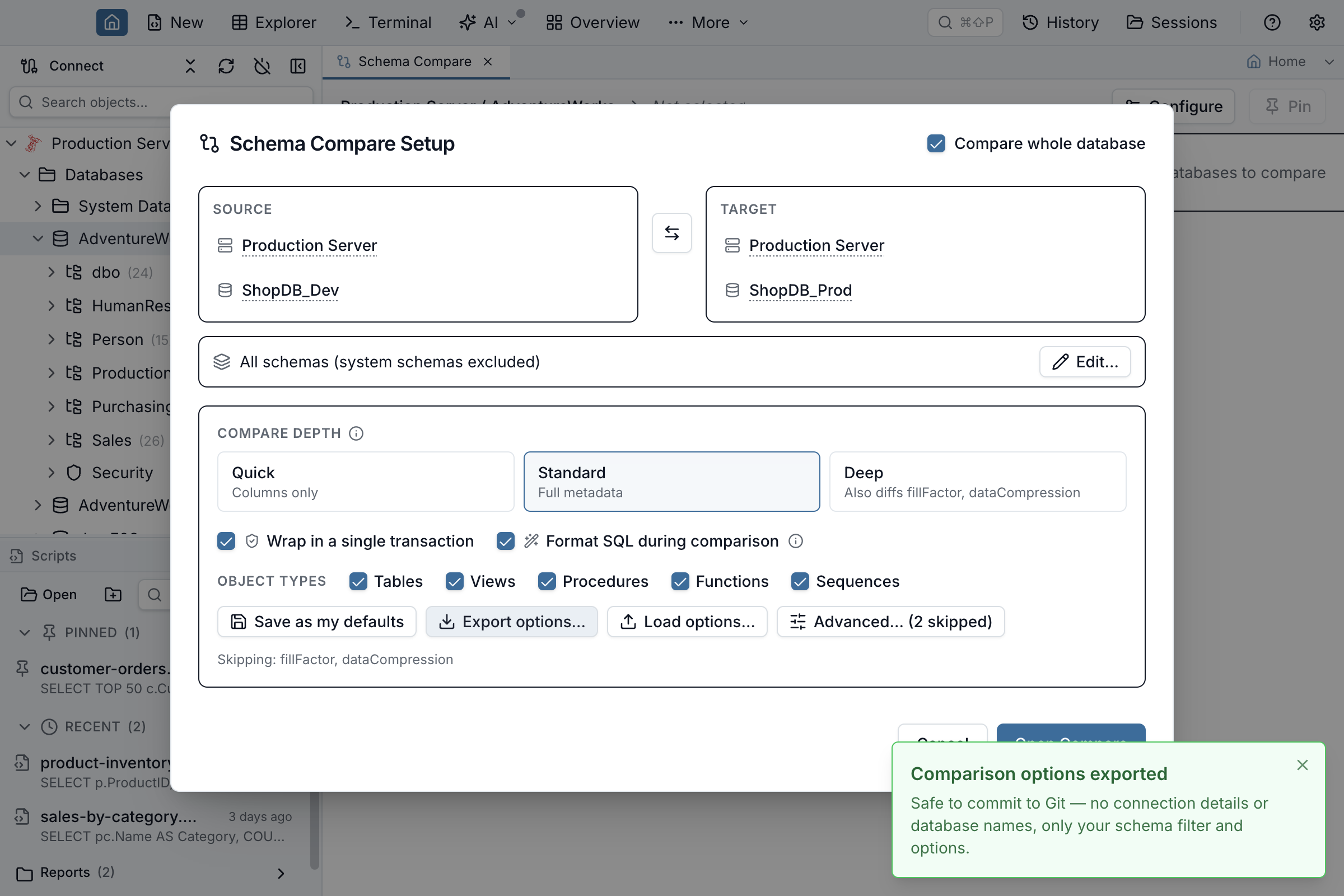
Defaults live on your machine. To share a comparison setup with your team, use Export options… and Load options… next to the Advanced button in the Setup dialog. Export options… writes a small versioned JSON file (suggested name schema-compare-options.jamsql-compare.json) holding your schema filter and every comparison option — depth, object types, and the Advanced checklist. Commit it to your repository next to the schema it compares, and everyone on the team compares the same way.
- The file carries no connection details and no database names. No server, no connection, no credentials, no database — nothing that identifies an endpoint. That's what makes it safe to commit to a shared repository. It does carry the schema names in your include/exclude filter, since a filter without them wouldn't be a filter; if a schema name is itself sensitive, clear the filter before exporting.
- Loading a file applies to that dialog only. It never overwrites your Save as my defaults settings — trying someone else's setup is an experiment, not a commitment. Close the dialog without comparing and nothing about your own defaults has changed.
- Options your engine doesn't have are dropped, and you're told which. Load an Oracle team's file against SQL Server and the Oracle-only properties are skipped with a warning naming them, rather than silently carried into a comparison that can't honour them.
- The file is versioned, so a file exported today keeps loading in later releases.
Recently Compared
The setup dialog remembers the source, target, and full option set of comparisons you've run previously. Pick the most recent comparison from the Recently compared section near the top of the dialog to restore everything — source, target, mode, and every Advanced option — in one click.
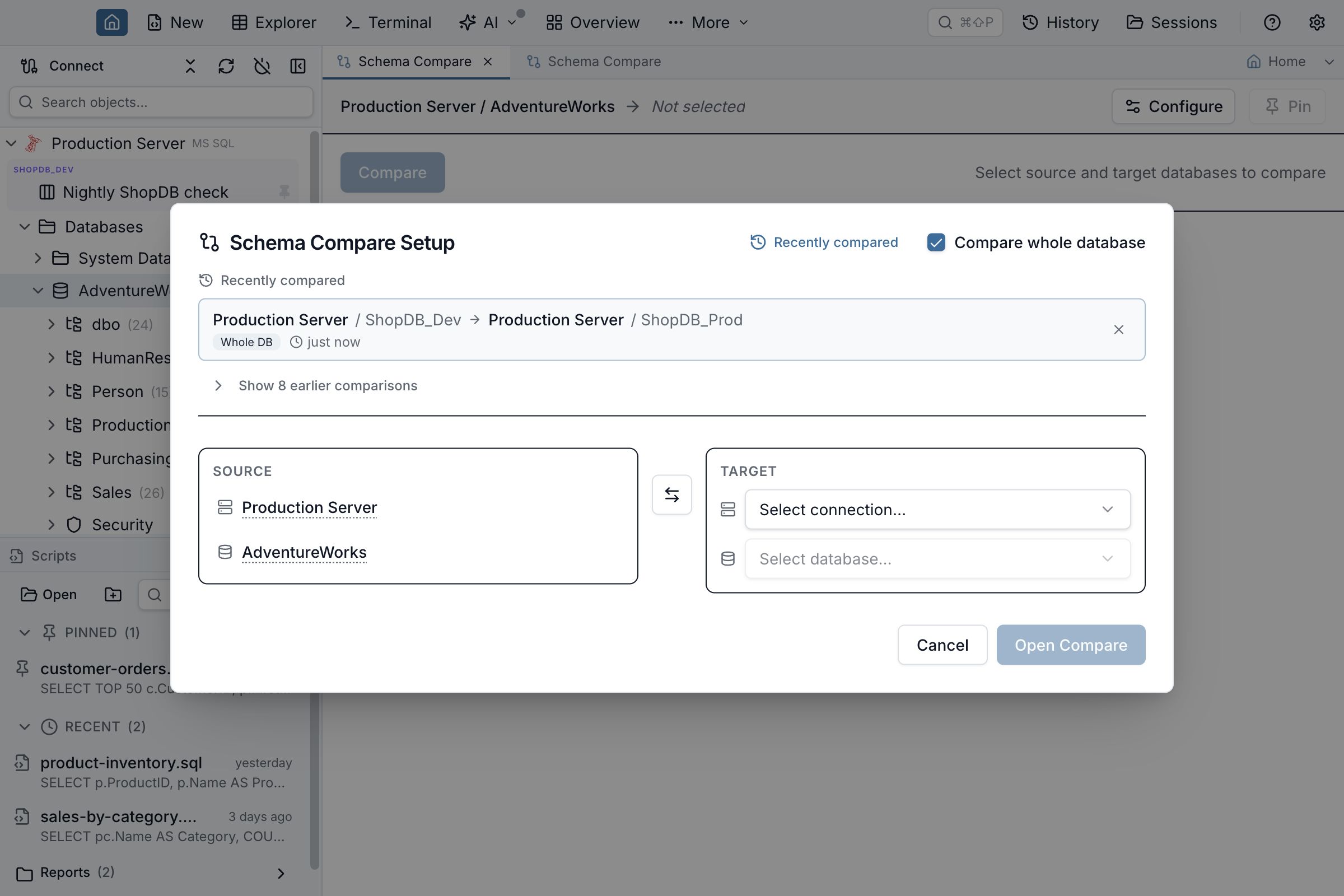
- The list is open when you open the dialog with nothing selected. As soon as you pick a connection it collapses into a Recently compared link at the top of the dialog, next to Compare whole database, so the Source and Target panels stay in view. Click the link to bring the list back, and again to put it away.
- The most recent comparison is shown directly. Earlier comparisons collapse behind a Show N earlier comparisons toggle.
- When the expanded list contains two or more entries, a search box filters them by connection or database name.
- Each entry shows whether the comparison was a whole database or a single object, and how long ago it ran. Hover over an entry to remove it from history.
- Entries whose connection no longer exists are marked connection unavailable — clicking still pre-fills the saved values so you can re-pick the connection.
- If a restored database isn’t in the server’s current list, the endpoint still shows the name and an amber note explains why the list doesn’t contain it — it may have been dropped or renamed, your login may not be able to see it, or the connection may be limited to a single database. Pick another database from the dropdown to carry on.
Personal Mode Limits
Schema Compare is available in both Personal and Pro modes, with different limits:
- Personal mode - Full comparisons are available when both schemas have 200 objects or fewer, counting only the object types included in the comparison (tables, views, procedures, functions, sequences). Larger schemas require Pro.
- Pro mode - No schema-size limits.
Understanding the Results
After the comparison completes, the object list opens on a top-level Overview entry that's selected by default. Below it, all database objects are organized by type in a tree view. Each object is color-coded to indicate its status:
Overview
The Overview pane is a bird's-eye view of the diff. It shows totals for added, modified, removed, and identical objects across every category, plus an adaptive grid of object cards. For modified tables you see the actual changed columns inline (with type changes called out); for modified views and routines you see line-count deltas. Use the Compact / Cards / Detailed density toggle to dial in the level of detail — when there are many changes the view automatically switches to a dense layout. Click any card to jump straight to that object's DDL diff.
How long it took, and how each side was read. Under the totals, the Overview prints one line such as “Read source 1:12 (SQL Tools) · read target 2:48 · compared 31.0 s”: the time spent reading the source database, the time spent reading the target, and the time the comparison itself took once both were in memory. Durations under a minute are written in seconds, longer ones as minutes and seconds. A side is labelled when it was not read over the ordinary database driver — SQL Tools for a SQL Server connection using Windows authentication, folder for a Database Blueprint folder, driver, then SQL Tools when the driver connection dropped part-way through the read and the rest of that side went through SQL Tools — since the two sides of one comparison can be read in different ways. Hover the line for the per-phase split (tables, views, routines, sequences, user-defined types) and whether the two sides were read at the same time or one after the other. The line is absent when the results on screen did not come from a fresh read of both databases — for example after an option change was re-evaluated from the last scan.
Viewing Object Details
Click on any object in the results to see a side-by-side diff view showing exactly what has changed. The diff highlights additions in green and deletions in red. The Source database is always on the left and the Target on the right, matching the Source → Target direction shown in the workspace header and in the generated sync script. Each pane has its own header with a role badge, the connection alias and database name, and the underlying server — hover for the full connection details.
When a table is marked Modified but the CREATE TABLE statement looks identical, Schema Compare surfaces the actual difference in two ways. A banner above the diff editor lists the dependent objects (indexes, constraints, triggers) that differ, and the differing dependents' CREATE statements are appended inline to the source and target panes so the side-by-side view highlights the delta. Identical dependents are not shown — only the ones that differ are inlined.
Table-Level Coverage Beyond Columns
Schema Compare diffs more than just columns and constraints. Per-engine table options, generated/computed expressions, identity seed and increment, collation, comments, and partition definitions are all captured and surfaced. When two tables differ only on one of these dimensions, the table is correctly flagged as Modified and the affected property appears in the dependents banner.
- SQL Server — data compression, fillfactor, memory-optimized, durability,
MS_Descriptionextended properties (table + column), partition function/scheme, identity seed/increment, computed columns, per-column collation. - PostgreSQL — tablespace, fillfactor,
UNLOGGED,INHERITSparents,COMMENT ONon tables and columns, partition definition (RANGE/LIST/HASH), stored generated columns, per-column collation. - MySQL — storage engine, row format, default charset and collation,
AUTO_INCREMENT, table and column comments, generated columns, partition method and expression. - Oracle — tablespace,
PCTFREE/PCTUSED/INITRANS, compression, logging, organization (HEAPvsINDEX), table and column comments, identity seed and increment, virtual columns, partition strategy and sub-strategy. - SQLite —
WITHOUT ROWID,STRICT, generated columns parsed from the originalCREATE TABLEtext.
A column's JSON classification is also diffed: promoting or demoting a string column between a JSON-validated form (a CHECK such as ISJSON(col) = 1 on SQL Server, col IS JSON on Oracle, or json_valid(col) on SQLite) and a plain string column surfaces as a structural jsonClassification column change.
Drill-Down Diff Details
When a table has many differences spread across multiple dimensions, the dependents banner caps inline display at twelve entries and shows a View all N differences → link. Clicking it opens a drill-down dialog that lists every difference grouped by kind (columns, constraints, indexes, triggers, options, partition) with the source and target values shown side-by-side for option-level changes. Press Escape or click outside to close.
Ignoring Volatile Properties
Some properties — fillfactor, data compression, MySQL AUTO_INCREMENT, Oracle PCTFREE / PCTUSED / INITRANS — change frequently in production and rarely indicate a meaningful schema difference. The Standard depth preset pre-ignores the engine-specific volatile-storage subset for you, and hovering the Deep depth card names the exact properties it suppresses for the engine you're comparing (on SQLite it suppresses nothing, and the card says so); the Advanced section of the Setup dialog exposes the full engine-filtered list under Properties to compare so you can fine-tune which properties contribute to the diff. Note the direction: a ticked property is one Jam compares — untick it to drop it from the diff.
You don't have to visit Advanced to ignore a single property, either. Open a Modified object's detail view from the Overview canvas, or select the object from the tree to view its Summary tab, and hover any changed-property row: an eye-off button appears, and right-clicking the row offers the same “Ignore ‘property’ in this comparison” action from a context menu. Either one adds that property to your ignore list and re-diffs instantly, same as editing the Advanced checklist — the object drops out of Modified right away if that property was its only difference. Only properties the current engine actually supports ignoring get this row action; structural differences (a changed data type, a renamed column) don't, since ignoring them wouldn't make sense. Un-ignoring stays one click away: open the results toolbar's “Skipping: …” summary to jump to the same Advanced checklist and tick the property back on.
One property gets its own first-class checkbox in the Setup dialog: Ignore column collation, the same option SQL Server Data Tools’ Schema Compare offers under that name. It's shorthand for unticking collation in the Advanced checklist — column-collation differences leave the diff, and a script generated from the comparison never changes a column's collation: on SQL Server it emits no COLLATE clause at all, while on PostgreSQL and MySQL a type-changed column re-states the target's own current collation where the syntax needs a clause to preserve it (see SQL Server collation changes for what that means for created tables and columns). It's offered on every engine whose comparer reads column collations, defaults to off, and, like any other ignored property, flips the depth selector to Custom and shows up in the “Skipping: …” summary.
You never have to open Advanced to find out what's being skipped. Whenever at least one property is currently ignored, the Setup dialog's options row shows a live “Skipping: …” summary next to the Advanced button, and the button itself grows a count — Advanced… (N skipped) — provided Jam can resolve the engine being compared: a restored setup whose connection has since been deleted shows neither until you pick a valid connection. The summary grows or shrinks the moment you tick or untick a property, and clicking it jumps straight to the checklist. Once you run a comparison, the results toolbar repeats the exact same summary for the comparison you're looking at, and clicking that summary opens the same Advanced checklist directly — no need to reopen the full Setup dialog first.
Editing the checklist from the results toolbar saves your change right away, but it doesn't retroactively change the diff already on screen: the results summary keeps describing the comparison that actually ran until you run Compare again, and the dialog says so (“Changes here apply to your next Compare”). Re-run Compare to see your edit reflected — either way, a result set can never silently hide a property class.
That re-run is instant when the only thing that changed since your last scan is a pure compare-time setting — which properties to ignore, or case/whitespace sensitivity: Jam re-evaluates your last scan of both databases instead of reconnecting and re-reading their catalogs, so there's no fetch progress bar the second time. A small “Re-evaluated from the last scan” notice appears above the results with a Refresh to re-scan link, in case you specifically want to pick up schema changes made on either database since the last scan. Clicking Compare again with nothing changed always re-scans too — the instant path only exists for a genuine option edit, so a bare re-click still reflects anything that changed on either database since your last scan. Anything that changes what gets fetched — compare depth, which object types are included, system schemas, or the source/target databases themselves (including switching either side from Object Explorer's “Set as Source”/“Set as Target”) — always triggers a full re-scan, same as before.
Identity seed and increment are compared at every depth, including Standard. They look volatile but aren't: Jam reads the declared seed (Oracle ALL_TAB_IDENTITY_COLS, SQL Server sys.identity_columns.seed_value), which is fixed when the column is created and does not move as rows are inserted — only the separate high-water values (Oracle LAST_NUMBER, SQL Server last_value) do, and Jam never reads those. So a dev database declaring START WITH 1 against a production one declaring START WITH 1000 INCREMENT BY 5 is a real difference, and Jam reports it. Untick identitySeed / identityIncrement in Properties to compare if you'd rather not see them.
Differences that aren’t differences
Two objects that mean the same thing compare as identical, even when the text stored in each database isn’t byte-for-byte the same. You don’t need to switch anything on for this — there is no option to find.
- Identifier quoting.
CREATE FUNCTION [dbo].[Format]andCREATE FUNCTION dbo.Formatname the same function, so a comparison that finds nothing else different reports the function as identical. The same applies to MySQL backticks and to SQLite brackets. - Redundant parentheses around a column default. SQL Server stores
DEFAULT 0as((0)), but a database carried forward from an older server — or a hand-edited Database Blueprint.sqlfile — can hold(0)for the same default. Both mean zero, so neither flags the column. - The owner or database name in a view, on Oracle and MySQL. Comparing two Oracle schemas, or two MySQL databases, used to report every view they share as modified — and on Oracle every table carrying a trigger too. Neither was a real difference. On Oracle the owner is not stored with the view at all; Jam writes it into the
CREATE OR REPLACE VIEW "owner"."name"line it builds, so two identical views differed on their first line. On MySQL the server rewrites a view's text as it is created and stamps the current database onto every table reference, so the sameCREATE VIEWstatement is stored differently in each database. Both are now recognised for what they are — the endpoint's own name, written by something other than the author — and the views compare as identical.
This is deliberately narrow, because a comparison that hides a real difference is worse than one that shows a cosmetic one. Quotes are only dropped from names that could legally be written without them: a name containing a space, a reserved word such as [Order], or one starting with a digit keeps its quotes and still compares character-for-character. Text inside a string literal or a comment is never touched at all — a procedure that returns '[dbo].[Format]' genuinely differs from one that returns 'dbo.Format', and so does a changed comment. And a default that actually changed (((0)) to ((1)), or a default that was dropped) is always reported.
The owner / database rule above is narrow in the same way, and in two directions. Only the name of the endpoint you picked is treated as the engine's own: a view that names some other schema or database — a genuine cross-schema reference — keeps it, so two views reading from different places are still reported as different. And only what the engine wrote is neutralised: on Oracle that is the header line Jam builds and never the body below it, so an owner the author typed into the SELECT stays a real difference you can act on.
Only the verdict is normalised. The side-by-side DDL always shows exactly what each database stores, so you can still see the quoting each side uses. The generated sync script shows the same text, with one deliberate exception: on MySQL the database name the server stamped into a view's body is re-pointed at the target, because a script that carried the source's name would create a view in the target that reads the source's tables. See how the script addresses the target for the full rule.
Ignoring the object owner
One header difference is not folded away by default, because it is genuinely in the stored text: on SQL Server, a procedure created as CREATE PROCEDURE [dbo].[sp_Report] and the same procedure created as CREATE PROCEDURE [sp_Report] have different definitions in sys.sql_modules, and Jam reports the pair as modified even though both are the same dbo object. When one database's objects were scripted with the owner and the other's without — a very common split between a long-lived production database and one rebuilt from scripts — this floods the Modified list with differences that are spelling, not substance, and buries the real ones among them.
Jam notices this shape for you. When a comparison finds modified views, procedures, functions or triggers whose only difference is that header spelling, the results screen shows a banner counting them — “90 modified objects differ only by the schema qualifier in the definition header” — with an inline Ignore object owner action. Clicking it re-judges the comparison instantly from the data already fetched (no re-read of either server — after a slow read of a remote database, the flip is immediate), and those objects move to Identical while everything genuinely different stays put. The same option is a checkbox in the Setup dialog on SQL Server comparisons, it round-trips through shared options files, and it is the same idea as the “Ignore owner” option long-time Apex SQL Diff users will remember.
The option is deliberately narrow: it applies to the schema qualifier in the CREATE header only — whatever schema it names, bracketed or bare, and on a trigger both on the trigger's own name and in its ON clause. Everything else keeps its weight. The object name in the header still counts (so a header left stale by sp_rename, which never rewrites the stored text, is still reported), the table name in a trigger's ON clause still counts (a trigger moved to another table is a real difference), and a qualifier written inside a definition's body — in a SELECT, an EXEC, a join — is never touched. With the option on, the banner appears only when it actually reconciled something, stating how many objects are reported identical because of it, and an agent reading the comparison over MCP gets an owner-ignored disclosure row saying the same thing. As everywhere else, only the verdict is normalised: the side-by-side DDL always shows exactly what each database stores.
Definitions that could not be read
Schema Compare can only compare a view, procedure, function or trigger if the server actually returns its definition. When it doesn't, Jam SQL marks the object Unreadable rather than guessing — two definitions nobody was allowed to read are not evidence that the objects match.
Jam SQL detects two ways this happens, and tells them apart:
- The object is listed, but its body comes back empty. The usual cause is permission: on SQL Server a login without
VIEW DEFINITIONstill sees the object in the catalog but gets no body for it. Encrypted modules (WITH ENCRYPTION) and CLR modules behave the same way for everyone, including a sysadmin, so this is not always something you can grant your way out of. An amber banner above the results says how many definitions were affected and whether it was the source, the target, or both. - The objects are not listed at all. On MySQL, a connection without the
TRIGGERprivilege receives an empty trigger list rather than a permission error, so “no triggers” and “not allowed to look” are indistinguishable. Jam SQL detects this and says Triggers could not be listed instead of reporting every trigger on the other side as added or removed.
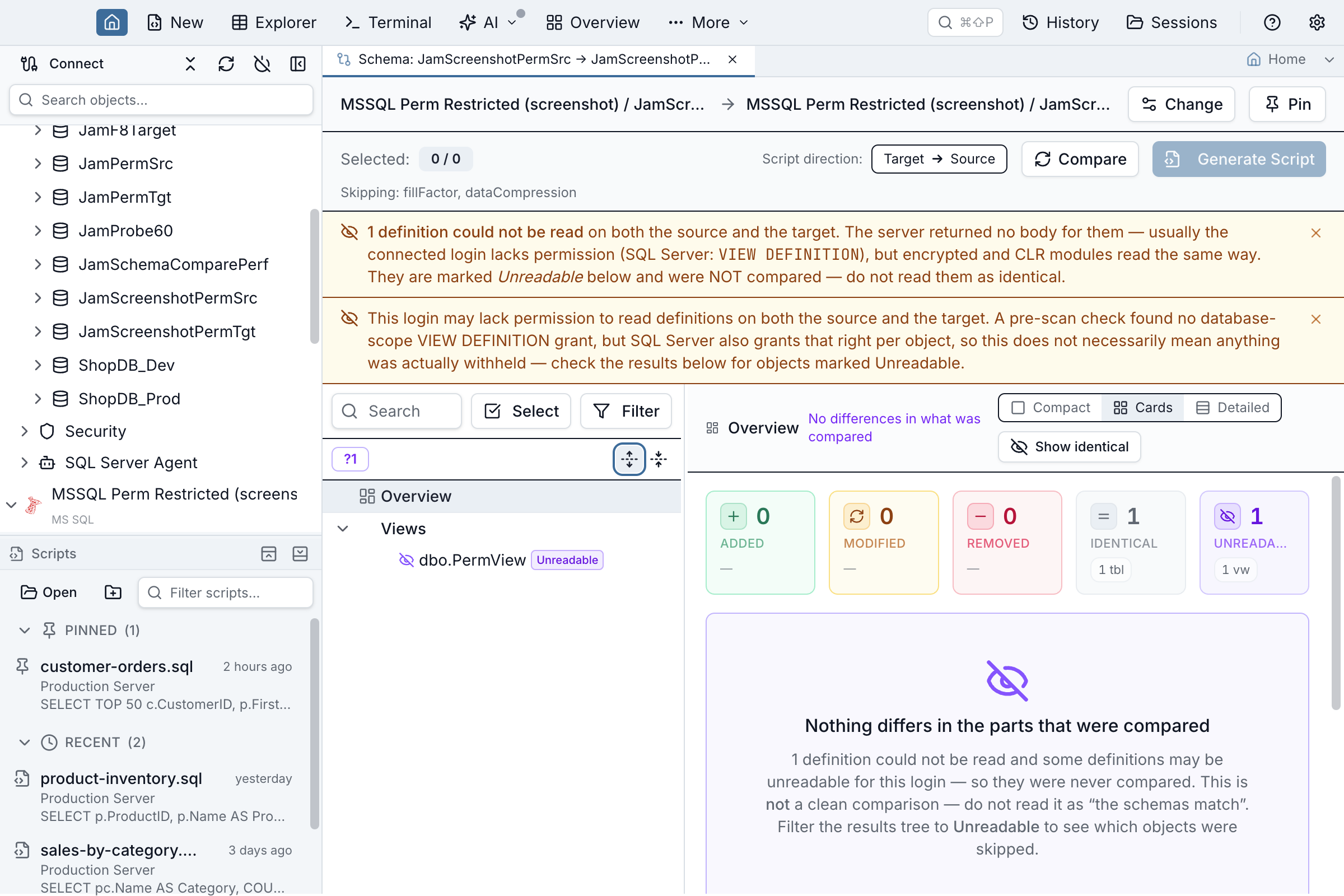
What Jam SQL does with these objects, whenever it can tell they were withheld:
- They are never reported as identical, and never as a difference.
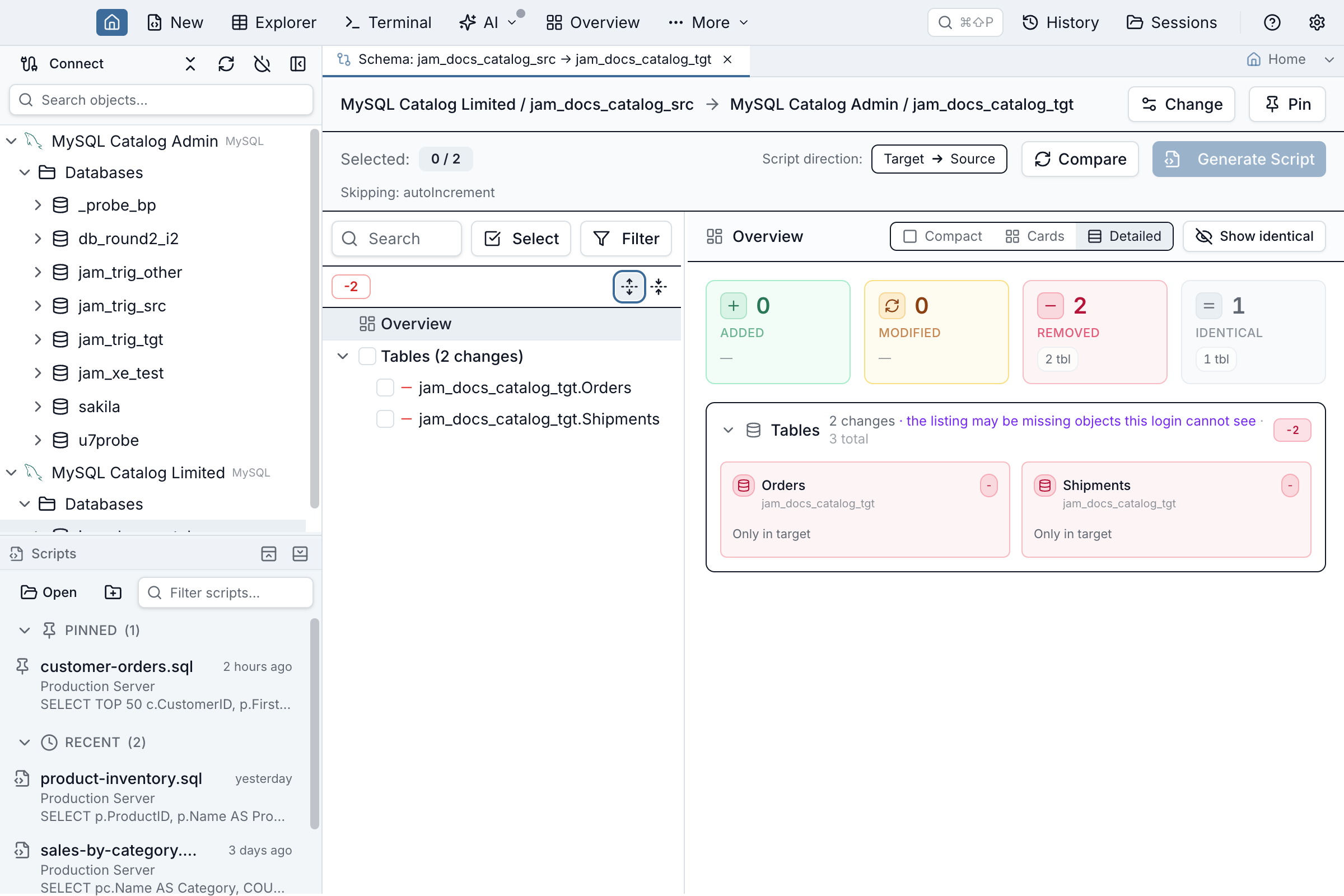
- They are excluded from the change counts, and shown separately as an Unreadable count. That number is the total of what the banners report — withheld definitions and unlistable triggers are counted once each, never twice.
- They cannot be selected for a synchronization script. Jam SQL will not write DDL from a definition it never read.
- Whenever Jam SQL knows something was withheld or could not be listed, the Overview will not tell you the schemas match. If nothing differs in what could be read, it says exactly that instead of showing a clean result.
That last point depends on Jam SQL being able to see that something was hidden, and there is one SQL Server configuration where it cannot — read the warning below before you rely on a comparison run by a restricted login.
VIEW DEFINITION at database scope still reads as an empty database — but it can no longer produce a whole-schema DROP unnoticed.A specific DENY VIEW DEFINITION on the database (as opposed to simply not being granted it) does not blank the definitions — it empties the catalog. sys.tables, sys.views, sys.procedures, sys.columns and the INFORMATION_SCHEMA views all return zero rows, while SELECT on the data keeps working. Jam SQL still cannot tell that apart from an empty database, so that endpoint reads as having no objects and nothing is marked Unreadable.
What changed is what happens next. When a generated script would DROP every object the comparison examined on the side it modifies — leaving that database with nothing — Jam SQL withholds every one of those DROP statements and says so at the top of the script and in the Script Preview dialog, naming the count. If the other side's catalog came back empty, the message says that too, and if Jam's pre-scan permission check also found no database-scope VIEW DEFINITION grant there, it names this configuration as a likely cause. That is offered as a hint, not a diagnosis. Nothing destructive is emitted until you press Yes, drop all N objects.
First syncs are unaffected. Creating a schema in a genuinely empty database produces only CREATE statements, so it never reaches this check — no confirmation, no warning.
What this does not cover. The check is about wholesale destruction, so it does not fire when the database keeps at least one object, or when fewer than five objects would be dropped — a short script you can read in full. A permission gap covering only part of a database is a different shape, handled separately below. Before comparing with a restricted login, check that it can see the catalog — SELECT COUNT(*) FROM sys.objects; returning 0 on a database you know is not empty is the tell. Always read a generated script before applying it.
On SQL Server, denying VIEW DEFINITION on individual objects — typically on top of a database-wide grant — removes just those objects from the catalog. Everything else lists normally, so the endpoint does not look empty, and the pre-scan permission check reports that this login can read definitions: it holds the database-scope grant, and the per-object denies sit on top of it. The hidden objects simply never appear in the listing the comparison is built from. An object hidden on the source but present on the target is then indistinguishable from one that was deleted — and the script that “fixes” that is a DROP.
The same shape exists on Oracle and MySQL, which filter their catalogs by privilege too, so every engine is asked whether this login could see the whole catalog before the results are shown. What each engine can actually answer differs:
| Engine | Can a login be blind to part of the catalog? | What Jam SQL can tell you |
|---|---|---|
| SQL Server | Yes — DENY VIEW DEFINITION per object removes it from metadata. | An exact count of the objects filtered out of this login's catalog. |
| Oracle | Yes — the ALL_* views mean “accessible to the current user”, so an object you have no grant on is simply absent. | An exact count, when the login can also read DBA_OBJECTS; otherwise that the listing may be incomplete, with no count. |
| MySQL | Yes — information_schema shows only objects you hold a privilege on. | That the listing may be incomplete, with no count — MySQL gives a table-scoped login no way to count rows it was not shown. A database-wide or global grant is treated as complete. |
| PostgreSQL | No — pg_catalog is readable by every role, and Jam SQL lists from it rather than from the privilege-filtered information_schema. | Nothing to disclose. A role with SELECT on two of five tables still sees all five in the comparison. |
| SQLite | No — there are no users, roles or GRANT; access is the file's, and it is all-or-nothing. | Nothing to disclose. |
When an engine reports objects hidden, the Overview marks every object category incomplete. What happens to the generated script then depends on whether the server could produce a count, because a count is the difference between “this listing is provably short” and “this listing might be short”:
DBA_OBJECTS can only ever say the listing MAY be short, never by how much.- With a count — the
DROPstatements are withheld. On SQL Server, and on Oracle when the login can readDBA_OBJECTS, the server hands back a number. Every whole-objectDROPthe comparison manufactured is then kept out of the script, and each one gets its own-- [REFUSED]line naming the object, plus a summary block giving the hidden count, the database, and how many statements were withheld. There is no minimum: one withheldDROPis as unverifiable as forty, because reading aDROPcannot check it against an object your login cannot see. If you are certain, the Script Preview dialog offers Include N DROP statement(s), which regenerates the script with them in and keeps the disclosure at the top. - Without a count — the script is disclosed, not gated. On MySQL, and on Oracle without dictionary access, the engine can establish that its catalog is privilege-filtered but offers no way to count what it removed. The
DROPstatements are emitted and a-- [REVIEW]block at the top says the listing may be incomplete and that this login cannot count what it could not see. Withholding here would block every comparison such a login ever runs, with nothing it could do to satisfy the check — and its limited grants often produce genuine differences within what it can see. Confirm thoseDROPs against a login that can see everything before running the script.
In neither case can Jam SQL name the hidden objects — the permission that hides them hides their names too. The objects named on the -- [REFUSED] lines are the ones on the other side whose DROP was withheld, which is what lets you check them yourself.
A DENY that leaves the object visible — a DENY SELECT, say — is not counted: the object is still listed and still fully compared, so nothing is missing. Blindness on the target side neither withholds a statement nor puts a note on the script, and deliberately: an object the target cannot see reads as new, which produces a CREATE the server rejects because the object is already there. That fails loudly and destroys nothing. Only the side the comparison reads from can turn an invisible object into a DROP.
To find them, filter the results tree to Unreadable. A trigger nobody could read keeps its parent table marked Unreadable when the table has no other differences; if the table also has real changes it stays marked as changed, and the withheld trigger is listed in that table's Summary tab.
If the cause is permission, grant the connected login VIEW DEFINITION (SQL Server) or TRIGGER (MySQL), then run the comparison again. MySQL checks TRIGGER per table, so Jam SQL asks whether your grants cover every table in the comparison. A database-wide grant (GRANT TRIGGER ON db.* TO …) is the simplest way, and the one to prefer if tables get added later; table-scoped grants (GRANT TRIGGER ON db.table, including a per-table GRANT ALL PRIVILEGES) count too, as long as they cover all of them. If even one compared table is missing its grant, that table's triggers stay invisible and Jam SQL reports the triggers as not listed. A table-scoped grant has to name the table's database exactly — _ is a wildcard in a database-wide grant but not in a table-scoped one — and on a case-sensitive server (lower_case_table_names = 0, the Linux default) it has to match the table's case too. For encrypted and CLR modules there is nothing to grant — compare those by hand.
Table details that could not be read
Table options, partition definitions, and certain per-column details (computed expressions, identity, collation, comments) come from a separate query per table, run after the table's core shape is already known. If that query fails for a table — a transient error, or a permission gap narrower than the one described above — only those fields are affected; the rest of the table's comparison proceeds normally.
Jam SQL never treats a query failure as “this table has none of that”. When it happens, an amber banner above the results says how many table fields were affected and whether it was the source, the target, or both. A table can still show as identical or modified in this case — the failure is scoped to specific fields, not the whole object — but the affected fields render blank, and a diff (or a match) involving them is not reliable evidence. The Overview reflects this too: if the failure is the only reason nothing differs, it says so instead of reporting a clean match.
Pre-scan permission warning (SQL Server)
Before a comparison starts, Jam SQL runs one quick check per SQL Server side: HAS_PERMS_BY_NAME(DB_NAME(), 'DATABASE', 'VIEW DEFINITION'). If either login lacks a database-scope VIEW DEFINITION grant, a dialog appears — before any table is scanned — naming the affected side (Source, Target, or both) and offering Continue anyway or Cancel. The point is to tell you up front rather than after a long scan finishes with results you can't fully trust.
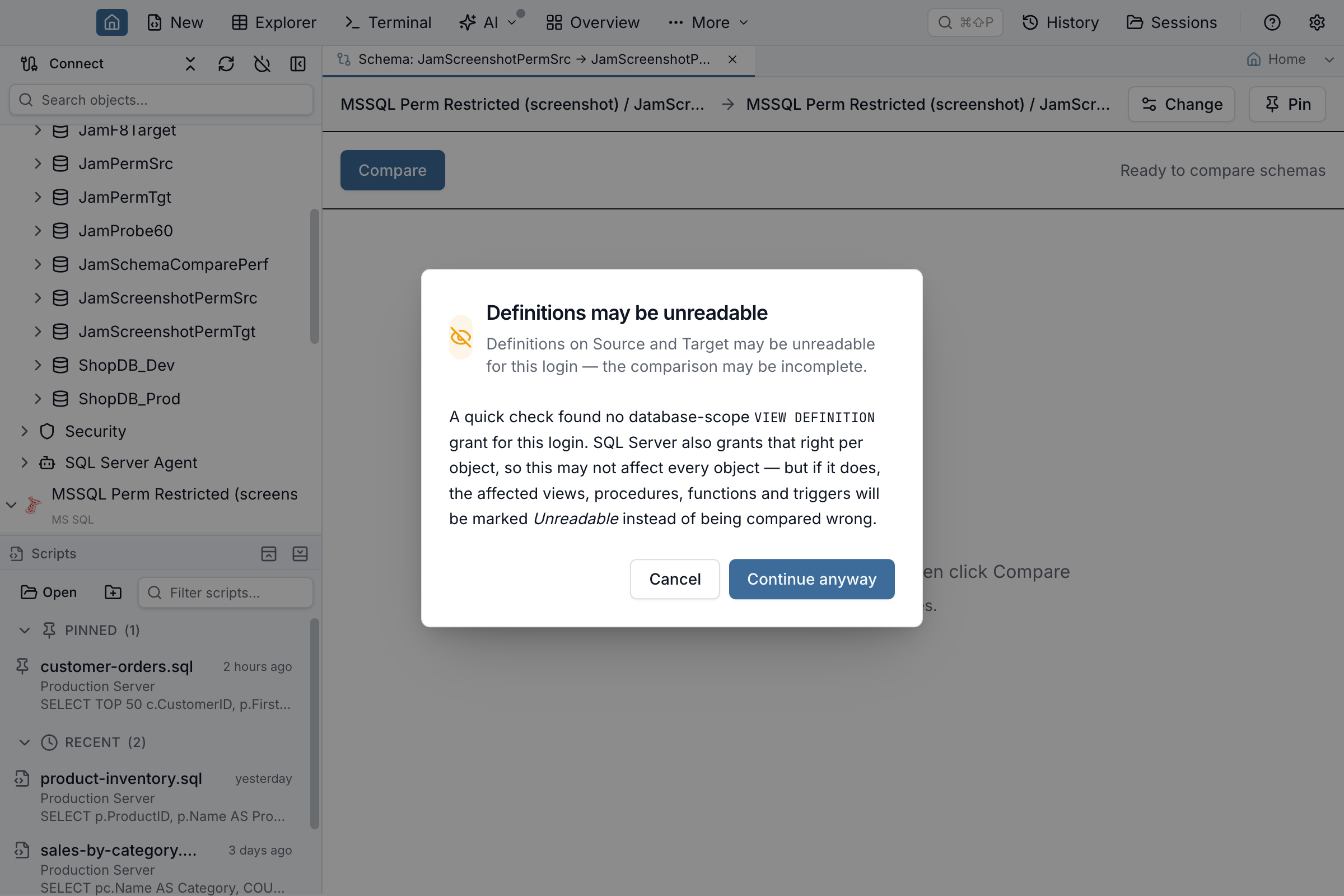
VIEW DEFINITION — if not, it warns you here rather than 45 minutes into a run.The wording is deliberately hedged: it says definitions may be unreadable, not that they are. SQL Server also grants VIEW DEFINITION per object, so a login with only object-level grants can read every object it's compared against and still trip this database-scope check — the dialog can appear even when nothing ends up affected. If you continue, the actual scan is the authority: any object genuinely withheld is marked Unreadable as described above, and the results view shows a matching amber banner so the pre-scan warning and the scan results agree. If you cancel, nothing runs.
This check exists for SQL Server only today. On PostgreSQL, MySQL, Oracle and SQLite the comparison starts immediately, and any withheld definitions are still caught by the Unreadable handling above. If the check itself can't run (a network hiccup, an unrelated permission error), Jam SQL treats that as a pass and starts the comparison rather than blocking it on a check that couldn't complete.
Pin a comparison to the Object Explorer
The Recently compared list in the setup dialog remembers your last 20 comparisons automatically. A pin is the deliberate version: it keeps a fully-configured comparison for good — both endpoints, the comparison options, the schema filter, and whether you're comparing the whole database or a single object — the same way you pin a table view or a saved query. Two ways to make one:
- Click the pin button (the pin icon) on the Schema Compare tab's own header bar, beside Change. That bar is there from the moment the tab opens, so you can pin a comparison you have configured but never run — which is the whole point of keeping one.
- Or right-click the tab and choose Pin to Object Explorer.
Renaming the pin is how you name the profile. There is no separate profiles manager to learn: right-click the pinned row, choose Rename, and call it Nightly prod check or Release 4.2 gate. That name is what you'll look for in the tree next week.
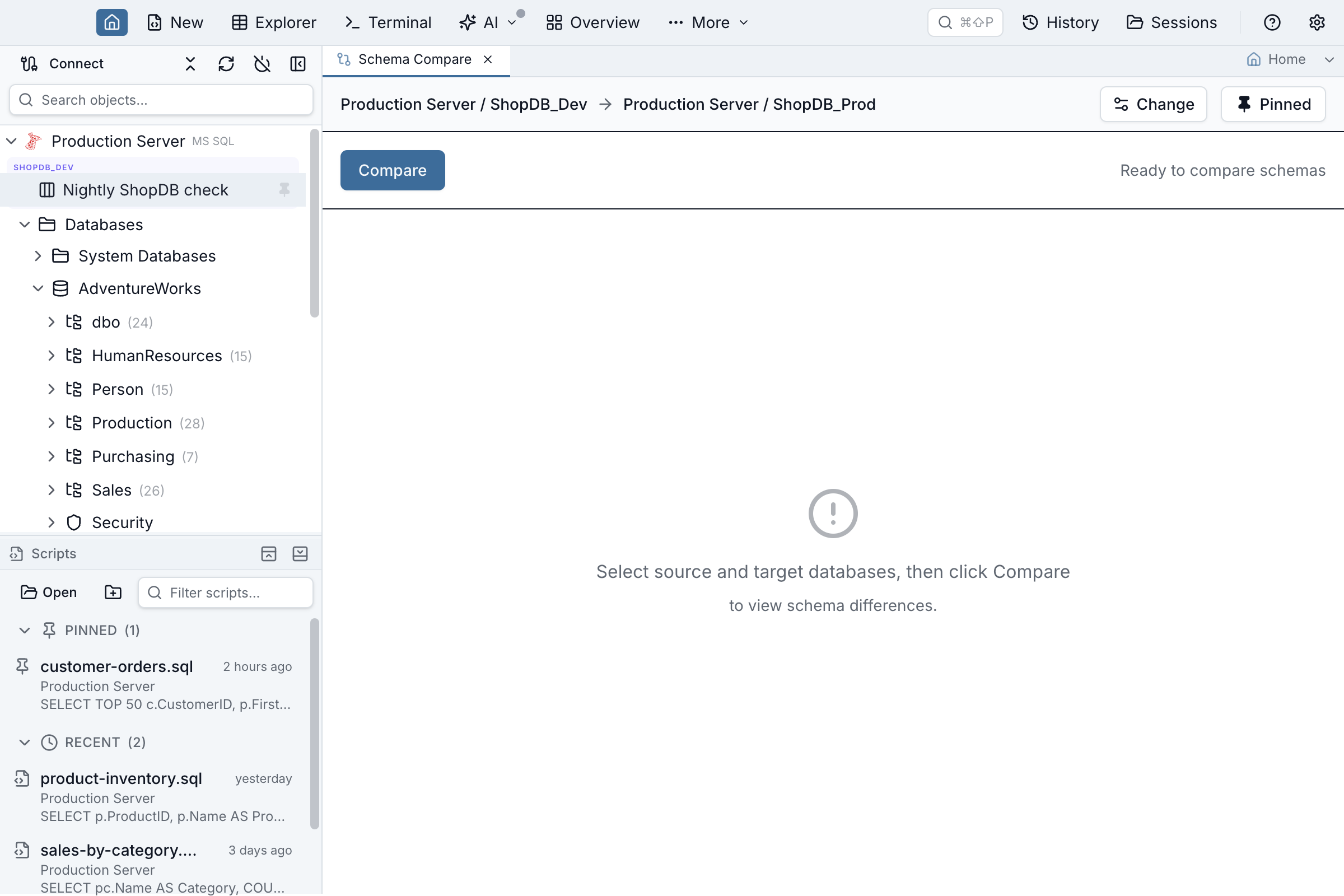
- Opening a pin never starts the comparison. Double-click the pinned row (or select it and press Enter) and you get the tab back configured and idle, with nothing read from either database until you click Compare. That guarantee is deliberate: a pin you open by accident, or on a connection you didn't mean to touch, costs you nothing. Opening a pin that's already open just focuses its tab.
- The pin appears in the tree under the source connection, alongside pinned tables and saved queries. A comparison spans two connections; filing it under the source keeps it in one predictable place.
- A pin stores a setup, never a diff — reopening one gives you a clean tab to run against today's schemas.
- If the target connection isn't connected, the comparison still opens and the usual connection banner offers to reconnect.
- To unpin, click the pin icon at the right-hand end of the pinned row. Right-click it for Rename, Update from the open tab, or Unpin. Pins persist across restarts.
- Comparisons whose source is a Database Blueprint folder can't be pinned — there's no connection to file them under.
A pin and an exported options file answer different halves of the same need: the pin keeps this comparison, endpoints and all, on your machine; the file carries the settings alone, with no endpoint in them, to everyone else's.
Data Compare tabs pin the same way — see Data Compare.
Generating Synchronization Scripts
Once you've reviewed the differences, you can generate a DDL script to synchronize the target database with the source schema.
Script direction
The results toolbar exposes a Generate script for: segmented control with two options — Source → Target (default) and Target → Source. Flipping the toggle changes which database the generated script will modify, without re-running the comparison. The visual diff always stays Source on the left, Target on the right; only the script's destination changes. The script preview dialog shows a banner near the top stating "This script will modify <destination alias / db> to match <origin alias / db>", and the Open in Query Tab action attaches the script to whichever connection is currently the destination.
Statement order
The generated script is ordered so it runs top to bottom without you rearranging it. On SQL Server, user-defined types come before everything else, because a table column or a procedure parameter may be declared with one, and a DROP TYPE comes after everything else. Tables come next, parent-before-child along their foreign keys — and every table ALTER, newly added columns included, runs before any view, stored procedure or function is created or updated. That last part matters more than it looks: engines check a new view's or procedure's column references against existing tables at creation time, so a procedure that reads a column the same script adds would otherwise fail with Invalid column name before the ALTER TABLE … ADD ever ran. (The one exception is an added function that a table change itself calls — a new computed column or CHECK constraint, say — which is created ahead of that ALTER.) Views, stored procedures and functions then follow in dependency order rather than alphabetical order: a view that selects from another view, or calls a function, is always created after the object it references — so you don't get an Invalid object name / does not exist failure halfway through. If two objects reference each other, no valid order exists; the script keeps them in their original order and marks them with a -- [REVIEW] circular dependency between: … comment, plus a warning above the preview.
Re-running a script
If a script fails partway through — or you simply run it a second time — the views, stored procedures, and functions it already created won't block the re-run with an "already exists" error. Added objects of these three types are emitted as an idempotent rewrite instead of a plain CREATE wherever the engine supports it: SQL Server uses CREATE OR ALTER (requires SQL Server 2016 SP1 / database engine version 13.0.4001 or later); PostgreSQL and MySQL views, and PostgreSQL functions, use CREATE OR REPLACE; Oracle views, procedures, and functions use CREATE OR REPLACE. MySQL has no CREATE OR REPLACE PROCEDURE / FUNCTION syntax, so added routines instead get an explicit DROP PROCEDURE IF EXISTS / DROP FUNCTION IF EXISTS ahead of the CREATE, called out with a -- [REVIEW] comment — still safe to re-run, just two statements instead of one. SQLite has no CREATE OR REPLACE VIEW, so added views stay a plain CREATE VIEW.
On SQL Server, Jam reads the target's own product version automatically as part of the comparison (no extra step) and uses it to pick the right form: a target on SQL Server 2016 SP1 or later gets CREATE OR ALTER as above; a target Jam can confirm predates 2016 SP1 instead gets an explicit DROP guarded by IF OBJECT_ID(…) IS NOT NULL ahead of a plain CREATE, called out with a -- [REVIEW] comment naming the reason — idempotent and safe to re-run on every SQL Server version, unlike the shorthand DROP … IF EXISTS syntax used elsewhere in this script, which only 2016 and later accept. Version detection needs a live connection, so it doesn't apply to a Database Blueprint folder target (there's no server to ask) or if the one-time version check itself fails — in either case the script falls back to CREATE OR ALTER rather than guessing, so if you know your target predates 2016 SP1 and Jam couldn't detect it, treat the generated script as unsupported there rather than relying on the fallback to catch it. Azure SQL Database and Azure SQL Managed Instance are always treated as current: Azure reports a legacy product-version number (12.0.2000.8) that says nothing about features, so Jam reads the server's engine edition in the same check and gives Azure targets CREATE OR ALTER — never the pre-2016 fallback.
DROP takes the object's permissions with it. Wherever a generated script drops a view, procedure, or function and re-creates it — the pre-2016-SP1 SQL Server path above, and MySQL routines, which have no CREATE OR REPLACE — the re-created object is a new object as far as the database's permission catalog is concerned. Every GRANT and DENY that was set on the old one is gone, and Jam does not re-create them: it has no read of your object-level permissions to re-emit. The script says so on a -- [REVIEW] line directly above the DROP, naming the object. Re-apply those grants after you run it, or use a target on SQL Server 2016 SP1 or later, where the object is updated in place with CREATE OR ALTER and its permissions are untouched.A newly added table is not yet idempotent on re-run, on any engine: it's a plain CREATE TABLE (re-running after it landed fails on that statement until you drop it first). An added trigger is likewise emitted verbatim, and so is the SQLite added-view case above.
Modified tables are more nuanced. On SQL Server, an added column is guarded — IF COL_LENGTH(…) IS NULL ALTER TABLE … ADD … — so re-running it is a no-op instead of failing with Msg 2705 ("Column names in each table must be unique"), for every shape that ADD can carry: a plain column, one with a DEFAULT, or a computed column. Everything else a modified table's script can contain is not yet idempotent: an added constraint and a dropped column are unguarded on every engine (re-running either fails once the change has already landed), and an added column on a modified table is unguarded on every engine other than SQL Server.
When an object is left untouched
The script won't drop an object it has no replacement for. If a view, procedure, or function is reported as changed but Jam can't build a CREATE for it, the object is left untouched and the script says so with a -- [REVIEW] comment naming the object and the reason, followed by the definition it did have, commented out so you can port it by hand. The same rule covers a modified constraint or index whose replacement can't be generated.
You'll see this when the definition couldn't be read at all — a SQL Server procedure created WITH ENCRYPTION, or one the connected login lacks VIEW DEFINITION on — and when a Database Blueprint folder file has been hand-edited into something that isn't a runnable statement (commented out, left empty, an unclosed /* …, a CREATE for a different kind of object, or a CREATE VIEW naming a different view than the file it lives in — the blueprint takes a view's name from the filename, not from the text inside).
The preview says how many, and what it means for your next comparison. A script that quietly skips an object still reports success when you run it, so the objects come back reported as different every time you compare — which reads as the comparison never settling rather than as a script that did nothing. The warning above the preview counts them and says so outright: running the script again will not change it, and those objects have to be ported by hand. The count also reaches an AI agent through the warnings field of schema_compare_generate_script.
Everything Jam leaves behind for you to port is commented out line by line, so nothing in that block can run. Earlier versions prefixed only the first line, which left the rest of the definition — including its CREATE — as live SQL. On SQL Server that mattered twice over: the server stores the whole batch text of a CREATE PROCEDURE, so the marker comment above it was written into the target's own stored definition, and every later comparison then reported a difference that Jam itself had introduced. If you ran a sync from an affected version, re-running a comparison and applying it on this version replaces the stored definition and clears the marker — no manual repair needed.
SQL Server user-defined types
On SQL Server a live database-to-database comparison reads the three kinds of user-defined type the Object Explorer lists under Programmability › Types — table types (CREATE TYPE … AS TABLE), alias types (CREATE TYPE … FROM …) and CLR types — and lists them under a User-defined types category in the results, with their own checkbox in the Setup dialog (on by default). Each type is compared as the CREATE TYPE statement Jam rebuilds from the catalog — the same text the DDL pane, Script as CREATE and the sync script all show — so a column added to a table type, a changed length on an alias type, or a type re-created as a different kind reads as Modified. The whole database's types are read in a handful of catalog queries, never one per type, and they are included at every compare depth, Quick included. Types are not compared across engines.
A login that can read tables and procedures but is denied one of SQL Server’s user-type catalog views does not fail the comparison: the affected types are reported as unreadable or not compared, and the results say which view could not be read. Memory-optimized table types are not scripted yet — they show as unreadable instead of being emitted as a disk-based copy.
In the generated script an added type is a CREATE TYPE placed ahead of every other CREATE — ahead of the tables whose columns are declared with an alias type and of the procedures that take a table type as a parameter — and a removed type is a DROP TYPE placed after every other statement. Before this, a procedure declared @list dbo.IntegerKeyValueList READONLY was scripted against a target that did not have the type and failed with Msg 2715. A column declared with an alias type is now emitted as [schema].[TypeName], verbatim and schema-qualified, instead of an uppercased bare name that only resolves if a same-named type happens to exist in the executing user's default schema; when the same type name exists in more than one schema, the script keeps the table's own schema and says so in a -- [REVIEW] note at the top.
A changed type has no ALTER TYPE. SQL Server cannot alter a type in place, and it refuses to drop one while anything still references it (Msg 3732). So a Modified type is rebuilt: when every object on the target that references it is a procedure, function, view or trigger whose definition Jam could read on the source, the script drops those dependents, drops and re-creates the type, and re-creates the dependents from their source definitions — under a -- [REVIEW] type … line that names every object it rebuilt, and with a warning above the preview, because dropping and re-creating procedures is a real write (their object-level permissions are not re-created). When any dependent is a table column declared with the type, a module that exists only on the target, or a module whose definition could not be read, Jam does not guess: the whole change is left as a -- [REVIEW] block naming the blockers, with the DROP TYPE and CREATE TYPE commented out line by line so nothing in it executes, and the preview warns that the type will keep showing as different until it is rebuilt by hand.
A Database Blueprint folder holds user-defined types only when it was written (or refreshed) on 1.4.21 or later with the User-defined types / table types checkbox on. A folder that has none — written before 1.4.21, or with the checkbox off — makes a folder-to-database comparison not compare them, rather than reporting every type on the live database as only-in-target and scripting a DROP TYPE for each. The amber strip above the results names user-defined types among the types that were not compared, the same way an unticked checkbox does.
Column changes that silently destroy data
A change that reduces the precision a column keeps — decimal(10,4) to decimal(10,2), datetime2(7) to datetime2(3), time(7) to time(0), a decimal to an integer type, float(53) to float(24) — is accepted by SQL Server, PostgreSQL and MySQL without an error and without a row count. Every stored value is rounded in place, and widening the column again does not restore what was dropped: 123.4567 becomes 123.46, and back at decimal(10,4) it reads 123.4600. Fractional seconds are covered on all three — PostgreSQL timestamp(6) to timestamp(3) and MySQL datetime(6) to datetime(3) included — and those round rather than truncate, so a value can land in the next second: 12:34:56.999999 comes back 12:34:57.
The script marks each of those statements with a -- [REVIEW] [DATA LOSS] line naming the column, both type shapes, and exactly how much precision is lost, and repeats it in the warning banner above the preview. That line is also what makes Open & Execute stop and ask for confirmation before running the script — it is the one column change that does.
Changes that only look similar are deliberately left silent, because a confirmation that fires on everything stops being read. A length reduction (varchar(100) to varchar(50)) and an integral precision reduction (decimal(18,4) to decimal(10,4)) are refused by the engine itself when a row would not fit — String or binary data would be truncated, Arithmetic overflow error — so nothing is lost quietly and no warning is needed. Widening a column is never flagged. Oracle refuses a precision or scale reduction on a non-empty column outright (ORA-01440 / ORA-30082), so it needs no warning either, and SQLite has no ALTER COLUMN at all.
SQL Server collation changes
On SQL Server, a column that differs only by collation generates a real ALTER TABLE … ALTER COLUMN … COLLATE … statement (carrying the column's current type and nullability along, since ALTER COLUMN restates the whole column).
Any ALTER COLUMN that leaves a character column stored as a non-Unicode type (char / varchar / text) can re-encode the stored bytes — characters the resulting collation's code page can't represent become ?, permanently — and the script prefixes those statements with a -- [REVIEW] warning naming the risk. This does not depend on the collation having changed. Two cases trigger it. First, the column is narrowing away from a Unicode type (nvarchar / nchar / ntext) to a non-Unicode one: leaving Unicode storage is lossy on its own, whatever the two collations are called — even when both sides carry exactly the same collation name. Second, the bytes are re-encoded between two different code pages. Watch for that second one on changes that look harmless: an ALTER COLUMN that carries no COLLATE clause does not preserve the column's collation, it resets the column to the target database's default, so even a plain widening from varchar(50) to varchar(100) re-collates the column, and if the column's collation and the target database's default sit on different code pages the data does not survive it. The warning says so explicitly when that is what is happening.
Collations that merely differ by name but share a code page, on a column that was already non-Unicode on both sides — for example most Western European SQL Server collations, which are all code page 1252 — can't lose any characters between them, so no data-loss warning appears for that case. When the resulting collation can't be read at all (a Database Blueprint folder target has no database to ask, or the live check fails), you still get a warning, but one that says the risk is unknown rather than claiming certain loss — unknown is treated as a reason to look, not as safety.
Separately from any data-loss question, the script flags an implicit collation change whenever an ALTER COLUMN carries no COLLATE clause and the target database's default differs from the column's current collation. Nothing is lost when the two share a code page, but sort and comparison rules travel with the collation, so =, LIKE, GROUP BY, DISTINCT and JOIN can return different rows afterwards — a case-sensitive or accent-sensitive column quietly becoming insensitive is the common one. This is a query-behaviour notice, not a data-loss alarm, and it's worded that way. A column that already matches the target database's default is not flagged, because nothing about it changes.
If an index (including a covering INCLUDE column or a filtered index's WHERE predicate), a CHECK constraint, or a computed column (persisted or virtual) depends on the column, SQL Server can reject the change with Msg 5074 naming the dependent object, immediately followed by Msg 4922 (the ALTER's own failure) — the script still emits the ALTER COLUMN, prefixed with a -- [REVIEW] comment naming what it found. This applies to every generated ALTER COLUMN, not only collation ones: a plain type change or a length reduction is blocked by a dependent index just the same. (A pure length increase is the one case SQL Server does allow with a dependent index in place, so the comment reads "may block" — it errs towards telling you.) The check doesn't see schema-bound views, user-created STATISTICS, a schema-bound FUNCTION (scalar or inline table-valued), or a table partitioned on the column, any of which can also block the change without warning; it can also name an object that turns out not to block anything, since it matches column references in constraint and predicate text and a text match can land inside a string literal that happens to contain the column name. It's skipped entirely (and says so in the script) when the compare ran at Quick depth, since indexes and constraints aren't fetched at that depth.
Newly created tables and columns added by the script carry the source column's collation only when it differs from the source database's own default. A column whose collation matches the source database's default is emitted without a COLLATE clause — whether it was set explicitly to that value or simply inherited it, the catalog keeps no record of which, so Jam can't tell the two cases apart either, and the column inherits the target database's default instead, the same as if you'd typed the CREATE TABLE yourself.
Two databases can have different own default collations, and SQL Server resolves every character column's collation to its database's default at creation time and reports that resolved value from the catalog exactly as it would an explicit one — nothing there distinguishes "inherited" from "typed". A column that simply inherits its own database's default, with no explicit COLLATE anywhere in its definition, is treated as matching between source and target, even when the two databases' defaults — and so the two raw collation names — differ. When the source and target databases have different default collations, the Schema Compare results still show a one-time banner naming both defaults, because the compare is now silent about exactly the columns that banner explains: without it, there'd be no way to connect "these two defaults differ" to "yet nothing in the diff shows it". The banner states that in one sentence; a Details expander holds the full explanation, and an inline Ignore collation differences for this comparison action applies the option described next and re-diffs instantly.
Ignoring collation differences entirely
When your two databases deliberately run different collations — a local development server against a production server installed with another regional default is the common shape — even the genuine explicit-collation differences are usually noise you've already accepted. Tick Ignore column collation in the Setup dialog (or use the banner action above) and column collation leaves the comparison altogether: no column reports as modified for collation alone, and a column changed for other reasons no longer lists collation among its changes. This is the same behaviour as the “Ignore column collation” option in SQL Server Data Tools’ Schema Compare.
The generated script follows the comparison: with the option on it emits no COLLATE clause anywhere. No ALTER … COLLATE is pinned onto existing columns, and a newly created table or added column is emitted without collation clauses even when the source column's collation was explicit — the new column inherits the target database's default, which is exactly the state the ignoring comparison treats as matching. The script's header records the suppression (-- Ignored properties: collation), and the banner on the results says collation was ignored. Two warnings survive the option on purpose, because they're about data, not preference: the non-Unicode re-encoding -- [REVIEW] and the implicit-collation-change notice described above still appear on any ALTER COLUMN whose execution would re-encode stored bytes or change query semantics.
This has one limitation worth knowing, because SQL Server's catalog leaves Jam no way around it: there is no "was this typed" flag and no table DDL text to parse, so "inherited" really means "indistinguishable from inherited". A column explicitly given COLLATE Latin1_General_CI_AS, where Latin1_General_CI_AS also happens to be its own database's default, reads exactly like a column that never had an explicit COLLATE at all. Paired against a genuinely inherited column on the other side under a different default, the two columns' effective collations differ and Jam calls them equal anyway. If an explicit collation on a specific column matters to you, check that column by hand — the banner tells you when it's worth looking, not that every column was checked.
Anything else still compares as different, exactly as before: an explicit collation that doesn't match its own database's default, on either side, or two explicit collations that simply disagree. An existing column reported as changed for a genuine reason still gets a real ALTER … COLLATE pinning the source column's own collation onto the target column; a newly created or added column still gets a clause only when its collation differs from the source database's default, per the first paragraph above. None of that clause-emitting behaviour applies on a cross-engine compare (for example a MySQL or PostgreSQL source into a SQL Server target) — a source column's collation name isn't valid SQL Server syntax, so the script never emits it there, and the inherited-vs-inherited matching rule above is a same-engine rule only (a cross-engine compare already treats collation as an engine-specific spelling and never diffs it, matched or not). The warnings described above do still apply on a cross-engine compare, because they're about the target column's own collation and the target database's own default, both of which are ordinary SQL Server values.
One column shape is the exception to the "genuine difference still gets a clause" rule directly above: a column typed as a SQL Server alias / user-defined type (one created with CREATE TYPE … FROM …) never gets a COLLATE clause in a generated ALTER COLUMN, even when its collation is reported as changed. SQL Server rejects COLLATE on a user-defined-type column outright (COLLATE clause cannot be used on user-defined data types), and there's no way around it by scripting the type instead — CREATE TYPE … COLLATE … is invalid syntax too — so such a column's collation is always its own database's default; it can never be set explicitly. When a column like this has other changes riding along in the same ALTER COLUMN — nullability, length, a default — those still get scripted and run normally; the script simply omits the impossible COLLATE fragment rather than failing the whole statement the way earlier versions did. If the omitted collation difference was genuine — not just the two databases' differing defaults reading differently, per the inherited-vs-inherited rule above — the script says so with a -- [REVIEW] comment naming the column and its type; that difference has to be resolved by hand, typically by rebuilding the type or the column.
PostgreSQL collation changes
PostgreSQL resets a column's collation to the database default whenever the type is changed without a COLLATE clause — the same trap as SQL Server's ALTER COLUMN above, and just as quiet. Every generated ALTER TABLE … ALTER COLUMN … TYPE therefore carries the source column's own collation when it has one. Two cases follow:
- A change driven by something else keeps the column's collation. Widening
varchar(50)tovarchar(100)on a column declaredCOLLATE "C"no longer drops it back to the database default as a side effect. - A genuine collation difference is applied when it rides along with a type change, so the column lands on the source's collation and the next comparison reads it as identical instead of reporting the same column changed forever.
Nothing is lost either way — PostgreSQL does not re-encode the stored text, so this is not the data-destroying case SQL Server has. What moves is meaning: sort and comparison rules travel with the collation, so =, LIKE, ORDER BY, GROUP BY, DISTINCT and index ordering can all return different rows afterwards. A column declared COLLATE "C" sorts by byte value, so Zebra comes before apple; reset to a typical en_US.utf8 default, the same two rows swap places. A script generated by an older version still does that.
A column whose collation is simply the database default gets no COLLATE clause, because PostgreSQL's catalog reports no collation of its own for it — the column is already where a bare type change would leave it, so there is nothing to pin. Collation names are emitted quoted (COLLATE "es-x-icu"), which is what PostgreSQL requires: unquoted, C would fold to a collation that does not exist. A collation defined in a schema outside your search_path is the one case to watch — Jam emits its bare name, and PostgreSQL then reports collation … does not exist rather than applying the wrong one.
A column that differs only by collation, with no type, nullability or default change alongside it, is still not scripted. PostgreSQL has no SET COLLATE: changing a collation in place means restating the type, which rewrites the whole table, and that is not something a sync script should do to a large table unasked. Those columns appear in the script as a -- [REVIEW] line naming the column and collation as the reason — apply them by hand, choosing your own moment for the rewrite.
None of this applies on a cross-engine compare (for example a SQL Server or MySQL source into a PostgreSQL target): a source column's collation name is not valid PostgreSQL syntax, so no clause is emitted there, and a cross-engine compare already treats collation as an engine-specific spelling and never diffs it.
MySQL collation changes
MySQL's MODIFY COLUMN restates a column's whole definition, so anything the statement leaves out is discarded — the same trap as SQL Server's ALTER COLUMN above. Every generated MODIFY COLUMN therefore carries an explicit COLLATE clause. Two cases follow from that:
- A change driven by something else keeps the column's collation. Widening
varchar(50)tovarchar(100)on a column whose charset differs from its table's default no longer re-collates it as a side effect. - A genuine collation difference is applied, so the column lands on the source's collation and the next comparison reads it as identical instead of reporting the same column changed forever.
What the reset used to do depends on the charsets involved, and it is worth knowing because it is what a script generated by an older version still does. Where the new charset can represent the stored characters, MySQL converts the text rather than corrupting it — the value still reads correctly, but its collation, and with it the sort and comparison rules behind =, LIKE, ORDER BY and GROUP BY, has moved without anyone asking. Where it cannot, the outcome depends on the server's sql_mode: with STRICT_TRANS_TABLES (the MySQL 8 default) the statement fails with Incorrect string value, leaving the sync half-applied; without it, the unrepresentable characters are replaced by ? behind nothing louder than a warning.
Pinning the collation is behaviour-neutral for the column itself: a column that merely inherited its table's default and one that states the same collation explicitly behave identically afterwards, including under ALTER TABLE … DEFAULT CHARSET and CONVERT TO CHARACTER SET. Unlike SQL Server, MySQL's catalog draws no distinction between the two, so there is no inherited-vs-explicit case to preserve here.
Two MySQL column attributes are still not carried by a generated MODIFY COLUMN: ON UPDATE CURRENT_TIMESTAMP and INVISIBLE. Both live only in information_schema.COLUMNS.EXTRA and neither has a field in the comparison, so a scripted type or nullability change on a column that has one drops it on the target — restate it by hand after the sync, or script that column yourself. The Table Designer does not share this: it reads the table's DDL text directly and refuses an edit to such a column instead (see the Table Designer docs).
How SQLite views are replaced safely
SQLite is the one engine with no CREATE OR REPLACE VIEW, so changing a view there means dropping it and creating it again — the only place a sync script removes an object it then has to put back. Rather than try to predict whether your new definition will work, the script has SQLite decide first: above the DROP you'll see two EXPLAIN QUERY PLAN CREATE … VIEW … lines, with a comment explaining them. They hand the engine the same name and the same definition to compile and create nothing at all. Between them they apply the same test the real CREATE below has to pass: one keeps the view's own name (SQLite rejects 59 of its 147 keywords as an unquoted name, so a view called order has to be written "order"), the other compiles the definition as a permanent view (a temporary one is allowed to reference other databases, so a definition ported by hand from SQL Server that still reads FROM dbo.Orders is only caught this way). If either is rejected, execution stops there — before the DROP — and your existing view is left exactly as it was.
That last guarantee depends on your client stopping at the first error. Jam SQL Studio does, and so does the sqlite3 shell with .bail on; a tool that runs a whole file and collects errors at the end would carry on past the rejected line to the DROP. Nothing is left behind either way — because the two checks create nothing, a run you cancel or a connection that drops mid-script leaves no stray objects in your database.
EXPLAIN QUERY PLAN is itself a row-returning statement, so running this script in the Query Editor opens an empty 4-column result tab for each check — two per replaced view — alongside the tabs from the rest of the script. That's expected: SQLite has no compile-only DDL-validation statement, and of the two read-only options, EXPLAIN QUERY PLAN is the quieter one.
MySQL procedures and functions are also replaced with an explicit DROP + CREATE pair, because MySQL has no CREATE OR REPLACE for routines. There Jam checks that the replacement is a CREATE for the same kind of object, but it does not parse the body — so a routine body hand-edited into invalid SQL can still fail on the CREATE after the DROP has run. Keep a copy of the definition before editing routine files by hand.
Scripting one column, constraint, or index of a table
A modified table's checkbox is not the smallest thing you can tick. Expand the table and its Columns, Constraints, or Indexes group, and every changed member carries a checkbox of its own. Tick one and the generated script contains that member's statement and nothing else from that table — the other changed columns, constraints, and indexes of the same table are left out.
This is what to reach for when a table has one change you want and one you don't: a column added on the source alongside a column that only exists on the target, where ticking the table would emit the ADD and the DROP COLUMN that takes the target's data with it. Tick the added column alone and the drop is never written.
The table row then shows a partial tick (a dash rather than a check) so you can see at a glance that it is not scripting everything it could, and the same partial state travels up to the Tables group heading. Ticking the table itself still selects every one of its members, exactly as before — untick the last member and the table drops out of the script entirely.
Two limits worth knowing. Only modified tables have per-member checkboxes: an added or removed table is scripted whole, since a CREATE TABLE for half a table isn't a thing. And triggers are shown in the diff but are not part of what a modified table's script emits on any engine, so there is nothing to select there — port trigger changes by hand.
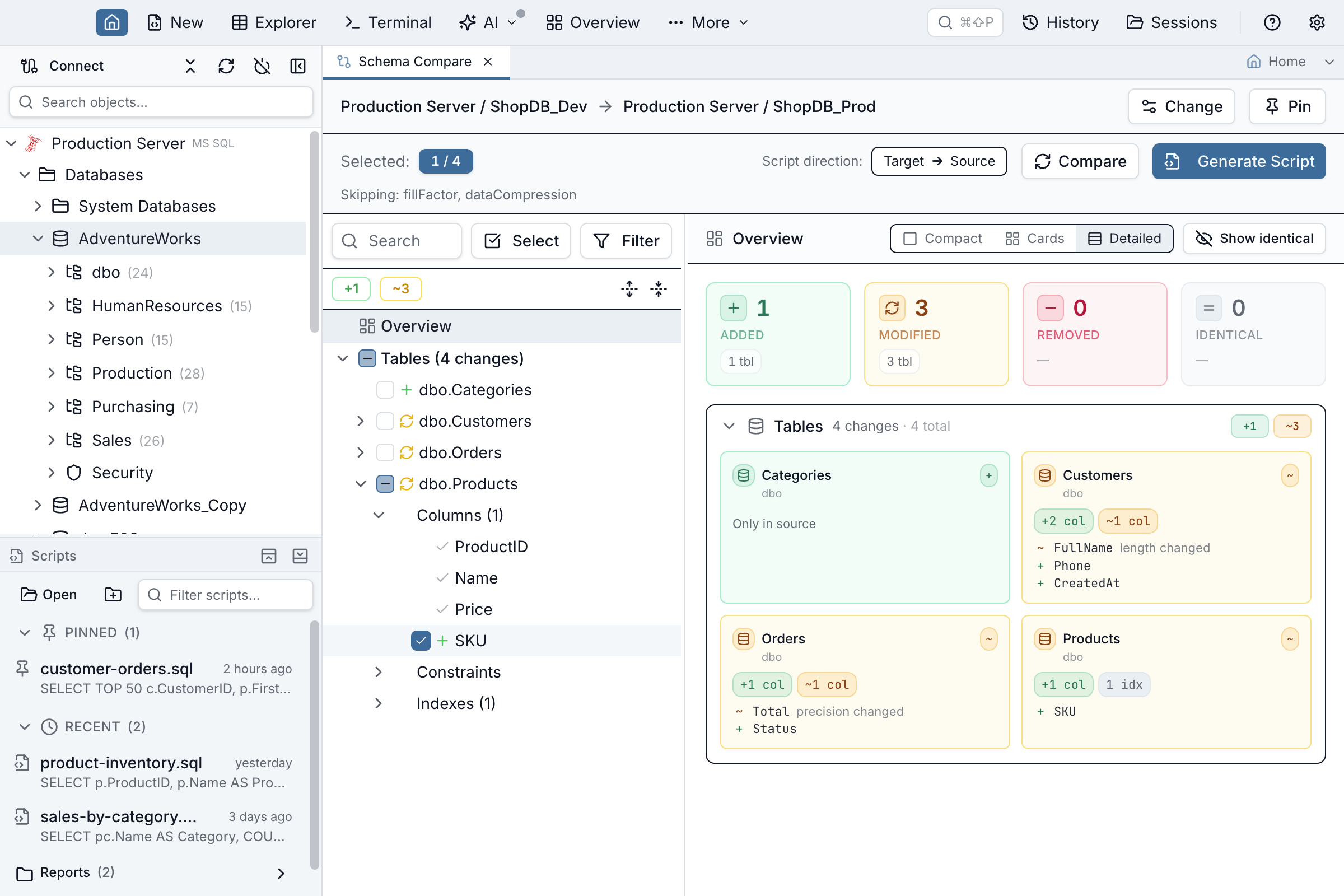
Steps to Generate a Script
- Review the comparison results and uncheck any objects you don't want to include — or expand a modified table and tick individual columns, constraints, or indexes to script only those (see above)
- (Optional) Use the Generate script for: toggle to flip the direction
- (SQL Server and PostgreSQL) Wrap in a single transaction is already ticked in the comparison options — leave it on for an all-or-nothing script, or untick it there to let a very large sync commit as it goes — see below
- Click Generate Script to preview the synchronization script
- Review the generated DDL statements in the preview pane (the destination banner restates what the script will modify)
- Click Open in Query Tab to load the script against the destination connection (safer default — one click never executes), or open the dropdown next to it and pick Open & Execute to load the script and immediately kick off the normal execute flow. The standard destructive-query confirmation gates the actual execution — for the
DROPstatements sync scripts contain, and for a column change that would destroy stored data.
If the comparison ran with any properties ignored, the generated script says so: its header comments include an -- Ignored properties: fillFactor, dataCompression line naming each skipped property. The list comes from the comparison that actually produced the results — not from whatever the Setup dialog currently says — so a reviewer reading the script from a change ticket sees exactly what was never compared without opening Jam.
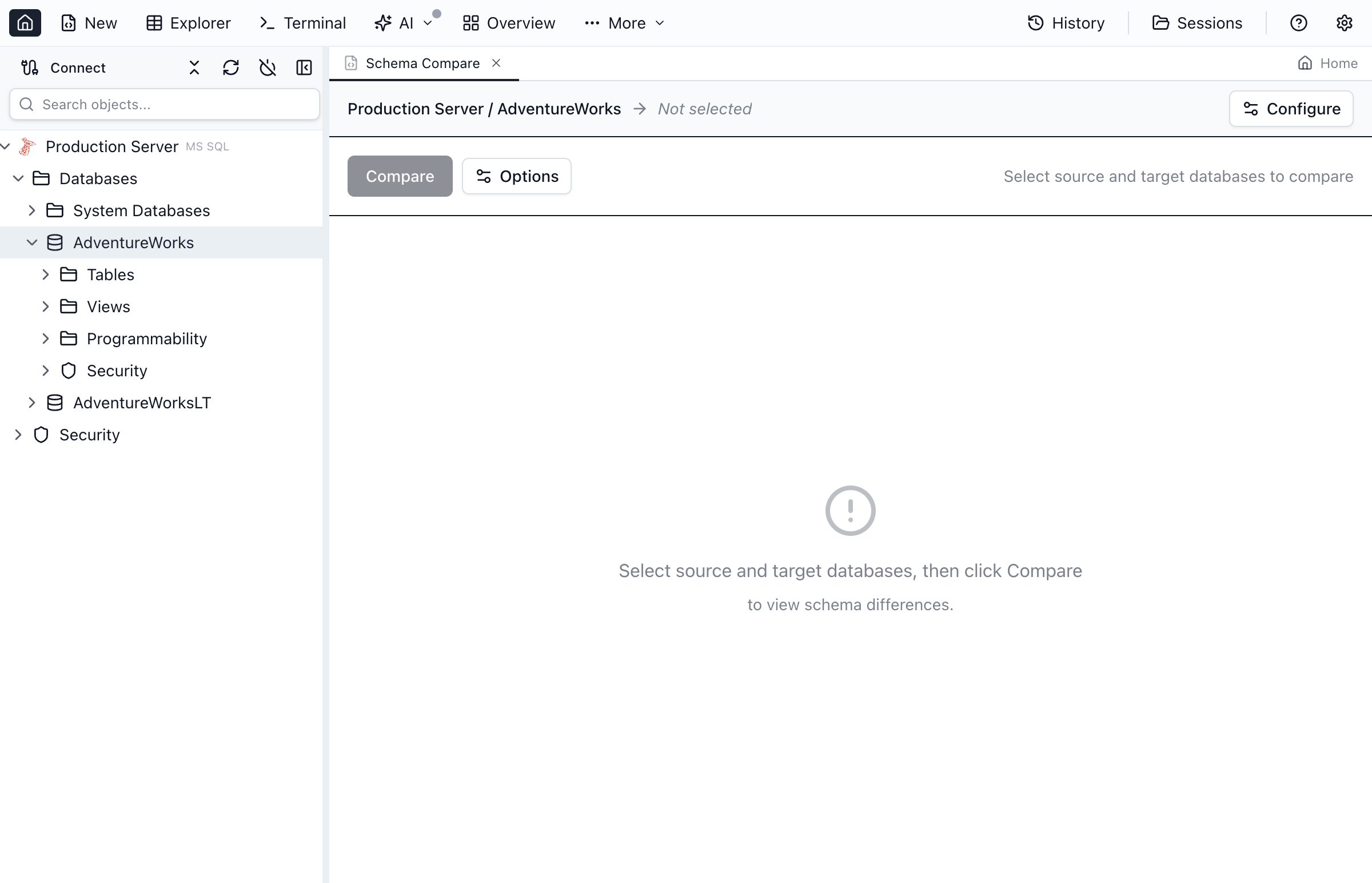
Is the script all-or-nothing?
On SQL Server and PostgreSQL, yes — that is now the default. Wrap in a single transaction sits ticked in the comparison options, beside compare depth and object types, so it travels with an exported options file and with Save as my defaults.
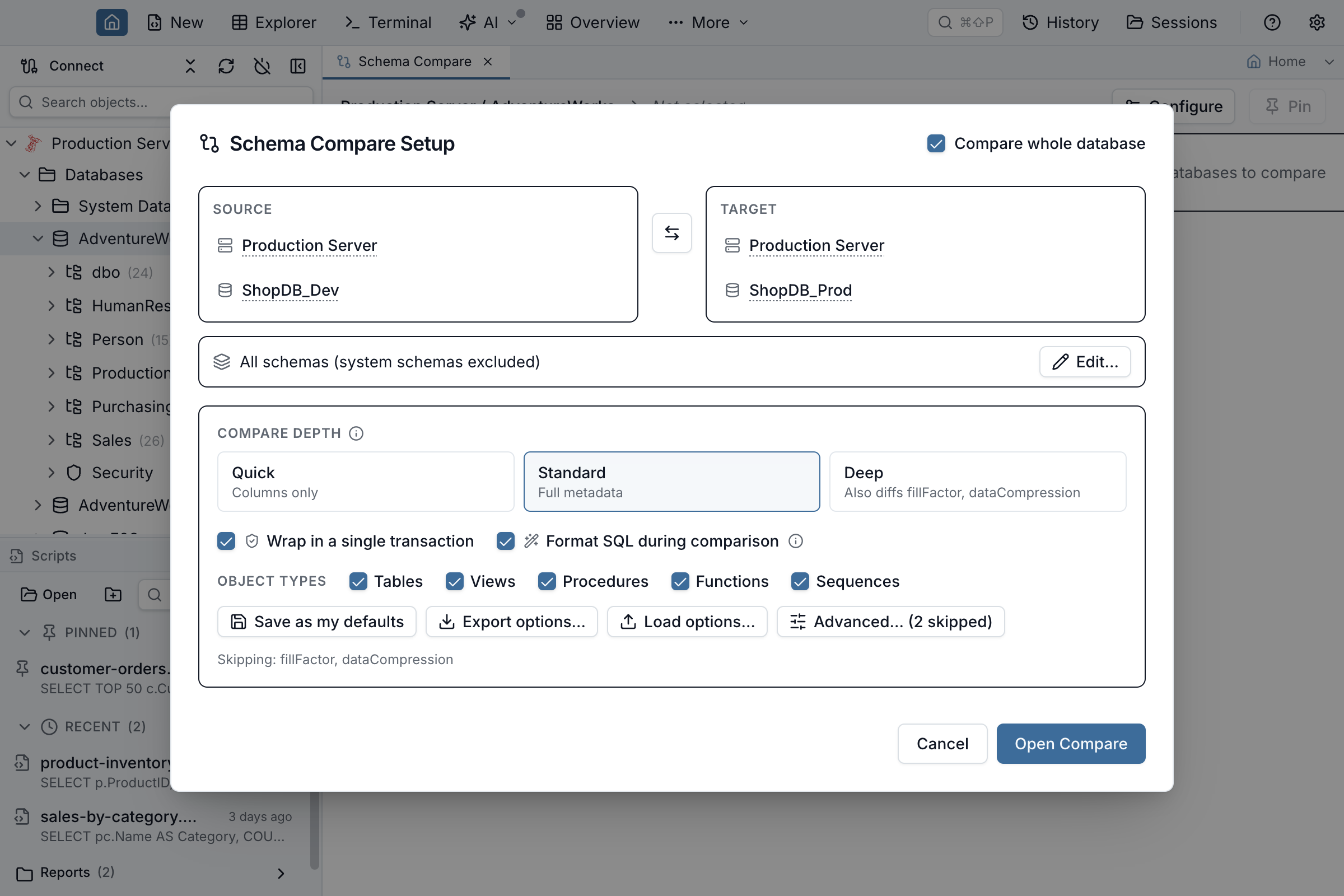
On SQL Server the script opens with SET XACT_ABORT ON; + BEGIN TRANSACTION;, follows every batch with the guard IF @@TRANCOUNT = 0 SET NOEXEC ON;, and closes with SET NOEXEC OFF; IF @@TRANCOUNT > 0 COMMIT TRANSACTION;. A failure rolls the whole thing back and the target is left exactly as it was — inside Jam SQL Studio, and equally when you save the script and run it in SSMS, sqlcmd, or a CI pipeline.
On PostgreSQL the script opens with BEGIN; and closes with COMMIT;, and that is all it needs: PostgreSQL DDL is transactional, so a failure part-way through rolls the entire script back — in psql, in a CI pipeline, and inside Jam SQL Studio alike. No per-statement guard is required, because PostgreSQL refuses everything after the failure until the transaction ends, and the trailing COMMIT on an aborted transaction acts as a ROLLBACK. A failed script also leaves the connection usable straight away — Jam SQL Studio ends the aborted transaction before returning the connection to its pool.
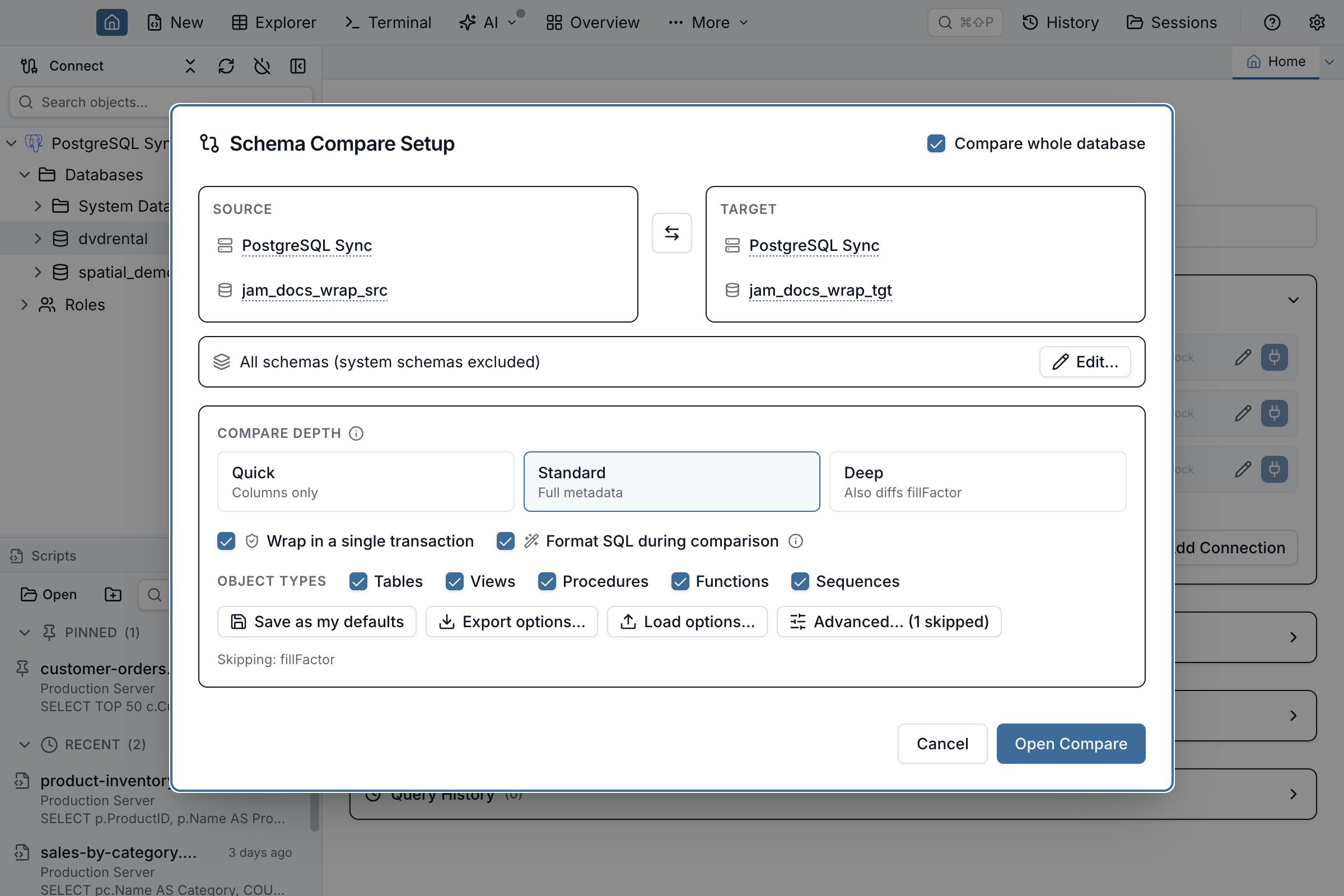
BEGIN; … COMMIT; and states there is no syntax-error exception, where the SQL Server one names SET XACT_ABORT ON and warns about that one gap.Two reasons you might untick it, and they are the honest trade-off rather than a footnote: a very large sync holds one transaction open for the whole run instead of committing as it goes, and if you actually want a failed run to keep the progress it made — so you can fix the one object that broke and re-run the rest — the wrap is exactly what takes that away. Unticking is remembered for that comparison tab, including across restarts.
Without the wrap — and on MySQL, Oracle and SQLite, where the option is not offered — a sync script is a sequence of statements, on SQL Server a sequence of GO batches, and each one commits as it runs. If statement seven fails, statements one through six have already been applied and the target is left part-way migrated. Every generated script states in its header which of the two you are holding, so you never have to guess — on SQL Server and PostgreSQL in full, and on MySQL, Oracle and SQLite by pointing at that generation's warnings for what a wrap asked for there does and does not guarantee:
-- Atomicity: NONE — each GO batch commits on its own. If a statement fails,
-- everything before it stays applied. Re-generate with
-- "Wrap in a single transaction" for all-or-nothing.
On SQL Server, the per-batch guard is what makes the wrap true in a tool that keeps going after an error. A transaction alone is not enough: SQL Server rolls it back at the failure, and then every remaining batch runs with no transaction around it and commits for real. The guard switches the session to NOEXEC the moment the transaction is gone, so nothing after the failure executes at all. PostgreSQL needs no equivalent — it refuses every later statement in an aborted transaction itself.
One SQL Server exception, stated plainly: a syntax error is caught when SQL Server compiles that batch, which aborts the batch without ending the transaction — so the batches after it still run and commit. Any run-time error (a duplicate object, a constraint violation, a permission failure) is fully covered. This is the same limitation any plain T-SQL script without SQLCMD directives has, and it is why the preview is worth reading before you execute.
The option is not offered on MySQL, Oracle or SQLite. The reasons differ, and only the first is about the database:
- Oracle and MySQL commit implicitly on every DDL statement, so no surrounding transaction can undo a schema script. On Oracle there is a second reason: sequence changes are emitted as a PL/SQL block that runs its own DDL through
EXECUTE IMMEDIATE, which commits as it goes regardless of anything wrapped around it. - SQLite supports transactional DDL, but we have not verified rollback end-to-end for this script shape, so we do not advertise it.
Whatever the engine, back up the target first. A transaction protects you from a failed script; it does not protect you from a script that succeeds at doing the wrong thing.
Key Capabilities
- Full schema support - Compare tables, views, stored procedures, functions, triggers, indexes, and constraints
- Visual diff - Side-by-side view with syntax highlighting shows exactly what changed
- Selective sync - Choose specific objects to include or exclude from the synchronization
- Safe script generation - Preview the DDL before executing; every script's header states whether it is atomic, and on SQL Server and PostgreSQL it is wrapped in a single transaction by default
- Cross-connection support - Compare schemas across different SQL Server instances
Schema Compare for SQL Server, PostgreSQL, MySQL, and Oracle
The Schema Compare workspace is engine-aware: it picks up the source and target connection's grammar, generates DDL in the right dialect, and matches objects by their natural identity (schema-qualified names, signatures for overloads). Same-engine compare covers every object type listed below on a live database-to-database compare, sequences included: SQL Server, PostgreSQL, and Oracle all enumerate their sequences straight from a live connection, so a changed sequence shows up between two live databases on any of the three. MySQL/MariaDB and SQLite have no SEQUENCE concept at all, so there is nothing to compare and no Sequences checkbox is offered (see Tool Limitations below for the two ownership carve-outs). Comparing two databases on different engines compares tables in full plus a name-presence inventory of views, procedures, functions, and triggers (see Cross-engine compare & migration). Below is what each engine adds beyond the common feature set.
| Engine | Object types compared | Engine-specific behavior |
|---|---|---|
| SQL Server | Tables, views, stored procedures, scalar / inline / multi-statement TVFs, triggers, indexes, foreign keys, check constraints, schemas, user-defined types (table, alias and CLR types), sequences | Generates ALTER TABLE with WITH NOCHECK options where safe; preserves SCHEMABINDING; respects clustered index drop-and-recreate ordering. Works with on-prem SQL Server 2017+ and Azure SQL Database. |
| PostgreSQL | Tables (incl. partitioned), views, materialized views, functions (incl. overloads), procedures, triggers, indexes, foreign keys, check constraints, schemas, custom types, enums, sequences | Honors function-overload signatures so two functions with the same name but different argument types are diffed independently. Generates CREATE OR REPLACE where the engine supports it. |
| MySQL / MariaDB | Tables, views, stored procedures, functions, triggers, indexes, foreign keys, events | Detects engine + collation drift (InnoDB vs MyISAM, utf8mb4 vs utf8mb3) at the table level — common cause of replication issues that plain DDL diffs miss. |
| Oracle | Tables, views, materialized views, packages (spec + body), procedures, functions, triggers, indexes, sequences, synonyms, types, constraints | Treats package spec and body as a pair so a body-only change doesn't invalidate the spec. Generates ALTER PACKAGE…COMPILE after dependent changes. |
| SQLite | Tables, views, indexes, triggers | Because SQLite's ALTER TABLE is limited, generated scripts use the documented "12-step" rebuild pattern (rename, create, copy, drop, rename back) for column changes that other engines do in-place. |
Cross-engine compare & migration
Source and target connections can be on different engines — for example SQL Server vs PostgreSQL. Tables are compared in full (and can be migrated across engines). Views, procedures, functions, and triggers are compared by name presence only — so you get a clear inventory of what exists on one side but not the other, which is exactly the list you need to hand-port. Their bodies are never auto-translated or migrated, because T-SQL and PL/pgSQL don't map 1:1.
- Matching across engines. A table (or view / routine / trigger) in one engine's default schema is matched to the same-named object in the other engine's default schema, so SQL Server
dbo.Customerslines up with PostgreSQLpublic.Customersinstead of showing up as a phantom add/remove pair. On MySQL/MariaDB and Oracle the schema name is the endpoint you picked — the database, or the owner — so the schema you selected on each side plays the same role: a MySQLjam_shop.Customerssource lines up with a SQL Serverdbo.Customerstarget. Any other schema in a multi-schema comparison keeps its own name and matches only its namesake. - The generated script addresses the target. Because the two sides can be matched under different schema names, every statement the sync script builds names the target's schema, not the source's — an
ALTERfor that PostgreSQLpublic.Customerssource against a SQL Server target readsALTER TABLE [dbo].[Customers], and so does theCREATE TABLEfor a table that exists only on the source, along with its indexes, constraints and foreign-key references. The results tree still labels the row with the source's schema, which is the side you're syncing from. Views follow the same rule where theCREATE OR REPLACE VIEWline is one Jam builds — on PostgreSQL and Oracle it names the target's schema. MySQL is the one engine where the address is in the body, and it is handled: MySQL rewrites a view's text as it is created and stamps the current database onto every table reference, so a script generated from one database used to create a view in the other that quietly read the first one's tables. Those stamped qualifiers now name the target database, so a synced view reads the target's own tables. A reference to some third database is left alone — that is a real cross-database reference somebody wrote, not a stamp. One limit, by design: everywhere else the definition body is reproduced verbatim, so a schema name written into the body — a table an Oracle or PostgreSQL view selects from, a name inside a routine — stays exactly as the original DDL had it. The same goes for SQL Server views and routines, where the server returns the whole originalCREATEstatement rather than just the body. Check those before running them against a target whose schema is named differently. - Canonical type comparison. Column types are compared on a shared canonical model, so
nvarchar(100)(SQL Server) andcharacter varying(100)(PostgreSQL) are recognised as the same column rather than a difference. - Object inventory, not body diff. A view or stored procedure that exists on both sides reads as present (no false "modified" from dialect differences); one that exists on only one side reads as added or removed. If you generate a sync script across engines, an object missing on the target comes through as a
-- [MANUAL PORT]note rather than an invalid foreign-dialect body — there is no automatic translation. An object that exists only on the target has no body to translate, so if you select it the script emits a realDROP, and a warning above the preview counts how many, since across engines that often means the source simply doesn't model the object rather than that it's obsolete.
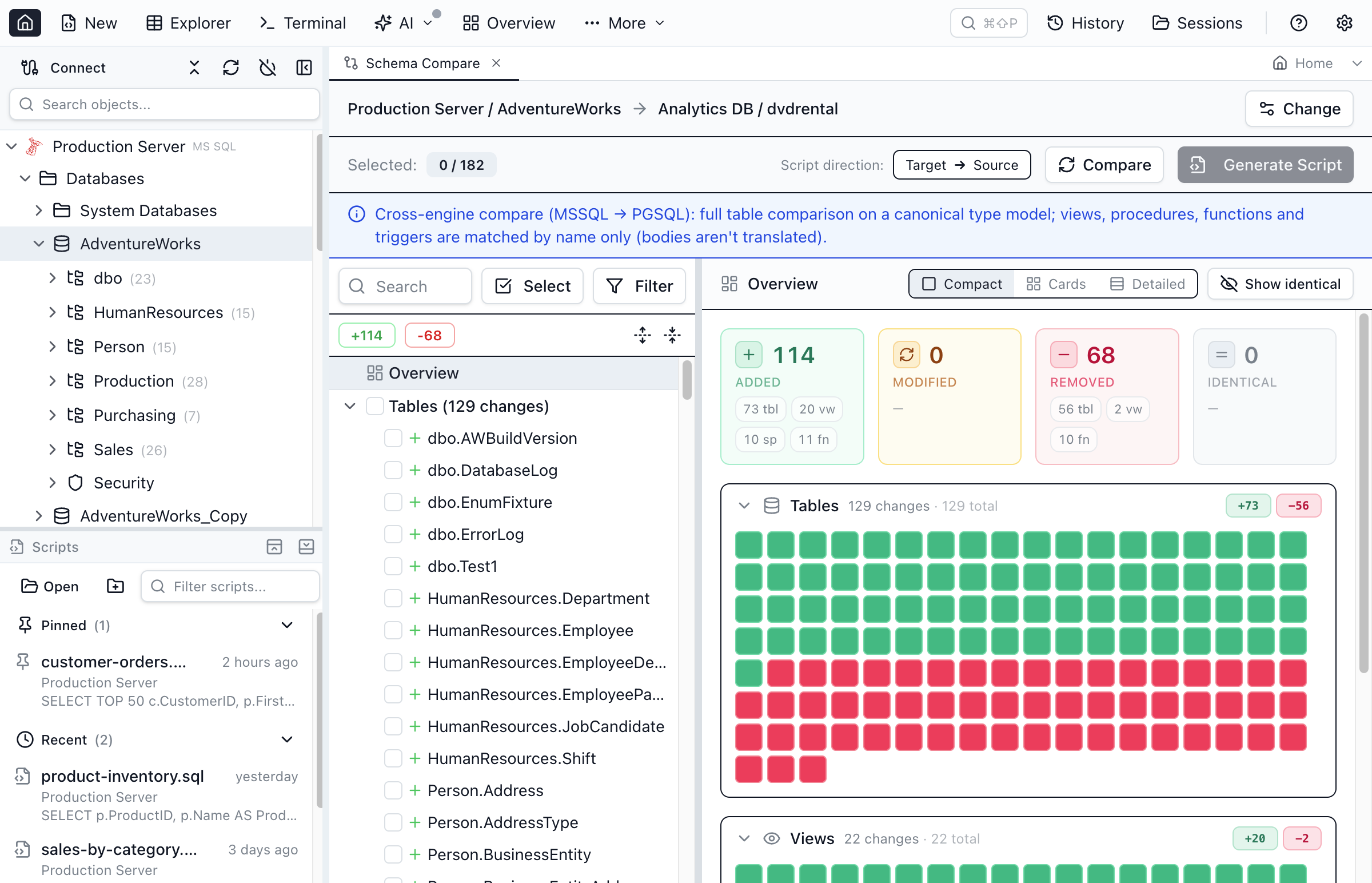
Migrate a table to another connection
Right-click a table in the Object Explorer and choose Migrate Table to Connection… to copy it — schema and data — into a connection of any engine. To copy an entire database, right-click the database and choose Migrate all tables to connection…. Because a migration can be long-running, it opens in its own workspace tab rather than a modal dialog.
- Pick the target connection and database. Each table is created in the target's default schema in the target dialect.
- Type and value translation runs automatically — e.g. a SQL Server
bitcolumn lands as a PostgreSQLboolean, and numeric/text values are coerced to fit the target column. - Preview (single table) performs a dry run that shows the generated
CREATE TABLE+INSERTscript, the exact number of rows it will copy, and any translation warnings without touching the target — reporting its progress live (analyzing → counting rows → building script) as it works. The script lists at most a 50-row sample ofINSERTs with a banner noting the full table is streamed chunk by chunk, so previewing a multi-million-row table stays instant. - Migrate asks for an explicit confirmation, then streams the copy live in the tab — the current table and phase (creating schema → copying data), an overall progress bar, and rows-copied of the total. Data is read and inserted in chunks, so a large table never loads entirely into memory. Row counts are verified on both sides afterward.
- Cancel stops the run at the next chunk boundary; if a table was only partially copied, you're asked whether to drop the partial table(s) or keep what was copied so far.
- When migrating a whole database, Choose tables… opens a two-list picker (Available ↔ Selected) with search on both sides — migrate every table, or search and bulk add/remove just the subset you want.
- If a target table already exists, the migration is refused with a clear message rather than a raw engine error — drop it or pick a different target and retry. When migrating a whole database, existing tables are skipped (and reported) while the rest continue.
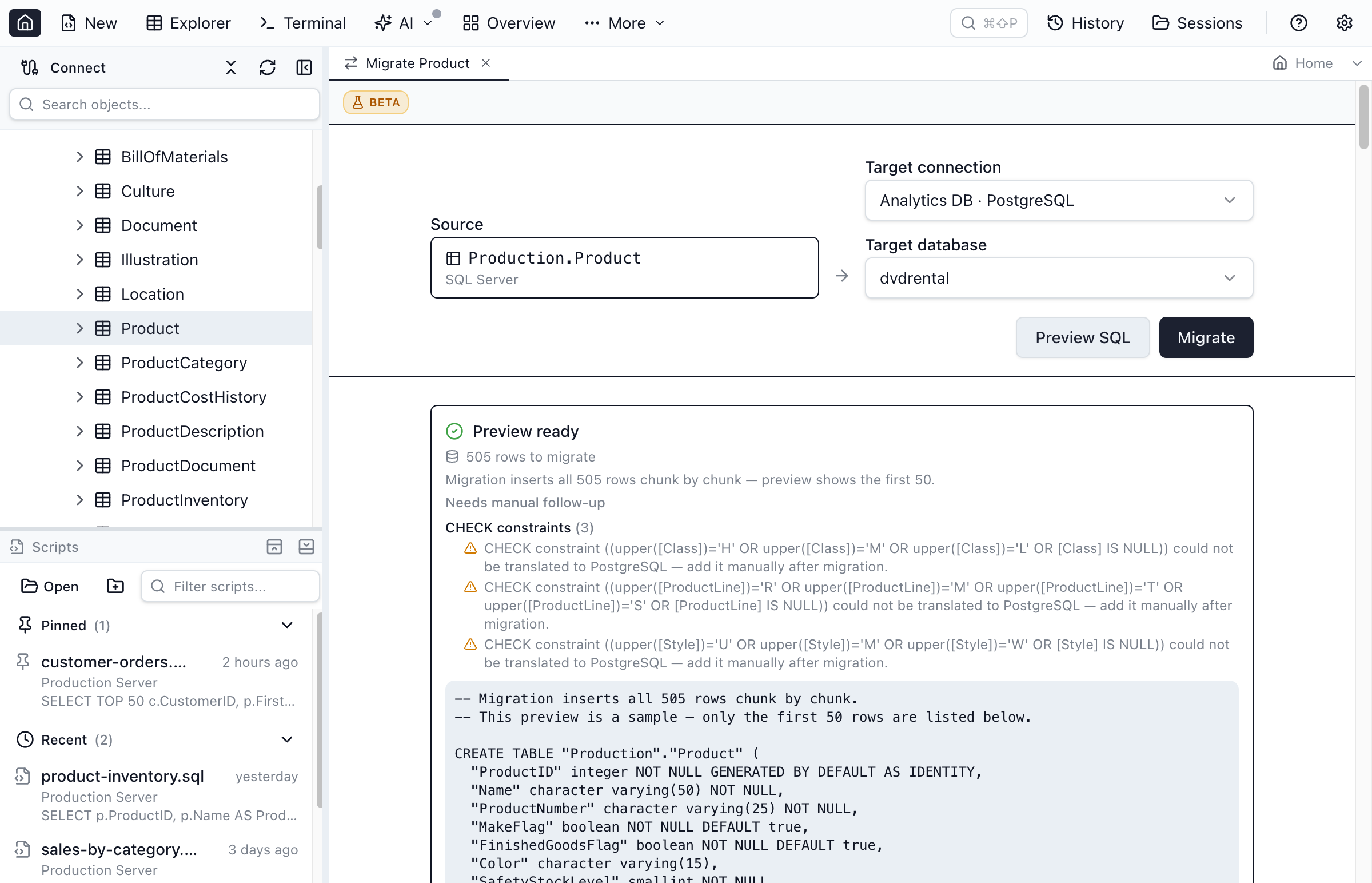
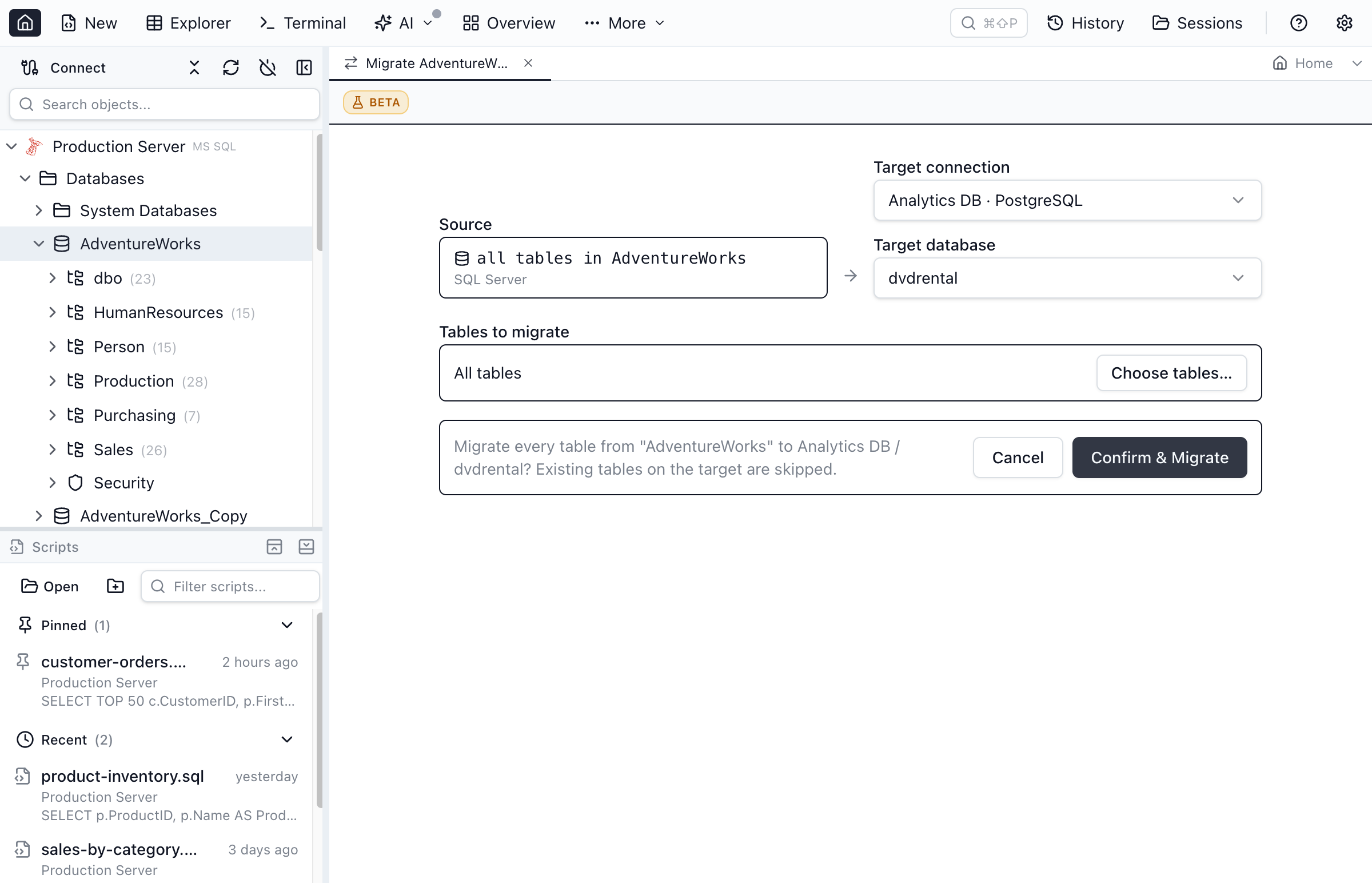
Common Schema Compare Workflows
Three concrete workflows account for most of how teams use schema compare day-to-day. Each one is a few clicks in Jam SQL Studio.
1. Promote dev → staging → production
You've added a new orders.shipped_at column and an index in development. To roll it forward:
- Set source = dev connection / database, target = staging connection / database, click Compare.
- Open the Overview pane — you'll see "1 column added on
orders", "1 index added". - Uncheck anything in the diff that's not part of this change (drift you don't want to ship now).
- Click Generate Script. The output is something like:
ALTER TABLE [dbo].[orders] ADD [shipped_at] DATETIME2 NULL; GO CREATE INDEX [IX_orders_shipped_at] ON [dbo].[orders] ([shipped_at]); GO - Save the script as
2026-05-06-orders-shipped-at.sql, commit it to your migrations folder, and — after backup — apply it with Open & Execute from the preview dialog (or run the saved file yourself). - Repeat staging → production with the same script — the diff confirms staging now matches production-minus-this-change before you ship.
2. Audit drift between environments that should match
Two environments that "should" be identical often aren't. Run a compare with the source and target swapped, or just look at Modified + Removed on a single direction.
- Index drift — a hot-fix index added in production but never back-ported to dev shows up as "Removed" when source is dev.
- Permission and role drift — not in the schema compare scope; use Security Manager for that.
- Collation / engine drift — common in MySQL where one replica was rebuilt with a different default. Schema Compare flags it at the table-options level.
3. Verify a deployment landed cleanly
After running a migration on production, point Schema Compare at production as source and the migration's expected end-state (a checkout of staging or a freshly-built canary) as target. The expected outcome is "0 differences". Anything else is a deployment problem — missed migration, partial run, or a permission failure.
4. Generate a rollback script before a risky change
Before a schema change, capture the current state by comparing target vs target with no source — or simply compare the new state (post-deploy) back to the old state. The generated DDL is your rollback. Save it alongside the forward migration. This is the safest pattern when you can't easily restore from backup.
Schema Compare Tool Limitations & Edge Cases
Knowing where Schema Compare doesn't help saves time. These are the real boundaries:
- Cross-engine compares don't translate object bodies. SQL Server vs PostgreSQL, Oracle vs MySQL, etc. compare tables in full (canonical type model, migratable across engines) and report views, procedures, functions, and triggers by name presence so you can see what's missing on each side. The bodies of those objects are never auto-translated — T-SQL and PL/pgSQL don't map 1:1 — so port them by hand, using the Object Explorer's Script as CREATE output as a starting point. Sequences are not compared across engines.
- A definition the server hands back empty cannot be compared. When SQL Server returns an object with no body, MySQL returns no trigger rows, or the module is encrypted or CLR, Jam SQL marks it Unreadable and leaves it out of the comparison rather than reporting it as identical. This covers what the server still lists. It does not cover a login that cannot see the catalog at all — a SQL Server database-scope
DENY VIEW DEFINITIONhides the objects entirely, and Jam SQL still reads that endpoint as an empty database. What it will not do is act on it silently: a script that would drop every object on the side it modifies is withheld until you confirm the count (see the note above). Compare with a login that can read the catalog and the definitions to get a complete result. - Data is not compared. Schema Compare only looks at structure. Use Data Compare for row-level diffs, especially for reference / lookup tables.
- Permissions, roles, and logins are out of scope. Use Security Manager for those.
- Computed-column expressions are compared as text. Two semantically equivalent expressions that differ in whitespace or parenthesization will show as Modified. Most tools have this limitation; reformat both sides if needed.
- Personal mode caps at 200 objects per side. A 200-table schema with 50 views, 100 procedures, and 50 functions = 400 total — over the limit. Pro mode removes the cap.
- SQL Server temporal-table history is treated as a regular table. History tables show up as separate objects in the diff — safe, but can be noisy. Use the object-type filter to hide them when reviewing.
- Sequences aren't scriptable on MySQL or SQLite. Neither engine has a SEQUENCE concept. SQL Server, PostgreSQL, and Oracle get real
CREATE/ALTER/DROP SEQUENCEstatements; if a selected sequence diff targets MySQL or SQLite (e.g. a cross-engine compare, or a Database Blueprint folder source that has one), the generated script leaves a-- [REVIEW]comment in its place instead of silently dropping the selection. - User-defined types are a SQL Server-only, live-database comparison. PostgreSQL domains, enums and composite types and Oracle object types are not compared yet, and a Database Blueprint folder compares them only when it carries them (written on 1.4.21 or later with the User-defined types / table types checkbox on); otherwise a folder-to-database comparison leaves them out and says so above the results. A changed type is rebuilt only when every object referencing it can be re-created from the source; otherwise the change is left as a fully commented-out
-- [REVIEW]block — see SQL Server user-defined types. - Column-owned sequences are deliberately left out of the comparison. A live database-to-database compare enumerates sequences on SQL Server, PostgreSQL, and Oracle (MySQL/MariaDB and SQLite have none to enumerate), but on two of those engines the sequences a column owns are skipped on purpose: PostgreSQL sequences created by a
serialorGENERATED … AS IDENTITYcolumn, and Oracle's implicitISEQ$$_*identity sequences. The column definition creates and drops them, so listing them would report objects you can't act on — and a script that emitted both the table and the sequence would try to create the same object twice. The owning column is still compared normally. SQL Server needs no such carve-out: itsIDENTITYis a column property, not a sequence object.
Best Practices
- Always backup your target database before applying schema changes
- Review carefully - Check the generated script for potentially destructive changes
- Test in staging before applying changes to production
- Use source control - Save generated scripts for audit trails
Frequently asked questions
How do I compare database schemas in Jam SQL Studio?
Open More → Schema Compare, select your source and target connections, choose the databases to compare, and click Compare. The tool analyzes both schemas and shows a tree view of all differences organized by object type.
Can I compare schemas across different SQL Server instances?
Yes, Jam SQL Studio's schema compare supports cross-connection comparisons. You can compare a development database on your local machine against a staging or production database on a different server.
What database objects does schema compare support?
Schema compare supports tables, views, stored procedures, functions, triggers, indexes, constraints, schemas, sequences and, on SQL Server, user-defined types (table types, alias types and CLR types). You can filter which object types to include in the comparison.
How do I generate a synchronization script?
After comparing, review the differences and uncheck any objects you want to exclude. Click Generate Script to create ALTER/CREATE/DROP statements, then preview the script before executing or saving it. On SQL Server and PostgreSQL the script is wrapped in a single transaction by default, so a run-time failure part-way through rolls the whole thing back instead of leaving the target half-migrated; untick Wrap in a single transaction if you would rather a very large sync commit as it goes, or want a failed run to keep the progress it made. Every script header states which atomicity you are getting.
Is it safe to apply schema changes directly?
On SQL Server and PostgreSQL it is atomic by default: Wrap in a single transaction is ticked in the comparison options. On SQL Server the script runs under SET XACT_ABORT ON with a per-batch IF @@TRANCOUNT = 0 SET NOEXEC ON guard and a conditional COMMIT, and a run-time failure anywhere leaves nothing committed, in Jam SQL Studio and in SSMS/sqlcmd alike (a syntax error is the one case it cannot cover). On PostgreSQL the script opens with BEGIN; and closes with COMMIT;, and because PostgreSQL DDL is transactional a failure anywhere rolls the whole script back, in psql and here alike. Untick it and the script stops being atomic: each statement — each GO batch on SQL Server — then commits on its own, so a failure part-way through leaves the earlier changes applied, which is what you want when a very large sync should commit as it goes or a failed run should keep its progress. On MySQL, Oracle and SQLite the option is not offered and the script is never atomic. The script header always says which. Always backup your target database before applying changes, review the generated DDL carefully, and test in a staging environment first.
Which database engines does Jam SQL Studio's schema compare support?
Schema Compare works across SQL Server, PostgreSQL, MySQL/MariaDB, Oracle, and SQLite. Same-engine compare covers tables, views, procedures, and functions on all five engines, plus sequences on SQL Server, PostgreSQL, and Oracle — a live database-to-database compare reads sequences back from all three — and user-defined types (table types, alias types, CLR types) on SQL Server. MySQL/MariaDB and SQLite have no SEQUENCE concept, so no sequence comparison is offered there. Cross-engine compare (e.g. SQL Server vs PostgreSQL) is supported for tables, and a companion 'Migrate Table to Connection…' action copies a table's schema and data to a connection of any engine with type and value translation.
Is there a free schema compare tool for SQL Server?
Yes. Jam SQL Studio's Personal mode includes Schema Compare for free when both schemas have 200 objects or fewer, counting only the object types included in the comparison (tables, views, procedures, functions, sequences). Larger schemas need Pro. Microsoft retired Azure Data Studio's SQL Database Projects extension in February 2026, so Jam SQL Studio is a current free option for SQL Server schema diffs.
Ready to Compare Schemas?
Download Jam SQL Studio and start comparing your database schemas today.