
Last updated: 2026-07-02
Security Manager
The Security Manager in Jam SQL Studio creates and manages database security principals — logins, users, roles, and schemas — for SQL Server, PostgreSQL, and Oracle. Every change shows a generated DDL/DCL preview first, so you always review the exact SQL before anything runs. You browse security objects from a Security folder in the Object Explorer and edit them in a dedicated Security Manager workspace tab.
What is the Security Manager?
Managing who can connect to a database and what they can do usually means hand-writing CREATE LOGIN, CREATE USER, CREATE ROLE, and GRANT statements. The Security Manager gives that a visual surface without hiding the SQL. It has two complementary parts:
- Explorer tree integration — a Security folder appears under each SQL Server, PostgreSQL, and Oracle connection (and under each database for SQL Server), so you can browse logins, users, roles, and schemas.
- Security Manager tab — a workspace tab (like the Table Designer) that lists security objects in a grid and opens engine-aware forms for creating and editing them. There is one Security Manager tab per connection.
SQLite has no server-side security model (it's a single file with no logins or roles), so SQLite connections have no Security folder.
The preview-first workflow
This is the defining behavior of the Security Manager: no security change runs silently. Whether you're creating a login, adding a role member, or dropping a user, the flow is always the same:
- Fill in the form (for example the New Login or New User form).
- Click Preview. Jam SQL Studio generates the
CREATE/ALTER/DROP(and anyGRANT/DENY) statements and runs them through the engine-aware SQL formatter. - The preview dialog opens, showing the formatted SQL plus warnings for destructive operations.
- Choose what to do with it:
- Copy — copy the script to the clipboard.
- Open in Query Editor — load it into a query tab to run manually or tweak first.
- Apply Changes — execute it immediately.
- Cancel — return to the form.
Because the generated SQL is real, reviewable DDL, the Security Manager doubles as a way to learn the exact statements for a change and drop them into a migration script.
SQL Server Security
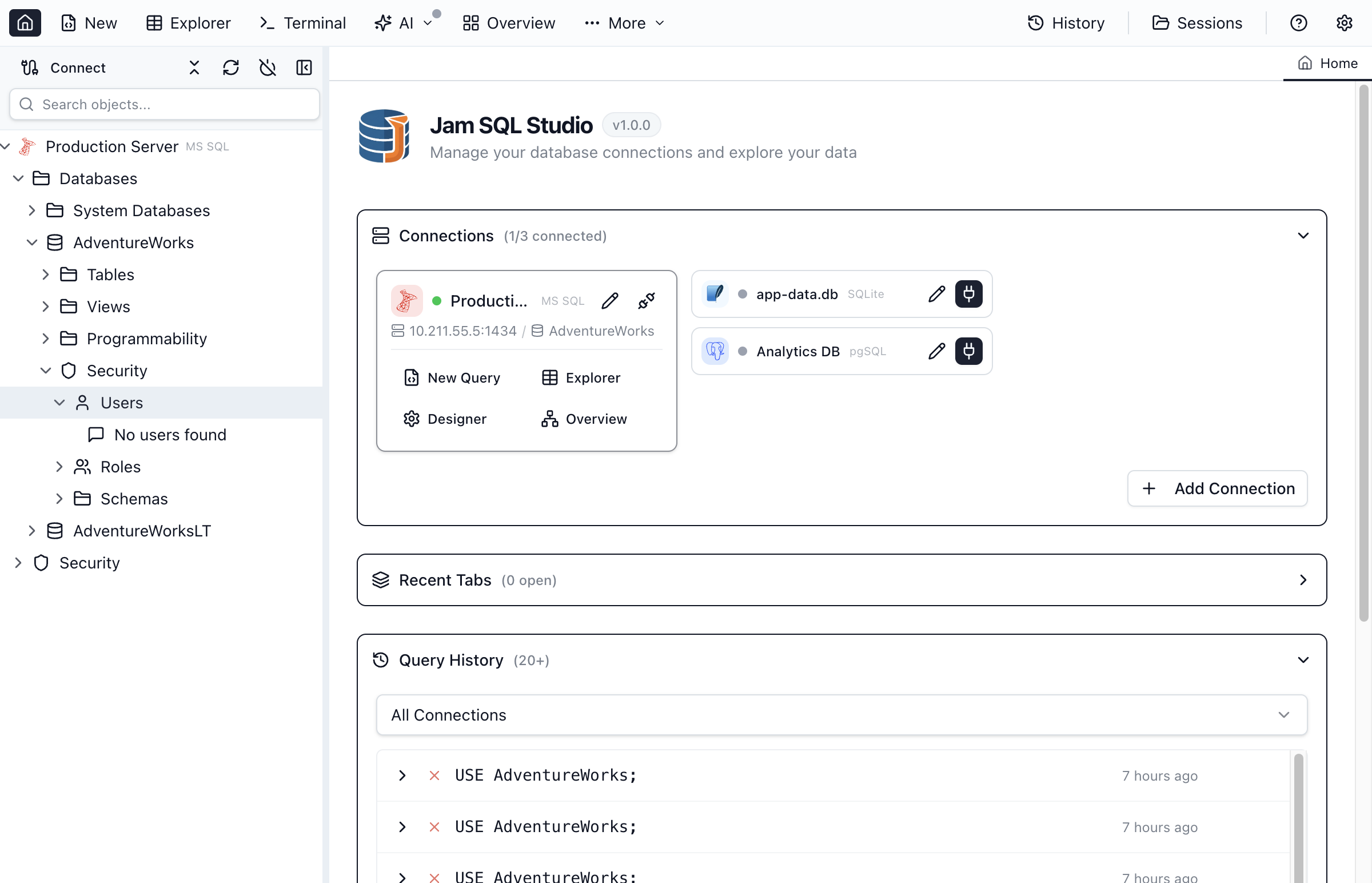
SQL Server uses a two-tier model — server-level principals (logins, server roles) and database-level principals (users, database roles, schemas) — and the Object Explorer mirrors it:
- Under the server: Security → Logins and Security → Server Roles.
- Under each database: Security → Users, Roles, and Schemas.
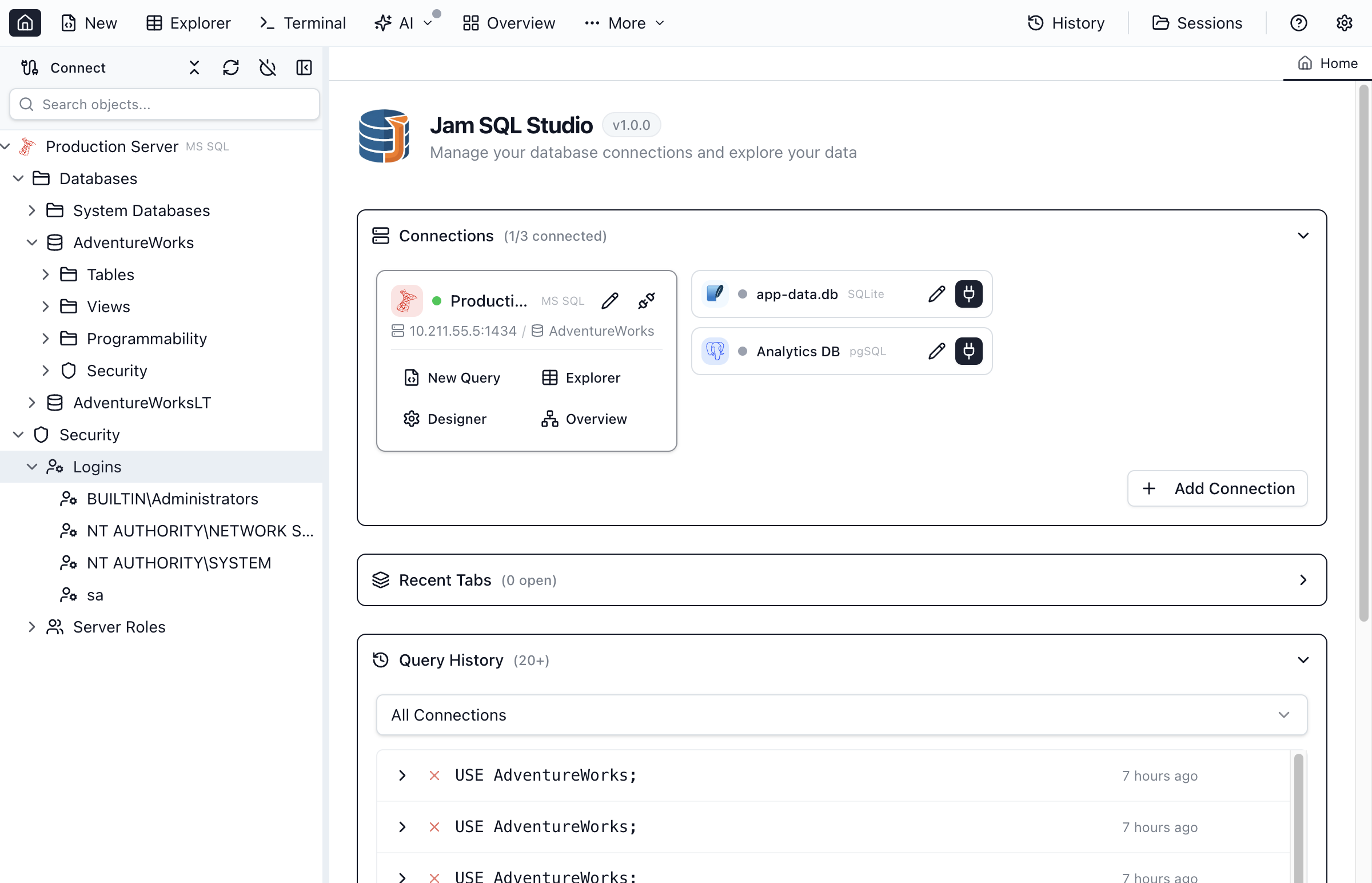
Creating a login
Right-click Logins and choose New Login… (or use New in the Security Manager tab). The login form supports three authentication types, and the preview generates the matching DDL:
| Authentication | Generated statement |
|---|---|
| SQL authentication | CREATE LOGIN [app_user] WITH PASSWORD = N'…', DEFAULT_DATABASE = [mydb], CHECK_POLICY = ON; |
| Windows authentication | CREATE LOGIN [DOMAIN\username] FROM WINDOWS WITH DEFAULT_DATABASE = [mydb]; |
| Microsoft Entra ID | CREATE LOGIN [[email protected]] FROM EXTERNAL PROVIDER WITH DEFAULT_DATABASE = [mydb]; |
Login → User Mapping (SSMS-style)
The login form includes a User Mapping tab modeled on SQL Server Management Studio: a grid of every database on the server where you can map the login to a user and tick database-role membership for the selected database. When you preview, Jam SQL Studio diffs your changes and generates exactly the CREATE USER / ALTER USER / DROP USER and ALTER ROLE … ADD MEMBER statements needed to reconcile them — it doesn't regenerate everything.
Users and database roles
Under a database, right-click Users → New User… or Roles → New Database Role…. The generated DDL looks like:
-- User mapped to a login
CREATE USER [app_user] FOR LOGIN [app_user]
  WITH DEFAULT_SCHEMA = [dbo];

-- Database role and membership
CREATE ROLE [app_readers];
ALTER ROLE [app_readers] ADD MEMBER [app_user];

-- Grant on a schema (SQL Server supports DENY as well as GRANT/REVOKE)
GRANT SELECT ON SCHEMA::[app] TO [app_readers];
DENY DELETE ON SCHEMA::[app] TO [app_readers];
SQL Server is the only supported engine with DENY — PostgreSQL and Oracle have GRANT/REVOKE only.
Built-in database roles
When you open a fixed database role in the Security Manager, it shows a description of what that role grants instead of an editable permission list. The fixed roles Jam SQL Studio recognizes:
| Role | Grants |
|---|---|
| db_owner | Full control over the database. |
| db_datareader | Read all data from all user tables. |
| db_datawriter | Add, delete, or change data in all user tables. |
| db_ddladmin | Run DDL commands in the database. |
| db_securityadmin | Modify role membership and manage permissions. |
| db_accessadmin | Add or remove database access for logins. |
| db_backupoperator | Back up the database. |
| db_denydatareader | Cannot read any data in the database. |
| db_denydatawriter | Cannot modify any data in the database. |
| public | Default role for all database users. |
PostgreSQL Security
PostgreSQL uses a unified role system — a role can act as a user, a group, or both. Under a PostgreSQL connection the tree shows a Roles folder split into Login Roles (can authenticate) and Group Roles (permission grouping), plus per-database Schemas.
Creating and editing roles
Right-click Login Roles → New Login Role… or Group Roles → New Group Role…. The role form exposes the attributes PostgreSQL cares about, and the preview builds the SQL:
-- Login role with attributes
CREATE ROLE "app_user" WITH
  LOGIN
  PASSWORD '…'
  CREATEDB
  CONNECTION LIMIT 10
  VALID UNTIL '2026-12-31';

-- Group role and membership
CREATE ROLE "app_readers" WITH NOLOGIN;
GRANT "app_readers" TO "app_user";

-- Schema privileges, including future tables
GRANT SELECT ON ALL TABLES IN SCHEMA "app" TO "app_readers";
ALTER DEFAULT PRIVILEGES IN SCHEMA "app"
  GRANT SELECT ON TABLES TO "app_readers";
Role attributes
| Attribute | Description |
|---|---|
| LOGIN | The role can log in (acts as a user). Without it the role is a group. |
| SUPERUSER | Bypasses all permission checks. Use with extreme caution. |
| CREATEDB | Can create new databases. |
| CREATEROLE | Can create, alter, and drop other roles. |
| INHERIT | Automatically inherits privileges of roles it belongs to. |
| CONNECTION LIMIT / VALID UNTIL | Cap concurrent connections and set an expiry date. |
Because PostgreSQL schemas are database-scoped, the Security Manager runs schema queries against the selected database.
Oracle Security
In Oracle, users and schemas are the same concept — each user owns a schema of the same name. Under an Oracle connection the tree shows a Security folder with Users and Roles. Right-click a user or role for Script As → CREATE / ALTER / DROP (which opens a query tab with the generated DDL) or Properties… to open it in the Security Manager.
- System privileges control operations —
CREATE SESSIONto connect,CREATE TABLE,CREATE VIEW,CREATE PROCEDURE,CREATE SEQUENCE, and the sweepingDBAprivilege. - Object privileges control access to specific objects —
SELECT,INSERT,UPDATE,DELETEon tables and views;EXECUTEon procedures, functions, and packages. - Roles group privileges — the built-in
CONNECT,RESOURCE, andDBAroles are common starting points.
GRANT/REVOKE only — there is no DENY.Viewing a role's permissions
Open a role in the Security Manager (Properties…) and, in edit mode, the form shows a read-only Permissions section listing what the role has been granted — each row shows the Permission, the Object it applies to, and its State (grant or deny). Fixed/system roles show a plain-language description instead. To change permissions, use the generated GRANT/REVOKE (and DENY on SQL Server) statements from the preview dialog, then apply them or drop them into a migration.
Context-menu reference
| Node | Actions |
|---|---|
| Security folder (server or database) | Open Security Manager, Refresh |
| Logins (SQL Server) | Open Security Manager, New Login…, Refresh |
| Server Roles (SQL Server) | Open Security Manager, New Server Role…, Refresh |
| Users / Roles / Schemas (database) | New User… / New Database Role… / New Schema…, Refresh |
| Login / Group Roles (PostgreSQL) | Open Security Manager, New Login Role… / New Group Role…, Refresh |
| A security object (login, user, role, schema) | Script As → CREATE / ALTER / DROP, Properties…, Refresh |
Security Manager vs SQL Server Management Studio
SSMS manages security through a series of modal dialogs (New Login, User, Role) that apply changes when you click OK — you don't see the SQL unless you use its "Script" button. Jam SQL Studio inverts that:
- Preview-first, not apply-first. The generated DDL/DCL is the centerpiece — you see and approve the exact statements before anything runs, every time.
- Cross-engine. The same forms and workflow cover SQL Server, PostgreSQL, and Oracle, with each engine's correct syntax — not a SQL-Server-only tool.
- Migration-friendly. Copy or Open in Query Editor turns any security change into a reusable script you can commit alongside schema migrations.
Best Practices
Principle of least privilege
- Grant only the permissions users actually need; start read-only and add write access as required
- Avoid
db_owner(SQL Server) orSUPERUSER(PostgreSQL) unless absolutely necessary - Review permissions regularly and remove unused access
Use roles for group management
- Create roles for common permission sets (e.g.
app_readonly,app_readwrite) and add users to roles - Changing a role updates everyone in it — easier than per-user grants
- Simplifies auditing and compliance
Secure authentication and auditing
- Prefer Windows Authentication or Microsoft Entra ID on SQL Server; require strong passwords for SQL/PostgreSQL authentication
- Enable SSL/TLS on connections (see the Connections guide)
- Save security-change scripts (via Copy / Open in Query Editor) for an audit trail, and use Schema Compare to track structural changes across environments
Frequently asked questions
Which databases does the Jam SQL Studio Security Manager support?
The Security Manager works for SQL Server, PostgreSQL, and Oracle. Each connection shows a Security folder in the Object Explorer with the principals that engine uses — logins, users, and roles on SQL Server; login and group roles on PostgreSQL; users and roles on Oracle. SQLite has no server-side security model, so it has no Security folder.
How do I create a new database user in Jam SQL Studio?
Expand the Security folder under your database (SQL Server) and right-click Users, or open the Security Manager tab and click New. Fill in the form — username, the associated login or password, default schema, and role membership — then click Preview to see the generated CREATE USER statement. From the preview you can Copy it, Open in Query Editor, or Apply Changes.
Does Jam SQL Studio show the SQL before changing security objects?
Yes. Every create, alter, and drop of a login, user, role, or schema opens a preview dialog with the generated DDL/DCL, formatted with the engine-aware formatter. Nothing runs until you choose to: you can Copy the script, Open in Query Editor to run it manually, or Apply Changes to execute it immediately.
What's the difference between a login and a user in SQL Server?
A login is a server-level principal that authenticates to the SQL Server instance and lives in master. A user is a database-level principal, usually mapped to a login, that grants access inside one specific database. One login can map to users in several databases, which is why Jam SQL Studio shows Logins at the server level and Users under each database.
Can I manage PostgreSQL roles in Jam SQL Studio?
Yes. Expand the Roles folder under a PostgreSQL connection to see Login Roles and Group Roles, and the per-database Schemas. You can create and alter roles, set attributes like LOGIN, SUPERUSER, CREATEDB and CREATEROLE, a connection limit, and an expiry, and manage role membership. PostgreSQL uses GRANT and REVOKE only — there is no DENY.
Secure Your Databases
Download Jam SQL Studio and manage logins, users, and roles with a preview-first workflow.