
Last updated: 2026-07-20
Backup & Restore
Protect your data with database backups and restore when needed. Jam SQL Studio supports SQL Server native backups, BACPAC export/import for Azure SQL, and PostgreSQL pg_dump/pg_restore operations.
Personal Mode Limits
In Personal mode, creating a backup is limited to source databases ≤ 1 GB. Restoring a backup has no size limit. Upgrade to Pro to remove the backup-creation limit.
SQL Server Backup
Create native SQL Server backup files (.bak) for your databases.
Creating a Backup
- Right-click your database in Object Explorer
- Select Backup Database (.bak)...
- Click Browse... to choose a server folder (or click Use server default / type a path)
- Choose backup type and compression
- Click Start Backup
A progress dialog shows the completion percentage while the backup runs. You can cancel the operation at any time.
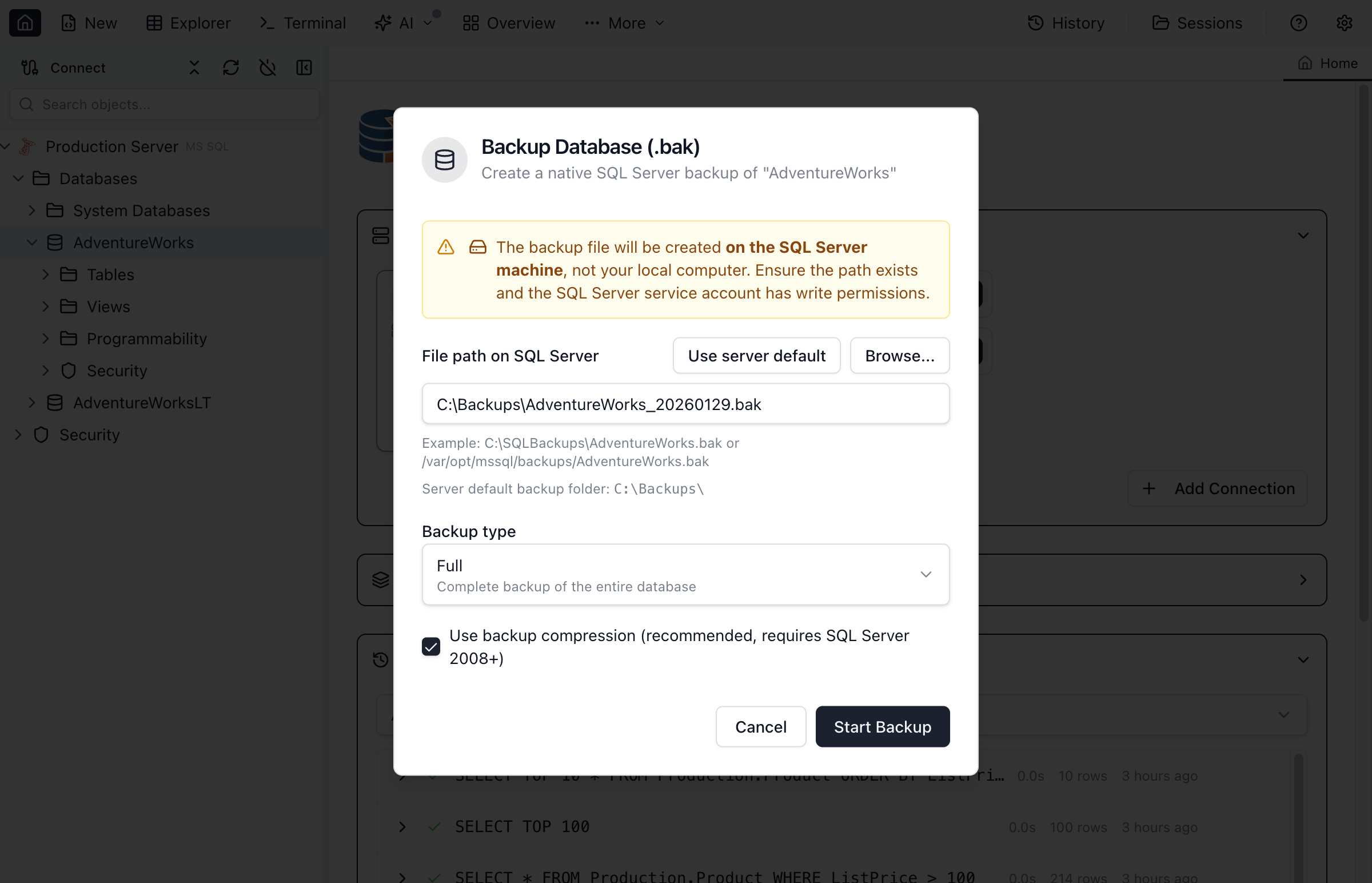
Backup Options
| Option | Description |
|---|---|
| Backup Type | Full (complete database), Differential (changes since last full), or Transaction Log |
| File Path (SQL Server) | Server-side file path for the .bak file. Click Use server default to prefill the SQL Server instance default backup folder, or Browse... to select a folder (if permitted). |
| Compression | Enable backup compression to reduce file size (requires SQL Server 2008+) |
Backup Types Explained
- Full Backup - Complete copy of the entire database. Start with this for any backup strategy.
- Differential Backup - Contains only data changed since the last full backup. Faster and smaller than full backups.
- Transaction Log Backup - Backs up the transaction log for point-in-time recovery. Requires database to be in Full recovery mode.
SQL Server Restore
Restore a database from a backup file.
Restoring a Database
- Right-click the Databases folder (or a database) in Object Explorer
- Select Restore Database (.bak)...
- Click Use server default / Browse... to select the .bak file on the SQL Server machine (or type the server path)
- Choose the target database name
- Configure restore options
- Click Start Restore
A progress dialog shows the completion percentage while the restore runs. You can cancel the operation at any time.
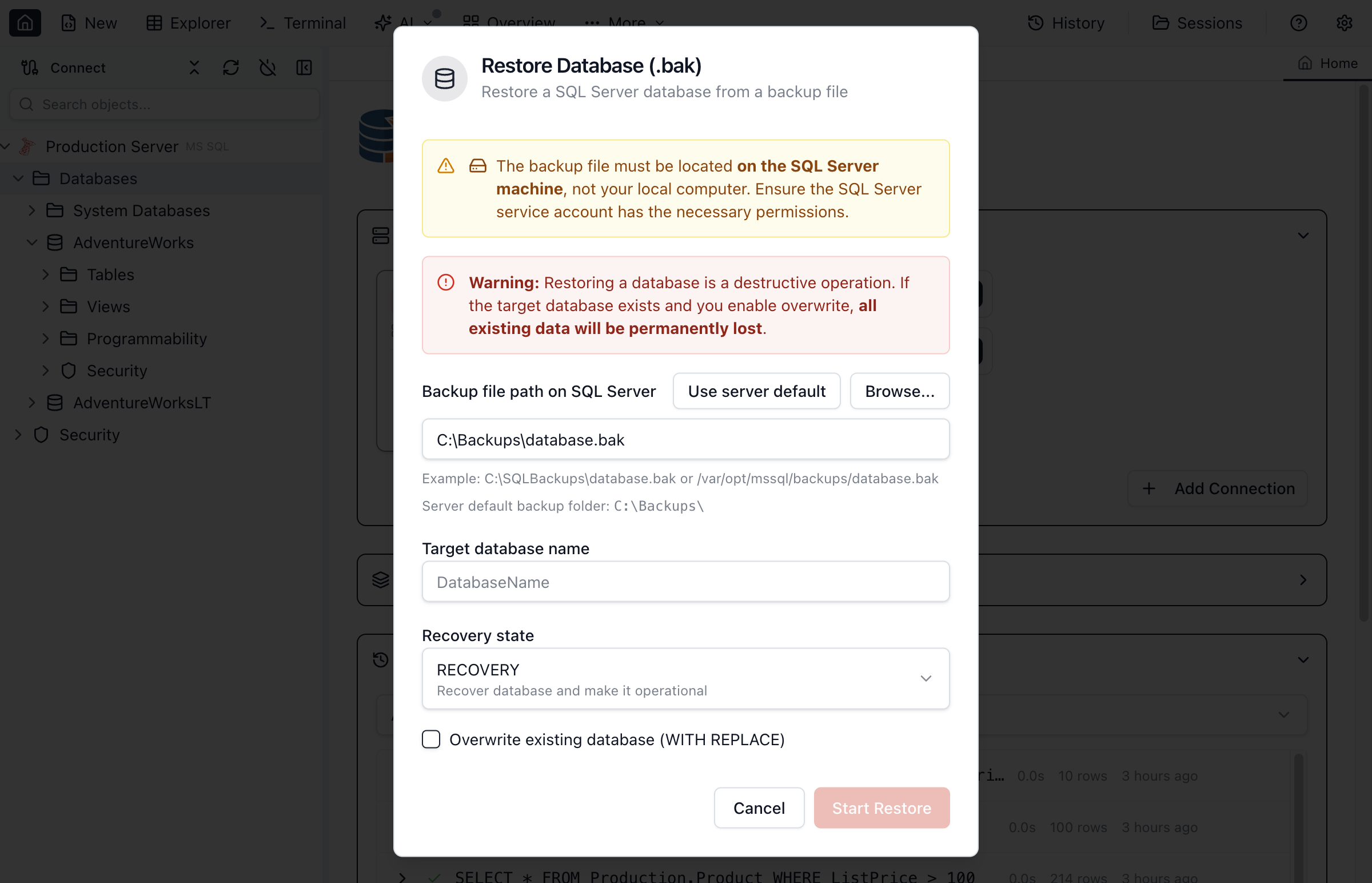
Restore Options
| Option | Description |
|---|---|
| Backup File Path (SQL Server) | Server-side file path to the .bak file. Click Use server default to start from the SQL Server default backup folder, or Browse... to select a file (if permitted). |
| Target Database | Name for the restored database (can be different from original) |
| Overwrite | Replace existing database with the same name |
| Recovery State | RESTORE (ready for use), NORECOVERY (for applying additional backups), or STANDBY (read-only with restore capability) |
BACPAC Export/Import
BACPAC files are portable packages for migrating databases to Azure SQL or other SQL Server instances.
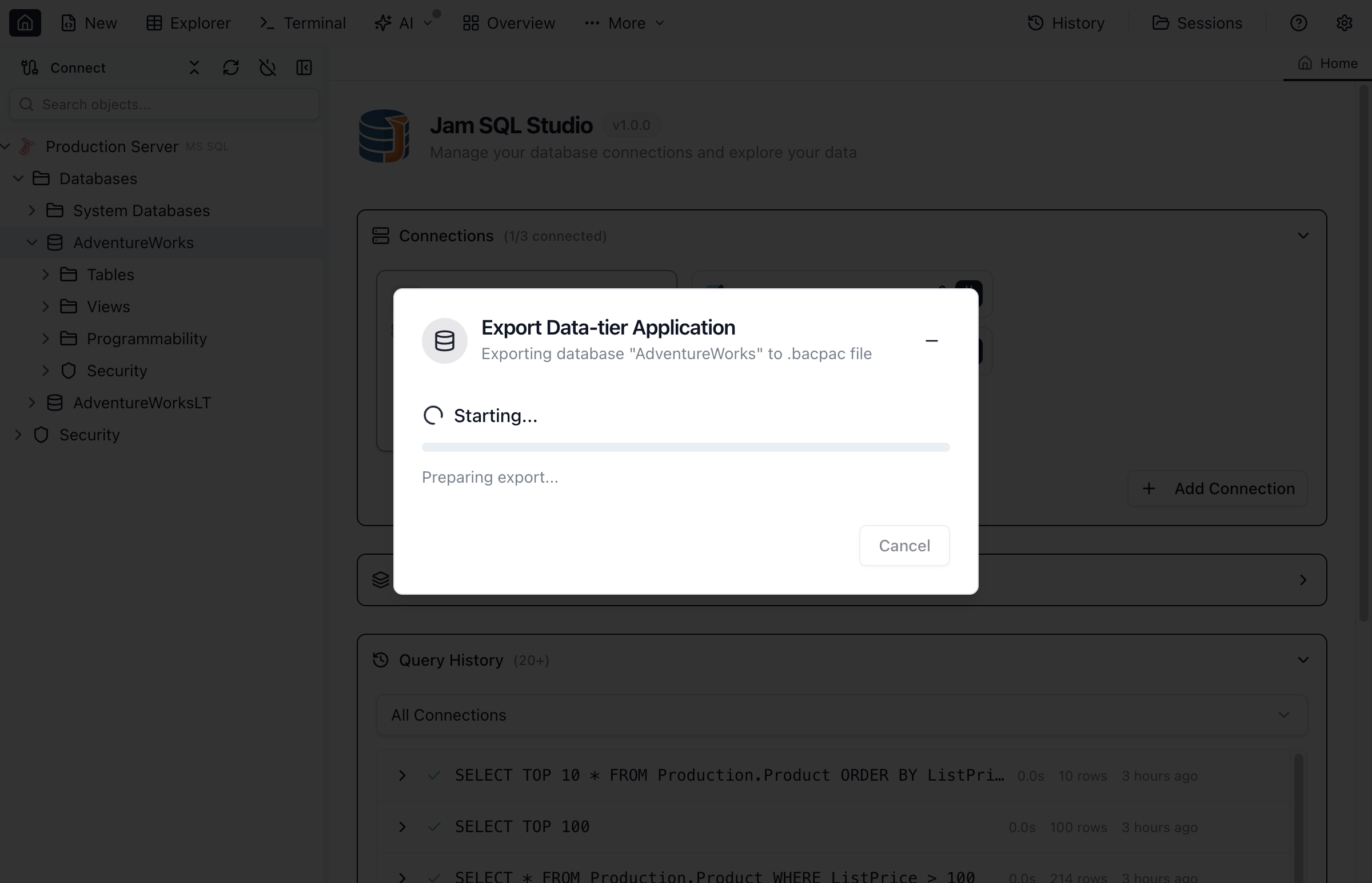
Export to BACPAC
- Right-click your database in Object Explorer
- Select Export Data-tier Application (.bacpac)...
- Choose a destination file when prompted
- Follow progress in the export dialog
Import from BACPAC
- Right-click your connection in Object Explorer
- Select Import Data-tier Application (.bacpac)...
- Select a .bacpac file when prompted
- Enter the target database name
- Click Start Import
BACPAC vs BAK Comparison
| Feature | BAK | BACPAC |
|---|---|---|
| Format | Native SQL Server | Portable package (schema + data) |
| Azure SQL Support | Limited (requires VM) | Full support |
| Speed | Faster | Slower (data validation) |
| Point-in-Time | Yes (with log backups) | No |
| Best For | Local backup/restore | Cloud migration, archiving |
PostgreSQL Backup
Backup PostgreSQL databases using pg_dump.
Creating a PostgreSQL Backup
- Right-click your PostgreSQL database in Object Explorer
- Select Backup Database (pg_dump)...
- Choose the backup format
- Click Start Backup
- Select a destination file when prompted
Backup Formats
| Format | Extension | Description |
|---|---|---|
| Custom | .dump | Compressed binary format. Most flexible, supports selective restore. |
| Plain SQL | .sql | Human-readable SQL script. Can be edited, executed with any client. |
PostgreSQL Restore
Restore PostgreSQL databases using pg_restore.
Restoring a PostgreSQL Database
- Right-click your PostgreSQL database in Object Explorer
- Select Restore Database...
- Choose the target database name
- Configure restore options
- Click Select File & Restore and pick a .dump or .sql file when prompted
PostgreSQL Restore Options
- Create Database - Create the target database if it doesn't exist
- Drop Existing - Drop existing objects before restore
Backup Progress
Monitor backup and restore operations in real-time.
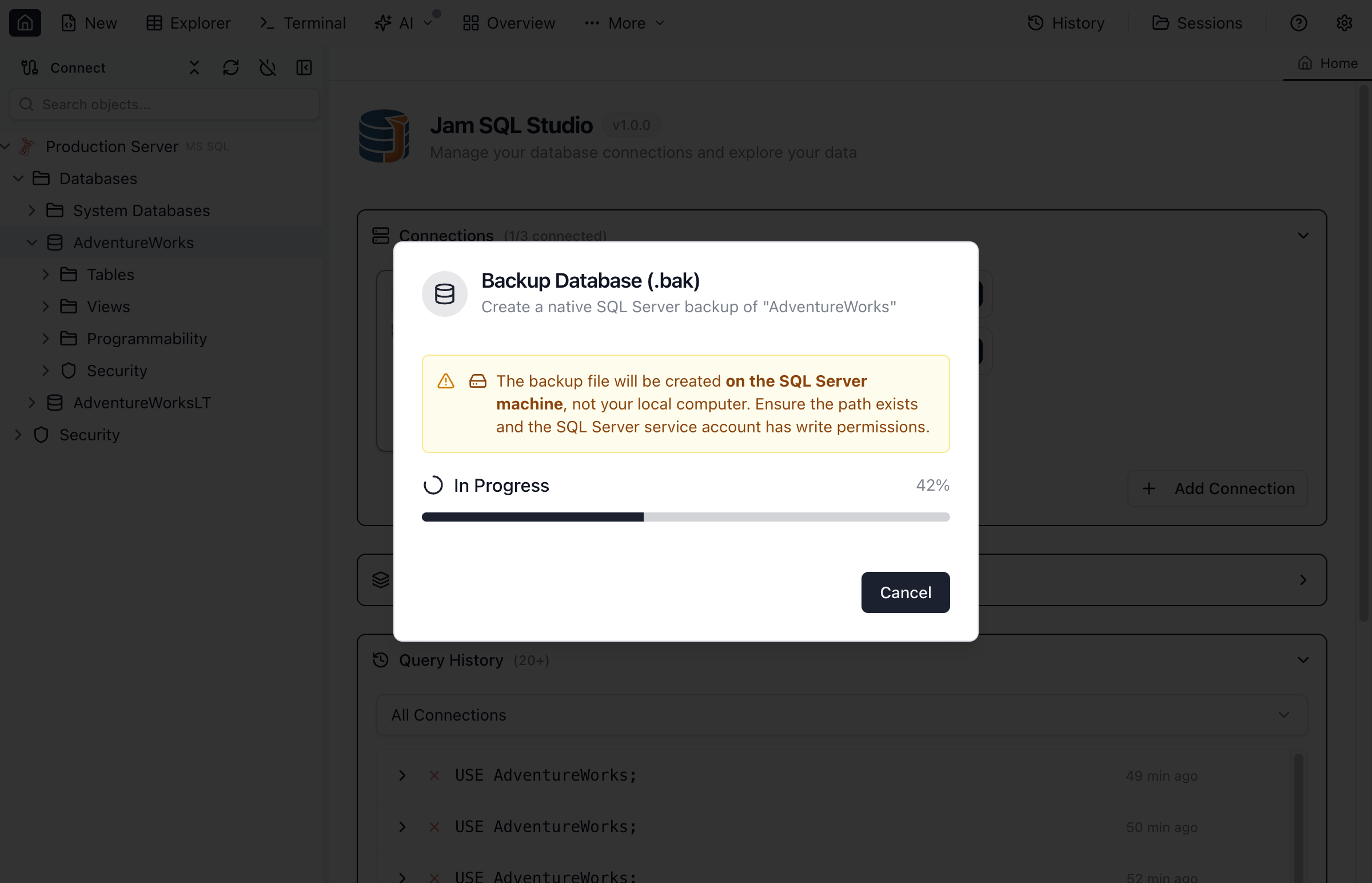
The progress dialog shows:
- Progress bar - Visual completion percentage
- Status messages - Current operation being performed
- Cancel button - Stop the current operation
- Error details - Full error message on failure
Best Practices
SQL Server
- Schedule regular full backups (weekly minimum)
- Use differential backups between full backups for large databases
- Enable backup compression to save storage space
- Test restores periodically to verify backup integrity
- Store backups on separate storage from the database
PostgreSQL
- Use custom format for production backups (most flexible)
- Use plain SQL format when you need to edit or review the backup
Azure SQL / BACPAC
- Use BACPAC for migrating to/from Azure SQL Database
- Validate data before export to ensure clean BACPAC files
- Consider Azure's built-in backup features for production Azure SQL databases
Frequently asked questions
How do I backup a SQL Server database in Jam SQL Studio?
Right-click the database in Object Explorer and select 'Backup Database (.bak)...'. Choose a folder on the SQL Server machine (Browse...) or click 'Use server default' / enter a server-side path, choose backup type (full, differential, or log) and compression, then click Start Backup.
What is the difference between BAK and BACPAC files?
BAK files are native SQL Server backups that include the full database state. BACPAC files are portable packages containing schema and data that can be imported into Azure SQL Database or other SQL Server instances. Use BAK for local backups and BACPAC for cloud migrations.
How do I restore a database from a backup file?
Right-click the Databases folder (or an individual database) in Object Explorer and select 'Restore Database (.bak)...'. Use 'Use server default' / Browse... to pick a .bak file on the SQL Server machine (or enter the server path), choose the target database name and restore options, then click Start Restore.
Can I backup a PostgreSQL database with Jam SQL Studio?
Yes. Right-click a PostgreSQL database and select 'Backup Database (pg_dump)...'. Choose Custom (.dump) or Plain SQL (.sql), then pick a save location when prompted. Jam SQL Studio uses pg_dump under the hood.
How do I export a database for Azure SQL?
Use the Export Data-tier Application (.bacpac) feature. Right-click your database, select 'Export Data-tier Application (.bacpac)...', then choose a destination file when prompted. The resulting .bacpac can be imported into Azure SQL Database.
Ready to Protect Your Data?
Download Jam SQL Studio and create your first database backup.