 Jam SQL Studio
 Published: 2026-09-25 • Updated: 2026-10-02
Azure Storage Support: Blobs, Data Lake (ADLS Gen2), File Shares, Queues and Tables
Jam SQL Studio 1.5.3 adds Azure Storage as a connection type. Connect to a storage account, to a single container, blob, share, table or queue through a SAS URL, or to the local Azurite emulator, and the Object Explorer lists the account's blob containers, file shares, queues and tables. Blobs and share files upload and download as background jobs, a Data Lake (ADLS Gen2) account gets real directories, moves and access-control lists, queue messages can be peeked without consuming them, and Table entities open in the same grid you use for SQL tables. It is meant for people whose application keeps files, messages or entities in a storage account next to the SQL database they already work with in Jam SQL Studio.
Connect with a key, a SAS URL, Entra ID or Azurite
Open Add Connection, pick Azure Storage, and choose what the connection points at:
- Storage account — type the account name, paste an endpoint URL, or paste a full connection string. Browse Azure picks an account from your signed-in Azure subscriptions and fills in the endpoints for you.
- Single resource (SAS URL) — paste a container, folder, blob, table or queue URL. The connection is scoped to exactly that resource and never lists its siblings.
- Emulator (Azurite) — fills in the emulator's well-known account, key and ports 10000–10002, and shows a
docker runcommand you can copy if Azurite isn't running yet.
Authentication can be an account key, a shared access signature (account, service or stored-policy SAS), anonymous access for a public container or blob, or Microsoft Entra ID through an interactive browser sign-in, a service principal, or an existing az login. Test Connection probes each service you ticked separately, with the least-privileged request the credential allows, so a credential that can read blobs but not queues still connects and tells you which service it could not verify and why.
With Microsoft Entra ID, listing containers, tables and queues needs only a management role such as Reader, while reading what is inside them needs a data role such as Storage Blob Data Reader. Test Connection therefore follows each listing with one data read (a blob page, an entity or a peeked message) and names what it read. If every item it checked was refused, the row says that the identity can list but not read the data and names the missing role; if only some were readable, it reports partial data access. The service folder in the Object Explorer shows the same result as a badge. When a read is refused later, the error names the missing data role and where to assign it, under Access control (IAM) on the storage account or on that one container, table or queue. If the identity may read the account keys, you can set the connection's Data access to the account key instead, or accept the same offer under the error. Jam SQL Studio then reads the key through Azure Resource Manager each time it connects and never saves it. This works on public Azure only, and only for the account the connection points at.
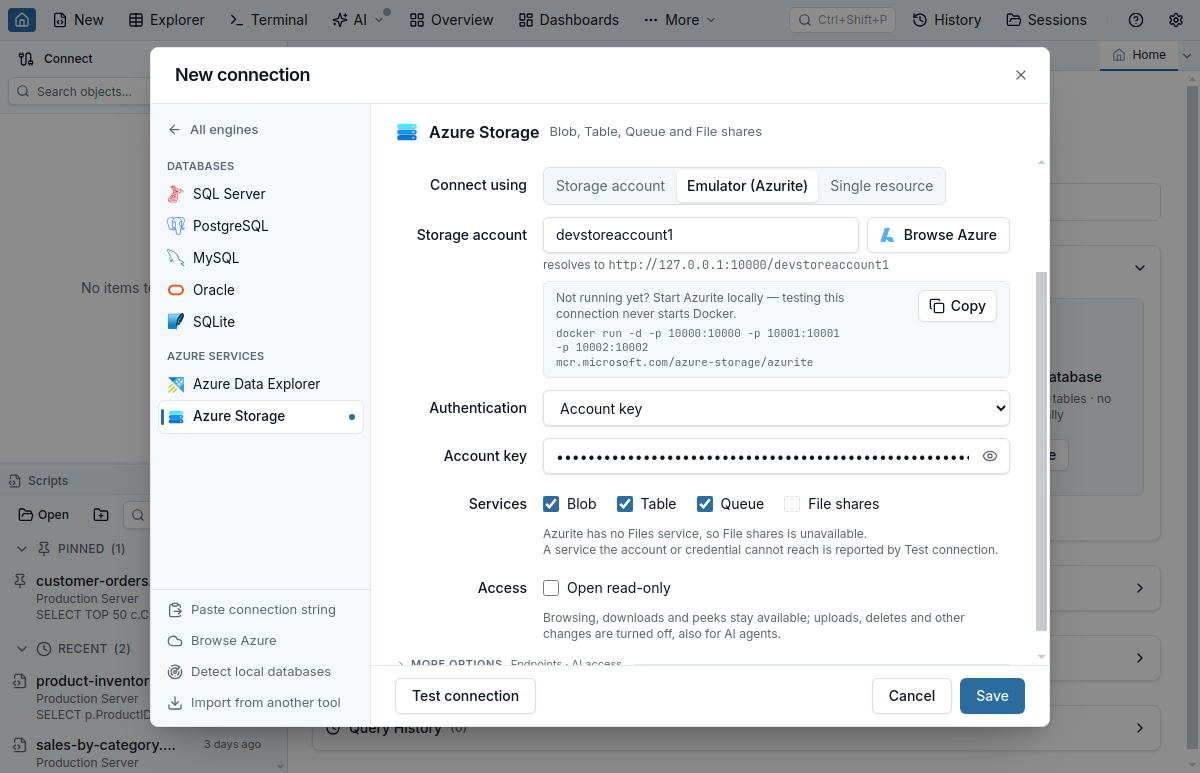
If Azurite already runs in Docker, Detect Local Databases finds the container and reads its published ports. If the container sets AZURITE_ACCOUNTS, the detected connection uses the first account and key listed there rather than the default account.
Blobs: browse, upload, download and delete
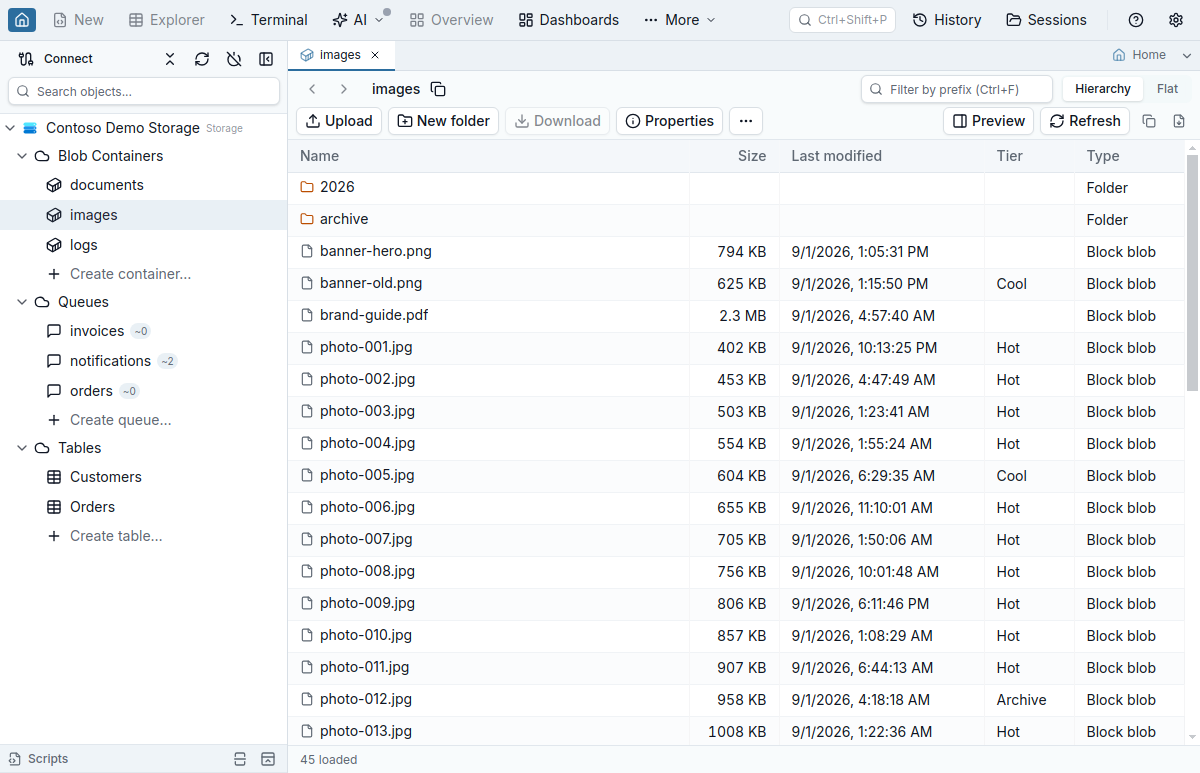
Double-click a container to open the storage browser. Virtual folders (the / segments of blob names) open like directories, Hierarchy and Flat switch between folder-by-folder and everything-under-this-prefix, and the prefix filter narrows the listing on the service rather than in the grid. Listings arrive 5,000 items per page and the next page loads as you scroll; there is no total count because Azure's blob API does not report one, so the status bar says how many items are loaded and offers Load all. Rows copy and export through the same menu as query results.
Upload sends files or whole folders from the toolbar, or you drag them from your file manager onto the open container or folder. A blob that already exists pauses the upload and asks whether to skip it, overwrite it or keep both (the new blob gets a numbered name). Download works on a blob, a folder or a multi-row selection (Cmd/Ctrl+A selects every loaded row); one blob uses the normal save dialog and everything else asks for one destination folder. There is no single Download all button for a container yet.
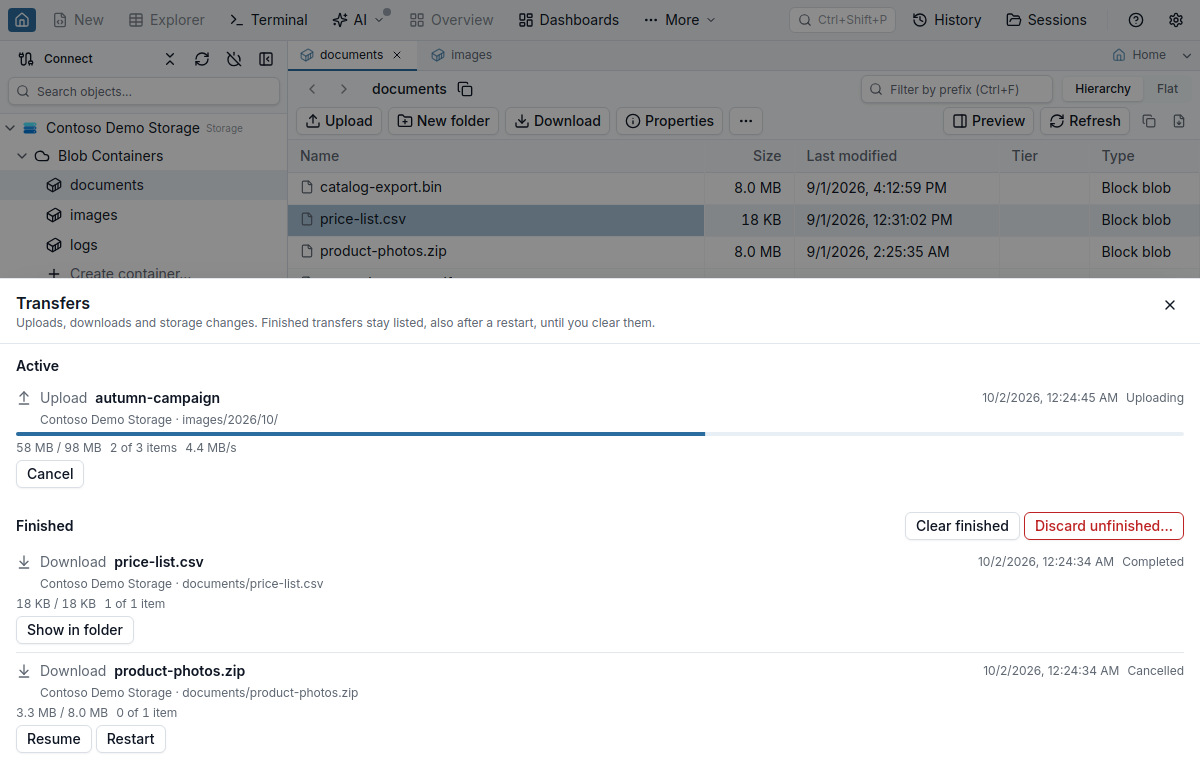
Uploads, downloads and deletes all run as background jobs. The chip at the bottom of the window opens the Transfers drawer with item and byte progress, throughput and the attempt count. Cancel keeps a partial download on disk, and Resume requests only the missing bytes; if the blob changed in the meantime, the download starts over and says so. Restart transfers the unfinished items again from the first byte; items that already completed are kept. Jobs survive an app restart, a job that finished with failed items lists them with a per-item Retry, and Settings → Azure Storage controls how many jobs and blocks run at once and the upload block size.
Delete confirmations only promise what the app can check. They name the items being deleted, include a blob's snapshots when you delete the blob, and report blob soft delete as on (with its retention days), off or unknown. Container soft delete and versioning cannot be read through this connection, so they are always shown as unknown and the dialog never claims a deleted container can be recovered. Deleting a container requires typing its name. On an account with a hierarchical namespace (ADLS Gen2), the folder is labelled Data Lake Containers, and deleting a folder also removes its directories so no empty folder is left behind.
Preview and edit files
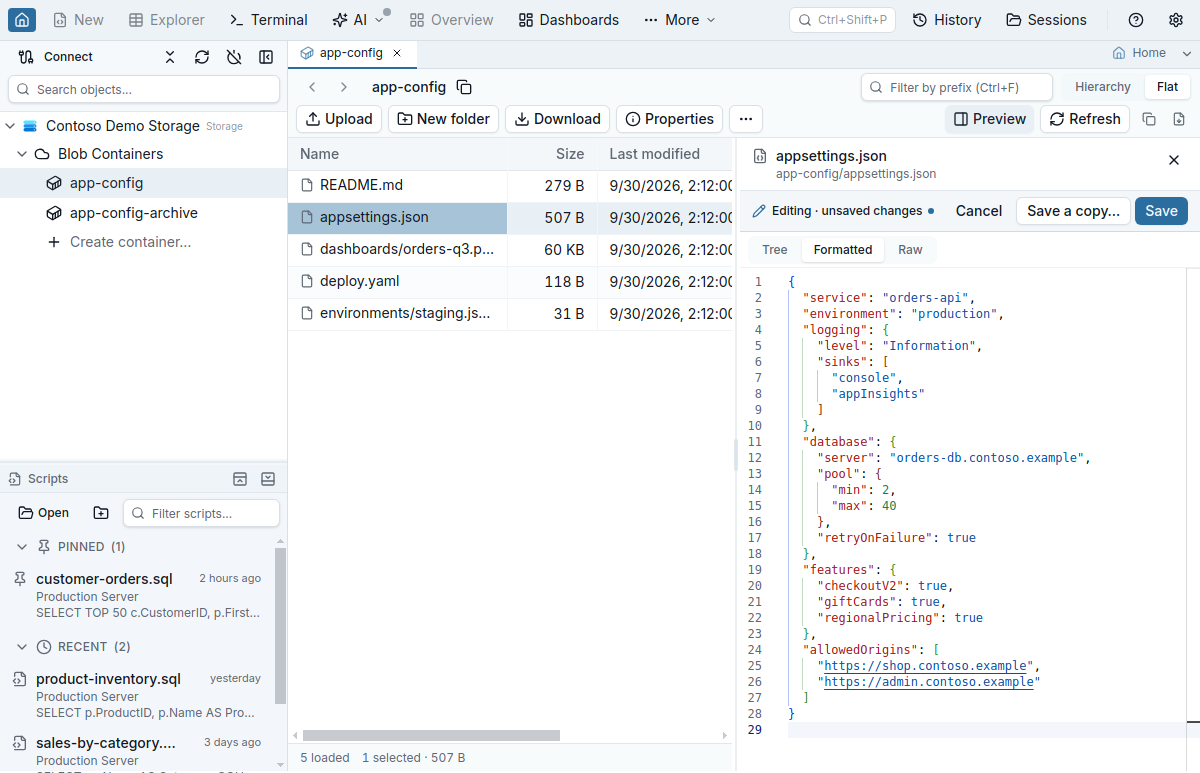
Preview on the toolbar opens a pane next to the list that shows the selected blob, Data Lake file or file-share file, and follows the selection as you move with the arrow keys. JSON opens as an expandable tree, formatted text or the file as stored (the same three views as a JSON cell in the query results grid), Markdown renders, configuration files and code get syntax highlighting, and images, video and audio display in the pane. Text up to 5 MB loads whole; a larger file shows its first 512 KB, with Load whole file.
Edit changes a text file in place. Save writes it only if its ETag still matches the version you opened; otherwise the pane says the file changed in Azure and offers Reload, Save a copy and Overwrite. A save keeps the blob's content type and other headers, its metadata and index tags, and on Data Lake the file's owner, group and ACL. Save a copy writes your text under a new name, in this container or another one.
Properties, access tiers and SAS
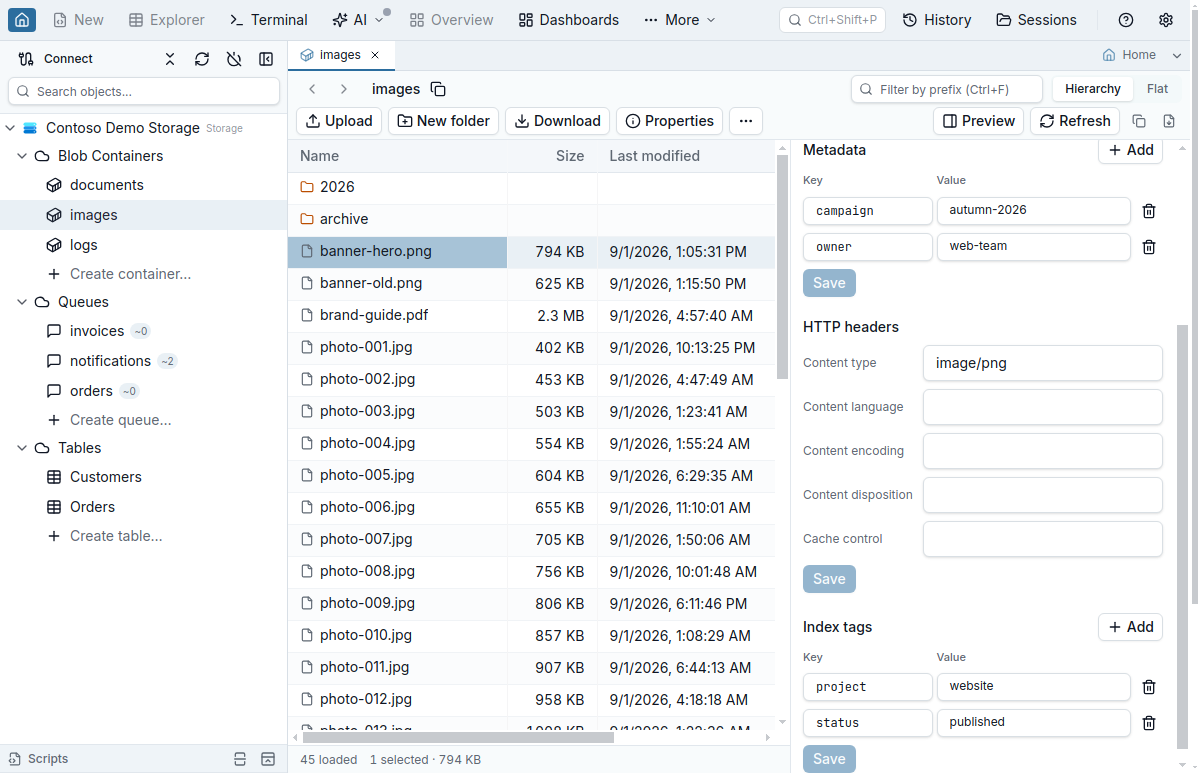
Select a blob and press Enter (or Properties in the toolbar) to open the side panel: size, blob type, access tier, ETag, last modified time and lease state, then separate editors for metadata, HTTP headers and index tags. Each section has its own Save. Metadata and HTTP headers are saved only while the blob still has the ETag the panel loaded. Index tags don't change the ETag, so a tag save first re-reads the tags and Azure then applies the write only while the tags it read still have their values. When either check fails, the section says Changed on the server · Reload instead of overwriting the other change. A tag key that another client adds between that re-read and the write is not detected.
Change tier… moves a blob between Hot, Cool, Cold and Archive. The blob's current tier can't be picked, a read-only connection disables every tier, and Archive is disabled with Azure's reason after Azure has refused an Archive change on that connection, for example because the account or region does not support it. Moving a blob out of Archive asks for Standard or High rehydrate priority, and an archived blob can't be downloaded until rehydration completes. On a container, Set public access level… switches between Private, Blob and Container with a confirmation that names the exposure, and Manage access policies… edits up to five stored access policies. Tables and queues have the same policy editor with the permissions each accepts.
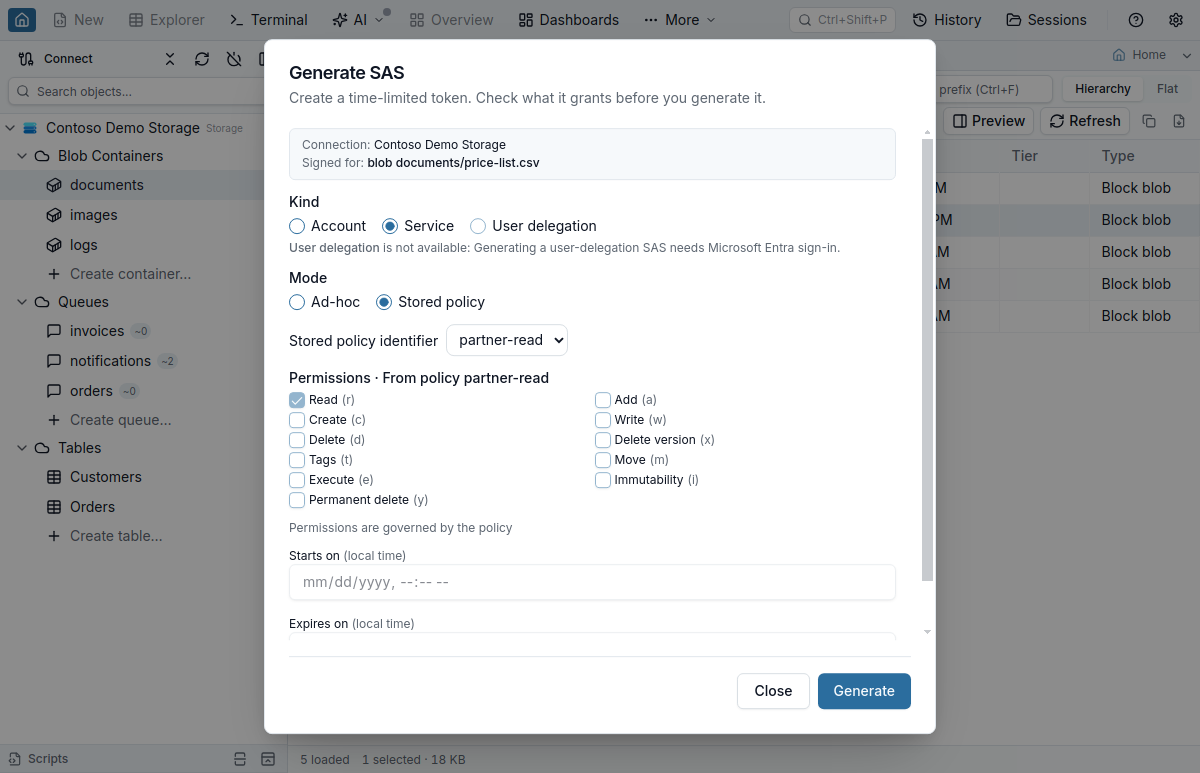
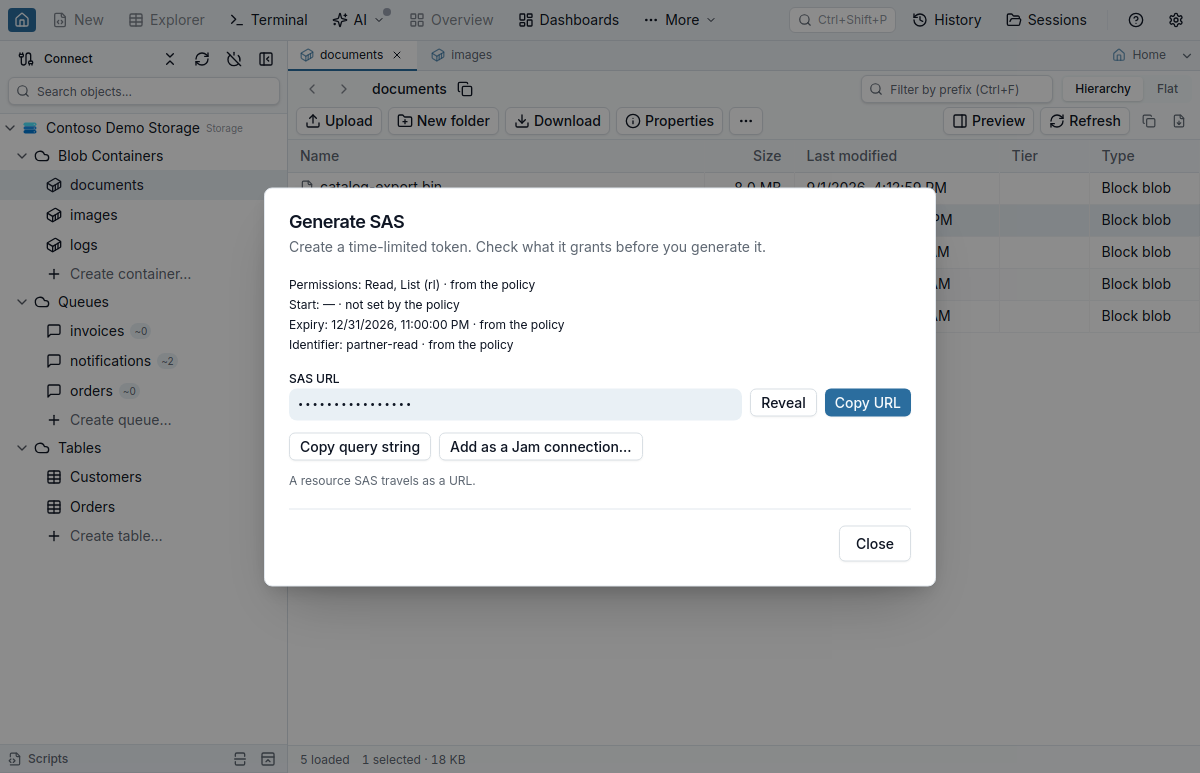
Get SAS… creates account and service SAS tokens from an account-key connection, and user-delegation SAS tokens for blob containers and blobs (valid for at most seven days) from a Microsoft Entra ID connection. A service SAS can be ad hoc or signed under a stored access policy of the container, table or queue. The policy supplies the permissions and expiry it defines, and the dialog asks you to set any the policy leaves out on the token; changing or deleting the policy later changes or revokes the token.
The result lists what the token enforces and where each value came from, and keeps the token masked until you choose Reveal. Add as a Jam connection… opens New Connection pre-filled with the new SAS without putting the token on the clipboard.
File shares: SMB and NFS
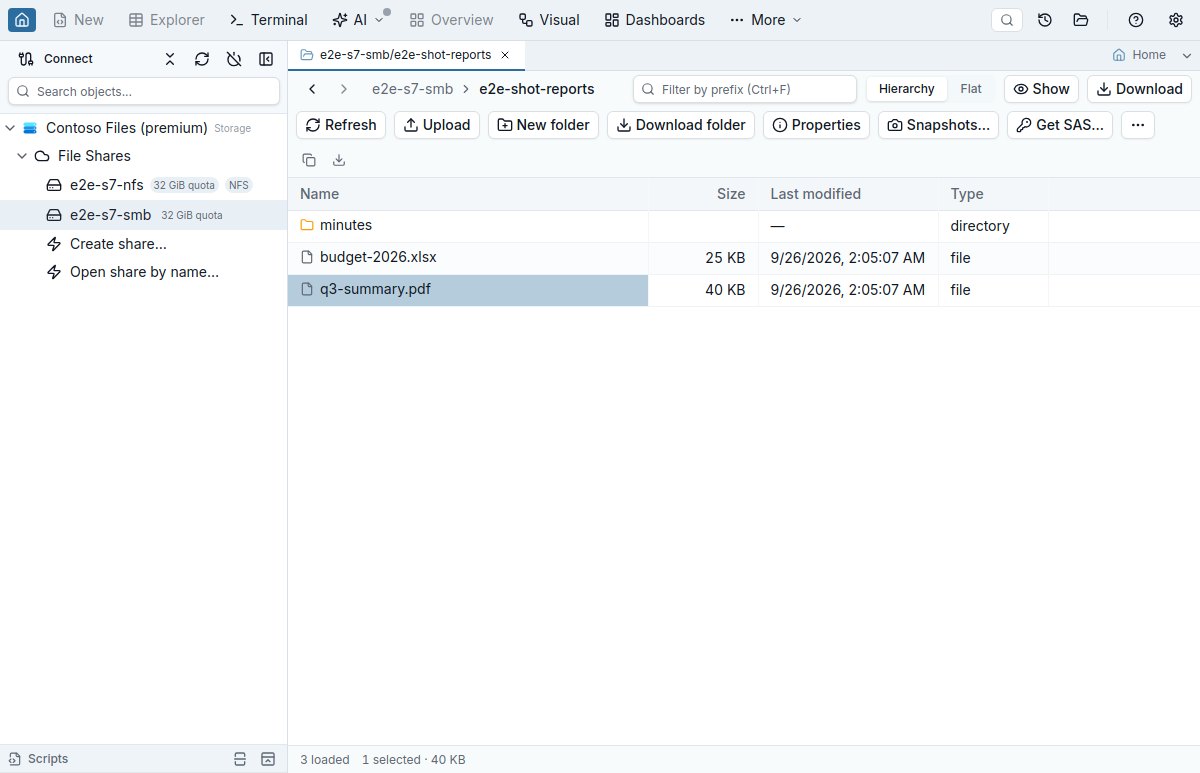
The File Shares folder lists the account's Azure Files shares, SMB and NFS alike, with a quota badge and an NFS badge on NFS shares. Everything goes through the Azure Files REST API: nothing is mounted on your machine and no SMB or NFS client is needed. A share opens in the same storage browser as a blob container, with real folders, the breadcrumb and the prefix filter; New folder creates a directory in the share.
Uploads write each file under a hidden temporary name next to its destination and then give it its final name without replacing a file that appeared there in the meantime, so a cancelled upload can resume and a name that was taken in the meantime asks again. Downloads keep each file's last-write time as its local modification time. A delete confirmation lists the first ten items and says how many snapshots the share has, because Azure Files has no soft delete for individual files: a deleted file can only be restored from a share snapshot. Clear finished in the Transfers drawer removes the temporary files of cancelled uploads and asks first when a transfer it clears did not finish.
The share's menu offers Snapshots… (a snapshot opens as a read-only tab), Quota… with the limits of the account's billing model, Properties, Get SAS…, Manage access policies…, Copy mount command… and Delete share…, which asks you to type the share's name; Create share… takes a name, an optional quota and SMB or NFS. Mount commands are text for you to run on Windows, macOS or Linux, with the account key as a placeholder.
NFS 4.1 shares live on premium FileStorage accounts, and Azure Files imposes two differences over REST: an upload cannot replace an existing file, so a name collision offers only Skip or Keep both (Overwrite is shown disabled with the reason), and listings carry no modification times. With Microsoft Entra ID, reading and writing files needs a Storage File Data role; an identity that cannot list the account's shares can still open shares you name in the connection form.
Data Lake (ADLS Gen2): directories, moves and access control
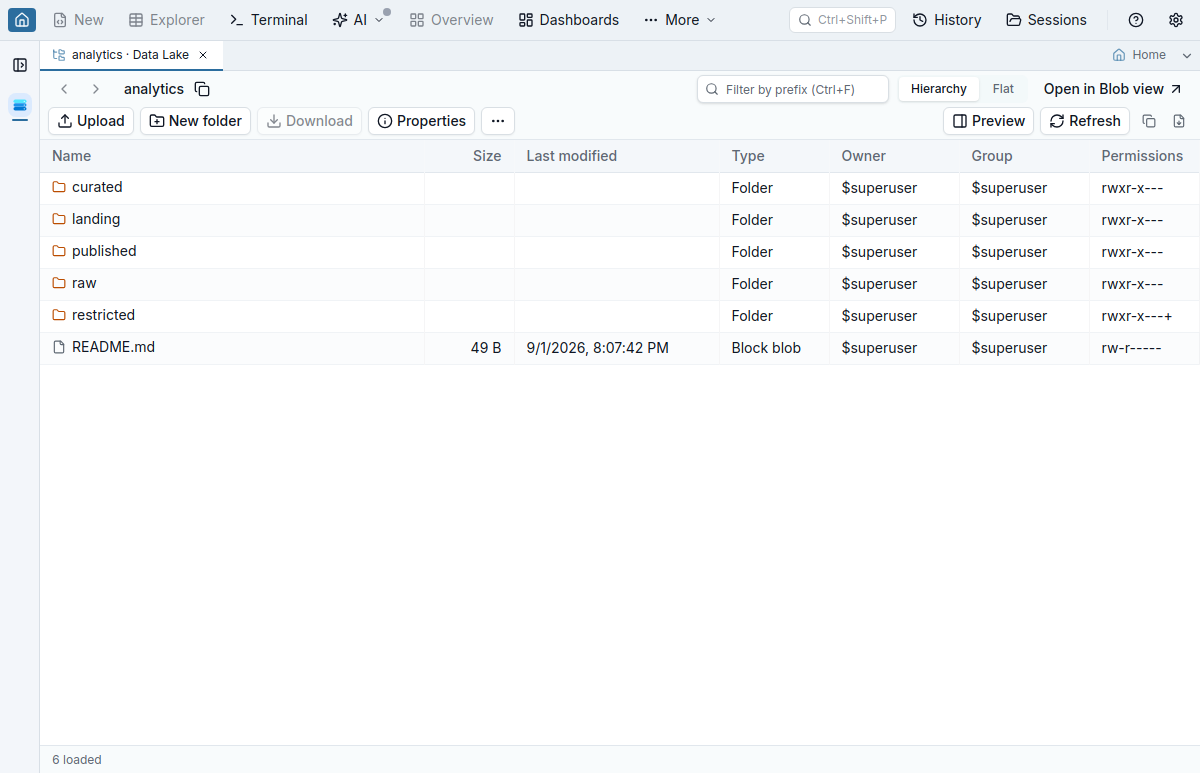
When the account has a hierarchical namespace, Jam SQL Studio detects it on connect: the Blob folder reads Data Lake Containers, and a container opens in the Data Lake view, which lists real directories and files with Owner, Group and Permissions columns. View: Data Lake · Blob opens the same location in the Blob view. New folder creates a directory, and Rename… (F2) and Move… use Azure's own rename, so a directory moves with everything under it. A move never overwrites: it is refused when the destination exists or the source changed after it was read. If Azure answers a large rename in parts, the dialog offers Continue move; if an answer was lost, the app does not send the request again and asks you to check both locations.
Manage access… edits the access-control list of one file or directory: owner, owning group, access entries and, for directories, default entries. The mask is kept as loaded while you edit, the Effective column shows what each entry grants, and before saving the editor lists every change in effective permissions and marks the ones that widen access. Azure applies the save only while the path still has the version (ETag) the editor loaded. An ACL change does not change that version, so right before writing Jam SQL Studio reads the ACL again and refuses the save if it differs from the one the editor loaded. Azure has no condition on the ACL itself, so a change another client makes between that read and the write is not detected.
Propagate access… applies a merge, replace or remove to a directory and everything under it as a job in the Transfers drawer, in batches of up to 2,000 paths. Replace and Remove ask you to type the directory name. Azure cannot make a recursive change conditional, so the dialog states exactly what is checked before and during the job. Paths Azure refuses are listed by path with Retry, a cancelled or interrupted job can Resume from the last recorded batch, and there is no undo. Get SAS… on a directory creates a directory SAS that covers only that directory, and Copy path as copies an abfss:// URI, a DFS URL, a Blob URL or a plain path.
Queues: peek without consuming
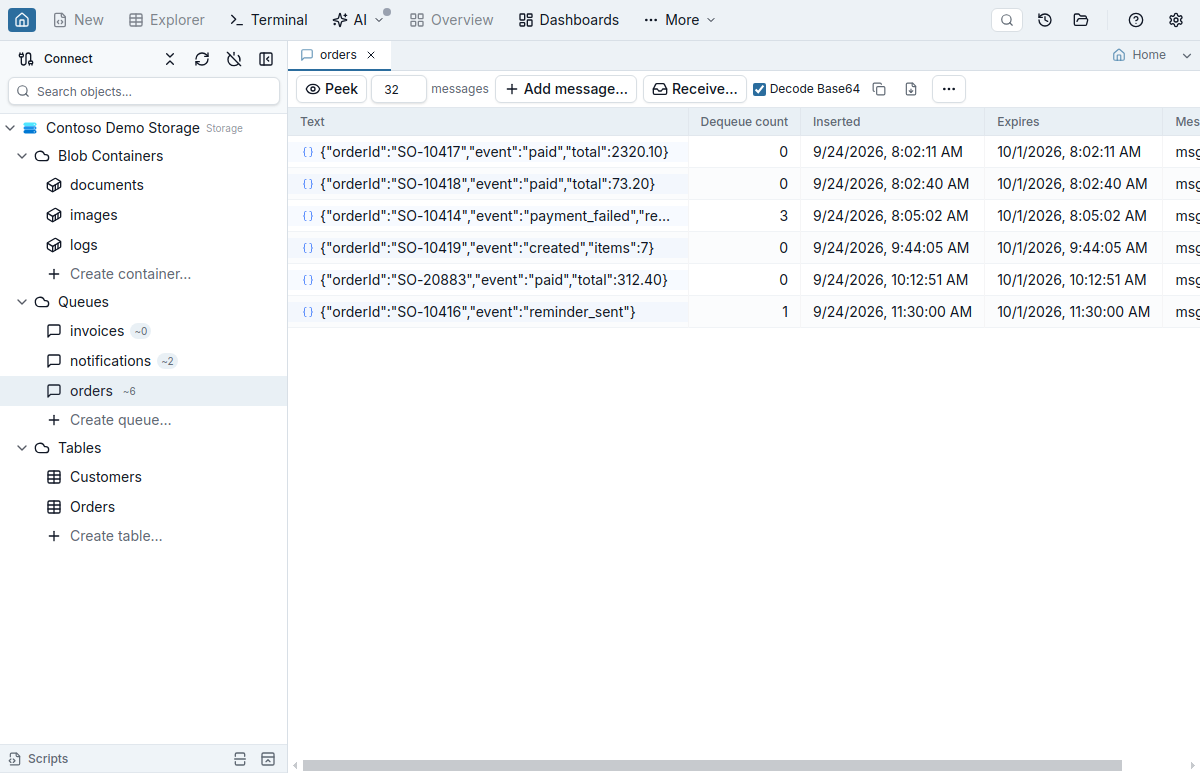
The Queues folder shows each queue with Azure's approximate message count. Opening a queue peeks up to 32 visible messages without changing them, and Decode Base64 shows encoded bodies as text. Receive… is a separate, explicit action: it takes the next N messages and hides them for the visibility timeout you set, and while a received message's receipt is still valid you can update its text and visibility or delete it. Add message… is on the same toolbar, and Clear queue… is in its … menu; clearing a queue, like deleting it, requires typing the queue's name.
Tables in the Table Explorer grid
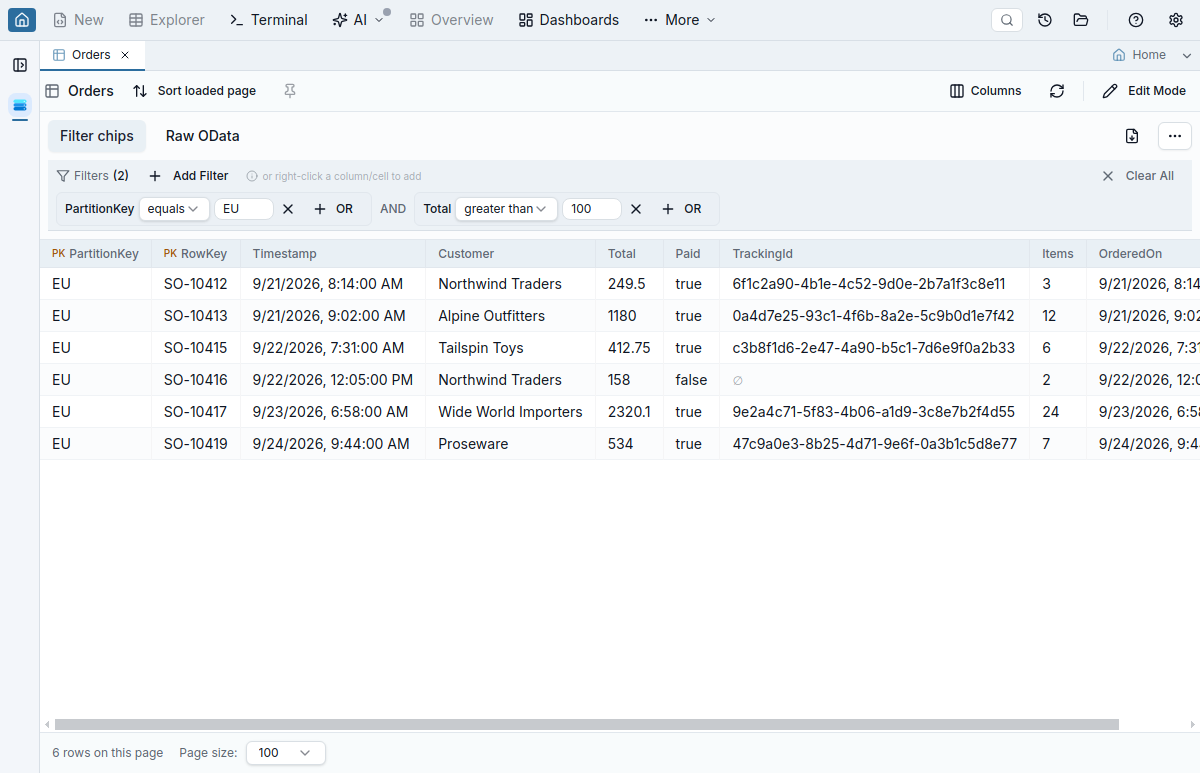
An Azure table opens in the same toolbar, grid and pagination that Table Explorer uses for SQL tables. Every property keeps its Azure type: Int64 values stay exact, date-times keep all seven fractional digits (cells show your local time; the tooltip, copy and export keep the exact value), GUID and binary values are not flattened to text, and a property an entity doesn't have shows as ∅, which is different from an empty string.
Filter with the usual filter chips or type a raw OData filter; both go through the same validator (at most 15 comparisons, Azure's limit), and Convert to chips keeps each literal's type, so Total gt 100.0 stays a Double comparison. Pages hold 100 to 1,000 entities and follow Azure's continuation token; the footer counts the rows on the current page instead of inventing a total.
In edit mode you add entities and properties, change values, remove properties or delete entities, and save the drafts together. Each update is conditional on the entity's ETag: if another client changed the entity first, a comparison of the original, current and proposed values opens with Reload, Overwrite anyway and Keep draft. Export writes the selected rows, the loaded page, or every entity matching the filter to CSV, JSON or Excel; the all-matching export runs as a background job you can cancel. Properties can also carry the same enum, JSON and loose relationship declarations as SQL columns. A relationship points a property at the other table's PartitionKey or RowKey and fixes the other key with a target filter; with both keys known, the grid shows the referenced entity's name and opens it.
AI agents over MCP, with approvals that name targets
Azure Storage connections expose twenty-five storage_* tools to agents connected through the MCP server: listing containers and blobs, properties and account info, downloads and transfer status, uploads, deletes and container creation, five queue tools, SAS generation, reading and writing Table entities, four file-share tools (create a share, set its quota, list and create snapshots, show a mount command) and four Data Lake tools (storage_get_acl, storage_set_acl, storage_create_directory and storage_move_path). The read, download, upload and delete tools also work on share files and folders. A recursive storage_set_acl runs as a job in the Transfers drawer, and storage_move_path never overwrites. The connection's permission level decides what an agent may do. Block refuses every storage tool call on that connection and leaves its jobs out of transfer status, Read-only refuses writes, and Confirm opens an approval dialog for each write. Every approval lists every target the write touches once, in full, in a list you scroll, with a container or share deletion listed first; a call can name at most 1,000 items.
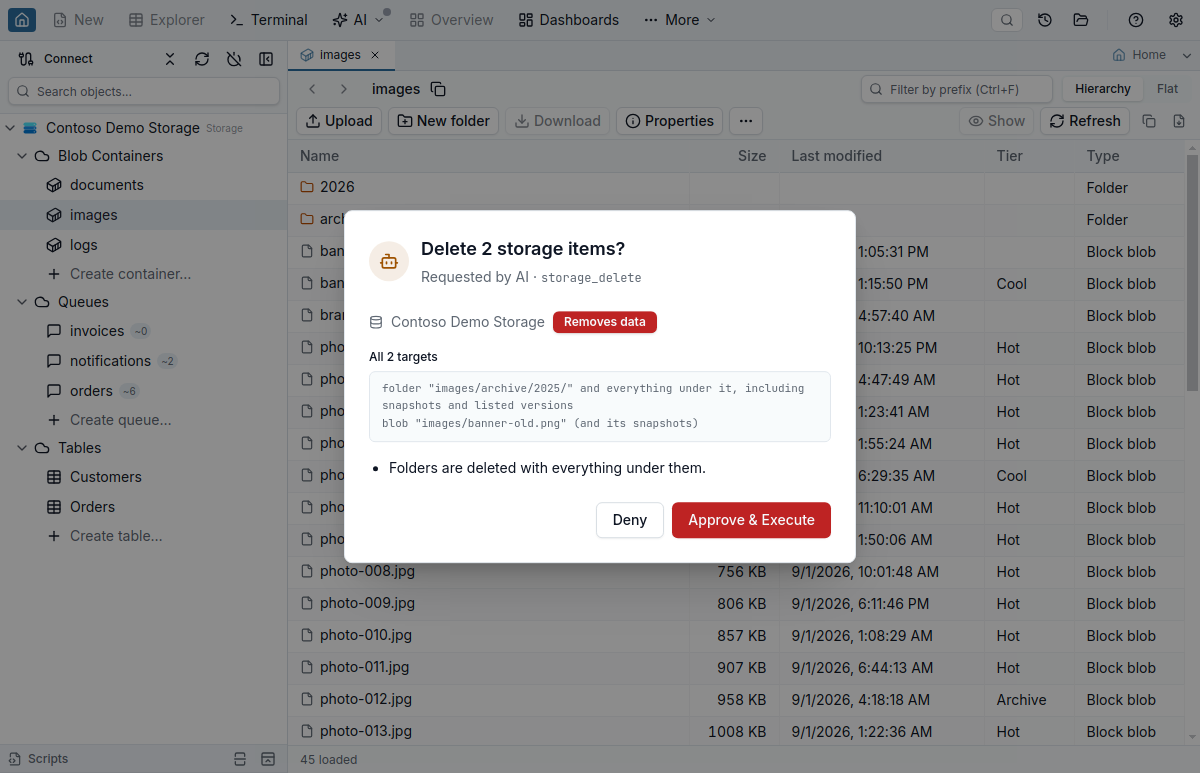
A few rules hold regardless of level. An agent never picks where a download is saved: you choose the destination in the save or folder dialog, or decline. A generated SAS token stays in the app; the agent receives the permissions, dates and resource URL without the query string. Table writes list every targeted entity by PartitionKey and RowKey, with the operation totals, but never show property values, and updates or deletes require the entity's ETag. Creating and deleting tables stays in the app. From a terminal, jam-sql storage containers, ls, props, info and download run the same reads.
Marking a connection read-only applies to you as well as to agents: browsing, downloading and peeking stay available, every upload, delete, tier change and queue or entity change is disabled with the reason, and the SAS dialog offers only permissions that can't modify anything. Agents cannot generate a SAS on a read-only connection at all.
What is not in this release
- Snapshots, versions and deleted blobs are not listed.
- Renaming blobs and managing blob leases are not available; Data Lake paths can be renamed and moved.
- Data Lake directories are browsed in the Data Lake view, not expanded in the Object Explorer tree.
- Shares are never mounted, and an upload cannot overwrite a file on an NFS share.
- No SQL. Azure Storage does not accept SQL (Table entities are filtered with OData instead), so the Query Editor, notebooks, Schema and Data Compare, Data Import and Table Designer are unavailable on these connections.
The Azure Storage guide covers every dialog in detail, including the exact concurrency rules for properties and stored policies, and the AI Integrations & MCP guide lists each storage_* tool.
If you are coming from Microsoft's app, the Azure Storage Explorer comparison lists what each tool does that the other does not, and the Azure Storage client overview goes through each service with its limits. For setup problems, see which role each Azure Storage authorization error needs and running Azurite in Docker.
FAQ
Does Jam SQL Studio work with the Azurite emulator?
Yes. Pick Emulator (Azurite) on the connection form, or paste UseDevelopmentStorage=true, and the form fills in the well-known emulator account, key and ports 10000 to 10002. Detect Local Databases also finds a running Azurite container and reads its published ports and the first account and key set in AZURITE_ACCOUNTS.
Does peeking at a queue consume its messages?
No. Peek reads up to 32 visible messages without changing them. Receive is a separate action: it takes the next N messages and hides them for the visibility timeout you choose. They become visible again when that timeout ends unless you delete them first; updating a received message can change its text and set a new timeout.
Can an AI agent change my storage account without asking?
Not at the Confirm permission level. Every storage write an agent requests over MCP opens an approval dialog that says what the write does and where: it lists every target the write touches (blobs, folders, containers, shares, files or table entity keys) in full, in a list you scroll. Nothing is written if you deny it. At Read-only the write tools are refused, and at Block every storage tool call on that connection is refused. Downloads always ask you for the destination.
Can I run SQL against Azure Table storage?
No. Azure Storage has no SQL query language, so the Query Editor, notebooks and compare tools are not available on these connections. Table entities open in a grid with filter chips or a raw OData filter, and agents use the storage_query_entities and storage_write_entities MCP tools.
Which Azure Storage features are not available yet?
Blob storage, Data Lake (ADLS Gen2), File Shares (SMB and NFS), Queues and Tables are all supported in 1.5.3. Listing blob snapshots, versions and deleted blobs, renaming blobs and managing blob leases are not available yet; Data Lake paths can be renamed and moved.
Can an upload overwrite a file on an NFS share?
No. Azure Files cannot replace an existing file on an NFS share over its REST API, so when a name is taken the upload offers only Skip or Keep both, and Overwrite is shown disabled with the reason. SMB shares offer Overwrite as well.
Can I change the ACL of every path under a Data Lake directory?
Yes. Propagate access on a directory merges, replaces or removes entries on the directory and everything under it as a job in the Transfers drawer, in batches of up to 2,000 paths. Replace and Remove ask you to type the directory name, paths Azure refuses are listed with Retry, and there is no undo because Azure cannot make a recursive change conditional.