
Last updated: 2026-08-29
Virtual Foreign Keys (aka loose relationships)
Virtual foreign keys — sometimes called loose, logical, or unenforced foreign keys — are column-to-column references you declare in your SQL client, not in the schema. Jam SQL Studio treats them like real foreign keys for navigation: clickable cells, lookup pickers, inbound related data, and Schema Overview / Dependency Viewer edges all work without altering the database. Declarations live in a per-database MetaInfo file you can export, import, and share with your team. Works across PostgreSQL, SQL Server, MySQL, Oracle, and SQLite, plus Azure Data Explorer (Kusto) for read-only outbound navigation.
New to the concept? Read Loose Foreign Keys Without Constraints — When and Why for the rationale, the 4 use cases that drove the feature, and how virtual FKs differ from a database FOREIGN KEY constraint.
What is a virtual foreign key? (vs unenforced FK, vs a regular integer)
The shortest way to draw the distinction:
- A regular integer column (
customer_id INT) is just data. Your database, your client, and your ORM all see it as a number. Querying, joining, and navigating it is all manual. - A real
FOREIGN KEYconstraint does two jobs at once: (1) enforcement — the database refuses inserts/updates that point at a non-existent target row, and (2) declaration — every reader of the schema (your client, ORM, ERD tool, AI assistant) knows the column points at that table. - A virtual foreign key keeps job 2 and skips job 1. The database doesn't validate writes; the client treats the column as a navigable relationship.
The practical difference at the client level: a virtual FK gets you the clickable cell, the row-preview popover, the "open related row in new tab" affordance, the related-data sidebar, automatic JOIN suggestions. A regular int gets you nothing — you scroll up, copy the id, scroll across to the other table, paste, search.
Different SQL clients call this primitive different names. DataGrip and DBeaver call them virtual foreign keys. PostgreSQL 18 ships them as constraints marked NOT ENFORCED. Jam SQL Studio's metadata layer uses loose FK internally (and that name appears in the UI today) — same primitive, different label.
When to use them
- Legacy schemas where FK constraints were never added
- Denormalised reporting / ETL staging tables that intentionally skip constraints for load performance
- Cross-schema, cross-database, or polymorphic references the database can't model with a single FK
- Read-only access where you can't issue DDL but still want to navigate the data
Virtual FKs and PostgreSQL 18 NOT ENFORCED
PostgreSQL 18 (September 2025) added the ability to mark FK constraints as NOT ENFORCED — a real pg_constraint entry the database tracks but doesn't validate on writes. This is the cleanest way to express a virtual FK when you control the schema, you're on PG18+, and the relationship is uniform (one source column → one target table).
Jam SQL Studio reads NOT ENFORCED constraints from pg_constraint and lights them up automatically — every surface that already treats real FKs as clickable (Table Explorer, Query Editor, Schema Overview, Dependency Viewer, Row Details) treats a NOT ENFORCED FK identically, no per-user declaration needed.
Use NOT ENFORCED in the schema when you can. Use Jam SQL Studio's per-user loose-FK metadata layer for the cases NOT ENFORCED can't express:
- Polymorphic columns — a single FK constraint can only declare one target.
commentable_id → posts.idwhencommentable_type = 'Post'andcommentable_id → photos.idwhencommentable_type = 'Photo'needs two declarations distinguished by a source filter, which the schema can't carry. - Cross-engine — MSSQL / MySQL / Oracle / SQLite don't have an equivalent of
NOT ENFORCED. The per-user metadata layer works on all five, and on Azure Data Explorer (Kusto) for read-only outbound navigation. - Pre-PG18 fleets — most production Postgres for the foreseeable future is still ≤ 17. Loose FKs work back to whatever Postgres version you're running.
- Cross-database or cross-schema references that the database can't enforce anyway, regardless of version.
- Read-only access where you can't issue DDL.
How Jam SQL Studio compares to DataGrip and DBeaver virtual FKs
DataGrip introduced virtual FKs years ago and DBeaver followed; the concept is established. The Jam SQL Studio metadata layer adds three things on top of that established baseline:
| Capability | DataGrip / DBeaver virtual FKs | Jam SQL Studio loose FKs |
|---|---|---|
| Basic client-side FK declaration | Yes | Yes |
| Polymorphic columns (one column → N targets gated by a discriminator) | Not natively — needs per-row workaround | Source filter on each declaration gates which target activates per row (e.g. commentable_type = 'Post') |
| Target-side scoping (soft-delete, status filters) | Limited / per-tool | Target filter narrows valid rows shown in pickers, popovers, related-data tabs (e.g. deleted_at IS NULL) |
| Shareable across the team | Project-bound, IDE-specific | Exportable JSON — drop it in your repo, teammates import on first open |
| JSON-path FKs (a JSON column key pointing at another table) | Not supported | Yes — declare orders.metadata $.customer_id → customers.id; cell becomes clickable |
PostgreSQL array column FKs (integer[], uuid[], text[]) | Limited | Yes — each array element renders as a clickable pill |
PostgreSQL 18 NOT ENFORCED auto-detection | Varies by version | Yes — picked up automatically from pg_constraint |
| Engine coverage | PG, MSSQL, MySQL, Oracle (DataGrip); PG, MSSQL, MySQL, Oracle, SQLite (DBeaver) | PG, MSSQL, MySQL, Oracle, SQLite — identical UX on all five; plus Azure Data Explorer (Kusto) for read-only outbound navigation |
| Pricing | DataGrip is paid for commercial use; DBeaver Community is free | Free tier with the loose-FK feature included |
Loose FK definition (Jam SQL Studio terminology)
A loose foreign key (or loose relationship) is a user-declared reference between a column in one table and a column in another, persisted by Jam SQL Studio rather than by a FOREIGN KEY constraint in the database. The schema stays untouched; only Jam SQL Studio's per-database MetaInfo file knows about the link. The term is synonymous with virtual foreign key as used in DataGrip and DBeaver, and with PostgreSQL 18's NOT ENFORCED constraint at the conceptual level.
Once declared, a loose FK behaves like a real one across the app:
- Cell values become clickable and open the FK popover
- The Table Explorer filter row gets the
lookuppicker for that column - The Row Details “Related data” tab lists inbound rows from tables that loosely reference the row you're viewing
- Schema Overview draws the relationship as a dashed blue edge labelled “Loose relationship”
- Dependency Viewer marks the connected nodes with a “Loose” badge and dashes the edge
Declaring a loose foreign key
- Open Table Explorer on the table whose column you want to link
- Open the filter panel and add a row for the source column
- In the operator dropdown, pick
lookup— it's at the bottom of the list for non-FK columns - The target picker dialog opens with a suggestion already filled in. Jam SQL Studio strips common suffixes (
_id,_uuid,_fk,Id,Uuid) from the column name and matches against schema/table/column names — including singular/plural variants and prefix overlaps (t_,tbl_,app_). For the column the picker focuses, it prefers the target table's primary key, then a column namedid, then any column whose type matches the source column's. - Confirm the suggestion, or pick a different schema, table, and column from the dropdowns
- Optional — pick a Label column from the dropdown. This is the column that gets rendered next to the key in FK previews (e.g.
42 — Acme Corpinstead of42), and it’s stored per target table, not per relationship. The helper text under the dropdown spells out that the setting applies to everything referencing the same table — real foreign keys and lookup enums included, not just loose ones. Jam SQL Studio pre-fills the dropdown from a name heuristic (name,title,full_name, …) so most of the time you can leave it alone. - Optional — tick “Also treat as enum” right under the Label-column dropdown (only shown when the target table has 200 rows or fewer, and the source column has no existing enum declaration). See below.
- Click Save. The relationship is persisted, the filter row immediately switches to the same lookup picker used by real foreign keys, and every other surface (Query Editor results, Schema Overview, Dependency Viewer, Row Details, Data Profiling) starts treating the column as an FK.
The picker remains available — you can reopen the dropdown later and switch the operator back to =, IN, IS NULL, or any other operator if you want to type a raw value. lookup is a convenient default once a target is declared, not a lock-in.
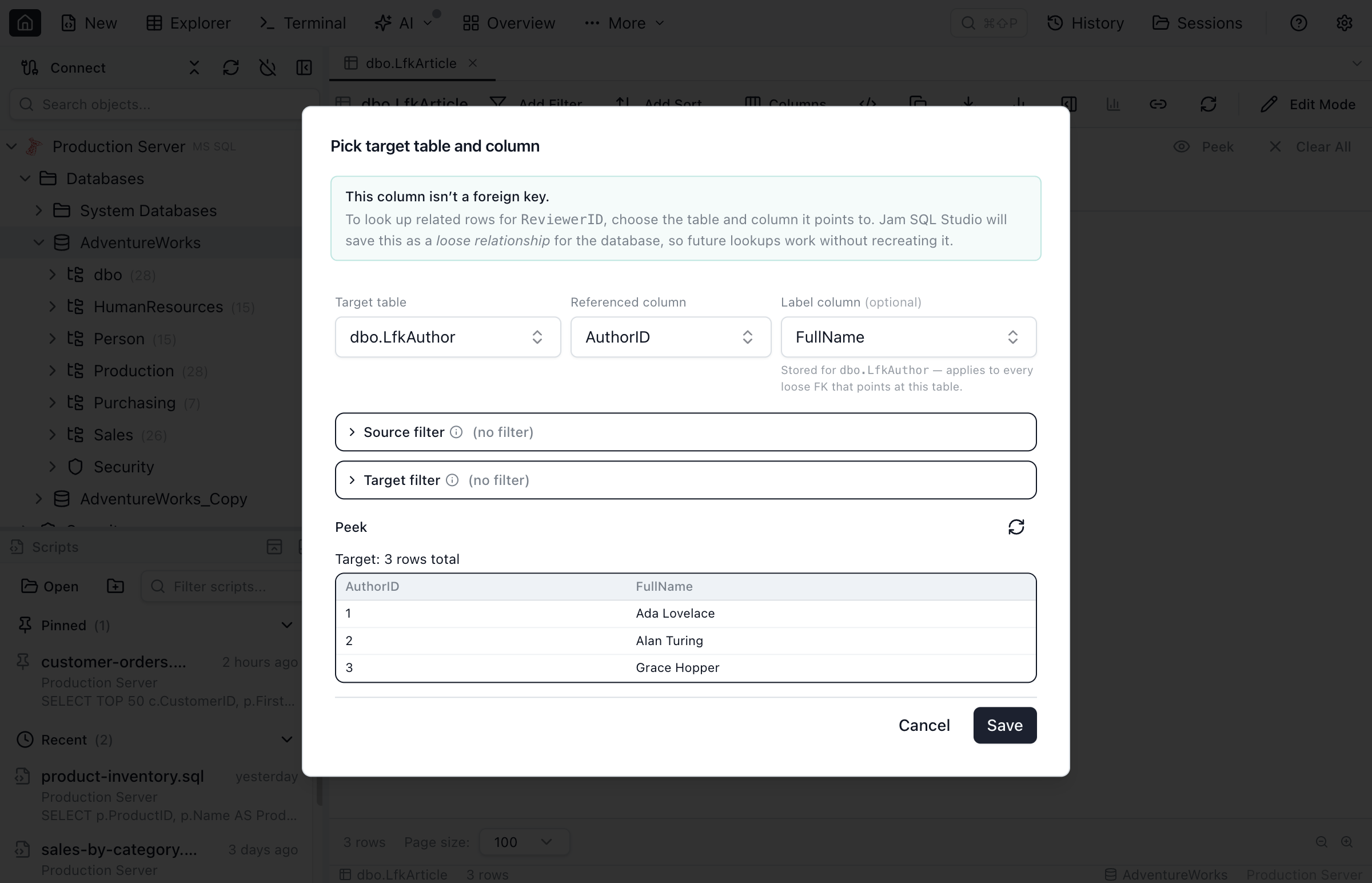
lookup on a non-FK column opens the target picker — pick the table and column the loose FK points at, optionally add source/target filters, then Save.Declaring a lookup enum in the same save
Right under the Label-column dropdown, the target picker offers a single checkbox — “Also treat as enum — show names in grids, filters, and cell editing.” It only appears once a target table and column are picked, the connection's engine supports it, the live target row count is 200 or fewer, the draft has no source or target filter narrowing it, and the source column isn't already declared as an enum from anywhere else. Ticking it and clicking Save does two things in one action: it persists the loose FK as usual, then declares the source column a lookup enum pointed at the same target, so the column immediately shows both a teal loose-FK badge and a blue declared-enum glyph — two independent facts about the same column, not a merged indicator. See the Enum Columns guide for what a lookup enum unlocks (names in grid cells, the filter picker, and the cell editor, all with a self-refreshing cache).
Visual cue: loose FK vs real FK
Loose FKs are styled distinctly so you always know which references are enforced by the database and which are user-declared:
- Real FKs — solid blue link with the external-link icon. Column header
FKbadge in blue. - Loose FKs — teal link with a dashed underline and the chain (Link2) icon. Column header
FKbadge in teal italic. - The cell popover header reads “Related row from (loose)” for loose relationships, plus a footer with Edit (repoint the target) and Clear (remove the declaration) actions.
- Schema Overview edges are dashed blue and labelled “Loose relationship”; Dependency Viewer marks connected nodes with a “Loose” badge.
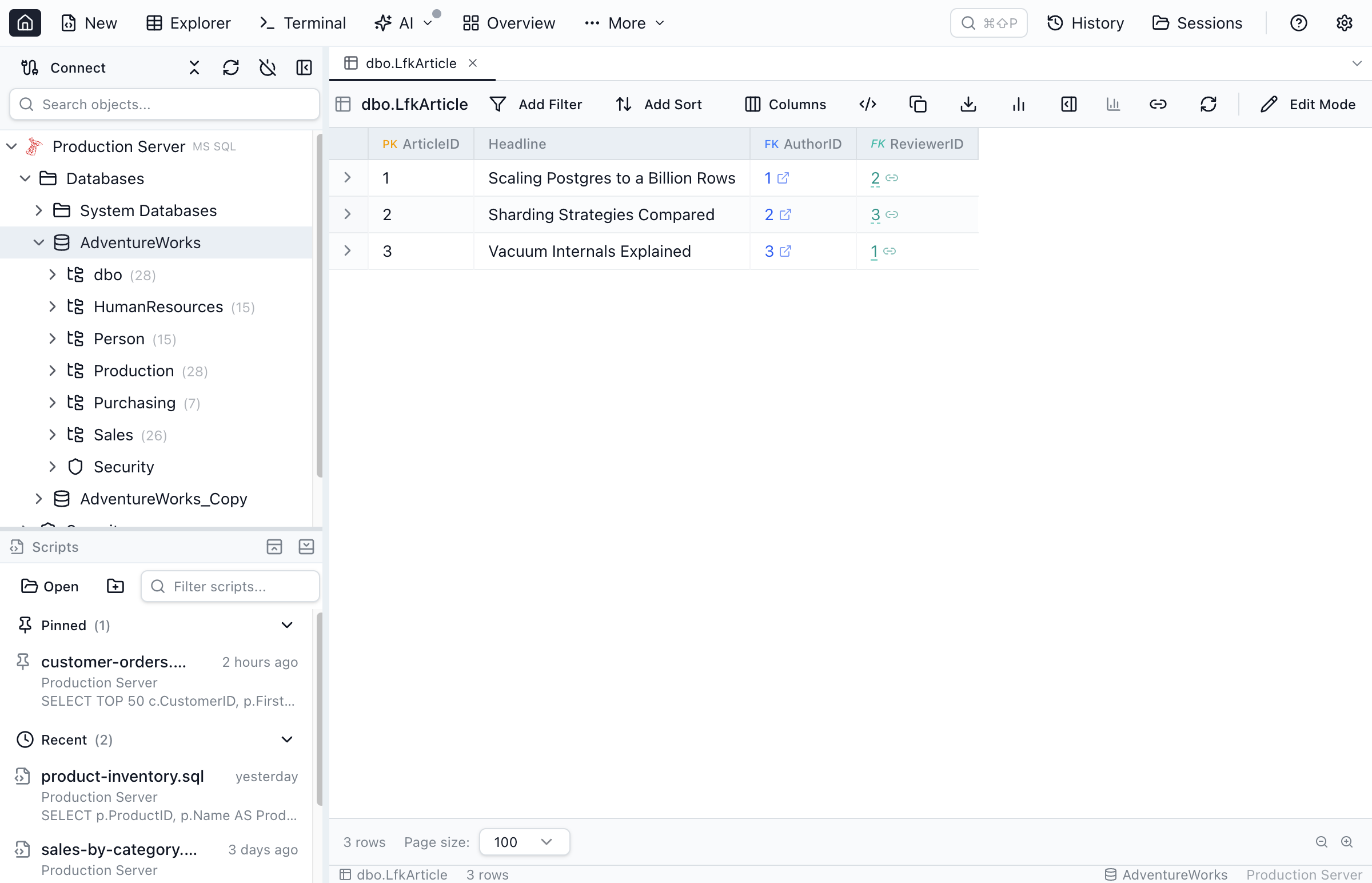
Editing or removing a loose FK
You can manage a single relationship inline:
- From a cell. Click the cell to open the FK popover. The footer shows a Loose label — with a ▣ Filtered chip when a target filter is active — plus an Edit button (pencil icon, opens the loose-relationship editor dialog) and a Clear button (unlink icon, removes the declaration). To declare an additional loose FK on the same column (e.g. for polymorphic associations), use the + Add another button in the header of that editor dialog, reached via Edit.
- From the filter row that uses it. An edit pencil reopens the target picker so you can repoint to a different table or column; an
Xremoves the declaration.
To see and manage every loose relationship for the current database in one place, use the MetaInfo manager — see below.
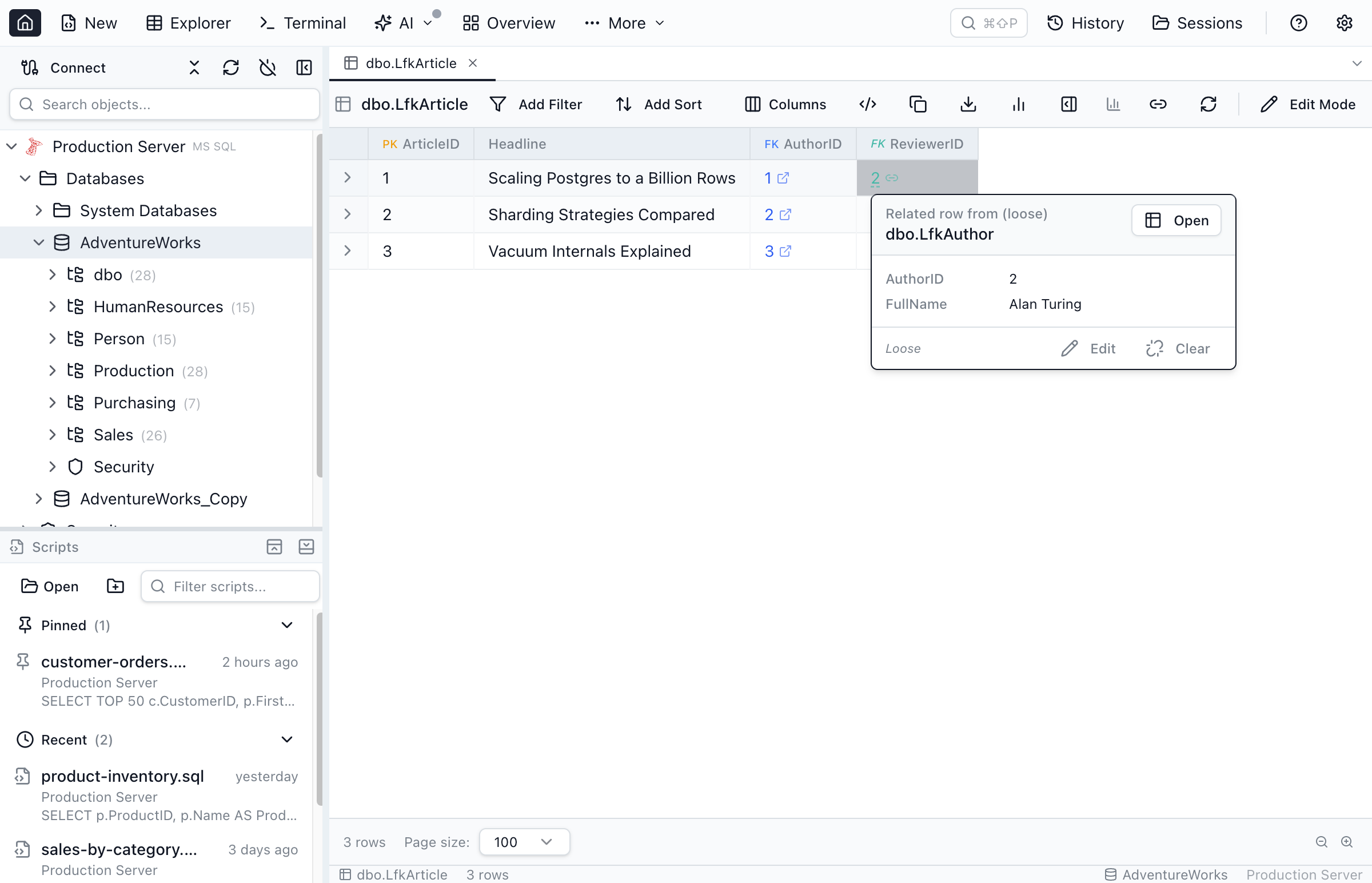
Save-time overlap warning
When you save a loose FK whose source filter could match the same rows as another declaration on the same column, Jam SQL Studio shows a confirmation dialog before persisting. The most common case it catches is forgetting to add a discriminator filter: two FKs without source filters both activate on every row, which produces a multi-tab popover everywhere. The check is conservative — it only warns when overlap is possible, not when filters are provably disjoint (e.g. type = 'Post' vs type = 'Photo'). You can dismiss the warning to proceed, or cancel and refine the filter first.
MetaInfo: where loose FKs live, and how to share them
Loose foreign keys are persisted in a per-database MetaInfo file — Jam SQL Studio's home for user-owned database metadata that the schema itself doesn't carry.
Storage location
One JSON file per (connection, database) pair, in your operating system's user-data directory:
- macOS:
~/Library/Application Support/jam-sql-studio/metainfo/<connection>/<database>.json - Windows:
%APPDATA%\jam-sql-studio\metainfo\<connection>\<database>.json - Linux:
~/.config/jam-sql-studio/metainfo/<connection>/<database>.json
The file is versioned and written atomically (temp file + rename), so a crash mid-write can never leave a half-written JSON. Every read validates the version. The same file is consumed by Table Explorer, Query Editor, Schema Overview, Dependency Viewer, Data Profiling, and the Row Details “Related data” tab — declare a loose FK once and every surface picks it up.
Opening the MetaInfo manager
You can open the MetaInfo manager dialog from two places:
- The Link2 icon in the Table Explorer toolbar
- Right-click a database in the Object Explorer sidebar and pick Manage meta info…
Both paths open the same dialog with three things:
- List of declarations — every loose relationship for the current connection + database, with the source column, target column, and a Remove action on each row
- Export — writes the entire MetaInfo file as JSON to a file on disk
- Import — reads a JSON file and merges or replaces the local MetaInfo
Some entries in the manager (loose FKs, enum columns, reference tables) carry a small AI-created or AI-updated badge — this means an AI agent proposed the declaration through the metainfo_declare MCP tool and you approved it, or the agent later edited an existing entry. Editing that entry yourself clears the badge. See Declaring MetaInfo for how agents create these.
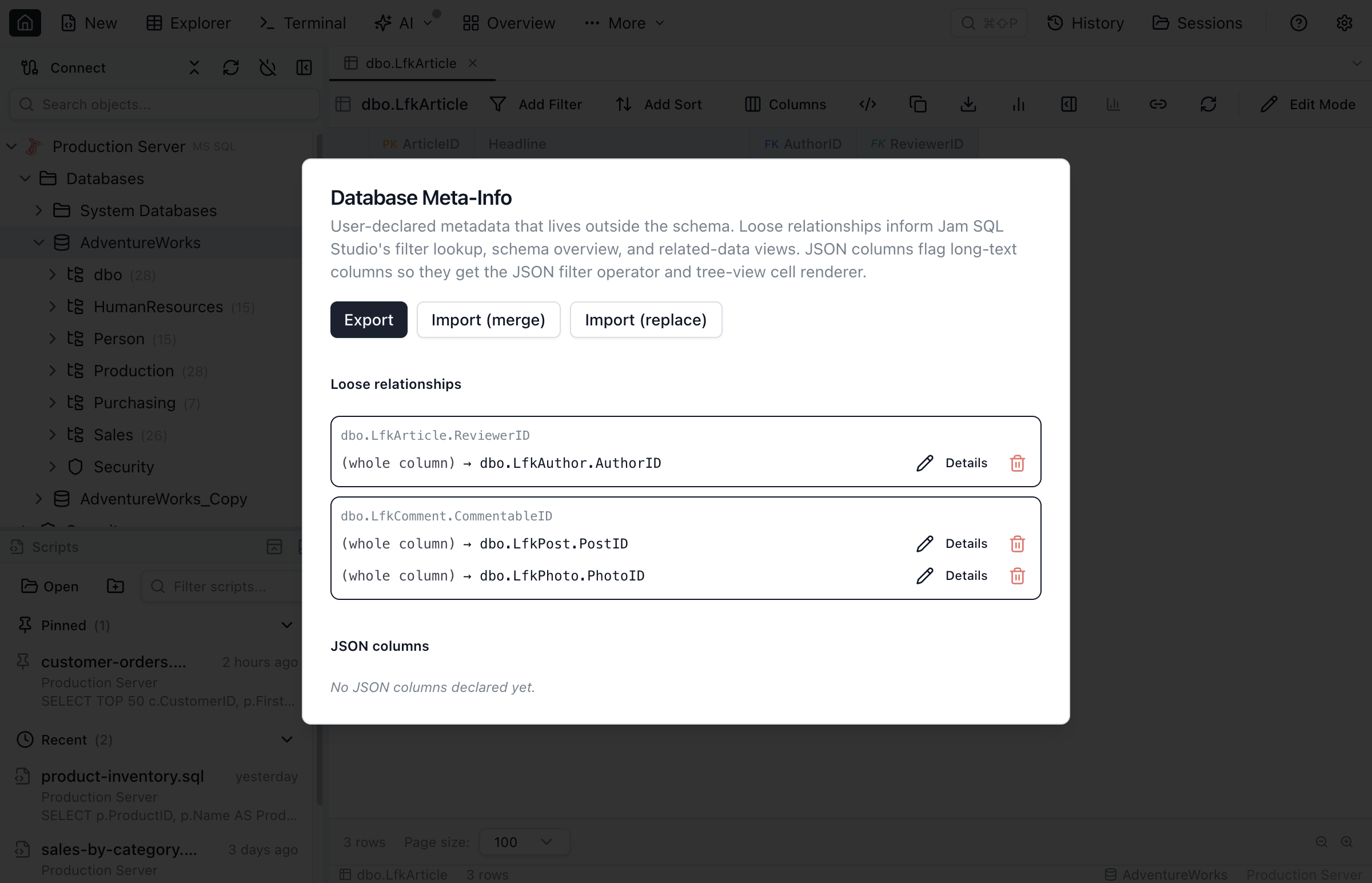
Exporting MetaInfo
- Open the MetaInfo manager from Table Explorer's toolbar (or right-click a database in the Object Explorer → Manage meta info…)
- Click Export
- Pick a location for the JSON file (default filename:
metainfo-<connection>-<database>.json)
The exported file contains the full DatabaseMetaInfo document — version field, connection / database identifiers, last-updated timestamp, and the full looseRelationships array. It's plain JSON; you can commit it to a repository, attach it to a ticket, or send it to a teammate.
Importing MetaInfo
Importing offers two modes:
- Merge (recommended for sharing) — appends every imported declaration whose
id(UUID) isn't already present locally, so a single source column can carry several loose FKs (polymorphic associations, JSON-path FKs). Local entries always win on conflict, so you never lose your own work. - Replace — overwrites the entire local MetaInfo file with the imported document. Use this only when you explicitly want the imported version to be authoritative.
- Open the MetaInfo manager from Table Explorer's toolbar (or right-click a database in the Object Explorer → Manage meta info…)
- Click Import and pick the JSON file
- Choose Merge or Replace
- The list refreshes immediately, and every other workspace tab that depends on MetaInfo (Query Editor, Schema Overview, Dependency Viewer, etc.) picks up the change on its next read.
Import validates the version and shape of the JSON. Files that don't match the current MetaInfo schema are rejected with a clear error rather than silently truncating your data.
Sharing tips
- Per-database scope. One file per
(connection, database). If you maintain loose FKs for several databases on the same server, export each one separately. - Connection identity. The exported file embeds the source connection id; on import, Jam SQL Studio rewrites it to match the local target connection so a teammate can import your file against their own connection without renaming anything.
- Version control friendly. The JSON is pretty-printed and stable to diff. Some teams check it into the same repo as the database migrations, so anyone cloning the project gets the curated set of loose FKs out of the box.
Where loose FKs show up
| Surface | Behaviour |
|---|---|
| Table Explorer column header | FK badge rendered in teal italic (vs. blue for real FKs) |
| Table Explorer cell value | Teal text, dashed underline, chain icon — clickable, opens the FK popover |
| Table Explorer filter row | lookup operator opens the same picker used by real FKs (search + per-column filters + drill-down) |
| Query Editor result grid | Loose-FK columns are detected automatically when the query selects from a table with declared loose FKs — cells render as teal clickable links |
| Row Details — Related data tab | Lists inbound rows from tables that loosely reference the current row, marked with a “Loose” badge |
| Schema Overview | Dashed blue edges labelled “Loose relationship” |
| Dependency Viewer | Connected nodes carry a “Loose” badge; edges drawn dashed blue |
| Data Profiling filters | lookup operator works the same as in Table Explorer — including declaring a new loose FK on the fly |
Navigating loose foreign keys
Once a column has a loose-FK declaration, it behaves like any other foreign key in Table Explorer's FK Navigation:
- The peek popover — clicking a loose-FK cell opens the same popover used by real FKs. The primary Open button drills into the referenced row in the current tab; the … menu still offers Open in new explorer and Open in query editor.
- The breadcrumb chip-row — navigating through a loose FK pushes a chip onto the Table Explorer tab's navigation tree exactly like a real FK. The breadcrumb does not distinguish loose and real hops in its chip styling.
- Related Data sections in the Single-Row View — inbound loose-FK relationships appear next to real-FK inbound sections, each marked with a small
(loose)label so you can tell user-declared references from enforced ones. - The mini-grid icon column and keyboard shortcuts (
Cmd/Ctrl+ arrow keys) work the same way on loose-FK hops.
This is what makes loose FKs different from how other SQL clients treat virtual foreign keys: in Jam SQL Studio a loose FK is not just a clickable cell — it is a navigation primitive on equal footing with a declared FK, including breadcrumb chips, Single-Row Details View, and reverse-direction (inbound) hops.
Source filters — polymorphic associations
A source filter is a set of conditions evaluated against the source row that gates whether the loose FK activates at all. When the filter does not match, the cell renders as a plain value with no FK link. This makes it possible to model polymorphic associations — a pattern common in Rails, Django, and Laravel where a single column like commentable_id points at different tables depending on the value of a discriminator column:
- Declaration 1:
comments.commentable_id → posts.id— source filter:commentable_type = 'Post' - Declaration 2:
comments.commentable_id → photos.id— source filter:commentable_type = 'Photo'
Each declaration gets its own id (UUID) and can have independent source and target filters. When more than one declaration matches a row, the FK popover shows them as tabs — one per target table — so you can navigate to any of the related records.
-- Rails-style polymorphic association
-- Loose FK: commentable_id → posts.id (source filter: commentable_type = 'Post')
SELECT c.id, c.body, p.title AS post_title
FROM comments c
JOIN posts p ON p.id = c.commentable_id
WHERE c.commentable_type = 'Post';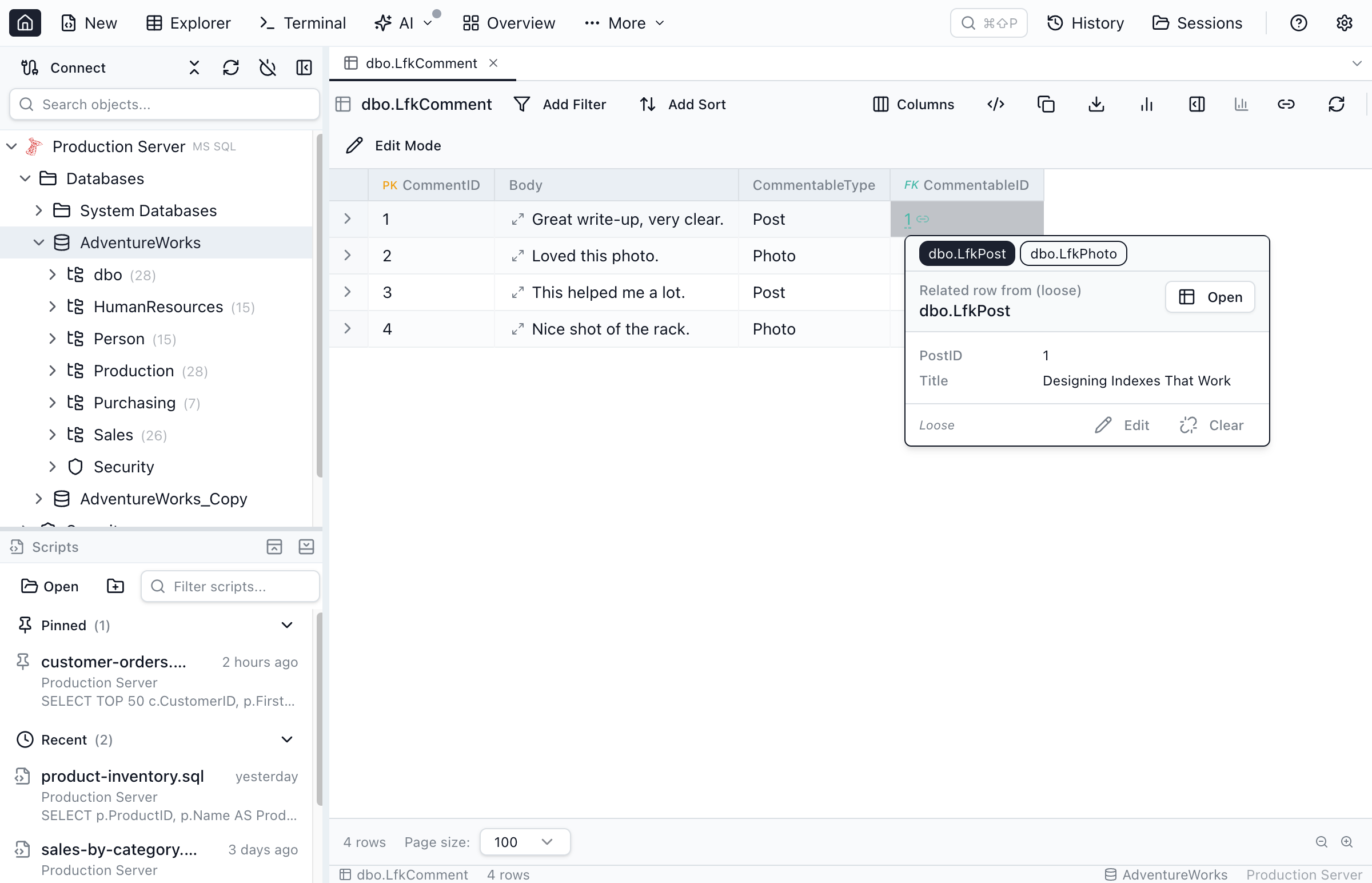
commentable_id.Target filters — soft-delete and status scoping
A target filter narrows the rows fetched by the FK popover, lookup picker, and row picker when browsing the target table. It does not affect which rows the source column links to (that is determined by the actual values in the database); it only controls which target rows are shown as valid options. The most common use case is soft-delete awareness:
| Use case | Target filter example |
|---|---|
| Skip soft-deleted records | deleted_at IS NULL |
| Only active users | status = 'active' |
| Published posts only | published = 1 |
A ▣ Filtered chip appears in the loose relationship footer inside the FK popover whenever a target filter is active, so you always know that the preview is narrowed. The same chip appears in the Table Explorer column footer when the inherited filter is in effect.
Array columns (Postgres)
Loose FKs work on Postgres array columns like integer[], uuid[], and text[]. Declaring is the same as for scalar columns — add a filter row for the array column, pick the lookup operator, and the picker auto-suggests the singular target. For example, a column named tag_ids will automatically suggest tags.id as the target. Save the declaration the same way.
Each array element renders as its own clickable teal pill in the result grid. Click any pill to open the related row in the FK popover. On the target table, the Related-data tab finds all rows whose array column contains the focused row's id — using <value> = ANY(array_col) semantics on Postgres to run the lookup efficiently.
JSON columns and JSON-path FKs
When the source column is JSON — either a native JSON / JSONB type, or a long-text column you've declared as JSON — the loose-FK target picker exposes an optional JSON path inside <column> input. Set it (e.g. $.customer_id on an orders.metadata JSONB column) and Jam SQL Studio will compare the value at that path against the target column instead of comparing the whole JSON document.
This is useful for denormalised payloads where a foreign-key-shaped value lives inside a JSON object — append-only event logs, polymorphic metadata blobs, or schemaless API ingest tables. Once declared:
- The
lookupfilter on the source column emits a JSON extract (JSON_VALUEon MSSQL / Oracle,#>>on Postgres,JSON_UNQUOTE(JSON_EXTRACT(…))on MySQL,json_extracton SQLite) so the right rows match without writing the path by hand each time. - Clicking the FK link icon on a JSON cell opens the related row in the parent table — Jam SQL Studio extracts the path's value from the cell client-side before navigating.
- Leave the path blank to compare the whole column (the default behaviour for non-JSON loose FKs).
Pick a path with the peek dropdown
You don't need to remember the JSON shape by hand. The JSON path inside <column> input in the target picker has an eye-icon button that opens a path-discovery popover — the same control the filter chip uses. The popover lists every property path Jam SQL Studio has observed for that column (sourced from the cached structure scan first, the current grid session otherwise) so you can click $.customer_id instead of typing it. If the cache is empty, click Scan 1000 from server inside the popover to run a fresh sample query (with the engine-appropriate validity guard for declared-on-text columns) and seed the cache.
Multiple loose FKs on the same JSON column
A single JSON column can declare more than one loose FK — one per JSON path. orders.metadata can independently declare $.customer_id → customers.id and $.warehouse_id → warehouses.id, and each filter resolves to the correct declaration based on the path that's set on the condition. In the result grid, each declared path renders its own teal FK badge on the JSON cell so you can click straight through to the right parent row.
When you open the FK row picker on a column that has more than one declaration and no path is pre-bound, Jam SQL Studio first asks which relationship to use — a small chooser lists every declared path with its target, and a + Add another footer lets you declare an additional one without leaving the dialog.
property_lookup / any_lookup / all_lookup
For JSON columns, the json filter operator has three first-class sub-operators that combine path selection with the FK row picker:
property lookup— scalar equality at a path, with the comparand picked from a related table. Mirrors the existingproperty =sub-operator, but the right-hand value is a row picked from the parent table instead of free text.any lookup— at least one element matched by a[*]path equals the picked FK value. Use it on arrays of FK-shaped values (e.g.$.items[*].sku → skus.sku).all lookup— every element matched by a[*]path equals the picked FK value, and the array has at least one match. Empty arrays don't match.
The first time you use one of these on a (column, path) pair that isn't declared yet, the picker opens in target-selection mode and pre-fills the source-path row with the path you set on the filter — you only need to pick the target table and column and save. On every subsequent use the picker opens directly in the row-grid view.
Free-text wildcards ($.items[*].id outside the any_lookup / all_lookup shapes) and recursive descent ($..foo) are out of scope for the FK path — they have no scalar-extract semantic. Use the json filter operator with its wildcard / recursive-descent sub-operators for those shapes.
Loose-FK column header badge
Loose FKs reuse the same column-header FK badge as real foreign keys, styled so the two never blur together: a real FK shows a blue FK badge, a loose FK shows a teal italic FK badge — the header counterpart of the teal chain-icon cell links described under Visual cue: loose FK vs real FK. When the loose FK is declared on a JSON path, that teal FK badge renders directly on the JSON cell so you can click straight through to the parent row.
This badge only reflects the column's loose-FK state. The separate blue {} / gray {} / gray {}? glyphs that summarise a column's JSON declaration state (declared, undeclared-native, eligible long-text) are a different cue, documented in JSON columns → Column header glyphs.
Loose FKs on Azure Data Explorer (Kusto)
Azure Data Explorer has no foreign-key constraints, so loose FKs are the only way to give a Kusto column FK-style navigation. You declare a logical column→column reference exactly as on the SQL engines, and Jam SQL Studio makes the source column clickable for read-only, outbound navigation in Table Explorer — jump from an operation_Id to the row it points at in one click. The lookup filter emits KQL: operation_Id == "…" for a scalar column, or tostring(SourceColumn.path) == "…" when the loose FK is declared on a dynamic column with a JSON source path.
Two things differ from the SQL engines by design. Inbound (reverse) navigation is off on Kusto — the Related-data tab, Schema Overview edges, and Dependency Viewer badges that surface rows pointing at the current row aren't drawn, because a reverse scan over a large telemetry table isn't a cheap operation. And because Kusto tables are read-only, there is no FK cell-editing. Array-source loose FKs remain PostgreSQL-only and don't apply to Kusto.
Limitations
- Multiple declarations per source column need a disambiguator. A single
(schema, table, column)can host multiple loose FKs as long as each declaration is distinguished by either a JSONsourcePath(e.g.$.customer_idvs.$.warehouse_idon the same JSON column) or asourceFilter(e.g. a polymorphic discriminator likecommentable_type = 'Post'). Without a disambiguator, only one declaration per source column is active — and the FK popover surfaces tabs when several declarations match a row. - Local to the machine until exported. Loose FKs aren't stored in the database, so colleagues won't see them unless you Export and they Import.
- No referential enforcement. Loose FKs are a navigation aid, not a constraint — the database will still let you insert rows that point at non-existent target rows. If you need enforcement, add a real
FOREIGN KEYconstraint with Table Designer.
Frequently asked questions
What is a virtual foreign key (and how is it different from an unenforced FK or a regular integer column)?
A virtual foreign key is a user-declared column-to-column reference that the database does NOT validate on writes — but every SQL client that supports the feature treats the column like a real FK for navigation: clickable cells, row-preview popovers, related-data tabs, JOIN suggestions. A regular integer column is just data: your client has no idea the value points anywhere. A real FK constraint does both jobs (enforcement + declaration). A virtual FK keeps only the declaration job, which is what makes it useful for legacy schemas, ETL/warehouse tables that skip constraints for load performance, cross-schema or polymorphic references the database can't express as a single FK, and read-only access where you can't issue DDL. DataGrip and DBeaver call them 'virtual foreign keys'; PostgreSQL 18 ships them as constraints marked NOT ENFORCED; Jam SQL Studio's metadata layer calls them 'loose FKs' internally but it's the same primitive.
Does Jam SQL Studio support PostgreSQL 18's NOT ENFORCED foreign key constraints?
Yes. When Jam SQL Studio detects a NOT ENFORCED FK constraint in pg_constraint, the relationship lights up automatically across Table Explorer, Query Editor, Schema Overview, Dependency Viewer, and Row Details — no per-user declaration needed. Use NOT ENFORCED in the schema when you can and the FK target is uniform; use Jam SQL Studio's per-user loose-FK metadata layer for the cases NOT ENFORCED can't express (polymorphic columns with discriminator-gated dispatch, cross-engine refs to MSSQL / MySQL / Oracle / SQLite (and read-only outbound refs on Azure Data Explorer / Kusto), the pre-PG18 fleet, or any case where you can't issue DDL).
What is a loose foreign key in Jam SQL Studio?
A loose foreign key is Jam SQL Studio's term for a virtual foreign key — a user-declared column-to-column reference that isn't enforced by a database FOREIGN KEY constraint. Once declared, Jam SQL Studio treats the column like a real FK — clickable cells, lookup picker, inbound Related data tab, and Schema Overview / Dependency Viewer edges all work, without altering the schema.
When should I use loose foreign keys?
Use them on legacy schemas that lack FK constraints, denormalised reporting or ETL staging tables, cross-schema or polymorphic references the database can't express, and any case where you want FK navigation without owning the DDL.
How do I declare a loose foreign key?
Open Table Explorer, add a filter row for the source column, and pick the 'lookup' operator from the bottom of the operator dropdown. The target picker opens with an inferred schema/table/column suggestion — confirm or adjust it, click Save, and the column behaves like a real FK from then on.
Where are loose foreign keys stored?
Loose foreign keys are persisted in a per-database MetaInfo file at {user data}/metainfo/<connection>/<database>.json. Each (connection, database) pair has its own file, and the same file is read by Table Explorer, Query Editor, Schema Overview, Dependency Viewer, and Data Profiling.
Can I share loose foreign key declarations across machines?
Yes. Open the MetaInfo manager dialog from the Link2 icon in the Table Explorer toolbar, or by right-clicking a database in the Object Explorer and choosing 'Manage meta info...', and use Export to write the entire MetaInfo file as JSON, or Import (merge or replace) to bring in someone else's declarations. Merge mode keys on each relationship's unique id, so importing never overwrites a local declaration and multiple loose FKs can share the same source column.
How do I remove a loose foreign key?
Two ways. From any cell that uses it, open the FK popover and click Clear in the footer. Or open the MetaInfo manager dialog from the Link2 icon in the Table Explorer toolbar, find the relationship in the list, and remove it there.
Related topics
- Table Explorer — the primary surface for declaring and using loose FKs
- Schema Overview — visualises declared relationships alongside real FKs
- Dependency Viewer — inbound / outbound impact analysis, including loose connections
- Data Profiling — filter operators including
lookup - JSON columns — declaring JSON, the
jsonfilter operator, the tree/code expanded editor, and JSON-path loose FKs