
Last updated: 2026-09-26
Table Designer
Create and modify database tables with a visual interface. Table Designer lets you define columns, constraints, indexes, and storage options; preview the generated DDL; and review the impact on dependent objects before executing changes.
The Design Table tab fills the workspace edge-to-edge: no read-only banner, no card nested inside a padded panel. The header (kind chip, table name, Rename / Move to schema actions) sits directly under the toolbar and the Columns / Constraints / Indexes / Storage tabs span the full width. Toggle Dependencies from the toolbar for a full-height right rail alongside the editor instead of a floating panel.
Creating a New Table
Use Table Designer to create tables without writing SQL manually.
Opening Table Designer
- Click More in the toolbar
- Select Table Designer
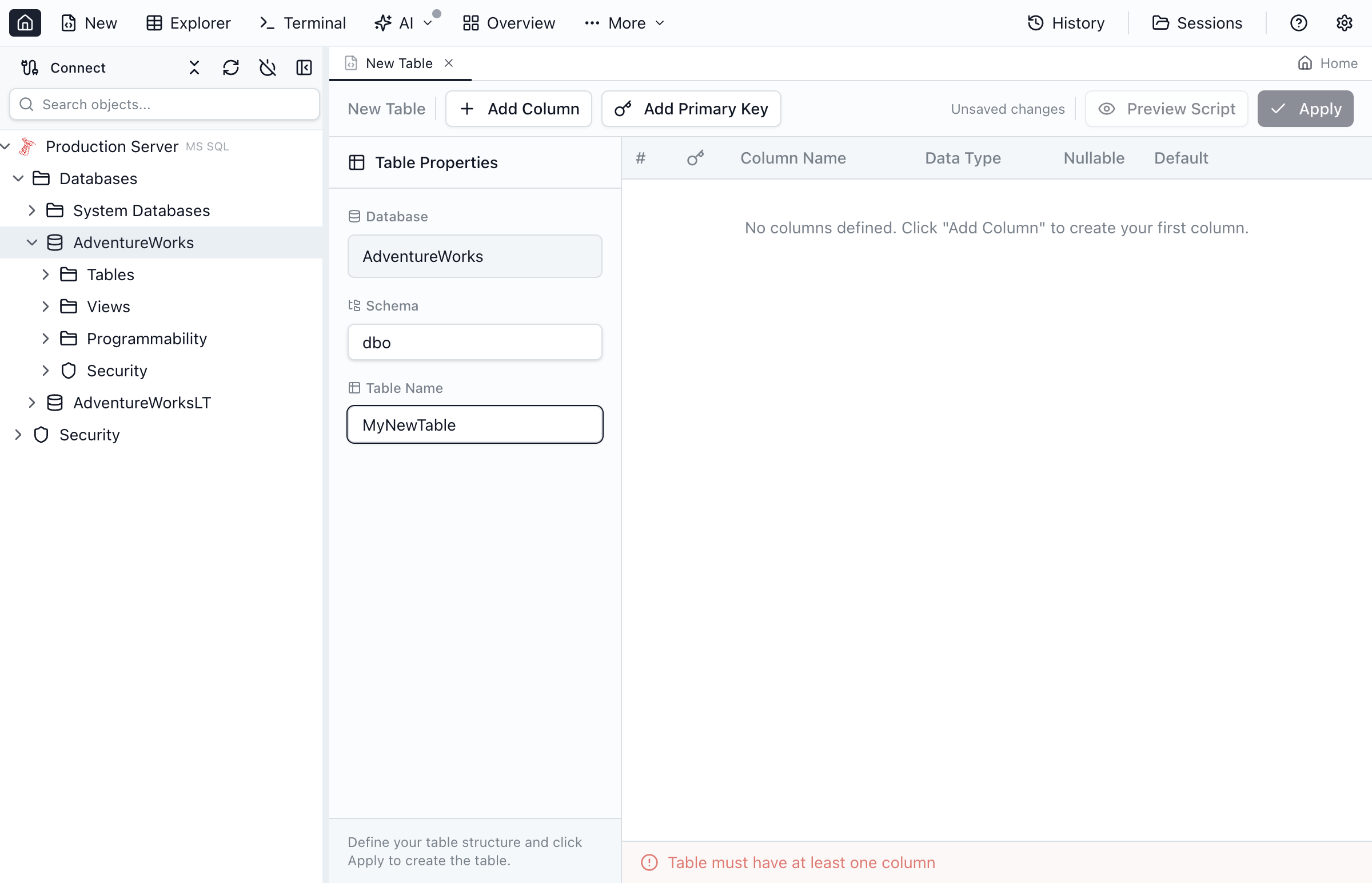
Setting Table Properties
- Select the Database where the table will be created
- Optionally select a Schema (defaults to
dbofor SQL Server) - Enter the Table Name (e.g.,
Products,Customers)
Adding Columns
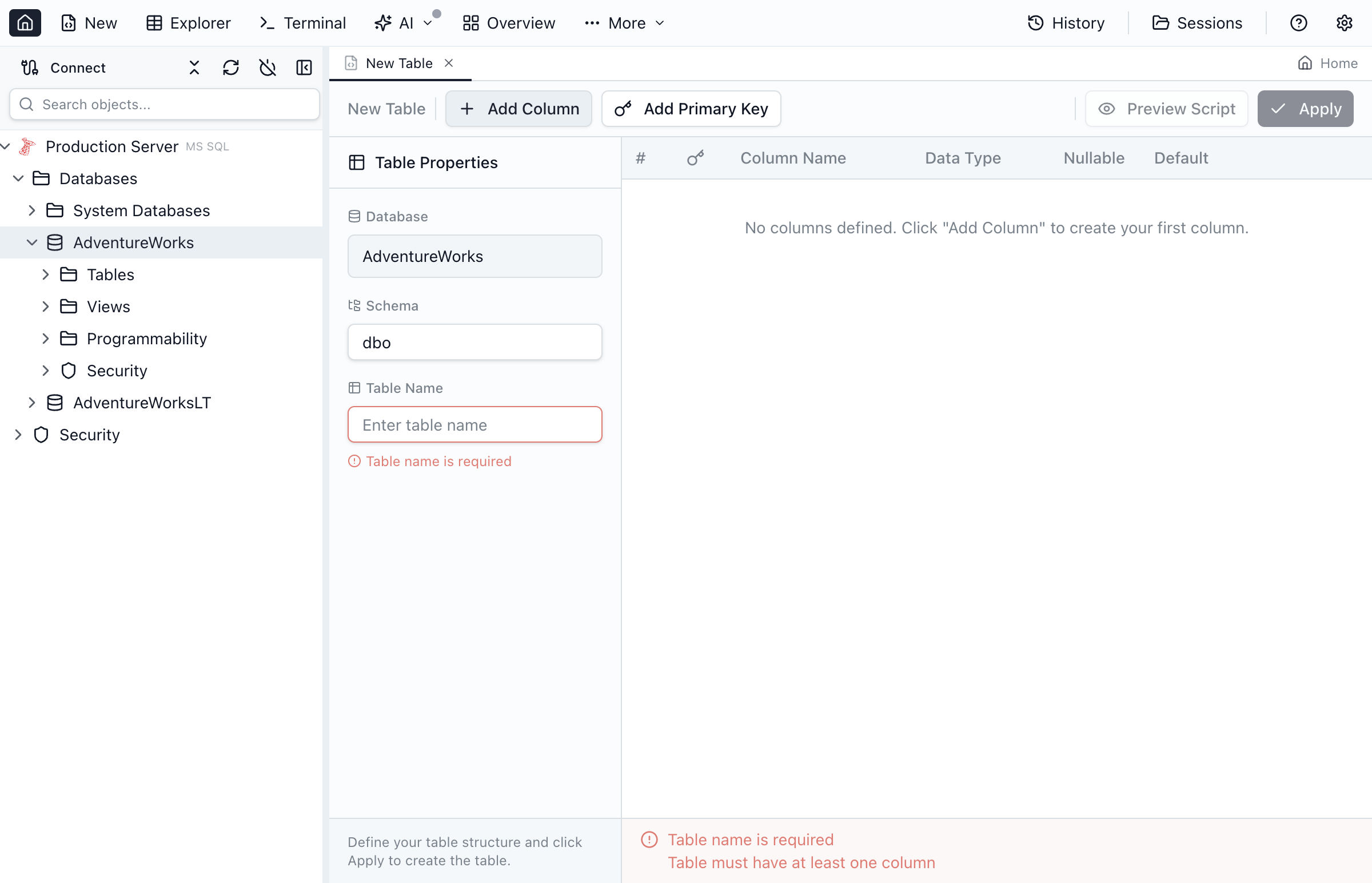
- Click Add Column or press the
+button - Enter the column name
- Select a data type from the dropdown
- Configure column properties (nullable, primary key, etc.)
- Review and apply the preview to add the column to the draft, including the first column of an empty table
- Repeat for each column, then click Save Changes to create the table
Column Properties
Each column has several configurable properties:
Column Name
Enter a descriptive name for the column. Follow your database naming conventions (e.g., ProductID, product_id, productId).
Data Type
Select the appropriate data type from the dropdown. Common types include:
| Category | SQL Server | PostgreSQL |
|---|---|---|
| Integer | int, bigint, smallint | integer, bigint, smallint |
| Decimal | decimal(p,s), money | numeric(p,s), decimal |
| Text | varchar(n), nvarchar(n) | varchar(n), text |
| Date/Time | datetime, date, time | timestamp, date, time |
| Boolean | bit | boolean |
| Binary | varbinary(n) | bytea |
| JSON | json (SQL Server 2025) | json, jsonb |
| Vector | vector(n) (SQL Server 2025) | — |
SQL Server 2025 types
The SQL Server type list includes the two data types introduced in SQL Server 2025 (17.x). Both are rejected by SQL Server 2022 and earlier, so only pick them when the target instance is 17.x or Azure SQL:
JSON— the native binary JSON type. It takes no parameters. As of September 2026 Microsoft documents this type as generally available in SQL Server 2025 (17.x), Azure SQL Database, Azure SQL Managed Instance with the SQL Server 2025 or Always-up-to-date update policy, and SQL database in Fabric.VECTOR(n)— requires a dimension count, written with the type (e.g.VECTOR(1536), the width of the most common embedding models). Valid values are1to1998for the defaultfloat32base type. Opening an existing vector column converts SQL Server's reported storage bytes back to dimensions — except for half-precision (float16) vectors, where the dimension cannot be recovered and the bareVECTORis emitted for you to fill in.
See What's New in SQL Server 2025 for what these types do and their engine-side limitations, and the SQL Server JSON guide for querying JSON columns.
Length/Precision
For certain data types, specify:
- Length - Maximum characters for
varchar(n) - Dimensions - Number of vector elements for
vector(n) - Precision - Total digits for
decimal(p,s) - Scale - Decimal places for
decimal(p,s)
Nullable
Check Allow NULL to permit NULL values. Uncheck to require a value (NOT NULL constraint).
Primary Key
Check Primary Key to include this column in the table's primary key:
- Primary key columns are automatically NOT NULL
- Select multiple columns for a composite primary key
- Primary keys create a clustered index by default (SQL Server)
Identity / Auto-Increment
Enable Identity for auto-incrementing numeric columns:
SQL Server
- Check the Identity checkbox
- Seed - Starting value (default: 1)
- Increment - Step value (default: 1)
PostgreSQL
- Select
SERIALorBIGSERIALdata type - Or use
GENERATED ALWAYS AS IDENTITY
Default Value
Enter a default value expression:
0- Numeric default''- Empty stringGETDATE()- Current date/time (SQL Server)NOW()- Current date/time (PostgreSQL)NEWID()- New GUID (SQL Server)
Treat as JSON
String columns expose a Treat as JSON toggle. Turning it on (or off) writes or removes a jsonColumns declaration in the per-database MetaInfo store — it does not emit any DDL or change the column's type. The declaration is the same one the rest of the app reads for JSON-aware filtering, the peek popover, and JSON-path autocomplete, so the column is treated as JSON everywhere as soon as the toggle is flipped.
Modifying Existing Tables
Open existing tables in Table Designer to make changes.
Opening in Alter Mode
- Find the table in Object Explorer
- Right-click the table
- Select Design Table
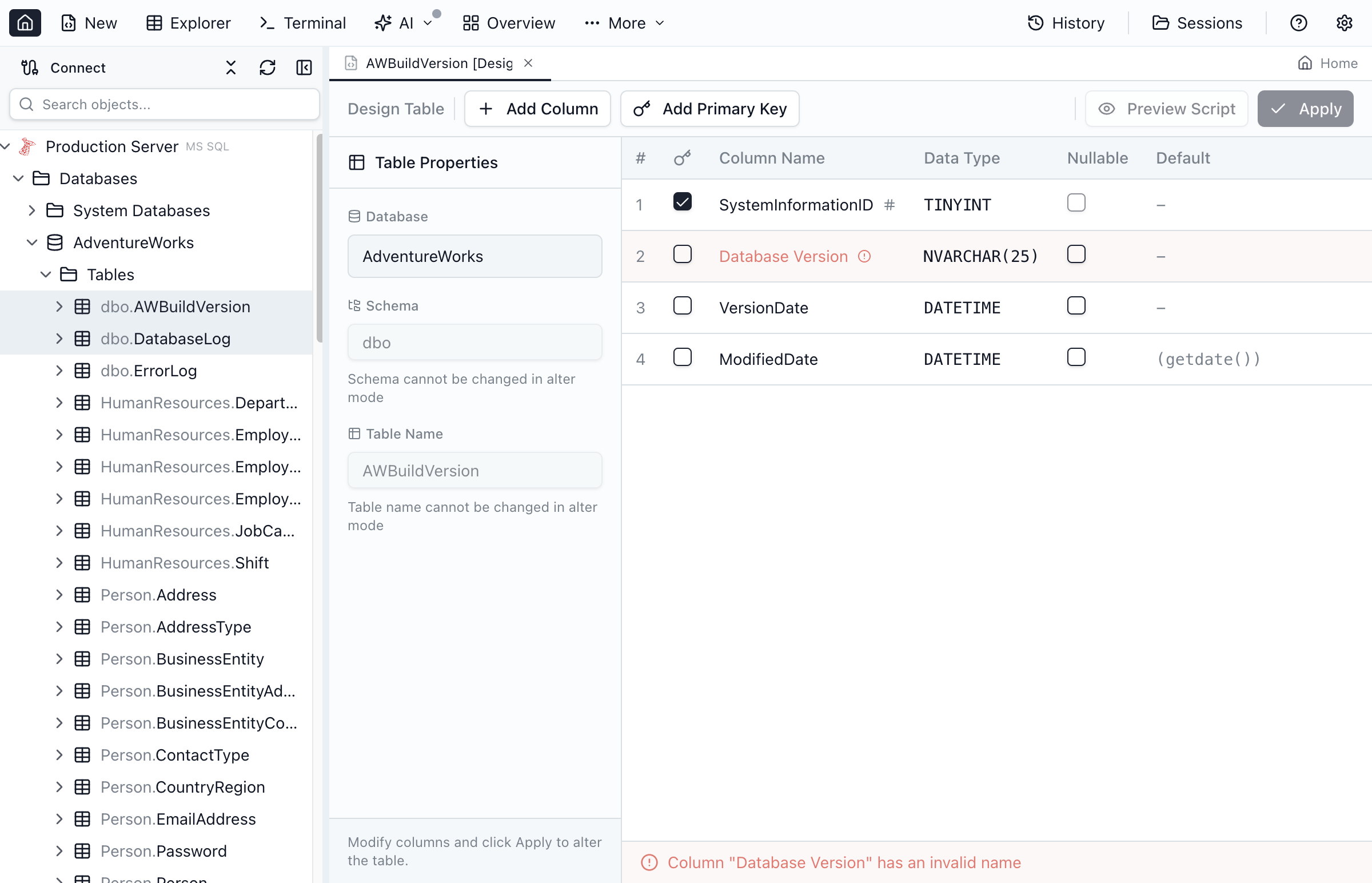
Adding New Columns
- Click Add Column to append a new column
- New columns are added at the end of the table
- Consider adding a default value if the table has existing data
Modifying Existing Columns
You can modify some properties of existing columns:
| Change | Allowed? | Notes |
|---|---|---|
| Increase varchar length | Yes | Data preserved |
| Decrease varchar length | Limited | May truncate data |
| Change data type | Limited | Must be compatible |
| Add NOT NULL | Conditional | No existing NULLs |
| Remove NOT NULL | Yes | Always allowed |
| Add default value | Yes | Always allowed |
Columns the designer refuses to edit
A few column declarations carry an attribute the designer has no way to write back. Editing such a column reports an error and leaves the whole draft unsaved, rather than executing an ALTER that drops the attribute or reporting an attribute-only change as saved with nothing executed. The message points you at View SQL, where you can append the ALTER statement yourself.
| Engine | Declaration on the column | Why it is refused |
|---|---|---|
| MySQL / MariaDB | INVISIBLE | MySQL's MODIFY COLUMN restates the whole column, so a type or nullability change would publish a hidden column |
| MySQL | SRID n (spatial column) | the same restatement drops the SRID restriction, which makes a spatial index on the column unusable and starts accepting geometries of any SRID |
| MySQL | COLUMN_FORMAT, STORAGE | InnoDB ignores both, NDB does not, and the definition alone doesn't say which storage engine it is for |
| MySQL / MariaDB | CHARACTER SET / CHARSET | the column's character set has no field in the comparison, so a restatement falls back to the table default |
| MySQL / MariaDB | ON UPDATE written outside a DEFAULT clause | the auto-update is only carried when it sits inside the default, so a restatement elsewhere deletes it |
| MariaDB | WITH SYSTEM VERSIONING / WITHOUT SYSTEM VERSIONING | system versioning has no field in the comparison |
| PostgreSQL | STORAGE, COMPRESSION | the column's TOAST strategy and compression method have no field in the comparison, and ALTER COLUMN … TYPE resets both, so a type change would drop an attribute you never touched |
| Oracle | INVISIBLE | column visibility has no field in the comparison, so a visibility change would produce an empty script and report success |
| Oracle | ENCRYPT, ANNOTATIONS ( … ), DOMAIN, SCOPE IS | none of these has a field in the comparison, so an edit to such a column could only be planned by leaving the attribute out of the picture |
| Oracle | DISABLE, NOVALIDATE, RELY, DEFERRABLE, INITIALLY after a column's NOT NULL | these change what the column is — a disabled, unvalidated or deferrable NOT NULL leaves the column nullable — and the state has no field in the comparison |
| Oracle | identity options beyond seed and increment (CACHE, MAXVALUE, CYCLE, ORDER, …) | the options have no field in the comparison, so a change to one would produce an empty script |
| SQL Server | SPARSE, ROWGUIDCOL, FILESTREAM, MASKED WITH, ENCRYPTED WITH, NOT FOR REPLICATION | SQL Server columns carrying one of these are refused the same way — the designer keeps the whole declaration verbatim and refuses to restate it |
The refusal covers the column you edited — changes to other columns of the same table still plan and save normally. On MySQL and MariaDB the designer's baseline for a live table spells INVISIBLE, so opening a hidden column and widening it is refused. MySQL SRID, COLUMN_FORMAT and STORAGE, PostgreSQL STORAGE and COMPRESSION, and every Oracle attribute above reach the check only when the definition you are editing spells them, which means hand-written SQL or a Database Blueprint file — the baseline Jam builds from a live table doesn't.
Deleting Columns
- Select the column to delete
- Click the Delete button or press
Delete - The column is marked for deletion (shown with strikethrough)
- Column is removed when you save the changes
Saving Changes
Visual edits first open a preview of the draft change. Applying that preview updates the draft; Save Changes writes it to the database.
Save to the Database
- Click Save Changes
- New tables execute their CREATE script. Existing tables apply only pending changes, so adding a column preserves existing rows.
- Renaming a column keeps its data. A rename made in the visual editor is saved as
RENAME COLUMN(sp_renameon SQL Server). When only the SQL text changed and two removed columns have the same definition as two added ones, Save asks you to rename one column at a time instead of guessing. Renames made before a restart are remembered with the session. Column order cannot be changed with ALTER TABLE, so a reordered definition is refused rather than reported saved. The same applies to a column carrying an attribute the designer can't write back — a MySQLINVISIBLEcolumn, for example — see Columns the designer refuses to edit. - Confirm any destructive changes. The confirmation dialog lists the exact statements about to run, so a change that the migration can only express as
DROP COLUMNplusADD COLUMNis visible before it executes. - Either every change in the draft is applied or nothing is. A change the designer cannot script — changing a column type on SQLite, a table option such as PostgreSQL
fillfactoror the MySQLENGINE, dropping an explicit collation, or editing a column that carries an attribute the designer can't restate (list) — reports an error and leaves the whole draft unsaved; append the ALTER statement in View SQL instead. - A successful save becomes the baseline for your next edit. A failed save keeps the draft and displays the error.
- Any open Table Explorer for the same table refreshes its cached schema too — so a newly-added primary key re-enables Edit Mode without restarting the app
Dirty State Indicator
- Unsaved changes appears beside Save when the draft changes
- Whitespace inside string values and quoted names counts as a change — for example, changing
'a b'to'a b'enables Save - Semicolons inside SQL comments or string values stay within their statement
View SQL Toggle
Click View SQL in the toolbar to switch from the visual cards to the underlying buffer. You can:
- Inspect the editable
CREATE TABLEdefinition and any appended SQL. For an existing table, Save derives a migration from the changed definition instead of executing its CREATE again. - Hand-edit the buffer directly — the visual cards re-sync when you toggle back, with cycle-prevented buffer sync that never overwrites in-flight typing.
- Copy the script into a Query Editor tab if you want to execute it manually or commit it to source control.
Comments in the buffer are read as comments, never as part of the declaration around them. x INT AS /* note */ (n * 2), ts TIMESTAMP ON /* note */ UPDATE CURRENT_TIMESTAMP, s VARCHAR(10) CHARACTER /* note */ SET latin1 and c character /* note */ varying(200) are read exactly like the same declarations without the comment, so adding or removing a comment on its own plans nothing. A trailing CREATE INDEX statement after the table definition is read the same way: one written inside a comment, or inside a string value, is not treated as an index.
Inside an expression, a comment is content. The guarantee above is about a comment written between the words of a declaration — inside a type name, between attribute keywords, in a foreign key's ON DELETE tail. A comment written inside an expression is part of that expression's text and is kept, so adding or removing one there is reported as the change it is. That covers a generated column's expression on every engine (AS (n /* note */ * 2)), an Oracle DEFAULT value (Oracle stores the default text verbatim, so DEFAULT 1 /* note */ + 2 plans a MODIFY), and a SQLite DEFAULT (PRAGMA table_info reports the declaration byte for byte, so the edit hits SQLite's recreate-the-table limitation).
One SQLite exception. SQLite picks a column's type affinity — INTEGER, TEXT, BLOB, REAL, or NUMERIC — by looking for substrings in the whole declared type text, comments included, so a comment inside a type can change which affinity the column has and therefore what it stores. c DOUBLE /* TEXT */ PRECISION contains TEXT and gets TEXT affinity; delete the comment and c DOUBLE PRECISION gets REAL affinity instead. Jam treats such an edit as the type change it is, which on SQLite means Save reports that the column can't be altered in place and the table has to be recreated. A comment that leaves the affinity alone still plans nothing.
Save coalesces all visual edits into one transaction where the engine supports DDL transactions; on MySQL and Oracle the chain runs sequentially with progress shown in the messages tab.
ALTER Coalescing
When editing an existing table, every visual change — add column, change type, add constraint, add index — is staged into the buffer as a focused fragment. Save emits the staged fragments as a single coalesced ALTER chain so the database sees one set of operations rather than a sequence of round-trips. The hidden buffer round-trips byte-for-byte: bytes outside the changed regions are preserved exactly as the previous emit produced them.
Constraints
Define and edit the full constraint family directly from the Table Designer. Open the Constraints tab to manage primary keys, foreign keys, unique constraints, check constraints, and named defaults.
Primary Key (PK)
- Add by clicking + Add primary key in the Constraints tab, or by checking Primary Key on individual columns.
- Multi-column PKs are supported — pick the column order in the popover.
- Drop the existing PK before adding a new one. Designer enforces single-PK-per-table per the engine's rules.
Foreign Key (FK)
- + Add foreign key opens a popover with referenced table / column pickers populated from the live schema.
- Configure
ON DELETEandON UPDATEactions (NO ACTION,CASCADE,SET NULL,SET DEFAULT,RESTRICT) per engine support. - Composite FKs are supported — add additional column pairs in the popover.
UNIQUE
- + Add unique constraint opens a column picker.
- Multi-column UNIQUE is supported. The Designer emits an inline column constraint when there is exactly one column and a table-level constraint otherwise.
CHECK
- + Add check constraint opens a popover with a free-text expression input and an optional name.
- MySQL CHECK is enabled on 8.0.16+; older versions show a disabled affordance with a tooltip pointing at the version requirement.
Named DEFAULT (SQL Server)
- SQL Server lets you create named default constraints (
ALTER TABLE … ADD CONSTRAINT DF_Foo DEFAULT 0 FOR col). - The Designer surfaces the name input next to the default expression on the column form. On other engines the named-DEFAULT row is hidden — defaults stay inline on the column.
Indexes
Open the Indexes tab to add and manage indexes on the active table. For an existing table the tab lists the indexes the table already has — name, unique flag and key columns, read from the catalog when Design Table opens — and the hidden buffer spells each one as a CREATE INDEX statement after the CREATE TABLE (visible under View SQL). The primary key is listed under Constraints, not here. The full index family is supported for new indexes, with per-engine gating on options the engine doesn't support.
Index Types
- Unique — check the Unique toggle in the popover; emits
CREATE UNIQUE INDEX. - Filtered (partial) indexes — SQL Server
WHERE, PostgreSQL partial indexes, SQLite partial indexes. Disabled with a tooltip on MySQL and Oracle. - Covering / INCLUDE columns — SQL Server and PostgreSQL
INCLUDE (...). Disabled with a tooltip on MySQL, Oracle, and SQLite. - Expression indexes — an entry in the column picker accepts a free-text expression instead of a column name; emits the engine's expression-index syntax.
- Specialized index types — SQL Server
COLUMNSTORE(clustered or nonclustered), PostgreSQLGIN/GIST/BRIN/HASH, MySQLFULLTEXT/SPATIAL, OracleBITMAP/DOMAIN. The dropdown only shows the kinds the active engine supports.
Lifecycle Actions
Each existing index row exposes a lifecycle dropdown for engine-supported maintenance:
- SQL Server —
REBUILD,REORGANIZE, swap to / from clustered. - PostgreSQL —
REINDEX(concurrent option per engine support). - Oracle —
REBUILD, partition-level rebuild. - MySQL — per-row lifecycle is disabled with a tooltip pointing at table-level
OPTIMIZE TABLE; MySQL has no per-index granularity for these operations. - SQLite —
REINDEX.
Storage & Partitioning
Open the Storage tab to set engine-specific storage options on the table. Available controls vary per engine:
- Partitioning — SQL Server partition schemes / functions, PostgreSQL
PARTITION BY(RANGE / LIST / HASH), MySQL partitioning, Oracle partitioning. Disabled with a tooltip on SQLite. - Tablespaces / Filegroups — PostgreSQL
TABLESPACE, OracleTABLESPACE, SQL Server filegroup picker. Disabled on MySQL and SQLite. - Engine-specific table options — MySQL
ENGINE = InnoDB+CHARSET/COLLATE/ROW_FORMAT, SQL ServerWITH (DATA_COMPRESSION = …), PostgreSQLWITH (fillfactor = …), OracleSTORAGE (...).
Identity, Generated & Collation
The Columns tab now exposes the full per-engine column-attribute surface beyond the basics:
- Identity — SQL Server
IDENTITY(seed, increment), PostgreSQL / OracleGENERATED { ALWAYS | BY DEFAULT } AS IDENTITY, MySQLAUTO_INCREMENT. - Computed / Generated columns — SQL Server
AS <expr>(with optionalPERSISTED), PostgreSQLGENERATED ALWAYS AS (…) STORED, MySQL virtual / stored generated columns, Oracle virtual columns, SQLite (3.31+) generated columns. - Collation — pick a collation from the dropdown (populated per engine). Oracle 12.2+ collation, MySQL per-column
COLLATE, SQL Server per-column collation.
Dependency Awareness
Table Designer surfaces the live impact of every change so refactors stay safe. Two surfaces are always on; a third is opt-in.
Dependency Sidebar
- The right-hand sidebar pip shows "Referenced by N FKs from K tables" and "M views depend on this table" for the table being edited.
- Each column row carries inline annotations: FK source / target arrows, default-value sequence references, and view-projection participation badges.
- Backed by schema introspection (
sys.sql_dependencies,pg_depend,INFORMATION_SCHEMA.VIEW_TABLE_USAGEper engine) and cached via TanStack Query so the sidebar stays responsive.
Pre-destructive Edit Guard (always on)
When you drop a column, table, sequence, or view that has incoming dependents, Designer pauses with the blast-radius panel:
- Lists every dependent object (FK source, view, routine, trigger) with one-click jump-to.
- Same posture as Schema Compare's apply preview — you must confirm to proceed.
- Bypass requires explicit Drop anyway click; there is no silent destruction path.
- The guard never fires for drops with zero dependents — no friction when there is nothing to lose.
Dependency Mini-Graph (opt-in)
- Click Show mini-graph under the Dependencies summary in the right-hand sidebar. The panel opens below it, and the toggle is kept per table.
- The panel shows the edited table's direct neighbors, stacked top to bottom: Used by (objects that depend on the table), the table itself, and References (objects the table points to). Each list shows up to eight objects, followed by a + N more line when there are more.
- Long names are shortened with an ellipsis; hover a row to see the full
schema.name. Click a row to open that object in the Dependency Viewer. - The neighbors come from the database catalog, so they reflect the table as it is saved in the database, not unsaved edits.
- Click Open in Dependency Viewer at the bottom of the panel to hand off to the full workspace for multi-hop exploration.
Coalesced Save Preview
Before Save executes, Designer shows a preview dialog with the coalesced ALTER chain (or full CREATE TABLE for new tables). The preview dialog always surfaces for Designer Save — DDL edits are never byte-gated, unlike the Visual Query Editor's threshold-gated DML preview; the Query Editor's Compact DDL editor shows this same always-on preview. Review, copy, or cancel before committing.
SQLite ALTER Limitations
SQLite's ALTER TABLE surface is narrow — it only supports a handful of operations (rename table, add column, rename column, in recent versions drop column). Changes that SQLite has no ALTER syntax for — changing a column's type, dropping a constraint, dropping a column that other objects depend on, and similar structural edits — can only be made by recreating the table (create a new table with the desired shape, copy the data across, drop the old one, rename the new one into place).
Designer does not attempt this automatically. When it detects an ALTER that SQLite cannot express, it refuses the edit and shows an explanatory error describing what changed and why SQLite can't apply it as an ALTER, rather than emitting broken DDL.
Best Practices
Naming Conventions
- Use consistent naming (PascalCase, snake_case, or camelCase)
- Avoid reserved words as column names
- Use singular nouns for table names (Product not Products)
Primary Keys
- Every table should have a primary key
- Consider using identity columns for surrogate keys
- Use meaningful columns for natural keys when appropriate
Data Types
- Choose the smallest appropriate data type
- Use
varcharinstead ofcharfor variable-length strings - Use
decimalfor monetary values (notfloat)
Frequently asked questions
How do I create a new table in Jam SQL Studio?
Open Table Designer from the toolbar (More → Table Designer), enter a table name, add columns with their data types and properties, then click Save to generate and execute the CREATE TABLE script.
Can I modify an existing table with Table Designer?
Yes, right-click any table in the Object Explorer and select 'Design Table' to open it in Table Designer. You can add new columns, modify properties of existing columns (with some limitations), and preview the ALTER TABLE script before executing.
How do I set a primary key in Table Designer?
Click the Primary Key checkbox next to any column to mark it as part of the primary key. You can select multiple columns to create a composite primary key. Primary key columns are automatically marked as NOT NULL.
How do I create an auto-increment column?
For SQL Server, enable the Identity checkbox and optionally set the seed and increment values. For PostgreSQL, use the SERIAL or BIGSERIAL data type. Identity columns are automatically configured with starting values.
Can I preview the DDL script before executing?
Each visual edit opens a preview before updating the draft. Use View SQL to inspect or edit the table definition, then Save Changes to create a new table or apply pending changes to an existing one.
Ready to Design Tables?
Download Jam SQL Studio and create database tables visually.