Last updated: 2026-07-04
Dependency Viewer
Before you change or drop a database object, find out what touches it. Dependency Viewer shows what a table, view, procedure, or function Uses and what it is Used By, as a tree or an interactive graph, across SQL Server, PostgreSQL, MySQL, Oracle, and SQLite.
What is a dependency viewer?
A database dependency is a reference from one object to another: a view that reads a table, a procedure that calls another procedure, a foreign key that links two tables. A dependency viewer reads those references and shows them in two directions — the objects a given object references, and the objects that reference it — so you can reason about the blast radius of a change.
Jam SQL Studio's Dependency Viewer reads each engine's own dependency catalog rather than guessing from names, so the relationships it shows are the ones the database actually tracks.
Why dependency analysis matters
Before modifying or dropping an object, you need to know its impact:
- Rename or drop a column? Views and procedures referencing it may break.
- Drop a table? Dependent views, procedures, and functions will fail.
- Change a procedure's contract? Other procedures that call it may need updates.
The Used By list answers "what will I break?" in one place, so you don't discover a broken view in production.
Supported engines
Dependency Viewer works for all five engines Jam SQL Studio supports. Each engine is queried through its native dependency catalog:
| Engine | Dependency source | Coverage |
|---|---|---|
| SQL Server | sys.sql_expression_dependencies + sys.foreign_keys | Full: code dependencies (views, procedures, functions, triggers) and foreign keys |
| PostgreSQL | pg_depend + pg_rewrite + pg_constraint | Views, materialized views, indexes, foreign keys, and routines with a SQL-standard body (BEGIN ATOMIC … END or RETURN <expr>, PG14+). PostgreSQL does not record what a text-stored body reads (LANGUAGE plpgsql, or LANGUAGE sql written as AS $$ … $$) — use Find usages for those |
| Oracle | ALL_DEPENDENCIES + ALL_CONSTRAINTS | Full: code dependencies plus foreign keys, with synonym resolution |
| MySQL / MariaDB | KEY_COLUMN_USAGE + VIEW_TABLE_USAGE | Foreign keys and view→table relationships (marked as limited support) |
| SQLite | PRAGMA foreign_key_list + sqlite_master | Foreign keys and views only; a banner notes the narrower scope |
MySQL and SQLite don't expose a full code-level dependency catalog the way SQL Server and Oracle do, so for those two engines the viewer shows foreign-key and view relationships and flags the reduced coverage in the UI.
PostgreSQL sits in between, and the line falls in a specific place. It records view and materialized-view relationships precisely (through the view's rewrite rule), and it also records what a routine reads when that routine uses a SQL-standard body — either BEGIN ATOMIC … END or the single-expression RETURN <expr> form (both PG14+) — because PostgreSQL parses those at definition time. What it stores nothing about is a text-stored body — a LANGUAGE plpgsql routine, or a LANGUAGE sql one written in the quoted AS $$ … $$ form. That is a limit of the PostgreSQL catalog itself, not of the viewer — when you need those, Find usages searches the routine source text directly.
Opening Dependency Viewer
- Expand your database in the Object Explorer
- Right-click a table, view, stored procedure, or function
- Choose Dependencies
- The viewer opens in a new tab, defaulting to the tree view for tables and for objects with many dependencies, and the graph view otherwise
The action is available on tables, views, procedures, and functions.
Uses and Used By
Every analysis is split into the two directions that matter, using those exact labels in the UI:
Uses (what this object depends on)
Objects the selected object references. If one of these is dropped, the selected object may break.
Example: a view vw_CustomerOrders Uses the Customers, Orders, and OrderDetails tables.
Used By (what depends on this object)
Objects that reference the selected object. These may break if you modify or drop it.
Example: a table Products is Used By the vw_ProductInventory view, the sp_UpdateStock procedure, and the fn_GetProductPrice function.
Tree view and graph view
A toggle at the top of the tab switches between two views of the same data.
Tree view
Two lists — Uses and Used By — showing the selected object's immediate dependencies in each direction. It's the fastest way to read "what references this" as text.
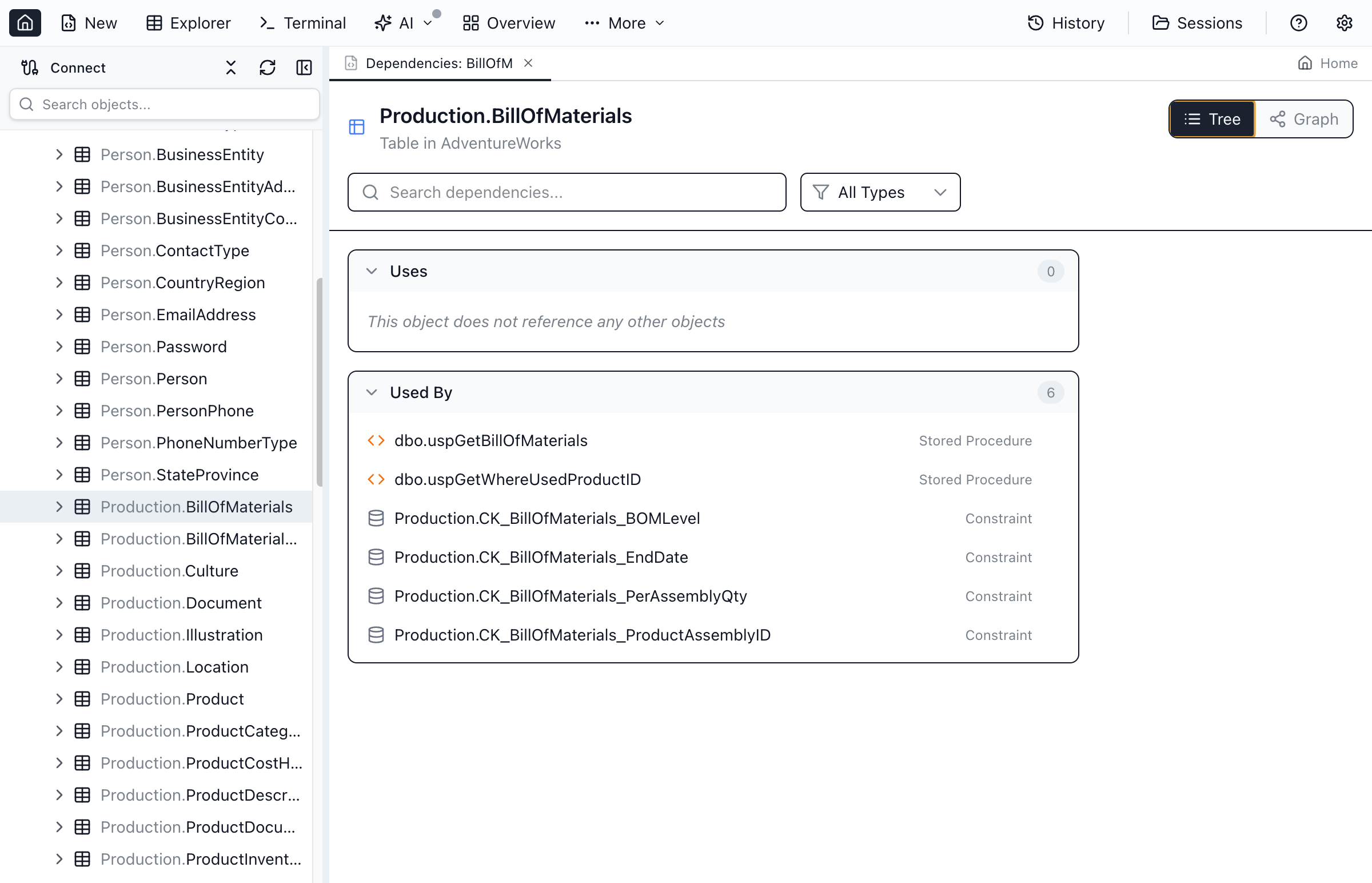
Copy list and Export CSV buttons above the lists copy or download exactly what the tree is currently showing — if the name or type filter has narrowed the lists, only the visible rows are copied or exported.
Graph view
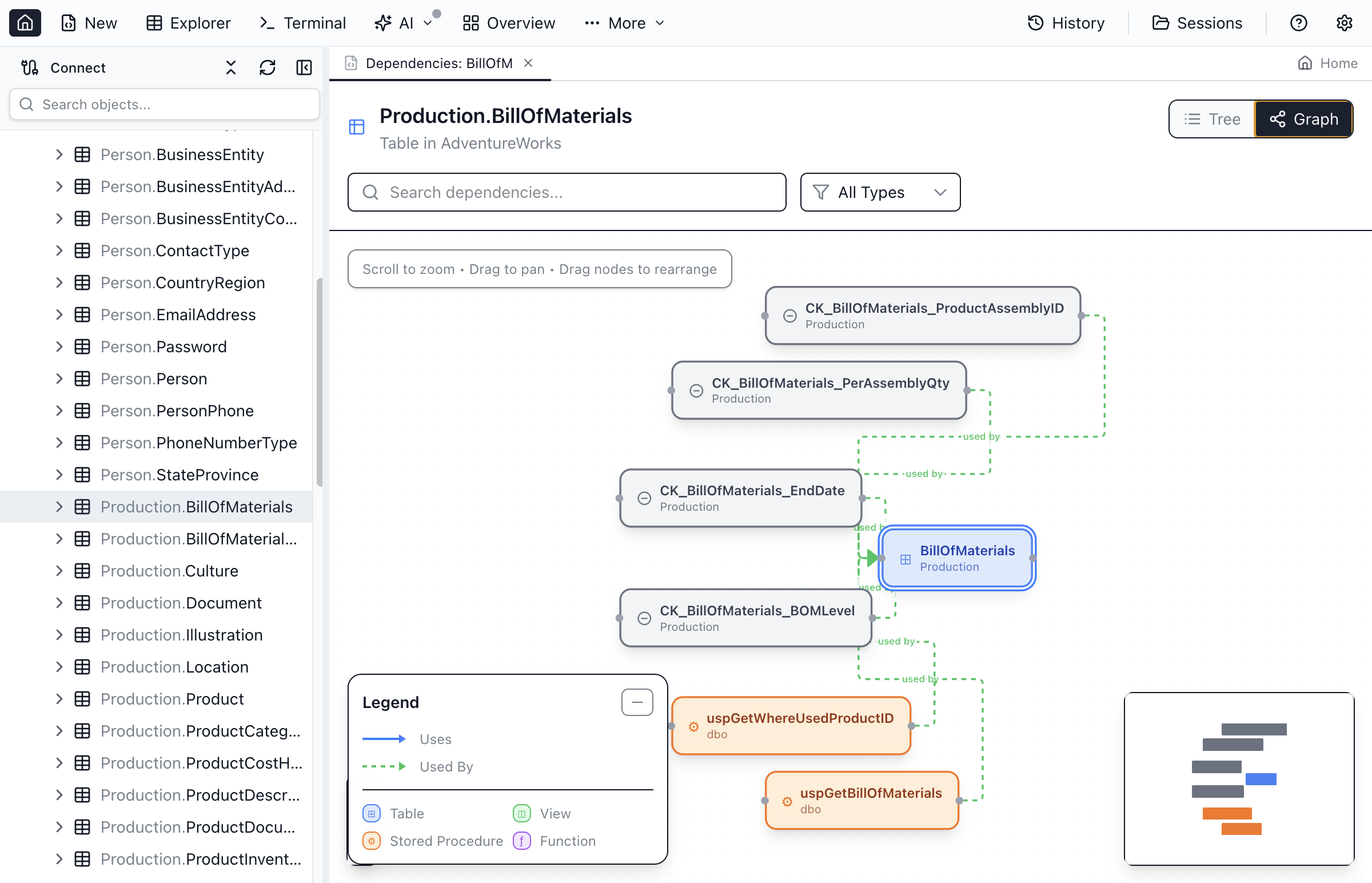
The same relationships drawn as an interactive node graph (built on React Flow). The focused object sits in the center with a highlight ring; arrows point from a dependent object to the object it depends on.
Reading the graph
- Node color by object type — tables are blue, views green, procedures orange, functions purple, triggers yellow, synonyms pink.
- Arrows — point from the dependent object to the object it depends on.
- Uses edges are solid blue; Used By edges are dashed green.
- Loose relationships are dashed blue and the connected node carries a Loose badge (see below).
- Center node — the currently focused object, drawn with a highlight ring.
Filtering the graph
Typing in the name filter hides every non-matching node so the graph stays readable while you narrow a search. A "Hiding non-matches" toggle in the top-right corner of the canvas switches to the previous behavior — dimming non-matches instead of hiding them, so they stay visible for context — and remembers your choice for next time.
Find usages — searching inside SQL text
The filter box at the top of the tab matches object names. It cannot find a column, because a column name never appears in the name of a view or procedure. Find usages answers that question instead: it searches the SQL text of every view, procedure, function and trigger in the database for whatever you type.
Open it from any of these:
- Object Explorer — right-click a column → Find usages…
- Query Editor results grid — right-click a column header → Find usages…
- Table Explorer grid — right-click a column header → Find usages…
- Schema Overview — hover a column row in the object drawer and click the search icon
- From a zero-match name filter, via the Search SQL definitions instead → button
Results appear as a third view of the same tab, alongside Tree and Graph, and each hit offers Open definition so you can jump straight to the SQL.
Three things are reported honestly rather than silently folded into the results:
- Objects that could not be read — encrypted modules, or objects you lack permission to view the definition of. These are counted and shown, because "we could not look" is not the same as "no usage".
- Partially searched objects — on Oracle, view text is only searchable up to its first 4000 characters, so longer views are flagged.
- Views skipped entirely — on Oracle releases before 18c the database cannot expose view text to a search at all. Rather than fail, the search covers procedures, functions, packages, types and triggers and says plainly that no view was examined.
- A result cap — large databases stop at the first 200 matching objects, and say so.
The search runs on the cancellable query path, so a scan of a very large database can be stopped with Cancel.
A second, exact group: what the database itself records
On SQL Server and PostgreSQL, Find usages shows a second, separate group underneath the text results: References <column> (from the database catalog). These are not text matches — they are the references the database itself recorded when each object was created, scoped to the specific column of the specific table you asked about.
The two groups are deliberately never merged and never summed, because they genuinely disagree, in both directions:
| Case | Text search | Catalog group |
|---|---|---|
| A different table happens to have a column with the same name | Listed — it cannot tell which table | Correctly excluded |
| The name appears only in a comment | Listed | Correctly excluded |
An object does SELECT * on your table | Missed on SQL Server — the column is never written | Listed, marked "included but never named" |
An encrypted module (SQL Server WITH ENCRYPTION) | Reported as unreadable | Analysed normally |
| SQL assembled at runtime, or a PostgreSQL text-stored routine body | Found | Not recorded by the database at all |
A text hit is a lead; a catalog hit is a fact. Each group carries its own count and its own label so you always know which you are reading.
Three more things the catalog group states rather than hides:
- Column not attributable — sometimes the database links an object to your table but cannot say which columns are involved. Those objects get their own section instead of being counted as references or quietly dropped.
- Not a column of this object — if what you typed is not actually a column of the table the tab is about, the group says so. An empty precise list would read as "nothing references this", which would be a different and much stronger claim.
- Could not resolve the object — if the table itself cannot be found (it was renamed or dropped, or you lack permission to see it), the group says exactly that instead. "We could not look" is a different answer from "there is nothing there", and only one of them is a statement about your schema.
- What was scanned — on SQL Server the group reports how many candidate modules it analysed, and warns when it stopped before analysing all of them. The two engines cap different things: PostgreSQL stops after the first 200 referencing objects, while SQL Server stops after analysing the first 200 candidate modules — so on a very large database it will say "Analysed the first 200 of 5,000 candidate modules" rather than implying the list is complete.
MySQL, Oracle and SQLite keep no column-level dependency catalog, so there is nothing exact to show. On those engines Find usages says "This engine has no column-level dependency catalog — text results only" rather than leaving you to assume the text list is authoritative.
Navigating dependencies
Dependency Viewer shows one object's immediate relationships at a time. To follow a chain, you re-focus:
Re-focus on any object
Click any object in the tree or graph to make it the new center. Its own Uses and Used By are fetched fresh and the view rebuilds around it. The object you came from is pushed onto history.
Back button
Use the Back button to return to the previously focused object, retracing your exploration one step at a time.
Right-click actions (graph)
Right-click a node in the graph to open its object menu — the same actions available from the Object Explorer:
- Select Top / Edit Top rows — open the object in Table Explorer
- Script as CREATE / ALTER / DROP — open the object's DDL in a query tab (see Scripting)
- Execute — run a procedure
- Design Table — open it in the Table Designer
- Dependencies — re-focus the viewer on that object
- Properties — view object metadata
Open definition (tree)
In tree view, hover a view, procedure, or function row to reveal an Open definition icon-button — or right-click the row and choose Open definition from its menu. Either one opens the object's CREATE script in a query tab, the same action the graph's Script as CREATE uses. Table rows don't carry this affordance — they have no single "definition" to open.
Loose relationships
Beyond real foreign keys and code dependencies, Dependency Viewer also surfaces loose foreign keys — user-declared column→column references that have no database FK constraint. Loose relationships are drawn with dashed blue edges, and the connected node carries a small Loose badge so you can tell declared references apart from enforced ones.
Loose relationships are declared from Table Explorer (pick lookup on a non-FK filter column) or managed in bulk from Table Explorer's MetaInfo dialog. They live in a per-database MetaInfo file and are picked up automatically for that connection and database. See the Loose Foreign Keys guide for the full workflow and for Export / Import to share declarations across machines.
Dependency Viewer vs SSMS "View Dependencies"
SQL Server Management Studio has a "View Object Dependencies" dialog, but it's SQL Server only and text-only. Jam SQL Studio's Dependency Viewer runs the same kind of analysis against five engines, adds an interactive graph, lets you re-focus and step back through a chain, and drops you straight into scripting, Table Explorer, or the Table Designer from the right-click menu. On macOS and Linux — where SSMS doesn't run — it's the way to answer "what uses this?" for SQL Server at all.
Find References
Dependency Viewer shows catalog-level object relationships; for identifier-level lookups (every place a specific table, view, column, or routine is used), right-click it and select Find references…, or press Shift+F12 with the cursor on it in the Query Editor — that opens an inline peek panel that previews each referencing object's stored body read-only, with Find All References in Tab in the editor's right-click menu for the grouped tab view. Find References also surfaces hits inside stored procedure and trigger bodies on SQL Server, PostgreSQL, MySQL, and Oracle — a bare, unqualified reference inside a procedural body is only captured when its FROM scope contains exactly one relation; ambiguous bare names in a multi-table join are honestly skipped rather than risk a false-positive hit. See Query Editor → Go to Definition, Find References, and Rename for the full breakdown.
Common workflows
Impact analysis before a schema change
- Open Dependency Viewer on the object you want to change
- Read the Used By direction to see every dependent object
- Re-focus on each dependent to check its dependents, using Back to retrace
- Plan the updates before you touch anything
Understanding an unfamiliar object
- Open Dependency Viewer on a procedure or view you don't recognize
- Read the Uses direction to see the tables and objects it reads
- Right-click any of them to script or browse the underlying data
Planning a safe drop order
- Find objects with no dependents (nothing in Used By) — safe to drop first
- Work outward, dropping children before parents
Frequently asked questions
What is Dependency Viewer in Jam SQL Studio?
Dependency Viewer shows what a database object depends on (Uses) and what depends on it (Used By). It reads the engine's own dependency catalog, so you can see the impact of a change before you modify or drop a table, view, procedure, or function.
How do I find where a column is used?
Right-click the column — in the Object Explorer, in either results grid's header, or in the Schema Overview drawer — and choose "Find usages…". Jam SQL Studio searches the SQL text of every view, procedure, function and trigger in the database for that name and lists the objects that mention it. The filter box at the top of Dependency Viewer will not do this: it matches object names only, never the SQL inside them. Because it is a text search it also matches comments and dynamic SQL, so treat the results as leads to verify rather than a definitive reference list. On SQL Server and PostgreSQL a second, separately-labelled group underneath shows what the database catalog itself records as referencing that exact column — which excludes same-named columns on other tables, catches SELECT *, and is a fact rather than a lead.
How do I find what depends on a table or stored procedure?
Right-click a table, view, stored procedure, or function in the Object Explorer and choose Dependencies. The viewer opens on the tree view for tables and for any object with many dependencies, and on the graph view otherwise, with a Used By list showing every object that references it and a Uses list showing everything it references.
Which database engines does Dependency Viewer support?
All five: SQL Server (sys.sql_expression_dependencies), PostgreSQL (pg_depend + pg_rewrite), Oracle (ALL_DEPENDENCIES), MySQL, and SQLite. MySQL and SQLite have narrower support — foreign keys plus view relationships — because those engines do not expose a full code-dependency catalog. PostgreSQL covers views, materialized views, and routines with a SQL-standard body (BEGIN ATOMIC ... END, or the single-expression RETURN form, PG14+), but not what a text-stored body reads (LANGUAGE plpgsql, or LANGUAGE sql written as AS $$ ... $$), which its catalog does not record.
What is the difference between Uses and Used By?
Uses lists the objects the selected object references, such as the tables a view queries. Used By lists the objects that reference the selected object, such as the views and procedures that read a table. Used By is the list you check before changing or dropping something.
How do I explore an object's dependency chain?
Click any object in the tree or graph to re-center the analysis on it. Its Uses and Used By are fetched fresh, and the previous object is pushed onto history so the Back button returns to it. Right-click a node in the graph to script it, open Table Explorer, or design the table. Hover a view, procedure, or function row in the tree — or right-click it — to open its definition directly.
Ready to Analyze Dependencies?
Download Jam SQL Studio and understand your database relationships.