
Last updated: 2026-09-05
Enum Columns
Declare a column as an enum and Jam SQL Studio adds a dedicated enum filter operator backed by a dropdown of known values — sourced from MySQL ENUM / Postgres pg_enum, a column-level CHECK constraint, a sampled SELECT DISTINCT capped at 200 values, or — when the column is also a foreign key — names read live from the table it references. Works on MSSQL, PostgreSQL, MySQL, Oracle, and SQLite, plus Azure Data Explorer (Kusto) with a sampled-only value picker — the same UX on every engine.
What is an enum column?
An enum column is any column whose values come from a small, finite set the user knows about — status, kind, category, role, severity, tier. The database may or may not enforce that constraint. Once you declare the column as an enum in Jam SQL Studio, the filter chip on that column gets an enum operator — selected by default — whose value input is a dropdown of the known values instead of a plain text box.
Declarations are per-database and stored locally (alongside loose foreign keys and JSON column declarations). They don't change the schema and they don't affect anyone else who connects to the same database.
Where the dropdown values come from
Jam SQL Studio reads values from one of four sources. The first three are tried in priority order when a column samples automatically:
- Native enum type. MySQL
ENUM(...)/SET(...)column types and PostgreSQL user-definedpg_enumtypes. Read once frominformation_schema/pg_catalog. - Column-level CHECK constraint.
CHECK (status IN ('draft','published','archived'))and itsANY(ARRAY[...])variant on Postgres. Read fromsys.check_constraints(MSSQL),pg_get_constraintdef(PG),INFORMATION_SCHEMA.CHECK_CONSTRAINTS(MySQL 8.0.16+),ALL_CONSTRAINTS(Oracle), orsqlite_master.sql(SQLite). - Sampled distinct values.
SELECT col FROM tbl GROUP BY colcapped at 200 distinct values and 100,000 scanned rows. If the column has more than 200 distinct values, the picker shows a warning — that's a strong signal the column isn't actually enum-shaped and you probably want a free-text filter instead. - Lookup — names from a referenced table. When the column is also a foreign key (real or loose), Jam SQL Studio can read key/label pairs straight off the table it points at instead of sampling the column. This is opt-in, not automatic — see Show names from the referenced table below.
The orchestrator hard-fails any extraction that runs longer than 5 seconds, so you'll never see a frozen UI when sampling a huge table.
Declaring an enum column
Three entry points open the same declaration dialog:
- Header glyph or right-click menu in the result grid. Native enum columns always show a gray
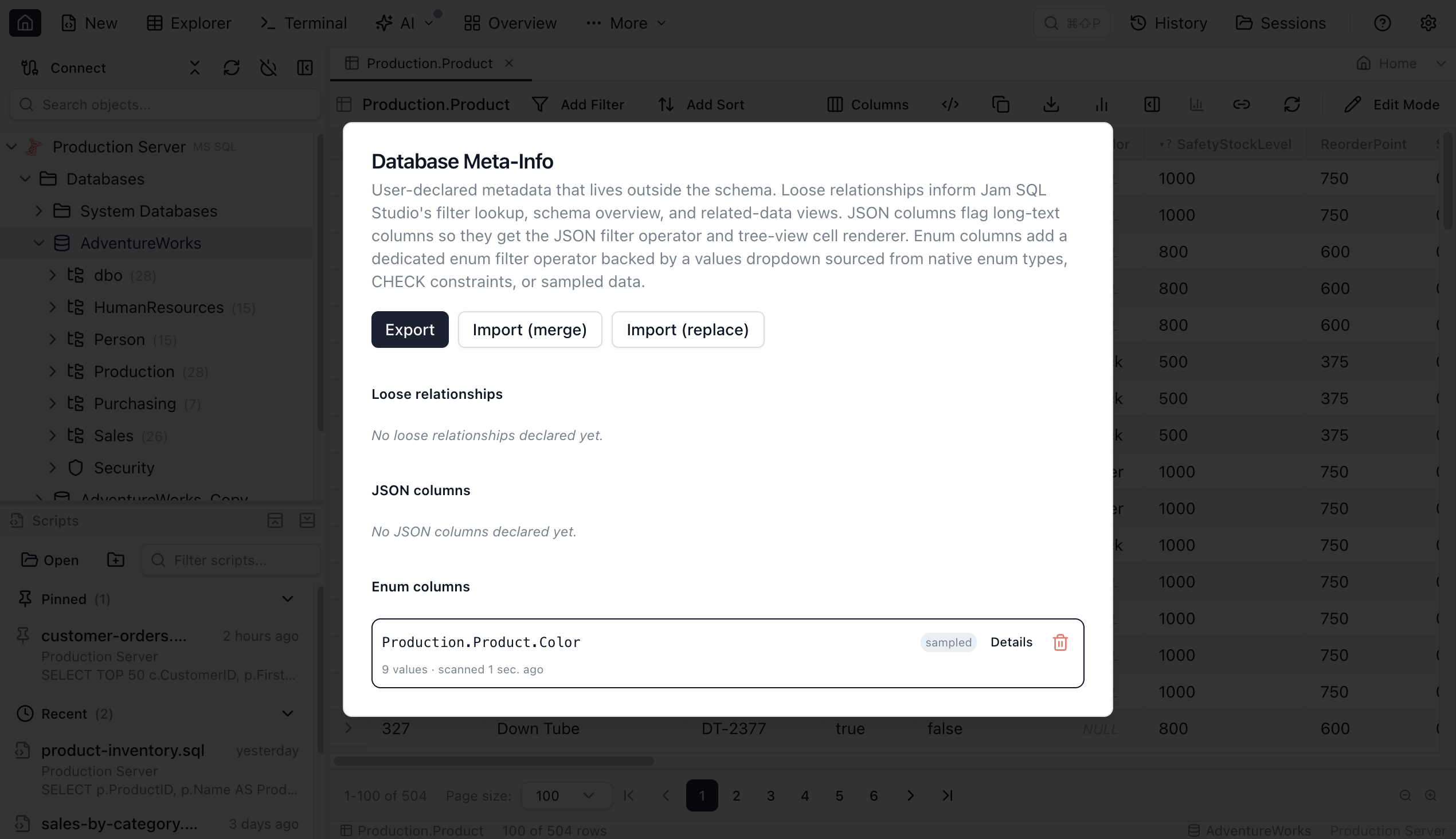
▾; columns whose name looks categorical (status,type,role, …) show a gray▾?. Click either to open the dialog. Right-clicking the header of any short-text or integer column offers Declare as enum (or Configure enum column for native types) — you don't need a categorical-looking name to use it. - MetaInfo manager. Open it from the Table Explorer toolbar or right-click a database in the Object Explorer and pick Manage meta info…. The Enum columns section lists what's declared, with a Details button and a Remove action.
- The
enumfilter operator. On an eligible column the operator dropdown listsenumat the bottom; selecting it opens the values picker right away (and you can declare the column from there to keep it).
The dialog shows a preview of the values it will use (native / check / sampled — or, on a foreign-key column, live pairs from the referenced table; see Show names from the referenced table below) and an optional description field, then writes the declaration to MetaInfo on confirm. Once declared, the enum operator becomes the default selection for that column's filter chip on every surface.
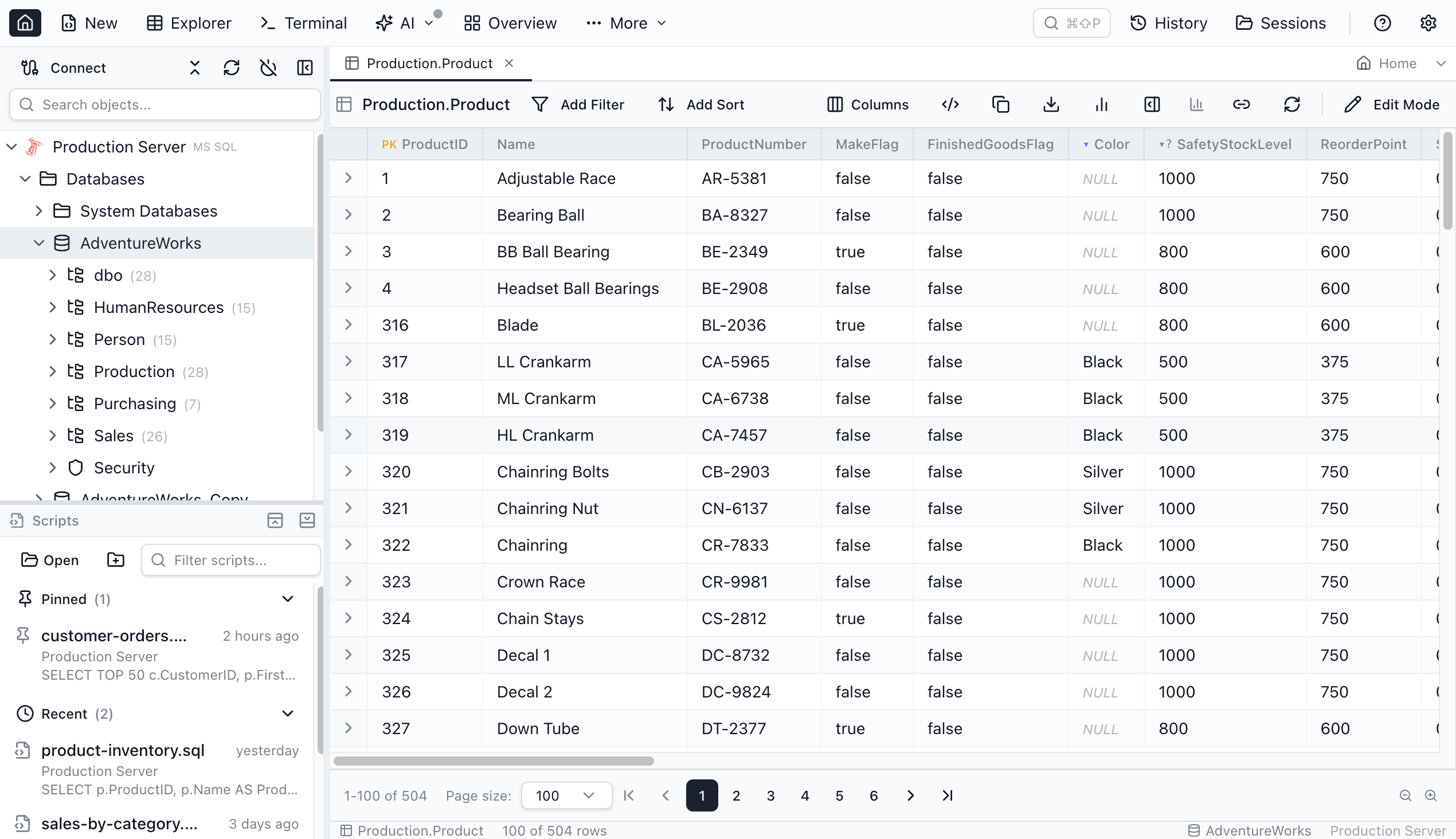
▾ marks a column declared as enum; a gray ▾ marks a native enum type; a gray ▾? marks an eligible column whose name looks categorical — these glyphs appear in both the Table Explorer and Query Editor result grids. Columns that are eligible by type but not by name carry no glyph — declare them from the header's right-click menu or the enum filter operator.Show names from the referenced table (lookup enums)
Many enum-shaped columns are also foreign keys: orders.status_id pointing at a small statuses(id, name) table, tickets.priority_id pointing at a lookup table of priority levels. Instead of choosing between "clickable FK" and "friendly dropdown," Jam SQL Studio can do both at once — a lookup enum reads key/label pairs straight off the table the column references, so every surface that shows the value shows the name next to it, while the database still only ever sees the key.
This works on a column that resolves to exactly one foreign key target — a real FK, or a single loose FK with no source filter and no JSON path. Array columns, polymorphic loose FKs (more than one candidate on the same column), and JSON-path-only loose FKs aren't eligible for a lookup enum in this release — the declare dialog explains which of those applies and falls back to sampling the column itself instead.
Declaring a lookup enum
Three ways to turn an FK column into a lookup enum:
- The regular declare dialog — header glyph, right-click Declare as enum, or the
enumfilter operator. On a column with exactly one FK target, the dialog opens straight into lookup mode: the title reads "Show names fromschema.table," the preview shows livekey → labelpairs instead of a sample, and a Label column dropdown lets you pick which column on the target table supplies the name (pre-filled by the same heuristic the loose-FK editor uses). You can still switch to a plain sampled enum instead if you'd rather see the source column's own values. - The loose-FK editor's "Also treat as enum" checkbox. When you declare (or edit) a loose FK whose target table has 200 rows or fewer, a checkbox appears right under the Label-column dropdown — ticking it creates the lookup enum in the same save, no separate dialog. See Loose Foreign Keys.
- The
▾?hint glyph on an FK column whose name looks categorical — e.g.status_id— appears even when the column's raw type (a plain integer) wouldn't otherwise be flagged. Clicking it opens the dialog directly in lookup mode.
A target table with more than 200 rows can't back this checkbox — the dialog blocks confirming and points you at the two routes that do work at that size: open any FK cell's popover and choose "Show names from schema.table" to have names resolved on demand, or use the row picker (the lookup filter operator), which searches the full table rather than caching it. This is the same 200-value cap the sampled source uses, applied to the referenced table's row count instead of the source column's distinct-value count. That cap is specific to this cached, whole-table-preview path — a bigger table can still show names, from a different button; see Tables too big to cache below.
Mark the table once, instead of every column
Declaring a lookup enum column-by-column works well when you're fixing up one or two foreign keys, but a small reference table like statuses or priorities is often pointed at from a dozen tables at once — and every new table someone adds next quarter will point at it too. A reference table flips the direction: mark statuses itself once, and every column, today's and tomorrow's, that resolves a foreign key to it shows names automatically — with no declaration on any of those columns.
Turn it on from the same declare dialog: when you're declaring a lookup enum, a checkbox under the Label-column dropdown reads "Mark schema.table as a reference table — every column referencing it shows names." Tick it and confirm, and the dialog writes the table-level flag instead of a per-column declaration — the column you were looking at becomes implicit, exactly like every other column that references the same table.
An explicit declaration always wins. If a column already has its own enum declaration — lookup or otherwise — flagging its FK target later never changes that column's behavior. The flag can only add names to columns nobody has already made a decision about.
Since an implicit column has no declaration of its own, its values-details dialog offers two different actions instead of "Remove declaration":
- "Declare on this column only" — pins the resolved lookup onto this one column as a real declaration, so it keeps showing names even if the reference-table flag is removed later.
- "Stop using as reference table" — removes the flag on the table named just above the button. This affects every column that reads from it, not just the one you have open, so a confirmation spells out the blast radius (and names the table again) before it commits.
To see every table currently flagged, or to remove a flag without opening a referencing column's details dialog, open the MetaInfo manager and look for the Reference tables subsection inside the enum columns section — one row per flagged table, with its label column (if one is set) and a remove button.
Tables too big to cache
The 200-row cap above belongs to the checkbox's cached path — it fetches the whole pair set once and stores it, so it needs an upper bound. A reference table with thousands of rows can still show names, just not that way: click any cell that points at it to open the FK popover, and its footer offers "Show names from schema.table" with no row-count check at all. Its sub-line names what the button writes — marks schema.table as a reference table — so you can find the entry again under Reference tables in the MetaInfo manager. Confirming flags the table exactly like the checkbox does, but resolves pairs a screenful at a time instead of all at once — names fill in for the rows currently on screen as you scroll, in small batched queries, rather than in one upfront fetch.
Nothing from this path is written to MetaInfo beyond the flag itself. No key/label pairs are cached anywhere, so an exported MetaInfo file carries no extra data for a table flagged this way, and there's nothing to go stale between sessions — labels simply resolve again the next time you scroll past a row.
The trade-off is a lower ceiling on what the column can do: a table flagged this way shows names only. No values dropdown, no enum picker on cell edit, no "Enum details" inspector on its referencing columns — the FK row picker keeps doing the filtering and editing job it already did. If you'd rather have the full picker experience and the table fits in 200 rows, use the checkbox above instead; both write the same kind of flag, just with a different fetch model behind it.
Turning it off works the same way either path got turned on: open the FK popover again and click "Stop showing names", or remove the row from the Reference tables subsection of the MetaInfo manager.
Where the names show up
Once declared, the label rides alongside the key everywhere the value renders:
- Grid cells (Table Explorer and Query Editor results, identically) show
3 · Active— the key first, the name muted right after it. Hovering shows where the name came from and when it was last refreshed. - The filter picker shows the name prominently with the key muted alongside it, and a "Search rows in…" link at the bottom opens the full row picker for reference tables bigger than the cached list — the same wording the cell editor uses for the same escape.
- The cell editor shows the same labelled list when you edit the cell, with a "Search rows in
schema.table…" footer action that opens the full row picker without leaving the editor. - The values details dialog lists the cached
key → labelpairs and names the source table and label column.
A table flagged on demand only gets the first of these — grid-cell names. Its filter picker, cell editor, and header glyph keep behaving exactly as if no flag were set; the row picker stays the way to search and pick a row from a table that size. That holds even for a column you declared as a lookup enum yourself: the declaration says what the column is, while the referenced table decides how its names are fetched, so declaring a column pointing at an on-demand table gives you names without a cached list. Remove the flag and the full declared-enum treatment comes back — the declaration was never changed.
Copying, exporting, sorting, and filtering always use the raw key — the name is decoration layered on top for reading, never a value the app stores, copies, or sorts by. Select a lookup-enum cell and press Ctrl+C (or export to CSV/Excel) and you get the key, exactly as if the column had never been declared as a lookup enum.
A cache that refreshes itself
The key/label pairs live in the same local cache every enum value list uses, and — because they come from another table — Jam SQL Studio keeps them honest without you doing anything:
- A cell whose key isn't in the cached pairs yet (a brand-new row in the referenced table) triggers a quiet background refresh the moment it's rendered — the name fills in on its own, no button.
- Opening the filter picker or cell editor against a cache older than 15 minutes shows the cached names immediately and refreshes in the background.
- Renaming or editing a row in the referenced table (via Table Explorer or the Query Editor's results editing) refreshes every lookup enum that points at it as soon as the edit is saved.
- A manual Refresh values from data button is still there in the picker footer, the cell-editor footer, and the values details dialog, each showing "refreshed … ago" so staleness is never a guess.
Hiding a false-positive hint
The gray ▾? glyph appears on columns whose name looks categorical — status, type, role, and similar. Occasionally it fires on a column that isn't actually an enum. You can permanently silence the hint without declaring the column:
- Click the gray
▾?glyph to open the declaration dialog. - Choose “Mark <column> as not an enum” (the smaller link below the main declaration action).
- The
▾?glyph disappears in both the Table Explorer and Query Editor result grids.
Filtering still works. The enum operator remains available in the filter chip's operator dropdown — the dismissal only hides the visual hint on the column header. You can still declare the column as an enum at any time using the right-click context menu or the enum operator in the filter chip.
All enum dialogs have a documentation link button in the title bar that opens this page.
Restoring a hidden hint
If you change your mind, open the MetaInfo manager (Table Explorer toolbar or right-click a database in the Object Explorer and pick Manage meta info…). In the Enum columns section, look for the Hidden enum hints subsection, which lists every dismissed column. Click Restore hint to bring the ▾? glyph back.
Filtering with the picker
Enum filtering is its own operator — = and != stay free-text so you can always type an ad-hoc value:
- Pick the
enumoperator from the chip's operator dropdown. On declared or native enum columns it's already selected by default; on eligible columns it sits at the bottom of the list. - Click the trigger to open the popover with a search input and the list of values.
- Type to filter; click to select. Selection commits the filter immediately (no extra Apply step).
- The list is a hint, not a constraint. Type a value that isn't in the list and a Use “your value” option appears — pick it to filter by that value anyway.
- The footer has a Refresh values from data button that re-runs the extraction. Useful when the underlying data gains a new value the cache hasn't seen yet.
The picker is cache-first: the first time you open it, Jam SQL Studio reads the cached values from MetaInfo and renders the list instantly. If no cache entry exists yet (just-declared column), the popover shows a brief loading spinner while the extraction runs in the background.
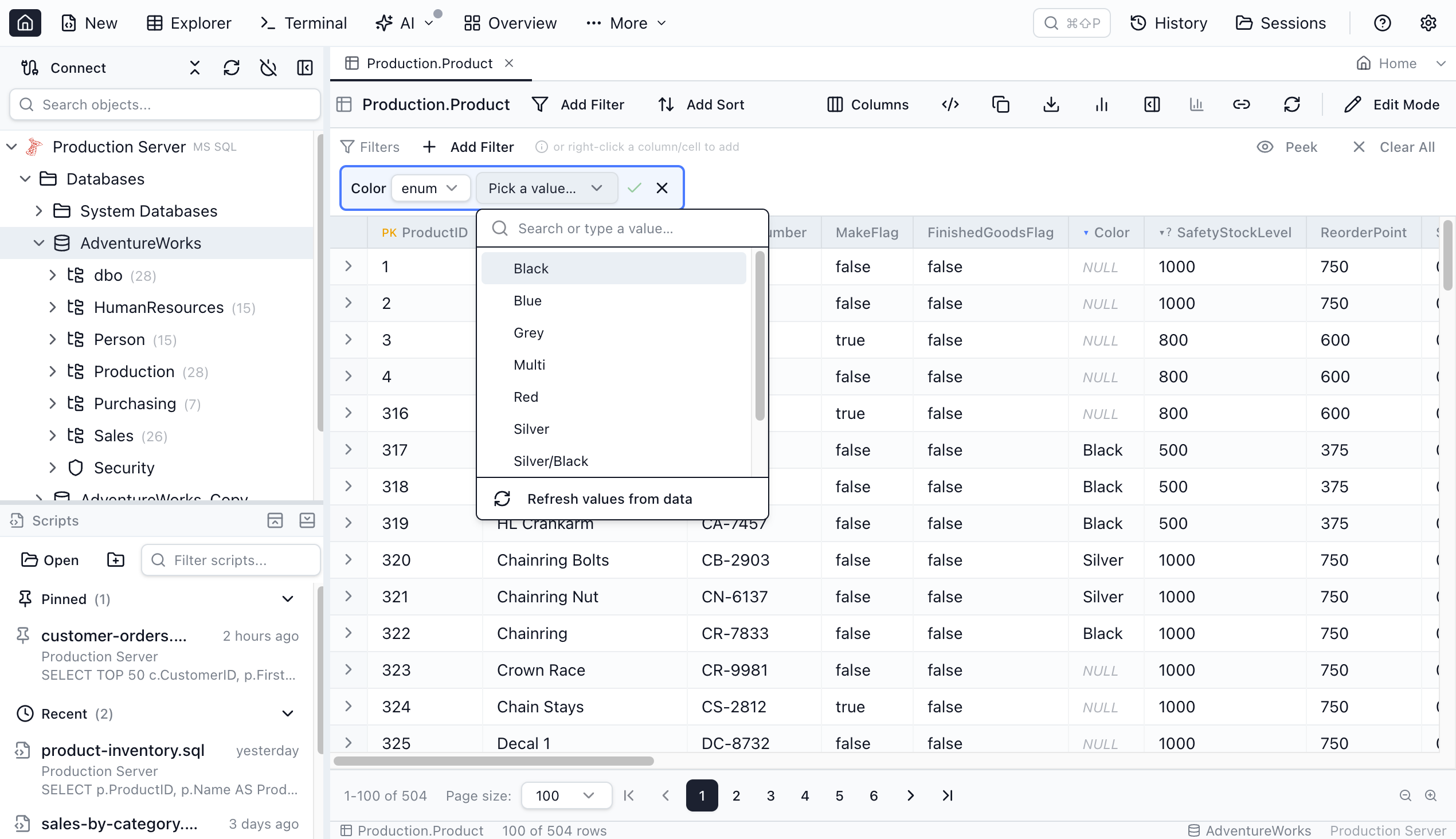
enum operator's value input is a searchable dropdown of the column's known values — selecting one commits the filter immediately, and you can still type a value that isn't in the list.Filtering by multiple values at once
The default single-click UX stays the same — pick one value, filter commits, popover closes. When you need to filter by several values at once, use multi-select mode:
- Open the enum picker and click the Select multiple… link at the bottom of the popover.
- The list switches to checkbox mode. Tick the values you want, or use Select all / Select none to toggle everything in the current search.
- Click Apply (n) (where n is the number of checked values) to commit the filter. Closing the popover without clicking Apply discards the pending selection.
A multi-value filter emits column IN ('v1', 'v2', …) and the compact filter chip reads "in N values" (for example, "in 3 values"). Multi-value filtering works on all five SQL engines (MSSQL, PostgreSQL, MySQL, Oracle, SQLite) and on Azure Data Explorer (Kusto), which emits the KQL equivalent | where column in ("v1", "v2", …). The = / != free-text operators are always available alongside the enum picker.
Reviewing the cached values
Open the Enum values details dialog two ways:
- Click the blue
▾glyph on the declared column's header in the result grid. - Open the MetaInfo manager and click Details on the enum column row.
The dialog lists the cached values as small chips, shows the source (native / check / sampled), the time of the last scan, and a Refresh from data action. From the MetaInfo manager, the dialog also exposes Remove declaration so you can undo the declaration in one click.
Enum values in the SQL editor and Visual Query Editor
Saved changes, including Blueprint imports and MCP declarations, refresh the database's enum hints automatically. Existing editors pick up the new values without waiting for the cache timeout.
Once a column is declared as an enum, its known values flow into two more surfaces beyond the Table Explorer filter chip:
- SQL-editor autocomplete. At a comparison-value position —
WHERE status = '<cursor>'— the editor suggests the column's enum values from the cached value set, so you can pick a known value instead of recalling it. - Visual Query Editor filter builder. An enum column's filter value control is a dropdown of the known values instead of a bare text input, matching the Table Explorer picker.
Both read the same cached values, which are subject to the 200-distinct-value cap; when a sampled column was truncated at the cap, the value list carries the same truncated note so you know the set may be incomplete.
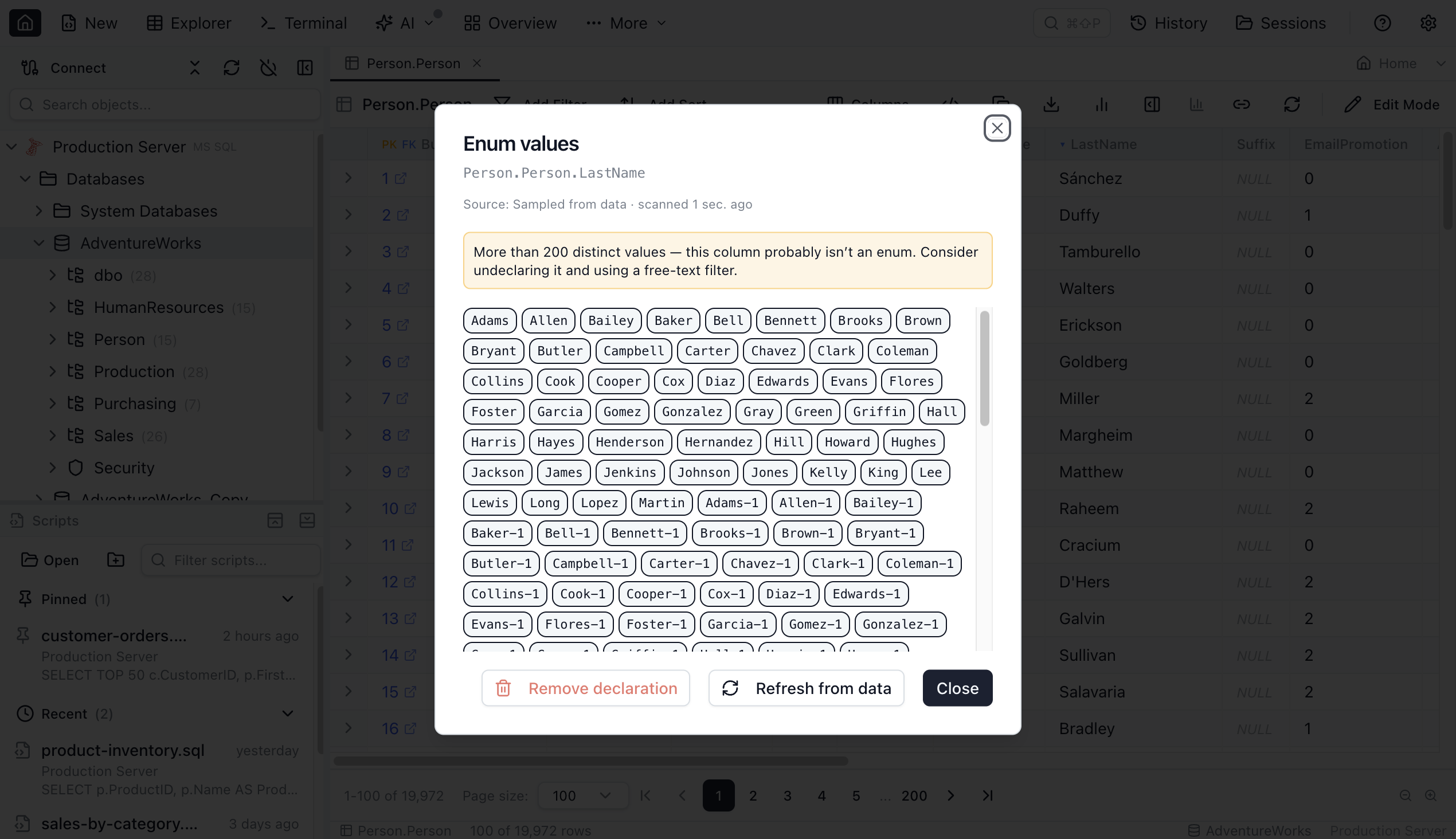
The 200-value cap (and the truncated banner)
Sampled extractions stop after 200 distinct values. If your column has more, the picker shows an amber banner:
More than 200 distinct values — this column probably isn't an enum. Use a free-text filter instead.
That's intentional. Two hundred is more than enough for any genuinely categorical field, and it caps the cost of the lookup so the dropdown is always usable. If the column is honestly a free-text field that happens to share many repeated values (city names, free-form tags), undeclare it and use the regular text filter.
MetaInfo: where declarations live, and how to share them
Enum declarations are persisted in the same per-database MetaInfo file as loose foreign keys and JSON column declarations:
- macOS:
~/Library/Application Support/jam-sql-studio/metainfo/<connection>/<database>.json - Windows:
%APPDATA%\jam-sql-studio\metainfo\<connection>\<database>.json - Linux:
~/.config/jam-sql-studio/metainfo/<connection>/<database>.json
The same file is read by every workspace tab that needs MetaInfo (Table Explorer, Query Editor, Schema Overview, etc.). Declare an enum once and every surface picks it up.
Exporting and sharing
Open the MetaInfo manager (Table Explorer toolbar or Object Explorer right-click) and use Export to write the full DatabaseMetaInfo document as JSON. Send it to teammates, commit it next to your database migrations, or attach it to a ticket.
One thing to flag: unlike the JSON structure cache (which stores path skeletons only), the enum value cache stores actual data values. That's necessary for the picker to render without round-tripping, but it does mean an exported MetaInfo file contains the distinct values for every declared enum column. Strip the enumValueCache array if your exported declarations should not include any production data values.
Importing
The MetaInfo importer offers two modes:
- Merge (recommended for sharing) — appends every imported enum declaration whose
(schema, table, column)isn't already declared locally. Local declarations always win on conflict. ImportedenumValueCacheentries replace local entries per column — freshest sample wins. - Replace — overwrites the entire local MetaInfo file with the imported document.
Engine matrix
| Engine | Native | CHECK / Sampled fallback |
|---|---|---|
| MSSQL | — | CHECK constraint: sys.check_constraints JOIN sys.columnsSampled: SELECT TOP 201 col FROM tbl GROUP BY col |
| PostgreSQL | pg_enum.enumlabel for USER-DEFINED types | CHECK constraint: pg_get_constraintdef (parses IN (...) and ANY(ARRAY[...]))Sampled: SELECT col FROM tbl GROUP BY col LIMIT 201 |
| MySQL | INFORMATION_SCHEMA.COLUMNS.COLUMN_TYPE parses enum(...) / set(...) | CHECK constraint: INFORMATION_SCHEMA.CHECK_CONSTRAINTS (8.0.16+)Sampled: SELECT col FROM tbl GROUP BY col LIMIT 201 |
| Oracle | — | CHECK constraint: ALL_CONSTRAINTS filtered by columnSampled: SELECT col FROM tbl GROUP BY col FETCH FIRST 201 ROWS ONLY |
| SQLite | — | CHECK constraint: Regex parse of sqlite_master.sqlSampled: SELECT col FROM tbl GROUP BY col LIMIT 201 |
| Azure Data Explorer (Kusto) | — | CHECK constraint: — (KQL has no CHECK constraints) Sampled: distinct scan of the table; the filter emits KQL | where col in ("A", "B") |
Enums on Azure Data Explorer (Kusto)
Azure Data Explorer (Kusto / ADX) supports enum columns too, with one difference: because KQL has no native enum type and no CHECK constraints, the values always come from a sampled distinct scan — there is no native or check-constraint source to try first. Eligible columns are string columns whose name hints at a category (severityLevel, EventType, Level, State, …) and int / long columns behind the same name-hint gate. Declare one from its header or the enum filter operator exactly as on the SQL engines.
The filter emits KQL rather than a SQL IN: picking values for an Azure Monitor severityLevel (an int) or a cloud_RoleName (a string) column commits | where cloud_RoleName in ("frontend", "worker"). Kusto tables are read-only, so the picker only reads distinct values — nothing is ever written back to the cluster. Native enum extraction and CHECK-constraint extraction are not available on Kusto — every value list is sampled, as above. JSON-path enums (declaring an enum on a path inside a dynamic column) are supported — see Enums on JSON properties below.
Removing a declaration
Two ways:
- From the details dialog. Open the dialog from the blue
▾glyph or from the MetaInfo manager, and click Remove declaration. - From the MetaInfo manager. Find the enum column row and click the trash icon.
After removal, the column drops back to enum-eligible (if its type/name still qualify) or loses the enum operator entirely — = / != free-text filtering is unaffected throughout. The cached values are left in place — re-declaring uses them without another scan.
Enums on JSON properties
If a column stores JSON and one of its properties always comes from a known set of values, you can declare that specific property as an enum without declaring anything at the column level. The result is a dedicated value picker inside the JSON filter — the same searchable dropdown you get for column-level enums, but scoped to a single path inside the JSON.
How to declare a JSON property as an enum
Three entry points, in increasing breadth:
- Filter chip on a JSON column. Select the
jsonoperator, then pick one of the three enum sub-operators from the second dropdown:- Property enum — filters on a scalar path (e.g.
$.status). A single value commit, emitting= 'value'. - Any element enum — filters on an array path (e.g.
$.tags[*]). At least one array element must match. - All elements enum — same array path, but every element must match.
- Property enum — filters on a scalar path (e.g.
- JSON Peek popover. Open the peek popover from the eye-icon next to the path field. Each discovered path shows an inline glyph next to its property name: a blue ▾ on paths that are already declared (clicking opens the values inspector) and a muted ▾? on paths whose name suggests an enum —
status,kind,type,priority,severity, and similar. Clicking ▾? opens the declaration dialog pre-filled with that path and the detected kind. The peek footer also shows a small gear icon next to "Filtering on the whole column" that opens the JSON structure details dialog. - JSON structure details dialog. Open it from the eye-icon's gear or from any "Details" affordance on a declared JSON column. The shape preview shows the same blue ▾ / muted ▾? glyphs next to property names. To declare a property whose name does not hint at an enum (for example a colour code or a custom internal id), click the "Declare property as enum…" link at the bottom of the dialog — an amber banner appears, and clicking any property in the preview opens the declaration dialog pre-filled for that path.
All three entry points open the same declaration dialog. When declaring a JSON property, the dialog swaps to JSON-property-aware copy — title "This JSON property looks like an enum" (or "Declare JSON property as enum" when starting from a non-hinted path), description references the property/array path, and the "Mark column as not an enum" affordance is hidden (it applies only to column-level enums). Values are always sourced from a SELECT DISTINCT at the JSON path — native and CHECK-constraint sources don't apply to JSON properties.
Path sampling works correctly even when the host JSON column has a plain text type (PostgreSQL text/varchar, MSSQL nvarchar, MySQL text, Oracle VARCHAR2, SQLite TEXT): non-JSON rows are skipped at sample time, so a few malformed rows can't break the picker.
Filtering with a JSON-path enum
Once a JSON property is declared as an enum, the filter chip for that path renders the same searchable dropdown as a column-level enum picker:
- For property enum (scalar path), single-click commits the filter as
JSON_VALUE(col, '$.p') = 'value'(or the engine-equivalent). - For any / all element enum (array path), the picker opens in multi-select mode — tick the values you want and click Apply. The filter commits as an
INcheck against the array elements. - Typing a value that isn't in the list shows a Use “your value” option, so an ad-hoc value is always reachable.
JSON-path enum filtering works on all five SQL engines (MSSQL, PostgreSQL, MySQL, Oracle, SQLite) and on Azure Data Explorer (Kusto), scoped to a path inside a dynamic column: scalar paths sample via a tostring(...) distinct scan, and array / [*]-wildcard paths sample via mv-expand. Two path shapes remain unsupported on Kusto: recursive descent (..) and multiple [*] wildcards in one path.
Managing JSON-path enum declarations
Each path-scoped declaration appears as its own row in the Enum columns section of the MetaInfo manager, displayed as schema.table.column · $.path (for example, dbo.Orders.metadata · $.status). The Details and Remove actions work exactly as they do for column-level enums.
Removing a JSON-path enum declaration automatically clears any open filter conditions that were using that path's enum sub-operator, and shows a brief notification confirming how many filters were removed. The cached values for that path are also cleaned up. Declarations export and import alongside the rest of MetaInfo.
When NOT to declare a column as an enum
- Free-text fields with many repeated values (city names, tags, comments). The picker will show a truncated banner and the dropdown won't be useful.
- Columns that change values frequently. The cached values get stale — you can refresh manually, but the picker is most useful when the value set is stable.
- Multi-value columns. A column storing a comma-separated list of statuses isn't an enum (each row has many values). Use a JSON column or a many-to-many table instead.
Frequently asked questions
What is an enum column in Jam SQL Studio?
An enum column is any column you've declared as having a finite, known set of values — status, kind, category, role, and similar fields. Once declared, the filter chip for that column gets a dedicated enum operator backed by a values dropdown, sourced from MySQL ENUM, Postgres pg_enum, a column-level CHECK constraint, a sampled SELECT DISTINCT capped at 200 values, or — for a column that's also a foreign key — live names read from the referenced table. Plain equals and not-equals stay free-text.
Which engines support enum columns?
All five SQL engines Jam SQL Studio supports — MSSQL, PostgreSQL, MySQL, Oracle, and SQLite — plus Azure Data Explorer (Kusto). Native enum types are only available on MySQL (ENUM and SET) and PostgreSQL (pg_enum). On the other SQL engines, Jam SQL Studio reads the column's CHECK constraint first, then falls back to a sampled distinct values scan. Azure Data Explorer has no native enum type and no CHECK constraints, so its values always come from a sampled distinct scan and the filter emits KQL — | where Column in ("A", "B"). The FK-backed lookup source (names from a referenced table) is available on all five SQL engines but not yet on Azure Data Explorer.
Where do the dropdown values come from?
Four sources. Three are tried automatically in priority order: native enum type (MySQL ENUM / SET, Postgres pg_enum) first, then a column-level CHECK (col IN ('a','b',...)) constraint, then a SELECT DISTINCT scan of up to 100,000 rows. A fourth source, lookup, is opt-in — on a column that's also a foreign key, it reads key/label pairs from the referenced table instead of sampling the column. If a sampled column has more than 200 distinct values, or a lookup enum's referenced table has more than 200 rows, the picker shows a warning or blocks the declaration.
Can I show names instead of raw foreign-key IDs?
Yes — declare the column as a lookup enum. On a column that resolves to exactly one foreign key target (real or loose), Jam SQL Studio reads key/label pairs from the referenced table and renders the name next to the key everywhere the value appears — grid cells, the filter picker, and the cell editor — while copying, exporting, sorting, and filtering all still use the raw key. The declare dialog's cached picker needs the referenced table to have 200 rows or fewer. Past that, open the FK popover on any cell pointing at the table and click Show names — labels resolve a screenful at a time as you scroll, nothing is cached, and those columns show names only, with no picker. You can also mark the referenced table itself as a reference table once, and every column across the database that points at it shows names automatically without a declaration on each one.
Will this hang on huge tables?
No. The sampled scan reads at most 100,000 rows and the orchestrator hard-fails any extraction that runs longer than 5 seconds. If the budget is exceeded you'll see an error in the picker rather than a frozen UI.
Where are enum declarations stored?
Enum declarations are persisted in the same per-database MetaInfo file as loose foreign keys and JSON-column declarations, at {user data}/metainfo/<connection>/<database>.json. The file can be exported and shared with teammates.
Can I share enum declarations with my team?
Yes. Export the MetaInfo file from the manager dialog and share the JSON. Import (merge) on the teammate's machine appends any enum declarations they don't already have for the same (schema, table, column). Local declarations always win on conflict, so merging never overrides someone's own work.
Related
- Loose Foreign Keys — the first MetaInfo concern, similar lifecycle.
- JSON Columns — JSON filter operators, path discovery, and the peek popover where you can declare a path as an enum.
- Table Explorer — primary surface for filter chips.
- Query Editor — results-grid column header shows the same enum glyph trio and right-click menu as the Table Explorer.