
Last updated: 2026-09-28
Kusto / KQL (Azure Data Explorer)
Jam SQL Studio connects to Azure Data Explorer (Kusto) clusters and their App Insights / Log Analytics proxies. Run KQL with schema-aware IntelliSense, browse tables read-only in Table Explorer, chart | render results, and carry your Kusto connections over when you migrate from Azure Data Studio.
What is Kusto / KQL?
Kusto is the engine behind Azure Data Explorer (ADX), Microsoft's service for fast, interactive analytics over large volumes of log, event, and telemetry data. You query it with KQL (Kusto Query Language), a read-focused, pipe-based language distinct from SQL. Because ADX data is ingested rather than edited in place (changes go through ingestion and management commands such as soft delete and .update), Jam SQL Studio treats Kusto as a read-only analytics engine.
Connect to a cluster
Add a connection and pick Azure Data Explorer as the engine. The form's Cluster section asks, in order, for the cluster, how to sign in, and the database:
- Cluster URL — paste the full cluster URL (e.g.
https://mycluster.westeurope.kusto.windows.net). A bare hostname is auto-prefixed withhttps://and trailing slashes are trimmed. This field holds the whole URL — there is no separate host/port. - Authentication, then the credentials the method asks for and the Tenant ID after them (see below).
- Database — the database within the cluster to open (optional).
Have a Kusto connection string (Data Source=https://help.kusto.windows.net;Initial Catalog=Samples;Fed=True, or the form that starts with the cluster URL, https://help.kusto.windows.net/Samples;Fed=True)? Paste it into the New Connection dialog's filter instead: it previews the cluster, database and sign-in method, then fills the Azure Data Explorer form. The Cluster URL field itself takes only the address (see Paste a connection string).
Kusto uses Microsoft Entra ID (Azure AD) authentication — there is no SQL login or Windows auth, and the connection is always HTTPS. Three sign-in methods are offered:
- Microsoft Entra ID (Interactive Browser) — the default; a browser window prompts for your Azure sign-in (MFA supported).
- Service principal (client ID and secret) — for automation / shared credentials. Fill Client ID, Client secret, and the Tenant ID below them (required for this method; optional for the other two).
- Azure CLI (az login) — reuses the token from a prior
az loginon your machine.
Clusters in Azure China (*.kusto.chinacloudapi.cn) and Azure US Government (*.kusto.usgovcloudapi.net) are selected by the Azure environment row, which a pasted cluster URL from those clouds sets for you. Before signing in, Jam SQL Studio reads the cluster’s sign-in metadata and refuses a cluster that signs in through another cloud than the selected environment, naming the environment to choose. With Azure CLI, az must be set to the same cloud (az cloud set); otherwise the error gives the command.
App Insights & Log Analytics proxies
Application Insights and Log Analytics expose an ADX query proxy, so their URLs connect the same way as a cluster:
- Application Insights —
https://ade.applicationinsights.io/subscriptions/… - Log Analytics —
https://ade.loganalytics.io/subscriptions/…
A proxy exposes exactly one database, named after the resource (the App Insights component or the Log Analytics workspace). The connection form shows a hint when it recognises a proxy URL; the resource's own tenant sign-in applies. Object Explorer, queries, IntelliSense and charts all work as they do on a cluster, with one difference: a proxy has no materialized views or external tables, so those two folders don't appear in the tree.
Don't want to copy the proxy URL by hand? Click Browse Azure on the connection form to pick an App Insights component or Log Analytics workspace straight from your signed-in Azure account — see Browse Azure for the full picker walkthrough.
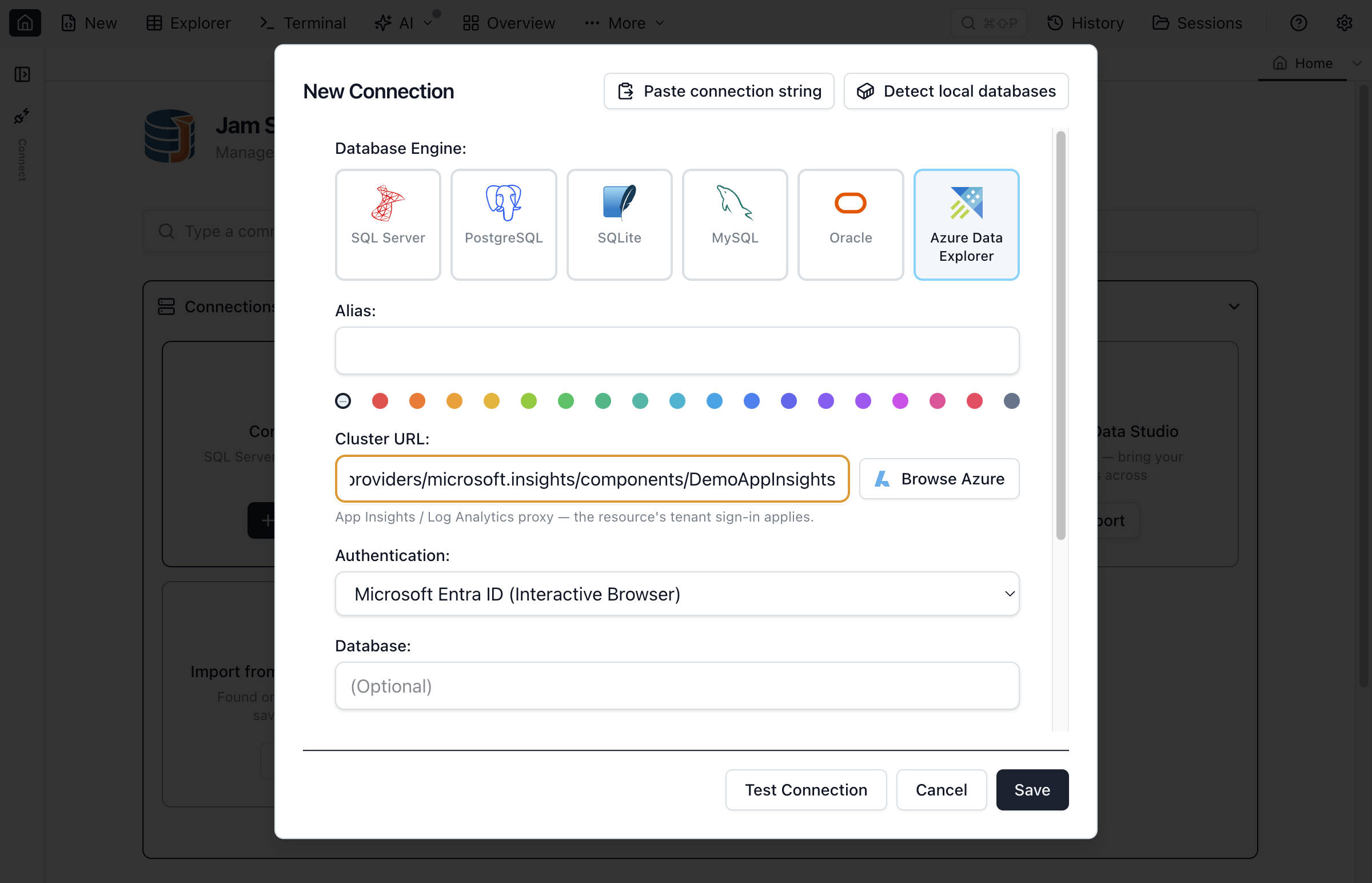
ade.* proxies alike), Entra ID sign-in methods, and a hint when a proxy URL is recognised.Queries and their Microsoft Entra sign-in go through the proxy and certificates set in Settings → Network; a proxy that cannot be reached is named in the connection error.
Query & IntelliSense
Open a query tab on a Kusto connection and write KQL. The editor uses Microsoft's Kusto language service, fed with your cluster's schema, so you get schema-aware completions, hover, and signature help for tables, columns, functions, and operators.
- Statements are separated by a blank line, matching the Azure Data Explorer web UI — run several KQL statements from one tab, and each returns its own result set.
.showcommands run (e.g..show tables,.show version) alongside queries.- Cancel a running query from the toolbar — cancellation is sent server-side.
Read-only Table Explorer
Open any Kusto table in Table Explorer to browse its rows with filtering, sorting, and paging — Jam SQL Studio generates the equivalent KQL for you. Because ADX changes data through ingestion and management commands rather than row edits, row editing is disabled: there are no add/edit/delete affordances on a Kusto table, and the grid is browse-only.
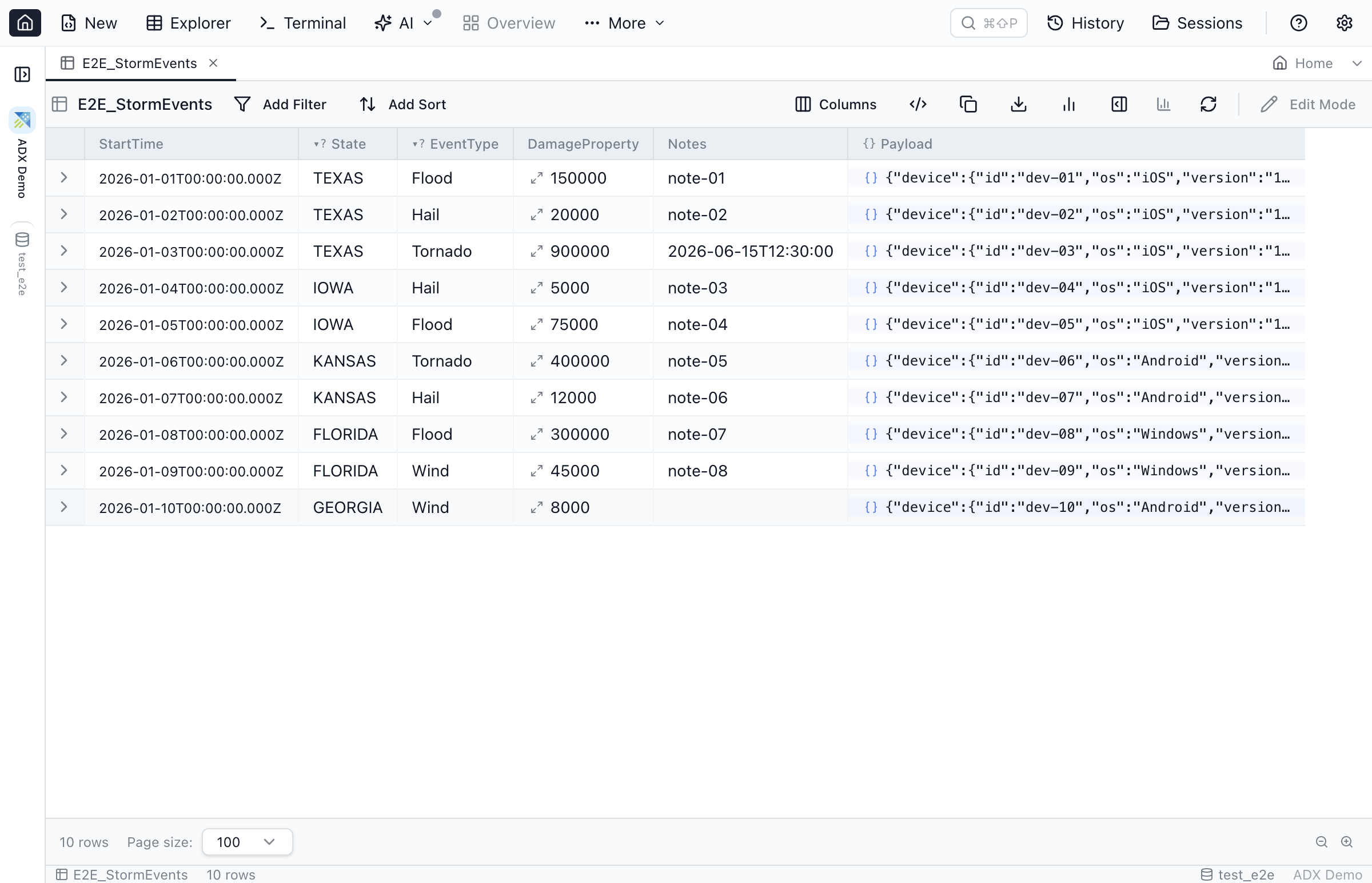
Filter fast: enum, JSON & loose-foreign-key chips
Read-only doesn't mean slow to explore. The same metadata-driven filter chips that speed up SQL browsing work on Kusto tables — built for exactly the "slice a huge telemetry table in seconds" workflow:
- Enum columns. Low-cardinality columns — severity, event type, region — get a value-picker chip. Jam SQL Studio samples the distinct values and emits
| where Column in ("A", "B"). Declare a column as an enum from its header, or let detection surface it. - JSON columns. Kusto
dynamiccolumns are treated as structured JSON: peek the shape, inspect nested structure, and filter by path — a path filter emits the matching KQL dynamic accessor, e.g.| where customDimensions.tenant == "acme". - Loose foreign keys. Azure Data Explorer has no foreign-key constraints, but you can declare logical references between columns (even across tables) and navigate them read-only in Table Explorer, so jumping from an id to its related rows is one click.
All three live in the per-database MetaInfo layer and are exportable, so you can share your definitions with teammates. They're read-only helpers — nothing is ever written back to the cluster.
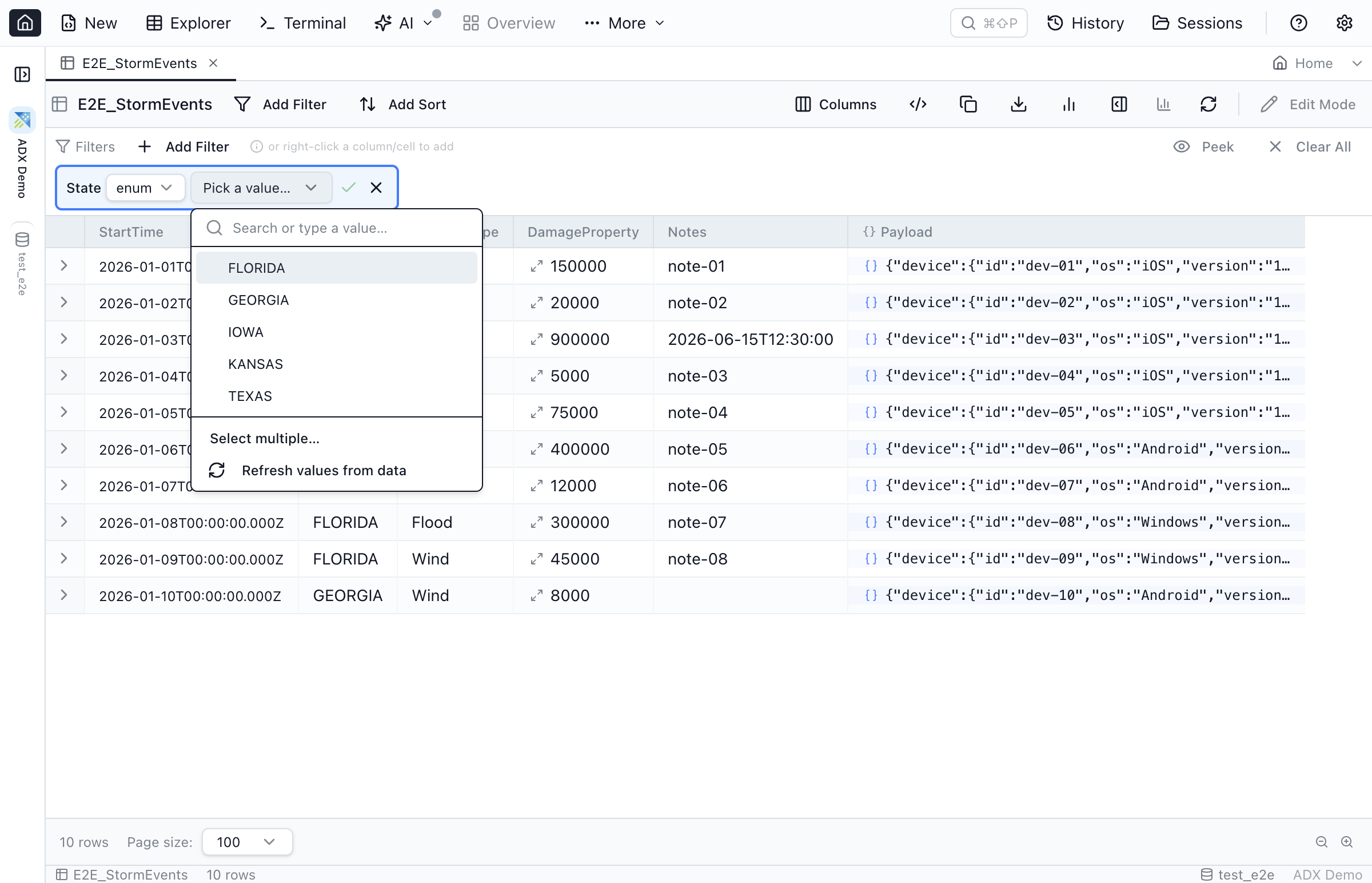
| where Column in (…).Charts from | render
KQL's | render directive asks for a visualization. When a Kusto result carries a render hint, Jam SQL Studio builds the matching chart automatically and opens the Chart tab, with a note pointing back to the full data in the Results tab:
barchart,columnchart→ barlinechart,timechart→ lineareachart→ areapiechart→ piescatterchart→ scatter
Render types without a chart equivalent (for example | render card) leave the result on the grid. You can always switch to the Chart tab and adjust axes by hand, exactly as with any other engine.
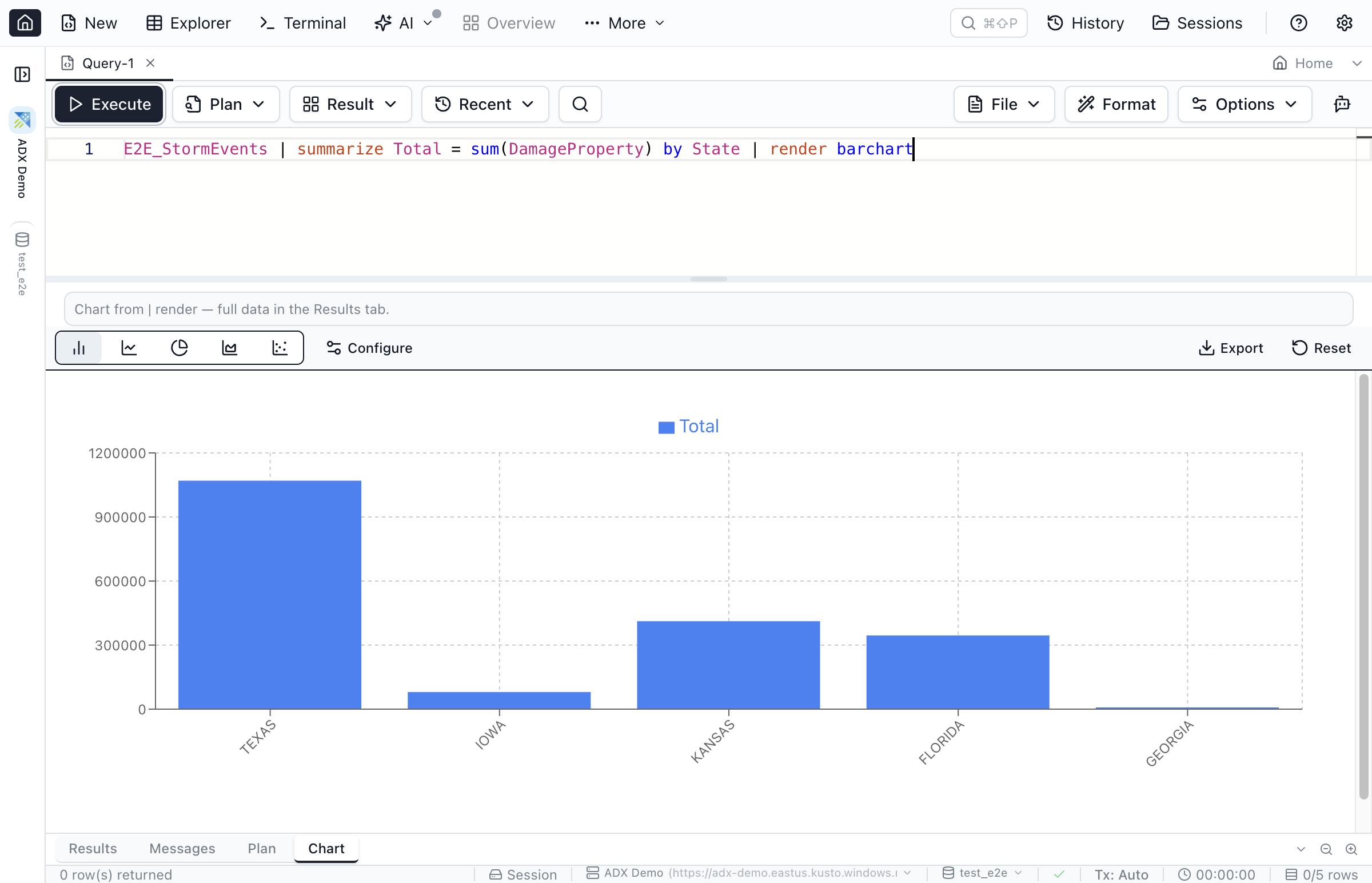
| render barchart query — the Chart tab opens automatically with the matching chart.Notebooks
Azure Data Explorer connections work in SQL Notebooks too: write KQL code cells with blank-line-separated multi-statement batches (matching the ADX web UI), run .show commands alongside queries (other management commands stay blocked), and get an auto-opened Chart tab when a cell's query ends in | render. Because ADX is stateless, each cell runs independently rather than sharing a pinned session — see the SQL Notebooks guide for the pinned-session behaviour of the SQL engines.
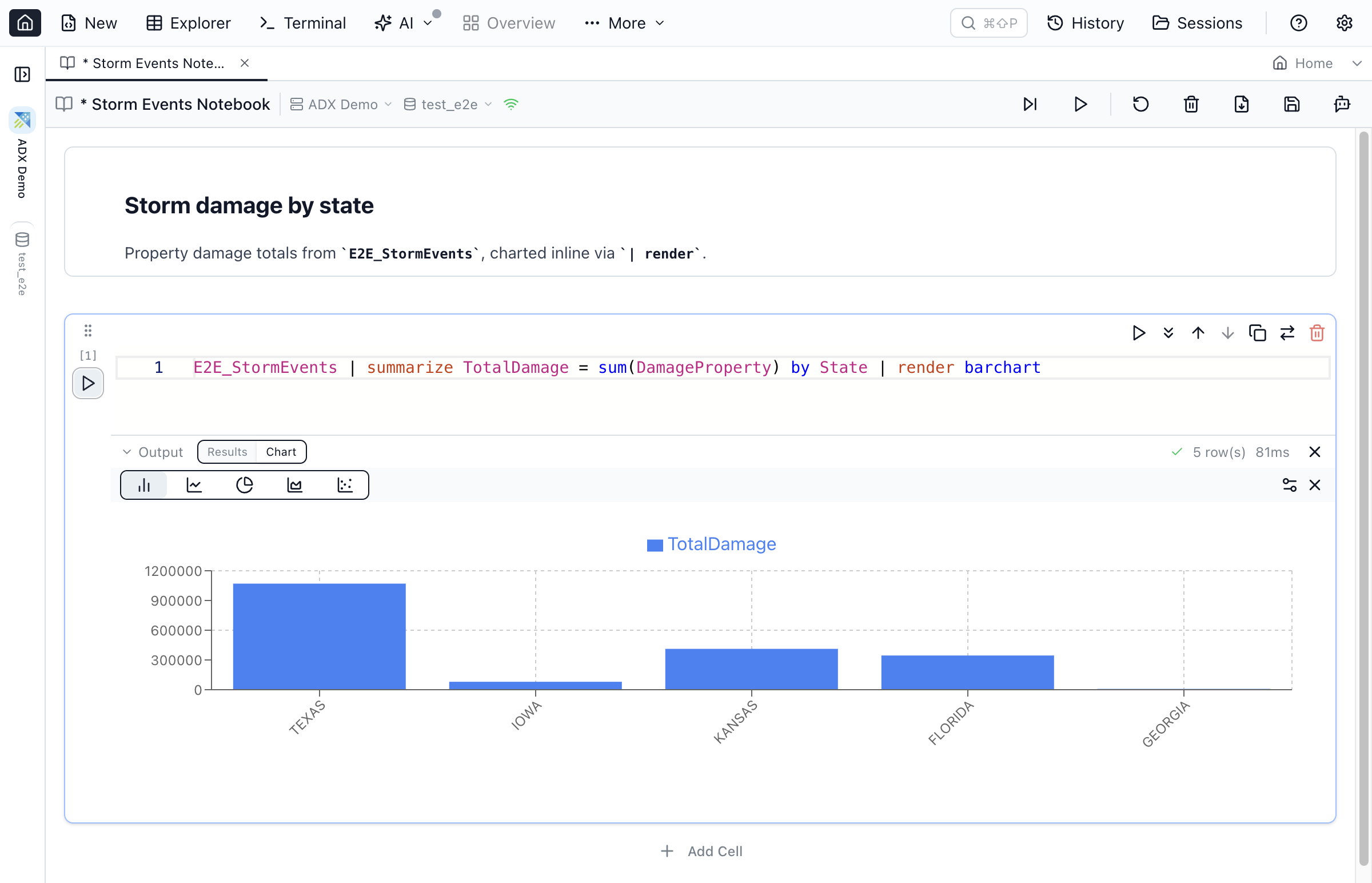
| render barchart — the chart opens inline below the cell.Import from Azure Data Studio
When you import your connections from Azure Data Studio, saved Kusto profiles are imported as real Azure Data Explorer connections alongside your SQL Server and PostgreSQL ones — they default to Microsoft Entra ID (Interactive Browser) sign-in. Nothing is greyed out, and duplicates you already added are pre-unchecked.
AI agents & MCP
Kusto connections are first-class citizens of the AI integrations: MCP-connected agents (and the jam-sql CLI) run KQL through query_execute — queries and .show commands classify as read-only, so they work under the Read-only permission level — and, when you enable connection adding, an agent can set up a cluster, Azure Monitor / Log Analytics, or Application Insights connection for you, guiding you through the endpoint URL and Entra sign-in.
Limitations
- Read-only. No row editing, no Table Designer, and no Schema Compare / Data Compare or Backup & Restore for Kusto connections.
- Queries and
.showonly. Other management commands (.create,.drop,.ingest, …) are not supported. - No schemas or transactions — ADX has neither concept.
- No result streaming — Kusto returns a whole response, so very large results load in full rather than incrementally.
Frequently asked questions
Does Jam SQL Studio support Kusto / KQL?
Yes. Jam SQL Studio connects to Azure Data Explorer (Kusto) clusters and App Insights / Log Analytics proxies. You run KQL with schema-aware IntelliSense, browse tables read-only in Table Explorer, chart | render results, and import saved Kusto connections from Azure Data Studio.
What is Kusto and KQL?
Kusto is the engine behind Azure Data Explorer (ADX), a Microsoft service for fast queries over large volumes of log and telemetry data. KQL (Kusto Query Language) is its read-focused, pipe-based query language, distinct from SQL.
Can I edit data or run management commands on a Kusto connection?
No. Azure Data Explorer changes data through ingestion and management commands (soft delete, .update, purge) rather than row edits, so Jam SQL Studio opens Kusto tables read-only and disables row editing. Queries and .show commands run; other management commands (.create, .drop, .ingest) are not supported.
Which databases does Jam SQL Studio support?
SQL Server, PostgreSQL, MySQL/MariaDB, Oracle, SQLite, and Azure Data Explorer (Kusto). See Connections to get started.
Try Jam SQL Studio Today
Download the latest version and connect to your Azure Data Explorer clusters.