
Last updated: 2026-09-05
Database Blueprint
Materialize your SQL Server, PostgreSQL, MySQL, Oracle, or SQLite database as a folder of .sql files, kept in two-way sync with one or more linked databases. Track the folder in Git, share it with your team, and apply local edits to tables, views, procedures, functions, and schema definitions back to the database with the built-in Schema Compare hand-off. It's not just schema either — capture table data into the same folder and push row changes back with Sync data folder → DB.
Database Blueprint is a beta feature, on by default. If you never use it, untick it in Settings → Beta Features and its toolbar entry, command-palette command, and Object Explorer actions leave the app; nothing on disk is deleted.
- DB → folder works for every object kind (tables, views, procedures, functions, triggers, schemas, …). Refresh from DB rewrites the corresponding
.sqlfile every time. - Folder → DB via Apply schema to DB picks up your local edits to tables, views, procedures, functions, and schema definitions. Editing
Tables/*.sql(adding or dropping a column, changing a type, toggling nullability, changing a default, adding a CHECK / UNIQUE / FK, changing the primary key, adding a computed column) round-trips back across SQL Server, PostgreSQL, MySQL, and Oracle. SQLite supports add / drop column only — the engine has no in-placeALTERfor other changes, so those still need a full table rebuild via the usual SQL workflow. - Row data round-trips via Table data + Sync data folder → DB (see below).
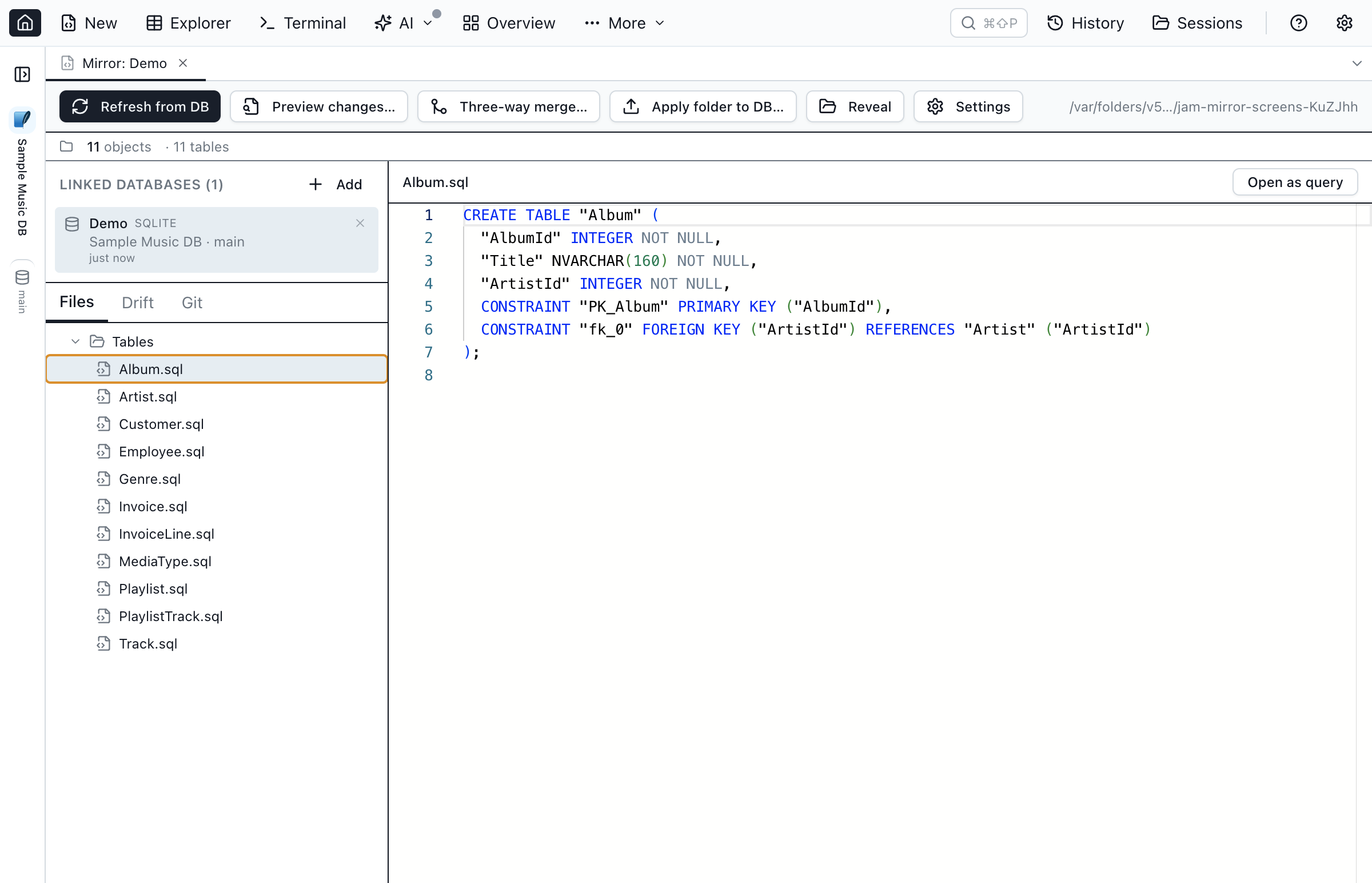
.sql file kept in sync with the linked database.What is Database Blueprint?
A Database Blueprint is a directory on disk that blueprints a database's complete DDL — one .sql file per table, view, stored procedure, function, and schema. The folder can be linked to one or more databases and kept in sync through three actions:
- Refresh from DB — re-emit every object's DDL from the linked database, overwriting local files. The dialog previews the pending changes first (added / modified / unchanged / removed, with a Monaco diff per file) and only writes once you click Confirm refresh.
- Three-way merge — compare local edits, baseline (last refresh), and the live database to identify clean merges and true conflicts, including table DDL edits in
Tables/*.sql. - Apply schema — one toolbar button with two destinations: To selected database… (the active link, described next) and To all linked databases… (the batch pass, see consolidating many databases).
- Apply schema → To selected database — reuse Schema Compare with the folder as the source endpoint and the linked database as the target, generating a synchronization script for tables, views, procedures, functions, sequences, SQL Server user-defined types, and schema definitions. The comparison is scoped to the blueprint's own settings: only the schemas it includes are read, and object types you left out of the blueprint aren't compared on either side — so a whole schema or a whole object type the blueprint was never meant to manage can't show up as a deletion. The scope follows the engine the blueprint links to: a blueprint linked to MySQL or SQLite holds no sequences, so sequences stay out of the comparison rather than showing up as deletions when you re-point the comparison at a PostgreSQL, Oracle, or SQL Server target. That scope is only as fresh as your last Refresh from DB, though — see the warning under Editing a blueprint's settings. Individually excluded objects still appear in the comparison as present-in-the-database-only, but Jam refuses to script a
DROPfor them — see Excluding objects. (SQLite table edits cover add / drop column only.) To check the folder against every linked database in one pass, see consolidating many databases onto one schema.
Creating a Database Blueprint
- Pick a database in the Object Explorer (or open the command palette with Cmd/Ctrl+Shift+P and search for "Database Blueprint").
- Choose an empty folder, give the link a label (e.g.
Dev,Stage,Prod), and select which object types and schemas to include. - Optionally write a default
.gitignorecovering.DS_Store,.jamsql/snapshots/(per-user baseline cache, not shared), and editor noise. TheData/folder is not gitignored — teammates need those sidecar files for Sync Data. - Click Create Database Blueprint. Jam emits the DDL, writes a
jamsql-blueprint.jsonmanifest, writes a per-linkjamsql-meta-<label>.jsonMetaInfo file, and opens the Database Blueprint tab.
Attaching an existing blueprint folder
If a colleague shares a blueprint folder with you via Git or a shared drive, you don't need to recreate it from the database. Open the Create Database Blueprint dialog and click the Attach existing blueprint… link in the footer. A folder picker opens — select the root folder (the one that contains jamsql-blueprint.json). Jam reads the manifest, validates it, and registers the folder in your local blueprint list. You can then open the blueprint tab, switch the active link to your own database connection, and start syncing immediately.
Jam also detects an existing blueprint automatically when you mount a folder that already contains a jamsql-blueprint.json: the Create dialog will ask “This folder already contains a blueprint. Attach it instead of creating a new one?” — accepting registers the folder without overwriting anything on disk.
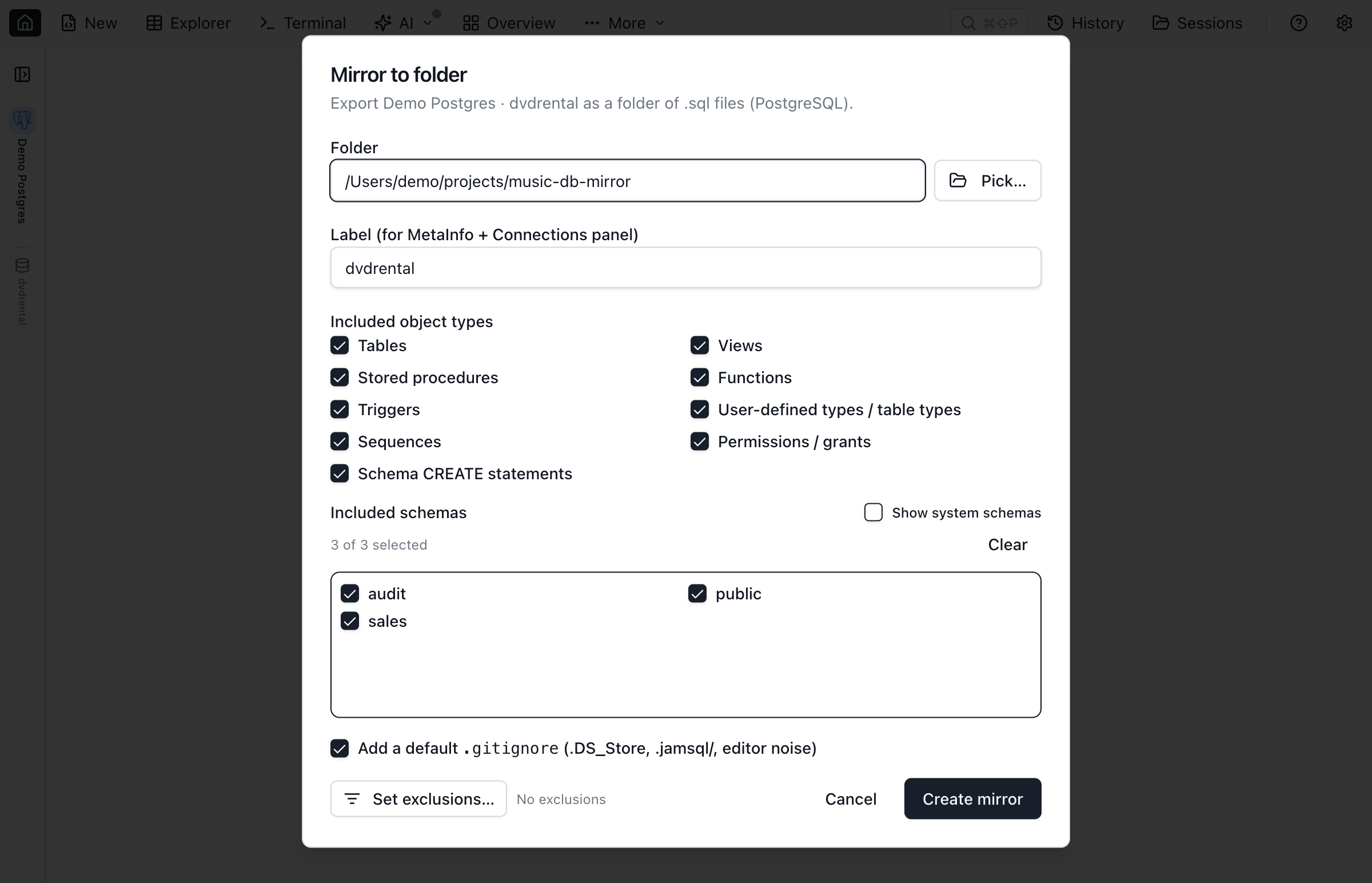
.sql files in one click.Folder layout
my-blueprint/
├── jamsql-blueprint.json           ← manifest (linked DBs, included object types, schemas)
├── jamsql-meta-Dev.json         ← per-link MetaInfo (loose FKs, JSON, enums)
├── README.md
├── .gitignore
├── Schemas/
│   └── dbo.sql
├── Tables/
│   ├── dbo.Users.sql
│   └── dbo.Orders.sql
├── Views/
│   └── dbo.OrderSummary.sql
├── Sequences/                   ← PostgreSQL / Oracle / SQL Server
│   └── dbo.OrderNumber.sql
├── Programmability/
│   ├── Stored Procedures/
│   │   └── dbo.usp_UpdateOrder.sql
│   ├── Functions/
│   │   └── dbo.fn_OrderTotal.sql
│   └── User-Defined Types/      ← SQL Server table / alias / CLR types
│       └── dbo.IntegerKeyValueList.sql
├── Data/                        ← table data artefacts (tracked — shared with teammates)
│   ├── dbo.Users.data.sql       ← upsert / replay SQL for the table data
│   └── dbo.Users.data.json      ← row sidecar (PK, column types, captured rows)
└── .jamsql/
    └── snapshots/               ← per-user baseline cache (not shared, gitignored)
Hand-editing a Tables/*.sql file
The table files are ordinary SQL, and Apply schema to DB reads them with the same parser the Table Designer uses. Four things are worth knowing when you edit one by hand:
- Comments are read as comments. A comment written between the words of a declaration —
x INT AS /* note */ (n * 2),ts TIMESTAMP ON /* note */ UPDATE CURRENT_TIMESTAMP,c character /* note */ varying(200)— is read exactly like the declaration without it, so annotating a file never shows up as a schema difference. - Inside an expression, a comment is content. That first point is about a comment written between the words of a declaration. A comment written inside an expression is part of its text and is kept, so adding or removing one there shows up as a real difference: in a generated column's expression on every engine (
AS (n /* note */ * 2)), in an OracleDEFAULTvalue (Oracle stores the default text verbatim), and in a SQLiteDEFAULT(PRAGMA table_inforeports the declaration byte for byte). - One SQLite exception to that. SQLite picks a column's type affinity — INTEGER, TEXT, BLOB, REAL, or NUMERIC — by looking for substrings in the whole declared type text, comments included.
c DOUBLE /* TEXT */ PRECISIONcontainsTEXTand gets TEXT affinity; delete the comment andc DOUBLE PRECISIONgets REAL affinity instead, so the column stores different values. A comment inside a SQLite declared type that moves the affinity is therefore reported as the type change it is, in both directions of the sync; one that leaves the affinity alone is still invisible. - Trailing
CREATE [UNIQUE] INDEXstatements are part of the table. The-- Indexesblock Jam writes after aCREATE TABLEis read back as that table's indexes on SQL Server, PostgreSQL, MySQL, Oracle and SQLite. ACREATE INDEXthat sits inside a comment or a string value is not read as an index, and a MySQL statement wrapped in a version-guarded executable comment (CREATE /*!80000 UNIQUE */ INDEX …) is reported as an unsupported clause — the file is refused rather than guessed at, since whether that index is unique depends on the server it runs against. An index statement that declares aWHEREfilter,INCLUDEcolumns, an expression key such as(lower(c)), or a storage option is refused with the statement named, because the comparison would otherwise apply it as a plain index on those columns.
A file carrying a clause Jam can read but cannot represent in a comparison is refused the same way, naming the clause. Applying a partial picture of a table would script the missing clause away, so the comparison stops instead.
A column declared with an attribute the comparison cannot carry — MySQL INVISIBLE, SRID, COLUMN_FORMAT, STORAGE, CHARACTER SET, or an ON UPDATE with no DEFAULT beside it; PostgreSQL STORAGE or COMPRESSION; Oracle INVISIBLE, ENCRYPT, ANNOTATIONS, DOMAIN, SCOPE IS, a DISABLE / NOVALIDATE / RELY / DEFERRABLE / INITIALLY word after a column's NOT NULL, or an identity option beyond START WITH and INCREMENT BY; SQL Server SPARSE, ROWGUIDCOL, FILESTREAM, MASKED WITH or ENCRYPTED WITH — is refused the same way, naming the column and the attribute, because applying the file would create the column without that word: an Oracle identity re-created from seed and increment alone comes back with the server's default cache and bounds. A file Jam wrote itself never spells one.
That last case is the one to know about if you paste DDL in by hand: an Oracle table scripted by DBMS_METADATA.GET_DDL prints the full identity option list (MINVALUE … CACHE 20 NOORDER NOCYCLE NOKEEP NOSCALE), so dropping that script into a Tables/*.sql file is refused — trim the options down to START WITH and INCREMENT BY to import it. Nothing else in that script needs trimming: the physical tail after the closing paren (SEGMENT CREATION DEFERRED PCTFREE 10 … NOCOMPRESS LOGGING TABLESPACE "USERS") and the USING INDEX PCTFREE … TABLESPACE "USERS" ENABLE clause inside a primary key both import cleanly and compare identical against the table they came from. The compare still lists Oracle's system-named NOT NULL checks (SYS_C…) as removed for a hand-written file, because Oracle records each NOT NULL as an unnamed CHECK that Jam's own export inlines by name but a hand-written file does not spell; leave those unselected — applying them drops the NOT NULL.
User-defined types (SQL Server)
Ticking User-defined types / table types in the setup dialog captures SQL Server's user-defined table types, alias (data) types and CLR types as one CREATE TYPE file each under Programmability/User-Defined Types/. The text is the same canonical CREATE TYPE the Object Explorer's Script as CREATE produces, so the folder, the explorer and Schema Compare never disagree about a type's shape. Apply schema to DB compares them like any other object type, and a fresh blueprint of the same database reports no differences for them.
Previewing changes before they land
There's no separate preview action — Refresh from DB always previews first. Click Refresh from DB in the toolbar and the dialog reads the current schema from the database and stops on a preview step before writing anything: a side panel lists every file grouped into Schema and Data sections as added, modified, unchanged, or removed, and a Monaco side-by-side diff renders for the selected file. Nothing on disk changes until you click Confirm refresh; Cancel backs out with your local files untouched.
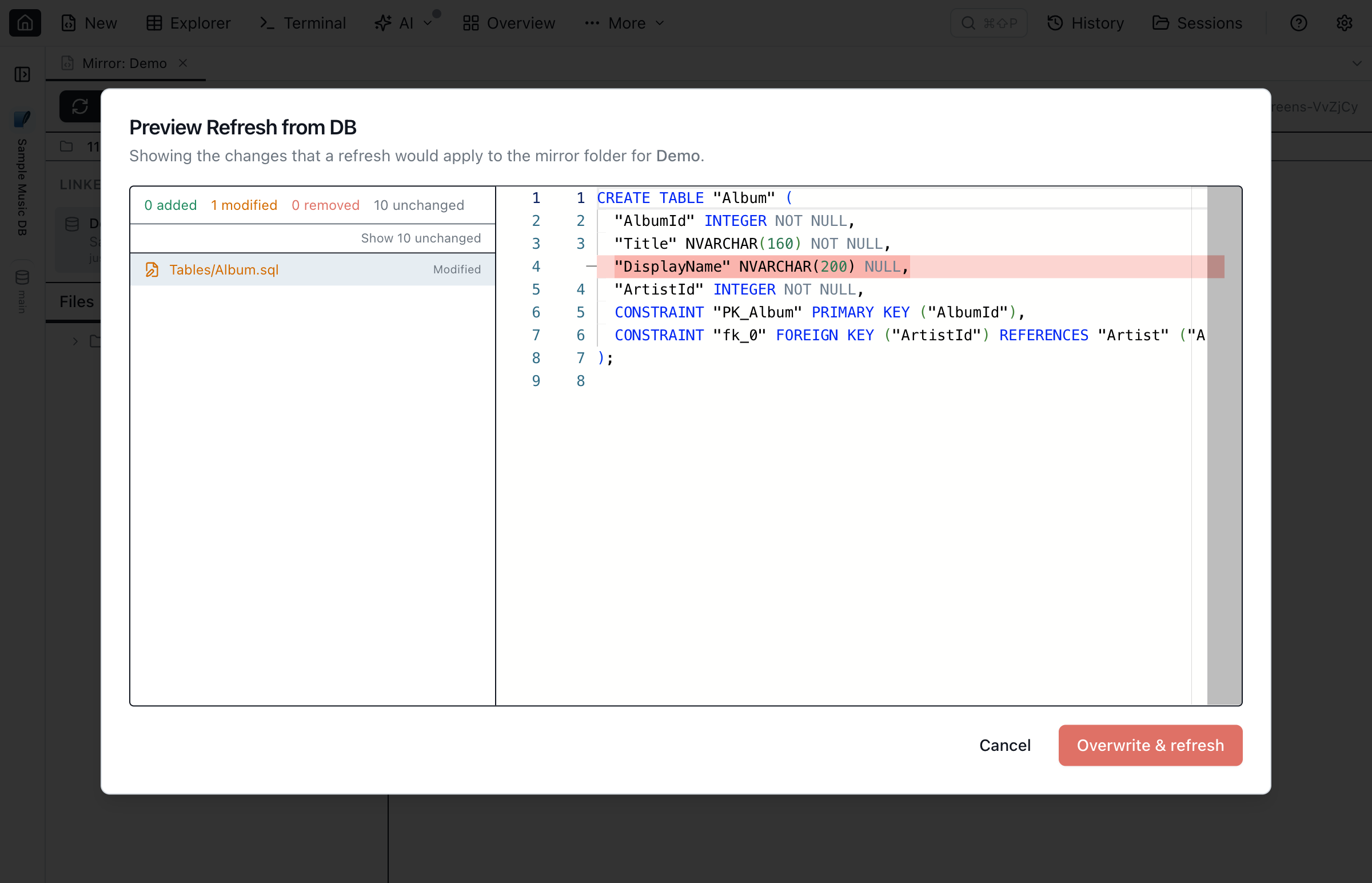
Excluding individual objects
Some database objects don’t belong in a long-lived database blueprint — one-off temporary tables (e.g. tmp_users_20260520), archive junk (zz_old_archive), DBA scratch views, or anything you don’t want to version with the rest of the schema. Both the Create Database Blueprint dialog and the toolbar Settings dialog have a Set exclusions… button in the footer that opens an exclusion picker:
- Open the dialog — either Create Database Blueprint for a brand-new blueprint, or the toolbar Settings button (gear icon) to edit an existing one.
- Click Set exclusions… in the footer (bottom-left). A sub-dialog lists every candidate object, with a filter input to narrow by name, schema, or kind.
- Tick the rows you want to opt out of and click Done. The footer summary updates to show what’s currently excluded.
- Click Create Database Blueprint / Save on the parent dialog to commit the exclusions to
jamsql-blueprint.json.
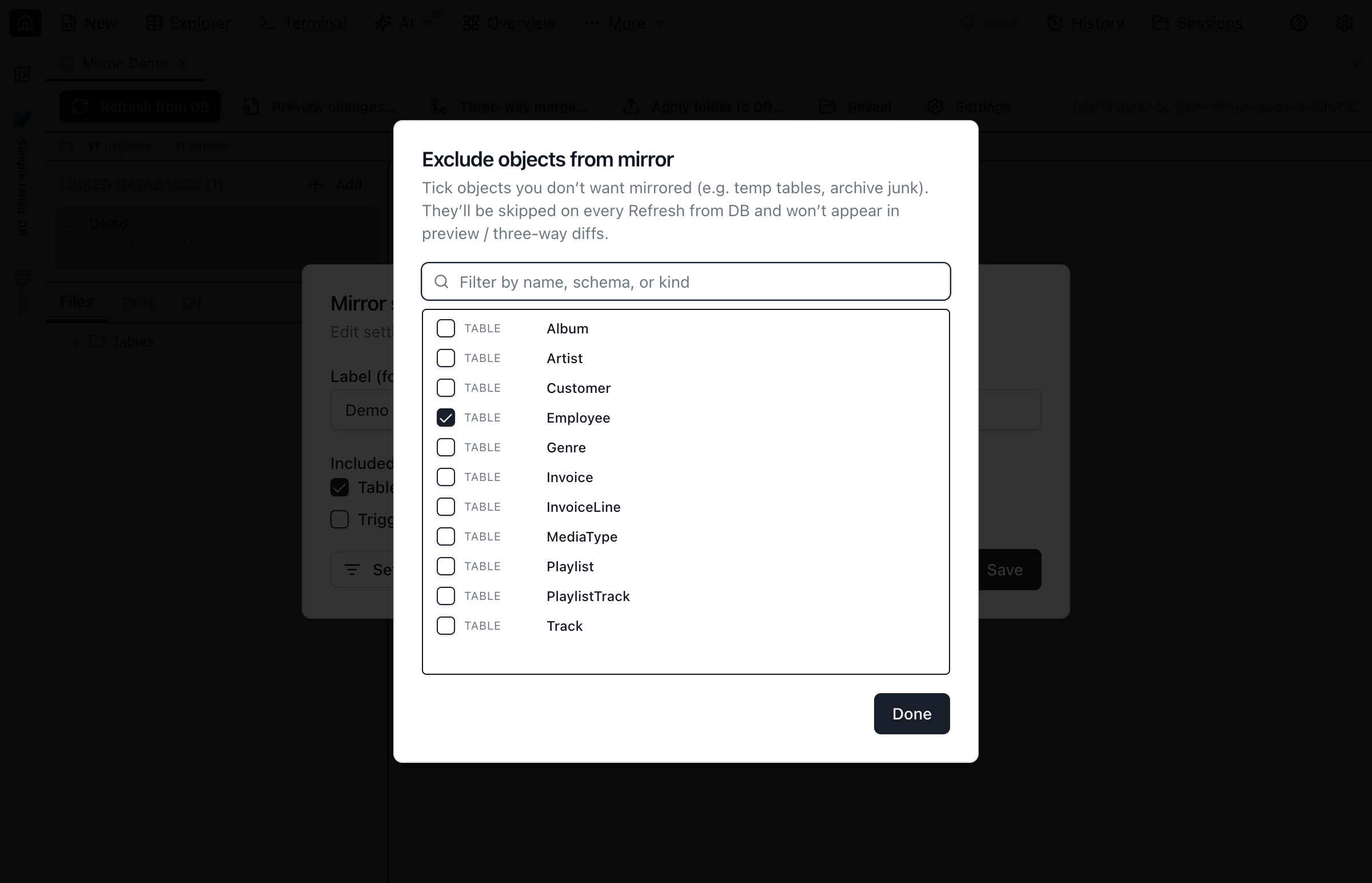
From then on, excluded objects are:
- skipped by Refresh from DB — no
.sqlfile is written or updated for them, - dropped from the Refresh from DB preview diff — they no longer surface as added or removed,
- dropped from the three-way merge — no merge action is ever proposed for them,
- skipped by Apply schema to DB when they don’t exist on the target — the comparison reads the
.sqlfiles directly, so it never proposes creating an excluded object, - never dropped from the target — see below.
DROP. If an excluded object still exists in the target database, Apply schema to DB still lists it as present in the database and absent from the blueprint — but Jam refuses to put a DROP for it in the generated script, and says so instead of quietly producing a shorter one. You get a -- [REFUSED] line at the top of the script naming each object, and a matching warning in the Script Preview dialog. The same refusal applies through the single-link Apply schema to DB, the batch Apply schema to linked DBs…, and an AI agent driving Jam over MCP.What this covers, exactly. The protection is on whole objects the blueprint excludes — tables, views, procedures, functions and sequences on its exclusion list. It is not a general keep-out list for the target: a column, index or constraint on a table the blueprint does manage is still governed by that table's
.sql file, so a column present in the database but missing from the file is still dropped by the generated script (see what a batch-generated script will and won’t do). Excluding a whole object is what stops the object being dropped; to leave part of a managed table alone, the table itself has to be excluded. As always, review the generated script before you run it.Files already on disk are left alone when you add an exclusion — delete them yourself if you want them gone. To re-include an object, un-tick it in the same picker; the next refresh re-emits it. Exclusions live in jamsql-blueprint.json so they version with the rest of the blueprint and sync via git to your teammates.
Editing a blueprint's settings
The toolbar Settings button opens the Database Blueprint settings dialog — the same UI as Create Database Blueprint but pre-populated with the existing label, linked databases, included object types, and excluded objects. Use the Linked databases row to add or remove Dev / Stage / Prod links without re-creating the blueprint. Edit any of the fields, hit Save, then run Refresh from DB to roll the new settings into the on-disk .sql files. Settings changes don’t touch files on disk until you refresh.
.sql files for it yet: the comparison no longer scopes it out, so every matching object on the target reads as a deletion and the generated script contains a DROP for each one. Run Refresh from DB right after widening the settings, or review the generated script carefully, before applying.Multi-connection links
A single blueprint folder can be linked to several databases of the same engine — typically Dev, Stage, and Prod copies of the same schema. Each link gets its own label, its own baseline cache, and its own MetaInfo file. The toolbar shows the active link as a chip on the left; click it to switch which link Refresh from DB, three-way merge, Apply schema to DB, and Sync data folder → DB target. The same popover lets you add a new link or remove an existing one. Add and remove links also from the Settings dialog if you'd rather edit them alongside the other per-blueprint knobs.
Give every new link one refresh
A link’s baseline — Jam’s record of what that database’s files looked like at its last sync — is what tells Jam which files in the shared folder belong to which link. Adding a link doesn’t create one; the first Confirm refresh for that link does. Until then the other links refresh in reduced-safety mode: they still write their own files, but they won’t delete anything, because ownership can’t be worked out. Run Refresh from DB once per link and full safety comes back.
That works even when the new link’s database already matches the folder — the common case when you link a dozen databases that are on the same migration. The dialog reports “Your blueprint is up to date with the DB” and still offers Confirm refresh, noting that it will record the sync and change no files. Confirming writes nothing to disk and registers the baseline.
Refreshing one link rewrites files the other links share, which is the point of a single folder. Jam recognises its own output, so the next link’s refresh does not claim you edited those files. The “N files on disk have been edited locally” warning is reserved for content that matches no link’s baseline — something changed the file outside Jam. Where Jam has no baseline for the link at all it says exactly that instead, rather than blaming an edit it can’t attribute; either way it tells you the refresh will overwrite the files, and Three-way merge is how you keep them.
Consolidating many databases onto one schema
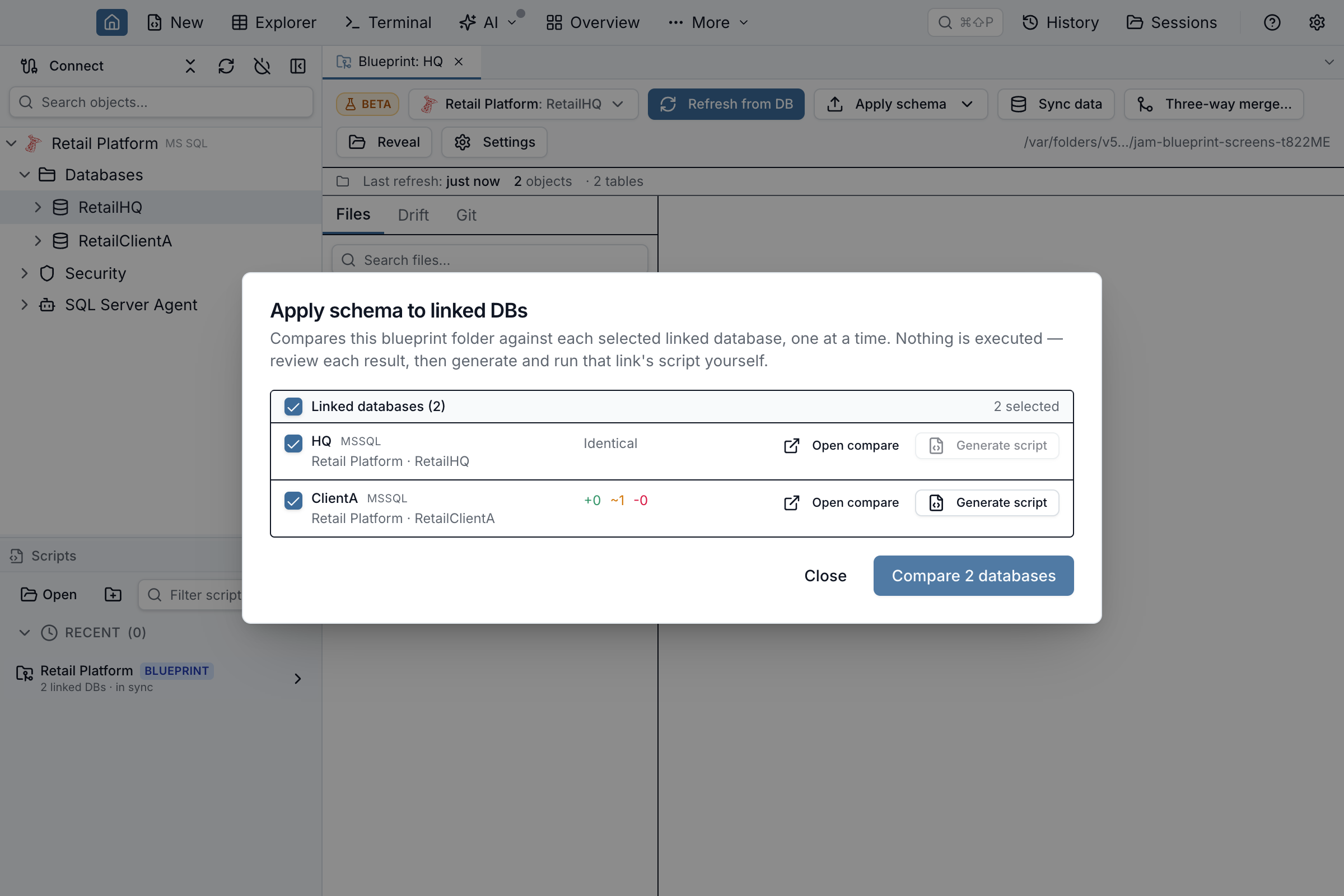
When a folder governs more than a handful of databases — the classic case is consolidating a dozen or more tenant or customer databases onto one shared schema — driving them one at a time through the active-link chip gets tedious. The toolbar’s Apply schema button has a second option, To all linked databases…, which opens a single dialog that lists every linked database, lets you tick the ones you care about, and compares the folder against each of them one after another. Each row reports how many objects would be added, changed, or removed — the same counts that link’s own comparison would show — or, if that database couldn’t be read, the error, without stopping the rest of the run. You can cancel between databases at any point.
Every comparison the batch runs is scoped to the blueprint, exactly as the row’s own Open compare button would scope it: only the schemas listed in the blueprint’s settings are read on either side, and an object type the blueprint doesn’t model is not compared at all. Without that, everything else living in those databases — another team’s schema, a reporting table, a type you switched off — reads as present in the database and missing from the folder, and every link reports “changed” on every run no matter how well it matches.
Nothing is executed by the batch. Each row gives you two actions: Open compare, which opens the usual Schema Compare tab for that link, and Generate script, which produces that database’s synchronization script in the normal preview window — where you can read it, copy it, export it, or open it in a query tab and run it. Applying a schema to a live database stays a deliberate, one-database-at-a-time decision; Jam will never fan out an execution across your linked databases for you.
What a generated script will — and won’t — do
Because the batch picks the script’s contents for you rather than letting you walk the comparison tree, it is deliberately cautious about deletion, and it tells you what it decided.
- Objects that exist only in the database are never dropped for you. A table, view, or routine the blueprint doesn’t contain is counted in the row and marked not scripted — the batch will not put a
DROP TABLEin a script you might run against a dozen databases. Open that link’s comparison if you do want to remove it. - Tables the blueprint does govern are made to match it — including deletions. If the database has a column, index, constraint, or default on such a table that the folder’s
CREATE TABLEdoesn’t declare, the generated script drops it, and dropping a column deletes that column’s data. The row warns you before you generate — for example “drops 1 column” — and the tooltip spells out what will go. Read the script in the preview before you run it. - A view or routine the blueprint can’t rebuild is left untouched — not dropped. If the folder’s
.sqlfile for a view or routine is empty, or holds anALTER …body rather than aCREATE(pasting SSMS’s Script as → ALTER To output is the usual way this happens), Jam has nothing to re-create the object from — so it does not drop it either. The script leaves the object alone and says so with a-- [REVIEW]line naming it and stating that noDROPwas emitted, followed by the file’s own text commented out so you can port it by hand. Nothing is deleted, so the row counts no drops for it. Give the.sqlfile aCREATEstatement and the same run becomes an ordinary update. A comment above theCREATEis fine — Jam skips leading blank lines,--and/* … */comments, and a leadingUSE …/SET …statement before it looks, so a banner-commented file or SSMS’s Script as → CREATE To output rebuilds normally. The statement may be closed either by aGOalone on the next line, the way SQL Server writes it, or by a;at the end of its own line, the way MySQL and PostgreSQL do — soUSE `shopdb`;above aCREATE PROCEDURErebuilds too. Quoted names are read as names:USE "Reporting"andSET search_path = 'public'are both recognised. - A
USEat the top of a.sqlfile is commented out of the generated script. SSMS’s Script as → CREATE To output starts withUSE [WhateverDatabaseItWasScriptedFrom]. A synchronization script runs against the database you compared, so executing that line would switch the session mid-script and create the object somewhere else — after the script had already dropped it from the database you meant. Jam comments theUSEout with a-- [REVIEW]line explaining why, and the row notes “1 USE statement commented out” so the change isn’t silent. The same applies to a;-terminatedUSE, such as theUSE `shopdb`;amysqldumpfile opens with.SETlines such asSET ANSI_NULLS ONare not touched — they affect how the object compiles. Your.sqlfile on disk is never edited; only the generated script is. - Differences Jam can’t script are called out, not silently skipped. Sequence differences, tables that differ only by triggers, table options, or partitioning, and column changes the database engine has no
ALTER COLUMNfor, are counted in the row but marked not scripted. If a link’s differences are all of that kind, Generate script is disabled and says so, rather than handing you a script that would change nothing. MySQL is the exception. ItsMODIFY COLUMNrestates the whole column definition, so it always produces a statement — even for a difference the restatement can’t express, such as a column collation. The row then offers a script that runs without error and leaves the difference in place, and the next batch run still reports that link as changed. Jam can tell you whether a statement was emitted; it cannot tell you whether the statement resolves the difference. - If Jam couldn’t work out what a link’s script would do, the row says so. Building the script for that database can fail on its own — for example when a
.sqlfile in the folder has extra statements after itsCREATE VIEW. That row shows “script effect unknown” instead of a warning. It is not saying the script is safe, only that it couldn’t be checked — Generate script stays available so you can generate it and read the reason for yourself.
Those verdicts are read off the script Jam actually generated for that database, on that database’s engine — not estimated from the comparison. So a row never offers a script that turns out to be comments, never counts a deletion the script does not contain, and never stays quiet about a script it couldn’t inspect.
What a row cannot tell you is whether your server will accept every statement. It describes the SQL Jam wrote, not the result of running it, so a statement the engine rejects is still counted as the deletion it asks for. Two cases are worth knowing: SQLite has no ALTER TABLE … DROP CONSTRAINT in its grammar, so a warned constraint drop is a syntax error there and the constraint survives; and Oracle before 23ai has no DROP INDEX … IF EXISTS, so a warned index drop fails the same way. Both fail loudly when you run the script — nothing is quietly half-applied — but the row will have warned about a deletion that did not happen.
If a comparison is refused because the schema is larger than the Personal-mode limit, the row shows that reason directly, so you can narrow the blueprint’s included schemas or upgrade rather than guess.
Cloning a teammate's blueprint
Imported MetaInfo refreshes the database's autocomplete hints and open MetaInfo views automatically after the import is saved.
A teammate’s Database Blueprint folder is just a regular git repository — git clone it (or open it via Open Database Blueprint folder…) and Jam picks up the jamsql-blueprint.json manifest, the per-link baseline caches, and the jamsql-meta-<label>.json MetaInfo sidecars on first open. The MetaInfo sidecars are merged into your local store automatically with local-wins semantics — your own loose foreign keys, JSON column declarations, and enum declarations on the same (connection, database) are preserved on conflict — so loose FK / JSON / enum chips show up in the Table Explorer and Query Editor without any manual import step. Subsequent git pulls pick up teammate updates the next time the blueprint tab opens.
Sync data folder → DB
When you turn on Table data for a table during Refresh from DB, Jam captures its current rows into a dedicated Data/ folder: a .data.sql upsert script and a .data.json sidecar that preserves the primary key and column types for round-tripping. Schema Compare ignores those files — it only diffs DDL. To push row changes from the blueprint folder back to a linked database, use Sync data folder → DB from the toolbar.
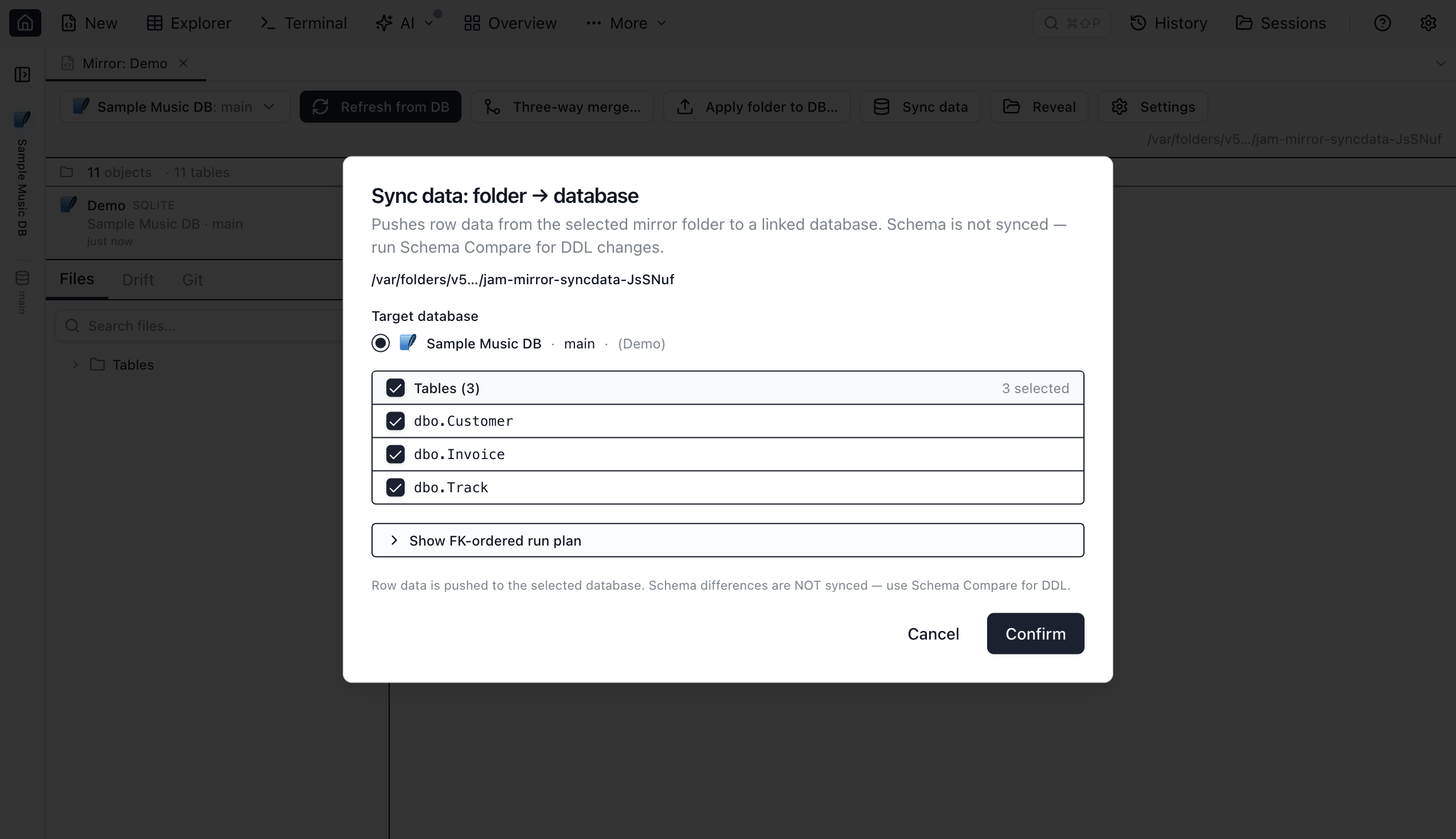
.data.sql tables to push to the linked database, with a collapsible FK-ordered run plan and an explicit schema-not-synced footnote.- Click the Sync data button in the Database Blueprint toolbar. The button is enabled once the blueprint has at least one linked database.
- The Sync data dialog lists every table that has a table data captured. Pick which tables to sync (all selected by default) and confirm the target link. Hit Confirm to begin.
- The progress dialog runs the workflow in two phases. Compare walks the selected tables sequentially, diffing the blueprint folder's rows against the live table on the linked database and surfacing per-table insert / update / delete counts. After all tables compare, the dialog stops at a review step so you can scan the totals before anything is written.
- Hit Apply to push the row changes. The apply phase also runs table-by-table; an error on one table is captured and reported but doesn't abort the rest of the queue.
- Clicking Cancel mid-run stops the queue at the next table boundary — the in-flight table completes first so partial writes don't get stranded.
What it syncs. Row-level inserts, updates, and deletes — driven by the diff between the blueprint folder's data sidecar and the live table. The primary key used for matching rows comes from the sidecar's pk field, so it stays correct even if the live table's PK metadata changes.
Open in Data Compare. Each table row in the Sync Data dialog — and each table on the progress dialog's review ("ready to apply") step — also has an Open in Data Compare action. Instead of the inline quick-sync, it opens the full Data Compare workspace for that single table — the blueprint folder as the source, the active linked database as the target — and auto-runs the comparison. Use it when you want to inspect row-level diffs in the grid, tweak the key / value column mappings or comparison options, and selectively generate a sync script rather than pushing every diff at once. The target side must be a live linked database; tables without a primary key can't be opened this way (Data Compare needs a key to match rows) — use quick sync for those.
What it doesn't sync. Schema (DDL) differences. Those are still handled via Apply schema to DB → Schema Compare. When the Schema Compare setup sees a blueprint folder that contains any .data.sql files, it shows a small banner reminding you that those files are out of scope and points you back to Sync data folder → DB.
Tables without a primary key. Tables emitted with destructive replay (no primary key, sidecar written with an empty pk) appear in the Sync data list but error out during compare with “Sidecar has no primary key — cannot match rows.” Row-level diffing needs a key to match rows across the two sides. If you need to push those tables, re-run the .data.sql upsert script against the target database directly.
Rebuilding data sidecars offline
Sync data folder → DB reads the Data/<schema>.<table>.data.json sidecar — if it's missing (a pre-F1 blueprint that gitignored .jamsql/, a git clean, or a manual delete), Sync Data can't run for that table. When Jam detects missing sidecars it shows a banner at the top of the Database Blueprint tab with two ways to recover: Refresh from DB (re-captures from the live database) or Rebuild from .data.sql — an offline alternative that reconstructs sidecars straight from their sibling .data.sql upsert scripts, no live database connection required.
- Click Rebuild from .data.sql in the banner.
- Confirm the dialog: “Rebuilding treats the current .data.sql files as the new baseline. Continue?”
- Jam decodes every
.data.sqlfile in the folder'sData/directory back into rows and re-writes its.data.jsonsidecar. The banner then reports how many sidecars were rebuilt, and skips (with a reason) any file it can't safely decode — for example one whose upsert statements target a different table than its filename implies.
Fidelity notes. Reconstructing purely from SQL text has a few known blind spots, and the rebuild always calls them out rather than guessing silently:
- Computed/generated columns are absent from
.data.sqlby design (the capture step never emits them) — the rebuilt sidecar marks them absent instead of inventing a value. - Temporal values come back as plain strings rather than a tagged date, since SQL text alone can't always distinguish a date/time literal from an ordinary string.
- Booleans come back as
0/1rather than a tagged boolean, for the same reason. - Empty PostgreSQL arrays come back as the literal string
'{}', ambiguous with an actual empty-string value.
Any of these that apply to the rebuilt tables show up as an expandable fidelity notes list under the banner's result summary. They describe the rebuild's own representation, not a data-loss bug — Sync Data still works correctly against the rebuilt sidecar afterwards.
Viewing captured data
When a table has been added to the table data, its captured rows live in the Data/ folder: Data/<schema>.<table>.data.sql for the upsert script and Data/<schema>.<table>.data.json for the row payload. Click either file in the blueprint tree to open the tabbed viewer:
- Data tab — the captured rows in a read-only grid, with column names, types, and a PK indicator. The footer shows row count and the time the rows were captured.
- Script tab — the upsert SQL in a read-only Monaco editor.
The toolbar’s ← Go to schema button jumps to the corresponding DDL file under Tables/. From the schema view, a Go to data → button appears in the toolbar when the selected table has captured data, jumping back to the Data/ files. The Open as query button always opens the .data.sql in a Query Editor tab if you want to run or edit it.
Editing captured data in Table Explorer
The data viewer’s Edit button opens the table’s captured rows in the full Table Explorer — with column-aware type pickers, filters, sorting, and JSON / enum / loose-foreign-key overlays driven by the table’s MetaInfo — in an in-memory Blueprint edit mode marked by a blue banner. Edits never touch any database: saving writes back to the .data.json sidecar and regenerates the .data.sql upsert script. Use Sync data folder → DB afterwards if you want to push those row changes to a linked database.
Git integration
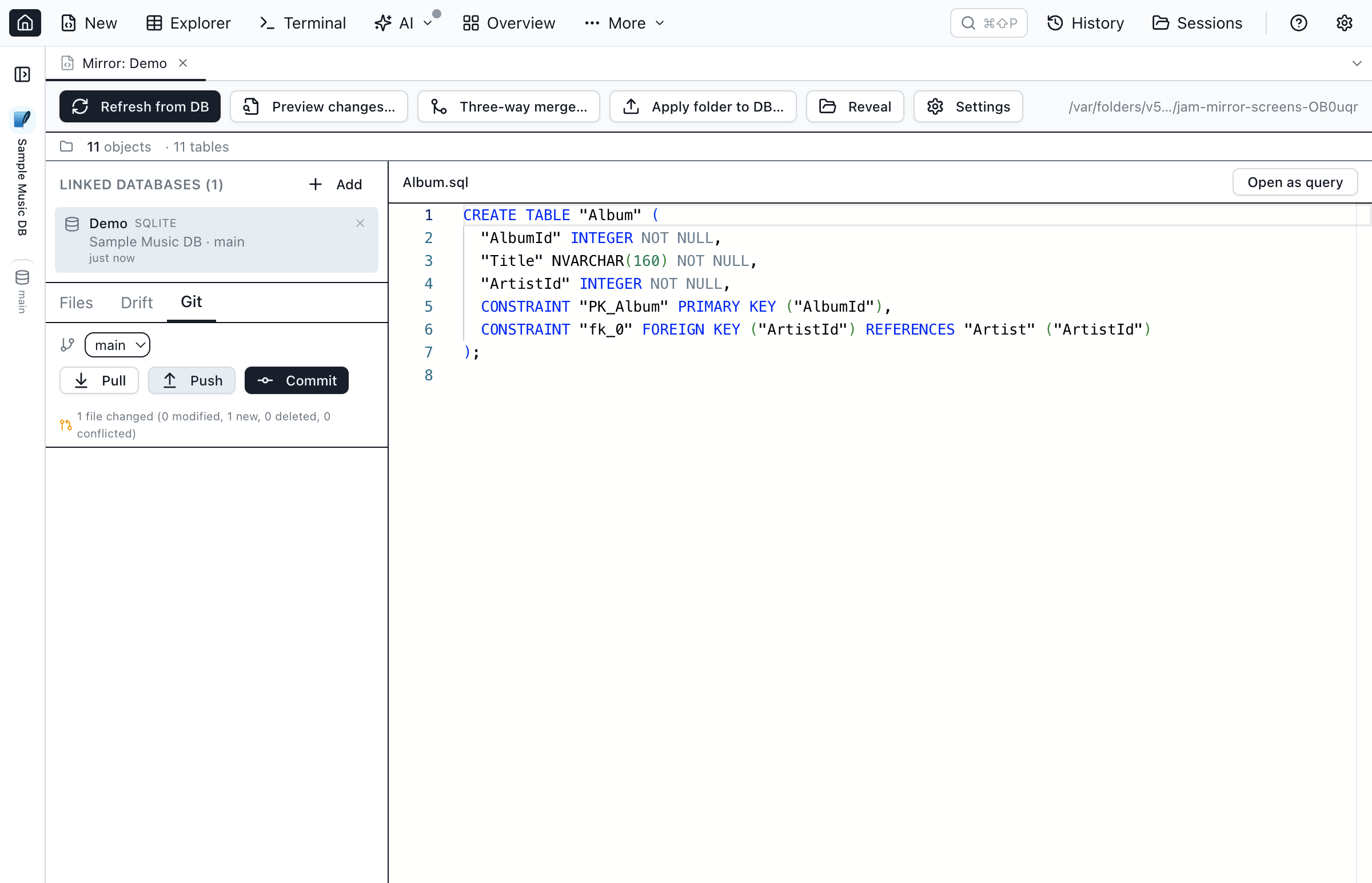
The Git panel inside the Database Blueprint tab gives you the basics without leaving Jam:
- Status — branch + tracking, ahead/behind counts, and per-category counts (modified, new, deleted, conflicted).
- Changed-file list — every changed file is listed under the status line with its state (M modified, A new, D deleted, U conflicted); click a file to open it in the preview pane and review exactly what the next commit will pick up. Deleted files are listed but not clickable — there is nothing on disk to preview.
- Initialize git for new blueprint folders that aren't yet repos.
- Commit with an auto-generated message keyed off changed sub-folders (e.g.
Refresh from DB: 2 tables, 1 view, 1 proc (Dev)). - Branch switch, pull, push.
- Merge-conflict resolution — when a pull leaves conflicted
.sqlfiles, the conflict dialog lists them, shows the raw file content with<<<<<<</=======/>>>>>>>markers in a read-only Monaco viewer, and provides Mark resolved per file (stages the file viagit add).
Personal mode limits
Database Blueprint is available in Personal mode for databases with up to 200 objects (tables + views + procedures + functions). When you hit that limit, Jam opens the Upgrade dialog so you can learn more about Pro — no raw error string. Pre-existing blueprints continue to read and display correctly in Personal mode; only the Create Database Blueprint and Refresh from DB actions are gated.
AI-managed blueprints (MCP tools & CLI)
AI agents (Claude Code, Cursor, Codex, or any MCP-compatible tool) can manage blueprints directly via eight blueprint_* MCP tools and the equivalent jam-sql blueprint CLI subcommands. All operations are gated by the same permission model as SQL writes — configure the level in Settings → AI Integrations → Permission Level.
Read operations
Available at permission level read-only or confirm (denied at block):
blueprint_list/jam-sql blueprint list— list registered blueprints with folder path, label, linked-DB count, and engine.blueprint_get/jam-sql blueprint get --folder /path/to/bp— inspect full metadata, object counts, and on-disk drift for a specific blueprint.blueprint_preview/jam-sql blueprint preview --folder /path/to/bp— preview which files would change on the next refresh, without writing anything.
Mutating operations (folder or registry)
Write-gated: denied at block and read-only; requires user approval in the in-app dialog at confirm:
blueprint_attach/jam-sql blueprint attach --folder /path/to/cloned-bp— register an existing blueprint folder (e.g. aftergit clone).blueprint_create/jam-sql blueprint create --connection <id> --database MyDB --folder /path/to/empty --label Dev— materialize a database as a new blueprint in an empty folder.blueprint_refresh/jam-sql blueprint refresh --folder /path/to/bp— re-emit DDL and data sidecars from the linked database into the folder.
DB-mutating operations (modify the live database)
Write-gated at confirm only, with the in-app approval dialog showing the exact generated SQL before execution. Jam SQL Studio must be open and focused; unanswered requests are denied:
blueprint_apply_schema/jam-sql blueprint apply-schema --folder /path/to/bp— runs a headless folder→DB schema compare, generates the sync SQL, shows it for approval, and executes it.blueprint_sync_data/jam-sql blueprint sync-data --folder /path/to/bp— for each blueprint-data table, runs a folder→DB row compare, builds a two-phase script (deletes then upserts), shows it for approval, and executes.
For more details on the full AI integration setup, see AI Integrations & MCP.
Frequently asked questions
What is Database Blueprint?
Database Blueprint is a Jam SQL Studio feature that materializes a database's full DDL as a folder of .sql files (one file per table, view, procedure, function, schema). The folder is kept in sync with the database — refresh from DB to pull the latest schema, preview pending changes, run a three-way merge, or apply local edits back to the database. Two-way sync covers tables, views, procedures, functions, and schema definitions: local edits to Tables/*.sql files (column / constraint / index changes) round-trip back to the database across SQL Server, PostgreSQL, MySQL, Oracle, and SQLite (SQLite supports add / drop column only, since it has no in-place ALTER). The folder can be tracked in Git and shared with teammates like any other source-controlled project.
Which database engines does Database Blueprint support?
Database Blueprint supports SQL Server, PostgreSQL, MySQL/MariaDB, Oracle, and SQLite. Blueprint folders can link to one or more databases of the same engine, with per-link MetaInfo (loose foreign keys, JSON column declarations, enum declarations) persisted alongside the schema.
How do I apply local edits back to the database?
Open the Database Blueprint tab and click Apply schema, then To selected database. Jam reuses Schema Compare with the folder as the source and the linked database as the target, so you get a full diff, can choose which objects to apply, and review the generated DDL before executing. This covers tables, views, procedures, functions, and schema definitions — local edits to Tables/*.sql (column / constraint / index changes) round-trip back across SQL Server, PostgreSQL, MySQL, Oracle, and SQLite (SQLite supports add / drop column only).
Does Database Blueprint integrate with Git?
Yes. The Git panel inside the Database Blueprint tab detects whether the folder is a git repository (or offers to initialize one), shows status (ahead/behind counts plus a clickable list of every modified / new / deleted / conflicted file, each opening in the preview pane so you can review what a commit will pick up), and provides commit, branch switch, pull, and push actions. Commit messages are auto-generated from the changed file set (e.g. 'Refresh from DB: 2 tables, 1 view (Dev)'). Merge conflicts are surfaced with a built-in Mark resolved button that stages the file (git add).
Is Database Blueprint available in the free Personal mode?
Database Blueprint is available in Personal mode for databases with up to 200 objects (tables + views + procedures + functions). Larger databases require Pro mode.
Related features
- Schema Compare — used internally by Apply schema to DB; also runs interactively for DB ↔ DB diffs.
- Loose Foreign Keys — declared in MetaInfo and persisted in
jamsql-meta-<label>.jsonalongside the blueprint. - JSON Columns and Enum Columns — also persisted per-link in MetaInfo.
How it compares to other schema-version-control workflows
If you're coming from another tool's take on "database as code," see how Database Blueprint's folder-of-.sql-files plus built-in Git panel stacks up:
- DataGrip vs DBeaver vs Navicat Version Control — DataGrip pairs a general Git plugin with a DDL data source for schema-as-files, DBeaver's Git integration tracks a project's scripts and diagrams rather than the live schema, and Navicat generates SQL scripts you commit yourself in an external Git client.
- Azure Data Studio SQL Database Projects — the SDK-style
.sqlproj/dacpac approach, SQL Server-only.