
Last updated: 2026-10-08
SQL Notebooks
Combine executable SQL cells with Markdown documentation in a Jupyter-compatible notebook. Run queries inline, share temp tables across cells, and build self-documenting database runbooks. Use the AI Chat Sidebar powered by Claude CLI or Codex CLI to add, edit, and execute cells with natural language.
Overview
SQL Notebooks provide a vertical, cell-based workspace where each SQL code cell has its own editor and inline results. Markdown cells let you add headings, lists, and formatted documentation between queries. On the SQL engines, all code cells share a single pinned database session, so temp tables and session variables persist across the entire notebook (Azure Data Explorer is the exception — each cell runs statelessly).
Common use cases include operational runbooks, incident response playbooks, training materials, data migration scripts, and self-documenting database workflows.
Creating a Notebook
Open a new notebook from the main toolbar:
- Click the More dropdown in the toolbar
- Select New Notebook
- A new tab opens with one empty SQL code cell
To open an existing .ipynb file, use More > Open Notebook or drag the file into the app window.
Opened and saved notebooks also appear in the Scripts panel for quick re-opening, with a cell-count preview (for example: “3 code cells, 2 markdown cells”).
Notebook Toolbar
The notebook toolbar at the top of each tab provides:
- Connection selector — choose which database connection all cells use
- Database selector — pick the active database
- Run All — execute all code cells top-to-bottom sequentially
- Restart Session — release the pinned connection and clear session state (temp tables, variables)
- Clear All Outputs — remove results from every code cell
- Save — save the notebook as
.ipynb - AI Chat — open the AI sidebar (powered by Claude CLI or Codex CLI) to add, edit, and execute cells with natural language
Code Cells
Each code cell contains a Monaco editor with IntelliSense, auto-height sizing (3–20 visible lines), and a left gutter showing the execution order number.
Running a Cell
Execute a cell by clicking the Run button in the gutter or pressing Ctrl+Enter (Windows/Linux) / Cmd+Enter (macOS). Results appear inline below the cell as a data grid, messages panel, and status line showing duration and row count. A cell can hold several statements, and each statement that returns rows gets its own result set in the grid.
Oracle cells run a stored program that contains local procedures or functions as one unit. A failing statement reports its Oracle error code, message, and reported position in the cell's output.
Shared Session
All code cells execute on a single pinned database connection. A temp table created in cell 1 is readable in cell 2. Session variables and SET options also persist. Click Restart Session to release the connection and start fresh.
Cells auto-commit on every SQL engine, so a table created or a row changed in one cell is visible from other notebooks and query tabs as soon as the cell finishes. On SQL Server, PostgreSQL, MySQL and SQLite you can still group cells into one transaction: run a BEGIN TRAN (or BEGIN) cell first and end with a COMMIT or ROLLBACK cell — the transaction stays open on the pinned connection across the cells in between. A COMMIT cell with no open transaction reports the engine's usual error, exactly as it would in the Query Editor. Oracle cells commit each statement as it runs, like the Query Editor's Auto mode; grouping Oracle cells into one transaction is not available. On SQLite the notebook opens its own handle to the database file, so its temp tables, PRAGMAs and open transaction stay in the notebook: query tabs read committed data, and a write of theirs that needs a lock the notebook's transaction holds stops at once until the notebook commits or rolls back. If Jam runs the connection on its fallback SQLite driver, BEGIN and SAVEPOINT are refused in cells, because that driver cannot keep a transaction open.
If the pinned connection is lost — the server closes it, the network drops, or someone kills the session — the next cell you run fails with a message saying so, because temp tables, SET options and any open transaction from earlier cells are gone with it. The run after that starts a fresh session on its own; you do not need to click Restart Session. Disconnecting the connection (including the disconnect-and-reconnect that saving an edited connection performs) releases the notebook's session the same way, so a notebook never keeps querying a server the app has left.
Azure Data Explorer is stateless — each cell runs independently (let bindings live within a single cell); temp-table/session-variable persistence applies to the SQL engines.
Inline Results
After execution, results appear directly below the cell:
- Data grid for SELECT queries (first 500 rows displayed inline), with one tab per result set when the cell returns more than one
- Text view — the Results / Text toggle above the grid shows the same rows as a plain text table (the format the Query Editor's Plaintext View uses), with a Copy button, for pasting into documentation or chat. A cell with a chart adds a Chart option to the same toggle.
- Messages panel for all queries (errors, row counts, informational messages)
- Status line showing execution time and affected rows
- Collapse/expand toggle, clear output, and copy/export actions per cell
Several statements in one cell
Every statement that returns rows gets its own result set, shown as Result 1, Result 2 tabs with their row counts above the grid — the same grid the Query Editor uses. Each INSERT, UPDATE, DELETE or other data-changing statement adds an N row(s) affected line to the messages panel, in statement order.
What happens when a statement fails depends on the engine. On SQL Server, MySQL, SQLite and Oracle the cell keeps the result sets of the statements that finished before the error and shows the error below them — and on SQL Server, because the cell runs as one batch, the statements after a statement-terminating error (a divide by zero, for example) still run and their result sets appear too. PostgreSQL is the exception: it runs the whole cell as one transaction, so a failing statement rolls the cell back and only the error is shown — run one statement per cell if you want each kept independently. Azure Data Explorer splits cells on blank lines and keeps the statements that ran before an error.
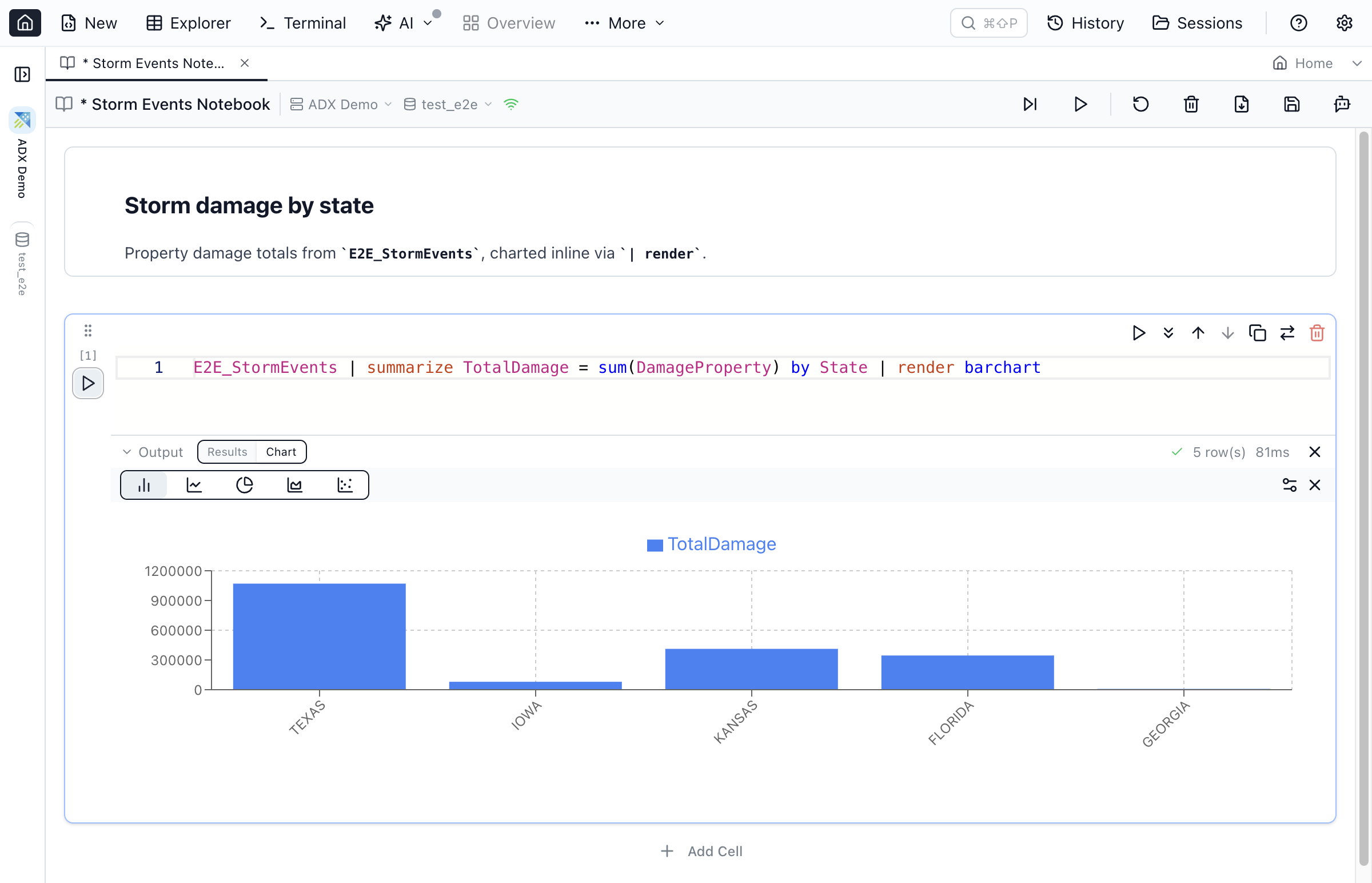
| render barchart query opened its chart inline.Markdown Cells
Markdown cells provide formatted documentation between code cells. They toggle between Edit mode (raw Markdown with a formatting toolbar) and Preview mode (rendered HTML).
Formatting Toolbar
The toolbar above the Markdown editor provides one-click formatting:
- Bold, Italic
- Heading levels (H1–H6)
- Bulleted and numbered lists
- Code blocks, links, images, horizontal rules
Click a cell in Preview mode to switch to Edit. Click outside (or press Escape) to return to Preview.
Cell Management
Add, reorder, and manage cells using the toolbar and keyboard shortcuts.
Adding Cells
A thin line with a + button sits between every two cells and above the first cell; hover over it and the button reads Add Cell. Click it, or the Add Cell button at the bottom of the notebook, and choose Code (SQL), JavaScript or Markdown to insert a cell at that spot. In command mode, A inserts a cell above the current one and B below it.
Cell Toolbar
Each cell has a toolbar at its top-right corner (Run, Run From Here, Move Up / Move Down, Duplicate, Convert and Delete) that shows while the pointer is over the cell. It hides as soon as you type and comes back when you move the mouse. When the cell's first line reaches under it, the toolbar shrinks to a single ⋯ button; hover over it, or click it, to open the full toolbar.
Reordering
Drag cells by the grip handle in the gutter, or use Move Up / Move Down buttons in the cell toolbar.
Converting
Convert between Code and Markdown using the cell toolbar button or keyboard shortcuts (Y for Code, M for Markdown in command mode).
Deleting
Delete a cell from the cell toolbar or press DD (double-D) in command mode. Cells with content show a confirmation dialog.
Run All
Click Run All to execute every code cell from top to bottom. A progress indicator shows which cell is running. By default, execution stops on the first error. Enable Continue on error to run all cells regardless.
Use Stop Execution to cancel the current cell and skip remaining cells. The Run From Here action in the cell toolbar runs the current cell and all cells below it.
Keyboard Shortcuts
Notebooks use two modes: Command mode (cell selected, blue border) and Edit mode (typing in editor, green border). Press Enter to enter Edit mode, Escape to return to Command mode.
| Action | macOS | Windows/Linux |
|---|---|---|
| Run cell | Cmd+Enter | Ctrl+Enter |
| Run cell and advance | Shift+Enter | Shift+Enter |
| Run cell and insert below | Cmd+Shift+Enter | Ctrl+Shift+Enter |
| Save notebook | Cmd+S | Ctrl+S |
| Save As | Cmd+Shift+S | Ctrl+Shift+S |
| Navigate cells (command mode) | Up / Down | Up / Down |
| Insert cell above (command mode) | A | A |
| Insert cell below (command mode) | B | B |
| Delete cell (command mode) | DD | DD |
| Convert to Code (command mode) | Y | Y |
| Convert to Markdown (command mode) | M | M |
| Enter Edit mode | Enter | Enter |
| Enter Command mode | Escape | Escape |
Saving & Opening Notebooks
Notebooks save as .ipynb (Jupyter Notebook v4 format) for compatibility with Jupyter, VS Code, and other notebook tools.
Save Modes
- Rich (default) — includes cell outputs in the file for sharing complete results
- Clean — strips outputs for smaller files and cleaner version control diffs
Opening .ipynb Files
Use More > Open Notebook to open any .ipynb file. Jam SQL Studio handles files from:
- Azure Data Studio SQL Notebooks
- Polyglot Notebooks (SQL and JavaScript cells preserved; C#, F#, PowerShell cells imported as Markdown)
- Standard Jupyter notebooks with SQL kernels
Connection Behavior
Each notebook binds to one connection and database. When the connection changes:
- Existing cell outputs are marked with a stale badge (results from previous connection)
- The pinned session is released and a new one acquired on the next run
- The execution counter resets
If the connection is disconnected, a banner appears between the toolbar and cells.
Session Persistence
Notebook state persists across app restarts: cell sources, cell order, connection selection, file path, and markdown edit state are all restored. Cell outputs are not persisted in sessions (re-run cells after restarting the app). Outputs are only saved when writing to an .ipynb file.
Closing a notebook with unsaved changes shows a confirmation dialog with Save, Don't Save, and Cancel options.
.ipynb files directly in Jam SQL Studio. SQL cells work immediately. See the migration guide for details.Pin a notebook to the Object Explorer
Pin a notebook to the Object Explorer tree so it's one click away, grouped under its database alongside pinned tables, views, and queries. Click the pin button in the notebook toolbar, or right-click the tab and choose Pin to Object Explorer. Like queries, a notebook pins as a snapshot (its cells stored inline) or as a file pin (a .ipynb path, re-read from disk on open).
Double-click the pinned row (or select it and press Enter) to reopen the notebook — it opens bound to the connection and database it was pinned with, and does not run its cells automatically. To unpin, click the pin icon at the right-hand end of the pinned row. Right-click it for Rename, Update from the open tab, or Unpin. Pins are saved per connection and database and persist across restarts. See Table Explorer and Query Editor for pinning those workspaces.
Supported Databases
SQL Notebooks work with all engines: SQL Server, Azure SQL, PostgreSQL, MySQL, MariaDB, Oracle, SQLite, and Azure Data Explorer (KQL).
Frequently asked questions
What are SQL Notebooks in Jam SQL Studio?
SQL Notebooks are Jupyter-style interactive documents that combine executable SQL cells with Markdown documentation. Each cell runs independently with inline results. On the SQL engines, all cells share a single database session so temp tables and variables persist across cells; Azure Data Explorer notebooks are the exception — each cell runs statelessly (let bindings apply within a single cell).
Can I open Azure Data Studio or Polyglot Notebooks .ipynb files?
Yes. Jam SQL Studio opens standard .ipynb files directly. SQL cells are preserved as code cells, while non-SQL cells (C#, F#, PowerShell) are imported as Markdown with a notice. No conversion tools needed.
Do SQL Notebooks support temp tables across cells?
Yes, on the SQL engines — all code cells in a notebook share a pinned database session, so temp tables, session variables, and SET options created in one cell are available in all subsequent cells. Azure Data Explorer notebooks are the exception: each cell runs statelessly (let bindings apply within a single cell).
Which databases do SQL Notebooks support?
SQL Notebooks work with all engines supported by Jam SQL Studio: SQL Server, Azure SQL, PostgreSQL, MySQL, MariaDB, Oracle, SQLite, and Azure Data Explorer (KQL).
Can I use Jam SQL Notebooks instead of Jupyter for SQL?
Yes. Jam SQL Notebooks are Jupyter-compatible (.ipynb format) and purpose-built for SQL workflows. Unlike generic Jupyter with SQL extensions, Jam SQL provides built-in IntelliSense, GUI connection management, shared database sessions across cells, and a built-in AI Chat Sidebar powered by your locally installed Claude CLI or Codex CLI — no extra subscription required.
Can AI edit my SQL Notebook cells?
Yes. Click the AI button in the notebook toolbar to open the AI Chat Sidebar, powered by your locally installed Claude CLI or Codex CLI. The AI can list cells, add new SQL or Markdown cells, edit cell content, execute cells, and read results — all via natural language.
Start Building Runbooks
Download Jam SQL Studio and create your first SQL Notebook.