
Last updated: 2026-07-11
Charts
Turn SQL query results into bar, line, pie, area, and scatter charts without leaving Jam SQL Studio. Run a query, switch to the Chart tab, pick your axes, and the chart renders instantly — with on-the-fly aggregation and multi-series grouping built in.
What is charting query results?
Charting query results means taking the rows a SELECT returns and drawing them as a visual — bars, a line, a pie, and so on — instead of reading them cell by cell in a grid. In Jam SQL Studio, charts are a first-class part of the Query Editor: a Chart tab sits alongside Results, Messages, and Plan, so a visualization is one click away from the data that produced it. Charting is engine-agnostic — it operates on the result grid, so results from SQL Server, PostgreSQL, MySQL/MariaDB, Oracle, and SQLite all chart the same way.
Because Jam SQL Studio can aggregate values as it builds the chart, you don't have to rewrite your query with a GROUP BY just to get a clean bar chart — the builder can sum, average, or count rows that share the same category for you.
Creating a chart from results
Any query that returns rows can be visualized.
Quick start
- Execute a query that returns data
- Click the Chart tab in the results pane
- Click Create Chart to open the chart builder
- Choose a chart type, a Category (X-Axis) column, and one or more Values (Y-Axis) columns
- Click Create — the chart renders immediately
Once a chart exists, the toolbar above it lets you switch chart type in one click, open Configure to edit the mapping, Export, or Reset to start over.
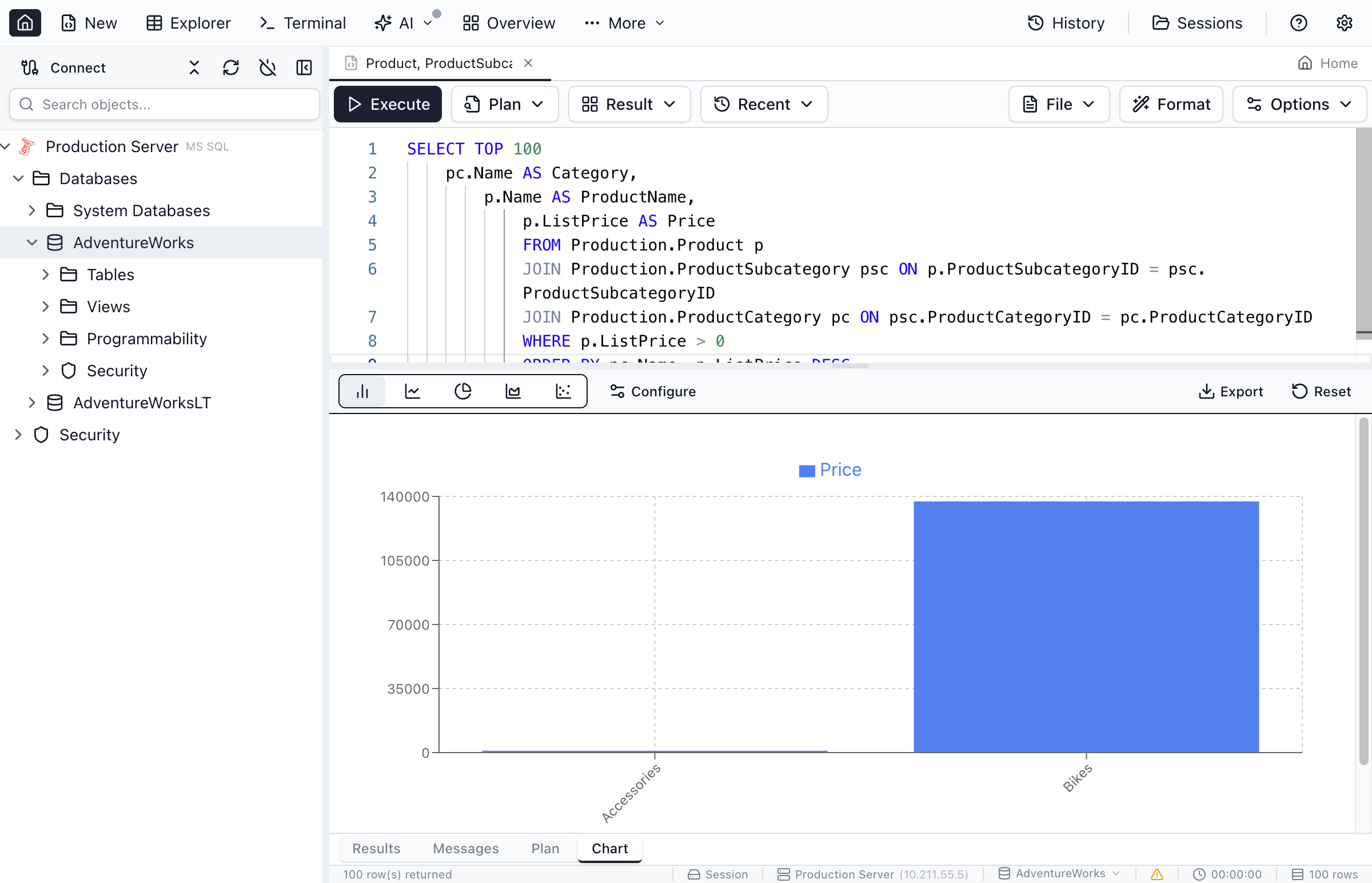
Chart types
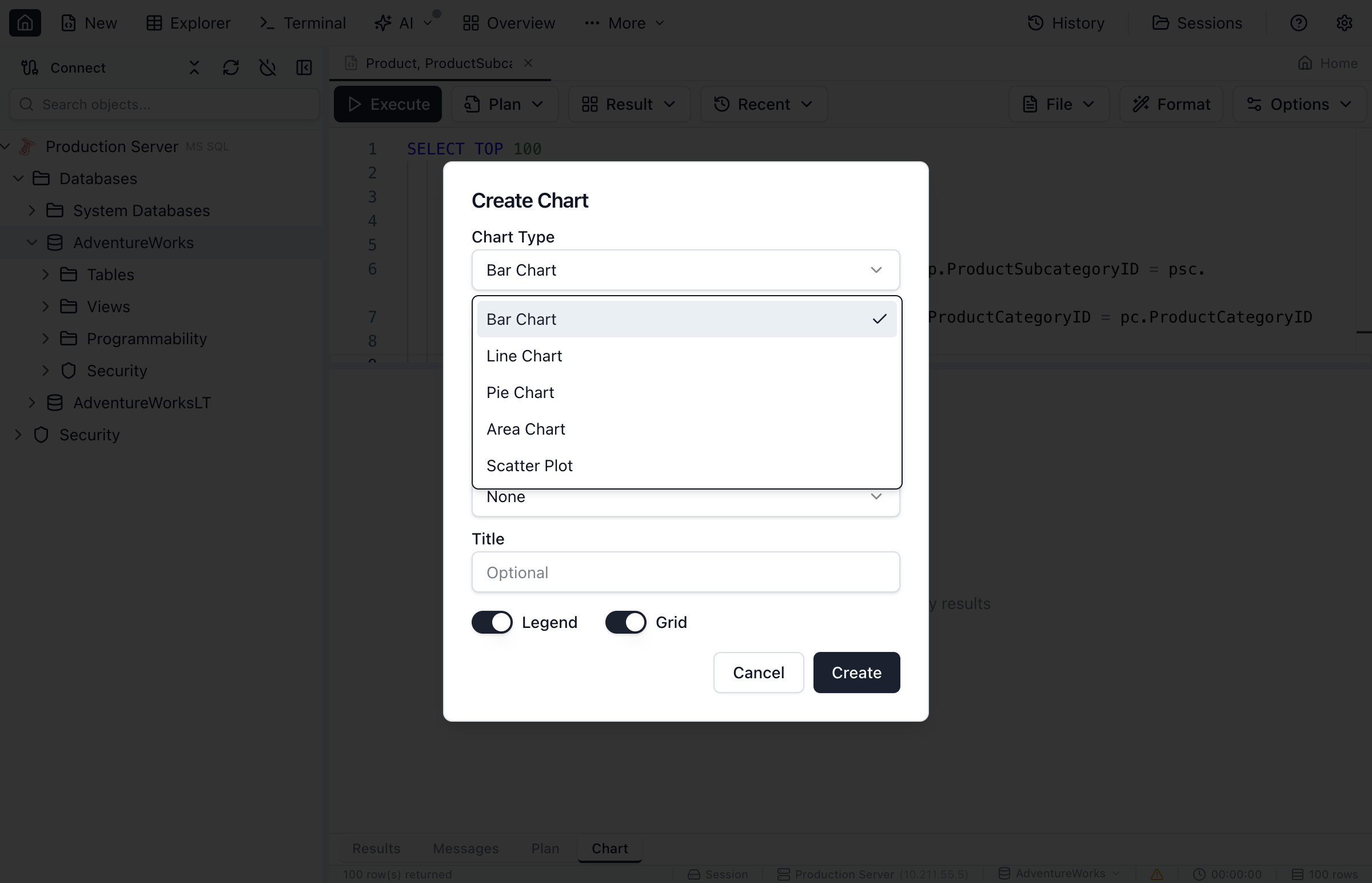
Jam SQL Studio ships five chart types. Bar and area charts add a style option (grouped/stacked and overlapping/stacked) that appears once a chart has multiple values or a grouping column.
| Chart Type | Best For | Notes |
|---|---|---|
| Bar Chart | Comparing categories | Supports multiple values. Bar style: Side by Side (grouped) or Stacked. |
| Line Chart | Trends over time | Connected points; ideal for date/time X-axes. Supports multiple value series. |
| Area Chart | Cumulative trends | Line with a filled area. Area style: Overlapping or Stacked. |
| Pie Chart | Parts of a whole | Single value only. Best with a handful of categories. |
| Scatter Plot | Correlations | Single value; plots two numeric columns as X/Y coordinates. |
Configuring a chart
The chart builder is a compact dialog. Everything in it maps to a persisted chart configuration.
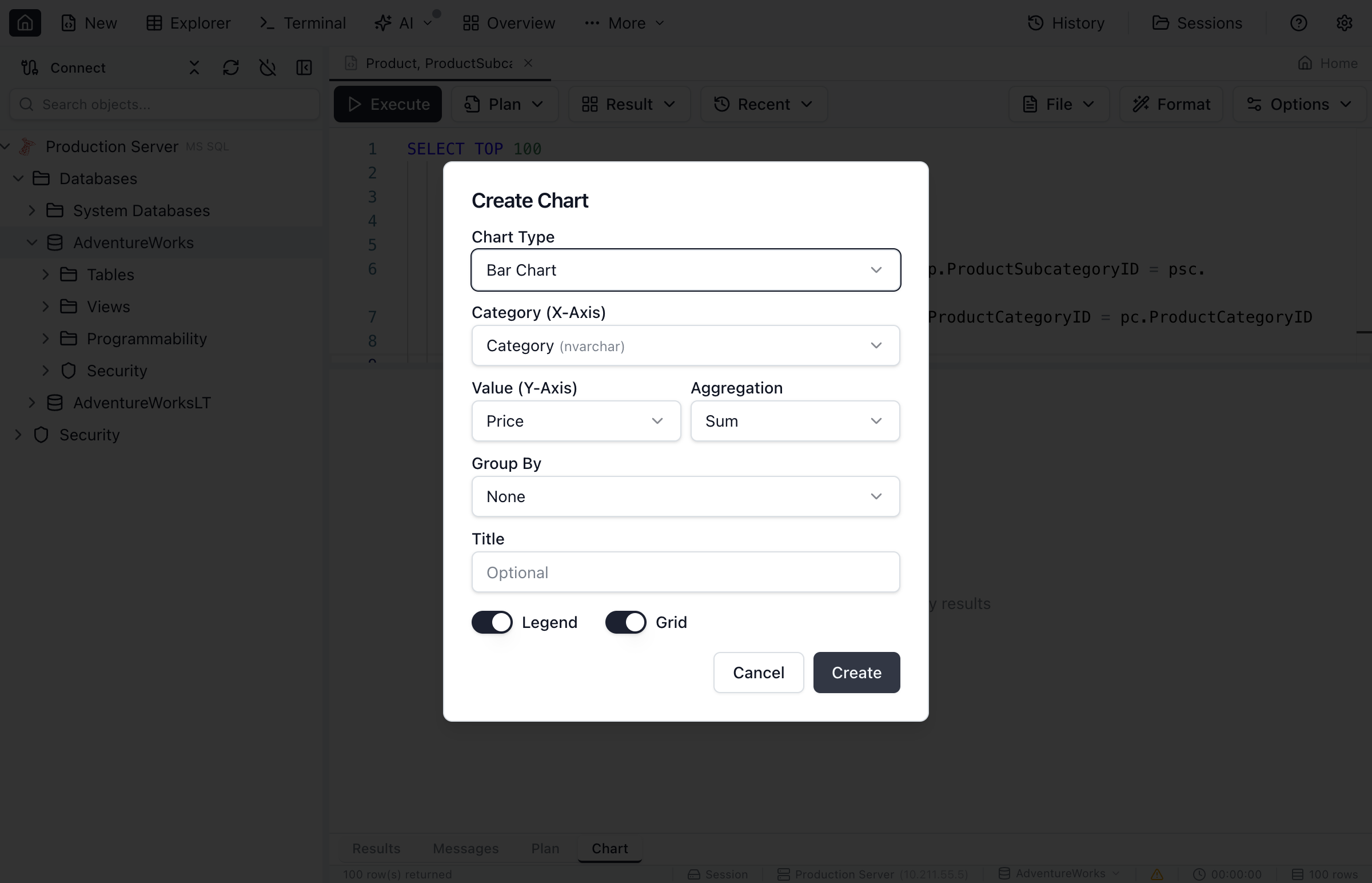
Category (X-Axis)
The category axis. Pick any column — dates and strings work well for categories, and a numeric column is used for the scatter X-axis. When you plot a datetime column, dates are formatted for readability (for example Jan 15, 2024), and a time component is only shown when at least one value in the column has a non-midnight time, so date-only data never clutters the axis with "00:00".
Values (Y-Axis) and aggregation
The values you want to measure. Each value entry has its own column and its own aggregation:
- None — plot each row's raw value
- Sum, Average, Minimum, Maximum, Count — combine rows that share the same X value
Aggregation happens as the chart is built, so you can chart SELECT category, amount FROM orders and set the value to Sum to get totals per category — no GROUP BY needed in the SQL itself.
Click Add Value to plot up to four value columns on the same chart. Each becomes its own series with its own color (bar, line, and area charts). Duplicate value columns aren't allowed, and switching to a pie or scatter chart trims back to a single value automatically, since those types show one measure.
Group By (series)
Instead of (or in addition to) multiple value columns, use Group By to split a single value into a separate series per category — for example, revenue split by region. The Group By picker lists the string and boolean columns in your result. Pie charts don't offer Group By.
Bar Style / Area Style
When a bar or area chart has more than one value or a Group By column, a style selector appears:
- Bar — Side by Side (each series as its own bar) or Stacked (series stacked to show a total)
- Area — Overlapping (each area shows absolute values) or Stacked (areas stack to show cumulative totals)
Title, Legend, and Grid
- Title — an optional chart title (also used as the default export filename)
- Legend — toggle the series legend on or off
- Grid — toggle background grid lines
Charting table data directly
You don't need to write a query to chart data. Open a table in Table Explorer and click the Chart button in the toolbar to build a chart straight from the rows on screen. The same builder — chart type, category, values with aggregation, Group By — is used, so a quick visual of a lookup or reference table is a couple of clicks away.
Example queries
Charts read whatever your query returns, so shaping the result set is the main lever. These examples show the typical column shapes for each chart type.
Sales by category (bar chart): one category column, one value column. Set the value's aggregation to Sum and you can even skip the GROUP BY:
SELECT Category, Amount
FROM Orders;
-- In the builder: X = Category, Value = Amount (Sum)
Monthly revenue (line chart): a date/period column on X and a numeric measure on Y:
SELECT FORMAT(OrderDate, 'yyyy-MM') AS Month,
       SUM(Amount) AS Revenue
FROM Orders
GROUP BY FORMAT(OrderDate, 'yyyy-MM')
ORDER BY Month;
Revenue by region over time (grouped/stacked bar): add a Group By column to split one value into series:
SELECT Month, Region, Revenue
FROM MonthlySales;
-- In the builder: X = Month, Value = Revenue (Sum), Group By = Region
Product distribution (pie chart): one label column, one value column:
SELECT ProductType, COUNT(*) AS Count
FROM Products
GROUP BY ProductType;
Exporting charts
Click the Export button in the chart toolbar and choose a format:
- PNG — a raster image, good for pasting into docs and slides
- SVG — a vector image that scales without quality loss, good for documentation and print
You're prompted for a destination, and the file name defaults to the chart's title. Export uses the app's own save dialog, not a browser download, so the saved image matches what's on screen.
Pin a chart to a dashboard
The Pin to dashboard button in the chart toolbar sends the chart — query, mapping, and all — to a dashboard as a live chart tile that refreshes on its own schedule. Dashboard chart tiles use this same chart builder and add reference lines: dashed target values or goal bands drawn across the chart, with optional warning (amber) or critical (red) coloring.
Charts vs SSMS and Azure Data Studio
SQL Server Management Studio has no built-in charting — you copy results into Excel or Power BI to visualize them. Azure Data Studio had a chart viewer, but Microsoft retired Azure Data Studio on February 28, 2026. Jam SQL Studio keeps a chart view right next to the results grid, and because it's engine-agnostic the same charting works whether you're connected to SQL Server, PostgreSQL, MySQL, Oracle, or SQLite.
Session persistence
A chart configuration — its type, axis and value mappings, aggregation, Group By, and display options — is saved with the workspace tab, keyed to the result set it was built from. Reopen the session and the chart is still there, ready to re-render against the same query.
Tips and best practices
Choosing the right chart
- Comparing values across categories → bar chart
- Showing a trend over time → line or area chart
- Showing proportions of a whole → pie chart
- Finding a correlation between two numbers → scatter plot
Shaping the data
- Use the value's built-in aggregation (Sum/Average/Count) to collapse duplicate categories, or pre-aggregate with
GROUP BYin the query - Add
ORDER BYto control the display order of categories - Keep pie charts to a small number of slices for readability
- For very large result sets, aggregate or use
TOP/LIMIT— a chart with thousands of points is harder to read than a summarized one
Frequently asked questions
How do I create a chart from SQL query results in Jam SQL Studio?
Run any query, then open the Chart tab next to Results and Messages and click Create Chart. Pick a chart type, a category column for the X-axis, and one or more numeric value columns for the Y-axis. The chart renders immediately and is saved with your session.
What chart types does Jam SQL Studio support?
Five chart types: bar, line, pie, area, and scatter. Bar and area charts add a style option — bars can be grouped side by side or stacked, and areas can overlap or stack — whenever you plot multiple values or group by a column.
Can I chart results from PostgreSQL, MySQL, or Oracle, not just SQL Server?
Yes. Charting works on the result grid, so it is engine-agnostic. Any query result from SQL Server, PostgreSQL, MySQL/MariaDB, Oracle, or SQLite can be charted, and you can also chart table data directly from Table Explorer.
How do I plot several columns on one chart?
Click Add Value in the chart builder to add up to four Y-axis columns, each with its own aggregation. Alternatively, use Group By to split a single value into a separate series per category. Pie and scatter charts use a single value.
Can Jam SQL Studio aggregate data while charting?
Yes. Each Y-axis value can apply sum, average, minimum, maximum, or count, so rows that share an X value are combined on the fly — you do not have to add a GROUP BY to your SQL first.
Can I export a chart as an image?
Yes. The Export button in the chart toolbar saves the chart as a PNG raster file or an SVG vector file. SVG scales without quality loss, which is useful for documentation and presentations.
Ready to Visualize Your Data?
Download Jam SQL Studio and create charts from your query results.