
Last updated: 2026-02-12
Backup & Restore
Protect your data with database backups and restore when needed. Jam SQL Studio supports SQL Server native backups, BACPAC export/import for Azure SQL, and PostgreSQL pg_dump/pg_restore operations.
Personal Mode Limits
In Personal mode, backup/restore operations are limited to databases ≤ 1 GB. Upgrade to Pro to remove these limits.
SQL Server Backup
Create native SQL Server backup files (.bak) for your databases.
Creating a Backup
- Right-click your database in Object Explorer
- Select Backup Database (.bak)...
- Click Browse... to choose a server folder (or click Use server default / type a path)
- Choose backup type and compression
- Click Start Backup
A progress dialog shows the completion percentage while the backup runs. You can cancel the operation at any time.
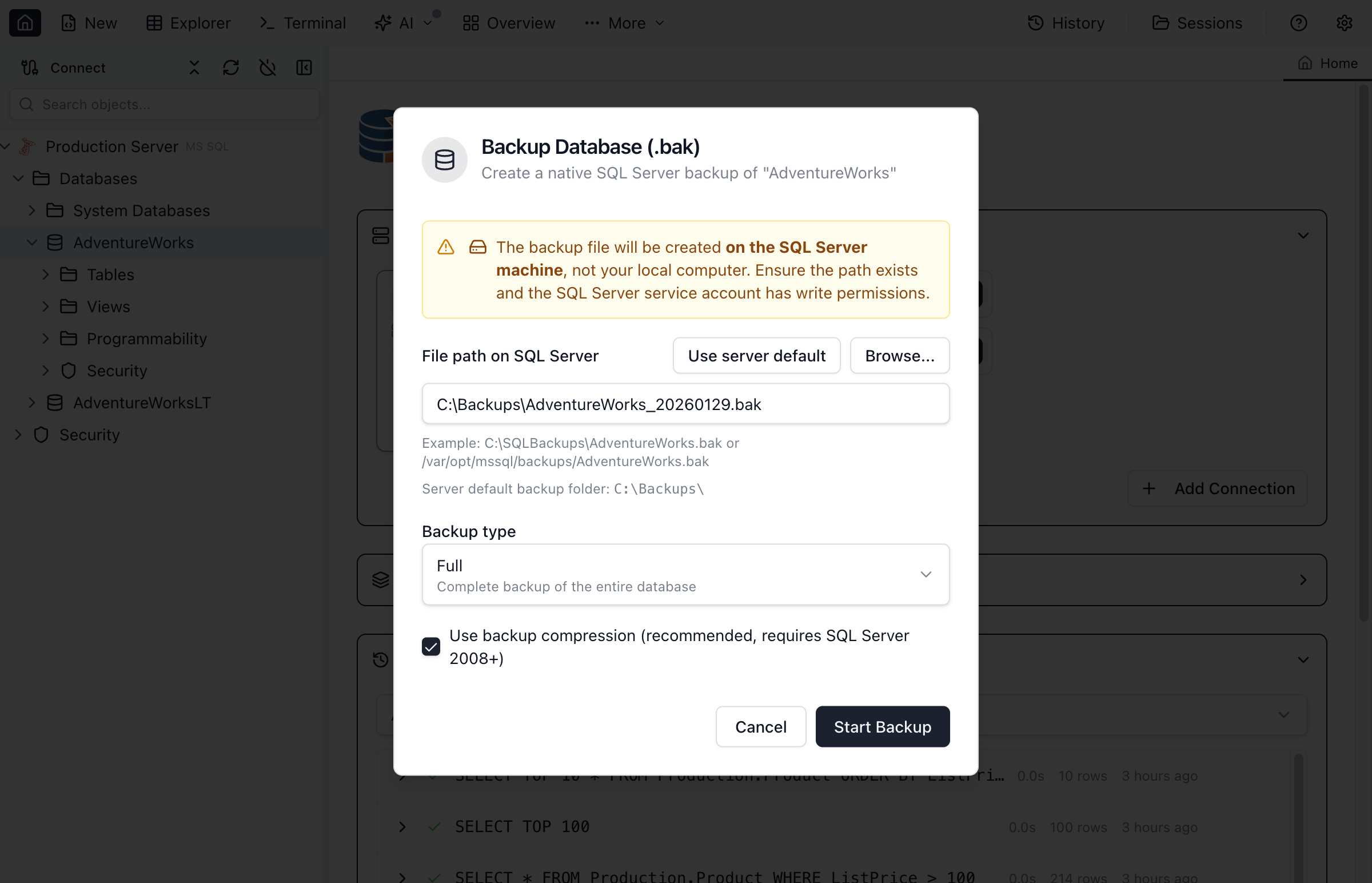
Backup Options
| Option | Description |
|---|---|
| Backup Type | Full (complete database), Differential (changes since last full), or Transaction Log |
| File Path (SQL Server) | Server-side file path for the .bak file. Click Use server default to prefill the SQL Server instance default backup folder, or Browse... to select a folder (if permitted). |
| Compression | Enable backup compression to reduce file size (requires SQL Server 2008+) |
Backup Types Explained
- Full Backup - Complete copy of the entire database. Start with this for any backup strategy.
- Differential Backup - Contains only data changed since the last full backup. Faster and smaller than full backups.
- Transaction Log Backup - Backs up the transaction log for point-in-time recovery. Requires database to be in Full recovery mode.
SQL Server Restore
Restore a database from a backup file.
Restoring a Database
- Right-click the Databases folder (or a database) in Object Explorer
- Select Restore Database (.bak)...
- Click Use server default / Browse... to select the .bak file on the SQL Server machine (or type the server path)
- Choose the target database name
- Configure restore options
- Click Start Restore
A progress dialog shows the completion percentage while the restore runs. You can cancel the operation at any time.
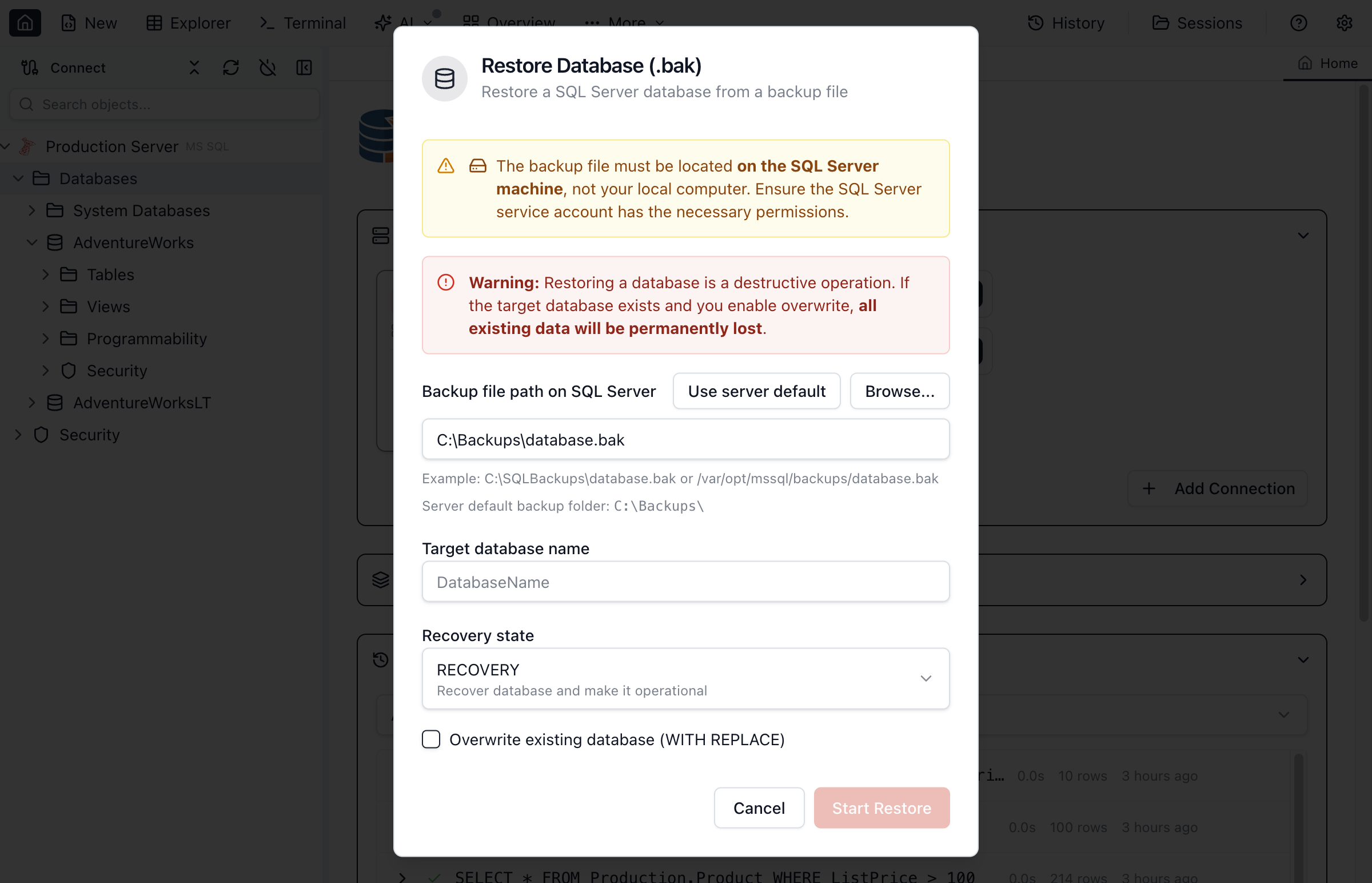
Restore Options
| Option | Description |
|---|---|
| Backup File Path (SQL Server) | Server-side file path to the .bak file. Click Use server default to start from the SQL Server default backup folder, or Browse... to select a file (if permitted). |
| Target Database | Name for the restored database (can be different from original) |
| Overwrite | Replace existing database with the same name |
| Recovery State | RESTORE (ready for use), NORECOVERY (for applying additional backups), or STANDBY (read-only with restore capability) |
BACPAC Export/Import
BACPAC files are portable packages for migrating databases to Azure SQL or other SQL Server instances.
Export to BACPAC
- Right-click your database in Object Explorer
- Select Export Data-tier Application (.bacpac)...
- Choose a destination file when prompted
- Follow progress in the export dialog
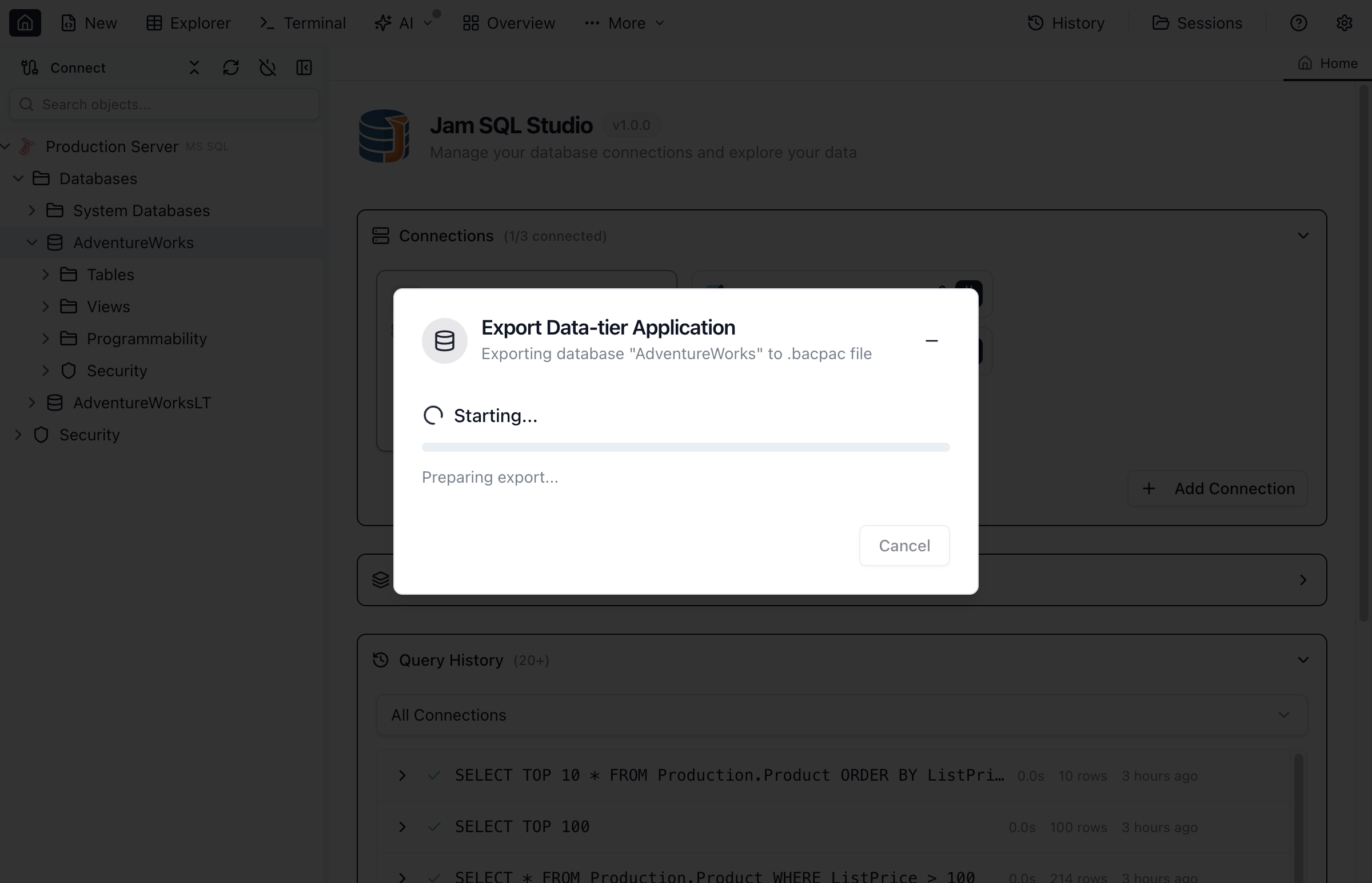
Import from BACPAC
- Right-click your connection in Object Explorer
- Select Import Data-tier Application (.bacpac)...
- Select a .bacpac file when prompted
- Enter the target database name
- Click Start Import
BACPAC vs BAK Comparison
| Feature | BAK | BACPAC |
|---|---|---|
| Format | Native SQL Server | Portable package (schema + data) |
| Azure SQL Support | Limited (requires VM) | Full support |
| Speed | Faster | Slower (data validation) |
| Point-in-Time | Yes (with log backups) | No |
| Best For | Local backup/restore | Cloud migration, archiving |
PostgreSQL Backup
Backup PostgreSQL databases using pg_dump.
Creating a PostgreSQL Backup
- Right-click your PostgreSQL database in Object Explorer
- Select Backup Database (pg_dump)...
- Choose the backup format
- Click Start Backup
- Select a destination file when prompted
Backup Formats
| Format | Extension | Description |
|---|---|---|
| Custom | .dump | Compressed binary format. Most flexible, supports selective restore. |
| Plain SQL | .sql | Human-readable SQL script. Can be edited, executed with any client. |
PostgreSQL Restore
Restore PostgreSQL databases using pg_restore.
Restoring a PostgreSQL Database
- Right-click your PostgreSQL database in Object Explorer
- Select Restore Database...
- Choose the target database name
- Configure restore options
- Click Select File & Restore and pick a .dump or .sql file when prompted
PostgreSQL Restore Options
- Create Database - Create the target database if it doesn't exist
- Drop Existing - Drop existing objects before restore
Backup Progress
Monitor backup and restore operations in real-time.
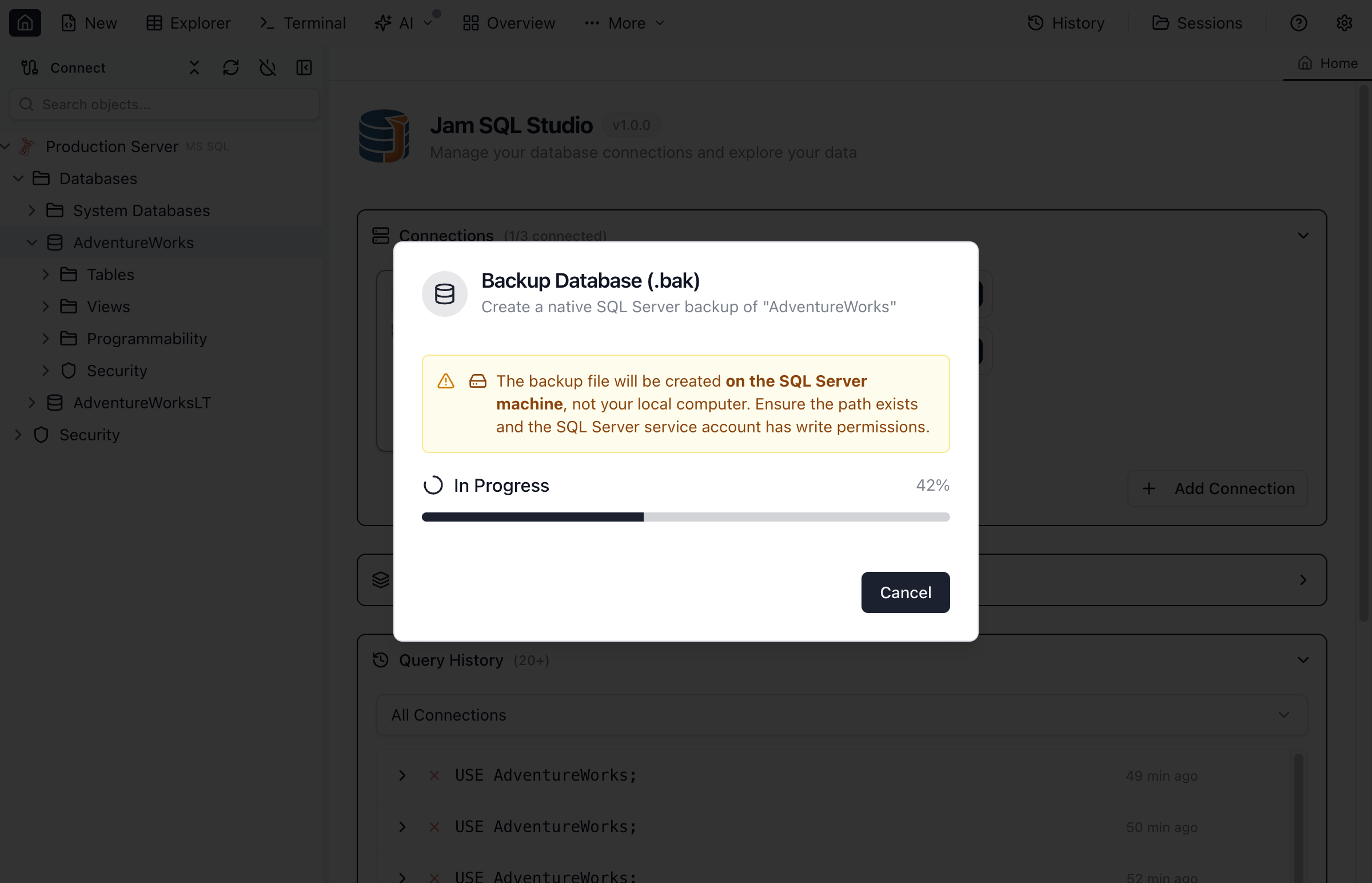
The progress dialog shows:
- Progress bar - Visual completion percentage
- Status messages - Current operation being performed
- Cancel button - Stop the current operation
- Error details - Full error message on failure
Best Practices
SQL Server
- Schedule regular full backups (weekly minimum)
- Use differential backups between full backups for large databases
- Enable backup compression to save storage space
- Test restores periodically to verify backup integrity
- Store backups on separate storage from the database
PostgreSQL
- Use custom format for production backups (most flexible)
- Use plain SQL format when you need to edit or review the backup
Azure SQL / BACPAC
- Use BACPAC for migrating to/from Azure SQL Database
- Validate data before export to ensure clean BACPAC files
- Consider Azure's built-in backup features for production Azure SQL databases
Ready to Protect Your Data?
Download Jam SQL Studio and create your first database backup.