
Last updated: 2026-02-12
Connections
Connect to SQL Server, Azure SQL, PostgreSQL, MySQL, MariaDB, Oracle, and SQLite databases with Jam SQL Studio. This guide covers supported databases, authentication methods, connection options, and managing your saved connections.
Supported Databases
Jam SQL Studio supports five major database platforms:
| Database | Versions | Authentication Methods |
|---|---|---|
| SQL Server | SQL Server 2012+, Azure SQL Database, Azure SQL Managed Instance | SQL Server Auth, Windows Auth, Azure Entra ID |
| PostgreSQL | PostgreSQL 10+ | Password, SSL/TLS |
| MySQL | MySQL 5.7+, MySQL 8.0+, MariaDB 10.2+ | Password, SSL/TLS |
| Oracle | Oracle 12.2+, 19c, 21c, 23ai | Password, SSL/TLS, Wallet (mTLS) |
| SQLite | SQLite 3 | File-based (no auth) |
Creating a Connection
To create a new database connection:
- Click the + button in the sidebar, or
- Go to File > New Connection, or
- Press
Cmd+Shift+N(macOS) /Ctrl+Shift+N(Windows/Linux)
After you save a new connection, it appears at the top of the Recent list in the Saved Connections dialog and at the top of the connections list on the Start Page.
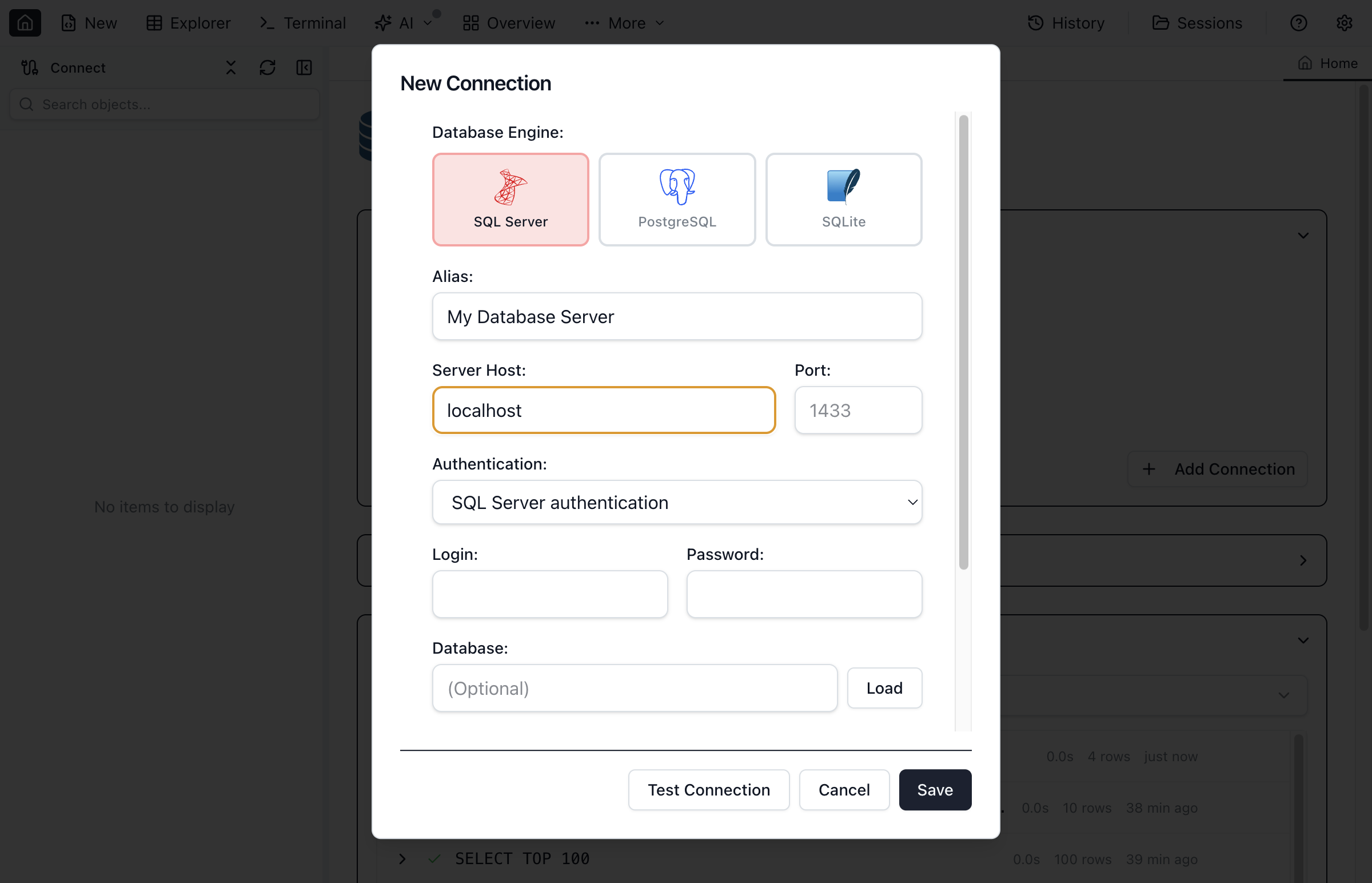
Connection Settings
Fill in the following fields to configure your connection:
- Connection Name - A friendly name for this connection (e.g., "Production DB", "Dev Server")
- Server/Host - The database server address (e.g.,
localhost,localhost\\SQLEXPRESS,192.168.1.100,myserver.database.windows.net) - Port - Server port (defaults: SQL Server 1433, PostgreSQL 5432, MySQL 3306, Oracle 1521). For SQL Server named instances (e.g.,
localhost\\SQLEXPRESS), leave Port blank to auto-resolve the instance port (requires SQL Browser). - Database - The default database to connect to (optional)
- Authentication - Choose your authentication method
Authentication Methods
Jam SQL Studio supports multiple authentication methods depending on your database type.
SQL Server Authentication
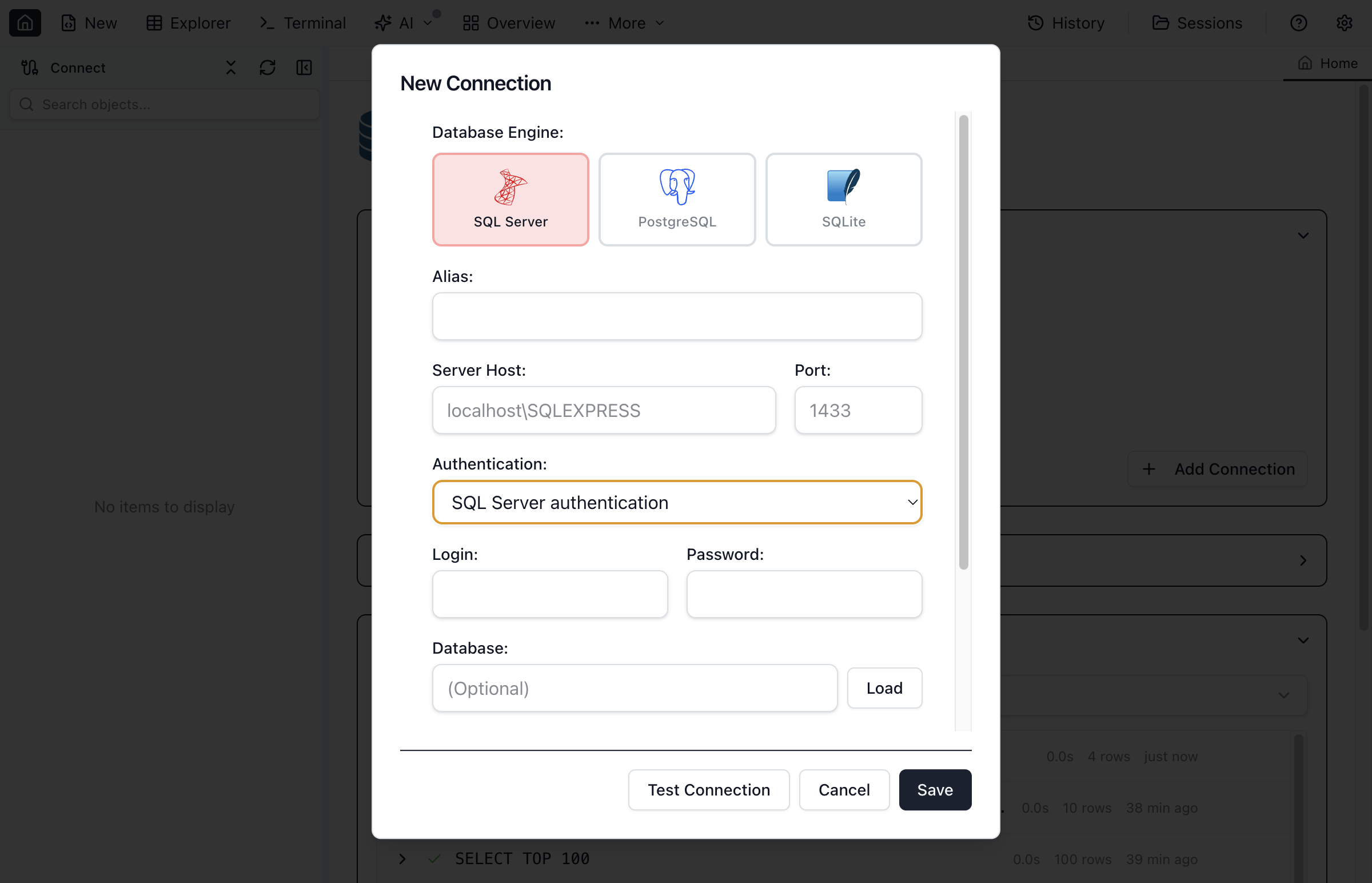
Use a SQL Server login and password:
- Select SQL Server Authentication from the dropdown
- Enter your Username (e.g.,
saor your login name) - Enter your Password
- Check Remember Password to save credentials securely
Windows Authentication
Use your Windows credentials (available on Windows only):
- Select Windows Authentication from the dropdown
- Your current Windows user will be used automatically
- No username or password required
Azure Entra ID (Azure Active Directory)
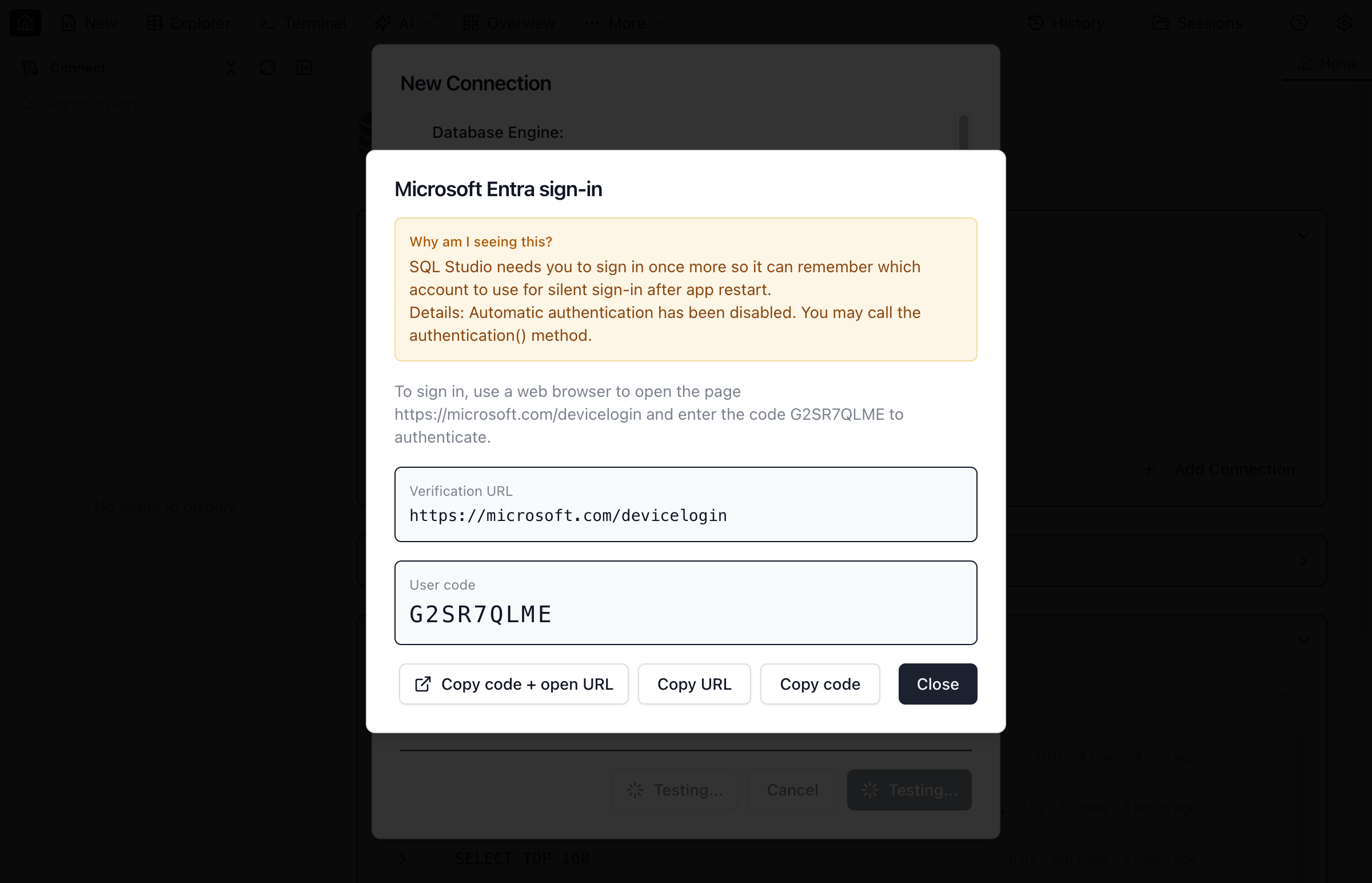
For Azure SQL Database and Azure SQL Managed Instance:
- Select Azure Entra ID from the dropdown
- Click Sign In to open the browser authentication flow
- Complete the Microsoft login in your browser
- Return to Jam SQL Studio - you'll be connected automatically
PostgreSQL Authentication
For PostgreSQL connections:
- Password - Standard username/password authentication
- SSL/TLS - Encrypted connections with optional client certificates
SSL Connection Options
- SSL Mode - Choose from:
disable,require,verify-ca,verify-full - CA Certificate - Path to the certificate authority file
- Client Certificate - Path to client certificate (for mutual TLS)
- Client Key - Path to client private key
MySQL / MariaDB Authentication
For MySQL and MariaDB connections:
- Password - Standard username/password authentication (default user:
root) - No Password - Connect without a password (for local development servers)
SSL Connection
Enable the SSL checkbox for encrypted connections. This is recommended for remote MySQL servers and required by many cloud-hosted MySQL services.
Oracle Authentication
For Oracle Database connections:
- Password - Standard username/password authentication (default port: 1521)
- SSL/TLS - Encrypted connections via the SSL checkbox
- Wallet (mTLS) - For Oracle Autonomous Database (ADB) cloud connections using a wallet directory
Connection String Types
Oracle supports three connection string formats:
- EZConnect (default) - Simple
host:port/service_nameformat - TNS Descriptor - Full TNS connection string for advanced configurations
- TNS Alias - Named alias resolved from a
tnsnames.orafile
Service Name vs SID
By default, connections use a Service Name. Toggle to SID if your database uses a System Identifier instead. Modern Oracle databases (12c+) prefer service names.
SQLite Connections
SQLite uses file-based storage with no authentication:
- Select SQLite as the database type
- Click Browse to select your
.sqliteor.dbfile - Click Connect to open the database
Connection Options
Expand the Advanced Options section to configure additional settings:
General Options
- Connection Timeout - Seconds to wait before timing out (default: 15)
- Command Timeout - Seconds to wait for query execution (default: 30)
Security Options (SQL Server)
- Encrypt Connection - Use TLS encryption for data in transit (recommended)
- Trust Server Certificate - Accept self-signed certificates (development only)
Managing Connections
Jam SQL Studio saves your connections for quick access.
Saving Connections
- Fill in all connection details
- Enter a meaningful Connection Name
- Click Test Connection to verify settings
- Click Save to store the connection
Editing Connections
- Right-click a saved connection in the sidebar
- Select Edit Connection
- Modify settings as needed
- Click Save to update
Deleting Connections
- Right-click a saved connection in the sidebar
- Select Delete Connection
- Confirm the deletion
Testing Connections
Before saving, click Test Connection to verify:
- Network connectivity to the server
- Authentication credentials are valid
- Selected database exists and is accessible
Object Explorer
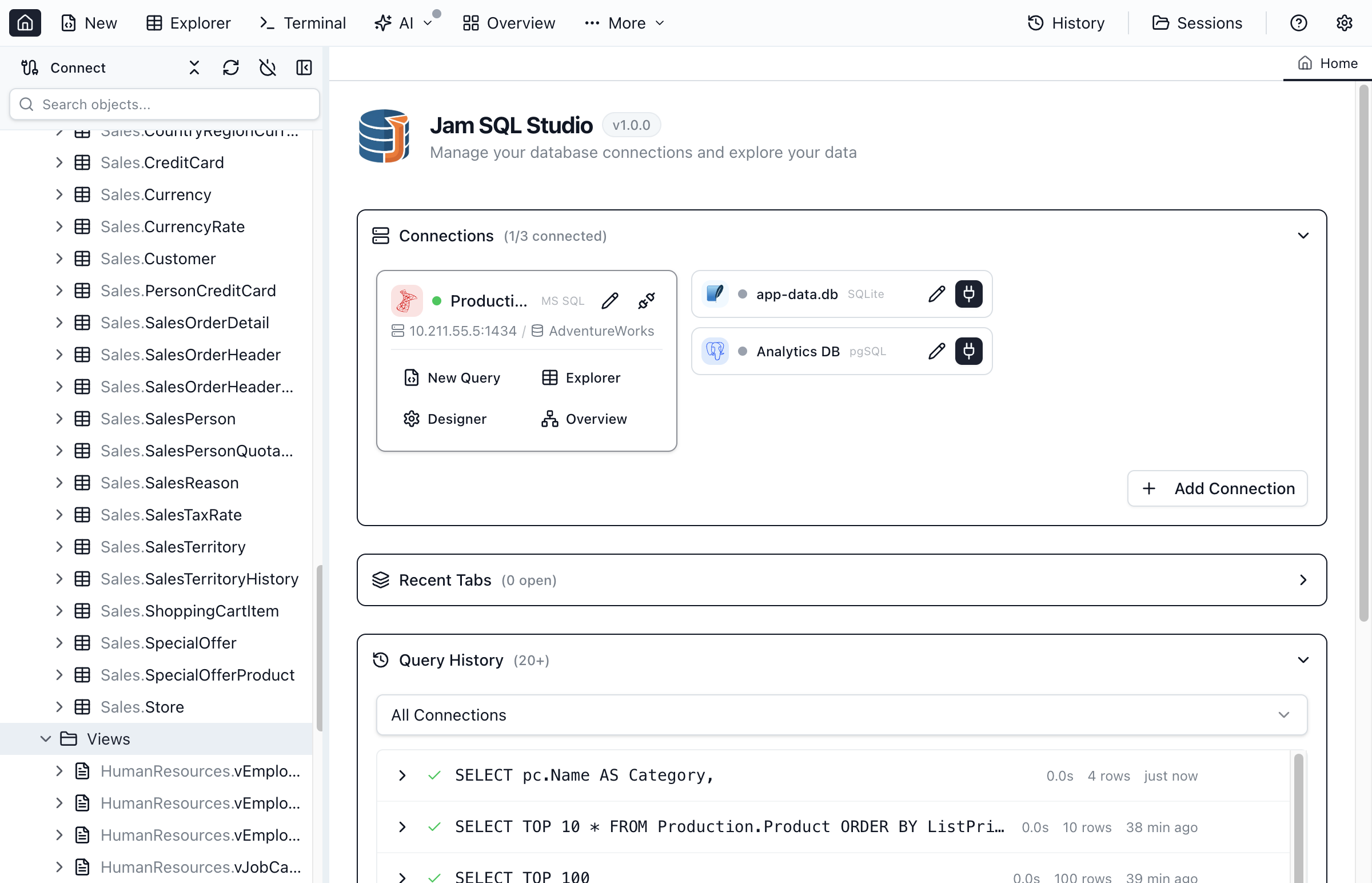
Once connected, the Object Explorer shows your database structure:
Navigating the Tree
- Server - Top-level connection node showing server name
- Databases (or Schemas for Oracle) - List of databases/schemas on the server
- Tables - Database tables with column details
- Views - Database views
- Stored Procedures - Programmable database routines
- Functions - User-defined functions
- Packages, Sequences, Synonyms, DB Links, Materialized Views, Types, Directories - Oracle-specific object types
Object Actions
Right-click objects for context menu actions:
- Tables - Select Top 1000, Edit Top 200, Design Table, Script as CREATE/DROP
- Views - Select Top 1000, Script as CREATE/ALTER/DROP
- Procedures - Execute, Script as CREATE/ALTER/DROP
- Functions - Script as CREATE/ALTER/DROP
Troubleshooting
Connection Refused
- Verify the server address and port are correct
- Check that the database server is running
- Ensure firewall allows connections on the database port
SSMS connects but Jam doesn't (Windows local SQL Server)
- SSMS may be using Shared Memory / Named Pipes, while Jam’s direct Node driver connection uses TCP/IP. Jam retries some local connections via SQL Tools Service, but enabling TCP/IP for your instance in SQL Server Configuration Manager (and restarting SQL Server) is the most compatible setup.
- For named instances (e.g.,
localhost\\SQLEXPRESS), ensure the SQL Server Browser service is running (UDP 1434) or set the explicit TCP port in Jam. - On Windows, Jam can retry MSSQL connections using SQL Tools Service when the direct driver connection fails, but driver-only features still require TCP/IP.
Authentication Failed
- Double-check username and password
- Verify the user has permission to connect
- For Windows Auth, ensure proper domain configuration
Oracle Connection Issues
- ORA-12541 (No Listener) - Verify the Oracle listener is running on the target host and port
- ORA-12514 (Service Not Found) - Check the service name is correct. Use
lsnrctl statuson the server to list available services - ORA-01017 (Invalid Credentials) - Verify username and password. Oracle usernames are case-insensitive but passwords are case-sensitive
- TNS Alias Not Found - Ensure the TNS Admin directory path is correct and contains a valid
tnsnames.orafile
Azure SQL Firewall
- Add your client IP address to the Azure SQL firewall rules
- Or enable "Allow Azure services" in the Azure portal
Ready to Connect?
Download Jam SQL Studio and connect to your databases in minutes.