
Last updated: 2026-02-12
Data Compare
Compare table data between databases to identify row-level differences. Find missing, modified, and extra rows with visual diff highlighting. Generate INSERT, UPDATE, and DELETE scripts to synchronize data.
Getting Started
Data Compare lets you compare the actual data in your tables, not just the schema structure. This is useful for verifying data migrations, auditing environments, and synchronizing lookup tables across databases.
How to Start a Data Comparison
- Open Jam SQL Studio and connect to both source and target databases
- Click Tools > Data Compare from the main menu
- Select the source connection and choose the table to compare
- Select the target connection and choose the corresponding table
- Configure the key columns used to match rows between tables
- Click Compare to analyze the data differences
Tip: The table dropdowns are searchable — start typing to filter, use ↓ to move into the list, and press Enter to select.
Personal Mode Limits
Data Compare is available in both Personal and Pro modes, with different limits:
- Personal mode - Full Comparison is available when both tables have 10,000 rows or fewer. For larger tables, use Sample Compare or upgrade to Pro.
- Pro mode - No row-count limits for Full Comparison.
Understanding the Results Grid
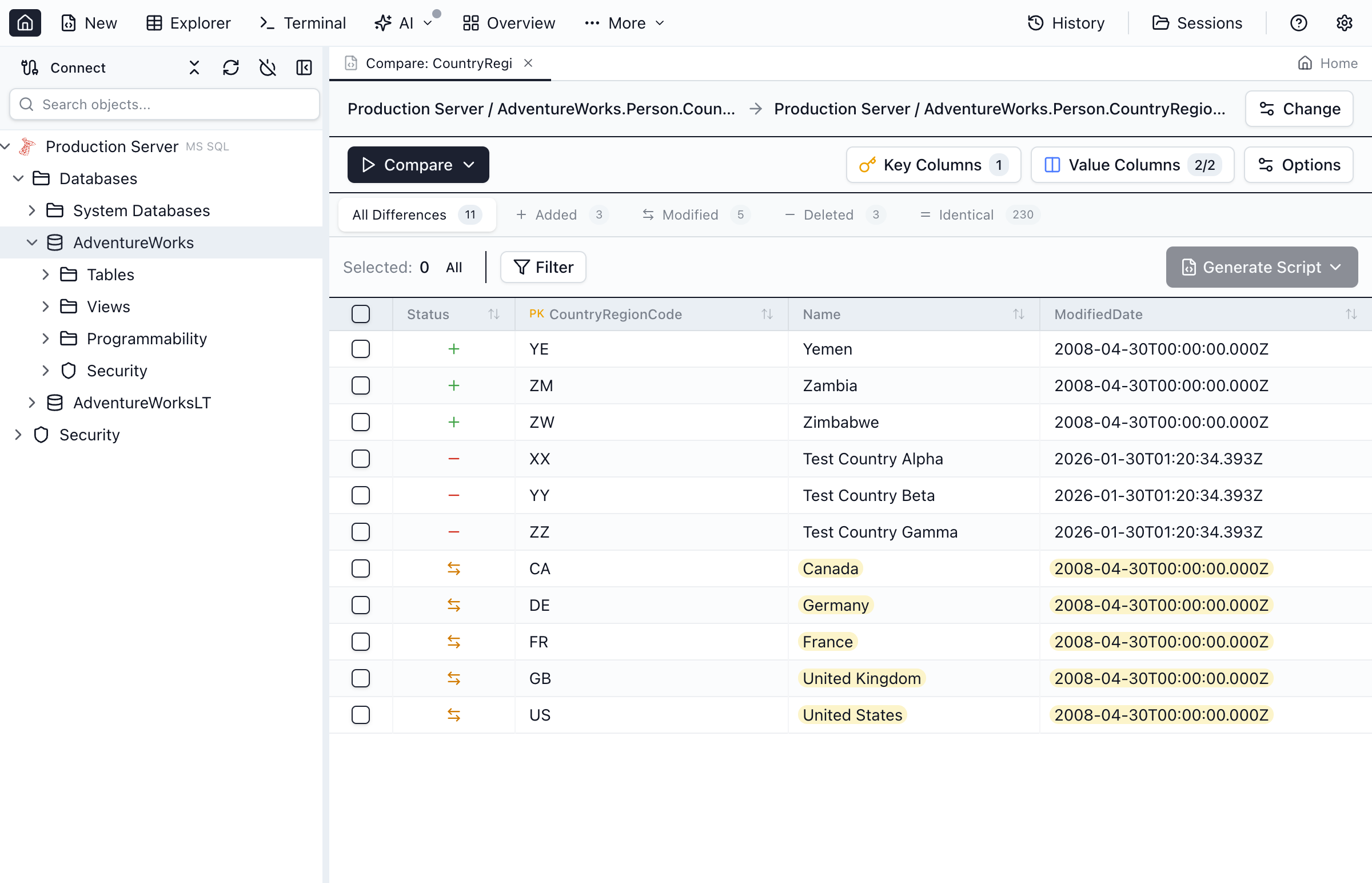
After the comparison completes, you'll see a grid showing all rows from both tables with their comparison status:
Filtering and Navigation
- Use the filter buttons to show only added, modified, or deleted rows
- Click column headers to sort the comparison results
- Use the search box to find specific values across all columns
- Navigate between differences using the previous/next buttons
Generating Sync Scripts
Once you've reviewed the differences, generate SQL scripts to synchronize the target table with the source data.
Steps to Generate a Script
- Review the differences in the results grid
- Check or uncheck individual rows to include or exclude them
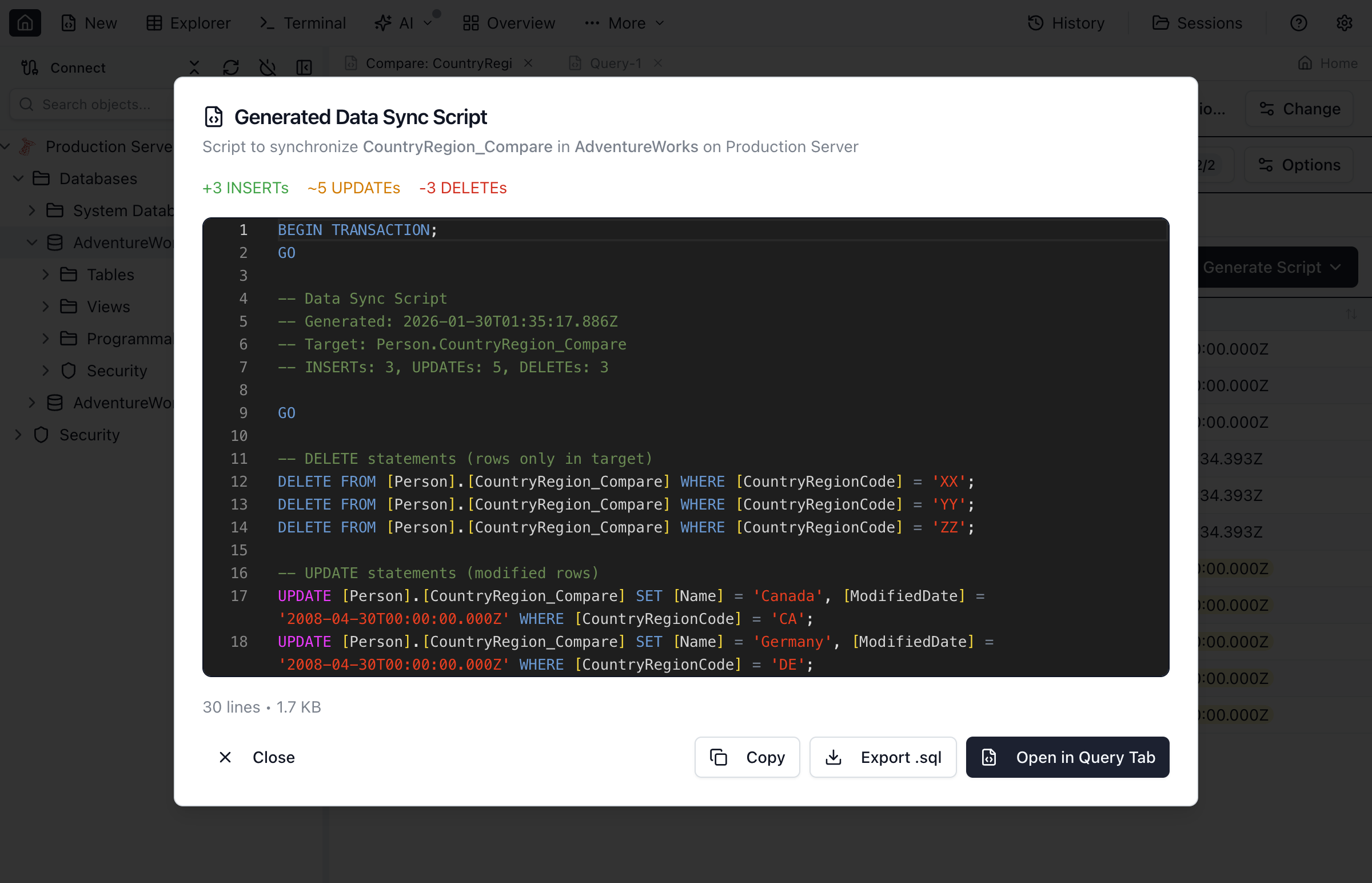
- Click Generate Script to preview the DML statements
- Review the generated INSERT, UPDATE, and DELETE statements
- Click Apply to execute directly, or Save to export
Key Capabilities
- Row-level comparison - Compare individual rows using configurable key columns
- Visual diff highlighting - See exactly which columns differ between matched rows
- Selective sync - Choose specific rows to include in your sync script
- Large table support - Efficient comparison for tables with millions of rows
- Transaction safety - Generated scripts use transactions for safe execution
Comparison Options
Key Column Selection
By default, Jam SQL uses the primary key to match rows. You can customize this by selecting different columns as the comparison key. This is useful when:
- Tables have different primary key definitions
- You want to compare based on natural keys (e.g., email, product code)
- The target table lacks a primary key constraint
Column Exclusions
You can exclude columns from the comparison, which is helpful for:
- Auto-generated columns (timestamps, audit fields)
- Columns with environment-specific values
- Binary or large text columns you don't need to compare
Best Practices
- Always backup your target database before applying data changes
- Test with small datasets before comparing large tables
- Use transactions - generated scripts include BEGIN/COMMIT for safety
- Review DELETE statements carefully before execution
- Consider foreign keys - ensure related data is synchronized in the correct order
Ready to Compare Your Data?
Download Jam SQL Studio and start comparing table data across your databases.