
Last updated: 2026-02-12
Dependency Viewer
Understand database object relationships before making changes. Dependency Viewer shows what objects depend on a table, view, procedure, or function, and what objects they depend on in return.
Why Dependency Analysis Matters
Before modifying or dropping a database object, you need to understand its impact:
- Rename a column? Views and procedures referencing it may break
- Drop a table? All dependent views, procedures, and functions will fail
- Modify a procedure? Other procedures calling it might need updates
Dependency Viewer gives you this visibility, helping prevent unintended breakages.
Opening Dependency Viewer
View dependencies for any database object from Object Explorer:
From Context Menu
- Expand your database in Object Explorer
- Right-click any table, view, stored procedure, or function
- Select View Dependencies
- The Dependency Viewer opens in a new tab
Supported Objects
Dependency analysis works with:
- Tables - See views, procedures, and functions that reference the table
- Views - See underlying tables and dependent objects
- Stored Procedures - See tables used and other procedures that call it
- Functions - See tables used and objects that call the function
Understanding Dependencies
Dependencies are shown in two directions:
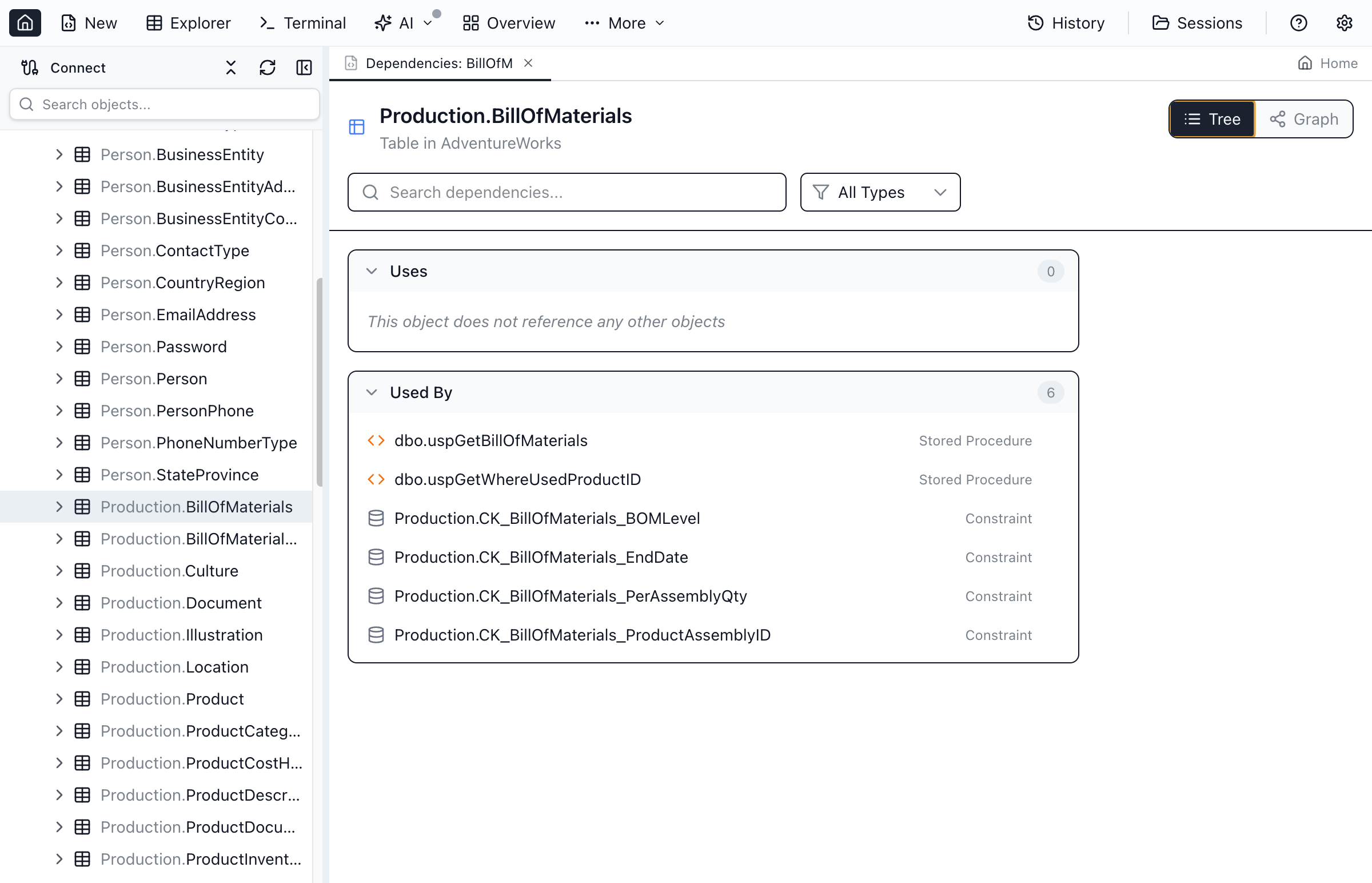
Uses (Dependencies)
Objects that the selected object depends on. If any of these objects are dropped, the selected object may break.
Example: A view vw_CustomerOrders uses:
CustomerstableOrderstableOrderDetailstable
Used By (Dependents)
Objects that depend on the selected object. These objects may break if you modify or drop the selected object.
Example: A table Products is used by:
vw_ProductInventoryviewsp_UpdateStockprocedurefn_GetProductPricefunction
Direct vs Indirect Dependencies
Dependencies can be direct or indirect:
- Direct - Object A directly references Object B
- Indirect - Object A references Object B, which references Object C (A indirectly depends on C)
The tree view shows the full dependency chain, letting you expand nodes to see indirect dependencies.
Tree View
The default view presents dependencies as an expandable tree:
Navigating the Tree
- Expand/Collapse - Click the arrow icon to show or hide child dependencies
- Select - Click an object to see its details in the panel
- Open - Double-click to open the object (Table Explorer for tables, script view for procedures)
Object Icons
Each object type has a distinctive icon for quick identification:
| Icon | Object Type | Description |
|---|---|---|
| Grid | Table | Base tables with data |
| Eye | View | Virtual tables based on queries |
| Code | Stored Procedure | Executable SQL routines |
| Function | Function | Scalar or table-valued functions |
| Column | Column | Individual column reference |
Graph View
For a visual representation of dependencies, switch to Graph View:
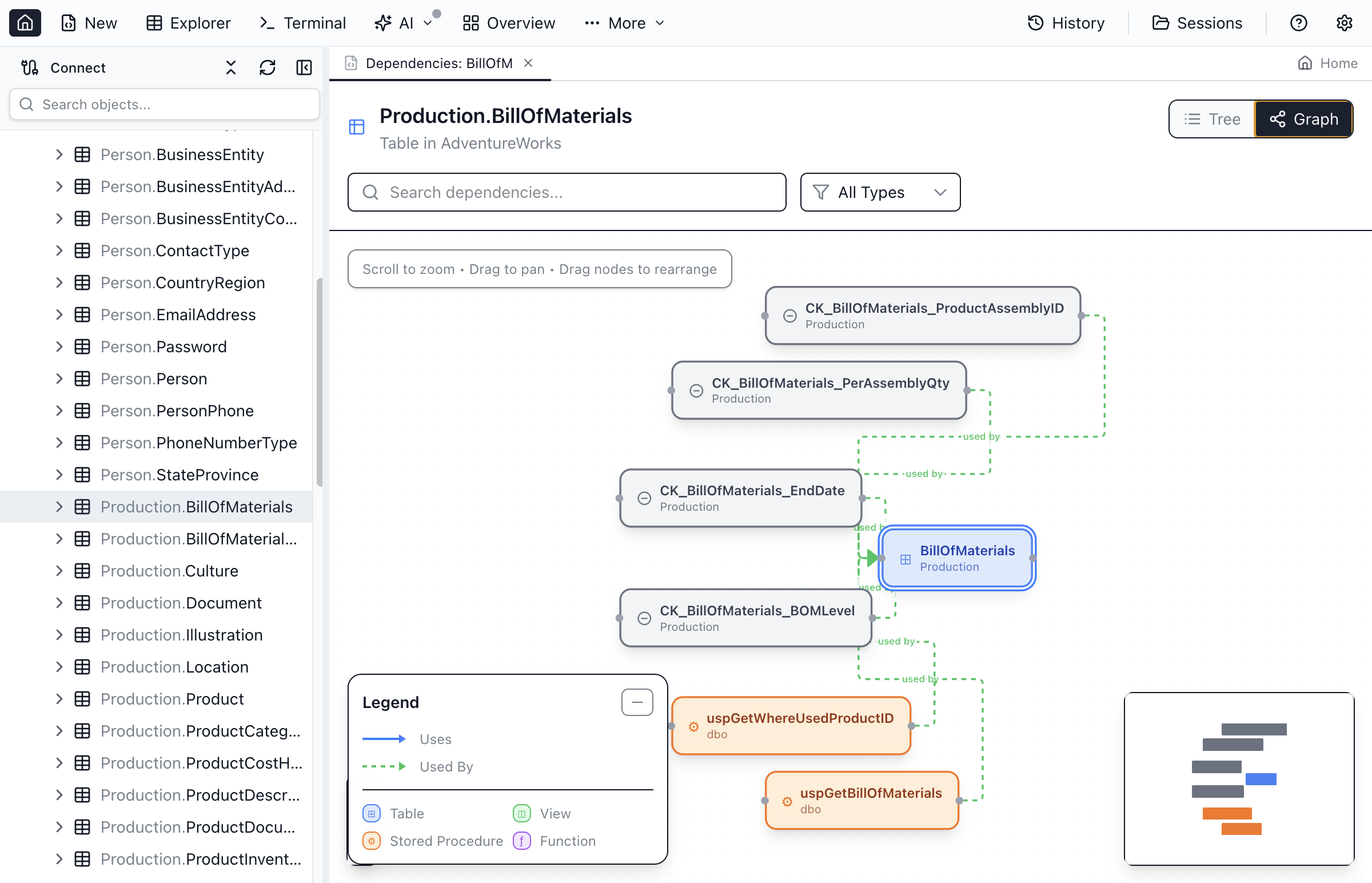
Reading the Graph
- Nodes - Each database object is a node with its name and type icon
- Arrows - Point from dependent object to the object it depends on
- Colors - Object types are color-coded (blue for tables, green for views, purple for procedures)
- Selected object - Highlighted in the center of the graph
Graph Navigation
- Pan - Click and drag to move the view
- Zoom - Scroll or use
+/-buttons - Fit - Click Fit to show all nodes
- Select - Click a node to select it
- Open - Double-click to open the object
Navigation
Efficiently navigate through dependencies:
Change Focus
Click any object in the dependency graph to make it the new focus. The dependency tree rebuilds around the selected object, showing its own dependencies and dependents.
Back Navigation
Use the Back button to return to previously viewed objects, maintaining your exploration history.
Jump to Definition
Right-click an object and select:
- Open - Opens tables in Table Explorer, others in script view
- Script as CREATE - Opens the CREATE script in a new query tab
- Locate in Object Explorer - Highlights the object in the sidebar tree
Use Cases
Impact Analysis Before Schema Changes
- Open Dependency Viewer for the object you want to modify
- Review the "Used By" section to see all dependent objects
- Check column-level dependencies if renaming or removing columns
- Plan updates to all affected objects before making changes
Understanding Unknown Objects
- When encountering an unfamiliar stored procedure or view
- View its dependencies to understand what data sources it uses
- The "Uses" tree shows all underlying tables and other objects
- Column details help understand the query structure
Database Refactoring
- Identify objects with too many dependencies (high coupling)
- Find unused objects with no dependents
- Plan a safe order for dropping objects (children before parents)
Ready to Analyze Dependencies?
Download Jam SQL Studio and understand your database relationships.