
Last updated: 2026-02-12
Migrate from Azure Data Studio
This guide walks you through migrating your workflow from Azure Data Studio to Jam SQL Studio. Whether you're migrating connections, queries, or learning new features, we've got you covered.
Migration Timeline
Migration Steps
Follow these steps to migrate from Azure Data Studio to Jam SQL Studio:
Export Your Connection Details
Before switching, document your existing Azure Data Studio connections:
- Open Azure Data Studio and go to Connections panel
- For each connection, note the server name, authentication type, and default database
- Export any saved connection groups if you've organized them
Install Jam SQL Studio
Download Jam SQL Studio for your platform:
- macOS: Download the DMG and drag to Applications
- Windows: Run the installer (.exe)
- Linux: Use the AppImage or DEB package
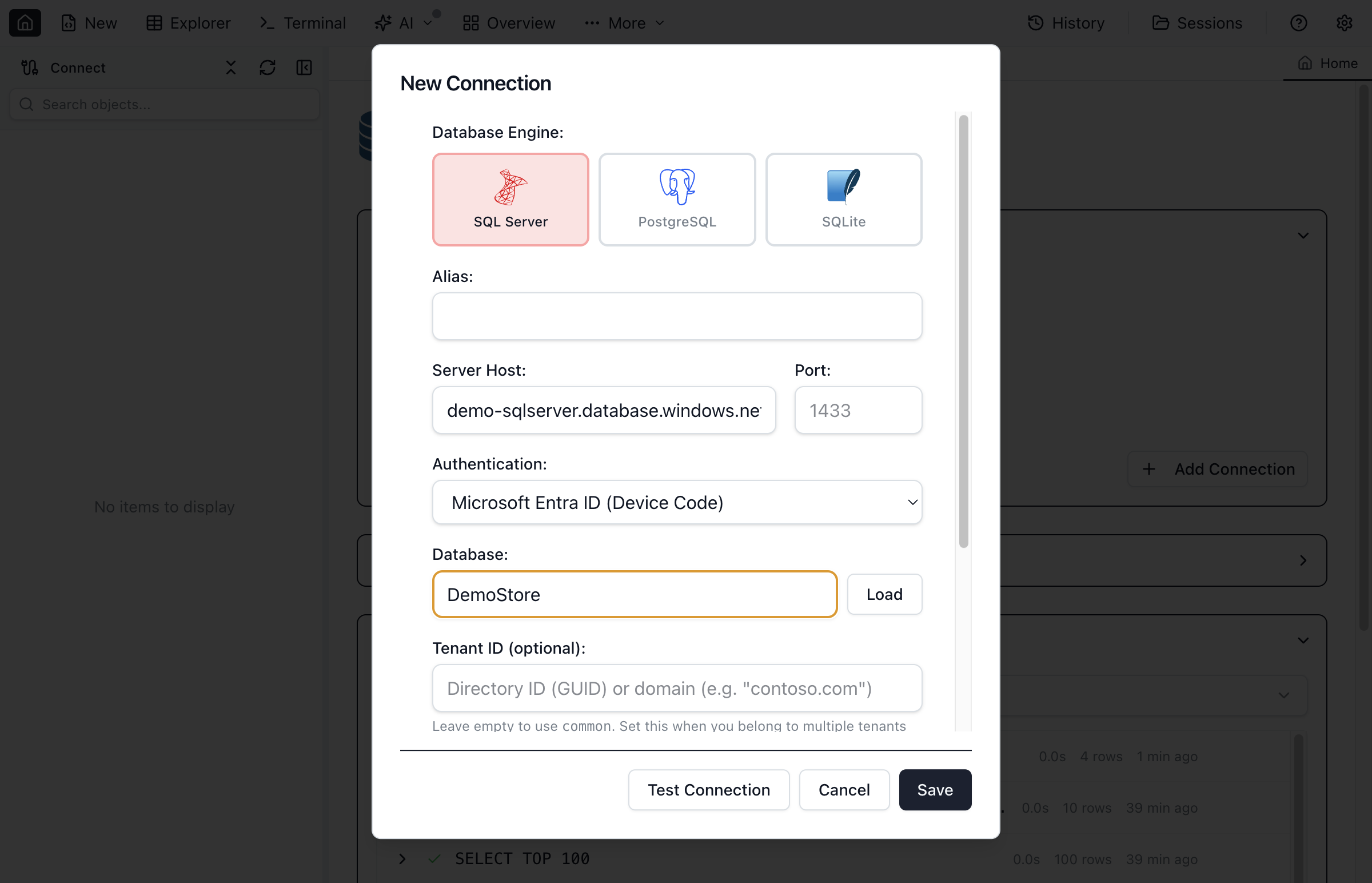
Create Your Connections
Re-create your database connections in Jam SQL Studio:
- Click New Connection in the sidebar
- Enter your server details (same as Azure Data Studio)
- Choose authentication: SQL Server Auth or Windows Auth
- Test and save the connection
Transfer Your Saved Queries
Move your SQL files and saved queries:
- Locate your query files (typically .sql files in your documents)
- Open them in Jam SQL Studio using File > Open
- Optionally organize them into projects for better management
Explore New Features
Jam SQL Studio offers features beyond Azure Data Studio:
- AI Workspace - Built-in AI assistant for query help
- Schema Compare - Visual database diff tool
- Data Compare - Compare table data across databases
- MCP Integration - Connect external AI tools
Feature Comparison
Here's how Azure Data Studio features map to Jam SQL Studio:
Feature Mapping: ADS → Jam SQL Studio
| Azure Data Studio Feature | Jam SQL Studio Equivalent |
|---|---|
| Query Editor | ✓ Query Editor with AI assistance |
| Object Explorer | ✓ Database Explorer (sidebar) |
| Results Grid | ✓ Results Grid with export options |
| IntelliSense | ✓ Enhanced IntelliSense + AI suggestions |
| Execution Plan | ✓ Enhanced Visual Execution Plans |
| Schema Compare Extension | ✓ Built-in Schema Compare |
| Data Compare Extension | ✓ Built-in Data Compare |
| Notebooks | ✓ SQL Notebooks with shared sessions, inline results, .ipynb format |
| Extensions | Plugin system (roadmap) |

Authentication Compatibility
Jam SQL Studio supports the same authentication methods as Azure Data Studio: SQL Server Authentication, Windows Authentication, and Azure Active Directory. Your credentials will work the same way.
Migrating Notebooks
Azure Data Studio included SQL Notebooks for interactive database workflows. Jam SQL Studio now provides SQL Notebooks with the same .ipynb format and shared session behavior.
Opening ADS Notebooks
Open your existing .ipynb files directly: More > Open Notebook and select the file. SQL cells work immediately with inline results and a shared session (temp tables persist across cells).
Coming from Polyglot Notebooks?
Polyglot Notebooks (also being deprecated) used the same .ipynb format. Jam SQL Studio handles Polyglot-origin files:
- SQL cells are preserved as executable code cells
- JavaScript cells are preserved as executable code cells
- C#, F#, PowerShell, and HTML cells are imported as Markdown with the source in code fences
- Polyglot kernel metadata is preserved for round-trip compatibility
See the Polyglot Notebooks comparison page for a detailed feature comparison and migration guide.
Common Migration Questions
Can I use my existing connection strings?
Yes. Jam SQL Studio uses standard SQL Server connection strings. If you have connection strings saved in configuration files, they'll work directly in Jam SQL Studio.
What about Azure-specific features?
Jam SQL Studio fully supports Azure SQL Database, Azure SQL Managed Instance, and Azure Synapse Analytics. Azure-specific features like Azure AD authentication and Azure resource browsing are supported.
Will my keyboard shortcuts work?
Jam SQL Studio uses familiar shortcuts. Cmd+E / Ctrl+E executes queries, Cmd+S / Ctrl+S saves, and most common shortcuts match what you're used to. You can customize shortcuts in preferences.
How do I get help during migration?
If you encounter issues during migration, contact our support team at [email protected]. We're happy to help Azure Data Studio users transition smoothly.
Ready to Migrate?
Download Jam SQL Studio and start your migration today.