
Last updated: 2026-02-12
Query Editor
Write, execute, and analyze SQL queries with Jam SQL Studio's powerful query editor. Get IntelliSense suggestions, view multiple result sets, analyze execution plans, edit results inline (UPDATE), and export results to various formats.
Writing Queries
The query editor provides a full-featured SQL editing experience with syntax highlighting and intelligent code completion.
IntelliSense and Autocomplete
As you type, Jam SQL Studio suggests relevant completions based on your database schema and SQL context:
- Table names - Suggested after FROM, JOIN, INSERT INTO, UPDATE
- Column names - Suggested after SELECT, WHERE, ORDER BY, or when typing after a table alias
- SQL keywords - Context-aware keyword suggestions (FROM after SELECT, WHERE after FROM, etc.)
- Functions - Built-in SQL functions with parameter hints
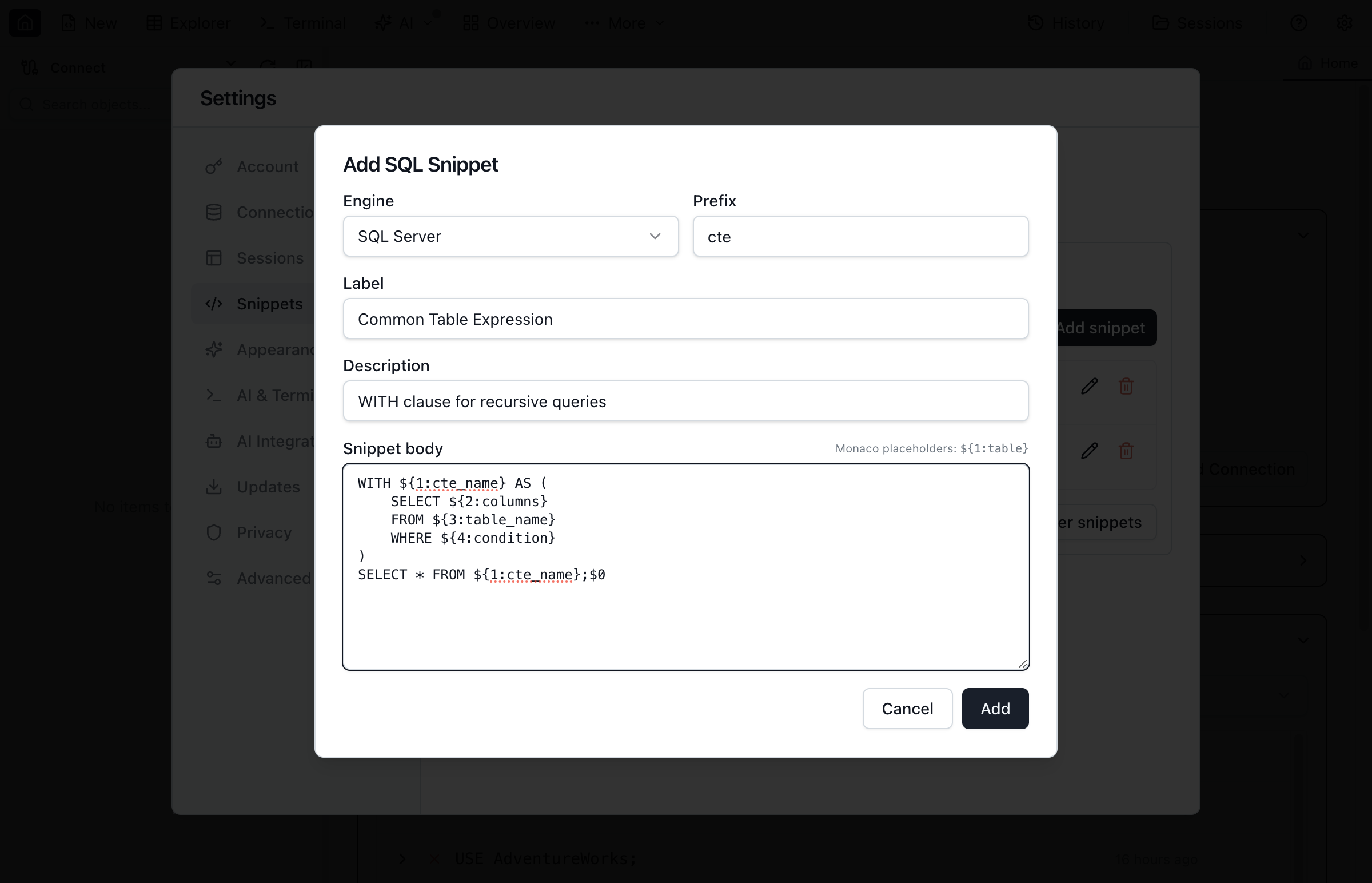
SQL Snippets
Speed up common SQL patterns with built-in snippets. Type a prefix and press Tab to expand:
sel- SELECT statement templateselw- SELECT with WHERE clauseins- INSERT statement templateupd- UPDATE statement templatedel- DELETE statement template
You can also create custom snippets in Settings > Snippets.
Executing Queries
Run your queries and view results with multiple execution options.
Basic Execution
- Write your SQL query in the editor
- Press
Cmd+E(macOS) orCtrl+E(Windows/Linux) to execute - View results in the grid below the editor
Execute Selection
To run only part of your query:
- Select the SQL text you want to execute
- Press
Cmd+E/Ctrl+E - Only the selected portion will run
Tip: If you have Format on execute enabled, Jam SQL Studio will still execute only your selection.
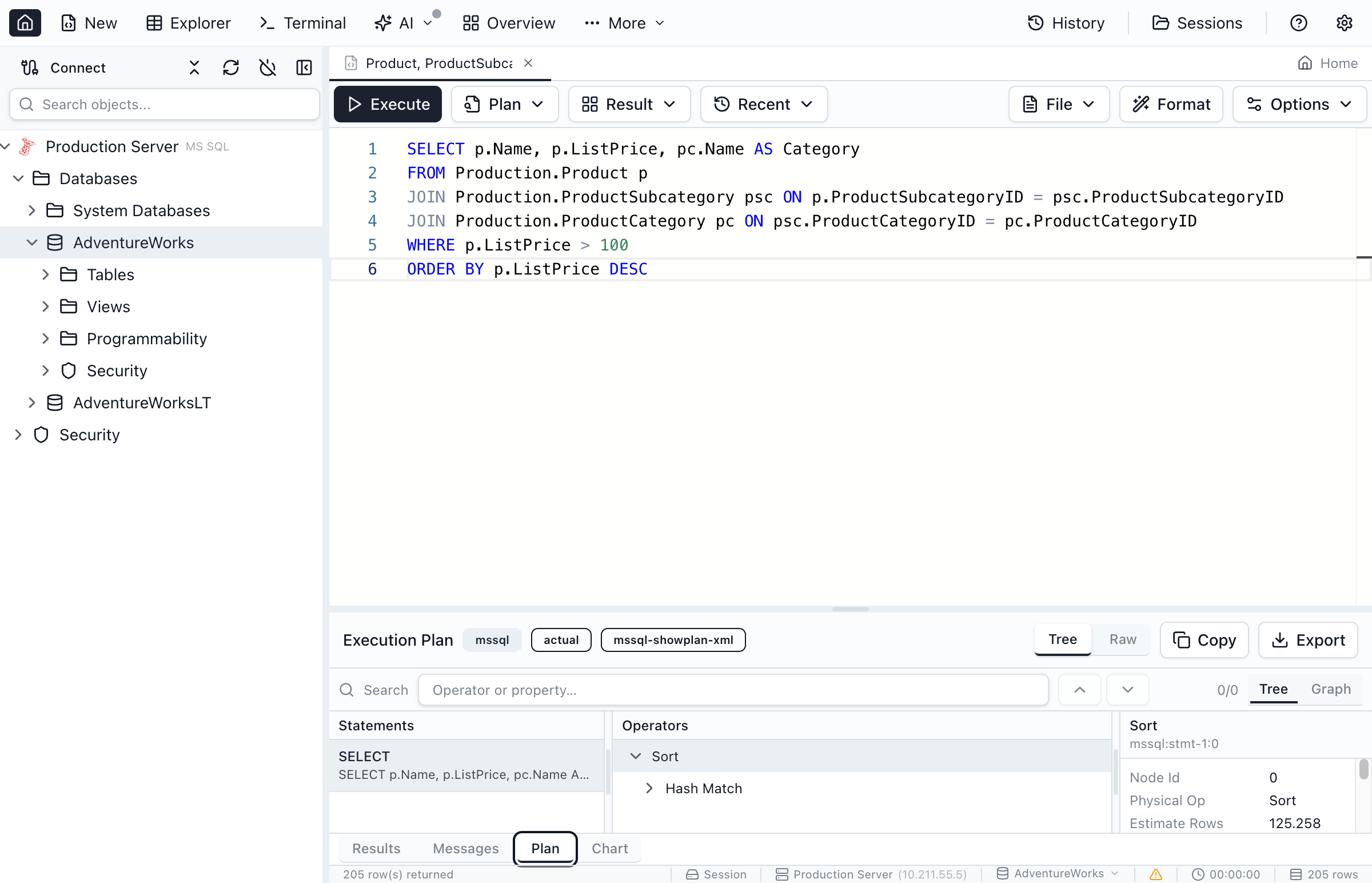
Execution Plan Options
Analyze query performance by capturing execution plans:
- Execute with Estimated Plan - Shows the query plan without running the query
- Execute with Actual Plan - Runs the query and shows the actual execution statistics
Cancelling Queries
To cancel a long-running query:
- Click the Stop button in the toolbar, or
- Press
Escapewhile the query is running
Working with Results
Query results appear in a tabbed grid below the editor with powerful viewing and export options.
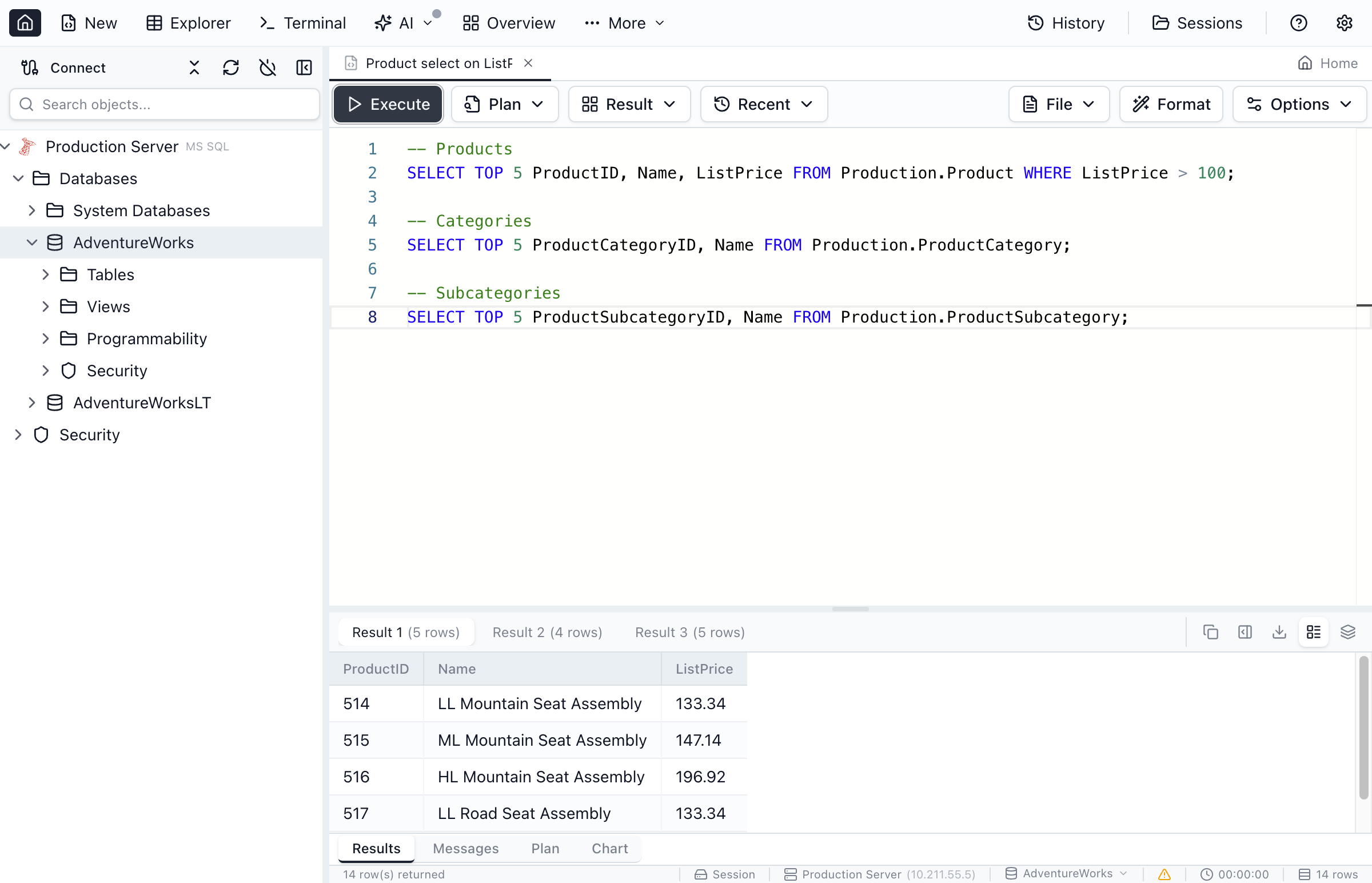
Multiple Result Sets
When your query returns multiple result sets (e.g., multiple SELECT statements), each appears in its own tab. You can also switch to a stacked view to see all results vertically.
Grid Features
- Column sorting - Click column headers to sort
- Column resizing - Drag column borders to resize
- Duplicate column names - When multiple columns share the same name (e.g.,
SELECT *with JOINs), Jam shows each column separately and displays the source table above the column name (including when running inside a Manual transaction on SQL Server) - Copy as CSV - Copy the active result set to your clipboard from the results toolbar
- Row side panel - Select a row and open the side panel (or double-click a row) to view values in a vertical layout (drag the divider to resize). When results include columns from multiple tables, Jam shows the source table next to each field.
- Edit results (UPDATE) - Toggle edit mode (pencil icon) to update editable cells inline (requires a primary key in the result)
- JSON viewer - Click JSON cells to view formatted JSON in a dialog (with a Copy button). If the value is not valid JSON, the dialog shows an error and the raw value as text.
- Expanded text viewer - Cells with multiple lines (newlines) show an expand icon to open the value in a read-only dialog (with a Copy button and JSON/Text mode tabs)
- NULL indicators - NULL values shown with distinct styling
Editing Results (UPDATE)
For queries that return rows from a base table with a primary key, Jam SQL Studio can update cells directly in the results grid (similar to DBeaver).
- Run a SELECT query that includes the table’s primary key columns
- Click the Pencil icon in the results toolbar to enter edit mode
- Double-click an editable cell (or use the pencil icon in the row side panel) to edit
- Confirm or cancel the edit (in the row side panel, use the confirm/cancel buttons next to the input)
- Click Save to apply changes, or Discard to cancel
Notes: This supports UPDATE only (no INSERT/DELETE). Columns without a single source table (computed/aggregates) are read-only. SQLite results are not editable because the driver does not provide source table metadata. If you want to be able to rollback, make sure a transaction is active in Manual/Smart mode before applying changes; otherwise changes execute in auto-commit.
Plaintext View
Switch to plaintext view to see results as formatted ASCII text, useful for copying into documentation or chat.
Each execution replaces the previous plaintext output.
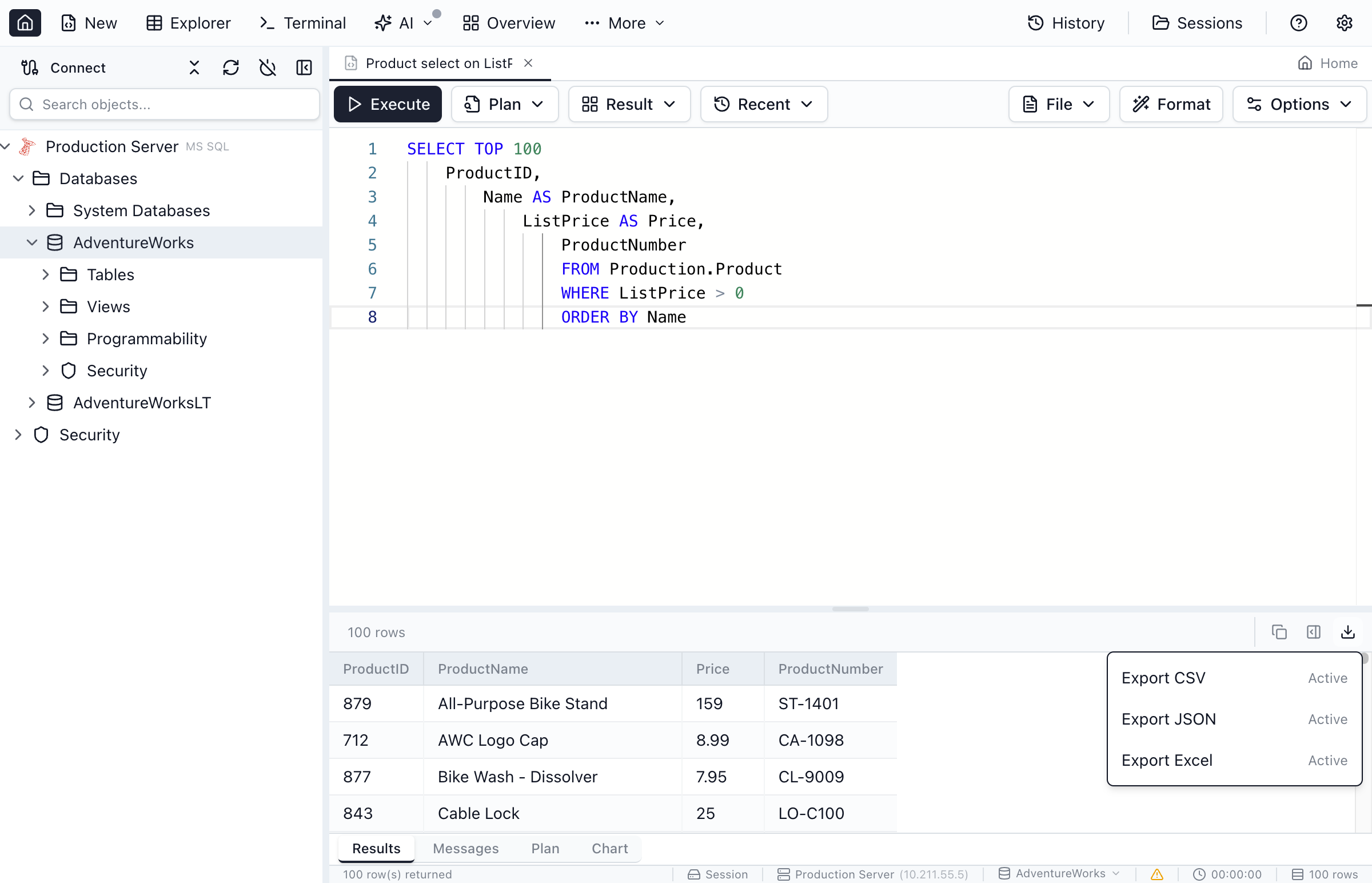
Exporting Results
Export your query results in multiple formats:
- CSV - Comma-separated values for spreadsheets
- JSON - JavaScript Object Notation for APIs
- Excel - Native .xlsx format with formatting
Transaction Management
Control how your queries interact with transactions using the toolbar controls. Each query tab has its own independent transaction state.
In Manual and Smart mode, transaction controls are grouped with a subtle shared tint: transaction mode and isolation sit on the first row, and commit/rollback controls sit on the second row.
When the toolbar gets narrow, right-side File/Format/Options collapse first; if space is still tight, Plan/Result/Recent collapse to icon-only buttons.
With two-row transaction controls visible, right-side actions move into that second row beside commit/rollback only after File/Format/Options and Plan/Result/Recent have already collapsed and space is still insufficient.
Transaction Modes
Click the transaction mode button in the toolbar to switch between three modes:
- Auto (default) - Every statement auto-commits immediately. This is the standard behavior.
- Manual - A transaction begins automatically on your first query. You decide when to commit or rollback using the toolbar buttons.
- Smart - Read-only queries (SELECT) run in auto-commit, while data-modifying statements (INSERT, UPDATE, DELETE) automatically begin a transaction.
Commit and Rollback
When a transaction is active in Manual or Smart mode, use the toolbar buttons or keyboard shortcuts:
- Commit - Save all changes in the current transaction (
Cmd+Shift+C/Ctrl+Shift+C) - Rollback - Discard all changes in the current transaction (
Cmd+Shift+R/Ctrl+Shift+R)
If no transaction is active yet, the toolbar shows a short hint telling you to run a query first to start one.
The status bar shows the current transaction state with color indicators: amber for an active transaction, red for an error state.
Isolation Levels
In Manual or Smart mode, you can set a transaction isolation level per tab:
- Default - Use the database engine's default level
- Read Uncommitted - Allows dirty reads
- Read Committed - Prevents dirty reads (SQL Server and PostgreSQL default)
- Repeatable Read - Prevents non-repeatable reads
- Serializable - Full isolation (SQLite only supports this level)
The isolation level applies when the next transaction begins. Changing it during an active transaction takes effect on the next one.
Tab Close Safety
If you try to close a tab with an active transaction, a dialog gives you three choices: Commit and Close, Rollback and Close, or Cancel. When the app quits, all active transactions are rolled back automatically.
The query status bar uses compact 12px text for improved readability during long editing sessions.
Editor Options
Customize the query editor to match your preferences.
Formatting
- Format SQL - Press
Shift+Alt+Fto format your SQL code - Word wrap - Toggle word wrap for long lines
File Operations
- Open file -
Cmd+O/Ctrl+Oto open a .sql file - Save file -
Cmd+S/Ctrl+Sto save - Save as -
Cmd+Shift+S/Ctrl+Shift+Sto save with a new name
File-backed tabs show an asterisk (* filename.sql) in the tab title when there are unsaved changes. The indicator disappears after saving.
Scripts Panel
Use the Scripts panel in the sidebar to manage and reopen your .sql files:
- Recent - Quickly reopen recently opened scripts
- Pinned - Pin frequently used scripts for each script workspace
- Mounted folders - Mount a folder from disk and browse .sql files in a tree
- Rename mounted folders - Right-click a mounted folder and choose Rename in Jam SQL (label only)
- Filter scripts - Search across Recent/Pinned and mounted folders
When you open a script from the Scripts panel, Jam SQL Studio uses your current connection context from Object Explorer. If no connection is selected, you'll be prompted to choose one.
AI Chat Sidebar
The Query Editor includes a built-in AI Chat sidebar powered by your locally installed Claude CLI or Codex CLI. Click the AI button in the toolbar to open the chat panel alongside your editor.
- Ask questions about your SQL, get suggestions, and let the AI interact with your database via MCP tools
- The AI can update your editor directly using the
ui_set_editor_texttool - @-mentions — type
@to reference database objects (tables, views, procedures) from the Object Explorer - Session continuity — conversations persist across tab switches and session restores
- Multi-backend — supports both Claude CLI and Codex CLI; switch between them with a segmented control when both are installed
See AI Integrations & MCP for setup details.
Keyboard Shortcuts
Master these shortcuts to work faster in the query editor:
| Action | macOS | Windows/Linux |
|---|---|---|
| Execute query | Cmd+E | Ctrl+E |
| Cancel query | Escape | Escape |
| Format SQL | Shift+Alt+F | Shift+Alt+F |
| Open file | Cmd+O | Ctrl+O |
| Save file | Cmd+S | Ctrl+S |
| New query tab | Cmd+T | Ctrl+T |
| Close tab | Cmd+W | Ctrl+W |
| Comment line | Cmd+/ | Ctrl+/ |
| Find | Cmd+F | Ctrl+F |
| Find and replace | Cmd+H | Ctrl+H |
| Commit transaction | Cmd+Shift+C | Ctrl+Shift+C |
| Rollback transaction | Cmd+Shift+R | Ctrl+Shift+R |
Ready to Write Queries?
Download Jam SQL Studio and start writing SQL with powerful IntelliSense.