
Last updated: 2026-02-12
Schema Compare
Compare database schemas across SQL Server connections to identify structural differences. View changes to tables, views, stored procedures, and other objects. Generate DDL scripts to synchronize schemas between environments.
Getting Started
Schema Compare helps you understand the differences between two database schemas. Whether you're comparing development to production, or verifying a deployment, this tool shows exactly what has changed.
How to Start a Schema Comparison
- Open Jam SQL Studio and connect to both source and target databases
- Click Tools > Schema Compare from the main menu
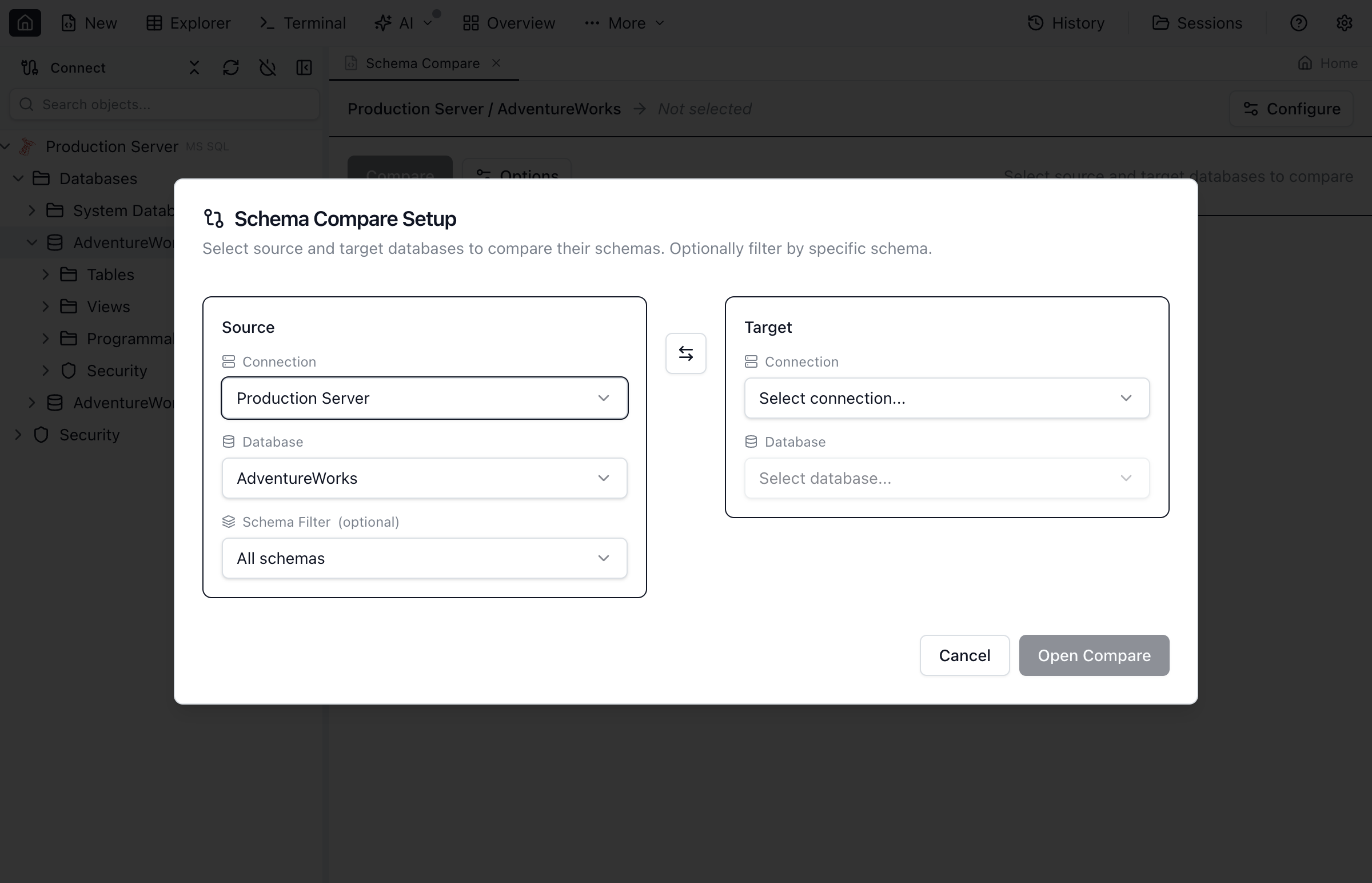
- Select the source connection and database from the dropdown
- Select the target connection and database
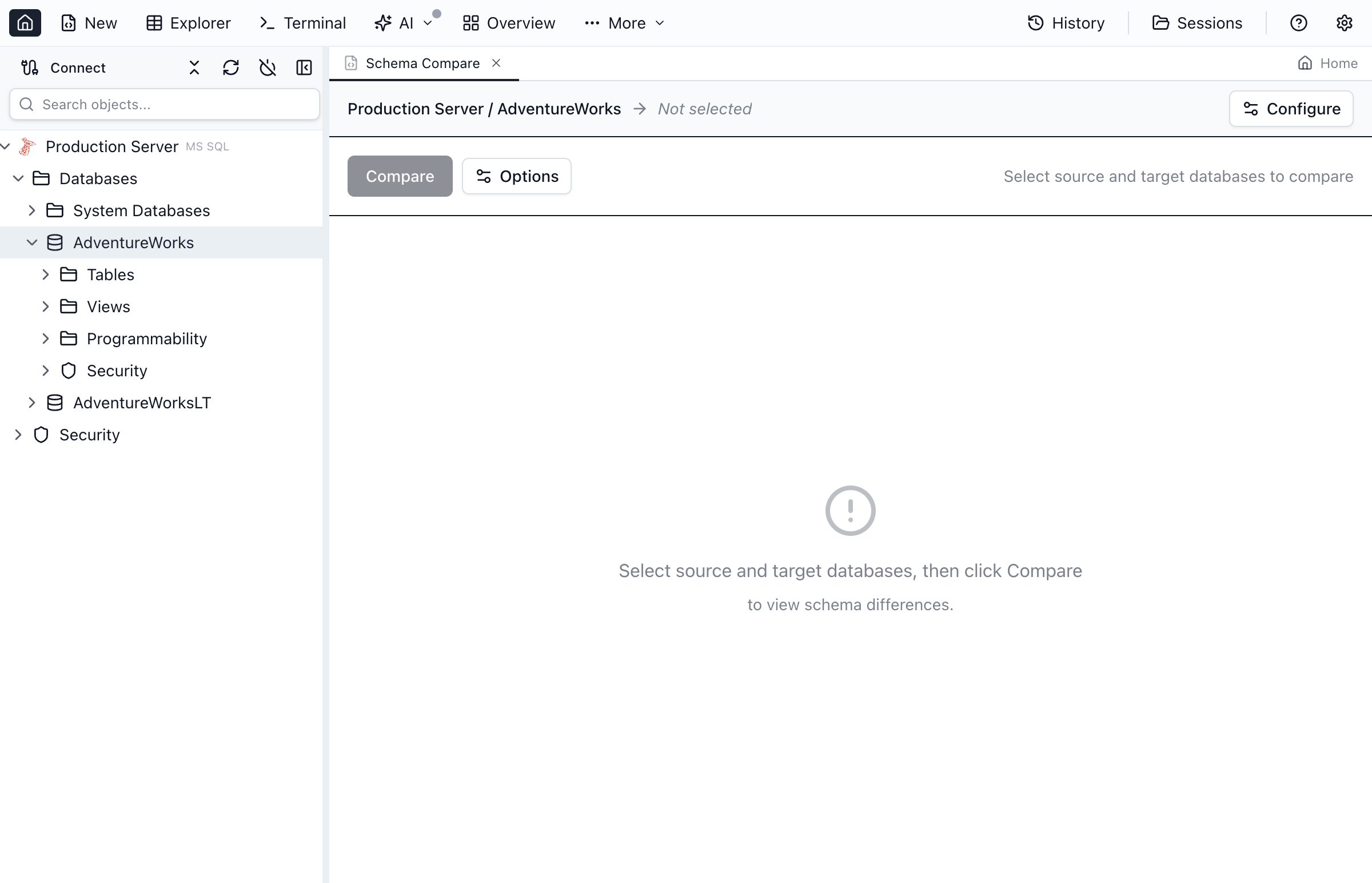
- Click Compare to analyze the differences
Personal Mode Limits
Schema Compare is available in both Personal and Pro modes, with different limits:
- Personal mode - Full comparisons are available when both schemas have 200 objects or fewer (tables + views + procedures + functions). Larger schemas require Pro.
- Pro mode - No schema-size limits.
Understanding the Results
After the comparison completes, you'll see a tree view of all database objects organized by type. Each object is color-coded to indicate its status:
Viewing Object Details
Click on any object in the results to see a side-by-side diff view showing exactly what has changed. The diff highlights additions in green and deletions in red.
Generating Synchronization Scripts
Once you've reviewed the differences, you can generate a DDL script to synchronize the target database with the source schema.
Steps to Generate a Script
- Review the comparison results and uncheck any objects you don't want to include
- Click Generate Script to preview the synchronization script
- Review the generated DDL statements in the preview pane
- Click Apply to execute the script directly, or Save to export it
Key Capabilities
- Full schema support - Compare tables, views, stored procedures, functions, triggers, indexes, and constraints
- Visual diff - Side-by-side view with syntax highlighting shows exactly what changed
- Selective sync - Choose specific objects to include or exclude from the synchronization
- Safe script generation - Preview the DDL before executing with transaction wrapping
- Cross-connection support - Compare schemas across different SQL Server instances
Best Practices
- Always backup your target database before applying schema changes
- Review carefully - Check the generated script for potentially destructive changes
- Test in staging before applying changes to production
- Use source control - Save generated scripts for audit trails
Ready to Compare Schemas?
Download Jam SQL Studio and start comparing your database schemas today.