
Last updated: 2026-02-12
Schema Overview
Visualize your entire database schema with an interactive graph view. Schema Overview displays tables, views, stored procedures, and functions as nodes, with arrows showing foreign key relationships and object dependencies.
Supported databases: SQL Server, PostgreSQL, MySQL/MariaDB, and SQLite. (In the browser demo, Schema Overview currently supports SQLite only.)
Opening Schema Overview
There are several ways to open Schema Overview:
From Toolbar
- Click the Overview button in the main toolbar
- Select the database you want to visualize
- The schema graph loads automatically
From Object Explorer
- Right-click any database in Object Explorer
- Select View Schema Overview
- The selected database's schema opens in a new tab
Keyboard Shortcut
Press Cmd+Shift+O (macOS) / Ctrl+Shift+O (Windows/Linux) to open Schema Overview for the active database.
Understanding the Graph
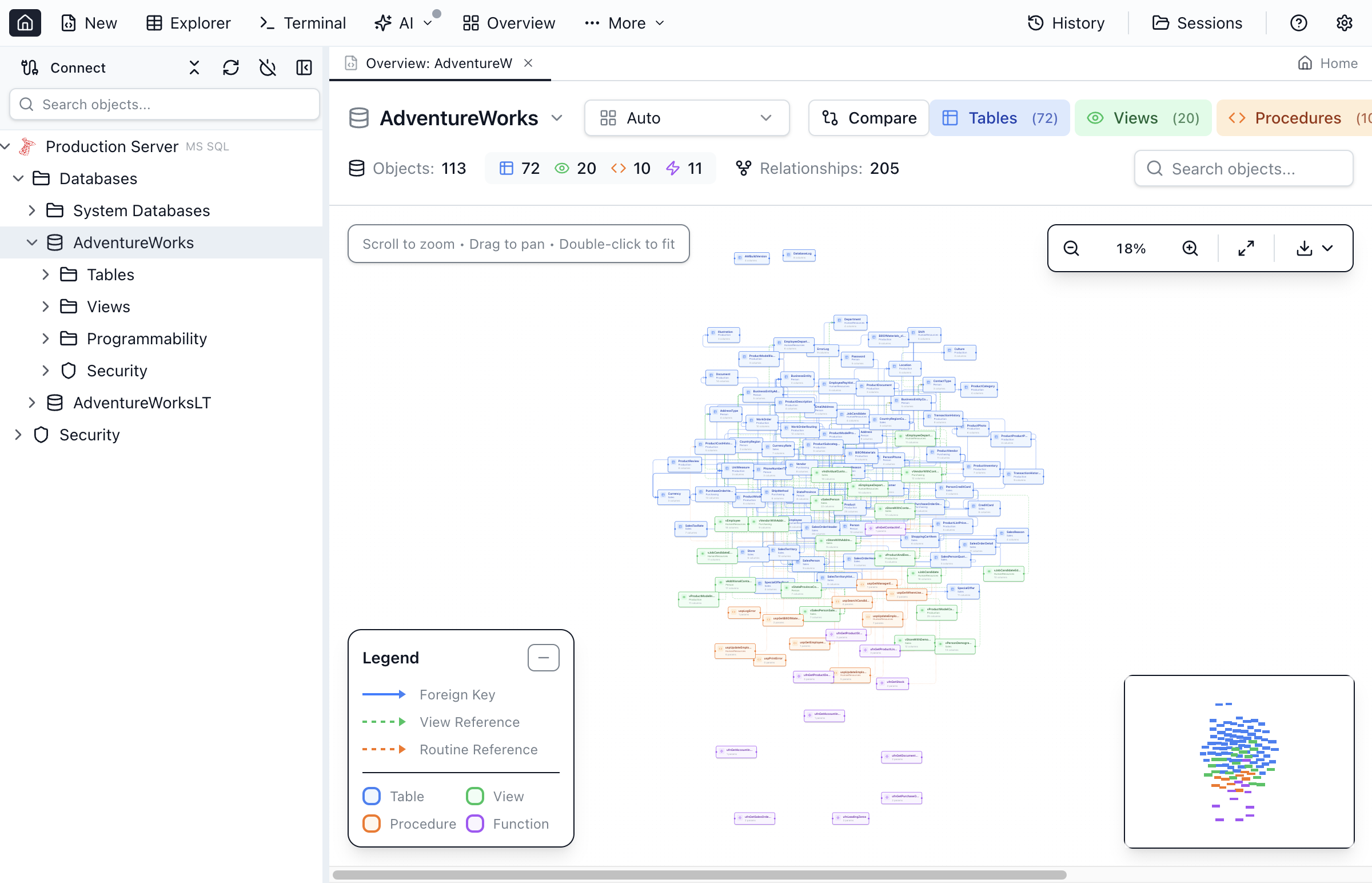
Schema Overview displays your database structure as an interactive node graph:
Node Types
Each database object is represented by a node with a distinctive icon and color:
| Object Type | Icon | Color | Description |
|---|---|---|---|
| Tables | Grid icon | Blue | Database tables with their column count |
| Views | Eye icon | Green | Virtual tables based on queries |
| Stored Procedures | Code icon | Purple | Executable SQL procedures |
| Functions | Function icon | Orange | Scalar and table-valued functions |
Relationship Arrows
Arrows between nodes indicate relationships:
- Foreign Key (solid arrow) - Points from child table to parent table
- Dependency (dashed arrow) - Shows when a view or procedure references another object
Node Information
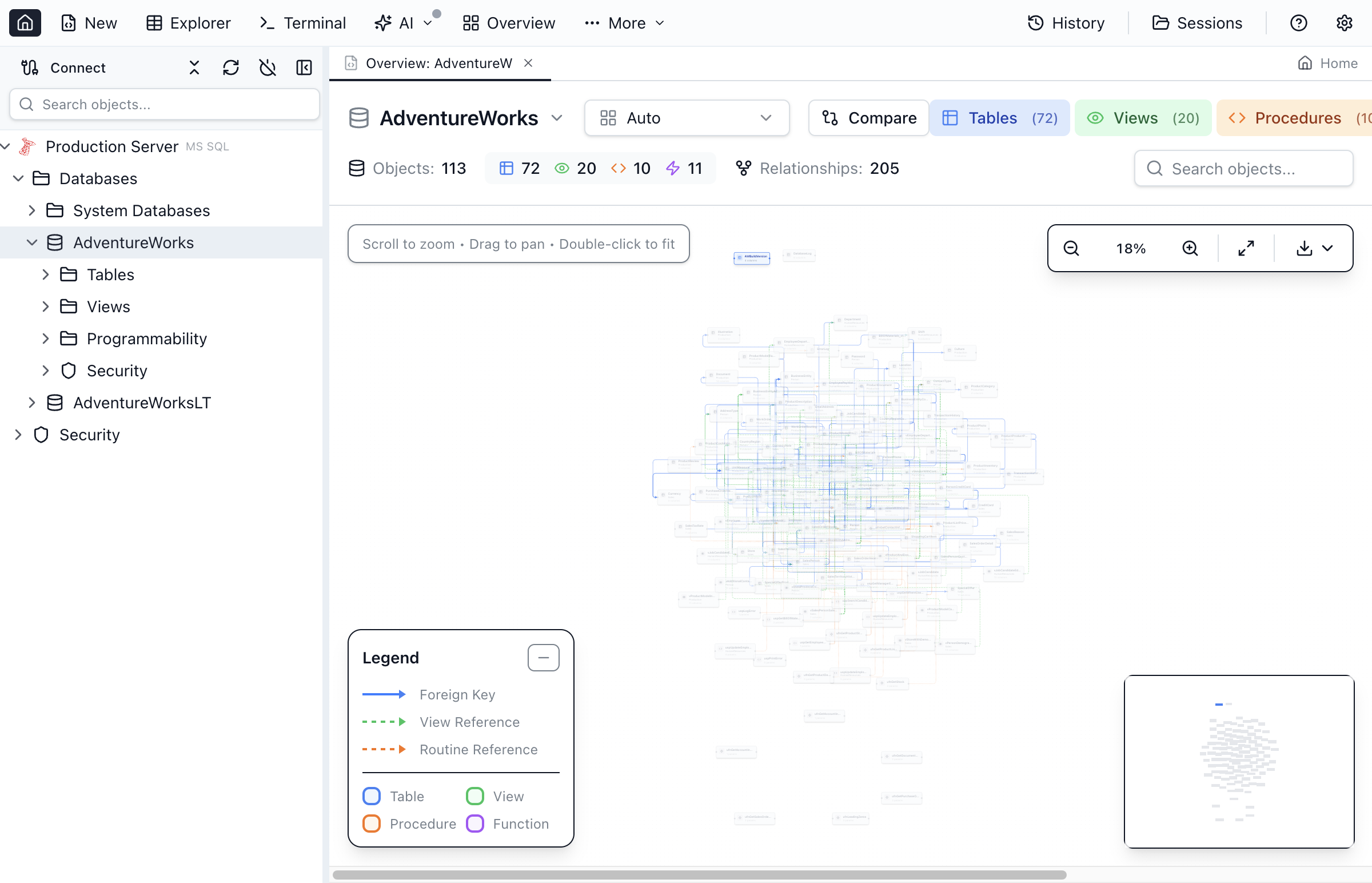
Each node displays:
- Object name - The table, view, or procedure name
- Schema - The schema prefix (e.g.,
dbo) - Column/parameter count - Number of columns (tables) or parameters (procedures)
Hover over a node to see additional details in a tooltip.
Navigating the Graph
Use these controls to explore your schema:
Pan and Zoom
- Pan - Click and drag on empty space to move the view
- Zoom In - Scroll up or click the
+button - Zoom Out - Scroll down or click the
-button - Fit to Screen - Click the Fit button to show all nodes
Selection
- Click - Select a single node (highlights its relationships)
- Ctrl+Click / Cmd+Click - Add to selection
- Double-click - Open the object in a new tab
Center on Selection
After selecting a node, click Center in the toolbar to center the view on the selected object and its relationships.
Filtering the View
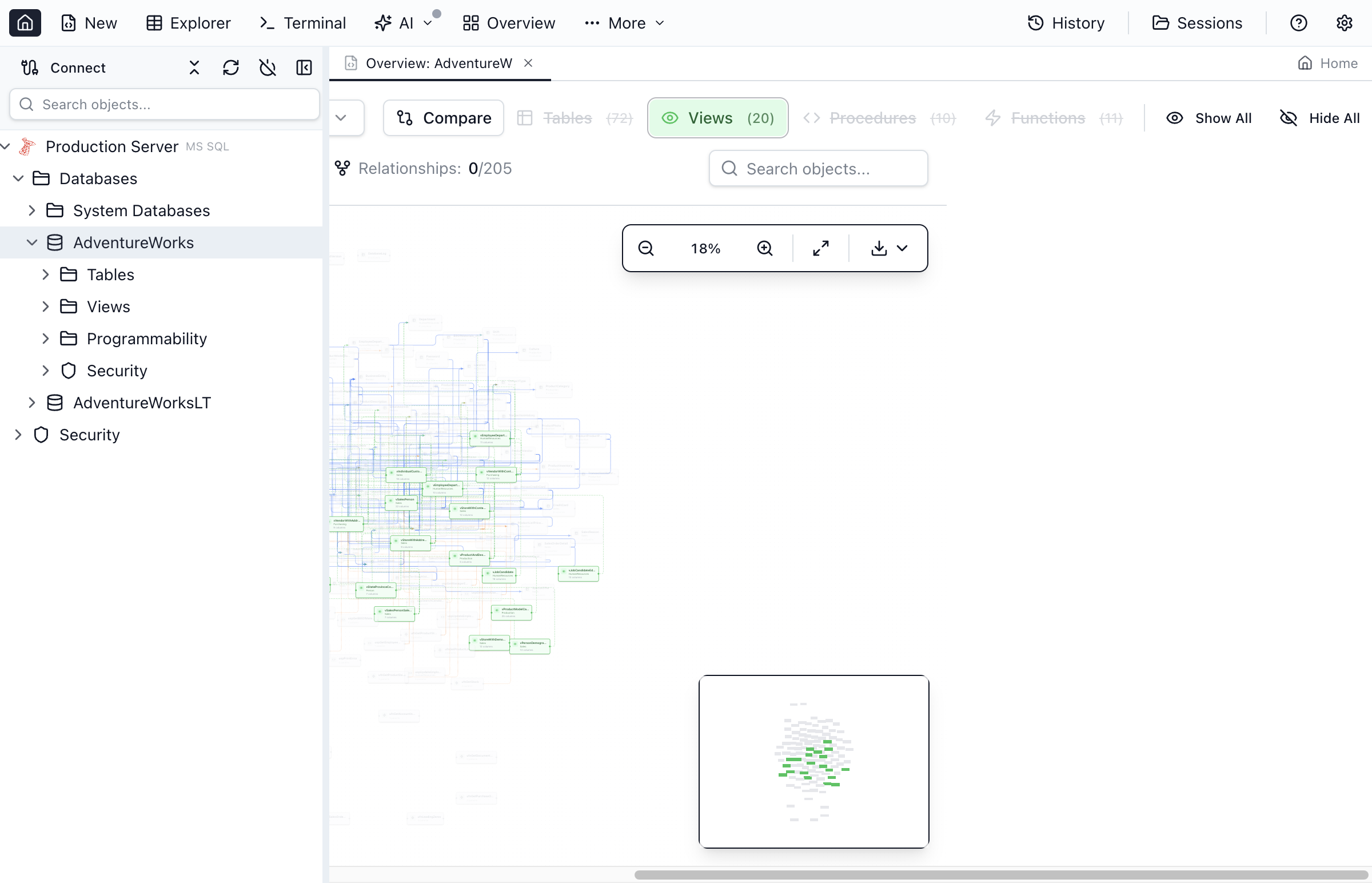
Large schemas can be overwhelming. Use filters to focus on specific objects:
Filter by Object Type
Use the filter dropdown to show specific object types:
- All - Show all objects (default)
- Tables - Show only tables and their relationships
- Views - Show only views and their dependencies
- Procedures - Show only stored procedures
- Functions - Show only functions
Search Objects
- Type in the Search box to find objects by name
- Matching nodes are highlighted in the graph
- Press
Enterto center on the first match - Use arrows to navigate between multiple matches
Hide/Show Relationships
Toggle relationship visibility using the toolbar buttons:
- Show FK - Toggle foreign key relationship arrows
- Show Dependencies - Toggle dependency arrows
Schema Statistics
The statistics panel shows a summary of your database schema:
Object Counts
- Total tables
- Total views
- Total stored procedures
- Total functions
Relationship Summary
- Total foreign key relationships
- Tables with no relationships (isolated)
- Most connected table (highest FK count)
Exporting the Diagram
Export your schema visualization for documentation or sharing:
Export Formats
- PNG - Raster image at high resolution
- SVG - Vector format for scaling without quality loss
Export Options
- Export visible - Export only the current view
- Export all - Export the entire schema (may be large)
- Include legend - Add a color/icon legend to the export
Tips and Tricks
Understanding Complex Schemas
- Start with Tables filter to see the core data structure
- Use search to find specific tables quickly
- Click a table to highlight only its direct relationships
Documenting Your Schema
- Export filtered views (tables only, specific area)
- Use SVG format for diagrams in documentation
- Combine with Schema Compare for change documentation
Ready to Visualize Your Schema?
Download Jam SQL Studio and see your database structure at a glance.