
Last updated: 2026-02-12
Security Manager
Manage database security with Jam SQL Studio. Create and manage logins, users, roles, and permissions for SQL Server, PostgreSQL, and Oracle databases.
SQL Server Security
SQL Server uses a two-tier security model: server-level principals (logins) and database-level principals (users).
Server-Level Security
Server-level security controls who can connect to the SQL Server instance and what server-wide operations they can perform.
Logins
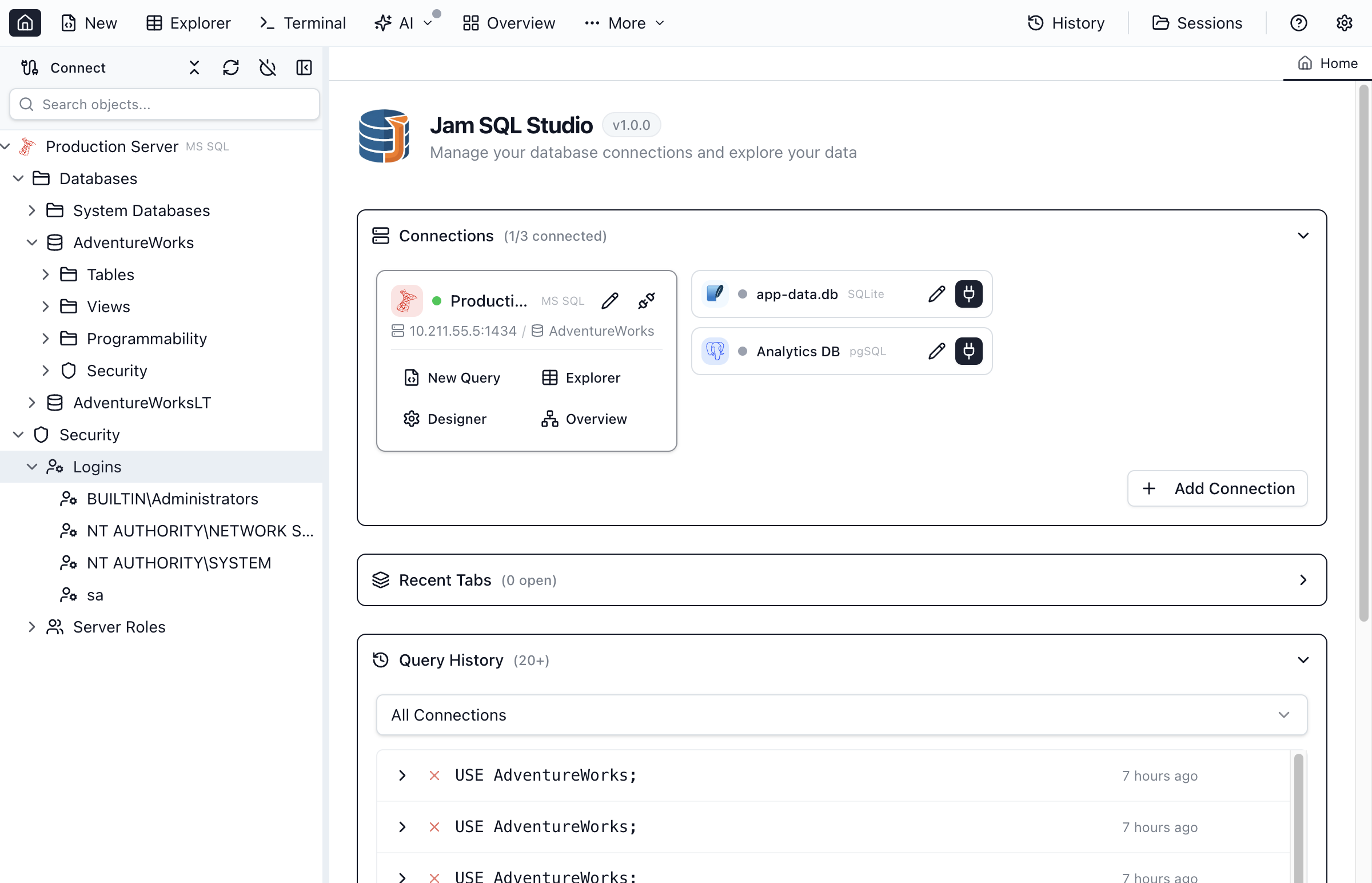
Logins authenticate users to the SQL Server instance. To manage logins:
- Expand the server in Object Explorer
- Expand Security → Logins
- Right-click Logins and select New Login
Login Types
| Type | Description |
|---|---|
| SQL Server Authentication | Username and password stored in SQL Server. Works on all platforms. |
| Windows Authentication | Uses Windows/Active Directory credentials. Most secure for Windows environments. |
| Azure Entra ID | Uses Azure Active Directory for authentication. Required for Azure SQL Database. |
Server Roles
Server roles grant server-wide permissions. Built-in roles include:
| Role | Permissions |
|---|---|
| sysadmin | Full control over the server. Can perform any action. |
| serveradmin | Change server-wide configuration options and shut down the server. |
| securityadmin | Manage logins and their permissions. Reset passwords. |
| dbcreator | Create, alter, drop, and restore databases. |
| bulkadmin | Run BULK INSERT statements. |
| public | Default role for all logins. Minimal permissions. |
Database-Level Security
Database-level security controls access to individual databases and their objects.
Database Users
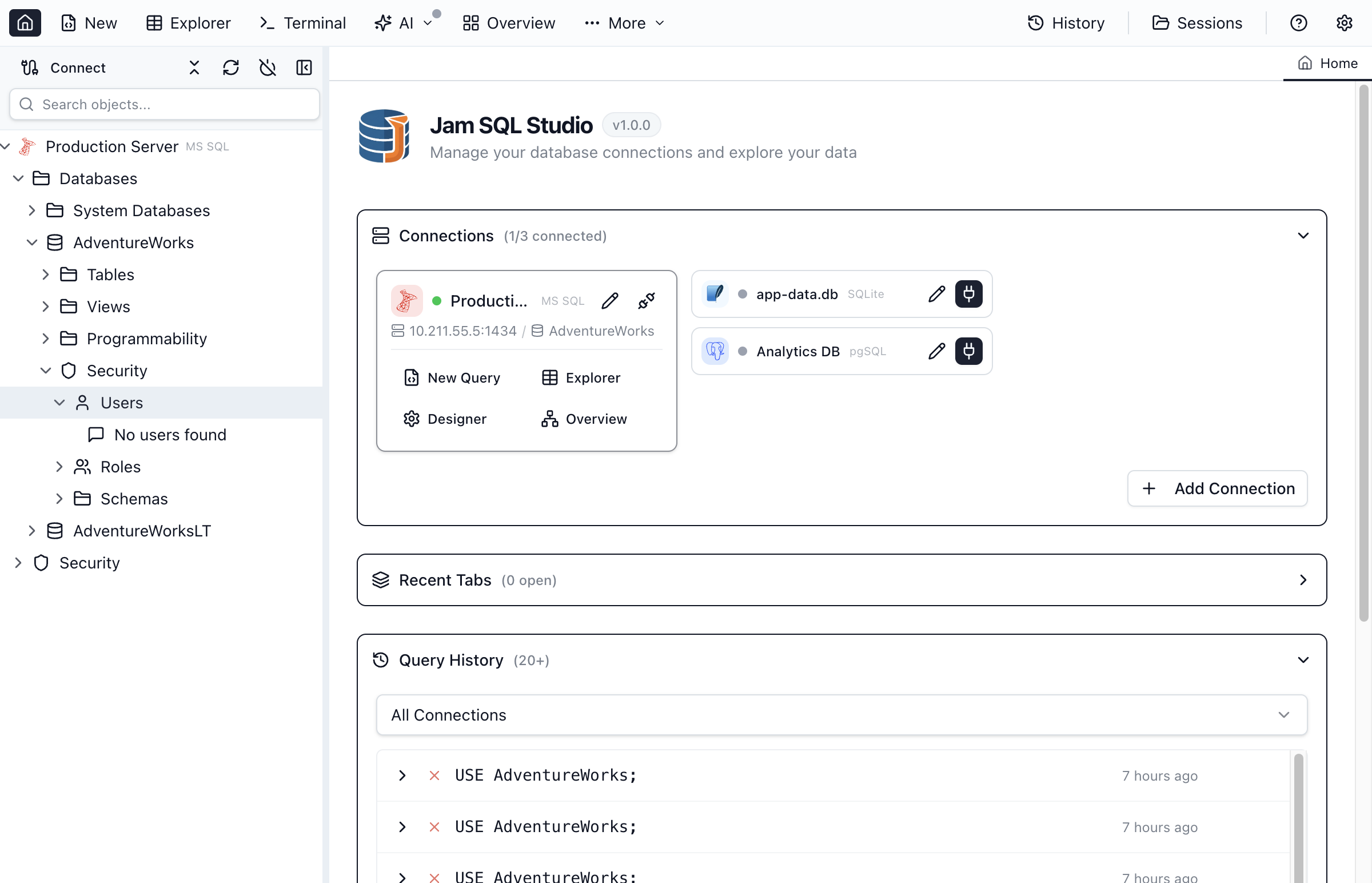
Users provide access to a specific database. Each user is typically mapped to a server login.
- Expand the database in Object Explorer
- Expand Security → Users
- Right-click Users and select New User
- Enter the username and select the associated login
- Assign database roles
- Click Create
Database Roles
Database roles group permissions for easier management. SQL Server includes built-in roles:
| Role | Permissions |
|---|---|
| db_owner | Full control over the database. Can perform all configuration and maintenance. |
| db_datareader | Read all data from all user tables and views. |
| db_datawriter | Add, delete, or change data in all user tables. |
| db_ddladmin | Run DDL commands (CREATE, ALTER, DROP) on any object. |
| db_securityadmin | Modify role membership and manage permissions. |
| db_backupoperator | Back up the database. |
| db_denydatareader | Cannot read data from user tables (deny overrides grant). |
| db_denydatawriter | Cannot modify data in user tables. |
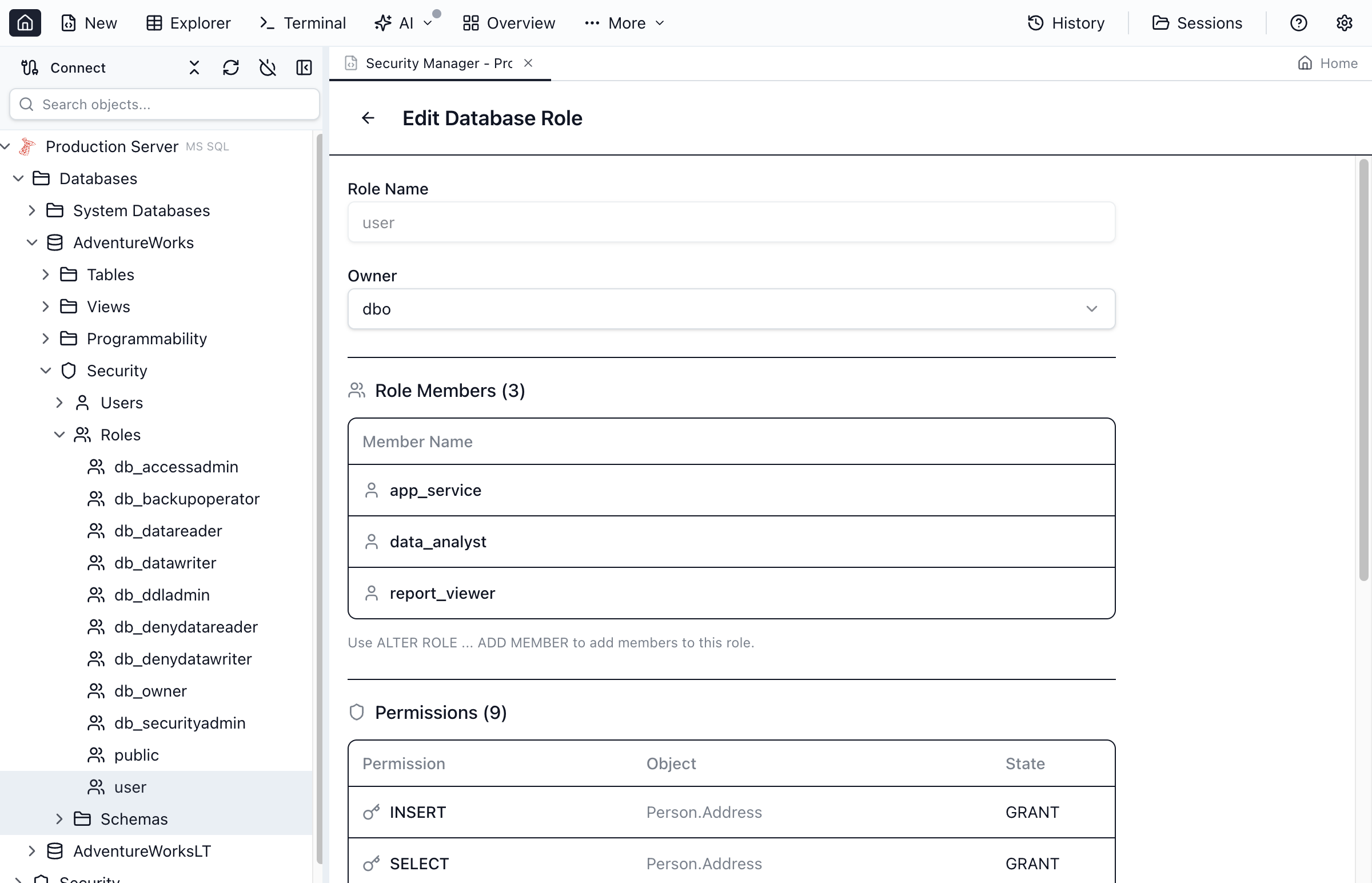
Creating Custom Roles
- Expand Security → Roles → Database Roles
- Right-click Database Roles and select New Role
- Enter the role name
- Add members (users or other roles)
- Assign permissions on the Permissions tab
- Click Create
Schemas
Schemas provide a namespace for database objects and a container for permissions.
- Default schemas - dbo, guest, sys, INFORMATION_SCHEMA
- Custom schemas - Create schemas to organize objects and simplify permissions
- Schema ownership - The owner has full control over all objects in the schema
PostgreSQL Security
PostgreSQL uses a unified role-based security model where roles can act as users, groups, or both.
Roles
In PostgreSQL, roles are the foundation of the security system. A role can:
- Own databases and objects
- Have login privileges (act as a user)
- Contain other roles (act as a group)
- Have specific attributes (SUPERUSER, CREATEDB, CREATEROLE)
Creating Roles
- Expand the PostgreSQL server in Object Explorer
- Expand Login/Group Roles
- Right-click and select New Role
- Set role properties and attributes
- Click Create
Role Attributes
| Attribute | Description |
|---|---|
| LOGIN | Role can log in (acts as a user). Without this, role is a group only. |
| SUPERUSER | Bypasses all permission checks. Use with extreme caution. |
| CREATEDB | Can create new databases. |
| CREATEROLE | Can create, alter, and drop other roles. |
| REPLICATION | Can initiate streaming replication. |
| INHERIT | Automatically inherits privileges of roles it's a member of. |
Role Membership
Roles can be members of other roles, creating a hierarchy for permission management:
- Group roles - Roles without LOGIN attribute, used to group permissions
- Member roles - Roles that belong to group roles and inherit their permissions
- INHERIT vs NOINHERIT - Controls whether member automatically gets group permissions
Database Privileges
PostgreSQL grants specific privileges on database objects:
| Privilege | Applies To | Description |
|---|---|---|
| SELECT | Tables, views, sequences | Read data or get next sequence value |
| INSERT | Tables | Add new rows |
| UPDATE | Tables, sequences | Modify existing data or sequence |
| DELETE | Tables | Remove rows |
| TRUNCATE | Tables | Remove all rows quickly |
| REFERENCES | Tables | Create foreign key constraints |
| EXECUTE | Functions, procedures | Run the function or procedure |
| USAGE | Schemas, sequences | Access objects in schema or use sequence |
| CREATE | Databases, schemas | Create new objects |
Managing Permissions
Jam SQL Studio provides a visual interface for managing permissions on database objects.
Viewing Permissions
- Right-click the object in Object Explorer
- Select Properties
- Go to the Permissions tab
- View all granted permissions, grantees, and grant options
Granting Permissions
- Open object properties and go to Permissions tab
- Click Add to add a new grantee (user or role)
- Select the permissions to grant (SELECT, INSERT, UPDATE, etc.)
- Optionally check With Grant Option to allow the grantee to grant to others
- Click Apply
Revoking Permissions
- Open object properties and go to Permissions tab
- Select the permission to revoke
- Click Revoke or uncheck the permission
- Click Apply
Permission Precedence
Understanding how permissions are evaluated:
- DENY overrides GRANT - A denied permission cannot be obtained through any grant
- Inherited permissions - Users inherit permissions from their roles
- Schema-level permissions - Permissions on schemas apply to all objects within
- Database-level permissions - Some permissions apply to the entire database
Oracle Security
In Oracle Database, users and schemas are the same concept — each user owns a schema with the same name. Security is managed through system privileges, object privileges, and roles.
Users (Schemas)
Oracle users are both principals and schema owners. To manage users:
- Expand the Security folder under your Oracle connection in Object Explorer
- Right-click Users and select Script as CREATE to see user DDL
- Users can be granted system privileges (CREATE TABLE, CREATE SESSION) and object privileges (SELECT, INSERT on specific objects)
System Privileges
System privileges control what operations a user can perform. Common Oracle system privileges:
- CREATE SESSION — Connect to the database
- CREATE TABLE — Create tables in own schema
- CREATE VIEW — Create views in own schema
- CREATE PROCEDURE — Create PL/SQL procedures and functions
- CREATE SEQUENCE — Create sequences
- DBA — Full administrative access (use sparingly)
Object Privileges
Object privileges control access to specific database objects:
- SELECT, INSERT, UPDATE, DELETE on tables and views
- EXECUTE on procedures, functions, and packages
- ALTER on tables and sequences
- REFERENCES for foreign key constraints
Oracle Roles
Oracle roles group privileges for easier management. Common built-in roles:
- CONNECT — Basic connection privileges
- RESOURCE — Create objects (tables, sequences, procedures)
- DBA — Full database administration
Best Practices
Principle of Least Privilege
- Grant only the permissions users actually need
- Start with read-only access and add write permissions as needed
- Avoid granting db_owner or SUPERUSER unless absolutely necessary
- Review permissions regularly and remove unused access
Use Roles for Group Management
- Create roles for common permission sets (e.g., "app_readonly", "app_readwrite")
- Add users to roles instead of granting individual permissions
- Makes it easy to change permissions for entire groups
- Simplifies auditing and compliance
Secure Authentication
- Use Windows Authentication or Azure Entra ID when possible
- Require strong passwords for SQL authentication
- Disable the sa account or use a strong password
- Enable SSL/TLS for connections
Audit and Monitor
- Enable login auditing to track access attempts
- Review failed login attempts regularly
- Document permission changes with comments
- Use Schema Compare to track security object changes
Secure Your Databases
Download Jam SQL Studio and manage database security with an intuitive interface.