
Last updated: 2026-02-12
Sessions
Jam SQL Studio automatically saves your workspace so you can resume where you left off. Pro users can manage multiple sessions to switch between different work contexts.
What's in a Session?
A session captures your entire workspace:
- Open tabs — Query editors, table explorers, comparison views, etc.
- Tab content — Query text, table references, filter settings
- Connection references — Which database each tab is connected to
- Active tab — Which tab is currently selected
Not persisted: Query results, loaded table data, and other runtime state are not saved. These are reloaded when you interact with tabs after resuming.
Auto-Save Behavior
Jam SQL Studio automatically preserves your workspace:
- Continuous auto-save — Your session is saved every few seconds as you work
- On close — A final save occurs when you quit the app
- Crash recovery — Auto-saves protect against unexpected crashes (worst case: last few seconds of changes)
No manual "Save Session" action is needed—your work is always preserved automatically.
Startup Behavior
When you launch Jam SQL Studio, the Sessions dialog appears if you have a previous session:
Resume Last Session
Click Resume Last Session (or Go back to your session) to restore your previous workspace. The app will:
- Validate your database connections
- Restore all your tabs and their content
- Return you to where you left off
Start Fresh / New Session
Click Start Fresh Session (Personal) or New Session (Pro) to begin with a clean workspace. This:
- Saves your current session automatically
- Opens the Saved Connections dialog to connect to a database
- Gives you a fresh workspace to start new work
Managing Sessions (Pro)
Pro users can access the All Sessions section to manage multiple saved sessions.
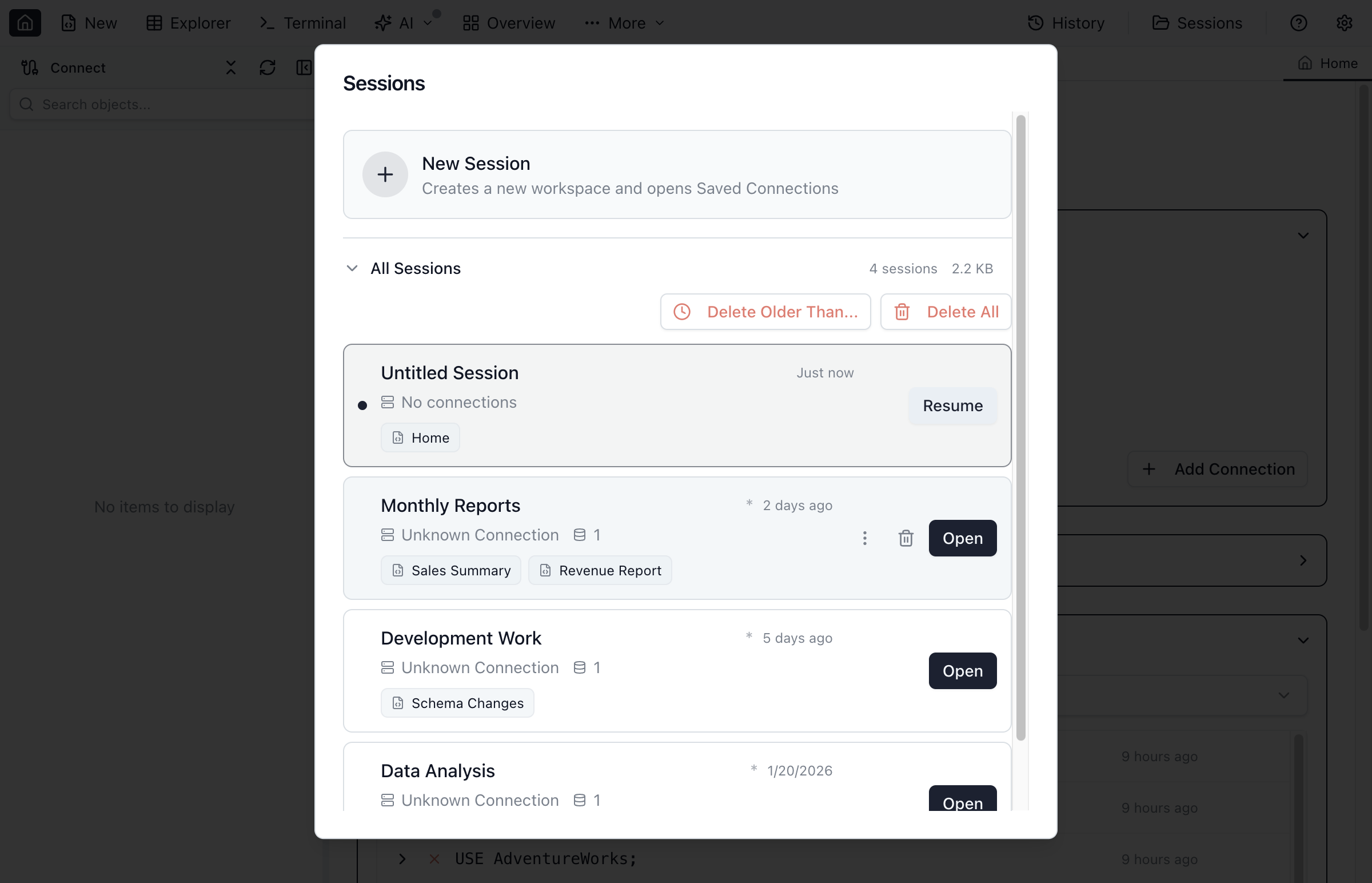
Opening the Sessions Dialog
Click the Sessions button in the toolbar to open the Sessions dialog at any time.
All Sessions Section
Expand All Sessions to see your saved sessions. Each session card shows:
- Session name (auto-generated or custom)
- Connection information
- Tabs preview (query names, table explorers, etc.)
- Last opened time
Session Actions
| Action | Description |
|---|---|
| Open | Switch to the selected session |
| Resume | Continue working in the current session |
| Rename | Click the session name to edit it inline |
| Delete | Remove the session (cannot delete current session) |
Bulk Delete Options
When you have multiple sessions, additional cleanup options appear:
- Delete Older Than... — Remove sessions not used in a specified number of days
- Delete All — Remove all sessions and start fresh
Connection Validation
When resuming a session, Jam SQL Studio validates that your database connections are still available:
- Successful validation — The connection is restored and tabs work normally
- Failed validation — You can keep the connection offline (tabs are read-only) or remove it from the session
If a connection fails, affected tabs show a disconnected indicator with an option to reconnect.
Use Cases
Project-Based Sessions
Create sessions for different projects or clients:
- "Project Alpha" — Dev database queries, schema comparisons
- "Client Beta" — Different database, specific reports
- "Support" — Production read-only connections, diagnostic queries
Environment Sessions
Create sessions for different environments:
- "Development" — Local or dev server connections
- "Staging" — Pre-production testing
- "Production" — Read-only queries for monitoring
Task-Based Sessions
Create sessions for recurring tasks:
- "Daily Reports" — Report queries ready to run
- "Schema Validation" — Schema compare tabs for deployments
- "Data Migration" — Data compare and sync workflows
Ready to Organize Your Workspace?
Download Jam SQL Studio and let it handle saving your work.