
Last updated: 2026-02-12
SQL Snippets
SQL snippets let you quickly insert common code patterns. Type a short prefix, press Tab, and a full template expands with placeholders you can fill in. Create your own snippets for frequently used queries.
Using Built-in Snippets
Jam SQL Studio includes snippets for common SQL operations.
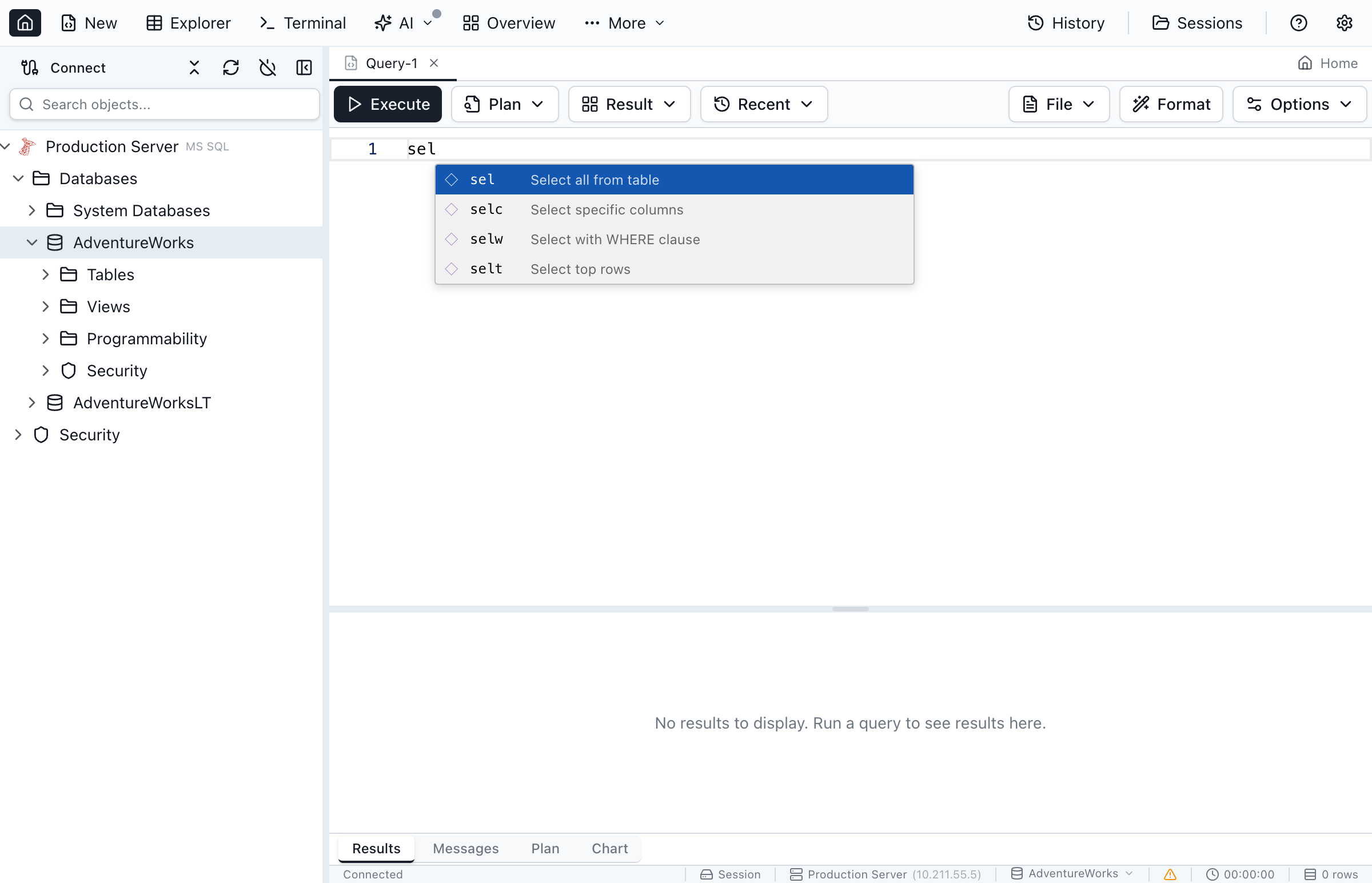
Triggering a Snippet
- Start typing a snippet prefix in the query editor (e.g.,
sel) - The snippet appears in the autocomplete dropdown
- Press
TaborEnterto expand the snippet - Fill in the placeholder values
- Press
Tabto move to the next placeholder
Working with Placeholders
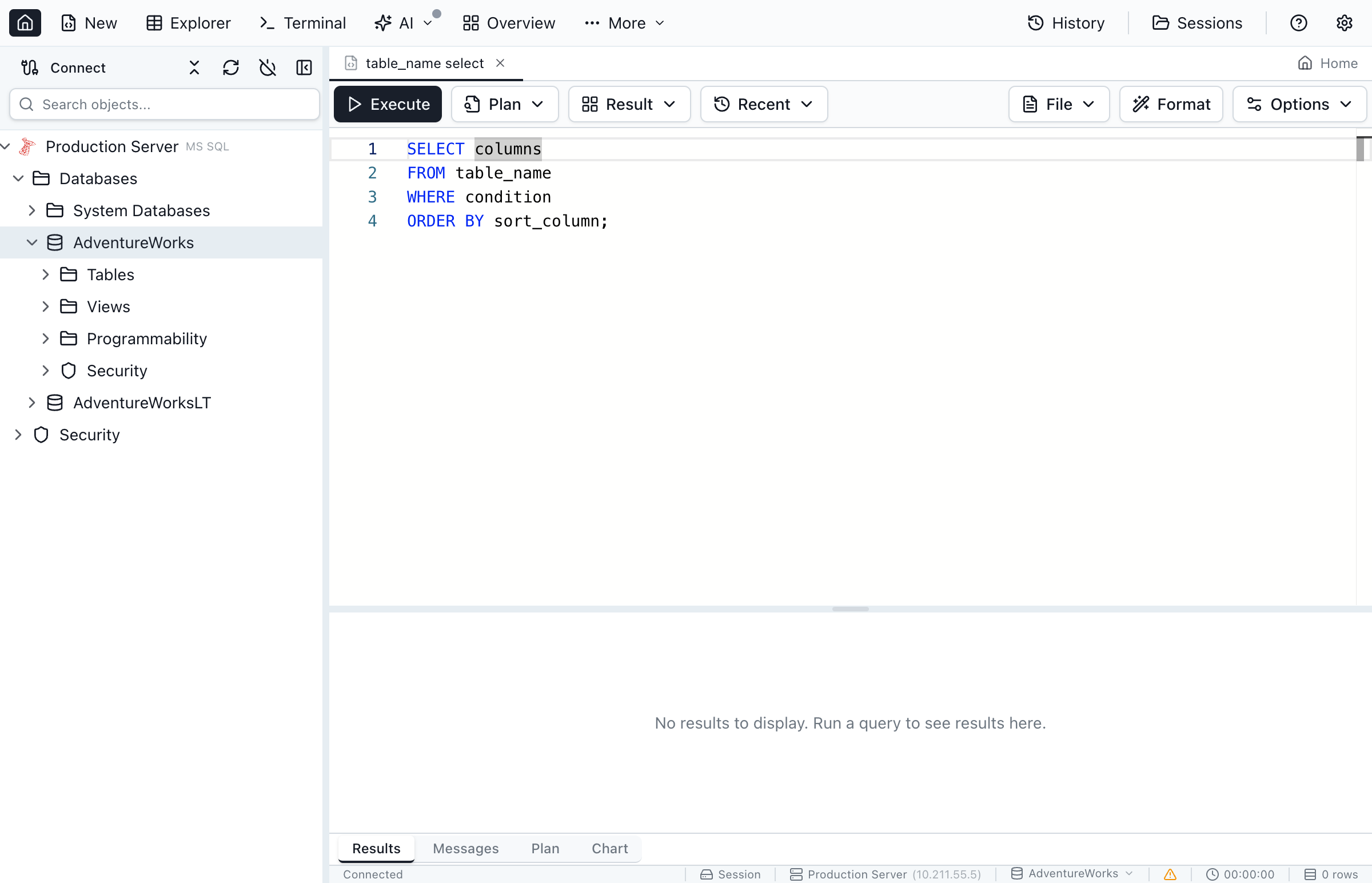
After a snippet expands, use these keys to navigate:
Tab- Move to next placeholderShift+Tab- Move to previous placeholderEscape- Exit snippet mode and place cursor at end
Built-in Snippet Library
Jam SQL Studio includes these snippets out of the box:
Query Snippets
| Prefix | Description | Expands To |
|---|---|---|
sel | SELECT statement | SELECT * FROM table_name |
selc | SELECT with columns | SELECT column1, column2 FROM table_name |
selw | SELECT with WHERE | SELECT * FROM table_name WHERE condition |
selt | SELECT TOP | SELECT TOP 100 * FROM table_name |
ins | INSERT statement | INSERT INTO table_name (columns) VALUES (values) |
upd | UPDATE statement | UPDATE table_name SET column = value WHERE condition |
del | DELETE statement | DELETE FROM table_name WHERE condition |
Join Snippets
| Prefix | Description | Expands To |
|---|---|---|
ij | INNER JOIN | INNER JOIN table2 ON table1.column = table2.column |
lj | LEFT JOIN | LEFT JOIN table2 ON table1.column = table2.column |
rj | RIGHT JOIN | RIGHT JOIN table2 ON table1.column = table2.column |
cj | CROSS JOIN | CROSS JOIN table2 |
DDL Snippets
| Prefix | Description | Expands To |
|---|---|---|
ct | CREATE TABLE | Full CREATE TABLE template with columns |
cv | CREATE VIEW | CREATE VIEW view_name AS SELECT ... |
cp | CREATE PROCEDURE | Full stored procedure template |
cf | CREATE FUNCTION | Scalar function template |
ci | CREATE INDEX | CREATE INDEX index_name ON table (columns) |
Creating Custom Snippets
Define your own snippets for frequently used patterns.
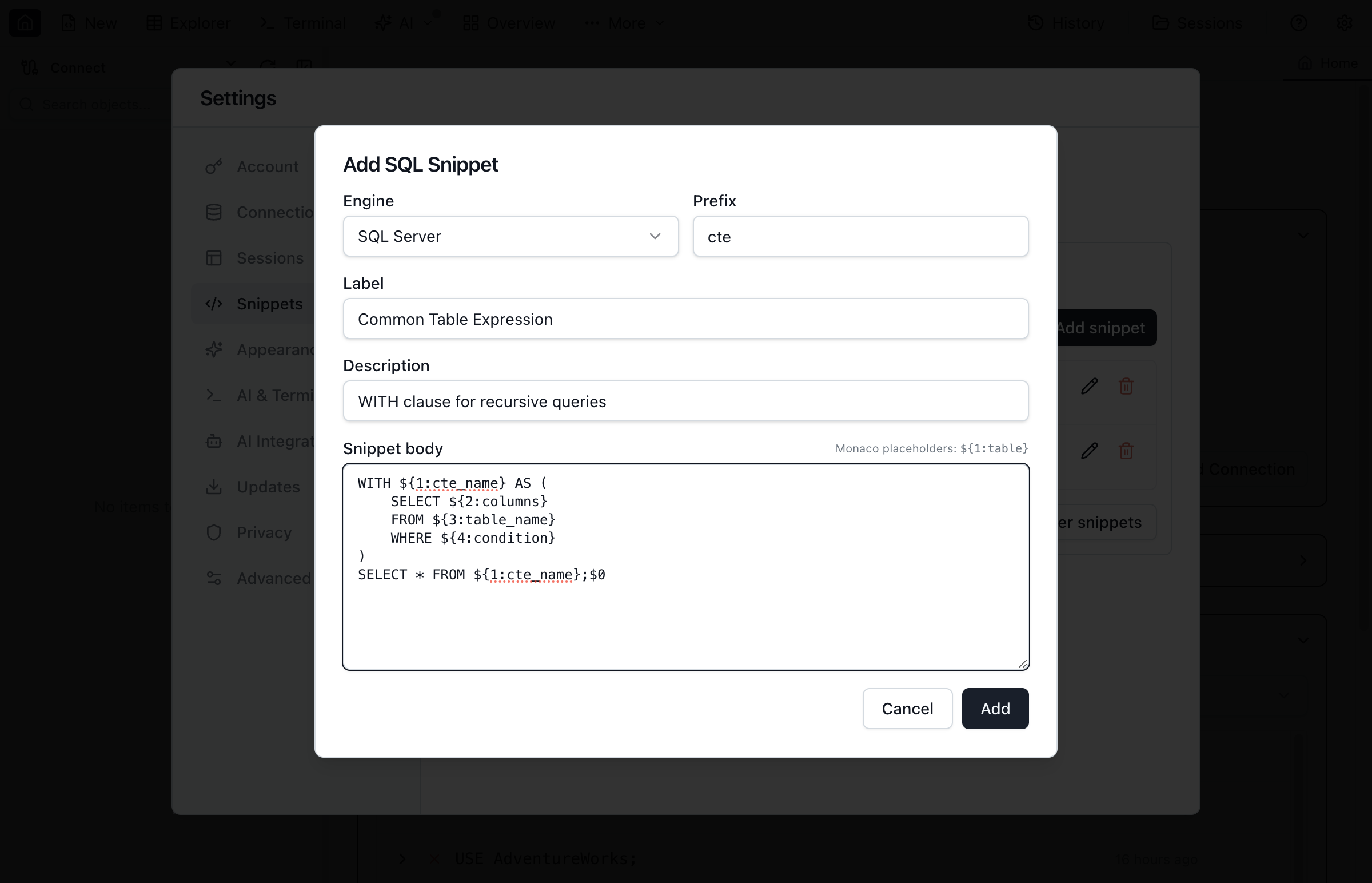
Add a New Snippet
- Open Settings (
Cmd+,/Ctrl+,) - Navigate to Snippets
- Click Add Snippet
- Enter a unique prefix
- Add a description
- Write the snippet template code
- Click Save
Placeholder Syntax
Use these patterns in your snippet templates:
| Syntax | Description | Example |
|---|---|---|
${1} | Simple tab stop | Cursor stops here, no default text |
${1:text} | Tab stop with default | ${1:table_name} shows "table_name" selected |
${2:text} | Second tab stop | Tab moves to this after first |
$0 | Final cursor position | Where cursor ends after all tab stops |
Example Custom Snippet
A snippet for audited INSERT statements:
-- Prefix: insa
-- Description: INSERT with audit columns

INSERT INTO ${1:table_name} (
    ${2:columns},
    CreatedBy,
    CreatedAt
)
VALUES (
    ${3:values},
    CURRENT_USER,
    GETDATE()
)$0
When expanded:
- Cursor highlights
table_namefor you to replace - Tab moves to
columns - Tab moves to
values - Tab exits snippet mode with cursor at end
Managing Snippets
Edit Snippets
Click the pencil icon next to any custom snippet to edit its prefix, label, description, or template code.
Delete Snippets
Click the trash icon next to a custom snippet to delete it. A confirmation dialog will appear before deletion.
Clear All Snippets
Use the Clear [Engine] snippets button to remove all custom snippets for a specific database engine (SQL Server, PostgreSQL, or SQLite).
Ready to Speed Up Your SQL Writing?
Download Jam SQL Studio and start using snippets today.