
Last updated: 2026-02-12
Table Designer
Create and modify database tables with a visual interface. Table Designer lets you define columns, set data types, configure primary keys and identity columns, and preview the generated DDL scripts before executing.
Creating a New Table
Use Table Designer to create tables without writing SQL manually.
Opening Table Designer
- Click More in the toolbar
- Select Table Designer
- Or press
Cmd+Shift+T(macOS) /Ctrl+Shift+T(Windows/Linux)
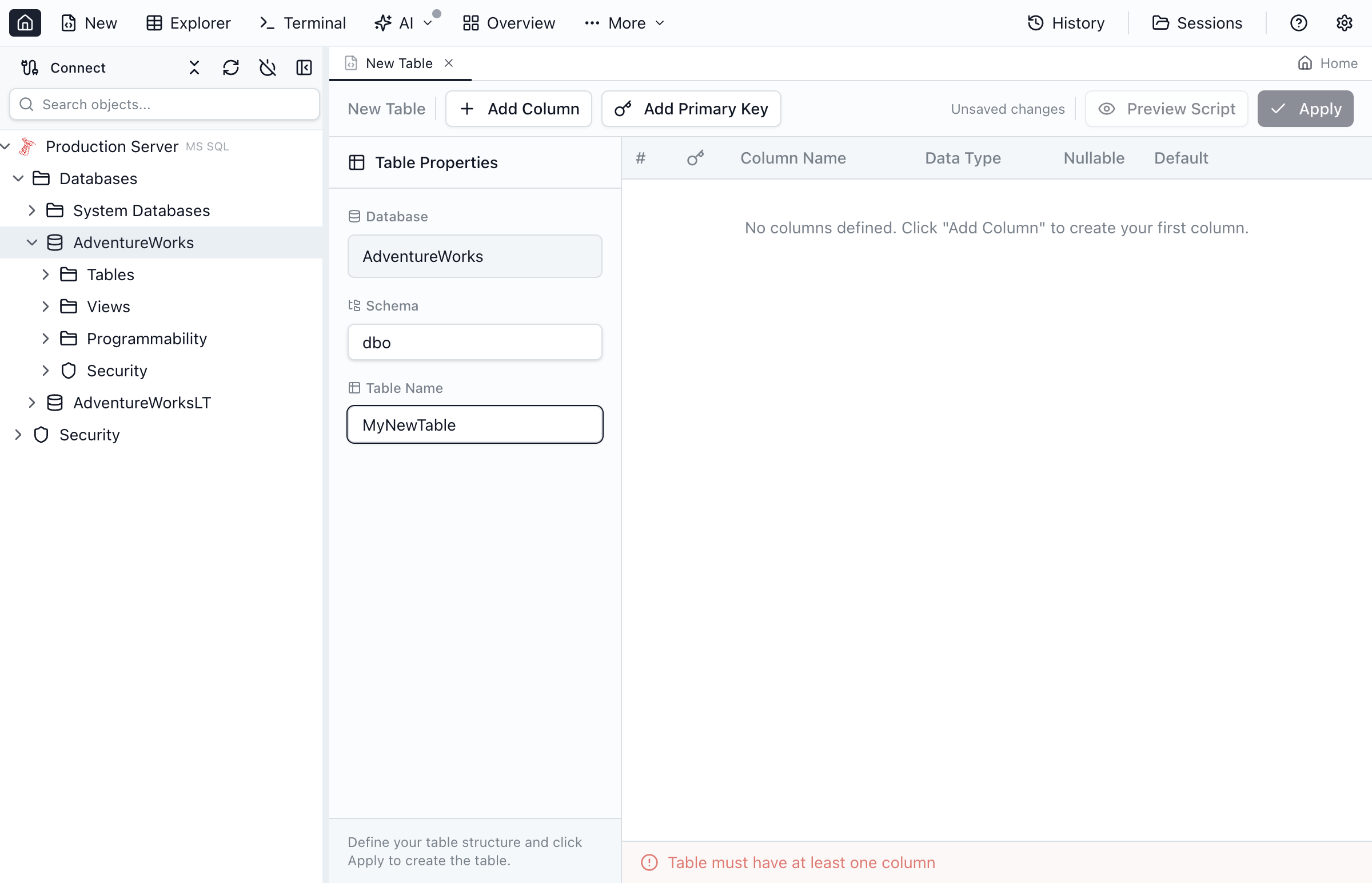
Setting Table Properties
- Select the Database where the table will be created
- Optionally select a Schema (defaults to
dbofor SQL Server) - Enter the Table Name (e.g.,
Products,Customers)
Adding Columns
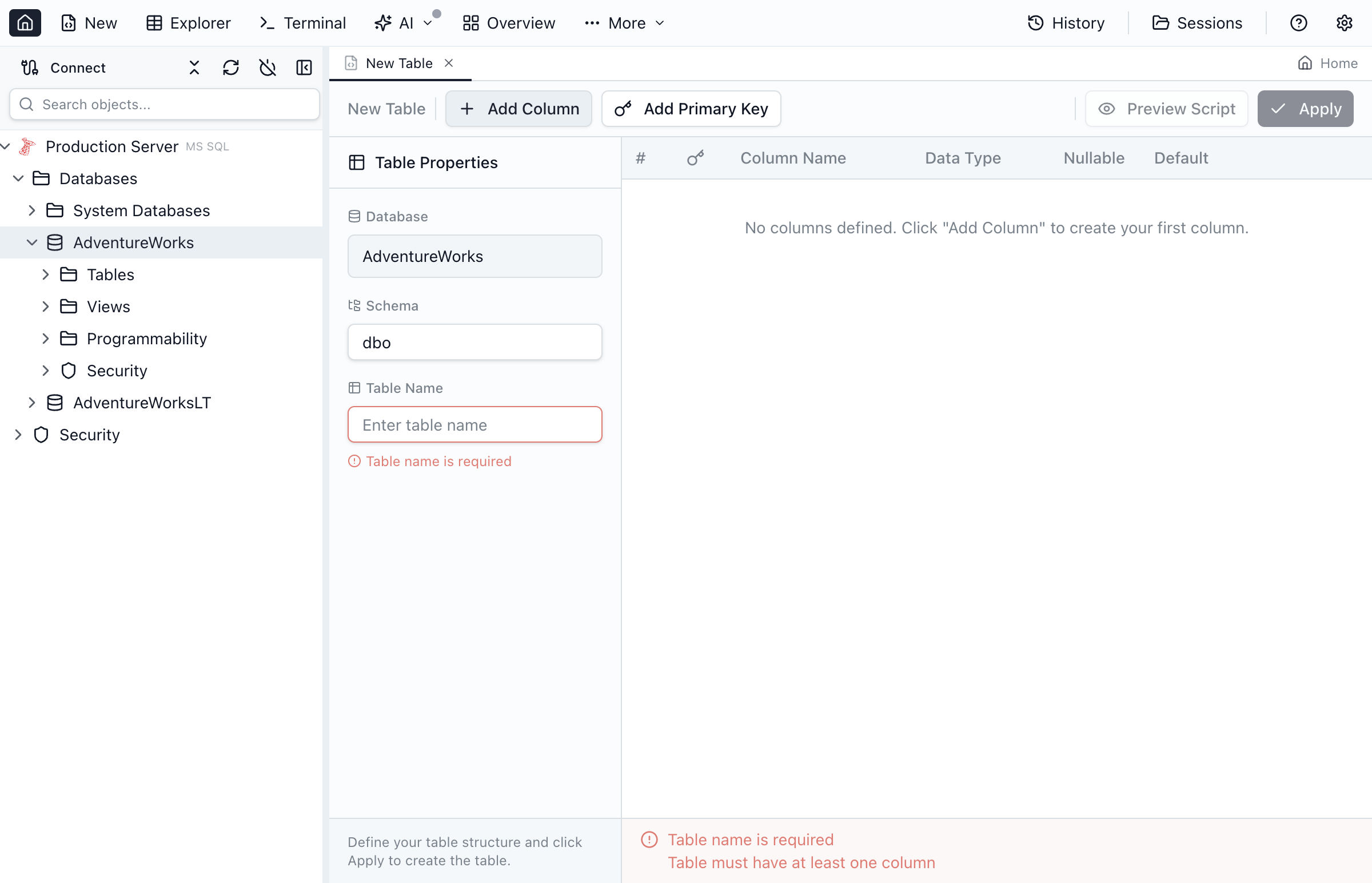
- Click Add Column or press the
+button - Enter the column name
- Select a data type from the dropdown
- Configure column properties (nullable, primary key, etc.)
- Repeat for each column
Column Properties
Each column has several configurable properties:
Column Name
Enter a descriptive name for the column. Follow your database naming conventions (e.g., ProductID, product_id, productId).
Data Type
Select the appropriate data type from the dropdown. Common types include:
| Category | SQL Server | PostgreSQL |
|---|---|---|
| Integer | int, bigint, smallint | integer, bigint, smallint |
| Decimal | decimal(p,s), money | numeric(p,s), decimal |
| Text | varchar(n), nvarchar(n) | varchar(n), text |
| Date/Time | datetime, date, time | timestamp, date, time |
| Boolean | bit | boolean |
| Binary | varbinary(n) | bytea |
Length/Precision
For certain data types, specify:
- Length - Maximum characters for
varchar(n) - Precision - Total digits for
decimal(p,s) - Scale - Decimal places for
decimal(p,s)
Nullable
Check Allow NULL to permit NULL values. Uncheck to require a value (NOT NULL constraint).
Primary Key
Check Primary Key to include this column in the table's primary key:
- Primary key columns are automatically NOT NULL
- Select multiple columns for a composite primary key
- Primary keys create a clustered index by default (SQL Server)
Identity / Auto-Increment
Enable Identity for auto-incrementing numeric columns:
SQL Server
- Check the Identity checkbox
- Seed - Starting value (default: 1)
- Increment - Step value (default: 1)
PostgreSQL
- Select
SERIALorBIGSERIALdata type - Or use
GENERATED ALWAYS AS IDENTITY
Default Value
Enter a default value expression:
0- Numeric default''- Empty stringGETDATE()- Current date/time (SQL Server)NOW()- Current date/time (PostgreSQL)NEWID()- New GUID (SQL Server)
Modifying Existing Tables
Open existing tables in Table Designer to make changes.
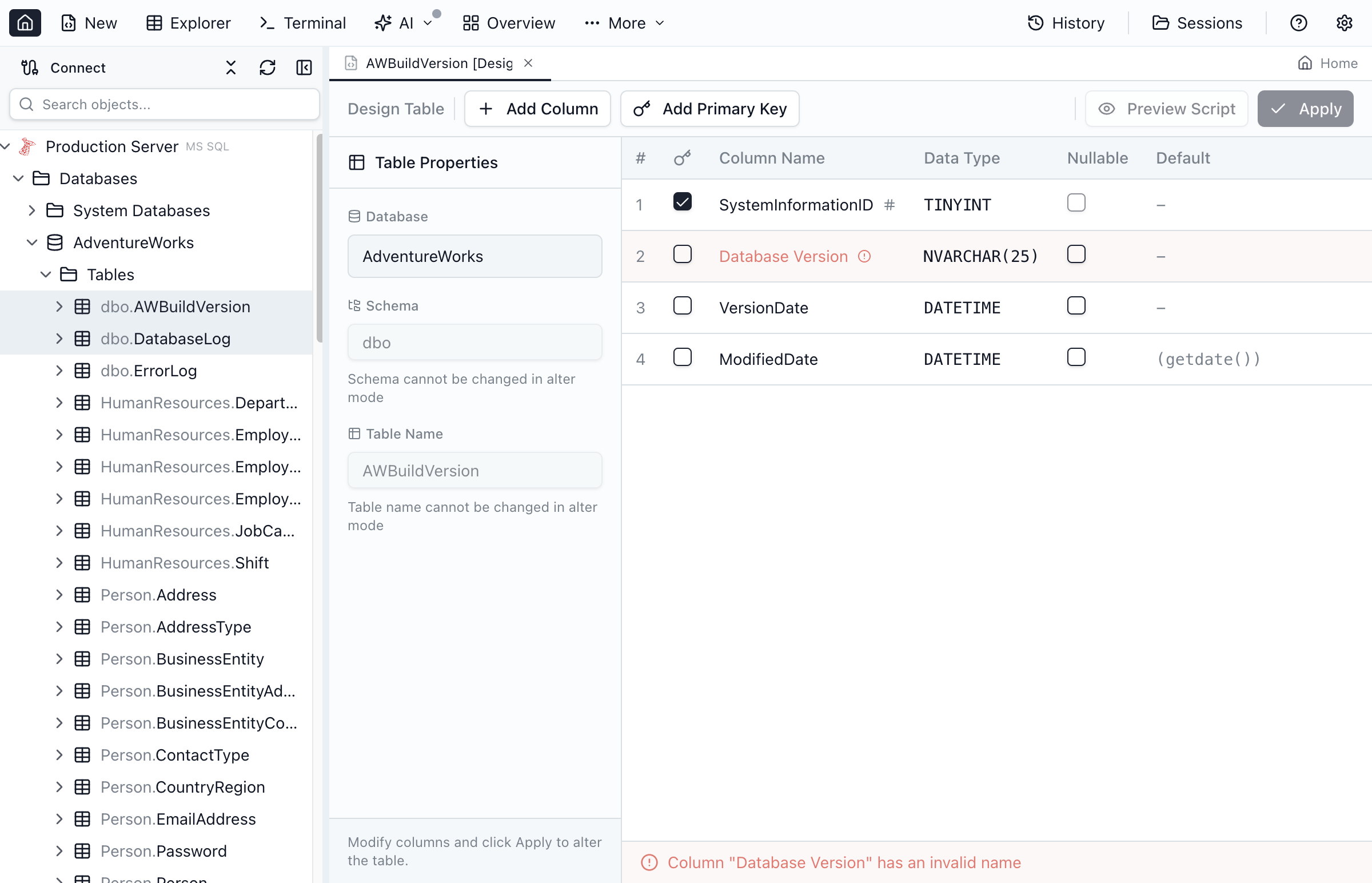
Opening in Alter Mode
- Find the table in Object Explorer
- Right-click the table
- Select Design Table
Adding New Columns
- Click Add Column to append a new column
- New columns are added at the end of the table
- Consider adding a default value if the table has existing data
Modifying Existing Columns
You can modify some properties of existing columns:
| Change | Allowed? | Notes |
|---|---|---|
| Increase varchar length | Yes | Data preserved |
| Decrease varchar length | Limited | May truncate data |
| Change data type | Limited | Must be compatible |
| Add NOT NULL | Conditional | No existing NULLs |
| Remove NOT NULL | Yes | Always allowed |
| Add default value | Yes | Always allowed |
Deleting Columns
- Select the column to delete
- Click the Delete button or press
Delete - The column is marked for deletion (shown with strikethrough)
- Column is removed when you save the changes
Saving Changes
Table Designer generates DDL scripts for your changes.
Preview Script
- Click Preview Script to see the generated SQL
- Review the CREATE TABLE or ALTER TABLE statements
- Copy the script if needed for version control
Execute Script
- Click Save to execute the script
- Table Designer creates/modifies the table
- The Object Explorer refreshes to show changes
Dirty State Indicator
- An asterisk (*) in the tab title indicates unsaved changes
- Modified columns are highlighted
- Added columns show an "add" indicator
- Deleted columns show a strikethrough
Best Practices
Naming Conventions
- Use consistent naming (PascalCase, snake_case, or camelCase)
- Avoid reserved words as column names
- Use singular nouns for table names (Product not Products)
Primary Keys
- Every table should have a primary key
- Consider using identity columns for surrogate keys
- Use meaningful columns for natural keys when appropriate
Data Types
- Choose the smallest appropriate data type
- Use
varcharinstead ofcharfor variable-length strings - Use
decimalfor monetary values (notfloat)
Ready to Design Tables?
Download Jam SQL Studio and create database tables visually.