
Last updated: 2026-02-12
Table Explorer
Browse, filter, and edit table data with a powerful visual interface. Table Explorer lets you view data with pagination, apply filters with various operators, edit cells inline, add or delete rows, and export data in multiple formats.
Opening Table Explorer
There are several ways to open a table in Table Explorer:
From Object Explorer
The quickest way to view table data:
- Expand a database in the Object Explorer sidebar
- Right-click any table
- Select Select Top 1000 to browse data, or
- Select Edit Top 200 to open in edit mode
From Toolbar
- Click the Table Explorer button in the main toolbar
- Select a database from the dropdown
- Select a table from the list
- Click Open to load the data
Browsing Data
Once a table is open, you can explore the data using these features:
Pagination
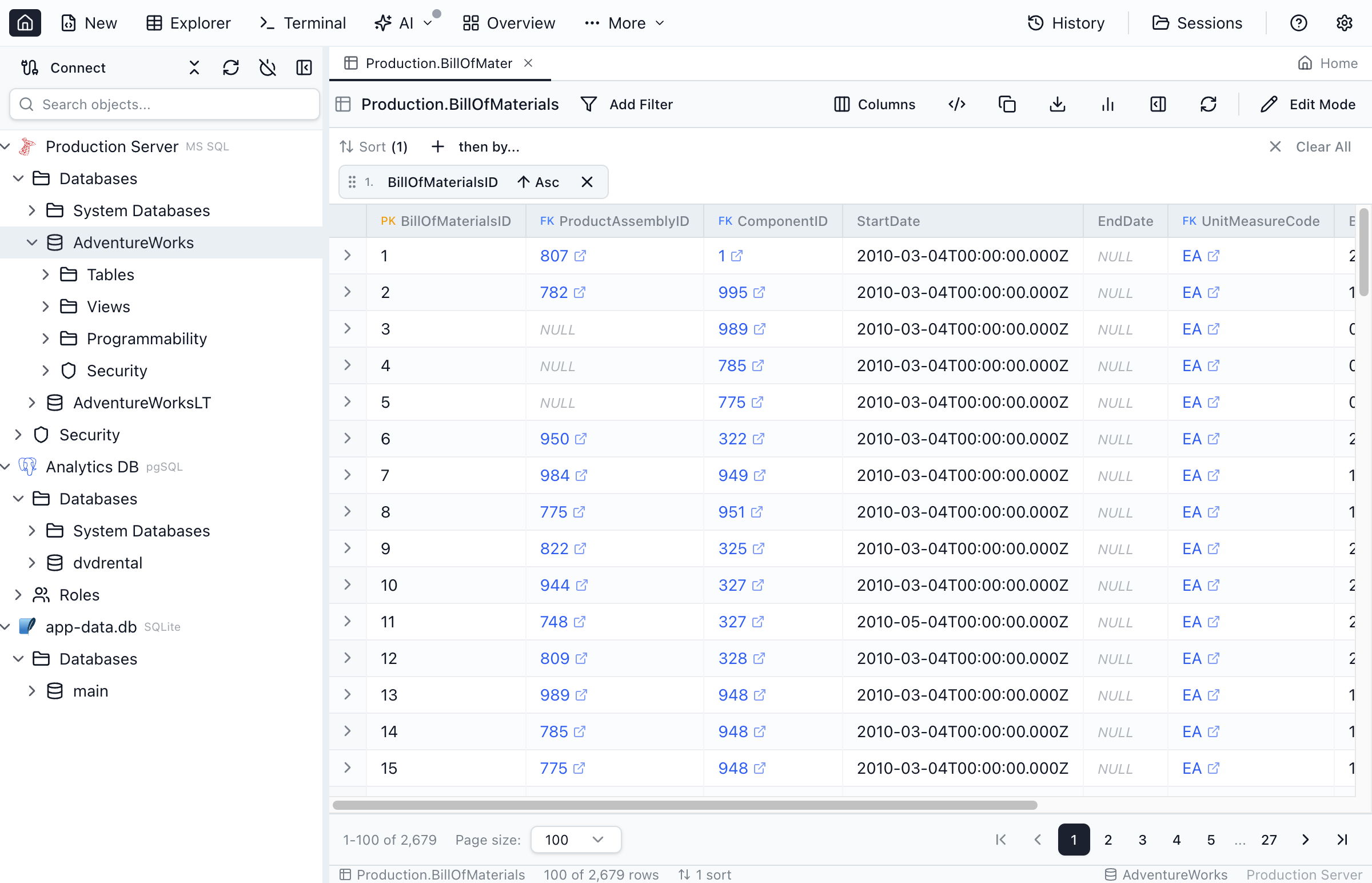
Large tables are loaded in pages for performance:
- Page size - Choose 50, 100, 200, 500, or 1000 rows per page
- Navigation - Use the arrows to move between pages
- Jump to page - Enter a page number directly
- Row count - See total rows and current range displayed
Column Sorting
Click a column header to add it to the Sort panel (ascending by default). Use the Sort panel to change direction, reorder sorts, or remove sorts.
- Click a column header to add a sort
- Multiple sorts are supported (reorder in the Sort panel)
Column Resizing
Drag the border between column headers to resize columns. Double-click a column border to auto-fit the column width to its content.
Row Details
Inspect a single row in a details panel (available outside edit mode):
- Click a row to select it
- Use the row expander (>) to open Row details at the bottom
- Use the Row side panel button (|) to open Row details on the right
- Use the panel header buttons to switch between bottom and side layouts
- Drag the divider between the grid and the side panel to adjust the panel width
Filtering Data
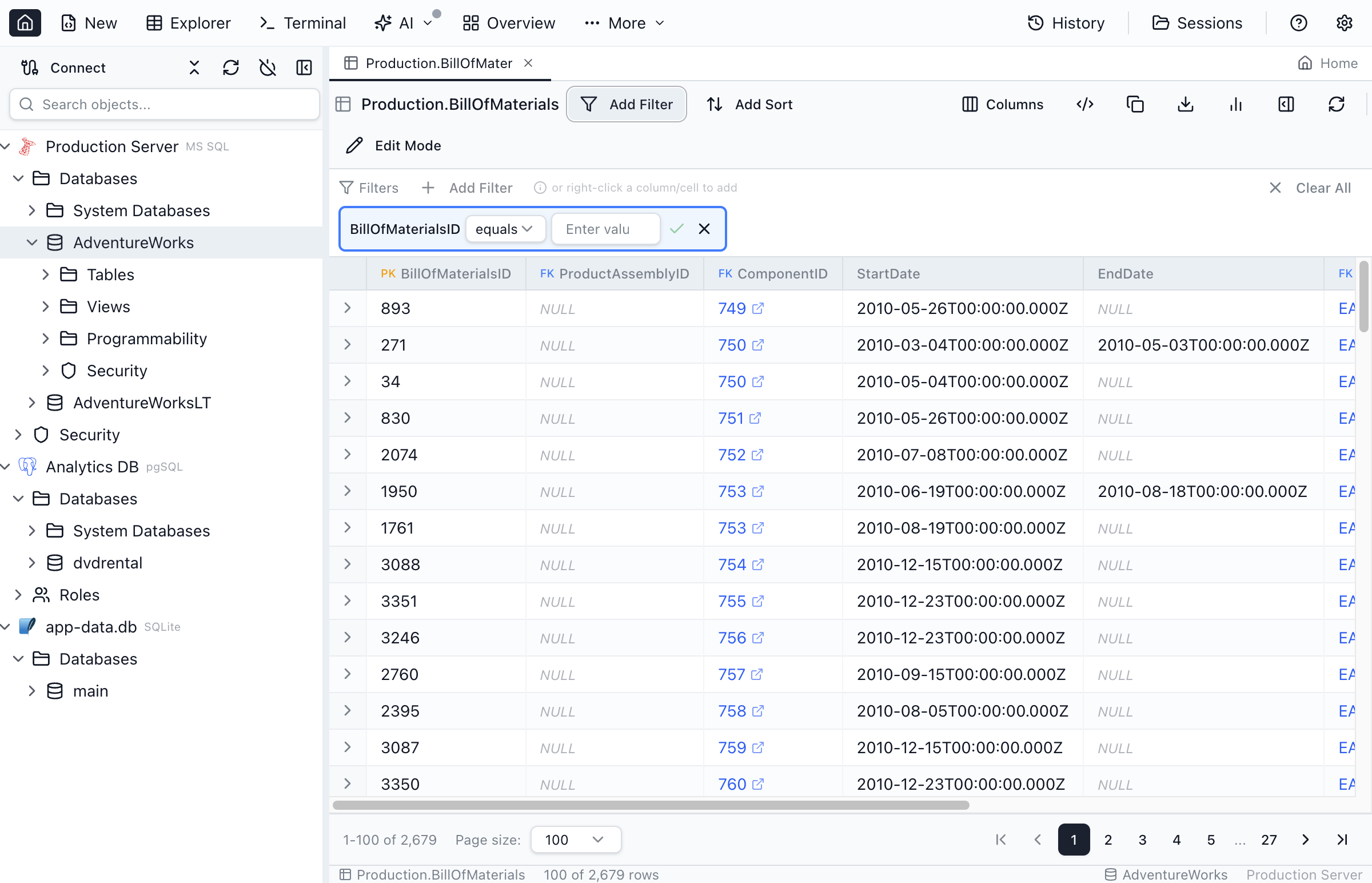
Use the filter panel to find specific data without writing SQL:
Adding Filters
- Click the Filter button to open the filter panel
- Select a column from the dropdown
- Choose an operator
- Enter the value to filter by
- Click Apply to filter the results
Filter Operators
Table Explorer supports these filter operators:
| Operator | Description | Example |
|---|---|---|
= | Equals | Status = 'Active' |
!= | Not equals | Status != 'Deleted' |
< | Less than | Price < 100 |
<= | Less than or equal | Age <= 65 |
> | Greater than | Quantity > 0 |
>= | Greater than or equal | Rating >= 4 |
LIKE | Pattern match (% wildcard) | Name LIKE 'John%' |
BETWEEN | Range (inclusive) | Date BETWEEN '2024-01-01' AND '2024-12-31' |
IS NULL | Value is NULL | Email IS NULL |
IS NOT NULL | Value is not NULL | Phone IS NOT NULL |
Multiple Filters
Add multiple filter conditions to narrow down results. All filters are combined with AND logic, meaning rows must match all conditions to appear.
Clear Filters
Click the Clear button to remove all filters and show all data. You can also remove individual filters by clicking the X next to each condition.
Editing Data
Table Explorer provides inline editing for quick data modifications:
Enable Edit Mode
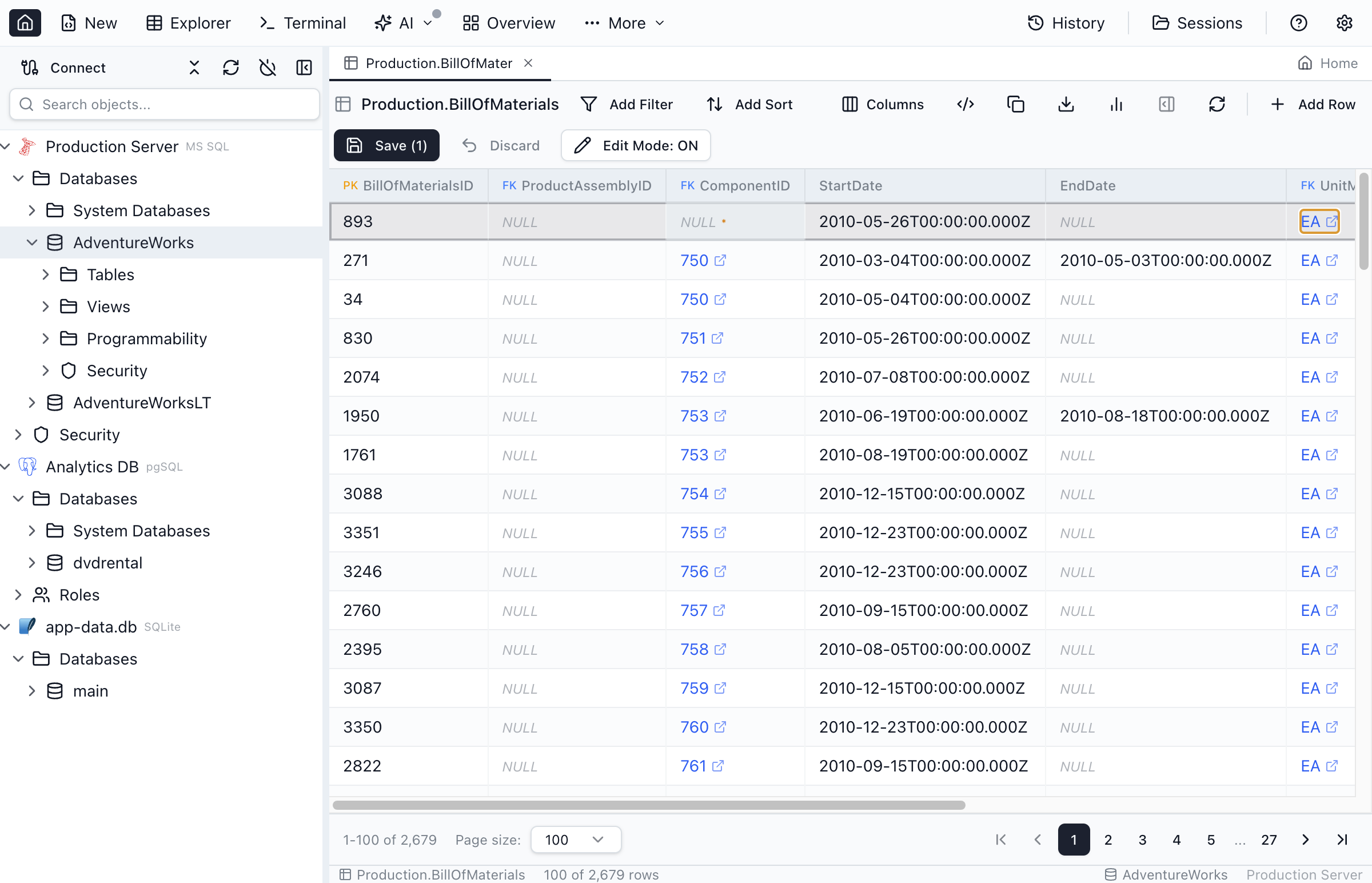
Editing is disabled by default to prevent accidental changes. To enable editing:
- Click the Edit toggle button in the toolbar, or
- Use Edit Top 200 from the Object Explorer context menu
Inline Cell Editing
- Click any cell to select it
- Start typing to replace the value, or press
F2to edit - Press
Enterto confirm orEscapeto cancel - Modified cells are highlighted until saved
Expanded Editor (JSON & Multiline Text)
For JSON and multiline text, click the expand (maximize) icon in a cell to open a larger editor.
- Large text columns (for example
nvarchar(max),text,json/jsonb) show the expand icon by default - Short text columns (for example
nvarchar(200)) show the expand icon only when the value contains newlines (columns sizednvarchar(256)or larger show it by default) - JSON/Text mode tabs - Switch between JSON and Text modes in the dialog (the initial mode is chosen automatically)
- Copy - Use the Copy icon in the dialog header to copy the full value to your clipboard
Adding New Rows
- Click the Add Row button in the toolbar
- A new blank row appears at the bottom of the grid
- Fill in the column values
- Click Save to insert the row into the database
Deleting Rows
- Select the row(s) you want to delete
- Click the Delete button or press
Delete - Rows are marked for deletion (shown with strikethrough)
- Click Save to permanently delete from the database
Saving Changes
Changes are not written to the database until you explicitly save:
- Save - Click the Save button to commit all pending changes
- Pending indicator - Shows the count of modified/added/deleted rows
- Review changes - Hover over the pending indicator to see a summary
Discarding Changes
To undo uncommitted changes:
- Click Discard to revert all pending changes
- Right-click a modified row and select Revert to undo that row only
Exporting Data
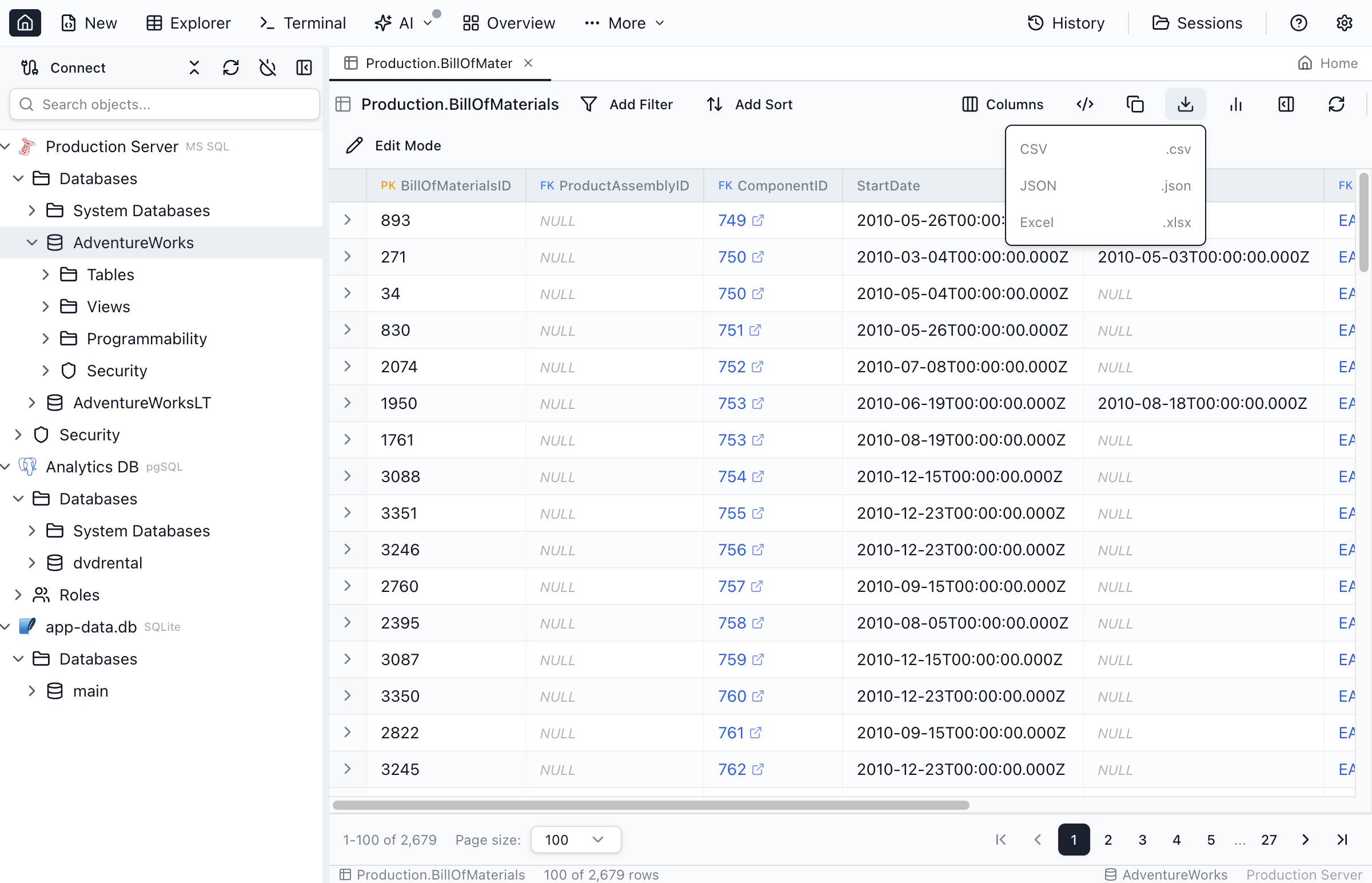
Export the current view to various formats for use in other applications:
Export Formats
- CSV - Comma-separated values, opens in spreadsheets
- JSON - JavaScript Object Notation, useful for APIs and scripts
- Excel - Native .xlsx format with proper data types
Export Scope
- Current grid view - Exports the currently loaded rows and the currently visible columns
Keyboard Shortcuts
Navigate and edit efficiently with these shortcuts:
| Action | macOS | Windows/Linux |
|---|---|---|
| Edit selected cell | F2 | F2 |
| Confirm edit | Enter | Enter |
| Cancel edit | Escape | Escape |
| Delete selected rows | Delete | Delete |
| Copy cells | Cmd+C | Ctrl+C |
| Select all | Cmd+A | Ctrl+A |
| Navigate cells | Arrow keys | Arrow keys |
| Save changes | Cmd+S | Ctrl+S |
| Refresh data | Cmd+R | Ctrl+R |
Ready to Explore Your Data?
Download Jam SQL Studio and start browsing and editing table data with ease.