 Jam SQL Studio
 Published: 2026-05-24 • Updated: 2026-09-23
Click Through a Database: Foreign Key Navigation
Every SQL client lets you click a foreign-key value. Most of them respond by opening another tab. Six clicks later you have a strip of tabs whose order is the only record of where you came from — close one and the path is gone. Foreign Key Navigation in Jam SQL Studio replaces that pile of tabs with a clickable breadcrumb tree that stays inside the tab you started in, alongside a new Single-Row Details View built for drilling deeper instead of skimming.
TL;DR — Foreign-key clicks now drill in the current Table Explorer tab. A breadcrumb chip-row at the top of the workspace tracks the full path, including branches. Clicking a row's FK opens a Single-Row Details View with the row cells on top and lazy-loaded Related Data below. Loose foreign keys are first-class hops in the breadcrumb. Pure m2m join tables auto-collapse. Four keyboard shortcuts (Cmd+← → ↑ ↓) walk the tree. Cmd-click or the … menu still opens in a new tab for users who prefer the old behaviour. See the Table Explorer — Foreign Key Navigation docs for the full reference.
The thirty-tab problem
The typical FK-navigation workflow in a SQL client looks something like this. You start on a row in orders. You want to know which customer placed it, so you click customer_id. A new tab opens on customers filtered to one row. The customer has an address_id; you click it. New tab on addresses. From the address you want to see all other orders to that address; you click into orders again. New tab. Six clicks in, your tab strip is full and your only record of where you came from is the order of the tabs themselves. Close one and the path is gone. Reopen later and you have no idea why those six tabs existed.
That cost compounds the more you actually use FK navigation, which is the part that bites. The tools that handle FK clicks gracefully nudge you toward exactly the workflow that produces the tab explosion. The fix is structural: stop opening tabs, start tracking the path. So that's what we did.
The breadcrumb tree, in one paragraph
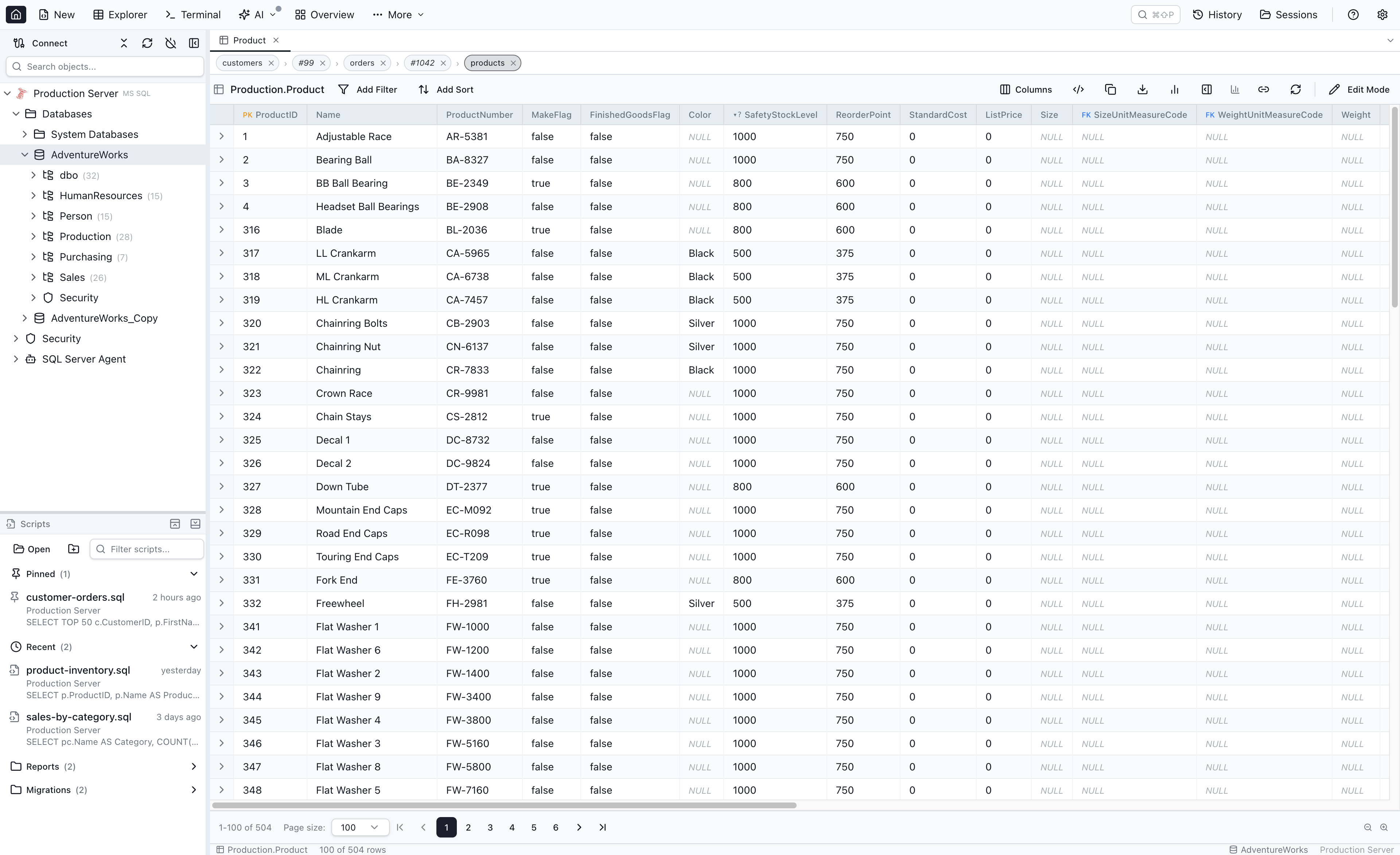
Every Table Explorer tab now owns a navigation tree. The first time you drill into a foreign key inside a tab, Jam SQL Studio initialises the tree (root = the table you started on, child = the row you drilled into) and a chip-row appears above the workspace. Every further drill-in pushes another node onto the tree. The chip-row renders the active path inline; nodes with multiple children get a +N badge so other branches stay reachable. Each chip is clickable (activate that hop), each chip has a small × (drop it and its subtree), and four keyboard shortcuts walk the tree without leaving the keyboard. The whole drill-down lives inside one Table Explorer tab.
Sessions persist the tree. The next time you open the workspace, the chip-row is right where you left it — including the branches you didn't follow.
Entry points — the eight ways to start a drill-down
FK navigation has more entry points than just "click an FK cell." We mapped six surfaces where a user reasonably says "drill into this":
| EP | Surface | What opens |
|---|---|---|
| 1 | Click an FK cell in the grid → peek popover → primary Open | Single-Row View for the referenced row |
| 2 | Right-click any row in the grid → Open record details | Single-Row View for that row |
| 3 | Inline row-expansion panel → Open record button | Single-Row View for the expanded row (panel collapses) |
| 4 | FK cell click inside the Single-Row View's row-details panel | Re-renders the Single-Row View for the new row |
| 5 | Related Data section header → primary Open | Grid view filtered by the parent PK |
| 6 | Mini-grid leftmost icon column → click | Single-Row View for the related row |
EP1, EP2, EP5, and EP6 each surface a … three-dot menu next to their primary action with two secondary options:
- Open in new explorer — opens a new Table Explorer tab with the target as its root, no breadcrumb. This is the old behaviour, preserved as an opt-in.
- Open in query editor — opens a new Query Editor tab pre-filled with
SELECT * FROM <target>(orWHERE <pk> = <value>for row-targets) so you can tweak the query before running it.
And a modifier shortcut: Cmd-click (or Ctrl-click on Windows / Linux) on an FK cell or mini-grid icon bypasses the popover and immediately opens the target in a new tab. Muscle memory preserved.
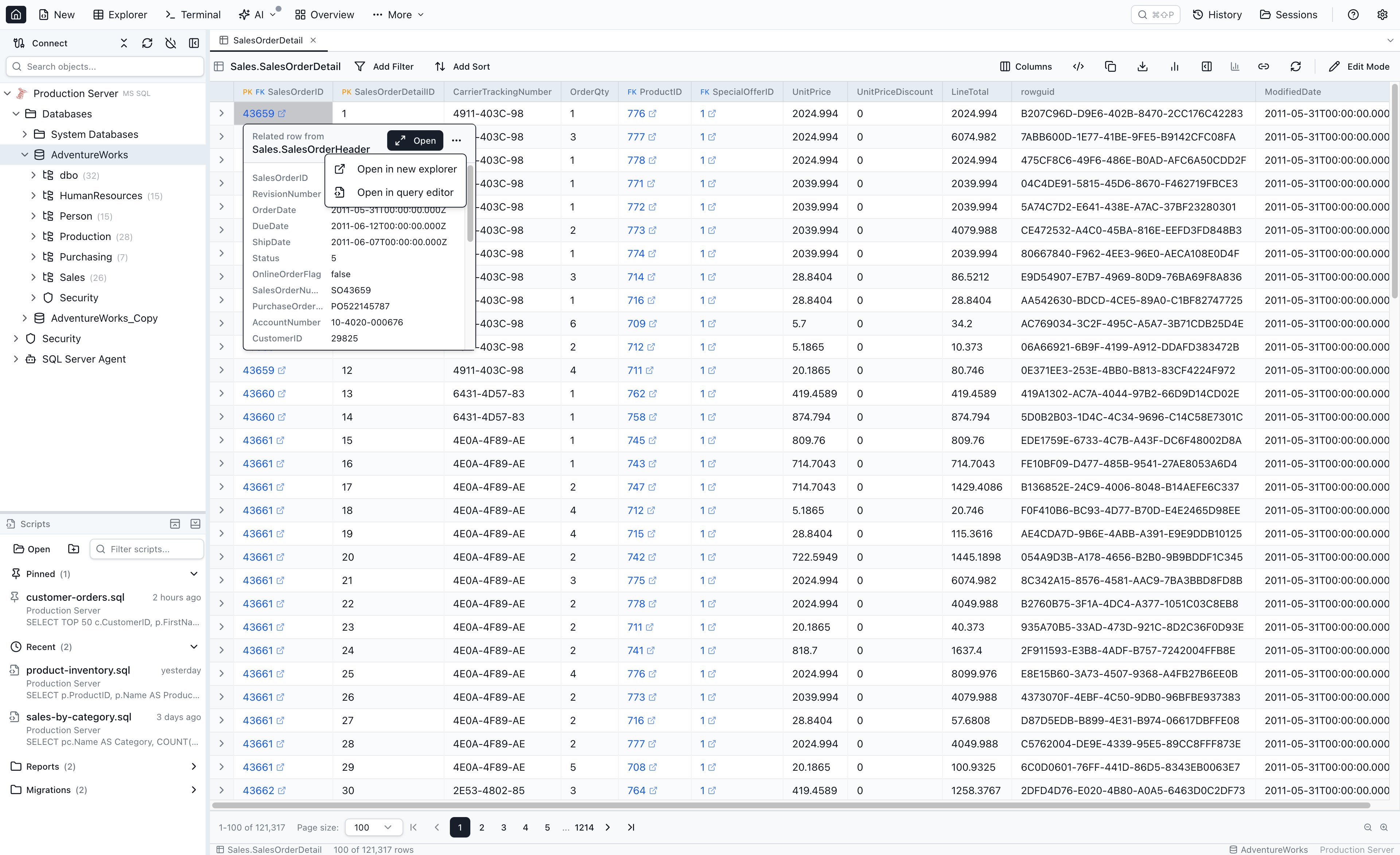
The reason for that many entry points is empirical: in our usage telemetry the same user reaches for different surfaces depending on what they're trying to do. Clicking a cell value is for "I see this id, what does it refer to." Right-clicking a row is for "open the whole record." The inline row-expansion panel is for "peek a few columns I can't see in the grid." Each route deserves a primary drill-in action; the … menu offers the alternatives without putting them in the way.
The Single-Row Details View
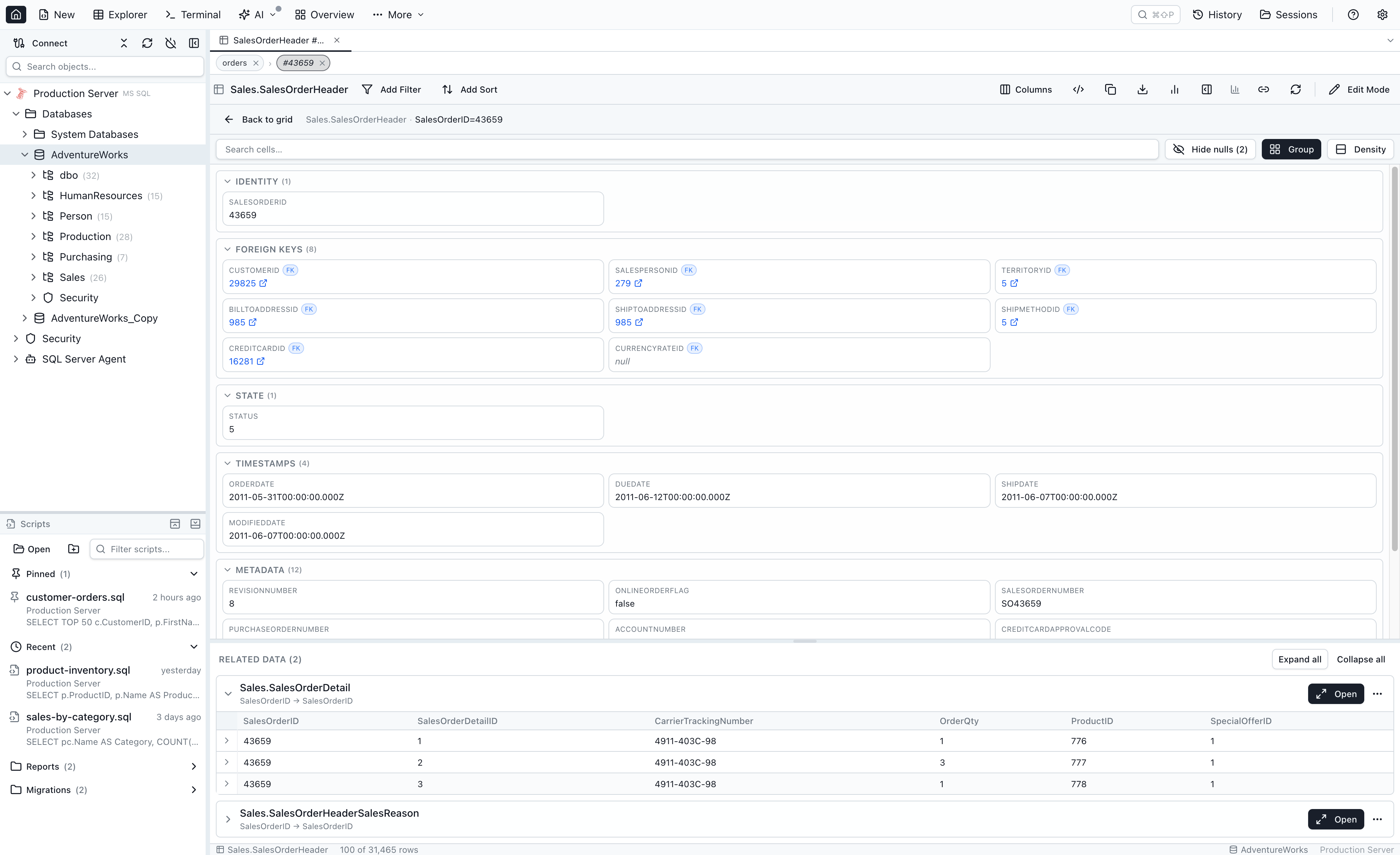
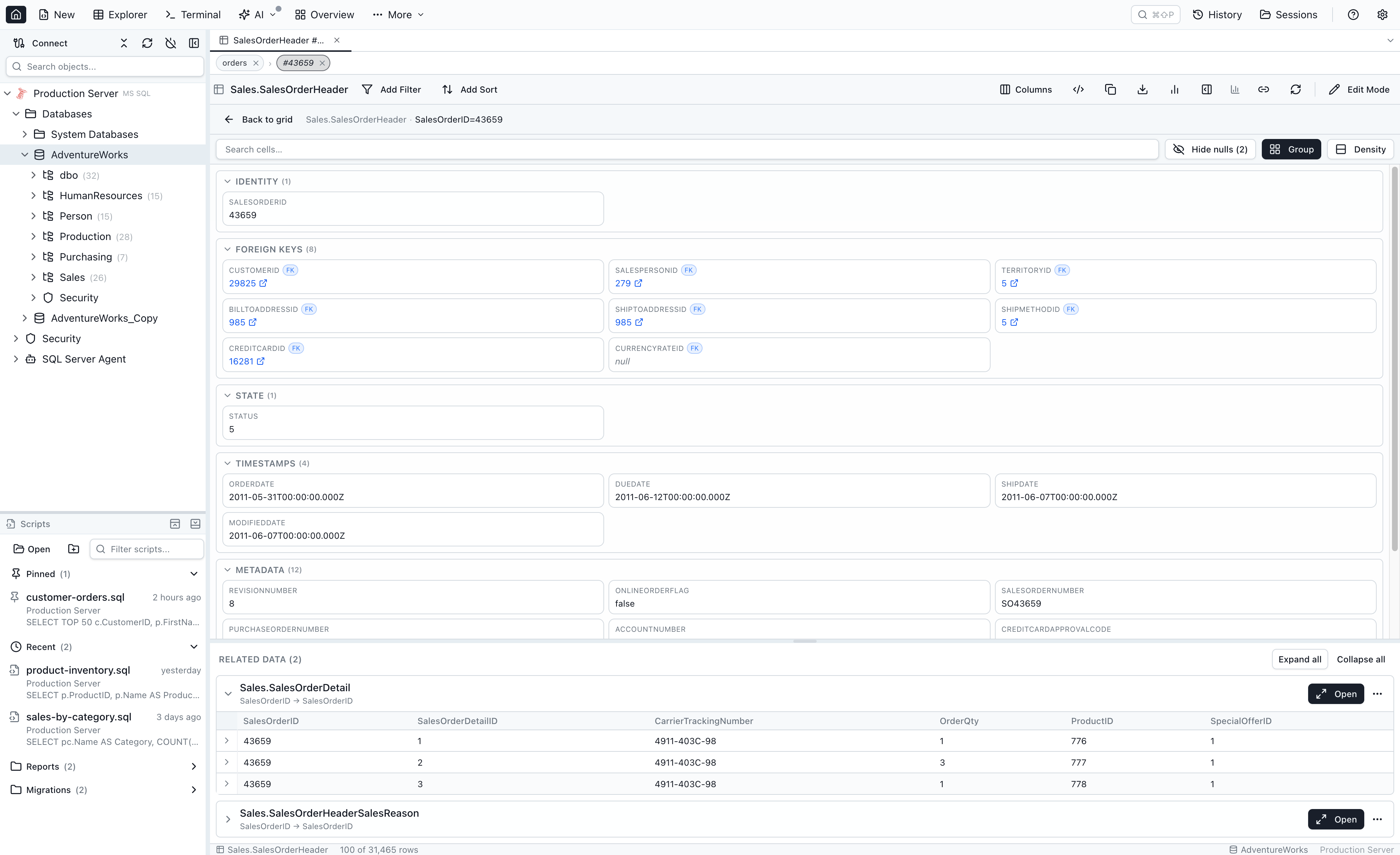
A row-node activating in the breadcrumb switches the workspace to the Single-Row Details View. It's not just "expand the row in a panel" — it's a full-workspace view designed specifically for the case where you've stopped browsing rows and started exploring one row.
Row cells, categorized
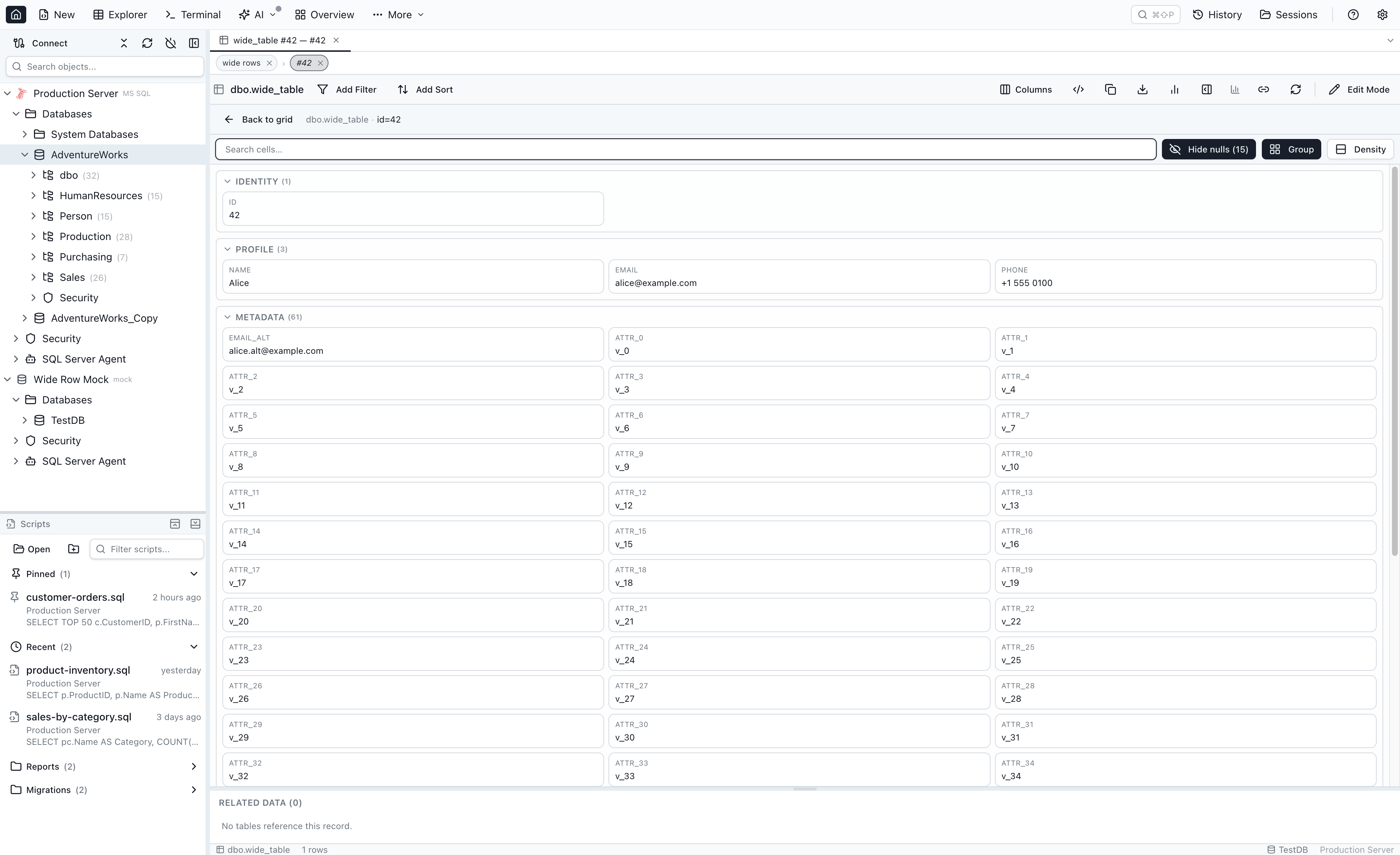
The top panel renders the row's cells in a fixed group order — identity columns first, then profile / display fields, then foreign keys, state, timestamps, counters, metadata. The category for each column is inferred from name + type + MetaInfo, and rules from MetaInfo override the heuristics when present. Empty groups don't render, so a row with no enum columns simply has no "State" group at all. The fixed order is the point: you always know where to look for the primary key, you always know where to look for the timestamps. There's no "scroll until you find created_at."
A small toolbar above the row-details panel offers a fuzzy cell-name search (filters across all groups), a Hide nulls toggle (default on for wide rows; the button label tells you how many cells are hidden), a Group toggle (auto-categorise vs. linear declaration order), and a Density switch (three-column grid vs. one-line-per-cell compact mode). The state is global to the user, not per-row — opinions about layout are personal, not row-specific.
Wide rows stay usable
One realistic failure mode: rows with 60, 80, 200 columns. The row-details panel is capped at 45% of the workspace, so even on the widest rows the Related Data sections below stay reachable. The cap is enforced by a CSS custom property, so a future drag-handle for resizing will be a small follow-up.
Lazy-loaded Related Data
Below the row cells, every table that references this row gets a collapsible Related Data section. The list comes from the schema cache, including loose foreign keys, so the sections render synchronously — nothing fires until you expand one.
Expand a section and Jam SQL Studio fires a COUNT(*) and a SELECT … LIMIT 4 in parallel. While the queries run a small spinner appears in the section body. Results are cached — collapse the section, reopen it within the same row visit, no re-query. There's also an Expand all action that opens every section at once, with concurrency capped at six in-flight queries so a row with 40+ inbound relations doesn't hammer the database.
Each section header has a primary Open button (drill into the related table, filtered by the parent PK — that's a grid view, not a Single-Row View, because there's typically more than one matching row) and a … menu with Open in new explorer and Open in query editor. Same modifier shortcuts work here: Cmd/Ctrl-click for new tab.
The mini-grid icon column
Expanded Related Data sections render a small read-only mini-grid of the first four rows. The mini-grid now has a new leftmost icon column — narrow, sticky, no header label, one ChevronRight icon per row. Click the icon to drill straight into that row's Single-Row View. Right-click for the same context menu (Open record / Open in new explorer / Open in query editor). Cmd/Ctrl-click opens in a new tab.
The inline row panel still works — Open record is the bridge
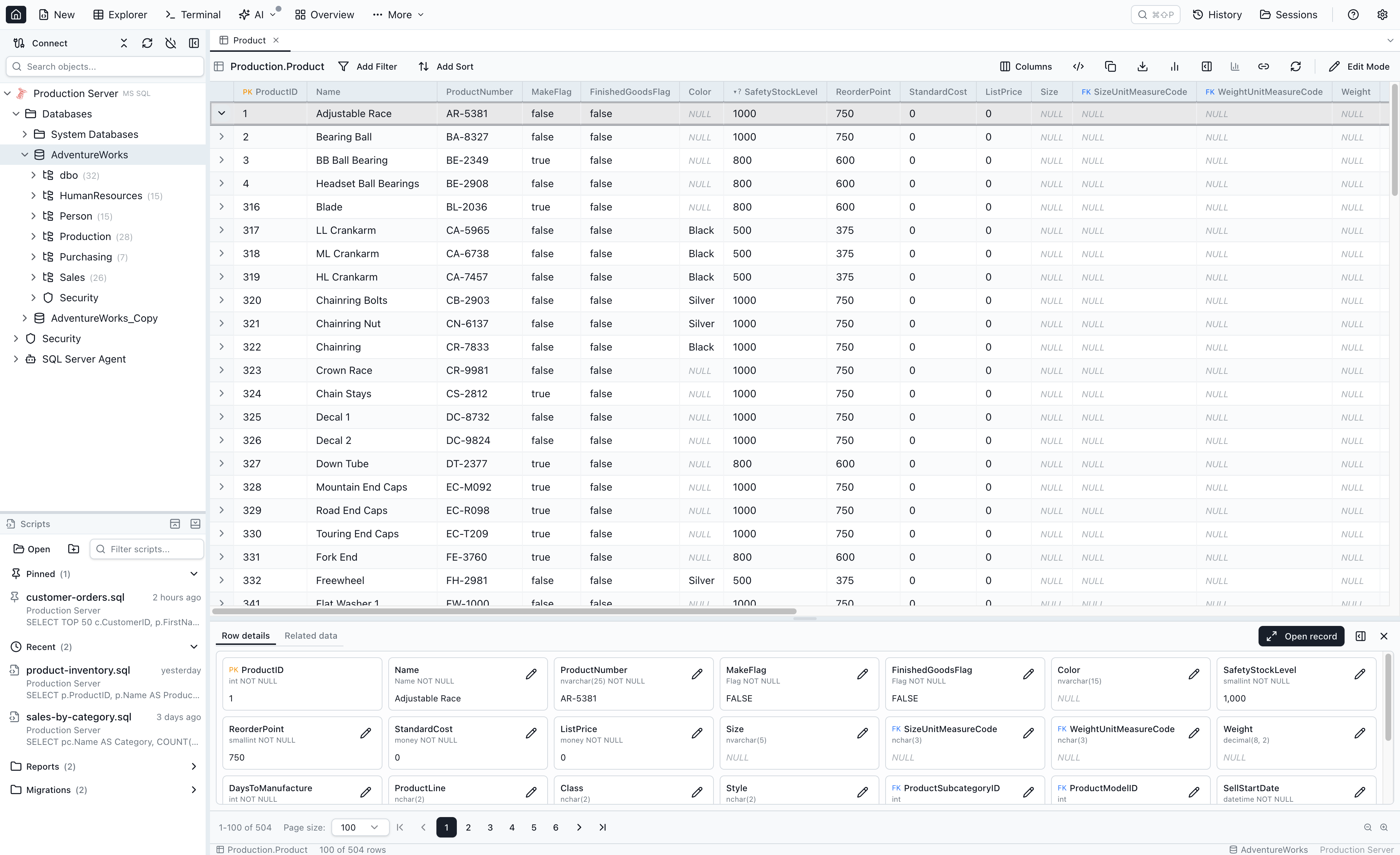
The existing inline row-expansion panel (the bottom panel with Row Details and Related Data tabs that appears when you toggle a row's chevron) is unchanged in spirit. It remains the cheapest way to glance at a few hidden columns or to spot an inbound count without leaving the grid context.
What changes is one new button on its tab strip: Open record (with the Maximize2 icon), positioned at the right of the tab strip before the layout toggle and the close button. Clicking it promotes the inline peek into the full Single-Row Details View — the row's chevron collapses, the workspace takes over. This is the bridge from "quick glance" to "deep drill-down." You can keep peeking inline for cheap reads and reach for Open record the moment a row deserves more than a glance.
The breadcrumb chip-row in detail
The chip-row sits above the workspace whenever a Table Explorer tab's navigation tree has more than one node. Each chip is a hop in the path. Visually it shows the relation name + the row identifier (orders #1042, customers #99 — Jane Doe); the tab title mirrors the active node.
Three interactions:
- Click a chip — activates that node. The workspace switches view (table-node → grid; row-node → Single-Row View). The tree is not mutated; sibling branches remain in place.
- Click the × on a chip — drops that node and its subtree. If the dismissed node was the active one, its parent activates.
- +N badge — a chip whose node has multiple children gets a small
+Nbadge. Click the badge to pop a small menu of all sibling branches.
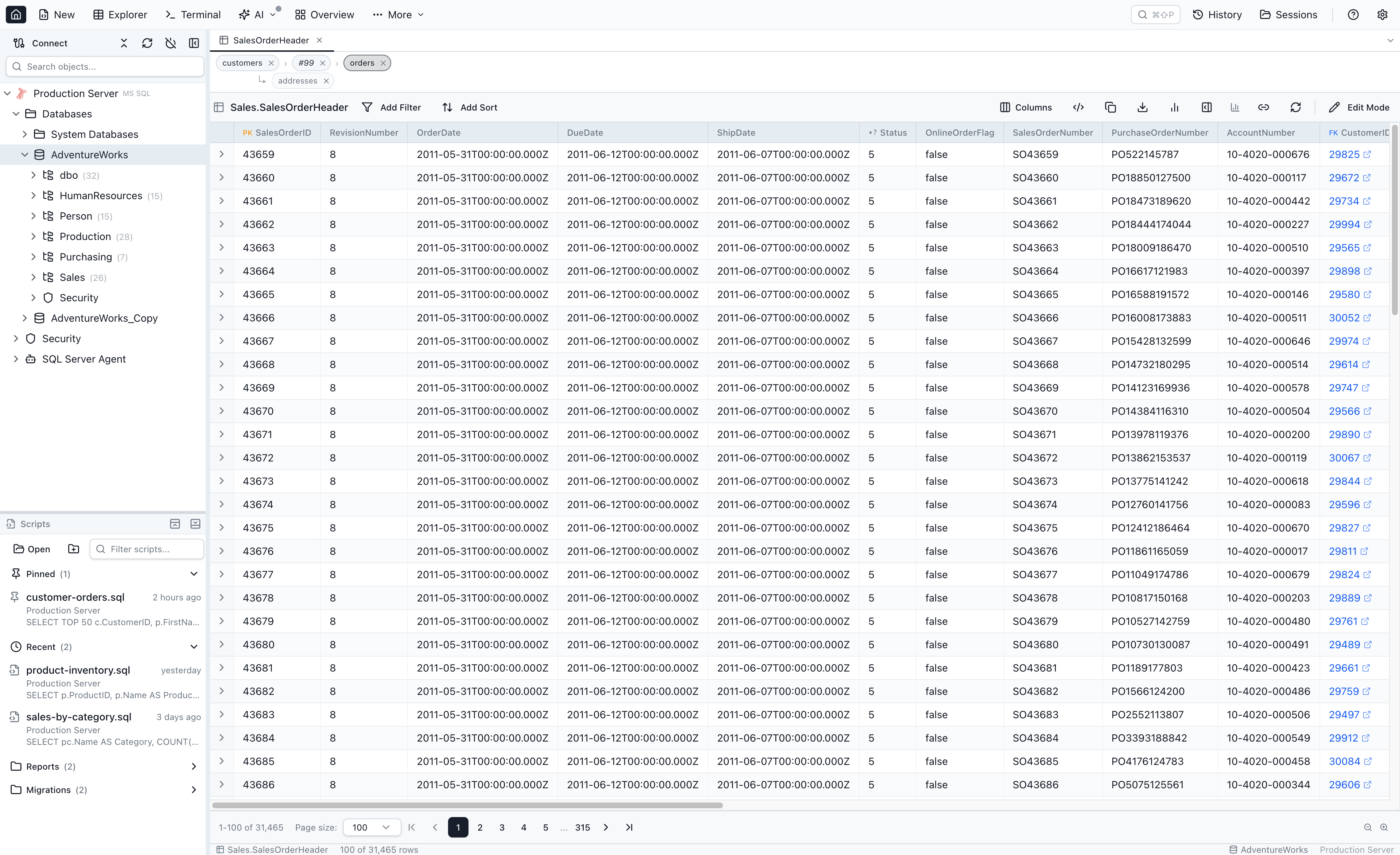
The branching matters because real exploration is rarely linear. From a single customer row you might want to look at their orders and their addresses and their auth sessions. Three drill-ins push three children. The chip-row shows the one you're currently on; the +N badge keeps the others one click away. You don't lose context; you don't lose the alternative paths; you don't have to start over from the customer row to revisit a different branch.
Loose foreign keys are first-class hops
This is the part that depends on a concept most SQL clients don't carry. DBeaver and DataGrip both support virtual foreign keys; what differs here is that loose FKs are first-class hops in the breadcrumb, not just diagram metadata (checked July 2026).
Jam SQL Studio supports loose foreign keys — user-declared column-to-column references that the database does not enforce. They live in a per-database MetaInfo JSON file. Loose FKs already handle the cases real FKs can't: legacy schemas with no constraints, polymorphic associations (Rails-style commentable_id + commentable_type, see Polymorphic Foreign Keys in SQL), denormalised reporting tables, ETL / warehouse columns, and read-only databases where you can't issue DDL.
What's new in this release: loose foreign keys are navigable as ordinary hops in the breadcrumb. Click a loose-FK cell — the peek popover opens, the primary Open drills into the referenced row, a chip pushes onto the tree. From the Single-Row View, inbound loose-FK relationships appear in the Related Data list alongside real-FK inbound, each marked with a small (loose) label. The mini-grid icon column works. The keyboard shortcuts work. Cmd-click opens the target in a new tab. There is no functional difference between drilling through a loose FK and drilling through a real FK.
Compare this to other SQL clients with virtual-FK features:
| Tool | Has virtual / loose FK concept? | Navigable in a breadcrumb? |
|---|---|---|
| Jam SQL Studio | Yes (loose FKs in MetaInfo) | Yes — identical to real FKs |
| DataGrip | Yes (virtual foreign keys) | No breadcrumb feature |
| DBeaver | Yes (virtual foreign keys) | No breadcrumb feature |
| slashtable | No | Has a breadcrumb feature, but only walks real FKs |
| TablePlus | No | No breadcrumb feature |
| pgAdmin / SSMS / MySQL Workbench | No | No breadcrumb feature |
Combining the two primitives — loose FKs + breadcrumb navigation — is what makes Jam SQL Studio's drill-down work on real schemas. Real schemas have ETL tables. Real schemas have polymorphic columns. Real schemas have soft-delete flags. A breadcrumb that only walks declared FKs gives up at the first polymorphic column it hits.
Join-table collapse
The other practical case: many-to-many join tables. Navigating orders → order_items → products is what you actually meant; order_items is just plumbing. It would be silly to have the chip-row show all three hops when only two of them are interesting.
Jam SQL Studio detects pure m2m join tables with a conservative heuristic. A table counts as a pure join when all of these hold (and the heuristic is computed once on schema load, not on every navigation):
- Exactly two outbound FKs.
- No inbound FKs (no other table references it).
- Primary key is composite of the two FK columns, or a surrogate id with a UNIQUE on the two FK columns.
- Non-FK column count is at most 2, and those columns are timestamps or surrogate ids.
When a user navigates through a pure join table, the chip-row renders orders › products instead of orders › order_items › products, and the join hop is marked isJoinCollapsed=true internally. The collapse is per-table per-hop — if you navigate to order_items directly (because you specifically want the join row), the chip is rendered normally.
The heuristic is wrong sometimes — some join tables carry extra data (a created_at, a quantity) you genuinely want to surface. For those cases you can override it: right-click a chip and pick Show join tables. The override is stored in MetaInfo as joinTableHint: 'collapse' | 'expand' | 'auto' per table, so it travels with the rest of your per-database metadata — you set it once, it sticks, and it can be exported / imported alongside loose-FK declarations.
Keyboard cheatsheet
Four shortcuts walk the breadcrumb tree without taking your hands off the keyboard:
| Action | macOS | Windows / Linux |
|---|---|---|
| Activate previous sibling (or previous in the active path) | Cmd+← | Ctrl+← |
| Activate next sibling (or next in the active path) | Cmd+→ | Ctrl+→ |
| Activate parent | Cmd+↑ | Ctrl+↑ |
| Activate first child | Cmd+↓ | Ctrl+↓ |
All four can be changed in Settings → Keyboard Shortcuts, and the full reference also lives in the Keyboard Shortcuts documentation.
The shortcuts behave sensibly at the edges. Cmd+← at the first sibling of a branch walks back up the active path. Cmd+↓ on a leaf node is a no-op. Cmd+↑ from the root chip dismisses the breadcrumb entirely — the same effect as clicking the root chip's ×.
What about the old behaviour?
If you preferred the old "every click opens a new tab" model, two affordances preserve it:
- Per-click:
Cmd-click (orCtrl-click) on the FK cell or the mini-grid icon. The peek popover doesn't even open — the target opens in a new tab immediately. - Per-default: open Settings → Behavior → FK 'Open' default and switch from Drill in current tab to Open in new tab. The setting changes what the primary Open button does in the FK peek popover; the … menu's Open in new explorer is always available regardless of the default.
The default ships as Drill in current tab because that's the workflow the rest of the design is built around — the breadcrumb tree, the Single-Row View, the mini-grid icon column all assume you're staying in one tab. But muscle memory is real, and the override is one settings click away.
Session migration
Existing Table Explorer sessions are auto-migrated on first launch after the update. Tabs saved before the feature shipped open with a null navigation tree — no chip-row, exactly as they used to behave. The breadcrumb appears the moment you initiate a new drill-down inside the tab. The migration is one-way and lazy: nothing is rewritten in your saved-session files until you make a new drill-in inside an existing tab.
Each tab serialises its tree as a flat array of nodes plus a rootId and activeNodeId (a stable shape we can extend without versioning gymnastics). PK values are stored as JSON-safe primitives — numbers, strings, and arrays of those for composite keys. Binary PK shapes downgrade gracefully to a display label only, with a soft toast if the row no longer exists when the chip is clicked.
Under the hood (briefly)
A few notes for the curious. The whole feature lives in src/features/workspace/table-explorer/ alongside the existing browse / edit code. The navigation tree is a Zustand store keyed by tab id; the Single-Row Details View is a new workspace render mode controlled by the active node's kind. Related Data sections use useInboundRelations (which merges schema-introspection results with MetaInfo loose-FK declarations) and TanStack Query for cached lazy data. The chip-row is a portable component — the same one is going to ship for Query Editor result-grid FK clicks in a follow-up release, with the obvious caveat that QE has no parent table to root the tree at.
Cross-engine support is identical on all five engines Jam SQL Studio supports — SQL Server, PostgreSQL, MySQL (and MariaDB), Oracle, and SQLite. There's no engine matrix for this feature; the navigation tree is a client-side construct, and the per-section queries are the same flavour of SELECT + COUNT we already emit for Related Data tabs today.
When this isn't the right tool
FK navigation is the right answer when you're tracing data through relationships. It's the wrong answer when you're answering an aggregate question ("what fraction of orders this month included product X?") — that's a Query Editor question, and the … menu's Open in query editor is the bridge for the cases where you want to start the SELECT from a row you found in the breadcrumb.
It's also the wrong answer when you really do want two independent contexts on screen — comparing one customer's orders to another customer's orders, for instance. The breadcrumb is good at deep paths within one starting point; the Open in new explorer action is the right primitive for "I want a second context alongside this one." We didn't try to solve the side-by-side case here — that's a future split-pane feature, and the modifier-click reservations (Shift-click is reserved for future "Open in split pane") leave room for it.
Quick Answers
Short answers to common questions about foreign key navigation in Table Explorer.
Q: How do I open a foreign key in a new tab in Jam SQL Studio?
A: Cmd-click (macOS) or Ctrl-click (Windows / Linux) on a foreign-key cell to bypass the peek popover and open the referenced row in a new Table Explorer tab. Alternatively, click the cell to open the peek popover, then choose Open in new explorer from the three-dot menu next to the primary Open button. Both routes preserve the previous one-tab-per-click behaviour for users who prefer it.
Q: How do I revert to the old foreign-key behaviour where every click opens a new tab?
A: Open Settings, choose the Behavior section, and switch FK 'Open' default from Drill in current tab to Open in new tab. The setting changes what the primary Open button does in the FK peek popover; the three-dot menu's Open in new explorer is always available regardless of the default.
Q: What is the Single-Row Details View?
A: The Single-Row Details View is the full-workspace view that activates when a row-node becomes active in a Table Explorer tab's navigation tree. It shows the row's cells in a categorized layout (identity, profile, foreign keys, state, timestamps, counters, metadata) above a list of Related Data sections (one per inbound foreign-key relationship). Related sections render synchronously from the schema cache and only fire SQL when you expand them.
Q: How do loose foreign keys work in the breadcrumb?
A: Loose foreign keys — user-declared column-to-column references that the database does not enforce — are treated as first-class hops in the breadcrumb. The peek popover, breadcrumb chip styling, Related Data sections, and keyboard shortcuts all treat them identically to declared FKs. The only visible distinction is a small (loose) label on inbound Related Data sections so you can tell user-declared references from enforced ones.
Q: What is join-table collapse?
A: Jam SQL Studio detects pure many-to-many join tables (tables with exactly two outbound FKs, no inbound FKs, and a primary key on the two FK columns) and hides them from the breadcrumb. Navigating orders → order_items → products renders as orders › products in the chip-row, with order_items collapsed. Right-click a chip and pick Show join tables to override the heuristic per table; the override is stored in MetaInfo.
Q: What happens to my existing Table Explorer sessions after this update?
A: Existing sessions are auto-migrated on first launch. Tabs that were saved before the feature shipped open with no breadcrumb chip-row (their navigation tree is null), exactly as they used to behave. The breadcrumb appears as soon as you initiate a new drill-down inside the tab. The migration is one-way: nothing is rewritten in your saved-session files until you make a new drill-in.
Q: Which keyboard shortcuts navigate the breadcrumb?
A: Cmd+Left (Ctrl+Left on Windows / Linux) activates the previous sibling. Cmd+Right (Ctrl+Right) activates the next sibling. Cmd+Up (Ctrl+Up) activates the parent. Cmd+Down (Ctrl+Down) activates the first child. All four shortcuts can be changed in Settings → Keyboard Shortcuts.
Try it
Jam SQL Studio is free for personal use and runs on macOS (Apple Silicon and Intel), Windows, and Linux.
Further reading
- Table Explorer — Foreign Key Navigation — the full reference, including entry points, the Single-Row Details View, lazy related-data loading, join-table collapse, and the keyboard shortcuts.
- Loose foreign keys — navigation — the cross-link with details on how user-declared references behave in the breadcrumb.
- Keyboard Shortcuts — Breadcrumb Navigation — the four navigation shortcuts, their edge behaviour, and where to change them.
- Polymorphic Foreign Keys in SQL — the prior post on source-filtered loose FKs, which now navigate identically to real FKs in the breadcrumb.