 Jam SQL Studio
 Published: 2026-07-07
Oracle on Apple Silicon: Connect From an M-Series Mac With No Instant Client
You can connect to Oracle Database from an Apple Silicon Mac — M1, M2, M3, or M4 — with no Oracle Instant Client, no environment variables, and no Rosetta. Jam SQL Studio talks to Oracle through node-oracledb Thin mode: a pure-JavaScript driver that connects straight to the database over TCP. There is no native Oracle library to install, so the CPU-architecture question that used to make Oracle painful on a Mac simply never comes up.
The Instant Client problem on Apple Silicon
For most Oracle drivers, connecting means first installing Oracle Instant Client — a set of native shared libraries you download, unpack, and point your tools at via PATH, DYLD_LIBRARY_PATH, and often a tnsnames.ora. On Apple Silicon that was worse than usual, because the binary had to match the CPU:
- For years there was no native ARM64 build. Oracle published a native macOS ARM64 Instant Client only in June 2024 — Oracle's own announcement called it “a long wait.” Until then, the only macOS Instant Client was the Intel x86-64 build, which Apple Silicon Macs run through the Rosetta 2 translation layer.
- Even now it's a manual, multi-file download. A native ARM64 Instant Client exists, but you still fetch the Basic (and often the SQL*Plus and SDK) ZIPs, unzip them somewhere stable, and wire up the loader paths — per machine, per upgrade.
- Architecture mismatches fail loudly. Mixing an x86-64 client with an ARM64 runtime (or the reverse) surfaces as cryptic “mach-o, but wrong architecture” or
DPI/OCIload errors that have nothing to do with your actual query.
Thin mode removes the client entirely
node-oracledb runs in Thin mode by default: per the driver's documentation, “the node-oracledb driver runs in the Thin mode which directly connects to Oracle Database 12.1 or later” and “this Thin mode does not need Oracle Client libraries.” You only get Thick mode if the application explicitly calls initOracleClient() to load the native OCI client libraries.
Jam SQL Studio ships oracledb v6+ and never calls initOracleClient(). That has three consequences that matter on an M-series Mac:
- Nothing to install. Download the app, open the connection dialog, connect. There is no Instant Client step, so there is no ARM64-vs-x86 decision to get wrong.
- Pure JavaScript, so architecture is irrelevant. Thin mode is native JavaScript with no compiled Oracle library to load. An M4 Mac and an Intel Mac run byte-for-byte the same driver path.
- Direct TCP to the listener. The driver opens the Oracle Net connection itself — no middleware, no
DYLD_LIBRARY_PATH, no per-machinetnsnames.oraunless you want to use one.
Jam SQL Studio supports Oracle Database 12.2 and later — including 19c, 21c, and 23ai — over EZConnect (host:port/service_name), a full TNS descriptor, or a TNS alias, plus wallet-based mTLS for Oracle Autonomous Database. All of it is the same on macOS, Windows, and Linux.
The honest limit: Thin mode only
Thin mode is a real trade-off, not a free lunch, and it's worth being direct about it. Jam SQL Studio runs Thin mode only — there is no Thick-mode toggle — so any Oracle capability that requires the native OCI client is out of scope. In day-to-day use the limit you're most likely to hit is authentication: Jam connects with username/password and with wallet-based mTLS for OCI Autonomous Database, but not Kerberos, LDAP, or OCI IAM token authentication. If your organization mandates one of those for Oracle access, Thin mode won't cover it today.
This is a deliberate scope choice: the payoff is that every Apple Silicon user connects with zero setup, and the cost is the narrow set of OCI-only features. For the overwhelming majority of app-developer and analyst workflows, Thin mode connects to exactly the same databases with exactly the same SQL.
Connecting from your Mac, step by step
Creating an Oracle connection on an Apple Silicon Mac is the same three-field flow you'd use anywhere — because there's no client to configure first:
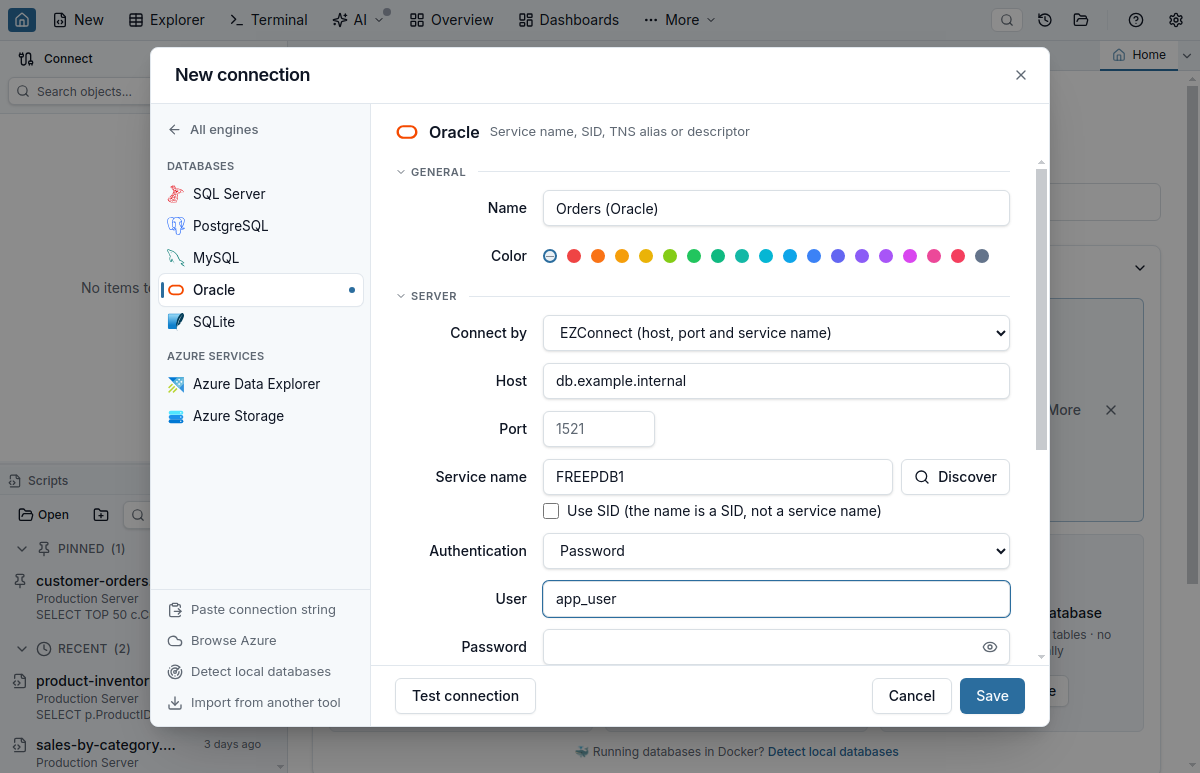
- New connection, engine Oracle. Pick Oracle in the New Connection dialog.
- Enter host, port, and service name. EZConnect (
host:port/service_name) is the default. Not sure of the service name? The Discover button next to the field probes the listener and lists the registered services as clickable pills. - Authenticate and connect. Username and password for a standard database user, or point at a wallet directory for an Autonomous Database mTLS connection.
That's the whole prerequisite list: a hostname, a port, and a service name. No download, no PATH edits, no Rosetta.
It's a full IDE, not just a driver
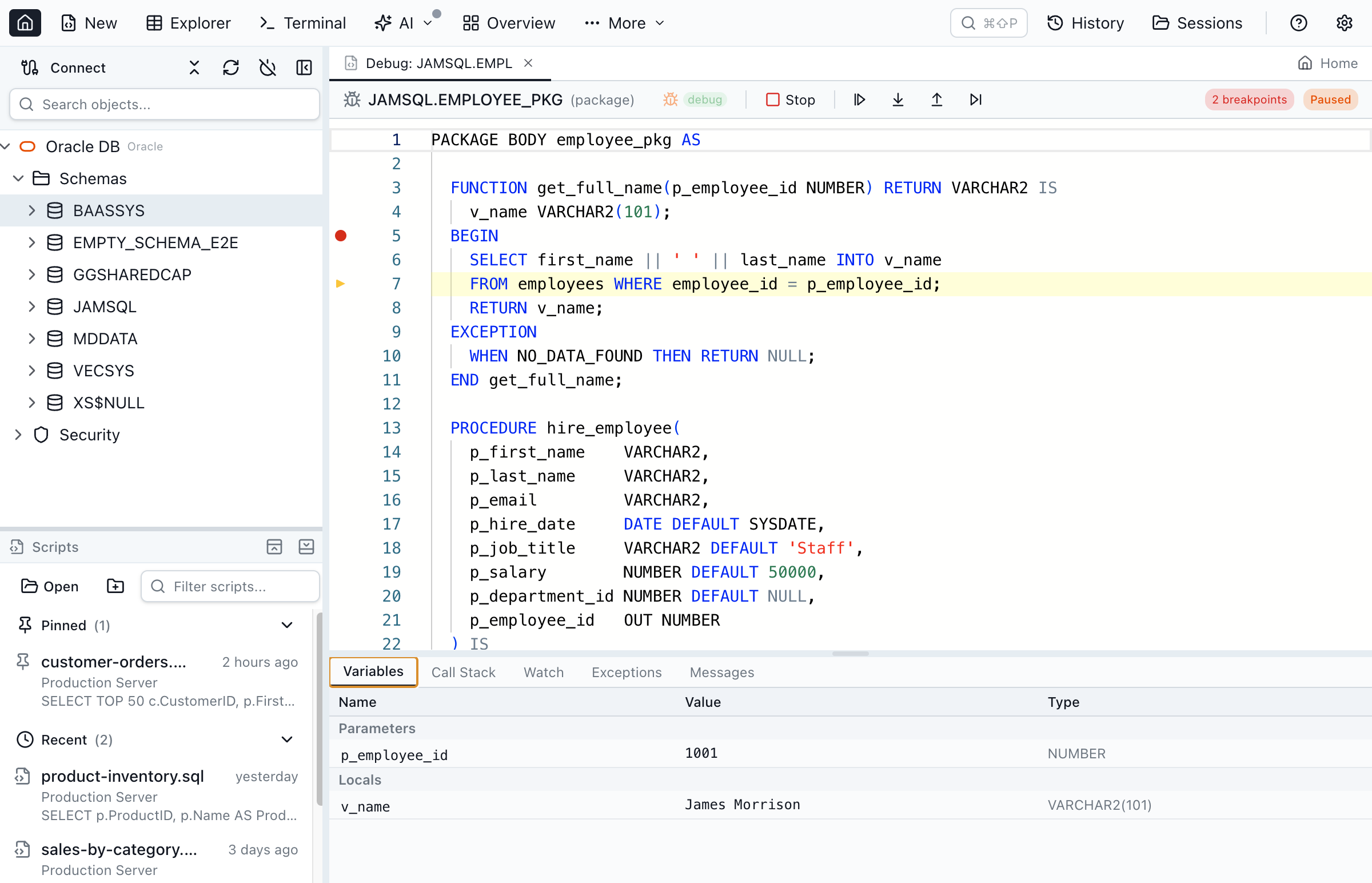
Skipping Instant Client doesn't mean skipping features. The same Thin-mode connection powers an object explorer that understands Oracle's model — packages (spec and body), sequences, synonyms, DB links, materialized views, and types — along with IntelliSense, execution plans, and schema/data compare. It also drives a genuine PL/SQL debugger: a cross-platform, DBMS_DEBUG-based step-through debugger with breakpoints, variable and watch inspection, and call-stack navigation, running natively on your M-series Mac.
When you still need Instant Client or SQL*Plus
Thin mode covers connecting, querying, browsing, comparing, and debugging — but it isn't a replacement for Oracle's native command-line utilities. As of July 2026, you'll still install a client (or run these elsewhere) when you need:
- SQL*Plus scripting.
SPOOL,glogin.sql, and shell scripts that shell out tosqlplusexpect the actual SQL*Plus binary, which ships with Instant Client. - SQL*Loader and Data Pump binaries. The
sqlldr,expdp, andimpdpcommand-line tools are separate native programs, not part of any GUI driver. - OCI-linked applications. Anything built against the Oracle Call Interface — or a driver run in Thick mode — needs the native client libraries.
- Kerberos, LDAP, or OCI IAM authentication, per the Thin-mode limit above.
If none of those describe your workflow — and for most application development and data work, they don't — then an Apple Silicon Mac plus a Thin-mode client is all you need. For a broader look at how the cross-platform options stack up, see our comparison of the Oracle SQL client landscape and the roundup of the best Oracle database GUI tools, or jump straight to the Oracle client for Mac, Windows, and Linux. If you are weighing this against Toad specifically, the reproducible Oracle workflow walks a throwaway Oracle Free container through query, execution plan, Session Browser and PL/SQL debugger, with the grants each step needs.
Quick Answers
Short answers to common questions about Oracle on Apple Silicon.
Q: Can I connect to Oracle from an Apple Silicon Mac without Instant Client?
A: Yes. Jam SQL Studio uses the node-oracledb Thin mode driver, which is written in pure JavaScript and connects directly to Oracle Database over TCP. It never calls initOracleClient(), so there is no Oracle Instant Client to download, no architecture to match, and no Rosetta needed on an M1, M2, M3, or M4 Mac.
Q: Do I need Rosetta 2 to use Oracle tooling on an M-series Mac?
A: Not with a Thin-mode driver. Oracle only shipped a native macOS ARM64 Instant Client in June 2024; before that, Apple Silicon Macs ran the Intel x86-64 Instant Client through Rosetta 2. Because Jam SQL Studio's Thin mode loads no native Oracle library at all, the x86-vs-ARM64 question never comes up.
Q: What Oracle versions does Thin mode support?
A: node-oracledb Thin mode connects directly to Oracle Database 12.1 and later. Jam SQL Studio supports Oracle Database 12.2 and later, including 19c, 21c, and 23ai, over EZConnect, a full TNS descriptor, or a TNS alias, plus wallet-based mTLS for Oracle Autonomous Database.
Q: What can't Thin mode do compared to Thick mode?
A: Thin mode is the only Oracle mode in Jam SQL Studio; there is no Thick-mode toggle, so features that require the native OCI client are out of scope. In practice the main limit is authentication: Jam does username/password and wallet-based mTLS, not Kerberos, LDAP, or OCI IAM token auth. The classic command-line utilities (SQL*Plus, SQL*Loader, Data Pump's expdp/impdp) are separate programs and are not part of any GUI driver.
Q: Is Jam SQL Studio just a driver, or a full Oracle IDE?
A: It is a full desktop IDE. On the same Apple Silicon Mac you get an object explorer for Oracle packages, sequences, synonyms, and materialized views, IntelliSense, execution plans, schema and data compare, and a cross-platform PL/SQL step-through debugger built on DBMS_DEBUG — none of which need Oracle Instant Client.
Download Jam SQL Studio
Connect to Oracle 12.2+ from Apple Silicon with no Instant Client required. Also connects to SQL Server, PostgreSQL, MySQL, and SQLite. Free for personal use.