 Jam SQL Studio
 Published: 2026-03-20 • Updated: 2026-03-29
How to Manage SQL Server Agent Jobs on Mac and Linux
Azure Data Studio is retired. SSMS is Windows-only. If you're a DBA on Mac or Linux, here's how to get full SQL Server Agent Jobs management — without RDP, without VMs, without running raw T-SQL.
The Gap in Cross-Platform Agent Management
SQL Server Agent is one of the most critical SQL Server components. It runs nightly backups, ETL pipelines, index maintenance, and hundreds of other scheduled tasks. But managing it has always required Windows.
SSMS is the gold standard for Agent Jobs — but it's Windows-only. Always has been.
Azure Data Studio had a SQL Server Agent extension, but it was limited to viewing and running jobs. No creating. No editing steps or schedules. No operators, alerts, or proxies. And as of February 28, 2026, ADS is retired.
DBeaver, DataGrip, TablePlus? None of them have Agent Jobs support. The best you can do is write raw sp_start_job and sysjobhistory queries.
That left Mac and Linux DBAs with exactly zero GUI options for SQL Server Agent.
Jam SQL Studio: Full Agent Jobs on Mac and Linux
Jam SQL Studio is the first cross-platform SQL IDE with a complete SQL Server Agent Jobs Manager. It runs natively on macOS (Apple Silicon and Intel), Linux, and Windows.
Here's how to get started.
Step 1: Install Jam SQL Studio
Download for your platform
macOS (DMG for Apple Silicon and Intel) • Linux (AppImage, .deb, .rpm) • Windows (installer)
No JVM, no Docker, no Wine. It's a native Electron app — install and run.
Step 2: Connect to SQL Server
Use the same server address and credentials you use in SSMS. Jam SQL Studio supports:
- SQL Server Authentication — username and password
- Microsoft Entra ID (Azure AD) — device code flow with token caching
- Azure SQL Database, Azure SQL Managed Instance, and on-premises SQL Server
Requirement: SQL Server Agent must be running on the instance. Express Edition does not include Agent. Jam SQL Studio detects both conditions and shows a clear message.
Step 3: Open the Agent Jobs Manager
There are three ways to open it:
- Toolbar: Click the "More" menu in the main toolbar and select "Agent Jobs"
- Object Explorer: Expand the "SQL Server Agent" node under your connection
- Keyboard: Use the command palette and search for "agent" or "jobs"
The Jobs Dashboard
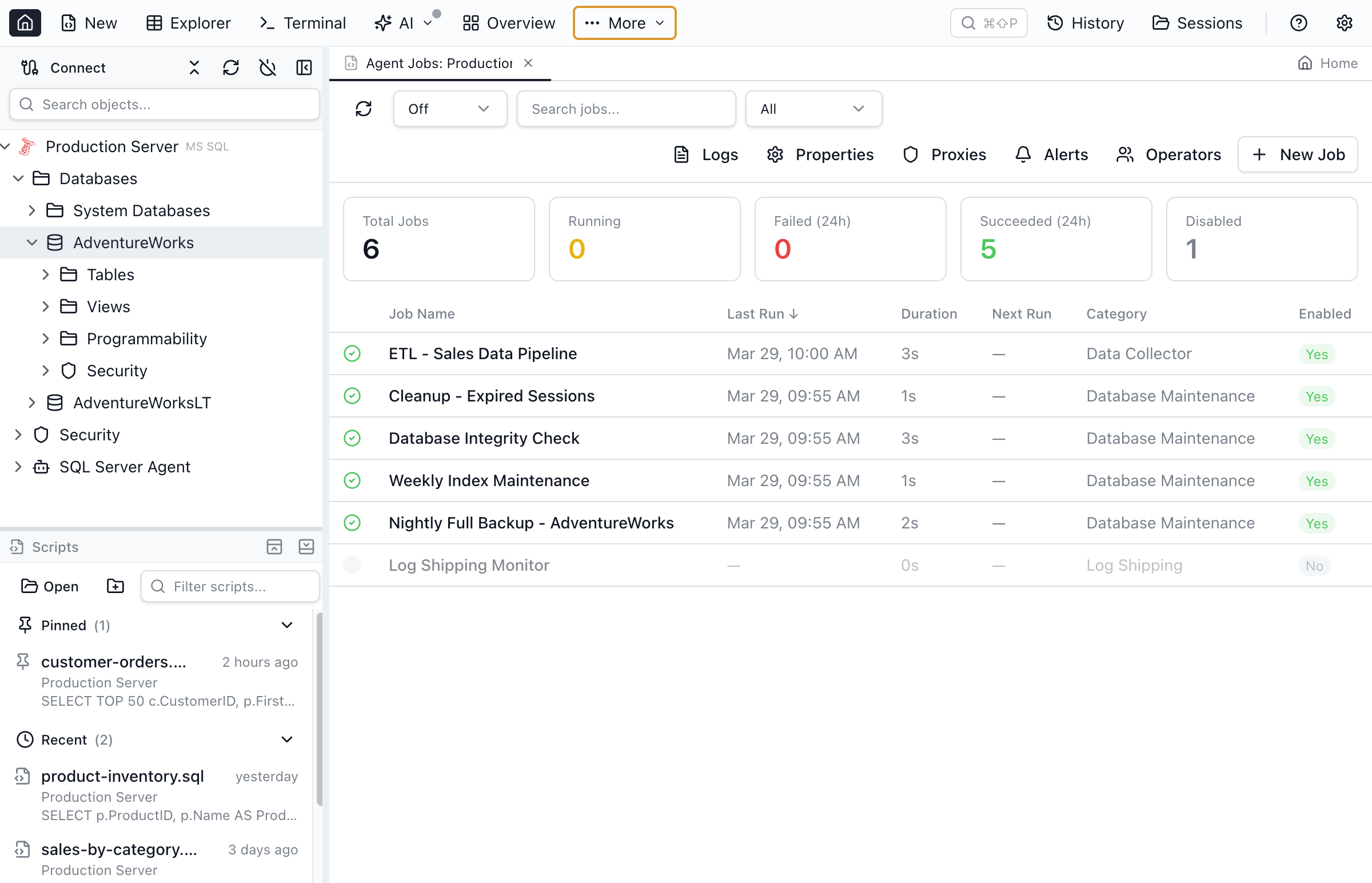
The dashboard shows all Agent jobs at a glance:
- Summary cards — Total Jobs, Running, Failed (24h), Succeeded (24h), Disabled
- Color-coded grid — green for succeeded, red for failed, yellow for running, gray for never run
- Sortable columns — Job Name, Last Run, Duration, Next Run, Category, Enabled
- Filters — text search and status filter (All/Running/Failed/Succeeded/Disabled)
- Auto-refresh — configurable intervals: 10s, 30s, 60s, or off
Click any job row to open its detail panel with tabs for Steps, Schedules, History, Notifications, and General info.
Running and Stopping Jobs
Right-click any job in the grid to get a context menu with:
- Run Now — starts the job immediately via
sp_start_job - Stop — stops a running job (with confirmation dialog)
- Enable / Disable — toggles the job's enabled state
- View Details / View History — quick navigation to detail tabs
When a job is running, the dashboard auto-refreshes every 2 seconds. When it completes, you get a toast notification with the outcome.
Job History and Timeline
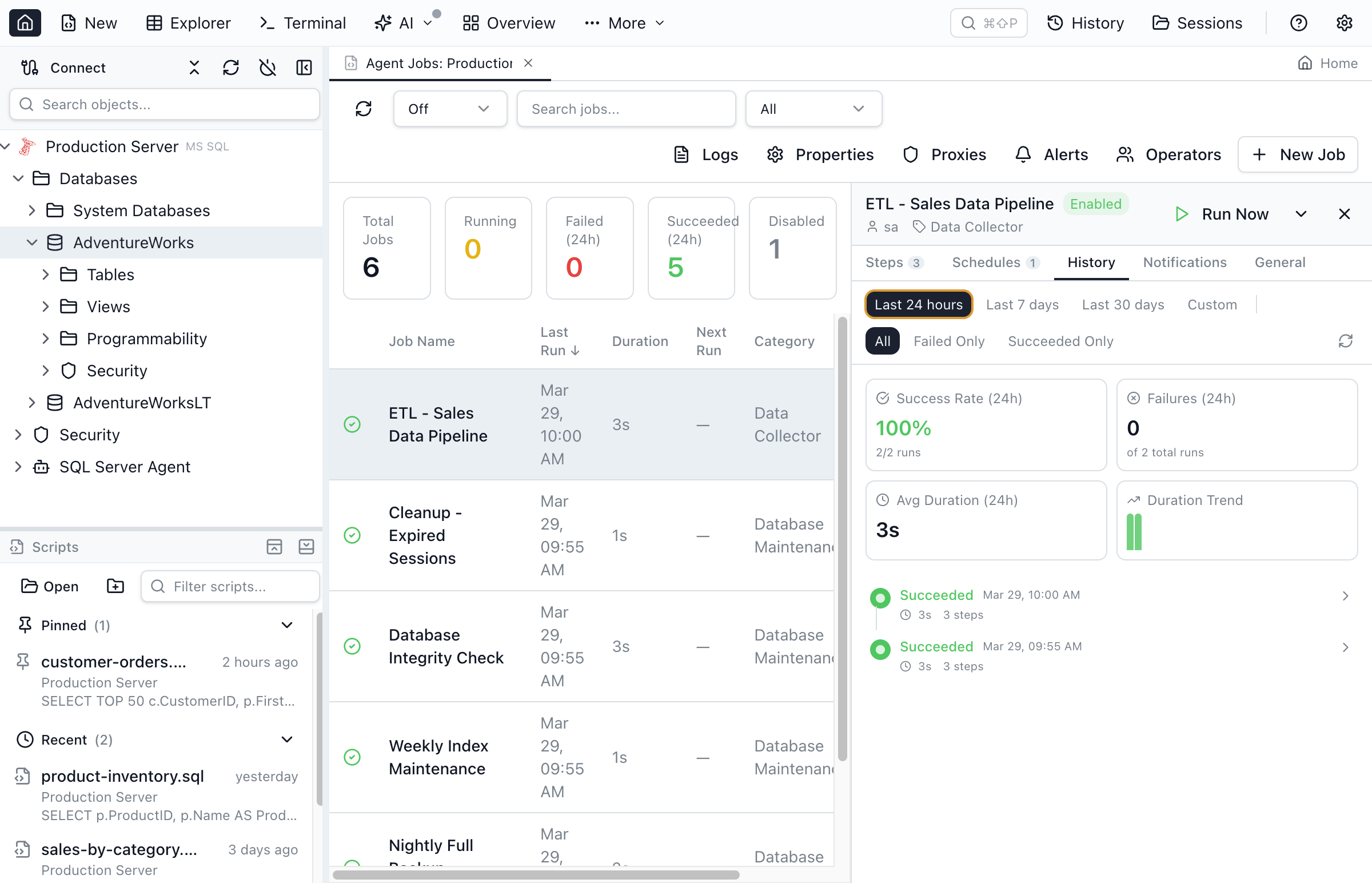
The History tab goes beyond SSMS's flat grid. You get:
- Visual timeline — color-coded dots showing recent runs (green = success, red = failure)
- Click to expand — each run shows a step-by-step breakdown with status, duration, and error messages
- Summary statistics — success rate, failure count, average duration, and duration trend sparkline
- Date range filters — Last 24 hours, Last 7 days, Last 30 days
- Status filters — All, Failed Only, Succeeded Only
Creating and Editing Jobs
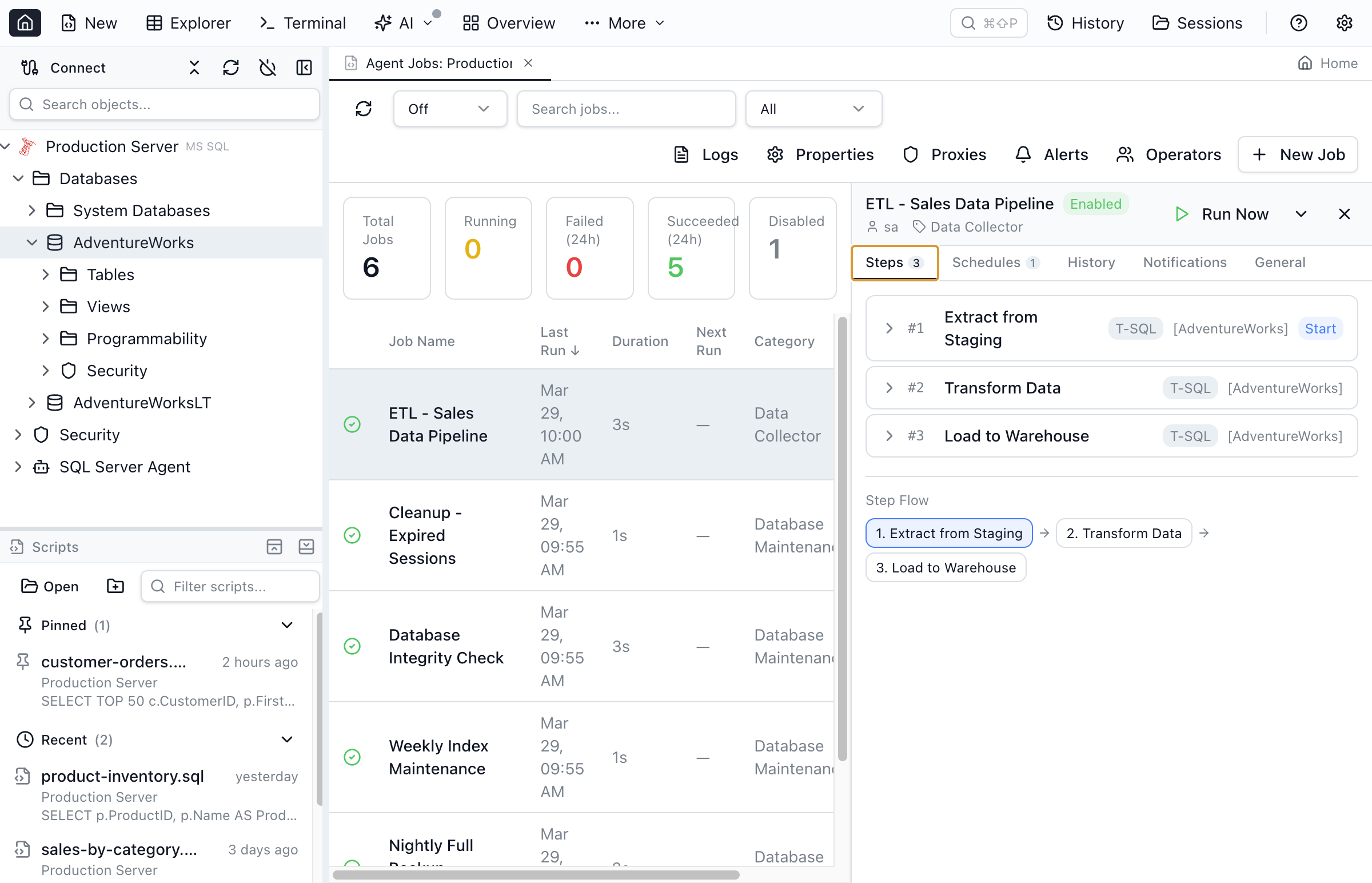
Click "New Job" in the toolbar to open the full job editor. The editor has four tabs:
- General — name, description, enabled, owner, category
- Steps — add multiple steps (T-SQL, CmdExec, PowerShell, SSIS, Analysis Services), set success/failure actions, reorder with up/down buttons
- Schedules — create schedules with daily, weekly, monthly, or one-time frequencies
- Notifications — configure email/page/event log notifications on completion, failure, or success
DDL Preview: Before saving, click "Preview Script" to see the exact T-SQL that will be executed (sp_add_job, sp_add_jobstep, etc.). You can copy it to clipboard or run it yourself.
To edit an existing job, right-click it in the grid and select "Edit Job". All fields are pre-populated from the current configuration.
Managing Operators
Operators are the notification contacts for Agent jobs and alerts. From the toolbar, click "Operators" to see a list of all operators with:
- Name, enabled status, email address, pager address
- Create new operators with contact details and pager schedule
- View which jobs and alerts notify each operator
Managing Alerts
Alerts automatically respond to SQL Server events. Click "Alerts" in the toolbar to manage three types:
- SQL Server event alerts — triggered by error numbers or severity levels
- Performance condition alerts — triggered when a counter crosses a threshold
- WMI event alerts — triggered by WMI events with custom WQL queries
Each alert can execute a job and/or notify operators when triggered.
Managing Proxies
Proxies provide security contexts for non-sysadmin job steps. The Proxies view lets you:
- Create and edit proxy accounts with credential assignments
- Configure subsystem access (T-SQL, CmdExec, PowerShell, SSIS, and more)
- View and manage proxy descriptions and enabled status
Agent Properties and Error Logs
The Properties view shows Agent service status, configuration, mail profile, and fail-safe operator. The Error Logs view lets you browse Agent error logs with text search and log file selection (current + 9 archived logs).
Replacing Azure Data Studio's Agent Extension
If you were using Azure Data Studio's SQL Server Agent extension, here's what you gain with Jam SQL Studio:
| Capability | ADS Agent Extension | Jam SQL Studio |
|---|---|---|
| View jobs list | Yes | Yes (with dashboard) |
| Run/stop jobs | Yes | Yes (with notifications) |
| View job history | Basic | Visual timeline + stats |
| Create/edit jobs | No | Full editor |
| Manage operators | No | Full CRUD |
| Manage alerts | No | Full CRUD (3 types) |
| Manage proxies | No | Full CRUD |
| DDL script preview | No | Yes |
| Still supported | Retired | Active development |
Get Started
Download for Mac • Download for Linux • Download for Windows
For detailed documentation on every feature, see the Agent Jobs Manager documentation.