
Last updated: 2026-07-02
Agent Jobs Manager
A cross-platform GUI for SQL Server Agent. Browse jobs, view execution history, run and stop jobs, and manage operators, alerts, proxies, and error logs — from macOS, Windows, or Linux. (Agent Jobs Manager is in beta.)
Agent Jobs is a beta feature, on by default. If you never use it, untick it in Settings → Beta Features and its toolbar entry, command-palette command, and the Object Explorer subtree leave the app; nothing on disk is deleted.
What is the Agent Jobs Manager?
SQL Server Agent is the job scheduler built into SQL Server — it runs T-SQL, PowerShell, and other steps on a schedule, raises alerts, and notifies operators. The Agent Jobs Manager is Jam SQL Studio's graphical front end for it: a dashboard for monitoring jobs, a full editor for creating and changing them, and dedicated views for operators, alerts, proxies, Agent properties, and error logs. It targets SQL Server connections (Agent is a SQL Server feature); the underlying architecture is provider-based so other engines could be added, but SQL Server Agent is what it manages today.
Getting started
Requirements
- SQL Server Standard, Enterprise, or Developer edition — Express Edition does not include SQL Server Agent, and the manager shows a banner saying so.
- SQL Server Agent must be running — if the Agent service is stopped, the manager surfaces a "not running" banner instead of an empty grid.
- An msdb role — the manager reads your effective role and adapts (see Permissions below).
How to open the Agent Jobs Manager
- Connect to a SQL Server instance in Jam SQL Studio
- Open More → DBA → Agent Jobs from the main toolbar, or
- Right-click the SQL Server Agent node in the Object Explorer (or its Jobs / Alerts / Operators / Proxies / Error Logs sub-folders) and choose Open Job Scheduler, or
- Open the Command Palette (Cmd/Ctrl+Shift+P) and run Agent Jobs Manager
The manager opens as a workspace tab titled Agent Jobs: <connection>.
Jobs dashboard
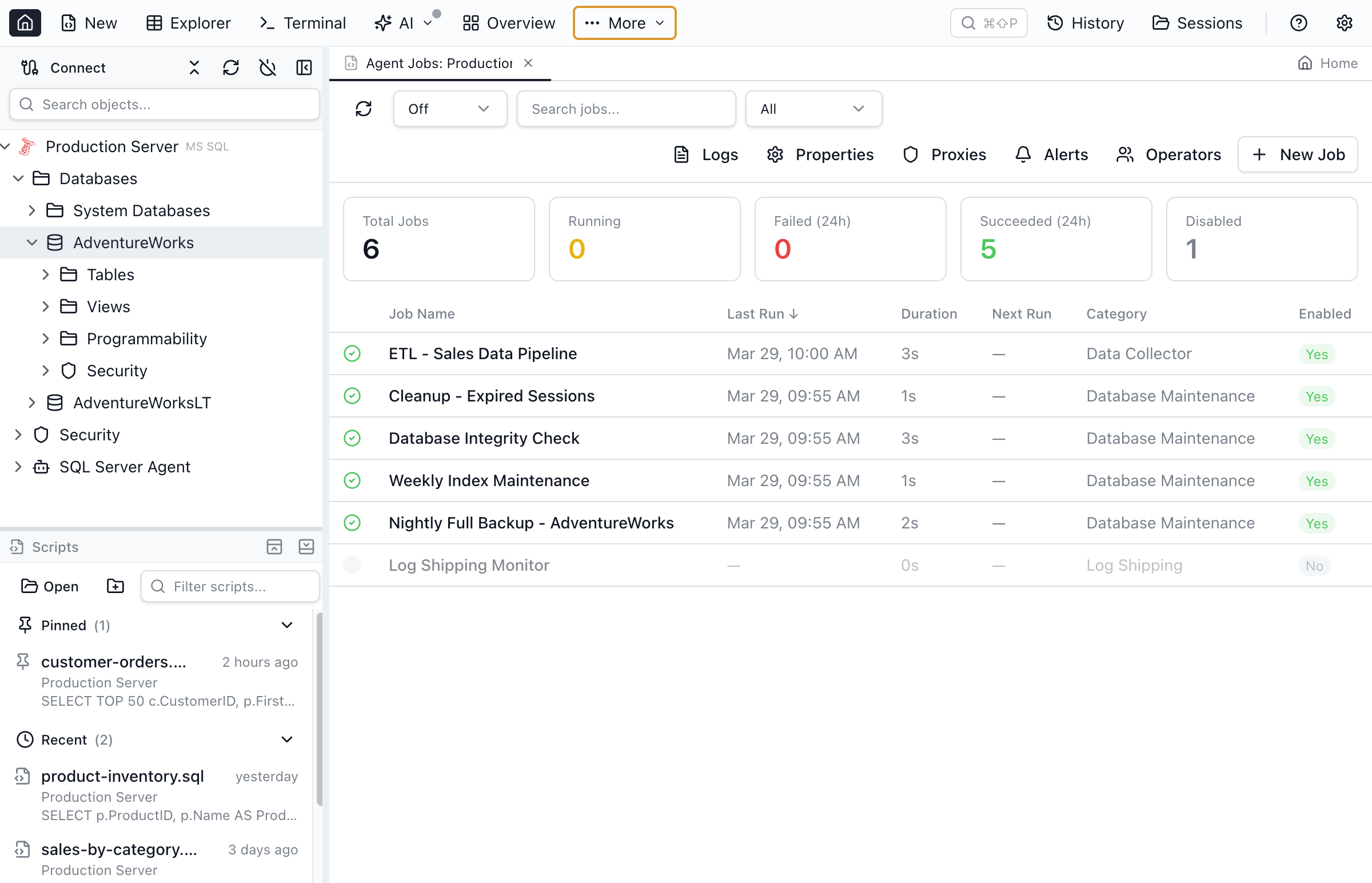
The dashboard lists every Agent job in a sortable grid. Columns, left to right:
- Status — an icon showing the current execution state (idle, executing, failed, succeeded)
- Job Name
- Last Run — timestamp and outcome of the most recent execution
- Duration — how long the last run took
- Next Run — when the job is next scheduled
- Category — the job's category (e.g., Database Maintenance)
- Enabled — a Yes/No badge
Click any column header to sort. A search box and a status filter (All / Running / Failed / Succeeded / Disabled) narrow the list.
Summary cards
Above the grid, five cards give an at-a-glance rollup: Total Jobs, Running, Failed (24h), Succeeded (24h), and Disabled.
Auto-refresh
The toolbar auto-refresh selector offers Off (default), 10s, 30s, and 60s. Refresh is paused automatically while a job is executing so a mid-run poll can't disturb the live status, then resumes when the run finishes. Use Refresh to update on demand.
Job detail
Select a job to open its detail panel, which has five tabs: Steps, Schedules, History, Notifications, and General.
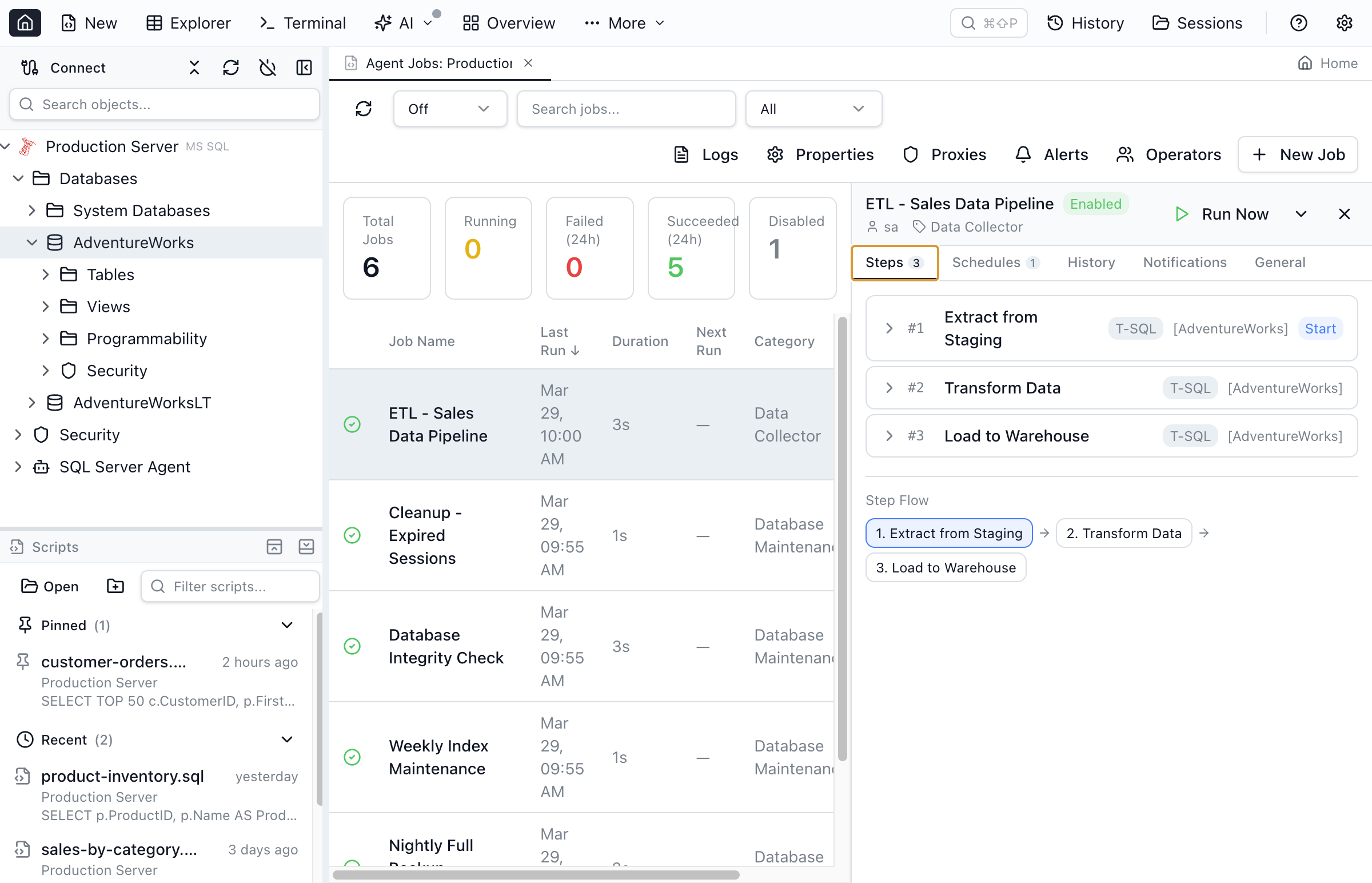
Steps
The ordered list of job steps with each step's subsystem, command, and on-success / on-failure flow, so you can read the job's branching logic.
Schedules
Every schedule attached to the job, with the raw frequency integers from msdb.dbo.sysschedules decoded into plain English — for example, "Occurs every 1 week(s) on Monday, Wednesday, Friday at 02:00:00".
History
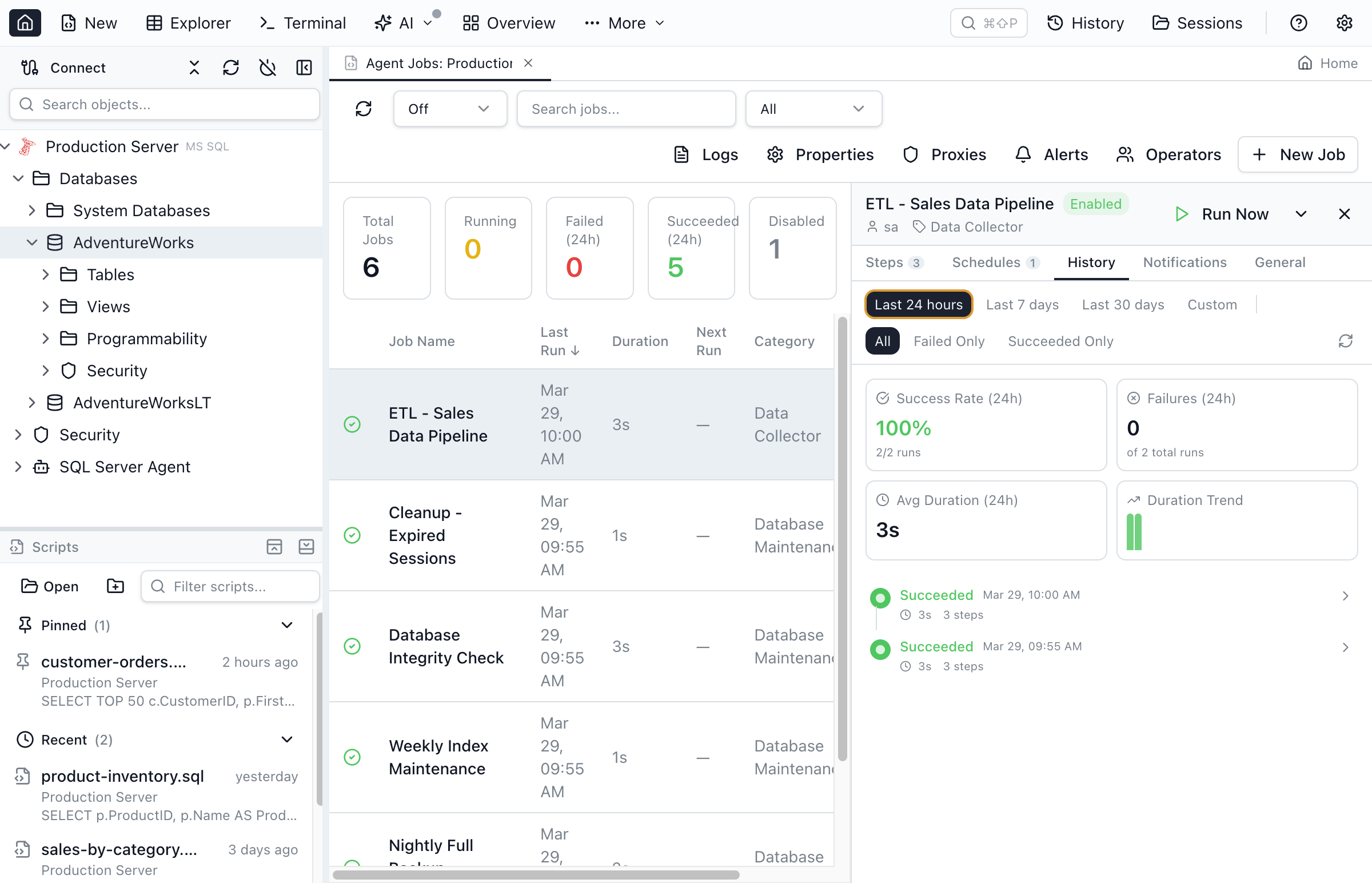
A timeline of past executions. Each run shows start time, duration, and outcome (Succeeded, Failed, Retried, Cancelled); expand a run to see per-step durations and error messages. Filter by:
- Date range — Last 24 hours, Last 7 days, Last 30 days, or a Custom from/to range
- Status — All, Failed Only, or Succeeded Only
A summary strip shows success rate, failure count, average duration, and a duration trend.
Notifications and General
Notifications shows which operators are notified on success, failure, or completion and by which channel. General shows job metadata: owner, category, description, dates, and the job ID.
Running, stopping, and controlling jobs
Right-click any job in the grid for its actions (each gated by your permissions):
- Run Now — start the job immediately
- Run from Step… — for multi-step jobs, start at a chosen step
- Stop Job — replaces Run Now while a job is executing; a confirmation dialog warns about mid-execution termination
- Enable / Disable — toggle the job's enabled state
- View Details / View History / Edit Job / Delete Job
Toast notifications confirm when jobs start, stop, and complete.
Creating and editing jobs
Click New Job to open the editor, or right-click a job and choose Edit Job. The editor has four tabs: General, Steps, Schedules, and Notifications. Unsaved changes are guarded when you close.
General
Set the job name, owner, category, description, and enabled state.
Steps
Add, remove, and reorder steps. Each step has a name, a subsystem, the command to run, and per-step routing. The step subsystems are:
- Transact-SQL (T-SQL)
- Operating System (CmdExec)
- PowerShell
- SQL Server Integration Services (SSIS)
- Analysis Services Command
- Analysis Services Query
On success and On failure each route to: go to the next step, quit reporting success, quit reporting failure, or go to a specific step. Steps that support it can also run under a Run as proxy credential.
Schedules
Attach one or more schedules, or pick an existing shared schedule from msdb. The schedule editor supports all seven SQL Server Agent frequency types:
- Once — a single execution at a specific date and time
- Daily — every N days at a set time
- Weekly — chosen days of the week with a recurrence interval
- Monthly — a specific day of the month
- Monthly (relative) — e.g., "the second Tuesday of every month"
- On Agent start — runs when SQL Server Agent starts
- On idle — runs when the CPUs become idle
Notifications
Choose who gets notified and when — on success, failure, or completion — by selecting an operator and a notification method.
Preview Script
Before saving, click Preview Script to see the exact T-SQL the manager will run. It uses the standard Agent stored procedures — sp_add_job, sp_add_jobstep, sp_add_schedule (or sp_attach_schedule for a shared schedule), sp_add_jobserver, and sp_update_job — so you can review or copy it before anything changes. Save the editor with Cmd/Ctrl+S.
Permissions and role awareness
The manager reads your effective msdb role membership and adapts the UI accordingly, so you only see actions you can actually perform:
- SQLAgentReaderRole — view all jobs and their history
- SQLAgentUserRole — manage your own jobs
- SQLAgentOperatorRole — run and manage all jobs
- sysadmin — full control, including editing Agent properties
Actions you can't perform (edit, delete, run) are hidden or disabled rather than failing with a raw permission error.
Operators, alerts, and proxies
The manager covers the full Agent ecosystem, not just jobs.
Operators
Operators are the notification contacts for SQL Server Agent. Create and edit them with email address, pager email and pager schedule, and net send address, and see which jobs and alerts notify each one.
Alerts
Alerts respond to server events and conditions. Three alert types are supported:
- SQL Server event — triggered by an error number or severity level, optionally scoped to a database and message-text pattern
- Performance condition — triggered when a performance counter crosses a threshold
- WMI event — triggered by a WMI event query
Each alert can run a response job and/or notify operators.
Proxies
Proxy accounts let non-sysadmin users run job steps under a specific credential. The proxy editor exposes 11 Agent subsystems — CmdExec, PowerShell, T-SQL, SSIS, Analysis Services Command, Analysis Services Query, Snapshot, Log Reader, Distribution, Merge, and Queue Reader — so you can grant a proxy exactly the step types it needs.
Agent properties and error logs
Agent Properties shows a read-only summary of the SQL Server Agent configuration — service status, Agent XPs, the Database Mail profile, and the fail-safe operator (editable only by sysadmin).
Error Logs browses the SQL Server Agent logs: switch between the Current log and up to 9 archived logs, search entries by keyword, filter by date range, and set an independent auto-refresh.
Object Explorer integration
SQL Server Agent appears as a top-level node in the Object Explorer with sub-folders for Jobs, Operators, Alerts, and Proxies. Right-click the node or any sub-folder and choose Open Job Scheduler to jump straight into the manager.
Agent Jobs Manager vs SSMS
SSMS remains the reference tool for SQL Server Agent, but it only runs on Windows. Jam SQL Studio brings the core Agent workflows — monitor, run, edit, schedule, and manage operators/alerts/proxies — to macOS and Linux, plus Windows. It scripts the same sp_add_job family under the hood and respects the same msdb roles, so what you do in the GUI maps directly to standard Agent T-SQL.
Frequently asked questions
Can I manage SQL Server Agent jobs on Mac or Linux?
Yes. Jam SQL Studio's Agent Jobs Manager is a cross-platform GUI for SQL Server Agent. It runs on macOS, Windows, and Linux, so you can browse jobs, view execution history, run and stop jobs, and manage operators, alerts, and proxies without SSMS or a Windows machine. The feature is in beta.
How do I open the Agent Jobs Manager in Jam SQL Studio?
Connect to a SQL Server instance, then open More then DBA then Agent Jobs, or right-click the SQL Server Agent node in the Object Explorer and choose Open Job Scheduler. You can also run Agent Jobs Manager from the Command Palette. The dashboard lists every job with its status, last run, duration, and next run.
How do I run a SQL Server Agent job from Jam SQL Studio?
Right-click a job in the dashboard and choose Run Now, or Run from Step to start a multi-step job at a chosen step. A running job can be stopped from the same menu. Set the toolbar auto-refresh to 10, 30, or 60 seconds to keep the dashboard current.
Can I create and edit SQL Server Agent jobs?
Yes. Click New Job to open the editor, with tabs for General, Steps, Schedules, and Notifications. Each step picks a subsystem such as T-SQL, CmdExec, PowerShell, SSIS, or Analysis Services and its on-success and on-failure routing. Preview Script shows the generated T-SQL — sp_add_job, sp_add_jobstep, sp_add_schedule — before you save.
What SQL Server editions and permissions does it require?
SQL Server Agent ships in Standard, Enterprise, and Developer editions — Express has no Agent. What you can do depends on your msdb role: SQLAgentReaderRole can view all jobs, SQLAgentUserRole and above can manage their own jobs, and SQLAgentOperatorRole or sysadmin can manage every job. The manager hides actions your role cannot perform.
Does it manage operators, alerts, and proxies too?
Yes. Beyond jobs, the Agent Jobs Manager includes views for Operators (notification contacts), Alerts (SQL Server event, performance condition, and WMI event alerts), Proxies (credential-scoped subsystem access), Agent Properties, and Agent Error Logs.
Ready to Manage SQL Server Agent?
Download Jam SQL Studio and start managing Agent jobs from any platform.