 Jam SQL Studio
 Published: 2026-09-26
Visual Query Editor: Edit SQL as Clause Cards
The Visual Query Editor shows the SQL statement under your cursor as a stack of clause cards — FROM and its joins, the SELECT list, WHERE, GROUP BY, HAVING, ORDER BY, LIMIT — and lets you edit them: add a column, a filter or a join, change a sort, switch an UPDATE to another table. Every edit is written straight into the tab's SQL text. It comes in two sizes: a Query tab's Visual view, and a compact editor that opens right at the statement. In Jam SQL Studio 1.5.3 it is on by default, still labelled Beta, and included in the free Personal tier, for SQL Server, PostgreSQL, MySQL / MariaDB, Oracle and SQLite.
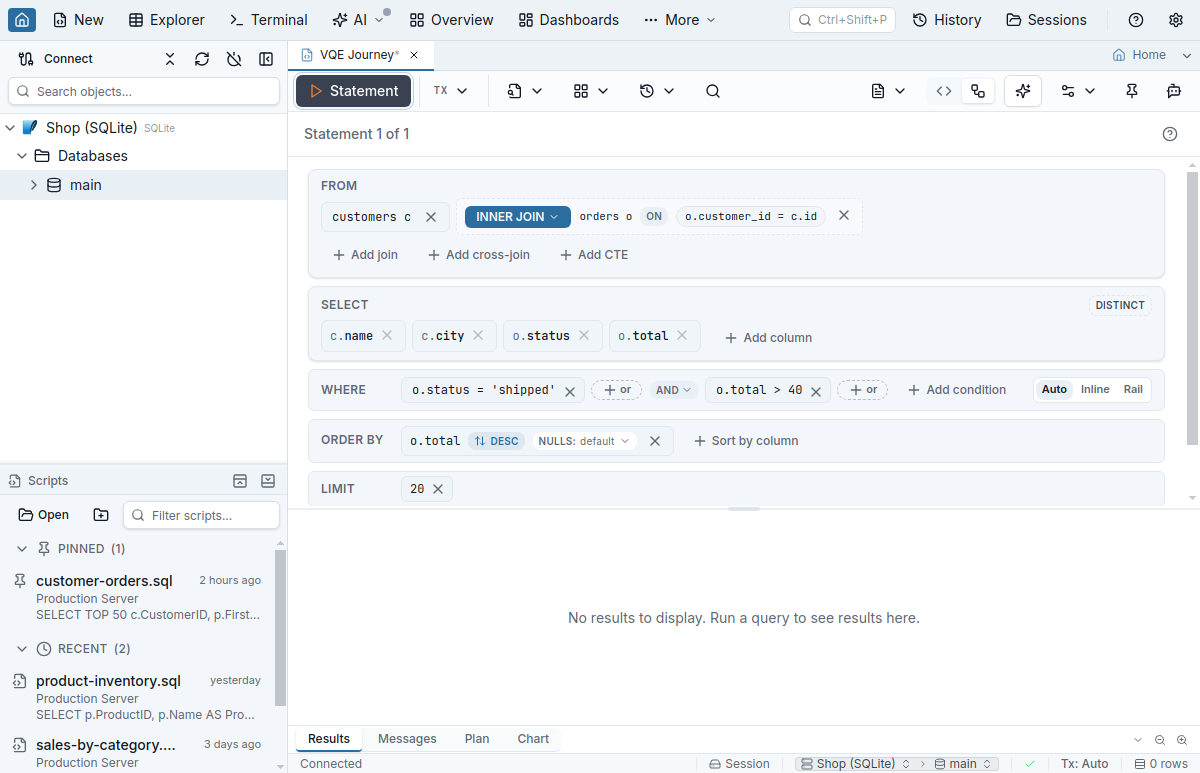
Why a structural view
A 60-line SELECT with two CTEs, three joins and a UNION branch is hard to read line by line. The Visual Query Editor lays it out by clause: which tables it reads, how they join, what it filters on, what it groups by. The cards are editable, so adding columns, filters or a join to the table a foreign key points at does not need a trip back through the text.
It is not a replacement for typing SQL. Jam SQL Studio is a text-first SQL editor; the Visual Query Editor is for reading and adjusting statements, especially ones you did not write.
The full editor: a Query tab's Visual view
Every Query tab has a two-button SQL / Visual view switch on its toolbar, next to Format and Optimize: a code icon for the SQL view and a cards icon for the Visual view. Choose Visual and the same tab shows the statement under the caret as cards. There is no second tab and no copy of the SQL: the editor stays open underneath with its text and undo history, and choosing SQL brings it back with the statement you were looking at selected. Cmd/Ctrl+Shift+V and Toggle Visual view in the command palette switch between the two; with no Query tab in front, More → Visual Query Editor opens a new one in its Visual view.
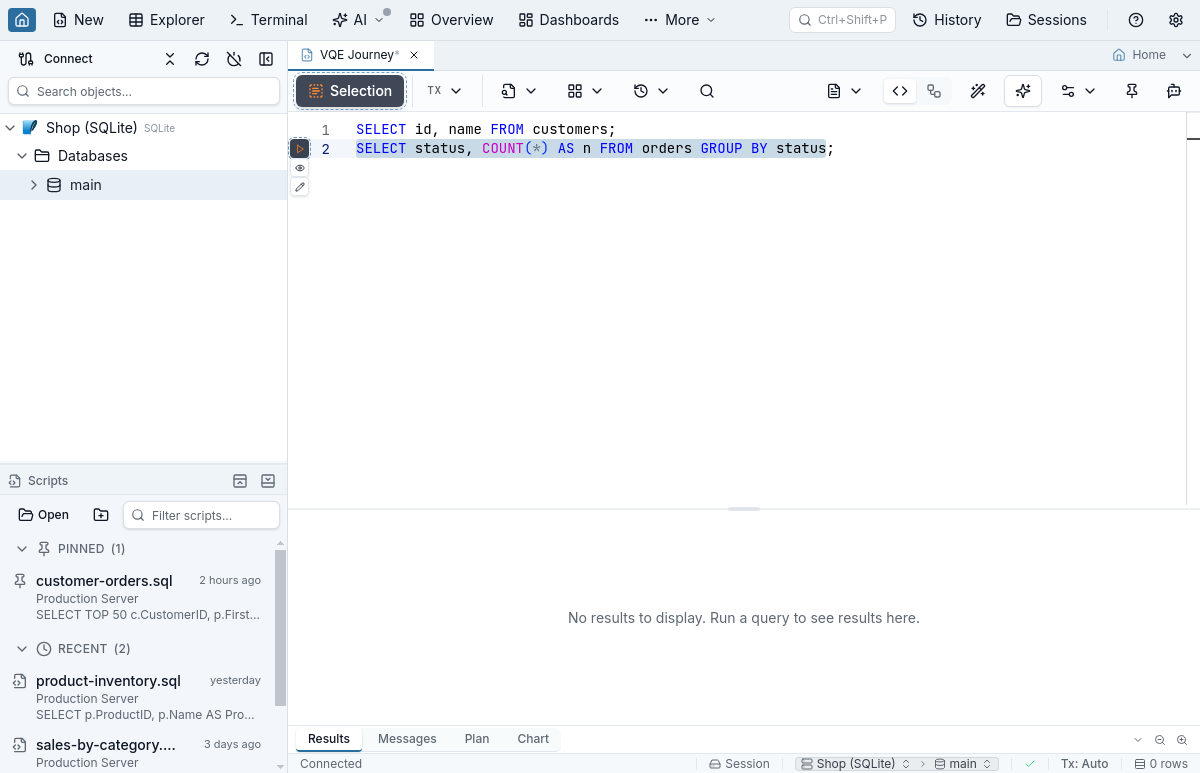
A script with several statements gets a statement picker at the top of the Visual view (Statement 2 of 5), and the view stays on its statement while you edit, undo, or type above it. Cmd/Ctrl+Z steps through the Query Editor's own history, so typing you did in the SQL view and edits you made in the Visual view undo in one order.
Editing a SELECT
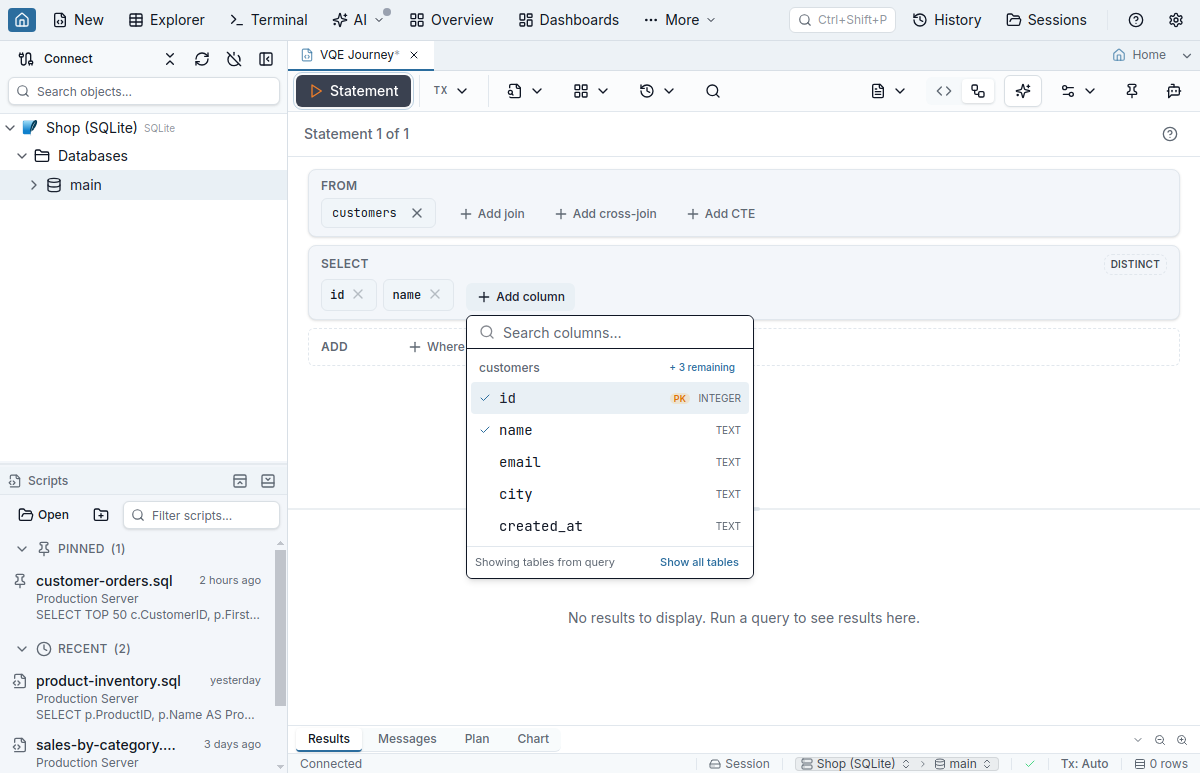
Each card carries its own controls. Add column opens a searchable picker grouped by the tables actually in the query, with the data type and a PK / FK hint on each column. Columns already selected are ticked, picking one again removes it, and a table's + N remaining action adds the rest in one click.
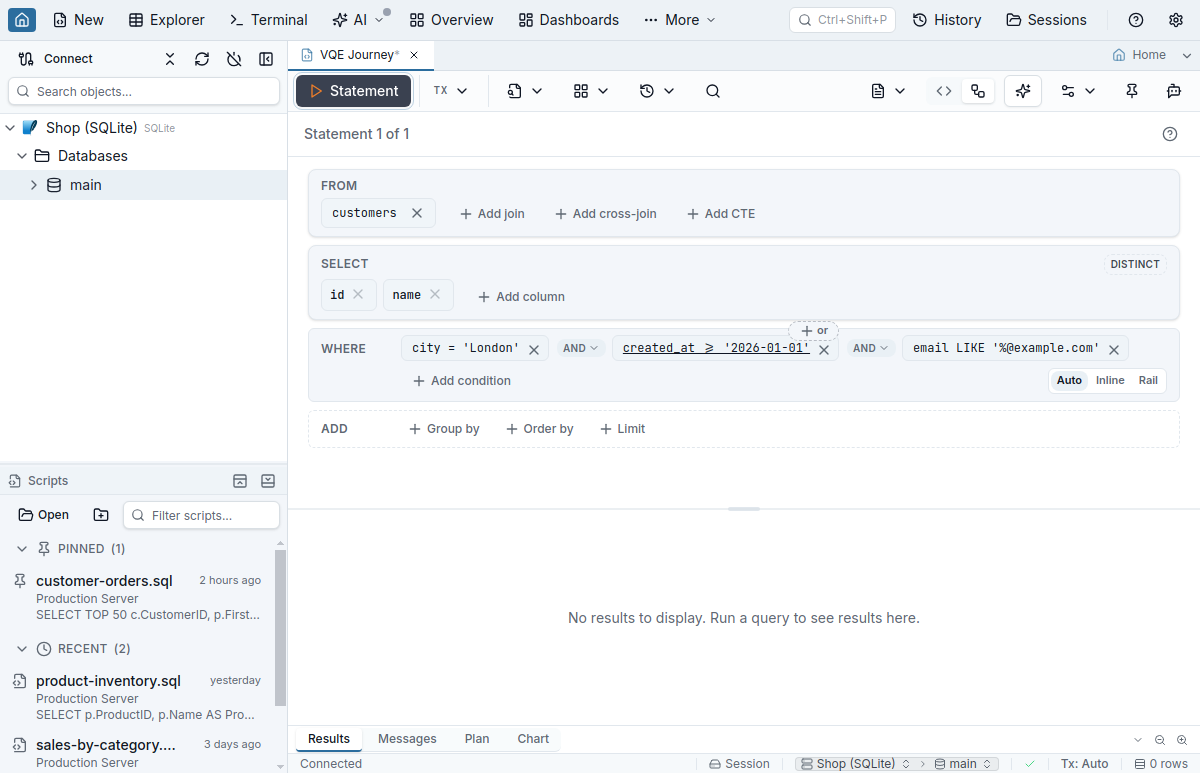
WHERE and HAVING conditions are pills. Add condition opens the same column picker, then a filter editor with the same operators as Table Explorer's filters, including enum value pickers and JSON paths. The AND ▾ chip between conditions switches the whole list to OR. Each condition carries a small + or chip (+ and in an OR list) that groups it with a new condition by the other connector, for example (status = 'shipped' OR city = 'London') AND total > 40. Grouping by the same connector would change nothing, so the chip goes straight to the columns. From three conditions on, the chip appears on the condition under the pointer or with keyboard focus, and stays while its picker is open.
Add join lists the tables linked by a foreign key first, then the rest of the schema, and tables already in the query last, under Self-join. Picking a foreign-key suggestion writes the join with its ON condition in one step; other tables ask for the ON columns first. If the base table had no alias, the edit usually gives it one (FROM customers c) and qualifies the existing columns with it. A single join sits on the same line as its table, the way the SQL reads.
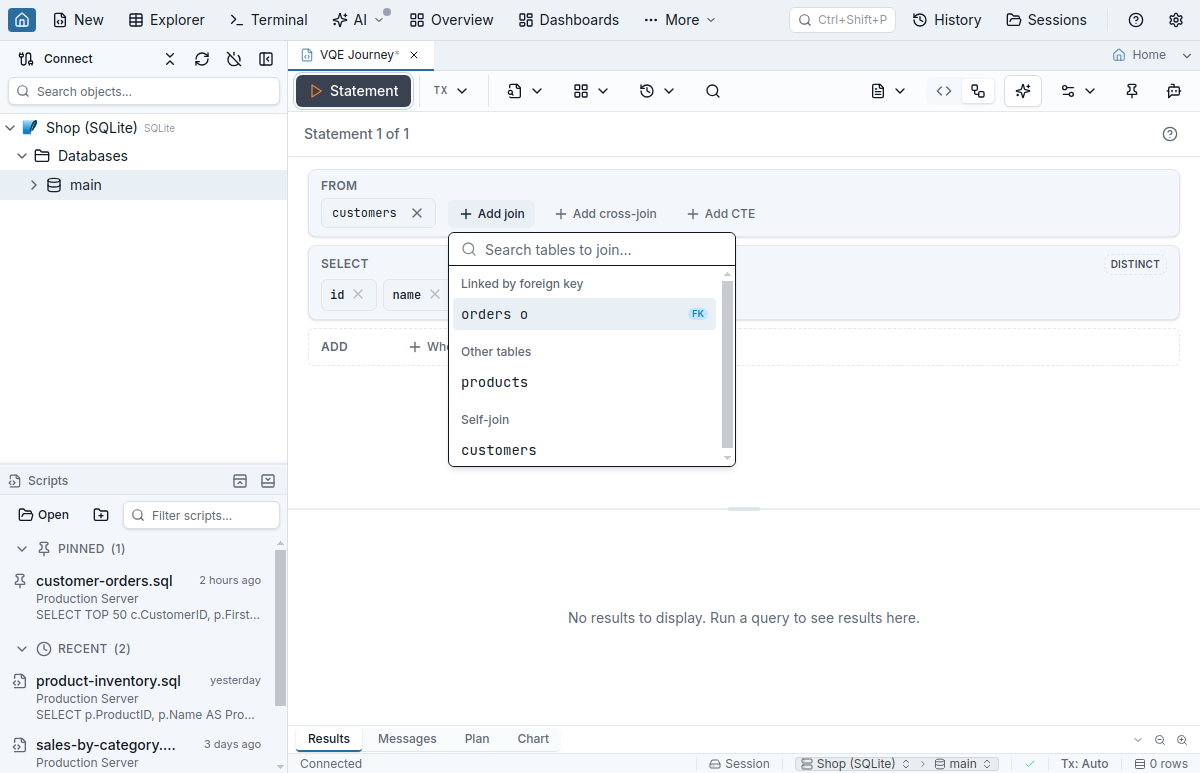
Edits apply directly, with no SQL preview step. After each one, an Edit applied · Undo status appears in the view's header, and the chips the edit changed are tinted for a few seconds, so you can see what moved.
Running the statement
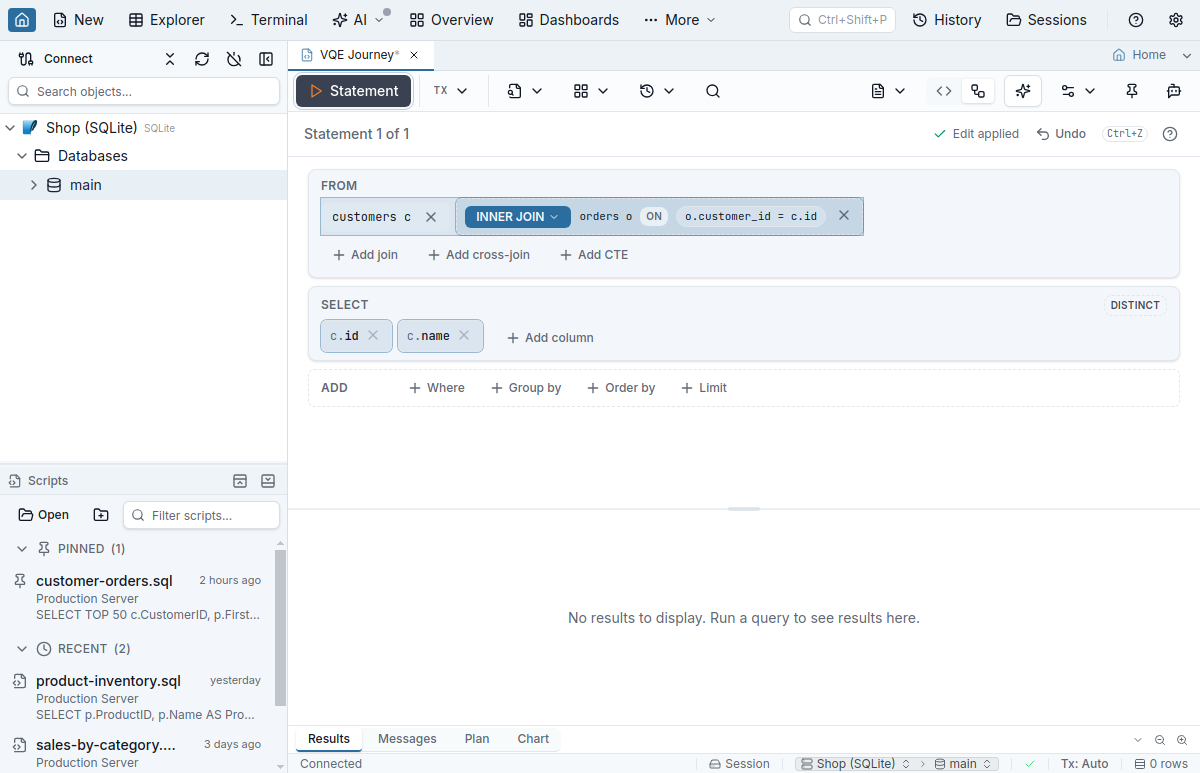
While the Visual view shows, the toolbar's Execute button reads Statement and runs the selected statement, the whole of it even when you have drilled into a subquery or the SELECT of an INSERT — so do F5 and Cmd/Ctrl+Enter; Shift+F5 still runs the whole script. Results land in the tab's usual results pane, with a notice once you edit the statement after running it. Stop, the confirmation for destructive statements, and manual transactions work exactly as they do in the SQL view.
UPDATE, DELETE, INSERT, MERGE — and DDL
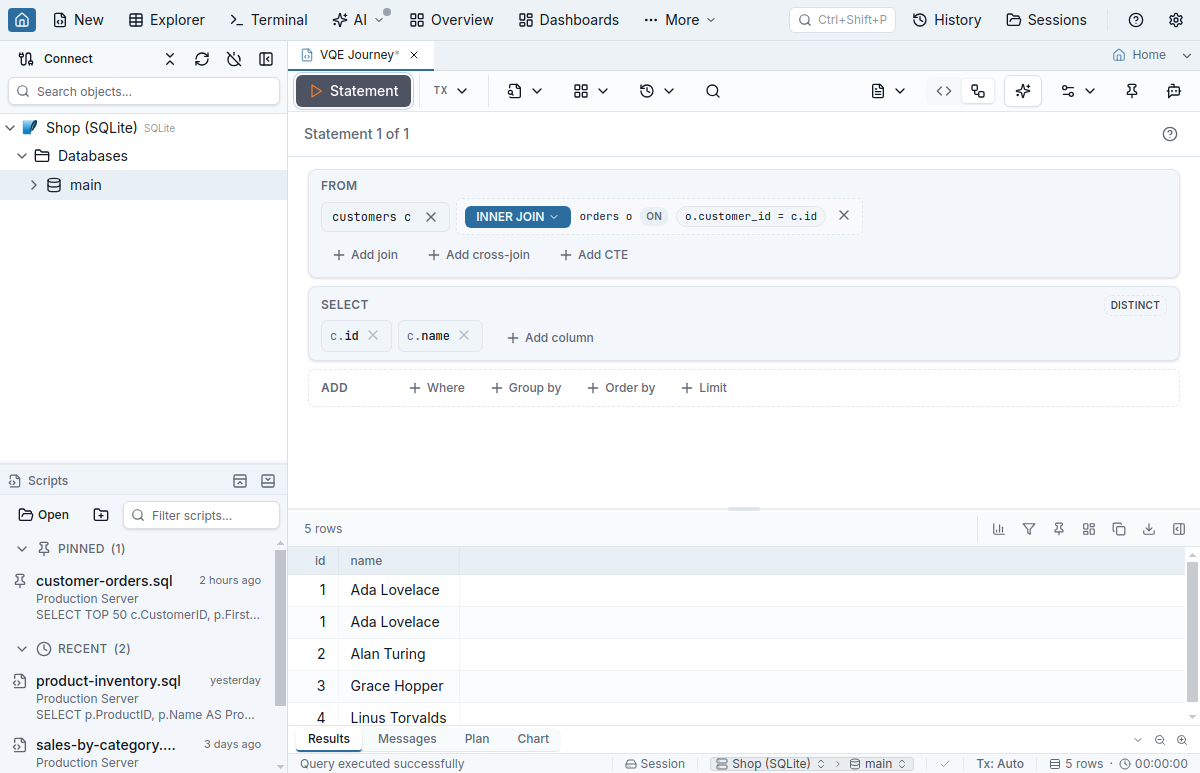
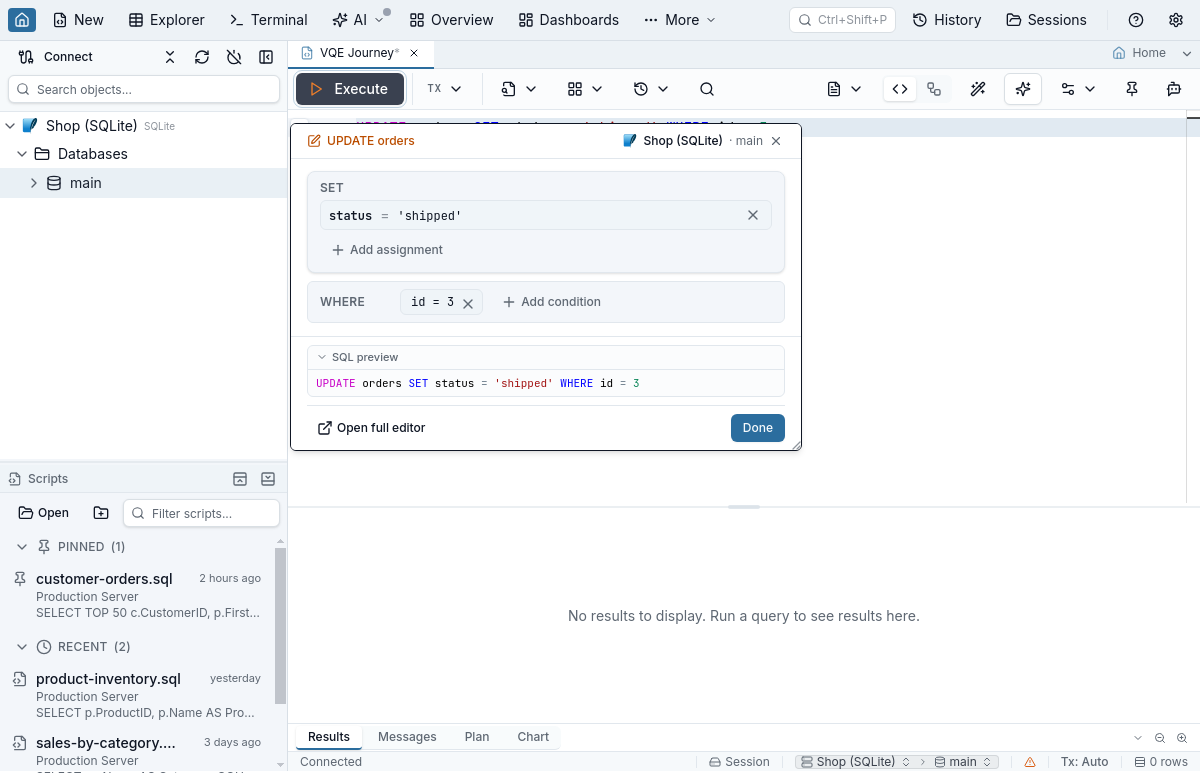
Data-changing statements get their own layout. An UPDATE shows a one-line target with Change table (which rewrites only the table name, so an alias survives; column names in SET and WHERE stay as written), its SET assignments, and its WHERE. Estimate rows, on UPDATE and DELETE, runs a COUNT query with the statement's own filter instead of the statement itself and shows the result in its place; with a join it counts matching combinations, so treat it as an estimate. DELETE, INSERT (with ON CONFLICT / ON DUPLICATE KEY UPDATE tails where the engine has them) and MERGE each get a layout of their own.
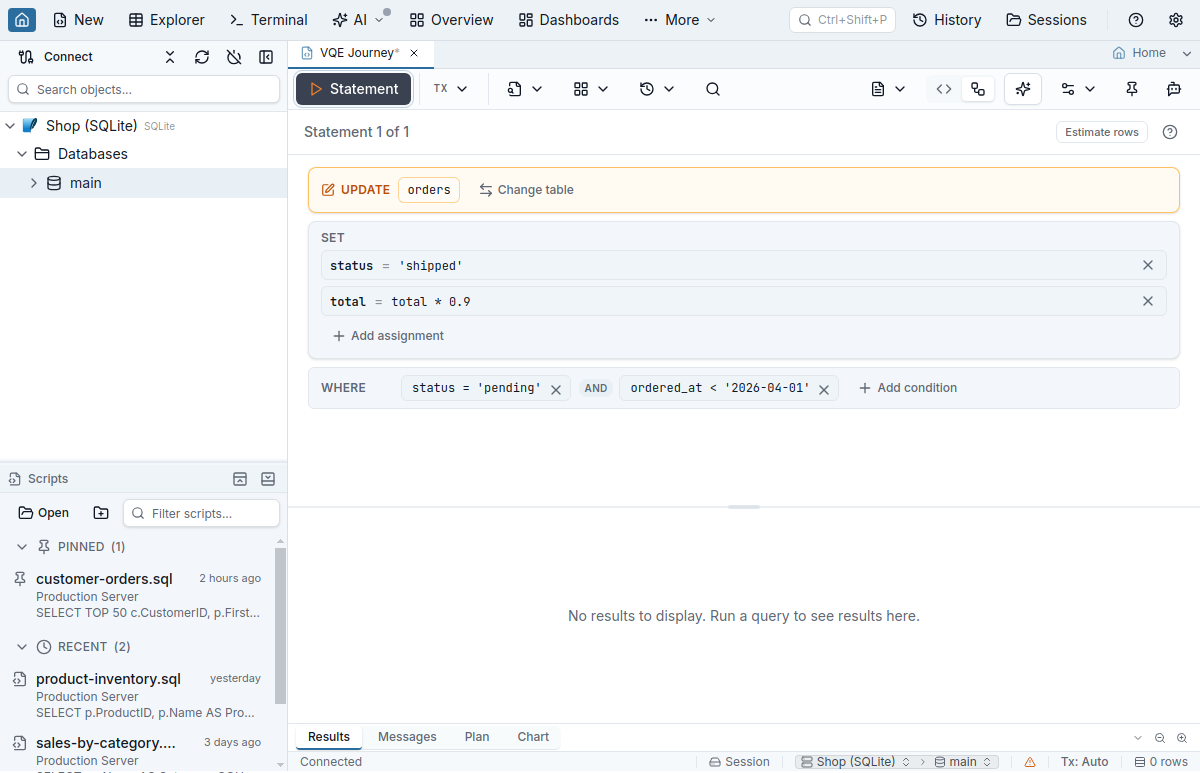
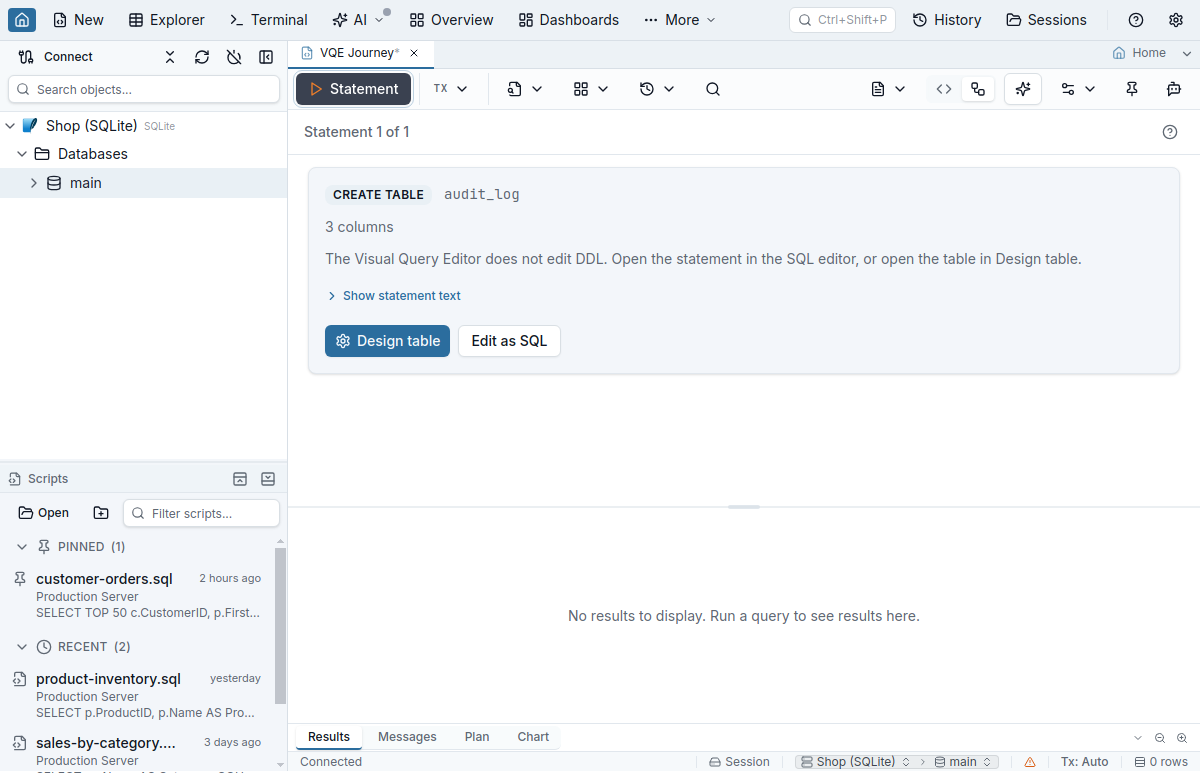
DDL is not edited in the Visual view. A DDL statement shows a card with the statement kind, the object and a few facts, and Edit as SQL to go back to the text; CREATE TABLE and ALTER TABLE cards also have Design table to open the Table Designer.
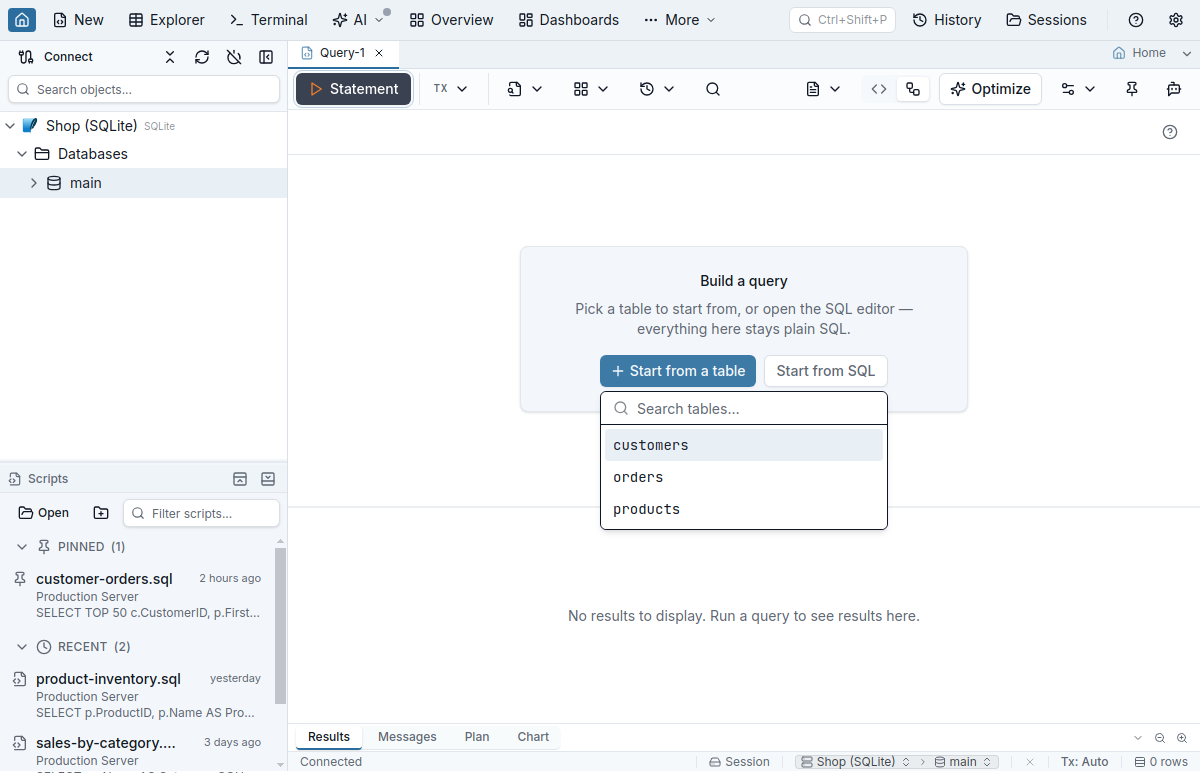
Starting from nothing
A blank Visual view shows a starter canvas: once the connection's schema has loaded, Start from a table opens a searchable list of the database's tables and writes SELECT * FROM <table>, a real query you can run; Start from SQL switches the tab to its SQL view.
The compact editor, right at the statement
You do not have to leave the SQL view. A small pencil in the gutter next to the statement under the cursor — or an Edit button on the run bar, if you use the inline Execute / Peek bar — opens the compact editor: the same clause controls, for the shapes it supports, in a popover over the SQL editor, with a live SQL preview in the editor's own colours. Its edits go into the same undo history.
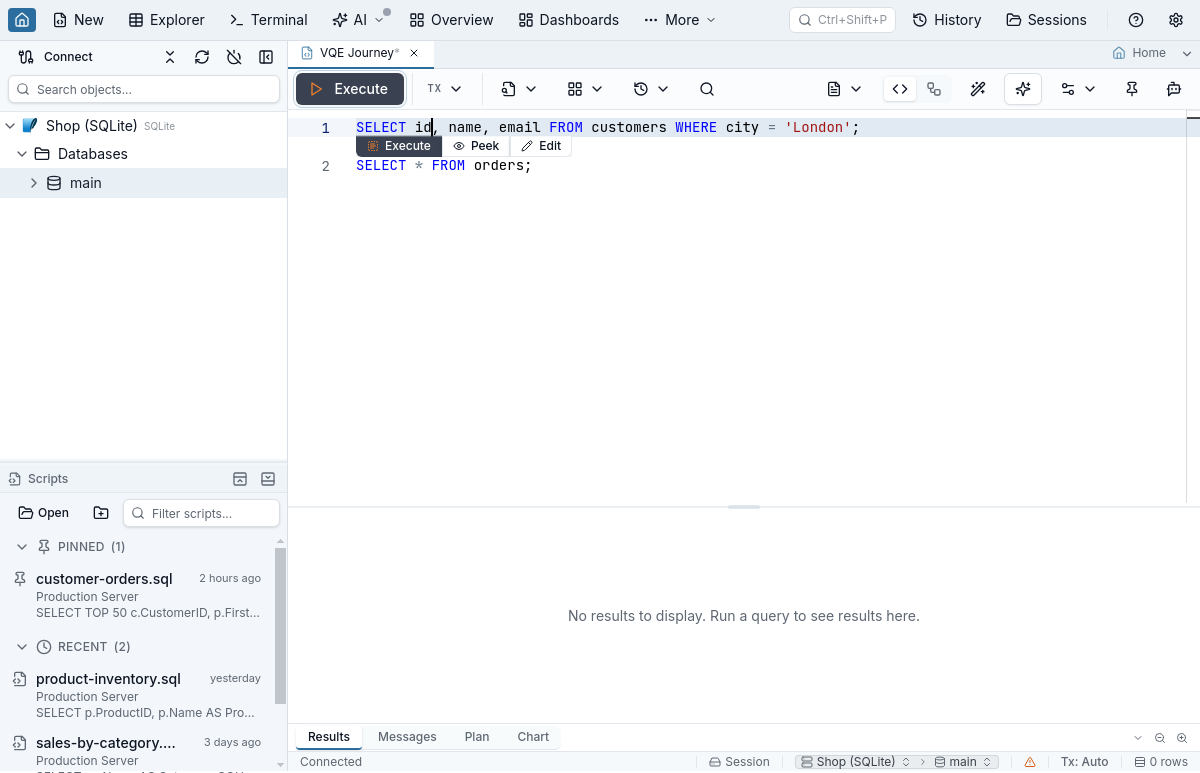
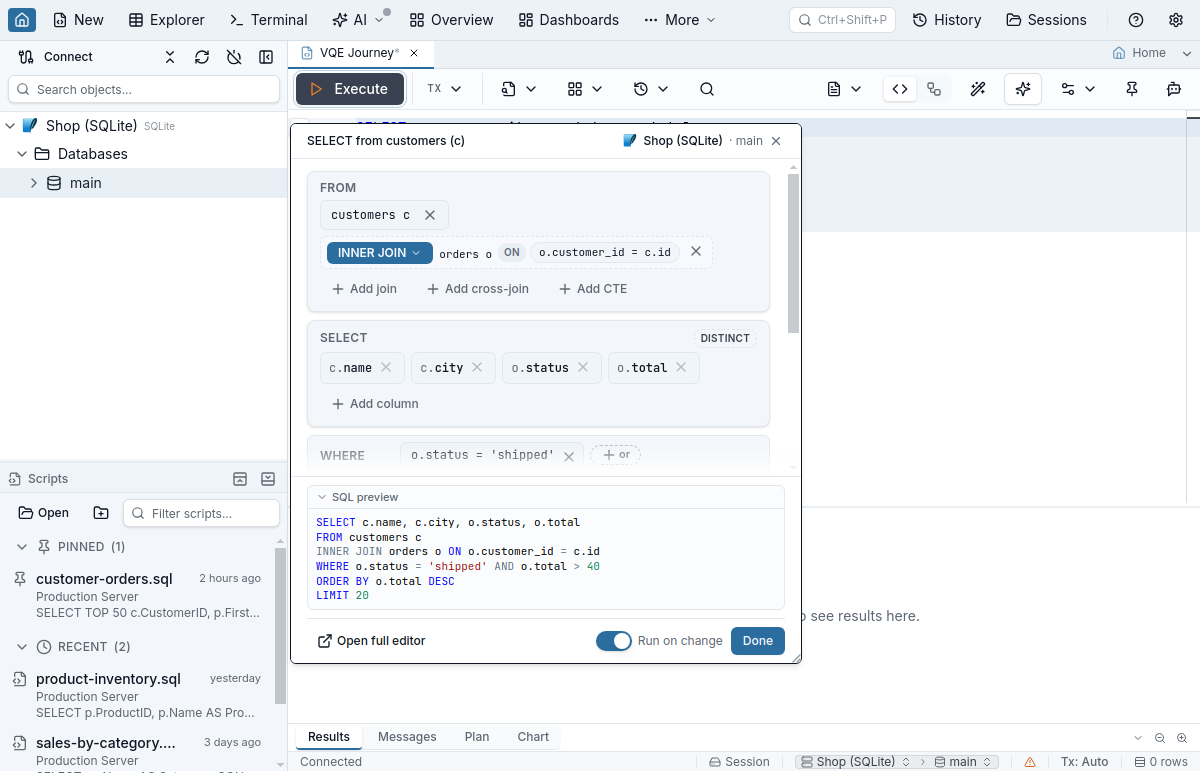
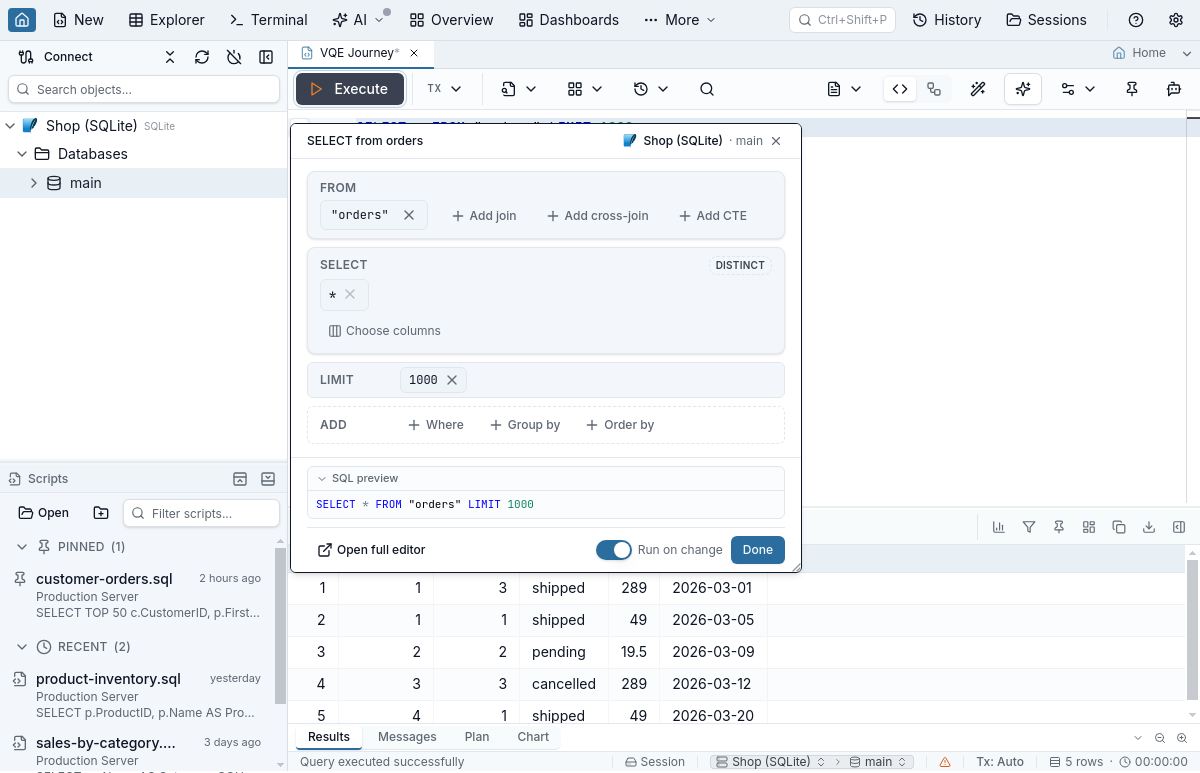
On a SELECT, its footer has a Run on change switch that re-runs the query after each visual edit (read-only queries only), Done, and Open full editor, which switches the same tab to its Visual view on that statement — keeping the subquery you had drilled into. Shapes the popover does not edit, such as a UNION at the top of the query or an INSERT, show a summary and send you to the Visual view.
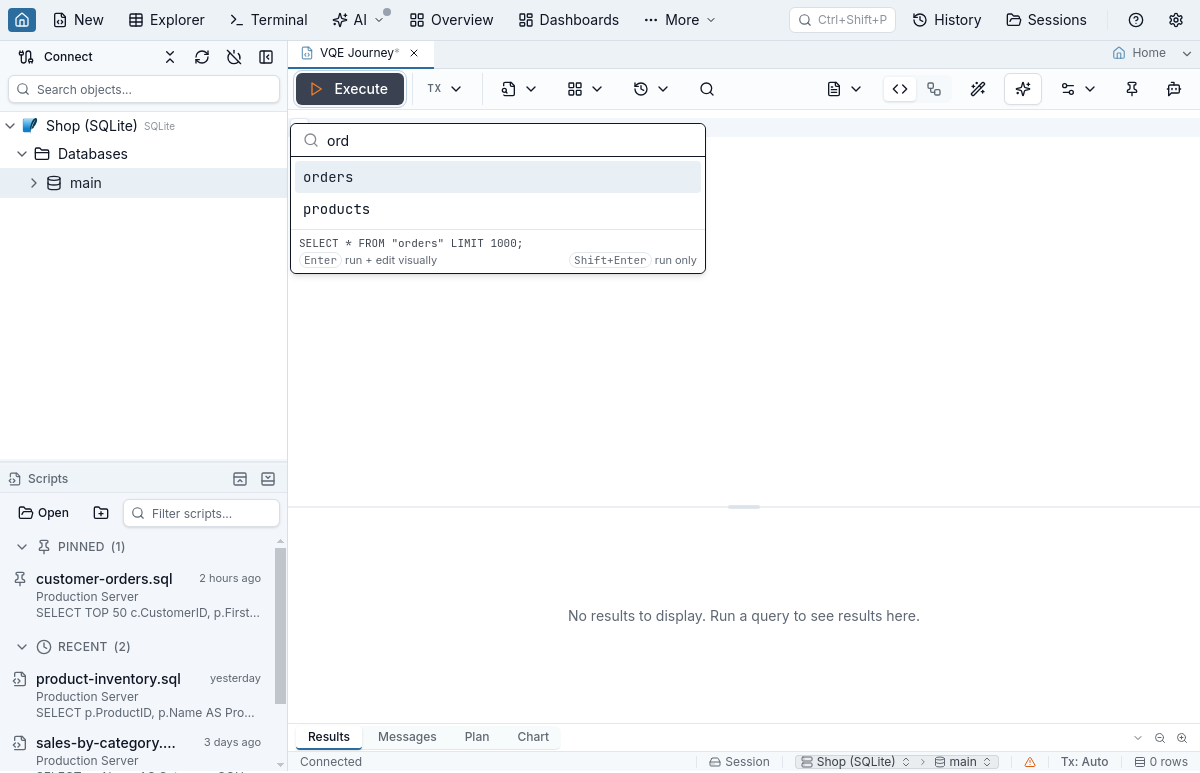
On a blank line between statements, the gutter offers Query a table…: search the database's tables and views, press Enter, and Jam SQL Studio writes the SELECT, runs it, and opens the compact editor on it, so narrowing the columns or adding a filter is the next click.
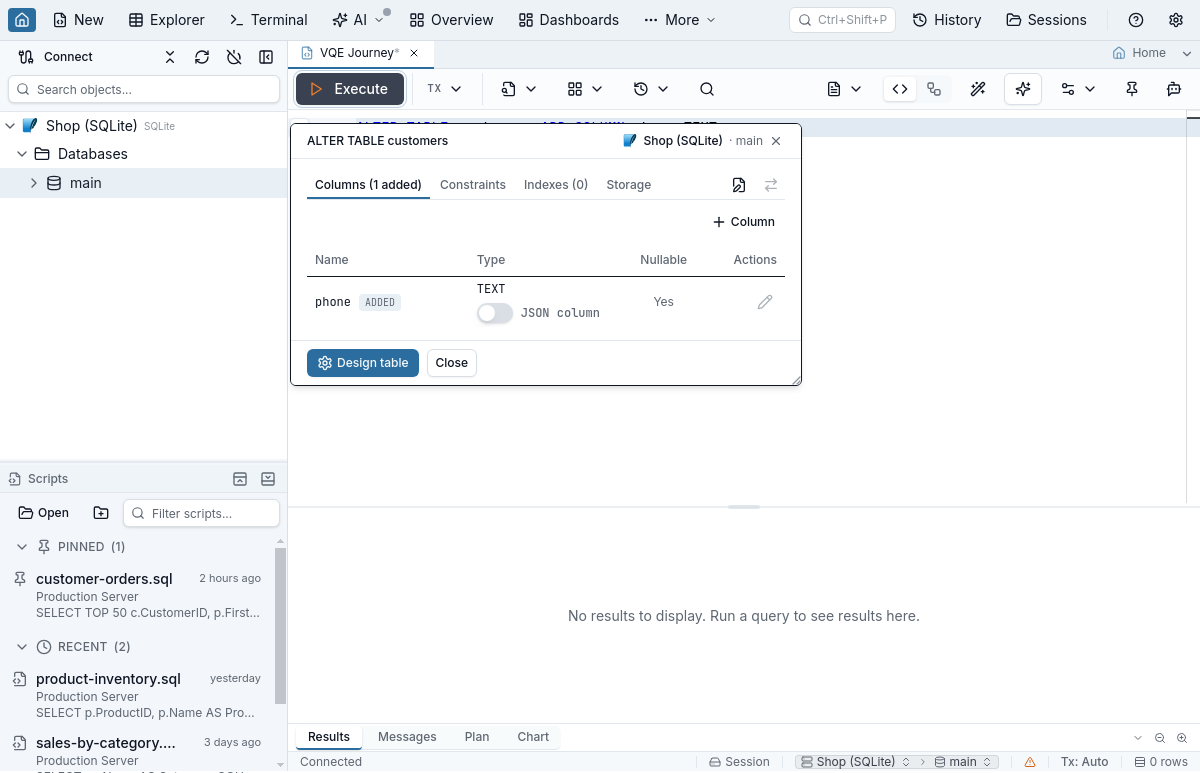
On a CREATE or ALTER TABLE statement, the same pencil opens a small table designer instead: the columns with their types and nullability, what the statement adds, and Design table to open the table in the full Table Designer.
What stays the same
- Edits update the tab's SQL text. Edits go through the same parser as IntelliSense and rewrite only what they change: comments, formatting and identifier quoting elsewhere stay byte-for-byte. Anything the cards do can also be done in the text.
- Visual edits use the Query Editor's undo history. Cmd/Ctrl+Z undoes typed and visual edits in the order you made them, in both the Visual view and the compact editor.
- The cards follow the dialect. TOP on SQL Server, FETCH FIRST on Oracle, LIMIT elsewhere; NULLS FIRST / LAST where the engine has it; CROSS / OUTER APPLY in the join-kind picker on SQL Server.
- AI agents see the same SQL. Over MCP, agents read and write the tab's SQL text, and the Visual view re-renders from it.
Limits
- One statement at a time; a script is navigated with the statement picker.
- The compact editor edits SELECT, UPDATE and DELETE (and CREATE / ALTER TABLE through its table designer). INSERT, MERGE, a top-level UNION, derived tables in FROM and named windows show a summary there, with a link to the Visual view.
- RETURNING is editable on INSERT only; UPDATE and DELETE show it read-only.
- Procedural blocks, parse errors and DDL are shown read-only, each with Edit as SQL one click away.
On by default, still Beta
In 1.5.3 the Visual Query Editor is switched on for everyone who has not changed it, and it keeps its Beta label. If you would rather not see the SQL / Visual switch and the pencils, untick Visual Query Editor in Settings → Beta Features; nothing you wrote changes, and ticking it brings everything back.
Full reference: the Visual Query Editor guide (cards, editing controls, the engine matrix and keyboard shortcuts), the Visual DDL Editor, and the Query Editor.
FAQ
What is the Visual Query Editor in Jam SQL Studio?
A structural view of the SQL statement under your cursor: FROM, joins, the SELECT list, WHERE, GROUP BY, HAVING, ORDER BY and LIMIT become clause cards you can read and edit. Every edit is written back into the tab's SQL text. It works as a Query tab's Visual view (the SQL / Visual switch on the toolbar) and as a compact popover opened from the pencil next to the statement.
Does editing visually reformat my SQL or drop comments?
No. Edits go through the same parser as IntelliSense and rewrite only the part of the statement they change; text outside that part stays byte-for-byte as it was, including comments, formatting and identifier quoting. Visual edits go into the Query Editor's own undo history, so Cmd/Ctrl+Z undoes them.
Which databases does the Visual Query Editor support?
SQL Server, PostgreSQL, MySQL and MariaDB, Oracle, and SQLite. The cards follow each dialect: TOP on SQL Server, FETCH FIRST on Oracle, LIMIT elsewhere; NULLS FIRST / LAST where the engine has it; existing CROSS / OUTER APPLY and LATERAL joins are shown as joins; MERGE on SQL Server, PostgreSQL 15+ and Oracle.
Can I run the query from the Visual view?
Yes. While the Visual view shows, the toolbar's Execute button reads Statement and runs the selected statement of the script, the whole statement even when you have drilled into a subquery (F5 and Cmd/Ctrl+Enter do the same; Shift+F5 still runs the whole script). Results land in the tab's usual results pane, and destructive statements go through the same confirmation as in the SQL view.
How do I turn the Visual Query Editor off?
It is on by default since Jam SQL Studio 1.5.3 and still labelled Beta. Untick Visual Query Editor in Settings → Beta Features to remove the SQL / Visual switch, the pencil next to statements, the Cmd/Ctrl+Shift+V shortcut and the menu and command-palette entries. Tick it again to bring them back.