 Jam SQL Studio
 Published: 2026-08-27
Where Every SQL Client Stores Your Saved Connections — and How to Move Them
New laptop, new teammate, or a client that just got retired: sooner or later you need the twenty-odd database connections you built up over years to exist somewhere else. Every SQL client keeps them in a file — a different file, in a different format, in a different place per OS, with passwords protected (or not) in a different way. This is the reference we wished existed: the exact on-disk location of the saved-connection store for eight common clients, what is inside it, and what actually survives a move. We maintain a parser for each of these files — Jam SQL Studio's connection import reads them directly — so the paths and formats below are code-verified against real stores, not folklore.
The reference table: every client, every OS
All paths are per-user stores, current as of August 2026. %APPDATA% is Windows' roaming profile (C:\Users\you\AppData\Roaming); on Linux the clients below honor $XDG_CONFIG_HOME / $XDG_DATA_HOME where noted, with the shown path as the default.
| Client | Connection store (per OS) | Format | Passwords |
|---|---|---|---|
| SSMS — recent connections | Win: %APPDATA%\Microsoft\SQL Server Management Studio\<18.0–21.0>\UserSettings.xmlSSMS is Windows-only | XML | Encrypted <Password> blob (DPAPI) — tied to your Windows account; useless on another machine |
| SSMS — Registered Servers | Win: %APPDATA%\Microsoft\Microsoft SQL Server\<version>\Tools\Shell\RegSrvr.xml | XML (SMLIF); export writes the same shape as .regsrvr | Connection string stored with the password portion encrypted (DPAPI); export can omit credentials |
| Azure Data Studio | Win: %APPDATA%\azuredatastudio\User\settings.jsonmacOS: ~/Library/Application Support/azuredatastudio/User/settings.jsonLinux: ~/.config/azuredatastudio/User/settings.json | JSONC — datasource.connections + datasource.connectionGroups | Not in the file — OS credential store |
| VS Code (mssql / pgsql ext.) | Win: %APPDATA%\Code\User\settings.jsonmacOS: ~/Library/Application Support/Code/User/settings.jsonLinux: ~/.config/Code/User/settings.json(same layout for Code - Insiders and VSCodium) | JSONC — mssql.connections, mssql.connectionGroups, pgsql.connections | Not in the file — a saved password goes to the OS credential store |
| DBeaver (v6+) | Win: %APPDATA%\DBeaverData\workspace6\<project>\.dbeaver\data-sources.jsonmacOS: ~/Library/DBeaverData/workspace6/<project>/.dbeaver/data-sources.jsonLinux: ~/.local/share/DBeaverData/workspace6/<project>/.dbeaver/data-sources.json | JSON — one file per project; folders + connections | Sibling credentials-config.json, AES-encrypted; Community's key ships in the app — treat as readable |
| MySQL Workbench | Win: %APPDATA%\MySQL\Workbench\connections.xmlmacOS: ~/Library/Application Support/MySQL/Workbench/connections.xmlLinux: ~/.mysql/workbench/connections.xml | GRT XML (every element is a <value> node) | Not in the file — Keychain / Credential Manager / libsecret vault |
| TablePlus | macOS: ~/Library/Application Support/com.tinyapp.TablePlus/Data/Connections.plist(Setapp build: com.tinyapp.TablePlus-setapp)Win/Linux: use the in-app export | Binary plist on disk; XML plist when exported | Not in the plist — macOS Keychain |
| ODBC DSNs | Win: registry — HKCU\Software\ODBC\ODBC.INI (User) and HKLM\Software\ODBC\ODBC.INI (System)macOS/Linux: $ODBCINI, ~/.odbc.ini, /etc/odbc.ini | Registry keys / INI — [ODBC Data Sources] lists name=driver | Usually none stored — the SQL Server driver keeps LastUser, never the password |
| Oracle SQL Developer (18.3+) | Win: %APPDATA%\SQL Developer\system<version>\o.jdeveloper.db.connection.<version>\connections.jsonmacOS/Linux: ~/.sqldeveloper/system<version>/o.jdeveloper.db.connection.<version>/connections.json | JSON — one store per SQL Developer version ever run | Encrypted blob in the JSON, keyed to the install (or to a passphrase on export) |
The pattern: coordinates travel, passwords don’t
Look down the last column and one rule falls out. The connection coordinates — host, port, database, user name, groups — are plain text or trivially-parsed markup in every one of these stores, and copying the file moves them. The passwords are protected in one of three ways, and only one of them survives a move:
- Machine- or user-tied encryption (SSMS via Windows DPAPI, SQL Developer via an install-keyed cipher): the encrypted blob is in the file but undecryptable anywhere else. Copying it moves bytes, not secrets.
- OS keychain, out of band (Azure Data Studio, VS Code, MySQL Workbench, TablePlus): the file holds no secret at all. There is nothing to copy — the Keychain / Credential Manager / libsecret entry stays behind.
- Portable-but-weak (DBeaver Community’s
credentials-config.json, any plain-textodbc.ini): the secret moves with the file — which is convenient, and exactly why you should treat these files like passwords when sharing or committing them.
So the honest expectation for any migration: your connection list transfers, your passwords get re-typed once each — unless the tool offers a passphrase-protected export designed for the trip. Now, client by client.
SQL Server Management Studio: two stores, one export button
SSMS keeps saved connections in two unrelated places, and only one has an export UI.
Registered Servers live in RegSrvr.xml under %APPDATA%\Microsoft\Microsoft SQL Server\<version>\Tools\Shell\ — an SMLIF/SFC-serialized XML tree where each RegisteredServer node carries the display name, the server name, and a ConnectionStringWithEncryptedPassword whose key-value pairs (server, database, Integrated Security, user id) are readable plain text with only the password portion encrypted. The group tree is encoded in each server’s parent URI. This is the store with a real migration path: in the Registered Servers pane, right-click a group → Tasks → Export… writes a .regsrvr file (same XML shape) that Tasks → Import… reads on the other machine, with an option to leave user names and passwords out.
The connect dialog’s recent-servers list is the one everybody actually wants to move — and it has no export button. It lives in UserSettings.xml under %APPDATA%\Microsoft\SQL Server Management Studio\<version>\ (one folder per major version: 18.0, 19.0, 20.0, 21.0), as ServerConnectionSettings elements with instance, database, user, and an AuthenticationMethod flag (0 = Windows, 1 = SQL login). Copying the file to the same path on another machine carries the list across between matching SSMS versions — but every saved password in it is a DPAPI blob encrypted for your original Windows account, so the new machine will show the connections and ask for the passwords.
Azure Data Studio: one JSON file, and a deadline that already passed
Azure Data Studio was retired on February 28, 2026, which turned “where does ADS keep my connections” from trivia into a migration prerequisite. The good news: it is the cleanest store on this page. Everything — connections and server groups — sits in the user settings.json (paths in the table above) under datasource.connections and datasource.connectionGroups, as JSON-with-comments. Copy those two keys and you have your whole tree; passwords are not in the file (they live in the OS credential store) and there is no export UI, so the file is the export. We keep a step-by-step guide with screenshots and per-OS commands in Export Azure Data Studio Connections, and a full migration walkthrough (notebooks, snippets, keybindings included) in Migrate from Azure Data Studio — no need to repeat them here.
VS Code’s mssql and pgsql extensions: settings.json again
The vscode-mssql extension stores connection profiles the same way ADS did — in the user settings.json, under mssql.connections (with groups in mssql.connectionGroups); Microsoft’s PostgreSQL extension adds pgsql.connections beside it. Each profile is a flat JSON object: profileName, server (named instances as host\INSTANCE, or host,port), database, user, authenticationType (SqlLogin, Integrated, AzureMFA). When you tick Save Password, the password goes to the OS credential store, not the JSON.
Moving is correspondingly boring, in the best way: turn on Settings Sync and the profiles follow your account to the next machine, or copy the mssql.* / pgsql.* blocks between settings.json files by hand. Passwords do not sync — the credential store is per-machine. One gotcha worth naming: Insiders and VSCodium keep separate User folders (Code - Insiders, VSCodium), so profiles saved in one variant are invisible to the others.
DBeaver: per-project JSON, and the credentials caveat
Since version 6, DBeaver’s workspace root is a DBeaverData folder (per-OS locations in the table), and each project keeps its own store at workspace6/<project>/.dbeaver/data-sources.json — if you use multiple projects, you have multiple files. The JSON is pleasantly explicit: a folders map plus a connections map keyed by opaque IDs, each with provider, driver, name, folder, and a configuration block of host / port / database / JDBC url / user / auth-model.
To move everything, copy the whole DBeaverData directory (or a single project folder) to the same location on the new machine; DBeaver also offers a project export from the File → Export menu. The caveat is the sibling file: credentials-config.json, where DBeaver keeps user names and passwords AES-encrypted. In DBeaver Community the decryption key ships inside the application itself — the encryption stops a shoulder-surfer, not anyone who also has DBeaver — so a copied workspace should be handled like a file of plain-text passwords: don’t commit it, don’t attach it to a ticket, and prefer moving data-sources.json alone when a teammate only needs the endpoints.
MySQL Workbench: GRT XML with a built-in backup
Workbench’s connections.xml is the strangest format on this page: a GRT document where every element is a <value> node distinguished only by key and struct-name attributes — each connection a db.mgmt.Connection struct whose parameterValues dict holds hostName, port, userName, and default schema. It is parseable, but not a file you hand-edit for fun. Passwords never appear in it in usable form: Workbench stores them in the OS vault (Keychain on macOS, Credential Manager on Windows, libsecret on Linux) and keeps only a lookup key in the XML.
The supported move is Tools → Configuration → Backup Connections… on the old machine and Restore Connections… on the new one; copying connections.xml to the target path works too. Either way, passwords stay behind in the old vault. Two connection kinds deserve a check after moving: local-socket connections carry no TCP host at all (they point at a socket path that may not exist on the new machine), and SSH-tunneled connections reference an SSH key path that probably moved.
TablePlus: a binary plist and the Keychain
On macOS, TablePlus persists its connection list as a binary property list — the file starts with bplist00 — at ~/Library/Application Support/com.tinyapp.TablePlus/Data/Connections.plist (the Setapp build uses com.tinyapp.TablePlus-setapp). Inside is an array of dictionaries with keys like ConnectionName, Driver, DatabaseHost, DatabasePort, DatabaseUser, DatabaseName, DatabasePath for SQLite — and, memorably, the environment tag under the misspelled key Enviroment, which any parser of this file learns to read both ways. plutil -convert xml1 turns the binary file into readable XML; TablePlus’s own connection export writes the same array as an XML plist directly, which is also the practical route on the Windows and Linux builds. Passwords are in the macOS Keychain, not the plist, so an exported file moves endpoints only unless you use TablePlus’s own protected export path.
ODBC DSNs: the registry on Windows, an INI everywhere else
ODBC data sources are the odd one out because the “client” is the OS. On Windows, User DSNs live under HKCU\Software\ODBC\ODBC.INI and System DSNs under HKLM\Software\ODBC\ODBC.INI; each hive has an ODBC Data Sources subkey listing <name>=<driver>, and each DSN gets its own key with the driver’s attributes (Server, Database, Trusted_Connection…). Note that 32-bit DSNs live in a parallel tree under WOW6432Node, which is why a DSN can “exist” and still be invisible to your 64-bit application. On macOS and Linux, unixODBC reads ~/.odbc.ini (or $ODBCINI) and the system-wide /etc/odbc.ini — same structure as the registry, as an INI file.
Moving DSNs is a registry export (.reg file) or a copy of odbc.ini — plus the part people forget: the drivers named in every entry must already be installed on the target machine, at the same bitness, or the DSN lands dead. Most DSNs store no password — the SQL Server driver, for instance, persists LastUser but never the secret — though nothing in the format forbids a driver from writing one, so skim what you are about to share.
Oracle SQL Developer: one store per version you ever ran
Since SQL Developer 18.3, connections live in a JSON file — but the path has two version numbers in it, because each SQL Developer release keeps its own system<version> folder: ~/.sqldeveloper/system23.1.1.345/o.jdeveloper.db.connection.<version>/connections.json (on Windows, under %APPDATA%\SQL Developer\). If you have upgraded over the years, several of these folders exist side by side, each with the connection list as of that version; the newest is the live one. The JSON is a connections array where each entry’s info map holds hostname, port, sid or serviceName, user, role, the folder name (NAV_FOLDER), and the connection type (OracleConnectionType: BASIC, TNS, LDAP…). Older releases used a connections.xml in a different, XML format.
The clean route out is the built-in wizard: right-click Connections → Export Connections…, which writes the same JSON shape and — if you choose to include passwords — encrypts them with a passphrase you set, making this one of the few clients whose secrets genuinely survive a move. In the on-disk store, the password blob is keyed to the install instead, so copying the raw file transfers endpoints only. Two gotchas: a TNS-type connection carries just the alias name, so the new machine also needs the matching tnsnames.ora; and OS-authenticated connections carry no credentials by design.
Or skip the scavenger hunt: import them
Everything above is what it takes by hand. The reason we can vouch for the paths is that Jam SQL Studio ships a parser for every store on this page — plus DataGrip and other JetBrains IDEs, Navicat, pgAdmin, and the standard config files (tnsnames.ora, pg_service.conf, .my.cnf) — and probes those locations automatically. Sources found on your machine surface with a Found badge; one click shows a review dialog with your connections grouped exactly as the source tool grouped them, duplicates pre-unchecked, nothing auto-connecting.
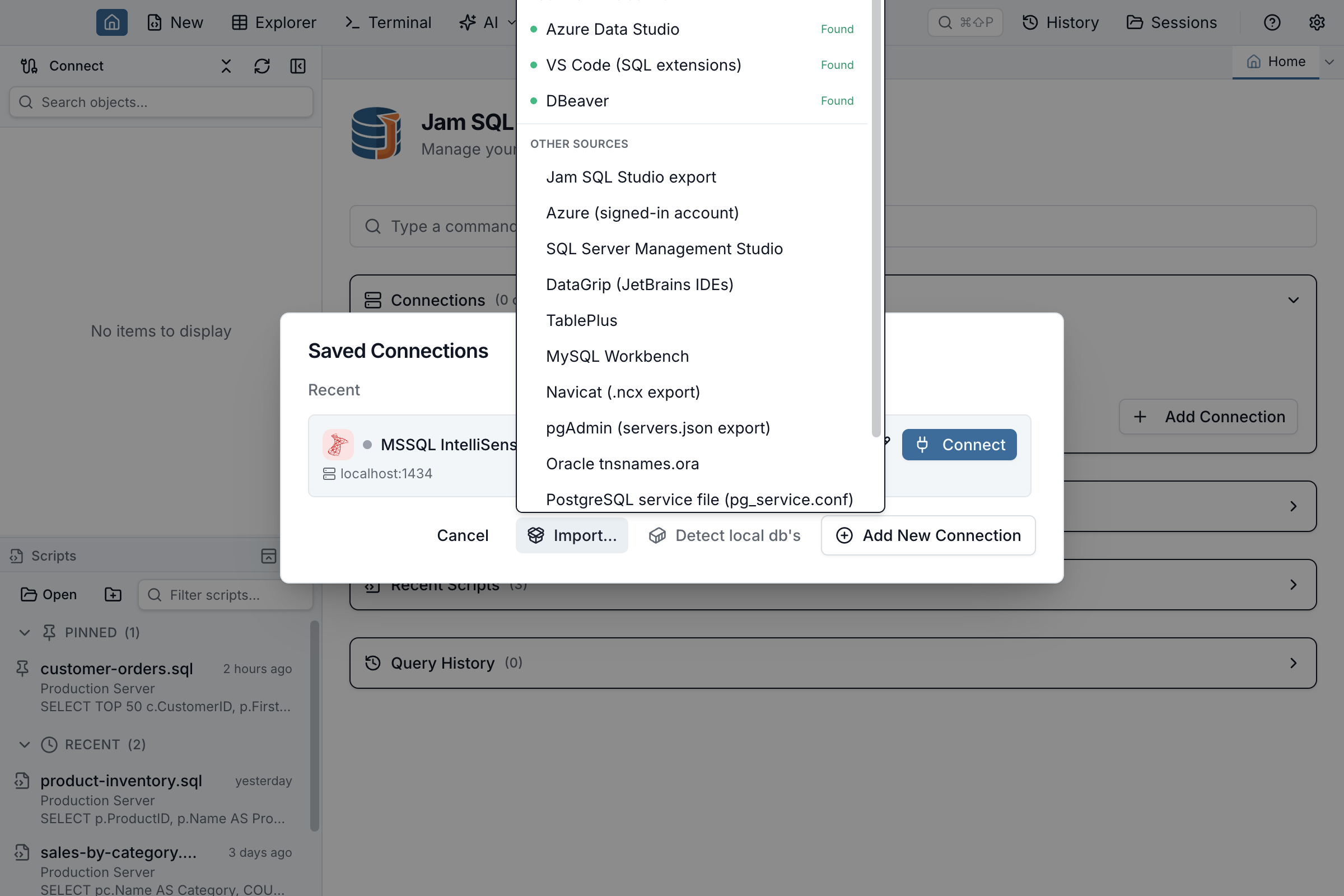
The password rule from this article is enforced, not just described: Jam SQL Studio never reads another app’s keychain and never decrypts another tool’s password blobs — even the ones it technically could. Credentials pre-fill only from files documented as plain text; everywhere else you re-enter them once, into Jam’s own encrypted store. And when it is Jam’s connections that need to move, Settings → Backup & Transfer exports an endpoints-only file you can read before sharing — or, optionally, one that carries your passwords sealed under a passphrase (scrypt + AES-256-GCM), so the next machine is a two-minute job instead of an afternoon. Details in the Connections docs.
Quick Answers
Short answers to the questions that come up most often.
Q: How do I export connections from SSMS?
A: SSMS has a built-in export only for Registered Servers: in the Registered Servers pane, right-click a group and choose Tasks, then Export, which writes a .regsrvr XML file you can import on another machine (with an option to exclude user names and passwords). The connect dialog's recent-servers list has no export UI — it lives in UserSettings.xml under %APPDATA%\Microsoft\SQL Server Management Studio\<version>, and its saved passwords are DPAPI-encrypted for your Windows account, so they cannot be decrypted on another machine either way.
Q: Where does Azure Data Studio store saved connections?
A: In its user settings.json — %APPDATA%\azuredatastudio\User\settings.json on Windows, ~/Library/Application Support/azuredatastudio/User/settings.json on macOS, and ~/.config/azuredatastudio/User/settings.json on Linux — under the datasource.connections key, with server groups in datasource.connectionGroups. Saved passwords are not in that file; they live in the operating system's credential store.
Q: How do I move DBeaver connections to another computer?
A: Each DBeaver project keeps its connections in workspace6/<project>/.dbeaver/data-sources.json under the DBeaverData folder (%APPDATA% on Windows, ~/Library on macOS, ~/.local/share on Linux). Copying that folder — or the whole DBeaverData directory — moves every connection with its folder structure. Passwords sit in the sibling credentials-config.json, which is AES-encrypted; in DBeaver Community the decryption key ships with the application itself, so treat a copied workspace as if it contained readable passwords.
Q: Can I export MySQL Workbench connections?
A: Yes — Tools > Configuration > Backup Connections backs up your connection list to a file that Restore Connections reads on the other machine. The store itself is connections.xml: %APPDATA%\MySQL\Workbench\connections.xml on Windows, ~/Library/Application Support/MySQL/Workbench/connections.xml on macOS, ~/.mysql/workbench/connections.xml on Linux. Passwords are not inside it — Workbench keeps them in the OS keychain or credential vault, so you re-enter them after moving.
Q: How do I transfer database connections to a new computer?
A: Copy each client's connection store file (exact per-OS paths differ per client), or use the client's own export where one exists — SSMS registered-server export, SQL Developer's Export Connections wizard, MySQL Workbench's Backup Connections. Expect to re-enter passwords: nearly every client either encrypts them with a machine-tied key (SSMS, SQL Developer) or keeps them out of the file entirely in the OS keychain (Azure Data Studio, VS Code, MySQL Workbench, TablePlus). A client with a connection importer, such as Jam SQL Studio, can also read these stores directly and re-create the connections for you.
Q: Do saved database passwords move when I copy connection files?
A: Almost never. SSMS and Oracle SQL Developer encrypt passwords with keys tied to the Windows user or the install, so the blobs are useless elsewhere. Azure Data Studio, VS Code, MySQL Workbench, and TablePlus do not put passwords in their connection files at all — they use the OS keychain, which has no portable export. The exceptions run the other way: DBeaver Community's encrypted credentials file can be decrypted by any copy of DBeaver, and a plain-text odbc.ini holds whatever a driver chose to persist. Plan to re-enter credentials, or use an export that re-protects them with a passphrase.
The takeaway
Every one of these clients will give up its connection list from one file (or one registry branch), and the table above says exactly which. What none of them will give you for free is the passwords: they are either locked to the machine, locked in the keychain, or — worse — not really locked at all. So budget the move accordingly: five minutes to carry the coordinates, one re-typed password per server, and a healthy suspicion of any connection file that turns out to be readable.
Your Connections, Re-created in One Click
Jam SQL Studio detects and imports saved connections from every client on this page — groups intact, passwords respected, nothing auto-connects. Free for personal use.