 Jam SQL Studio
 Published: 2026-03-07 • Updated: 2026-09-26
How to Run SQL Server on a Mac (Apple Silicon) in 2026
SQL Server has no macOS build and no ARM64 build, so on an M-series Mac there are three practical routes as of September 2026: the official SQL Server container in Docker Desktop under Rosetta emulation, SQL Server on an x86-64 machine you reach over the network, or a Windows 11 on Arm VM when you need SSMS itself. This guide covers what works on Apple Silicon, what Microsoft supports and what it doesn't, and which path you actually need — plus a SQL Server client for Mac that connects to all of them.
Option 1: SQL Server 2025 in Docker (Easiest)
The quickest way to get SQL Server running on a Mac. Until 2025 this guide used Azure SQL Edge, which had a native ARM64 image; Microsoft has retired it — the Microsoft Lifecycle entry gives a retirement date of 1 October 2025 — so it no longer receives updates and is not a sensible base for new work. The route now is the official SQL Server Linux container image.
The Apple Silicon caveat, stated plainly. Microsoft's Docker quickstart says the SQL Server container images are supported only on Linux hosts running Intel and AMD x86-64 CPUs, and that emulation or translation environments — Rosetta 2, Prism, QEMU — aren't tested or supported. On an M-series Mac the image therefore runs under Docker Desktop's x86-64 emulation. It is fast enough for development work and it is what most Mac developers do, but it is not a configuration Microsoft supports. Option 2 below is the supported route.
Setup
- Install Docker Desktop for Mac if you don't have it already
- On Apple Silicon, open Settings → General and turn on Use Rosetta for x86_64/amd64 emulation on Apple Silicon. The option is only available when the Virtual Machine Manager is set to Apple Virtualization framework
- Pull and run the SQL Server 2025 container:
docker run --platform linux/amd64 \
  -e "ACCEPT_EULA=Y" -e "MSSQL_SA_PASSWORD=YourStr0ngP@ss" \
  -p 1433:1433 --name sql1 --hostname sql1 \
  -d mcr.microsoft.com/mssql/server:2025-latest
Drop --platform linux/amd64 on an Intel Mac and the rest is Microsoft's own command from the Docker quickstart, which uses 2025-latest as its default tag. Swap the tag for 2022-latest if your production servers run SQL Server 2022. The password has to satisfy SQL Server's policy — at least eight characters drawn from three of uppercase, lowercase, digits and symbols — or the container starts, fails to configure the engine, and stops.
If a 2025 container exits a second after starting with an AVX assertion or a segmentation fault, you have an old cached image. The first SQL Server 2025 images crashed under Rosetta on macOS 26; users in microsoft/mssql-docker#942 report that the images from Cumulative Update 1 (January 2026) onward start normally under Docker Desktop. Run docker pull mcr.microsoft.com/mssql/server:2025-latest, remove the old container, and start it again. A separate open report, #955, says the 2025 image still crashes under Podman on a Mac while 2022 runs, so use Docker Desktop, or the 2022 image, if you run Podman.
One date to keep in mind: Apple's September 2026 developer notice says macOS 27 is the final release to support Rosetta for Intel apps, apart from older games. The notice doesn't mention the Rosetta for Linux that Docker Desktop uses for this container, so if you plan to keep this setup beyond macOS 27, watch Docker Desktop's release notes.
That's it. You now have the SQL Server Database Engine running on port 1433. Connect from Jam SQL Studio (or any SQL client) using:
- Server: localhost
- Port: 1433
- Username: sa
- Password: YourStr0ngP@ss
Connect to it and run the first query
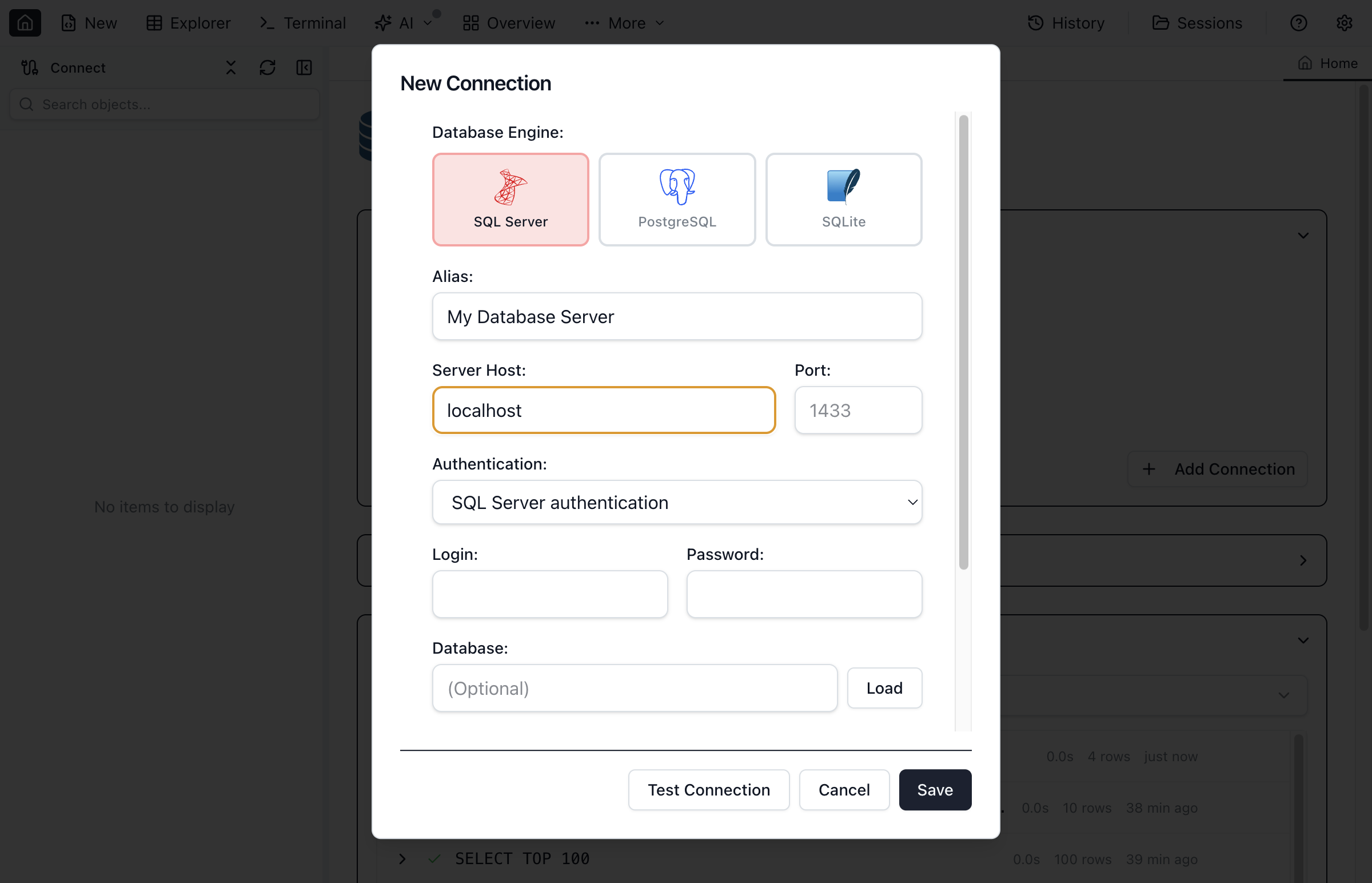
A running container is not much use without a client, and this is the point where Mac developers usually stall. Jam SQL Studio is a native Apple Silicon SQL client — no VM, no Rosetta, free for personal use. Click New Connection and put the four values above into Server/Host, Port, Login and Password, with Authentication set to SQL Server authentication. Leave Database empty and you land in master.
Leave the TLS options alone too: Encrypt and Trust server certificate are both on by default, which is exactly what the container's self-signed certificate needs — the setting that trips up most first connections to a local SQL Server. Click Connect.
Open a query tab and run this to confirm you are talking to the engine and see what it is:
SELECT @@VERSION AS engine_version;
SELECT name, state_desc FROM sys.databases ORDER BY database_id;
Press Shift+F5 to run both statements — that always runs the whole editor. Plain F5 runs the narrowest scope it can find: your selection if you have one, otherwise the statement under the cursor, otherwise the whole editor. The first statement returns the SQL Server build string, which tells you which version and cumulative update you actually have — the line that matters if you hit the crash described above. The second lists the system databases the container ships with, and is the quickest confirmation that you reached the engine rather than just the open port. Each statement's rows land in its own result-set tab (Result 1, Result 2) below the editor.
What the Container Gives You (and What Linux Leaves Out)
The image runs a Developer edition by default: every feature of the paid edition, licensed for development and test rather than production. SQL Server 2025 splits it into Enterprise Developer and Standard Developer (MSSQL_PID=EnterpriseDeveloper or StandardDeveloper), so you can develop against the edition you deploy. That is the real Database Engine, not the edge subset Azure SQL Edge shipped: Query Store, temporal tables, columnstore, In-Memory OLTP, Full-Text Search, spatial types, Service Broker, the native json and vector types, transactional replication and SQL Server Agent are all present.
Not available on SQL Server 2025 on Linux
- Merge replication (transactional replication is supported)
- Linked servers to data sources other than SQL Server, and distributed query with third-party connections
- System extended stored procedures such as
xp_cmdshell - FileTable and FILESTREAM
- CLR assemblies with the
EXTERNAL_ACCESSorUNSAFEpermission set - Buffer Pool Extension
- SQL Server Agent alerts and Managed Backup, and the CmdExec, PowerShell, Queue Reader, SSIS, SSAS and SSRS subsystems
- Analysis Services and Reporting Services
- Database mirroring (use Always On availability groups instead)
- Always Encrypted with secure enclaves, and Windows integrated authentication for linked servers and availability group endpoints
Microsoft keeps the full list in Editions and supported features of SQL Server 2025 on Linux, which also notes that the Azure Arc-based features (Microsoft Entra authentication, Purview, pay-as-you-go billing) are not supported in containers. For writing queries, building schemas, testing application logic and reading execution plans, none of it gets in the way. If you need one of those features, or exact parity with a Windows production server, use Option 2.
Option 2: SQL Server on a Supported x86-64 Host
When you need a setup Microsoft supports, the full Windows feature set, or production-like performance, run SQL Server where it is supported and connect to it from the Mac. SQL Server installs on x64 processors only (per Microsoft's SQL Server 2025 hardware requirements), so that means:
- An x86-64 Linux machine or VM on your network or in the cloud — install SQL Server with Microsoft's Linux installation docs, or run the same container there, which is then a supported configuration. SQL Server on Linux needs at least 2 CPU cores and 2 GB of memory.
- An x86-64 Windows PC, server or cloud VM — the only route to the features Linux leaves out (FILESTREAM, merge replication, SSAS, SSRS).
- Azure SQL Database or Azure SQL Managed Instance — if your production database is in Azure anyway, develop against the same service.
Connect from the Mac with the host's name or IP address and port 1433. For a server outside your network, open the port only to your own address or reach it over a VPN or SSH tunnel.
What about an Intel VM on the Mac itself? Parallels Desktop can run x86_64 virtual machines on Apple Silicon only through its own emulator, which Parallels' documentation describes as an early technology preview: boots take 2 to 7 minutes, and a VM gets one virtual CPU core and at most 8 GB of RAM. SQL Server on Linux requires two cores, so this is not a workable SQL Server host. Emulated x86-64 is also still emulation, so it is no more supported than the container in Option 1.
Option 3: Windows 11 on Arm VM for SSMS
If you specifically need SSMS (SQL Server Management Studio) or other Windows-only tools, run Windows in a VM.
- Install Parallels Desktop on your Mac. Microsoft's support article on Windows 11 on Apple M-series Macs lists Parallels Desktop 18, 19 and 20 as authorized for the Arm versions of Windows 11 Pro and Enterprise
- Create a Windows 11 on Arm VM — Parallels has a guided setup, and you need your own Windows 11 license
- Install SSMS 22, whose system requirements list Windows 11 Arm64 editions as supported
- Connect to your SQL Server instance (the container on the Mac host, a server from Option 2, or a remote server). Don't plan on installing the SQL Server engine inside this VM: SQL Server is supported on x64 processors only
This gives you SSMS with all its features, but a Windows VM uses significant RAM and disk space, and you are maintaining a second operating system.
Worth noting: Jam SQL Studio on macOS covers most of what SSMS provides — execution plans, schema compare, IntelliSense, table designer, scripting, and AI agent support. Unless you need an SSMS-specific feature, you may not need the Windows VM at all. SSMS for Mac: what works on Apple Silicon goes through the options task by task.
Which Option Should You Choose?
Here's a quick decision guide:
- Just need to write and test SQL? → the SQL Server 2025 container + Jam SQL Studio. Five minutes to set up, covers most development work.
- Need a supported configuration, or a feature Linux leaves out (SSAS, SSRS, FILESTREAM, merge replication)? → SQL Server on an x86-64 Windows or Linux host, and connect from the Mac.
- Need SSMS itself? → Windows 11 on Arm in Parallels, pointed at the container or a remote server.
- Most developers? → Start with the container. You can always add a remote host later if you hit a limitation.
For all three options, Jam SQL Studio is the SQL client on the Mac side. It connects to any of these SQL Server instances and provides execution plans, schema compare, IntelliSense, data compare, charting, and AI agent support — all on macOS. If you're evaluating your options, see our Mac SQL client comparison for a full breakdown of the top tools.
Quick Answers
Short answers to common questions about running SQL Server on a Mac.
Q: Can you run SQL Server on a Mac?
A: Yes, but not natively: SQL Server has no macOS build and no ARM64 build. On an Apple Silicon Mac you run the official Linux container image, mcr.microsoft.com/mssql/server:2025-latest, under Docker Desktop with Rosetta emulation. Microsoft says emulation such as Rosetta 2 isn't tested or supported, but the setup works for development. For a configuration Microsoft supports, run SQL Server on an x86-64 Windows or Linux machine or cloud VM and connect to it from the Mac.
Q: Does SQL Server run natively on Apple Silicon (ARM64)?
A: No. As of September 2026 Microsoft supports installing SQL Server on x64 processors only, including SQL Server 2025, and supports the container images only on Linux hosts with Intel or AMD x86-64 CPUs. There is no ARM64 image, so on an M-series Mac the container always runs through x86-64 emulation.
Q: Why does this guide no longer use Azure SQL Edge?
A: Microsoft retired Azure SQL Edge — the Microsoft Lifecycle entry gives a retirement date of 1 October 2025 — so it no longer gets updates or support and is not a sensible base for new work. The replacement is the official SQL Server Linux container image under Docker Desktop, which runs a Developer edition and carries the full Database Engine rather than the edge subset.
Q: Can SSMS run on macOS?
A: SSMS (SQL Server Management Studio) is a Windows-only application and cannot run directly on macOS. SSMS 22 lists Windows 11 Arm64 editions as supported, so you can run it in a Windows 11 on Arm virtual machine in Parallels Desktop, which Microsoft names as an authorized way to run Windows 11 on M-series Macs. Alternatively, Jam SQL Studio is a macOS SQL client that covers most SSMS functionality including execution plans, schema compare, IntelliSense, and table designer.
Q: What is the best SQL client for Mac to connect to SQL Server?
A: Jam SQL Studio is a macOS SQL client built specifically for SQL Server. It provides execution plans, schema compare, data compare, IntelliSense, a table designer, and AI agent support via MCP. It connects to SQL Server in a Linux container, SQL Server on Linux, SQL Server on Windows, and Azure SQL Database.
Connecting with Jam SQL Studio
Once SQL Server is running (any method above), connecting from Jam SQL Studio takes about 30 seconds:
- Open Jam SQL Studio
- Click New Connection
- Enter
localhostand port1433(for Docker) or the host's name or IP address (for a remote server or VM) - Enter your credentials (
saand the password from thedocker runcommand) - Click Connect
From there, everything works the same regardless of where SQL Server is running:
- IntelliSense — auto-complete for tables, columns, and T-SQL keywords
- Execution Plans — visual query plans with per-operator cost percentages and estimated vs actual rows
- Schema Compare — diff schemas between databases or environments
- Data Compare — compare row-level data between tables or databases
- Table Designer — create and modify tables with a visual editor
- Charts — visualize query results as bar, line, pie, and scatter charts
- AI Agent Support — connect Claude, Codex, or any MCP-compatible agent to your database
Whether you're connected to SQL Server in a Docker container, on a Linux or Windows server, or in Azure — the experience is identical. The SQL Server client overview lists every SQL Server feature and compares Jam SQL Studio with SSMS, DBeaver and DataGrip.
The Best SQL Server Client for Mac
Jam SQL Studio connects to SQL Server in a container, SQL Server on Linux, and SQL Server on Windows. Execution plans, schema compare, and AI support — all on macOS.