 Jam SQL Studio
 Published: 2026-03-13 • Updated: 2026-09-26
SSMS for Mac: What Works on Apple Silicon and Intel Macs in 2026
There is no SSMS for Mac and no SSMS download for macOS. Microsoft's SSMS FAQ answers it in one line — “Does SSMS run on macOS? No. SSMS is available only for Windows.” — and the current release, SSMS 22.10.1 from 15 September 2026, installs only on Windows, on x64 or Arm64 processors. On a Mac you reach SQL Server another way: run SSMS inside a Windows 11 virtual machine, use Microsoft's free MSSQL extension for VS Code, or install a SQL Server client that runs on macOS itself.
This guide covers the Mac only: what each route costs, what it can and cannot do compared with SSMS, and a complete SQL Server task done on macOS. On a Windows PC or a Linux machine instead? See SSMS alternatives for Windows and Linux.
Why SSMS has no Mac version
SSMS 22 is built on Visual Studio 2026 — the 22.10.1 release notes list it as updated to Visual Studio 18.10.1 — and that shell is Windows-only. Microsoft's system requirements list Windows 11 (including Arm64 editions) and Windows Server 2019, 2022 and 2025, and nothing else. Microsoft publishes SSMS only for Windows, so a file offered as “SSMS for Mac” is not Microsoft's SSMS.
The cross-platform tool Microsoft used to offer, Azure Data Studio, is gone too. Microsoft's retirement notice says it “is retired as of February 28, 2026 and no longer receives updates or security fixes”, points people to VS Code with the MSSQL extension, and keeps SQL Server Agent and “general administration” in SSMS. That leaves Mac users three routes.
The three routes at a glance
| Route | What it costs | What you get | What you give up |
|---|---|---|---|
| SSMS in a Windows 11 VM | A Windows 11 licence, plus a hypervisor: Parallels Desktop lists from $99.99 a year; VMware Fusion Pro and UTM are free | The real SSMS, including SQL Server Agent, Activity Monitor and the administration wizards | A second operating system to run and patch; no SSIS or SSAS support in SSMS on Arm64 |
| VS Code + MSSQL extension | Free | Object Explorer, query plans, schema compare, table designer, backup and restore, GitHub Copilot | No SQL Server Agent jobs, no table data compare, no result charts; you work inside an editor |
| A SQL client for macOS | Free to paid, depending on tool and on commercial use | A native Mac app; the fuller clients add plans, schema and data compare and other engines | SSIS, SSAS and SSRS administration, which stays in SSMS |
First, the whole task on a Mac
A feature table cannot tell you whether the work is actually possible on a Mac. So before the comparison, here is a complete SQL Server job done end to end on macOS: a server running locally, a real query, and an execution plan that changes when you add an index. It takes about ten minutes, and none of it touches Windows.
1. Run SQL Server locally
Use the official SQL Server Linux container image. Azure SQL Edge, which this guide used to recommend, was retired by Microsoft — the Microsoft Lifecycle entry gives a retirement date of 1 October 2025. This is the same command as our SQL Server on macOS guide — one command, one container:
docker run --platform linux/amd64 \
  -e "ACCEPT_EULA=Y" -e "MSSQL_SA_PASSWORD=YourStr0ngP@ss" \
  -p 1433:1433 --name sql1 --hostname sql1 \
  -d mcr.microsoft.com/mssql/server:2022-latest
On Apple Silicon that image runs under Docker Desktop's x86-64 emulation — turn on Settings → General → Use Rosetta for x86_64/amd64 emulation on Apple Silicon first. Microsoft's container quickstart supports the images only on x86-64 Linux hosts and says emulation such as Rosetta 2 is not tested or supported, so this is a development setup, not a supported one. Drop --platform linux/amd64 on an Intel Mac. The macOS guide lists what SQL Server on Linux leaves out, and covers the VM routes.
2. Install a client that runs on your Mac
Jam SQL Studio ships two separate Mac builds, not a universal binary, so pick the one that matches your machine. If you are not sure, open Terminal and run uname -m: arm64 means Apple Silicon, x86_64 means Intel. The Intel build does run on Apple Silicon through Rosetta 2, but on an M-series Mac the Apple Silicon build is the one to take. Both are signed and notarized, both need macOS 11 Big Sur or later, and installing means dragging the app out of the .dmg into Applications — there is no package installer.
uname -m # arm64 → Apple Silicon build, x86_64 → Intel buildBoth builds are on the macOS download page →
3. Connect
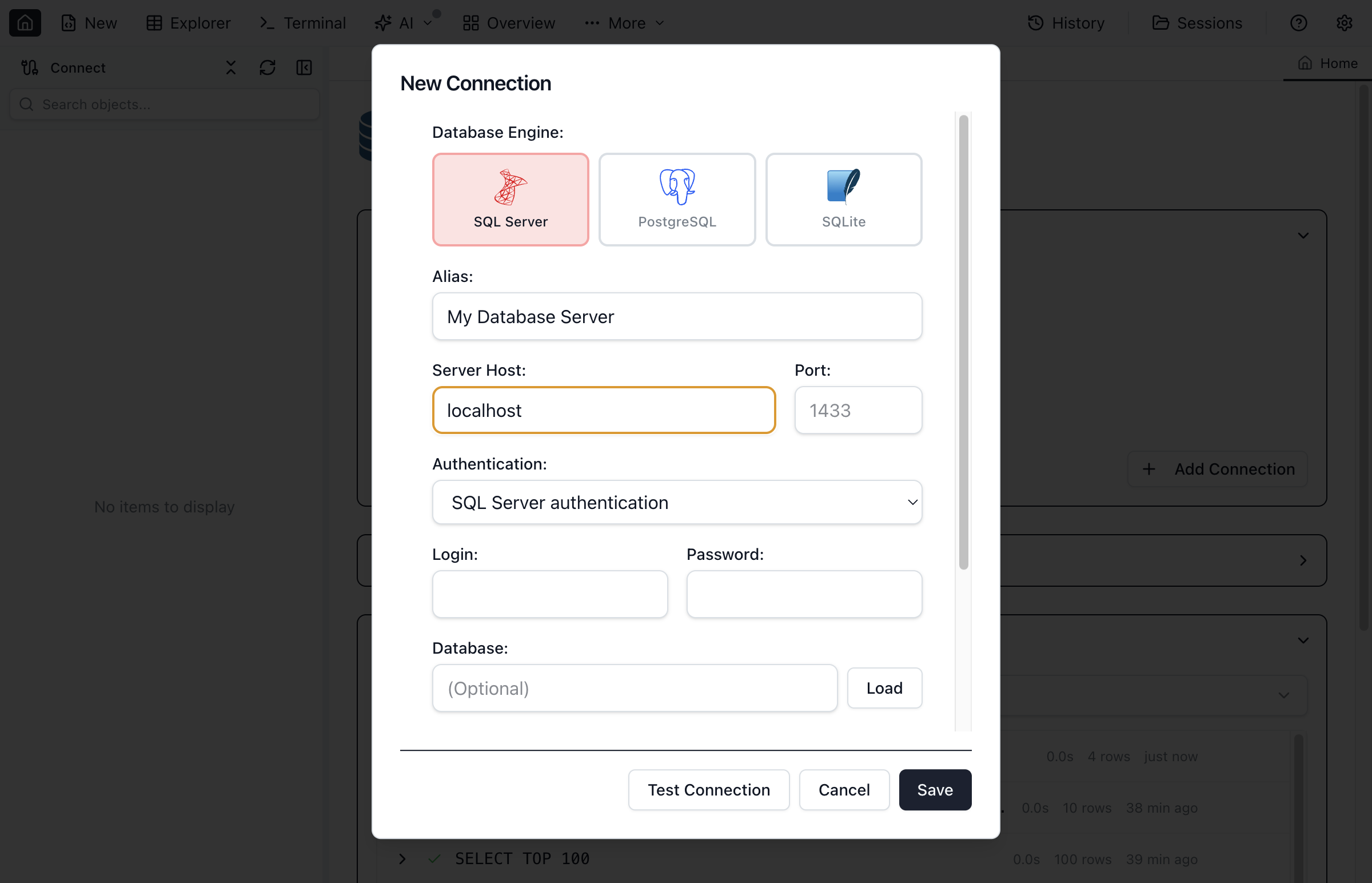
Click New Connection, choose SQL Server, and enter server localhost, port 1433, login sa, and the password from the docker run command above. That is the whole setup — no ODBC driver to install first, no tnsnames-style config file.
4. Create something worth querying
This script creates a database and inserts 5,000 rows. It is self-contained in a database called mac_demo, and the cleanup below removes it.
CREATE DATABASE mac_demo;
GO
USE mac_demo;
GO

CREATE TABLE dbo.orders (
  order_id  INT IDENTITY(1,1) PRIMARY KEY,
  customer  NVARCHAR(60)  NOT NULL,
  amount    DECIMAL(10,2) NOT NULL,
  placed_at DATE          NOT NULL
);
GO

INSERT INTO dbo.orders (customer, amount, placed_at)
SELECT TOP (5000)
       CONCAT('CUST-', ABS(CHECKSUM(NEWID())) % 200),
       CAST(ABS(CHECKSUM(NEWID())) % 50000 / 100.0 AS DECIMAL(10,2)),
       DATEADD(DAY, -(ABS(CHECKSUM(NEWID())) % 120), CAST(GETDATE() AS DATE))
FROM   sys.all_objects a CROSS JOIN sys.all_objects b;
GO
The GO batch separators work exactly as they do in SSMS — the editor splits the script into batches and runs them in order.
5. Read the execution plan, then change it
Run the query you actually care about:
SELECT customer, COUNT(*) AS orders, SUM(amount) AS total
FROM   dbo.orders
WHERE  placed_at >= DATEADD(DAY, -30, CAST(GETDATE() AS DATE))
GROUP  BY customer
ORDER  BY total DESC;
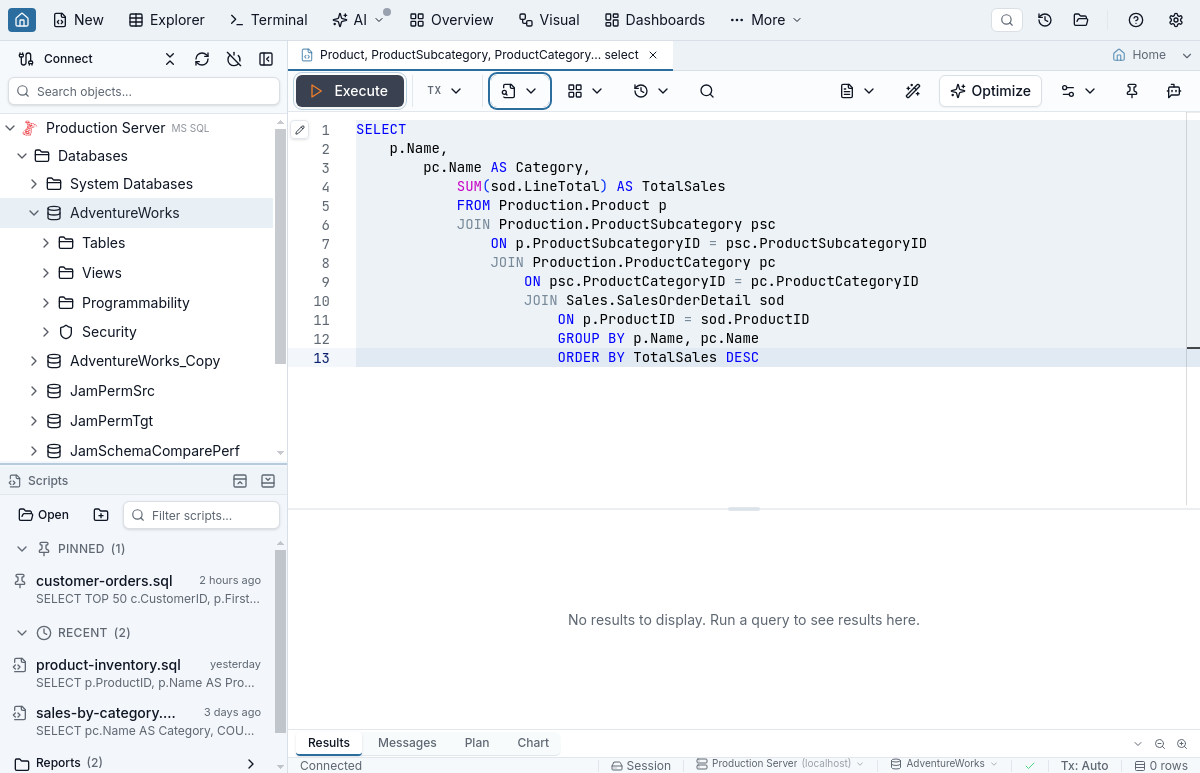
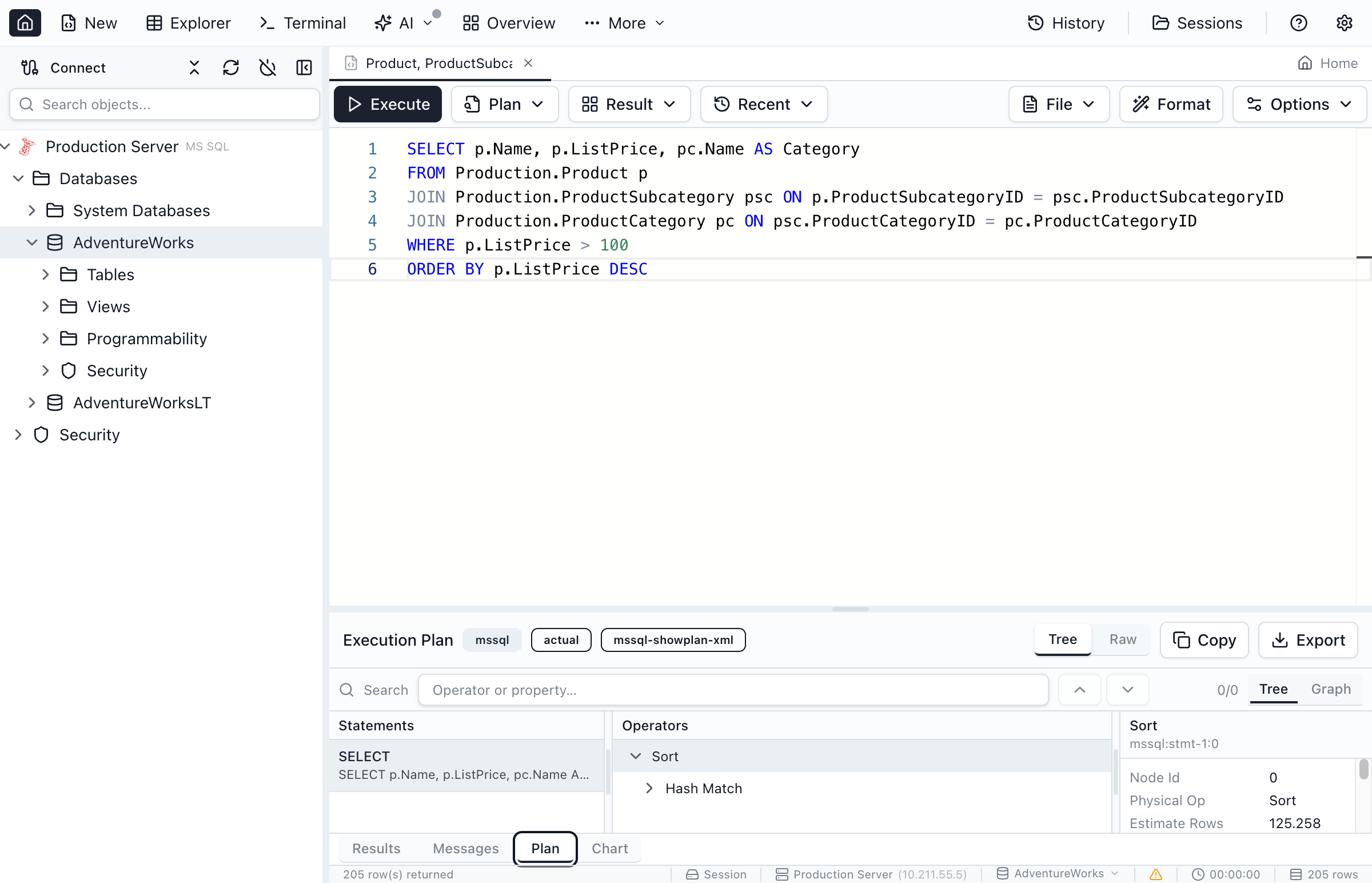
Use the query toolbar's Plan → Explain plan to see the optimizer's prediction without executing, or Plan → Execute with actual plan to get real row counts and timings alongside the results. With no index on placed_at, expect a scan of the whole table feeding an aggregate — every row read to answer a question about thirty days.
Now give the optimizer something to seek on, and run the same query again:
CREATE INDEX ix_orders_placed_at
  ON dbo.orders (placed_at) INCLUDE (customer, amount);
The scan should give way to a seek on the new index, and the estimated cost drops with it. That before-and-after is the point of the exercise: it is the SSMS tuning loop — write, plan, index, re-plan — running entirely on macOS. The plan renders as a tree and as a graph, and two plans can be compared side by side, which is how you show a reviewer that the index earned its place. One difference from SSMS: the plan view does not show statement-level missing-index suggestions, so the index above is one you choose yourself from the scan.
6. Clean up
USE master;
GO
DROP DATABASE mac_demo;
GO
docker rm -f sql1That is the whole loop, on a Mac
Server, connection, query, plan, index, re-plan — no Windows VM, no Parallels licence, no emulated SSMS. The free Personal tier covers every step above and needs no account; it is licensed for personal, non-commercial use, and commercial work needs Pro.
With that established, here are the three routes in detail, and what each one costs.
Option 1: SSMS in a Windows 11 VM
If you need SSMS itself, you need Windows. Microsoft's support article on Windows 11 on Apple Silicon Macs gives two ways: a Windows 365 Cloud PC streamed from Microsoft's cloud, or a virtual machine running the Arm version of Windows 11 in Parallels Desktop, which it names as an authorized solution. VMware Fusion Pro has been free for personal and commercial use since November 2024, and UTM is free and open source, but Microsoft's article names neither. Parallels Desktop Standard lists at $99.99 a year (Parallels was running a launch discount in September 2026), and each Windows 11 VM needs its own licence.
SSMS 22 ships a native Arm64 build, so on an M-series Mac the VM is not emulating SSMS itself. Microsoft describes that Arm64 support as covering core scenarios such as connecting and querying, and its known-issues page says “There's no support for SSAS and SSIS on Arm64 devices”. The trade-offs:
- A Windows 11 licence for the VM, plus a hypervisor — Parallels Desktop Standard lists at $99.99 a year, while VMware Fusion Pro and UTM are free
- A full Windows install to keep patched, with its own share of your Mac's memory and disk
- x64 Windows apps you install next to SSMS run through emulation on Apple Silicon
- Microsoft's article lists nested virtualization — WSL, Windows Sandbox — as unsupported in these VMs
- Windows keyboard shortcuts and window management, not macOS ones
For occasional SSMS-only work — an Always On wizard, a maintenance plan, Database Mail setup — this is the right answer. For daily querying and tuning, running a second operating system for one tool is a lot of overhead.
Option 2: VS Code with the MSSQL extension
Microsoft's own replacement for Azure Data Studio is the MSSQL extension for VS Code, free, and supported on macOS on both Intel and Apple Silicon. It is much more than a query runner now. As of version 1.45.1 (26 August 2026), Microsoft lists these as generally available: Object Explorer, a query plan visualizer with estimated and actual plans, schema compare, a table designer, a schema designer, backup and restore, local SQL Server containers, a query profiler, and GitHub Copilot chat and agent mode. Right-clicking an object offers Script as Create, Alter or Drop.
What it does not have: SQL Server Agent job management (the feature request was closed as not planned, and Microsoft's retirement notice sends Agent users back to SSMS), table data compare, charts from query results, and Query Store reports. It connects to the SQL Server family only — PostgreSQL has its own separate extension. If you already work in VS Code and your SQL Server work is development rather than administration, it is a sensible free choice. For a side-by-side with a dedicated client, see Jam SQL Studio vs the VS Code MSSQL extension.
Option 3: a SQL Server client for macOS
Several SQL clients run natively on macOS and connect to SQL Server. Here is how they line up against the SSMS work people most often ask about (for a broader look beyond SQL Server, see the best SQL clients for Mac):
| SSMS task | Jam SQL Studio | VS Code MSSQL | DBeaver | DataGrip | TablePlus |
|---|---|---|---|---|---|
| Native Apple Silicon build | ✓ | ✓ | ✓ | ✓ | ✓ |
| Graphical execution plans (SQL Server) | ✓ Estimated + actual, side-by-side compare | ✓ Estimated + actual | Lite, Enterprise, Ultimate only | ✓ Explain Plan diagram | ✗ Not built in |
| Schema compare with sync script | ✓ Free up to 200 objects | ✓ | Enterprise, Ultimate only | ✓ Compare Structure | ✗ Not listed |
| Table data compare | ✓ Sync scripts; free up to 10,000 rows/table | ✗ | Enterprise, Ultimate only | ✓ Compare Data (diff view) | ✗ Not listed |
| SQL Server Agent jobs | ✓ Beta | ✗ Not planned | Job list in the navigator | ✗ | ✗ Not listed |
| Charts from results | ✓ | ✗ | Lite and above | ✓ | ✗ Not listed |
| Other database engines | ✓ PostgreSQL, MySQL/MariaDB, Oracle, SQLite, Azure Data Explorer | ✗ SQL Server family only | ✓ Many | ✓ Many | ✓ Many |
| Price | Free for personal, non-commercial use; Pro $9.99/mo or $99/yr | Free | Community free (Apache 2.0); Lite $113/yr, Enterprise $255/yr | Free for non-commercial use; $109 first year (individual) | Trial (2 tabs, 2 windows); $99 perpetual, 1 device |
Jam SQL Studio
Jam SQL Studio is a desktop SQL client with separate Apple Silicon and Intel builds for macOS 11 and later. It connects to SQL Server and Azure SQL, plus PostgreSQL, MySQL and MariaDB, Oracle, SQLite and Azure Data Explorer, and covers the SSMS workflows that usually keep a Windows machine around:
- Execution plans — estimated and actual plans as a tree or graph, per-operator cost and row counts, warnings such as tempdb spills, and side-by-side plan comparison. .sqlplan files open in both directions with SSMS.
- Schema Compare — diff two databases and generate a synchronization script (up to 200 objects per schema on the free tier)
- Data Compare — compare table rows between databases and generate INSERT/UPDATE/DELETE sync scripts (up to 10,000 rows per table on the free tier)
- SQL Server Agent — browse, run, stop, create and edit jobs, with history, operators, alerts and proxies (in beta)
- Query Store and deadlocks — Query Store history and regressions, and the deadlock analyzer for .xdl files and the deadlocks
system_healthalready kept - Table Designer and scripting — create and alter tables, and script any object as CREATE, ALTER or DROP
- Backup and restore — SQL Server .bak files and BACPAC export for Azure SQL
- SSMS habits — pick the SSMS / Azure Data Studio shortcut scheme for F5 and friends, and import SSMS Registered Servers and recent connections by pointing Import… → Browse… at the RegSrvr.xml or UserSettings.xml copied from your Windows machine (passwords are not imported)
- AI agents — a local MCP server that Claude Code, Codex and other MCP clients can use, off by default and read-only or approval-gated when on
It does not administer SSIS, SSAS or SSRS, and it has no Extended Events session editor or maintenance-plan designer; those stay in SSMS. The Personal tier is free for personal, non-commercial use; commercial use needs Pro at $9.99 a month or $99 a year (pricing).
DBeaver
DBeaver is an open-source, Java-based client for dozens of databases, with separate Apple Silicon and Intel builds for macOS. The Community Edition is free under the Apache 2.0 licence and handles querying, data editing and browsing SQL Server objects.
The SSMS-style features are in the paid editions, per DBeaver's own documentation (checked 26 September 2026): the execution plan viewer for SQL Server is available only in Lite, Enterprise and Ultimate; charts need Lite or above; and schema compare and data compare need Enterprise or Ultimate. Community has a simple structure compare that produces an HTML report of differences, not a sync script. On DBeaver's editions page, Lite is $113 a year, Enterprise $255 and Ultimate $510. SQL Server Agent jobs appear in the database navigator, but the documentation does not describe running, editing or scheduling them.
DataGrip
DataGrip by JetBrains is a database IDE with strong code completion and refactoring, native builds for Apple Silicon and Intel Macs, and a familiar home for anyone already using IntelliJ, PyCharm or WebStorm.
It has been free for non-commercial use — learning, hobby and open-source projects — since 1 October 2025, provided you agree to send anonymized usage statistics. Commercial use costs $109 for the first year for an individual, or $259 per user per year for an organization (JetBrains' US prices in September 2026). It has Explain Plan and Explain Analyse with a plan diagram, Compare Structure for schema differences with generated migration statements, Compare Data for table output, charts in the data editor, and a built-in MCP server (since 2025.2) for agents such as Claude Code and Codex. SQL Server Agent is the gap: JetBrains' own guide for SSMS users lists the Agent job list, schedules and activity monitor as unsupported.
TablePlus
TablePlus is a lightweight native client for macOS (Intel and Apple Silicon), also available for Windows and Linux. It is quick for running queries, browsing tables and making small edits, and connects to many engines.
It is not built for SSMS-style work: there is no visual execution plan — a request for graphical SQL Server plans has been open on its GitHub tracker since February 2018 — and its documentation does not describe schema compare, data compare or SQL Server Agent. The free trial is limited to two open tabs, two windows and two advanced filters at a time; licences are perpetual, from $99 for one device with a year of updates (checked 26 September 2026). If your SSMS use is mostly running queries and looking at data, it fits; for DBA work you will outgrow it.
Quick Answers
Short answers to the questions Mac users ask most often about SSMS.
Q: Is there an SSMS download for Mac?
A: No. Microsoft publishes SQL Server Management Studio only for Windows, on x64 and Arm64 processors. Its SSMS FAQ says: “Does SSMS run on macOS? No. SSMS is available only for Windows.” The current release, SSMS 22.10.1 from 15 September 2026, has no macOS installer, so a file offered as “SSMS for Mac” is not Microsoft's SSMS.
Q: Can you run SSMS on a Mac?
A: Only inside Windows. On an Apple Silicon Mac that means a Windows 11 on Arm virtual machine (Microsoft names Parallels Desktop as an authorized way to run it) or a Windows 365 Cloud PC, and SSMS then runs as a Windows app. Without Windows, use a SQL Server client that runs on macOS itself, such as Jam SQL Studio, DBeaver, DataGrip or TablePlus, or Microsoft's MSSQL extension for VS Code.
Q: Does SSMS work on Apple Silicon Macs?
A: Not on macOS, on Apple Silicon or Intel. Inside a Windows 11 on Arm virtual machine it does: Microsoft ships SSMS for Arm64 as well as x64, so SSMS itself is not emulated. Microsoft's known-issues page lists no SSIS or SSAS support on Arm64, and you still need a Windows 11 licence for the VM.
Q: What is the best SSMS alternative for Mac?
A: It depends on which SSMS work you do. Jam SQL Studio covers the most of it on macOS: execution plans, schema compare, data compare, SQL Server Agent jobs (beta), Query Store and a table designer, as a native Apple Silicon or Intel app. The VS Code MSSQL extension is free and covers plans, schema compare and backup/restore, but not Agent jobs or data compare. DBeaver and DataGrip suit people who work across many database engines, and TablePlus suits quick queries and data browsing.
Q: Is there a free SQL Server client for Mac?
A: Yes. The VS Code MSSQL extension is free for any use. DBeaver Community Edition is free and open source. Jam SQL Studio's Personal tier is free for personal, non-commercial use, and DataGrip is free for non-commercial use; commercial work needs their paid licences. Azure Data Studio, once the free cross-platform option, was retired on 28 February 2026.
Q: Can I still use Azure Data Studio on a Mac?
A: It was retired on 28 February 2026 and no longer receives updates or security fixes. Microsoft's own migration advice is the MSSQL extension for VS Code, with SQL Server Agent and general administration left to SSMS on Windows.
Which one to use on a Mac
- You need SSIS, SSAS or SSRS administration, or a specific SSMS wizard? → SSMS in a Windows 11 VM. Nothing on macOS replaces those.
- Execution plans, schema and data compare, Agent jobs and Query Store in a Mac app? → Jam SQL Studio. Free for personal use; Pro for work.
- You live in VS Code and mostly write and tune queries? → The MSSQL extension. Free, and Microsoft's supported path after Azure Data Studio.
- Many database engines, open source? → DBeaver Community; the compare tools are in its paid editions.
- Already on JetBrains tools? → DataGrip.
- Quick queries and data browsing only? → TablePlus.
Run the SSMS tuning loop on your Mac
Jam SQL Studio has execution plans, schema and data compare, Agent jobs and Query Store in a native Apple Silicon or Intel app. No VM required.