
Last updated: 2026-08-25
Data Import
Load a CSV, Excel, or JSON file straight into a database table — no hand-written CREATE TABLE or INSERT statements required. The Data Import wizard walks you through picking a file, choosing a destination, mapping columns, and running the import, across all five writable engines.
Data Import is a beta feature, on by default. If you never use it, untick it in Settings → Beta Features and the File → Import Data menu item, its toolbar and command-palette entries, and the Import Data… context-menu actions leave the app; nothing on disk is deleted.
Opening the Data Import wizard
There are several ways to start an import:
- Main toolbar — click More, then Import Data...
- Keyboard shortcut —
Cmd+I(macOS) orCtrl+I(Windows/Linux) - Command palette — press
Cmd/Ctrl+Shift+Pand run Import Data... - Drag and drop — drop a supported file onto the app window
- Object Explorer context menu — right-click a table and choose Import Data into Table... to pre-fill it as the existing-table target, or right-click a database and choose Import Data... to open the wizard bound to that database
Importing needs an active connection (a database isn't required up front — you can pick one while setting the destination). Azure Data Explorer (Kusto) and Azure Storage connections are not import targets, since neither has a SQL table to write into. When the connection selected in the Object Explorer is one of them (or nothing is selected and no connected connection can be a target), More → Import Data... is disabled and marked Not supported, with the reason in its tooltip, and Cmd/Ctrl+I or File → Import Data shows the reason in a notification instead of opening the wizard. The command palette's Import Data... offers only connections that can be import targets, the Object Explorer menus of Kusto and Azure Storage connections have no Import Data action, and a wizard opened by dropping a file lists only import targets as destinations. To load a CSV, JSON or Excel file into an Azure Table, use Import… on the table’s tab or Import into a new table… on the Tables folder (see Import a file into a table); it reads the file with the same parsing settings as this wizard.
Supported files
- CSV / TSV / TXT — delimiter is auto-detected
- Excel (.xlsx) — pick the sheet to import from a Sheet selector
- JSON / NDJSON — a JSON array of objects, or newline-delimited JSON
The destination is either a brand-new table or an existing one (append), across SQL Server, PostgreSQL, MySQL, Oracle, and SQLite.
The four steps
The wizard is a single workspace tab with four steps — Source · Target · Columns · Import:
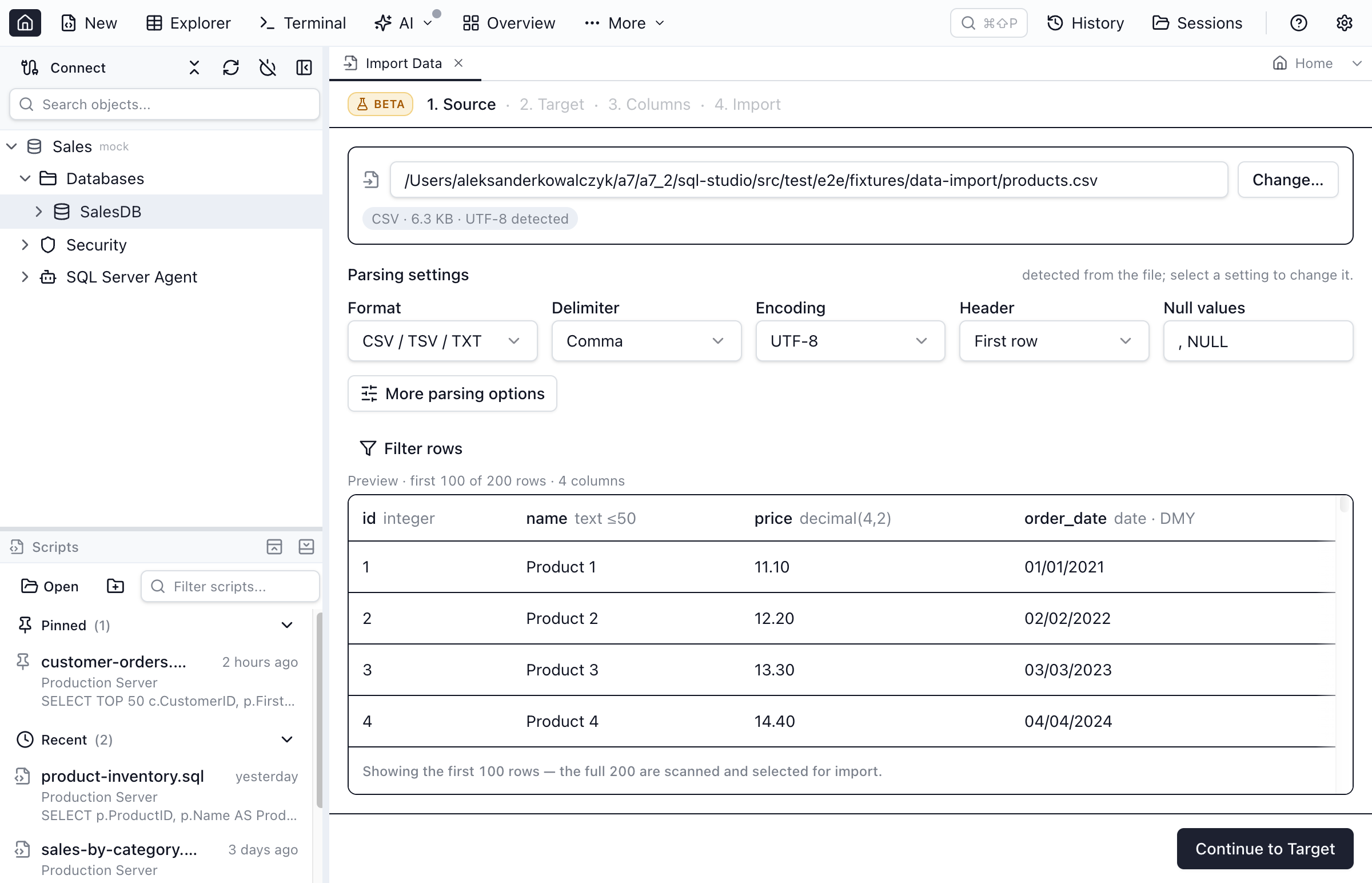
Source
Pick a file and Jam SQL Studio parses it immediately: delimiter and column kinds for CSV/TSV/TXT, a sheet picker for Excel, or array/NDJSON detection for JSON. Encoding uses BOM auto-detection with a manual Encoding picker for legacy encodings (UTF-8, UTF-16 LE/BE, Latin-1, Windows-1250/1252, ISO-8859-2, GBK, Shift-JIS) — this isn't universal charset auto-detection, so if text looks garbled, re-pick the encoding manually.
A capped preview grid shows the parsed columns and sample rows, sortable for a quick scan. A Filter rows control lets you narrow the file down by condition, with a scope toggle for whether the filter applies to the preview only or to the import itself.
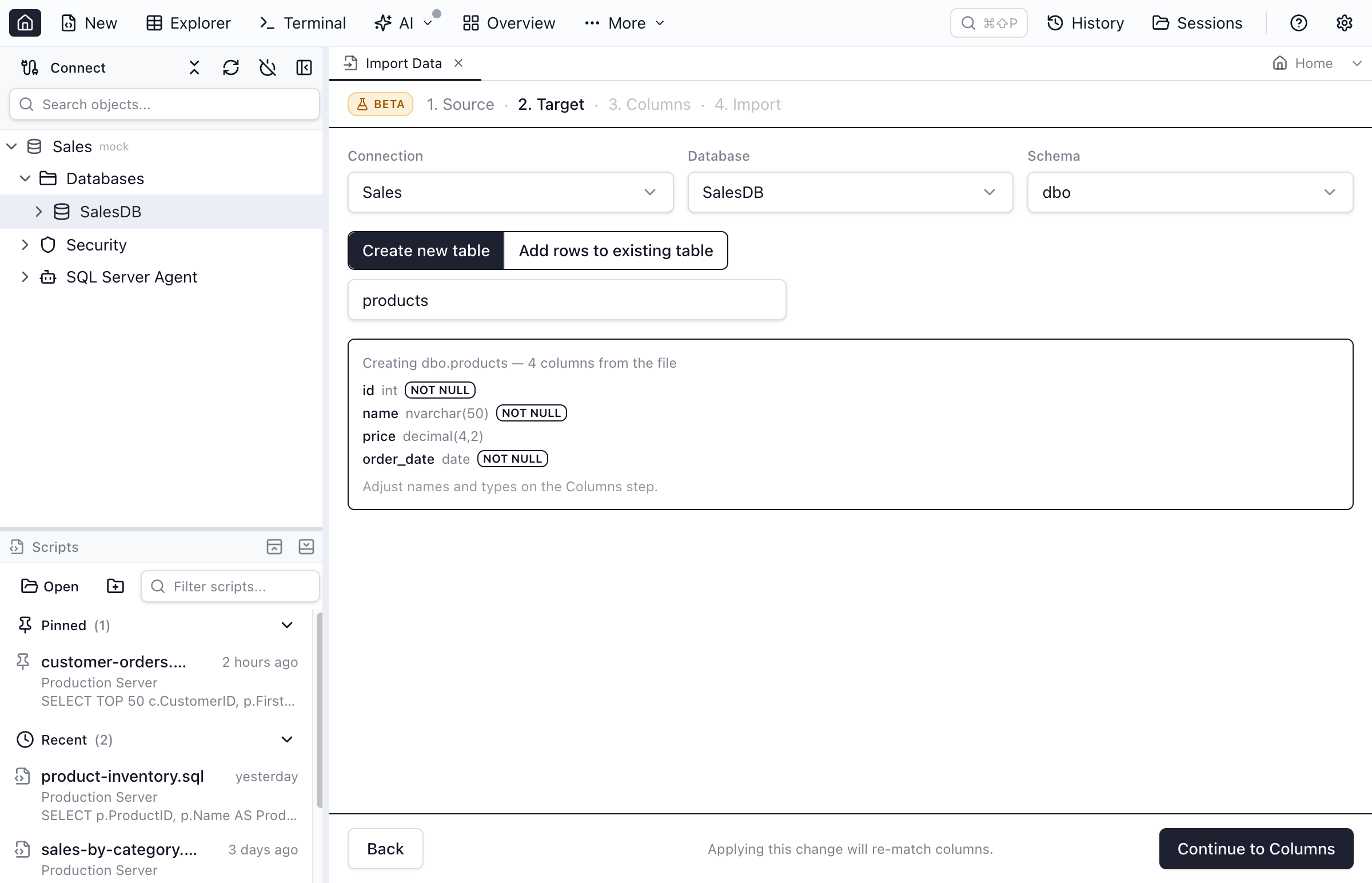
Target
Pick the connection, database and schema first. The Schema list comes from the database's own catalog, so a schema with no tables yet (a freshly created one, or the default dbo / public / Oracle user of a brand-new database) is offered and the importer can create the first table in it. Then choose Create new table or Add rows to existing table. For a new table, Jam SQL Studio infers each column's native type from the file's data (types debut here, per engine), and a live schema preview shows the table about to be created — column names, engine-native types, and any generated primary key — before you continue. For an existing table, a searchable combobox finds the table by name, and a read-only preview shows its current schema so you know what you're appending to.
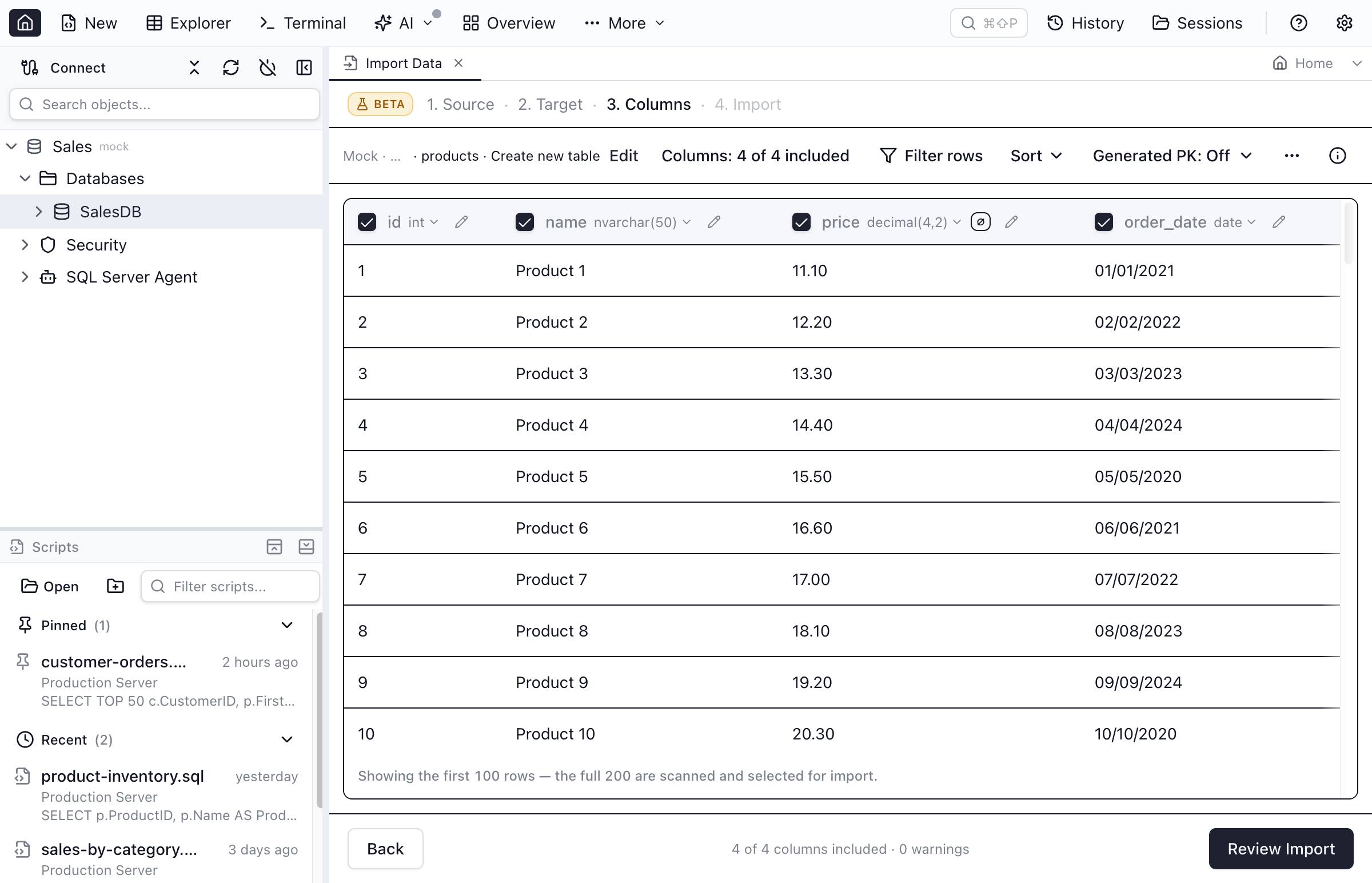
Columns
Every file column gets an include checkbox, a mapped target column, and an editable type. Unmapped target columns (ones with no matching file column) can take a fixed value instead — useful for a constant like a batch id or an import timestamp. The same row-filter control from Source stays available here, and when you change the target, Jam SQL Studio automatically re-runs the file-to-target column matching and shows a re-match summary.
Columns the database computes for you — generated/computed columns — aren't mappable targets; the wizard marks them so you don't try.
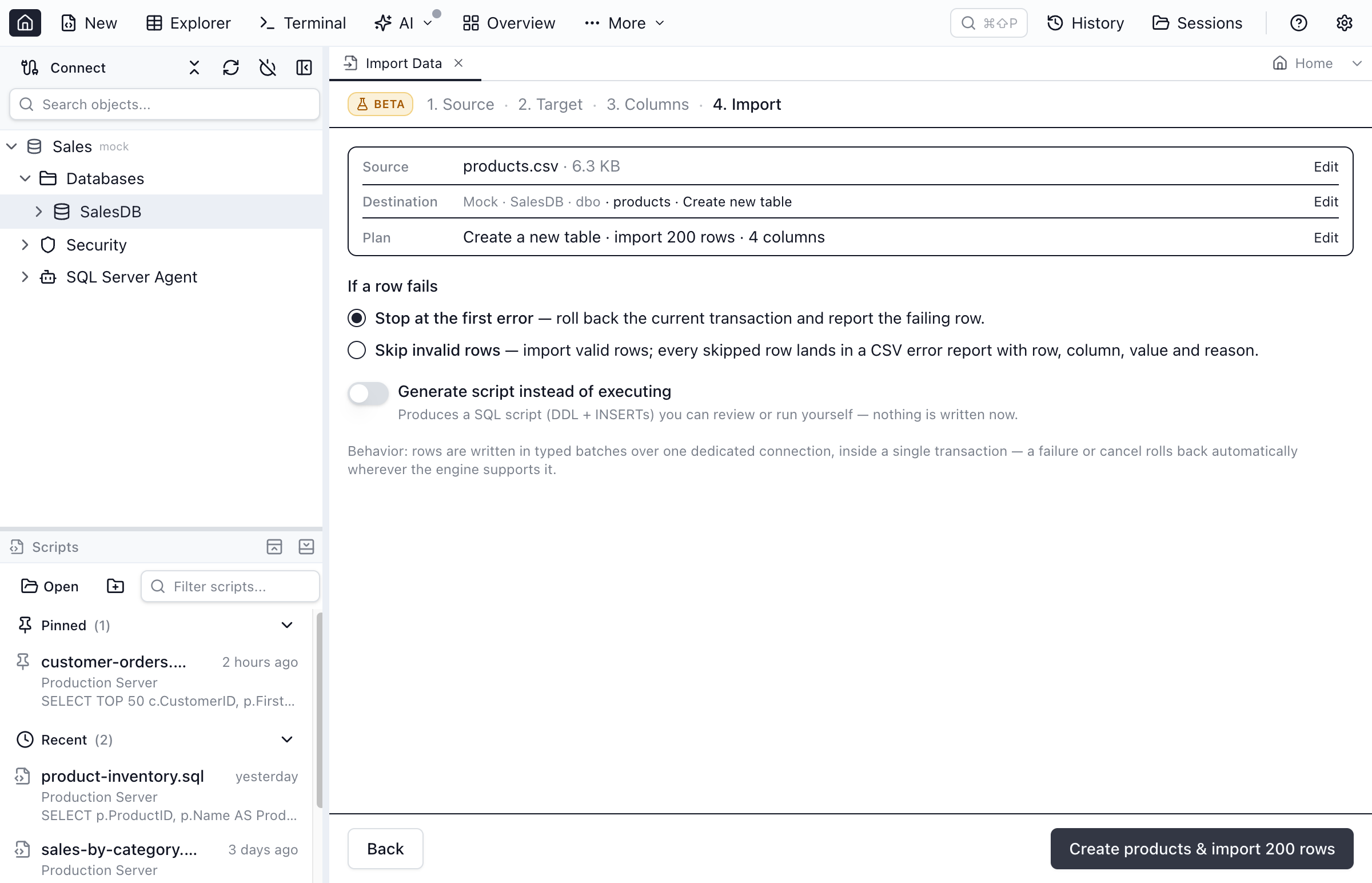
Import
Pick an error policy: stop at the first error and roll back, or skip invalid rows and keep going — skipped rows are written to a bounded error report with the row, column, value, and reason. If you'd rather not have Jam SQL Studio execute anything, toggle Generate script instead of executing to get a SQL script (the table DDL plus INSERT statements) you can review or run yourself.
When importing into an existing table, you can additionally choose to empty the table first before the new rows go in — a destructive confirmation calls out that, on MySQL and Oracle, that truncate can't be rolled back if the import then fails.
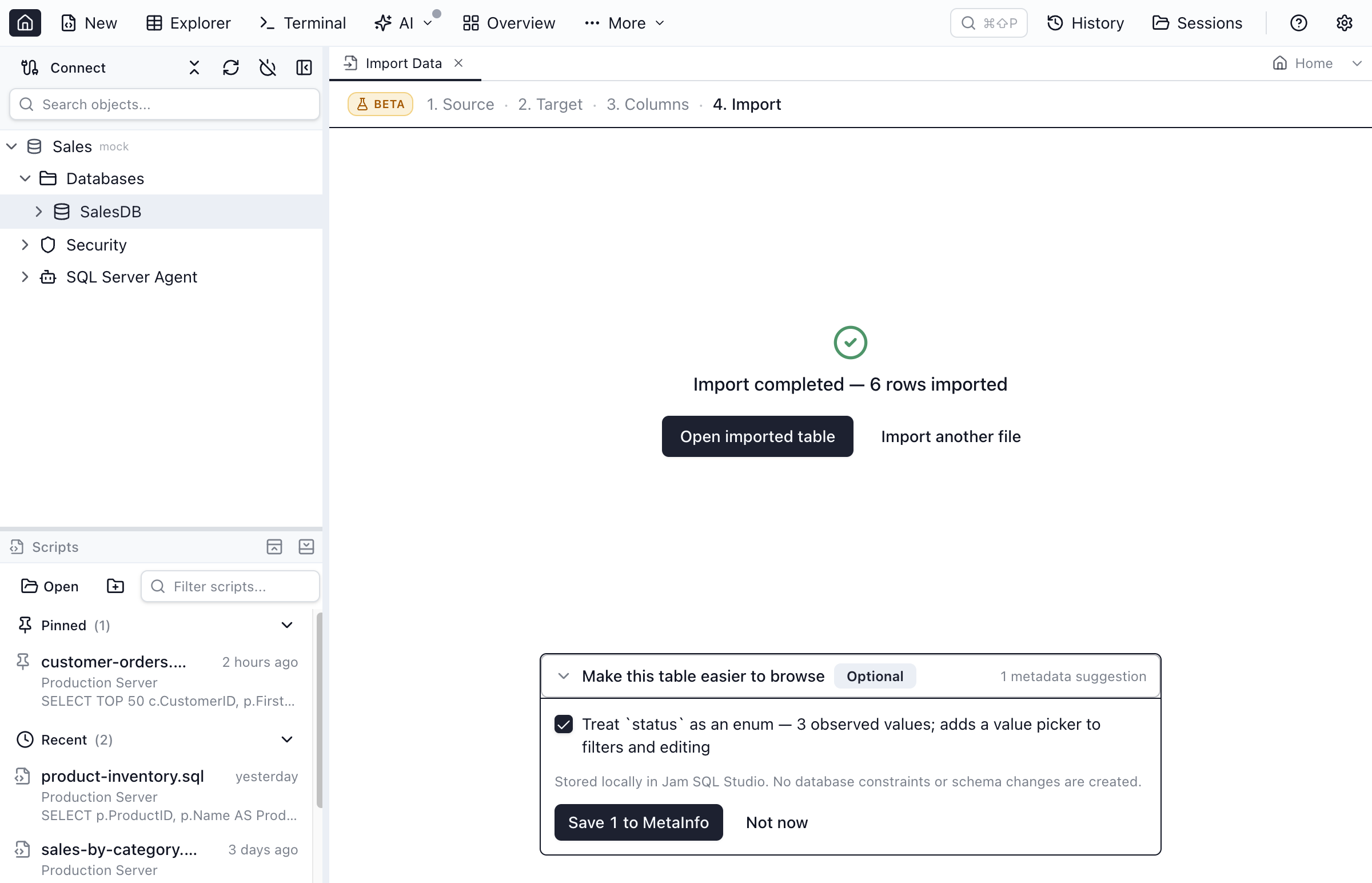
After a successful import, an optional “Make this table easier to browse” card offers loose foreign key, JSON, or enum declarations inferred from the imported data. These are stored locally in MetaInfo and never change the database schema — save the ones you want, or dismiss the card.
All five engines
Data Import works the same way across SQL Server, PostgreSQL, MySQL, Oracle, and SQLite — the wizard steps, column mapping, and error handling are identical; only the emitted DDL and driver-native writes differ per engine.
Limitations
- Encoding is BOM auto-detect, not universal charset detection. UTF-8 and UTF-16 (with a byte-order mark) are detected automatically; other encodings need the manual Encoding picker on the Source step.
- Derived/computed columns aren't supported as import targets. The wizard can insert into ordinary columns only — database-computed columns are marked as unavailable in the Columns step.
- The free Personal licence caps an import run at 100,000 rows. A larger run is blocked before anything is written, with a message naming the row count and the limit; Pro removes the cap. When a row filter is scoped to the import, the cap is checked against the filtered row count rather than the whole file.
- New-table CREATE always runs outside the row-import transaction, on every engine. If you cancel or the import fails partway through, a freshly created table is left behind empty — there's no warning before you start, but a post-failure Delete partial table action cleans it up. TRUNCATE-first (existing-table mode) is transactional on PostgreSQL, MSSQL, and SQLite, rolling back along with the rest of a failed import, but non-transactional (implicit commit) on MySQL and Oracle — there, a destructive confirmation warns you before you confirm that the truncate can't be undone if the import then fails.
Frequently asked questions
What file formats can I import into Jam SQL Studio?
CSV, TSV, and plain TXT (delimiter auto-detected), Excel (.xlsx, with a sheet picker), and JSON or NDJSON. Encoding uses BOM auto-detection with a manual picker for legacy encodings (UTF-8, UTF-16 LE/BE, Latin-1, Windows-1250/1252, ISO-8859-2, GBK, Shift-JIS).
How do I open the Data Import wizard?
Click Import Data... in the main toolbar's More menu, press Ctrl+I (Cmd+I on macOS), run Import Data... from the command palette, drag a data file onto the app window, or right-click a table (Import Data into Table...) or a database (Import Data...) in the Object Explorer.
Can I import into a new table, or does the table have to already exist?
Either. Create a new table and Jam SQL Studio infers native column types from the file on the Target step, or append to an existing table via a searchable table picker — with an option to empty it first.
Which database engines does Data Import support?
All five writable engines: SQL Server, PostgreSQL, MySQL, Oracle, and SQLite. Azure Data Explorer (Kusto) connections are read-only and Azure Storage connections have no SQL tables to write into, so neither is an import target. Files are imported into Azure Table storage with Import… on a table instead.
What happens if some rows fail to import?
You choose the error policy up front: stop at the first error and roll back, or skip invalid rows and keep going. Skipped rows land in a bounded error report with the row, column, value, and reason.
Can I review the SQL before anything is written to the database?
Yes. Toggle Generate script instead of executing on the Import step to produce a SQL script (the table DDL — CREATE TABLE, or TRUNCATE if you chose to empty the table first — plus INSERTs) that you can review or run yourself instead of having Jam SQL Studio execute it.
Ready to Import Your Data?
Download Jam SQL Studio and load your first file in minutes.